Glocavo help
Glocavo Tutorials
Step-by-step guides for getting more out of Glocavo, our Google Maps rank tracker. Each one walks you through a feature with screenshots, from start to finish.
 Featured
Rank tracker
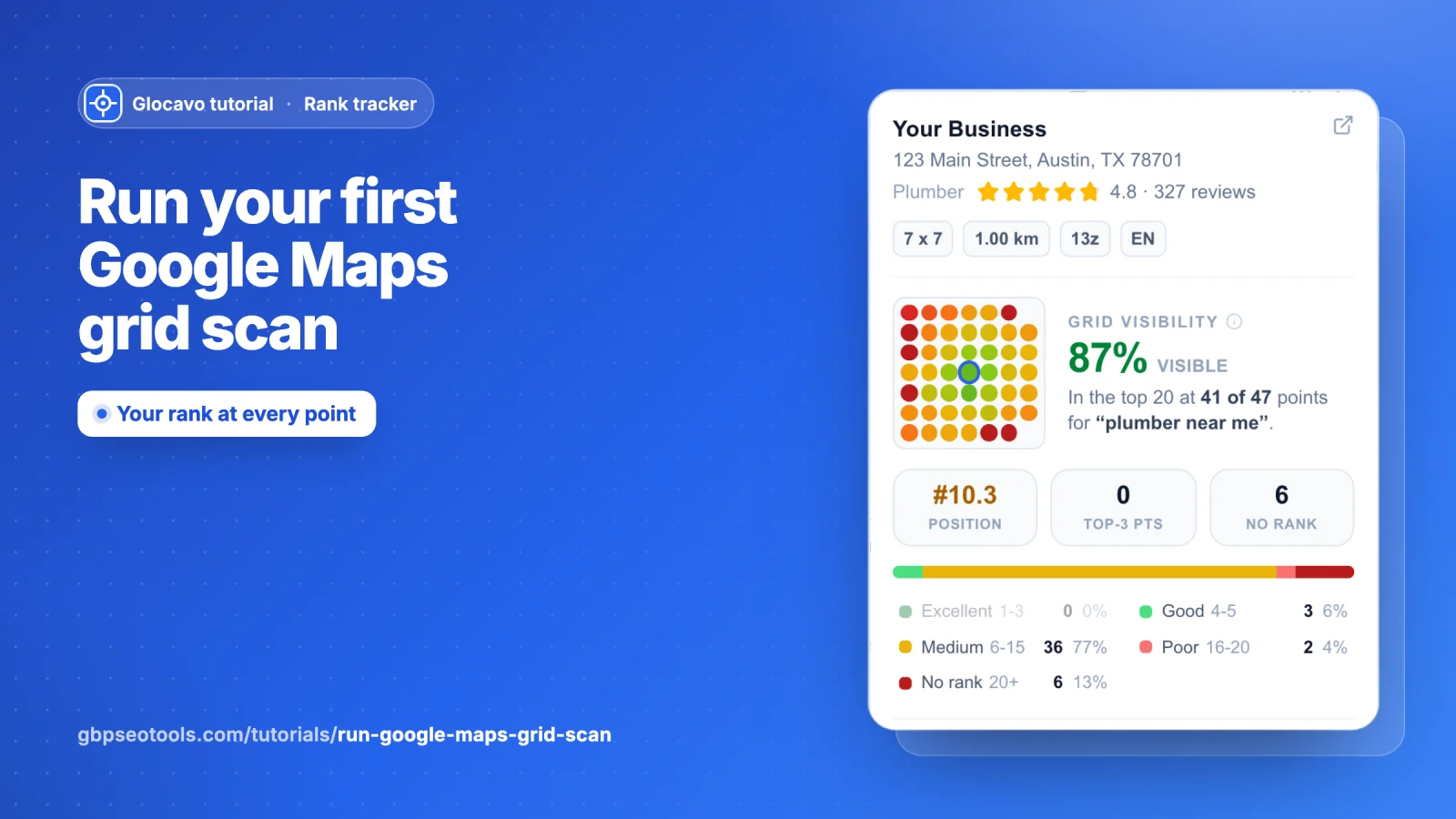
Run your first Google Maps grid scan
See where your business ranks on Google Maps across your whole area: find your listing, add keywords (or get AI keyword ideas), set the grid, turn off pins you don't need and run the scan.
Read the Google Maps grid scan guide8 min read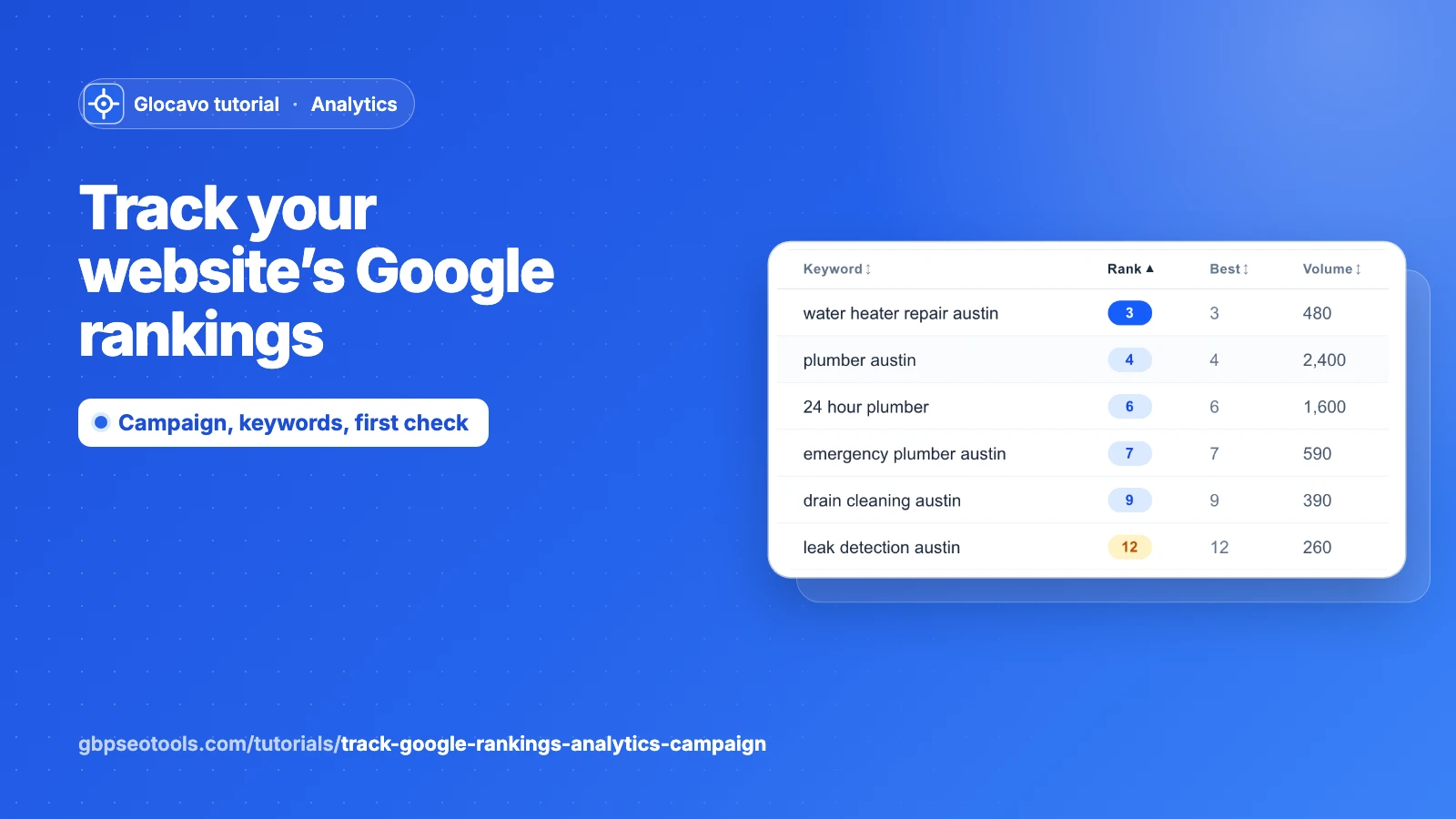 Featured
Analytics
Track your Google rankings with an Analytics campaign
Track where your website ranks in Google search for your keywords: create a campaign, pick where to search from, set a schedule and search depth, add keywords and run your first check.
Read the Google rank tracking campaign guide6 min read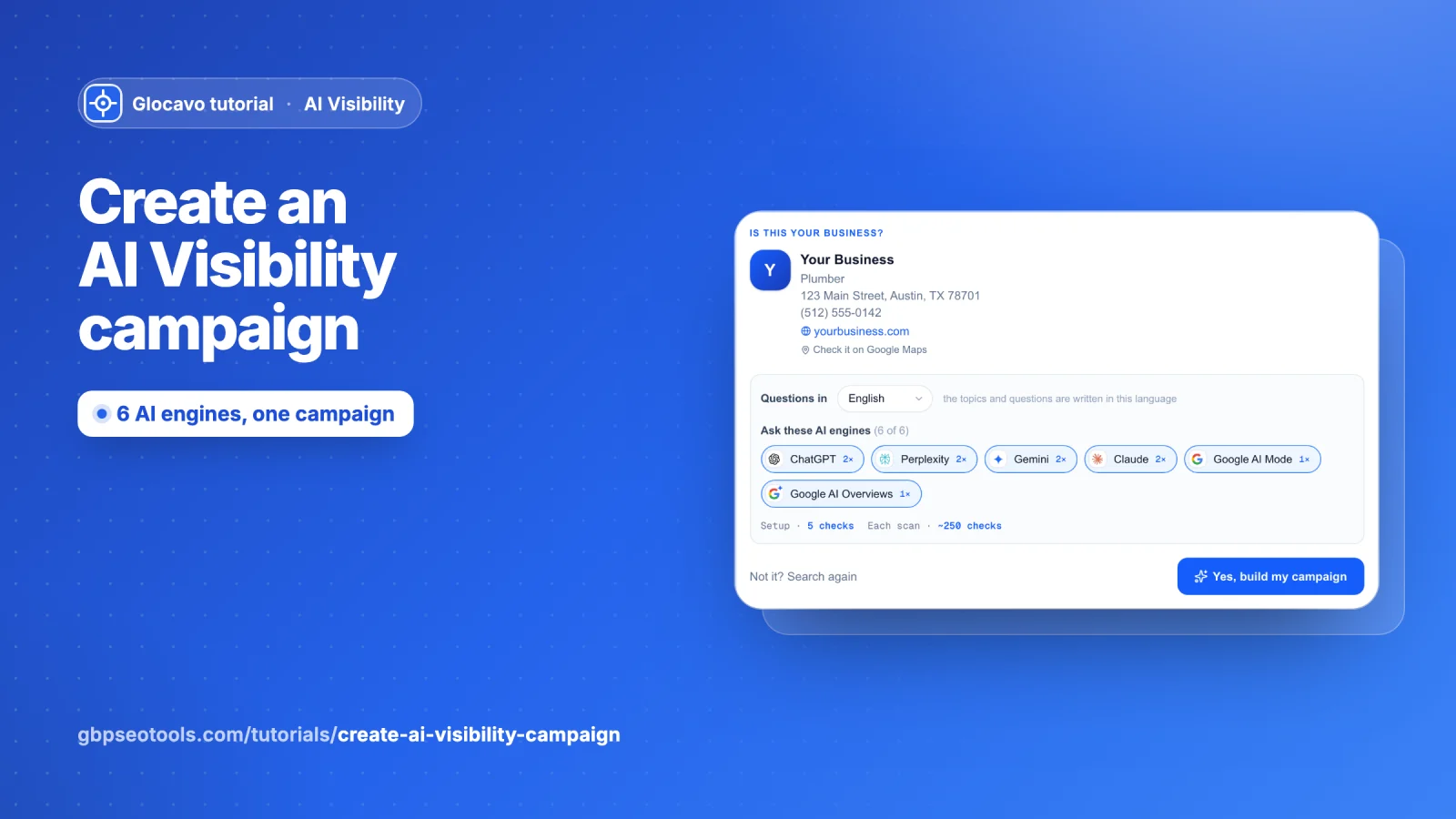 Featured
AI Visibility
Create an AI Visibility campaign
Find out if ChatGPT, Perplexity, Gemini, Claude and Google's AI recommend your business: find your listing, review the questions Glocavo writes, set a schedule and launch your first scan.
Read the AI Visibility campaign guide7 min read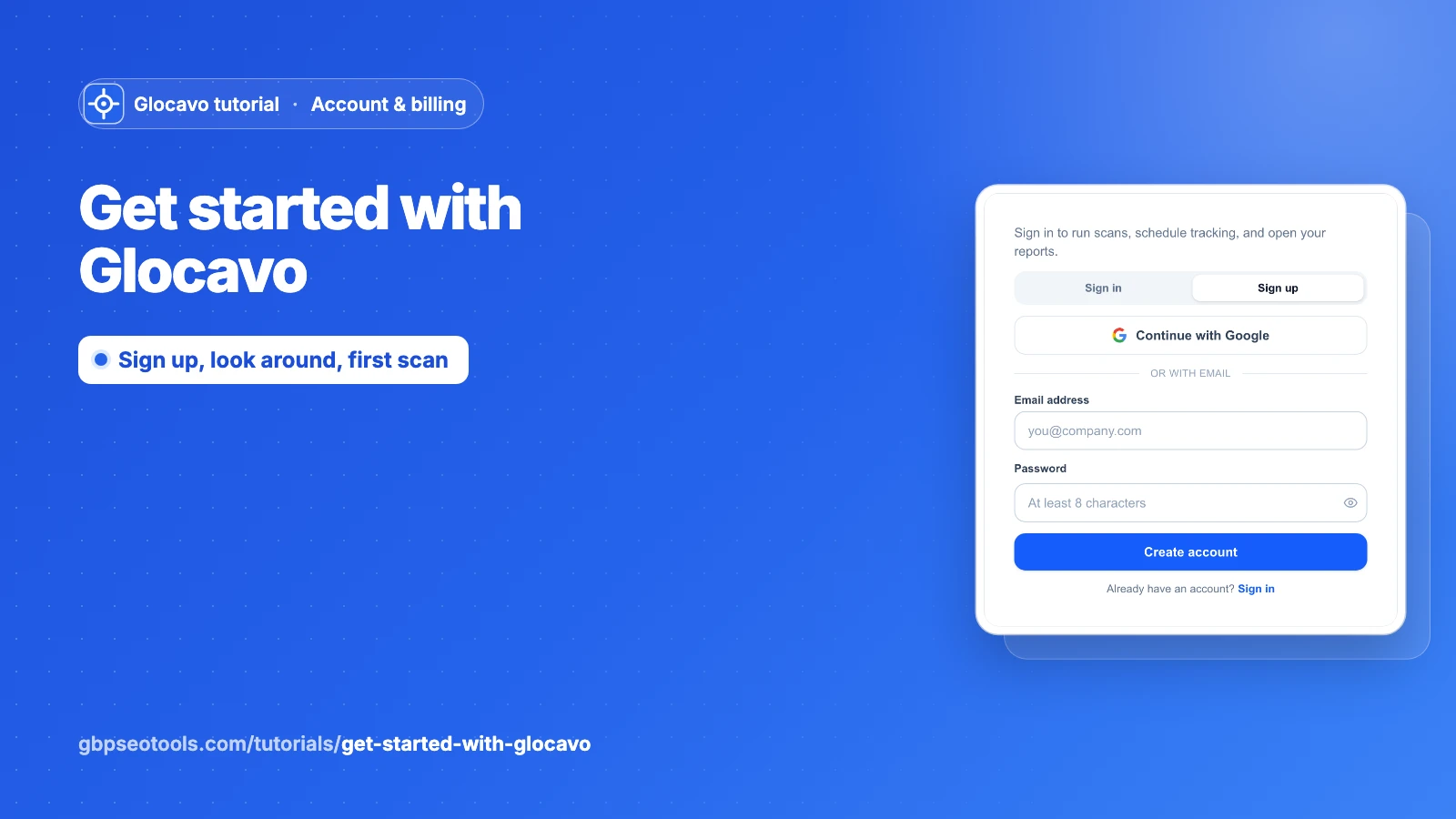 Featured
Account & billing
Get started with Glocavo
Create your account, see what the Free plan includes, find your way around and run your first Google Maps grid scan.
Read the getting started guide4 min read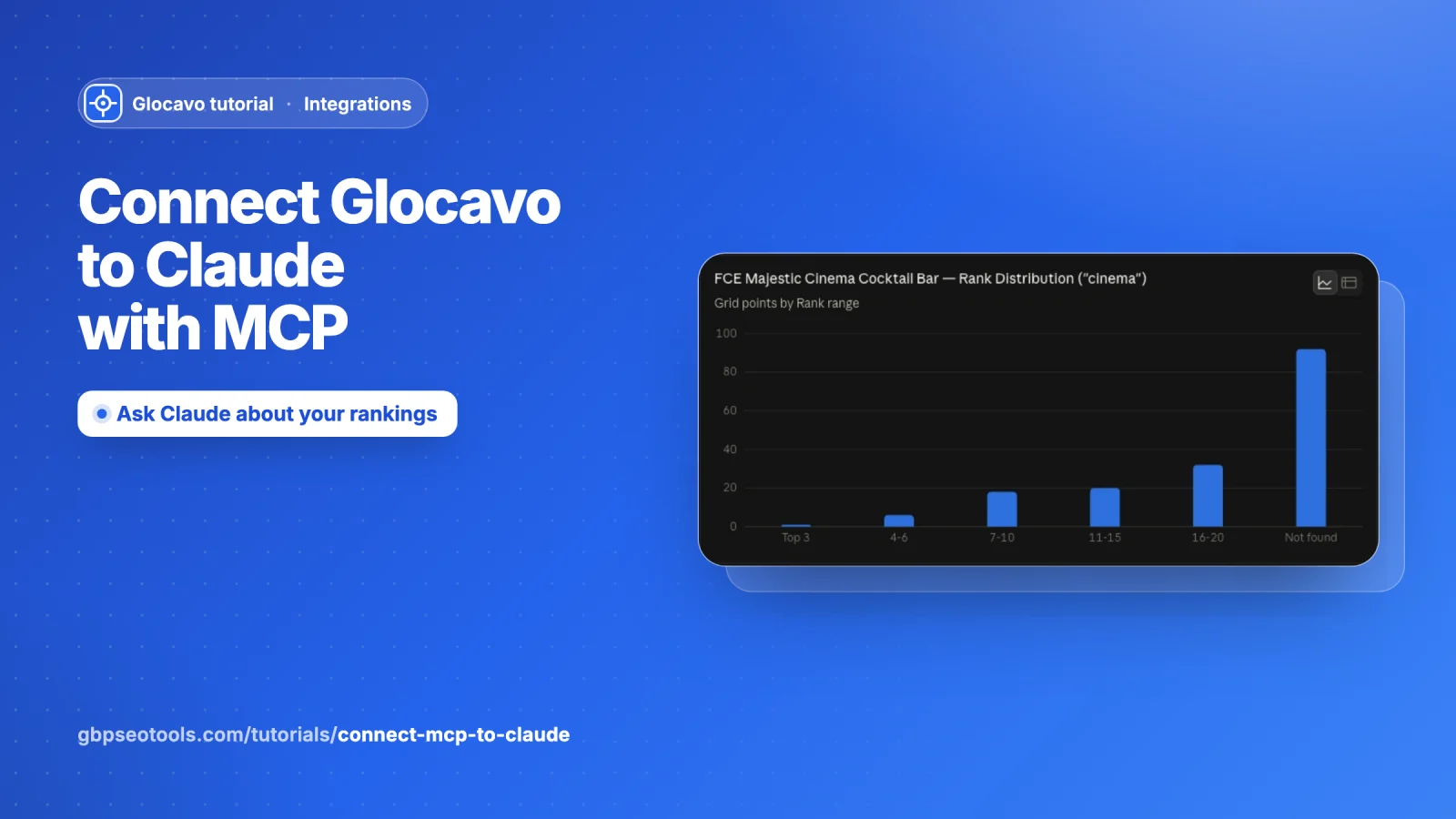 Featured
Integrations
Connect Glocavo to Claude with MCP
Add Glocavo as a custom connector so Claude can run Google Maps grid scans, read rank reports and check AI Visibility for you, using your own API key and credits.
Read the Claude MCP guide6 min read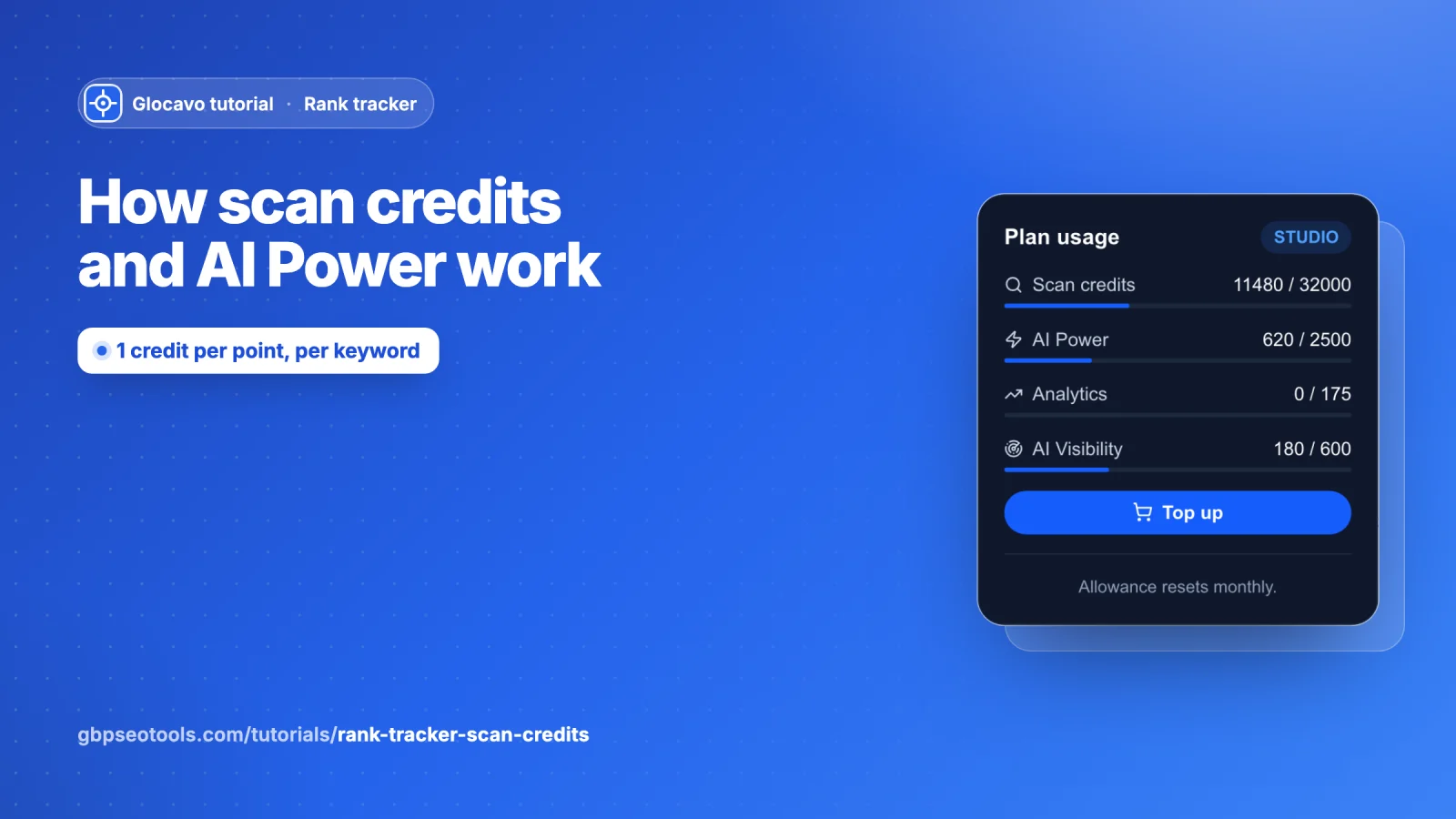
Rank tracker
How scan credits and AI Power work
What a grid scan costs, what AI Power pays for, how many credits each plan includes, how top-ups and low-balance emails work, and how to see exactly where your credits went.
Read the scan credits and AI Power guide6 min read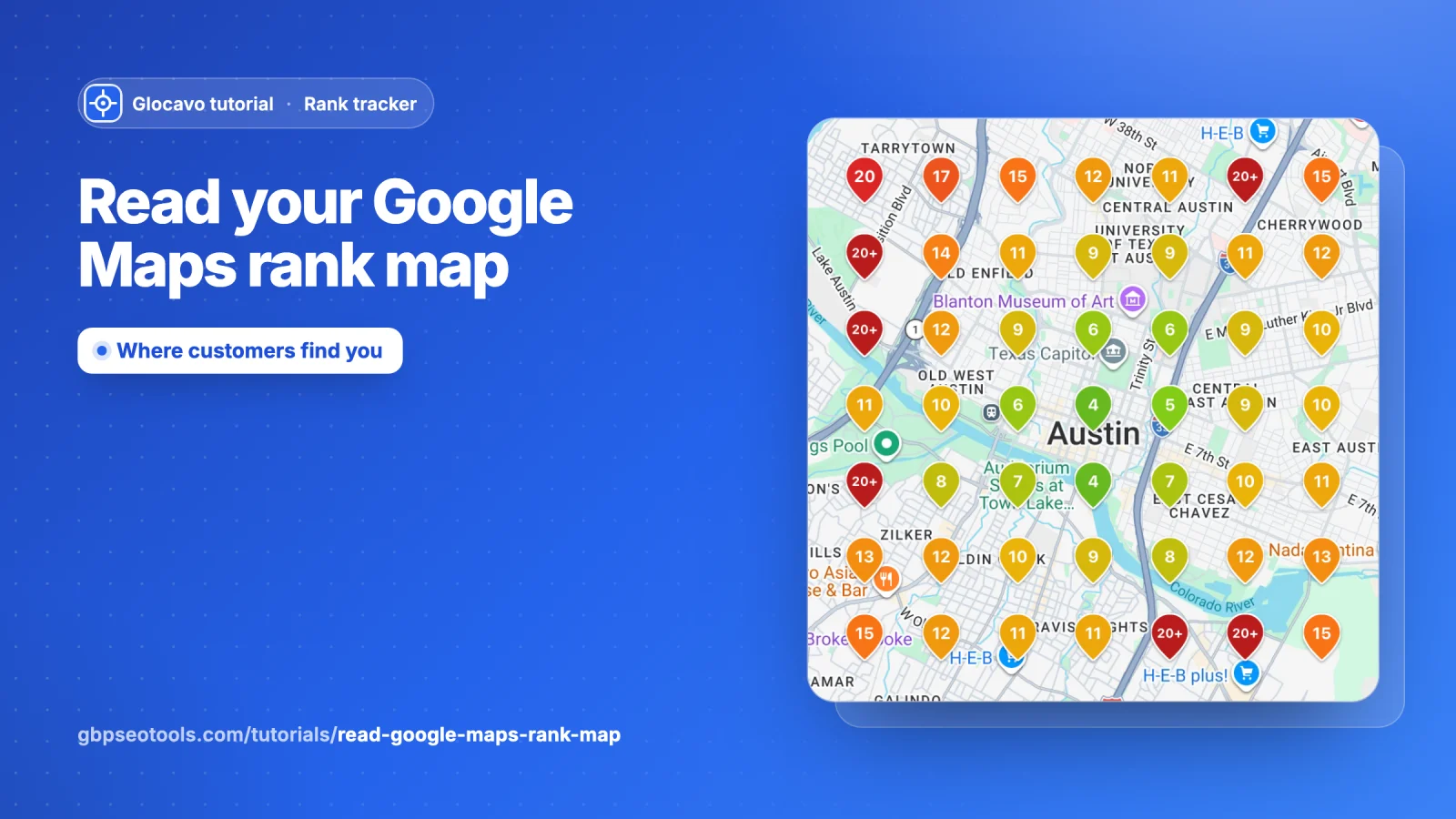
Rank tracker
Read your Google Maps rank map
Understand every part of a grid scan's Rank Map: the pins and colours, grid visibility, position, top-3 and no-rank points, your toughest competitors, what ranks at each point, and what to do about it.
Read the Google Maps rank map guide8 min read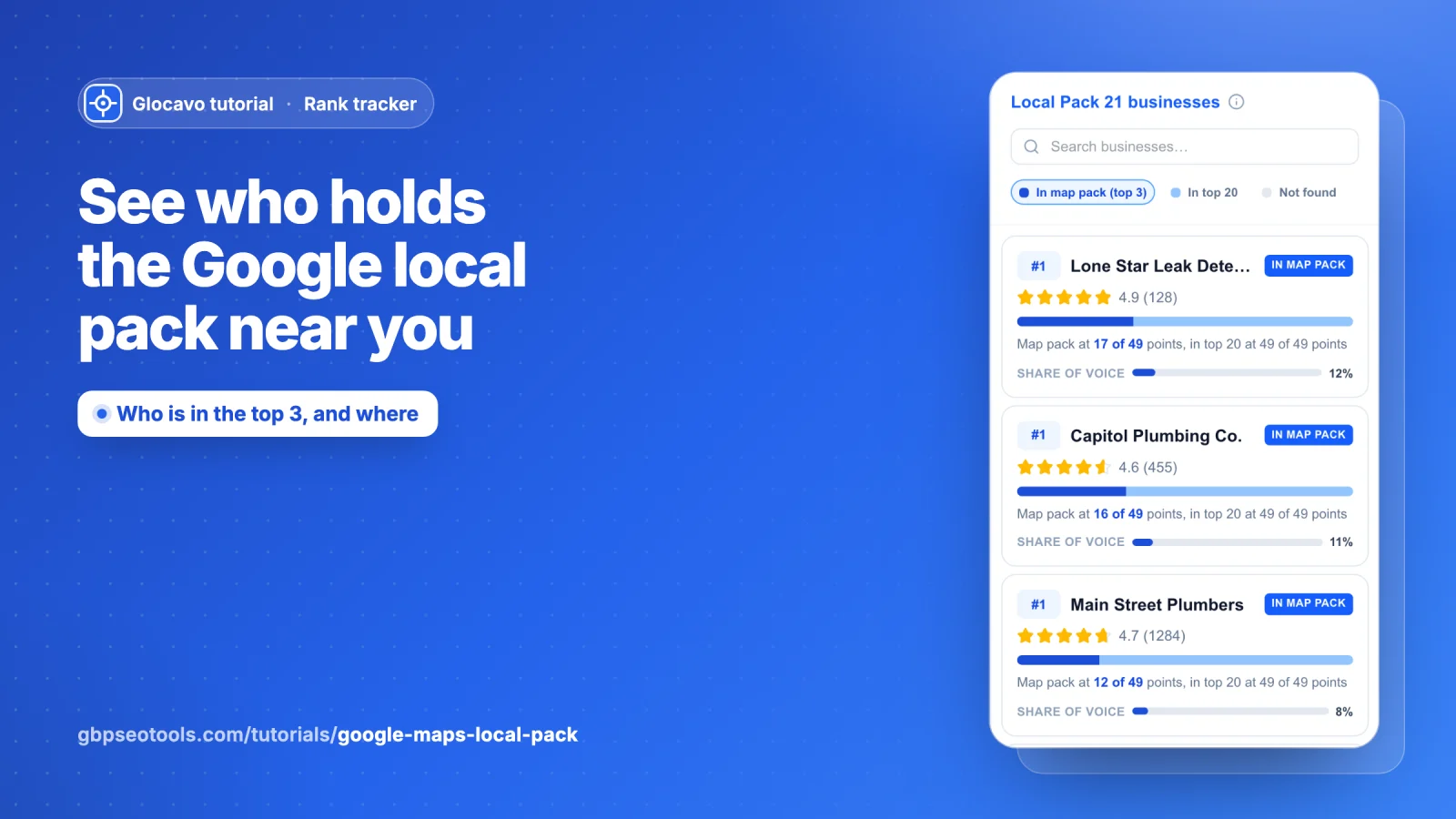
Rank tracker
See who holds the Google local pack near you
Use the Local Pack tab to see every business in your scan, which ones reach Google's top 3 and where, their share of voice, and what to do if you are not in the map pack.
Read the Google local pack guide6 min read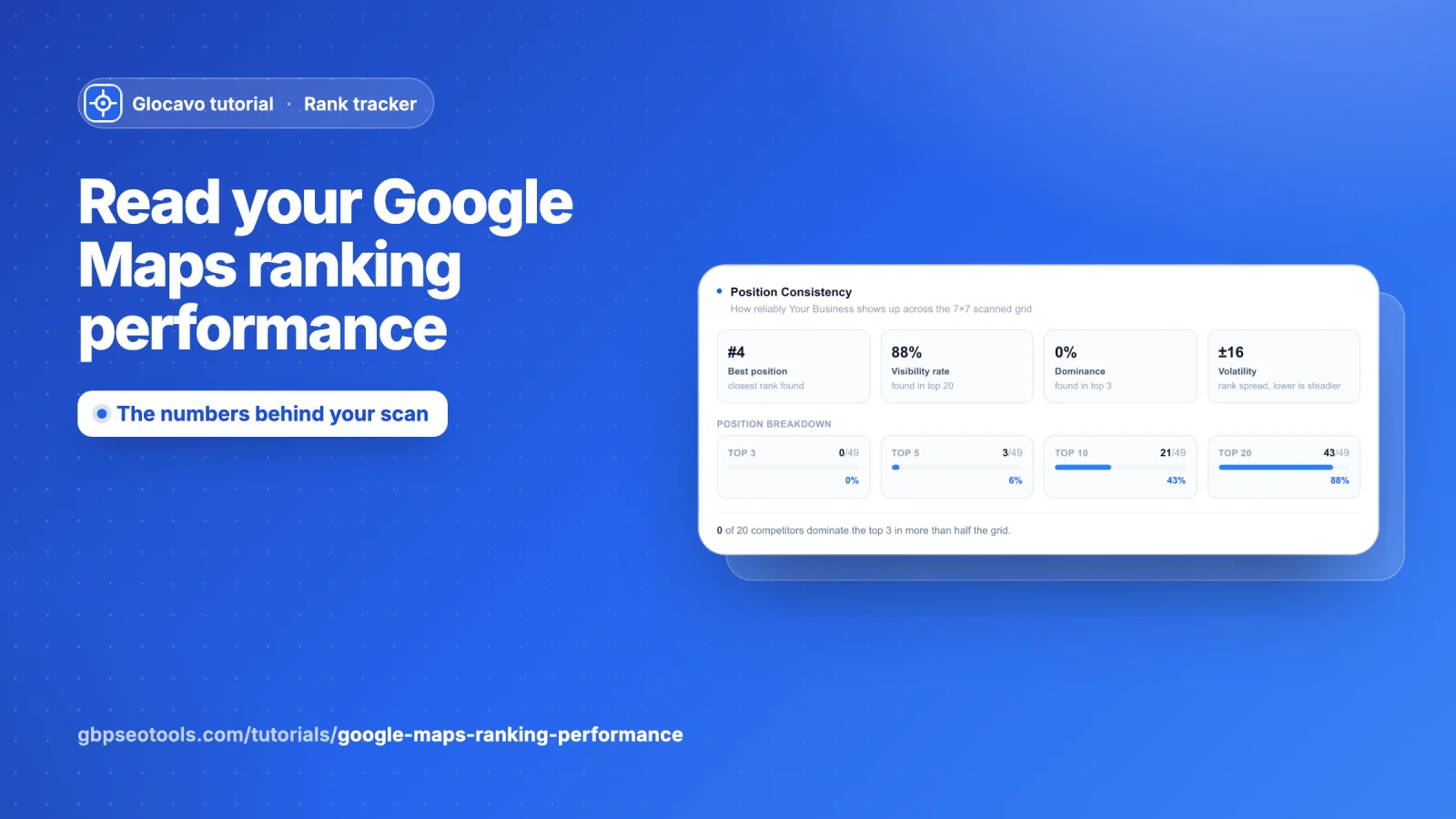
Rank tracker
Read your Google Maps ranking performance
Use the Performance tab to read your best position, visibility, dominance and volatility, meet the top-ranked competitor, compare categories and profile completeness, and browse every competitor.
Read the Google Maps ranking performance guide6 min read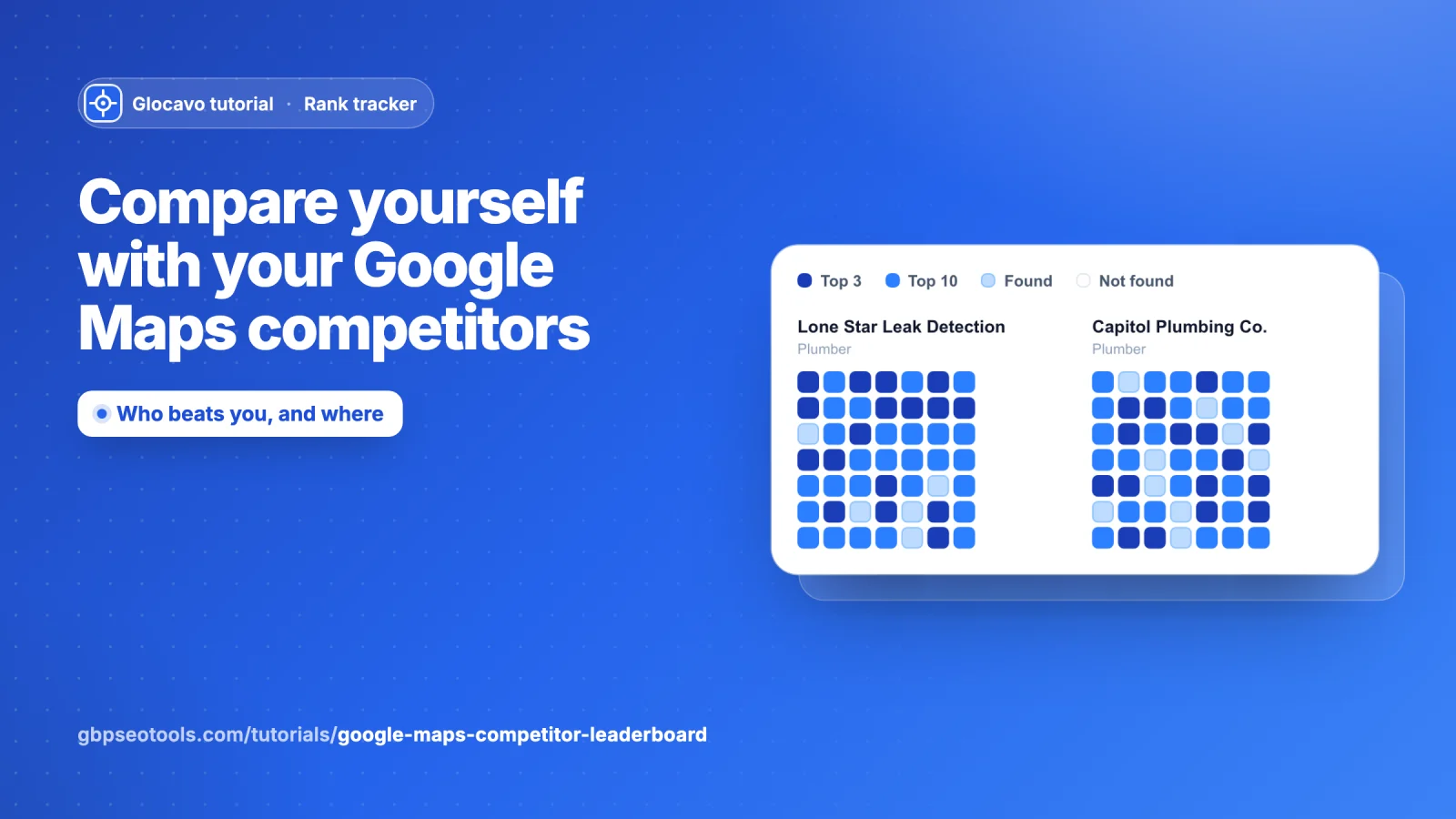
Rank tracker
Compare yourself with your Google Maps competitors
Use the Leaderboard tab to compare your frequency, average rank, top-3 points and rating with the field, see where each competitor wins, read the rating landscape and the full competitor table.
Read the Google Maps competitor leaderboard guide6 min read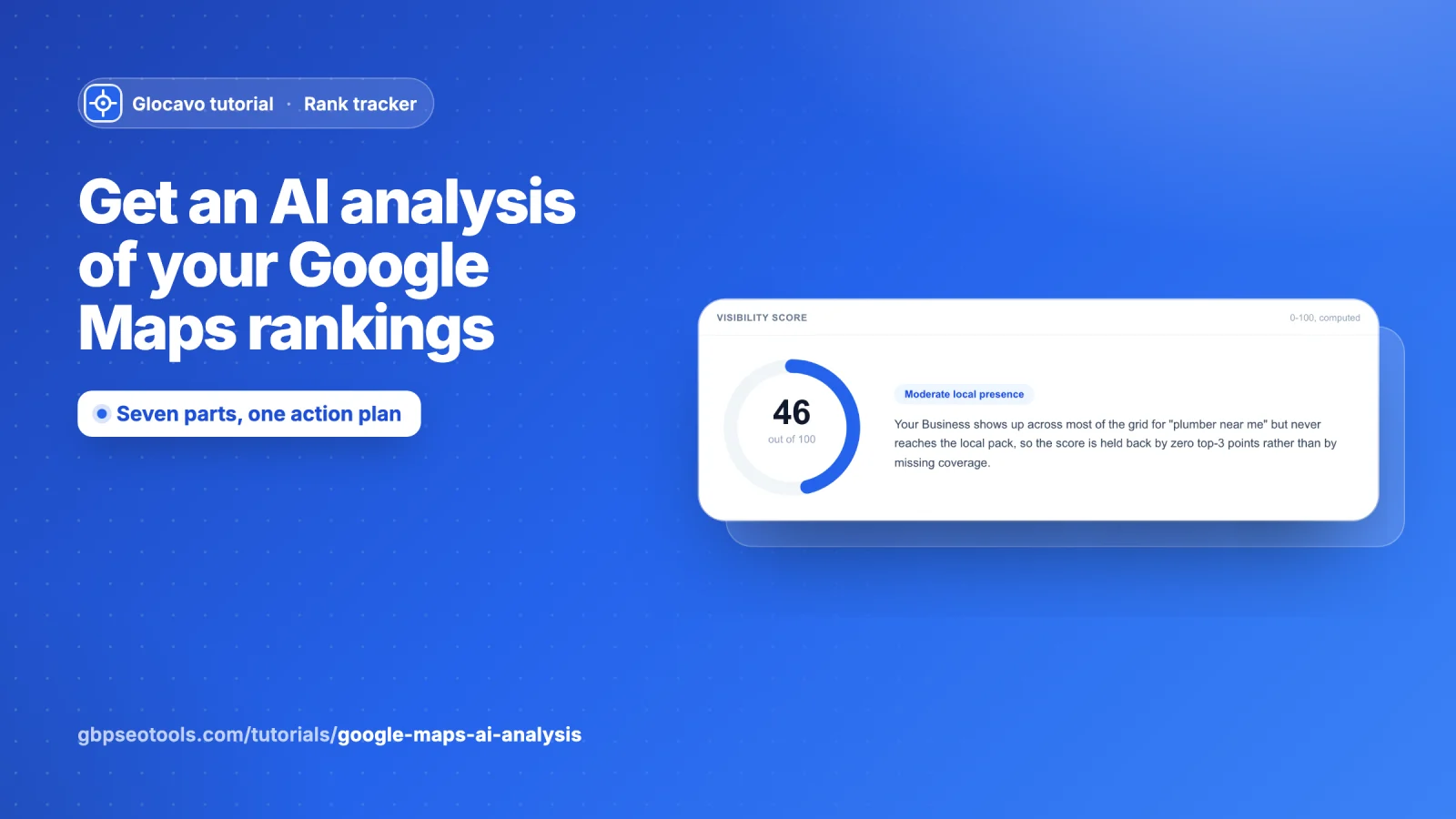
Rank tracker
Get an AI analysis of your Google Maps rankings
Generate the AI Analysis of a grid scan and read its seven parts: visibility score, distance decay, competitor takeover, blind spots, keyword diagnostic, quick-win action plan and growth potential.
Read the Google Maps AI analysis guide7 min read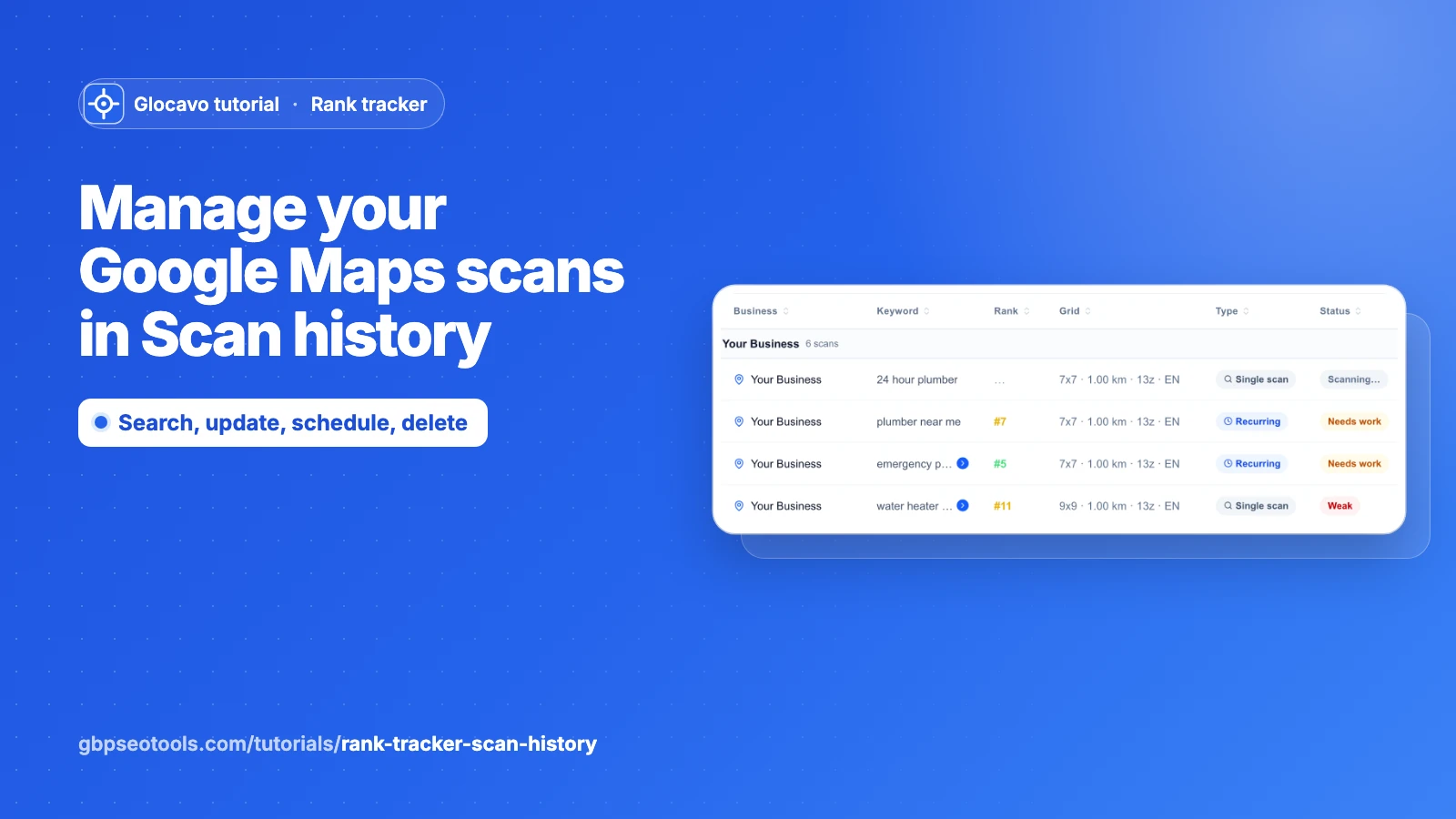
Rank tracker
Manage your Google Maps scans in Scan history
Find any grid scan, read its rank and status at a glance, reopen its report, update its rankings, turn scans into a recurring scan and delete the ones you no longer need.
Read the Google Maps scan history guide5 min read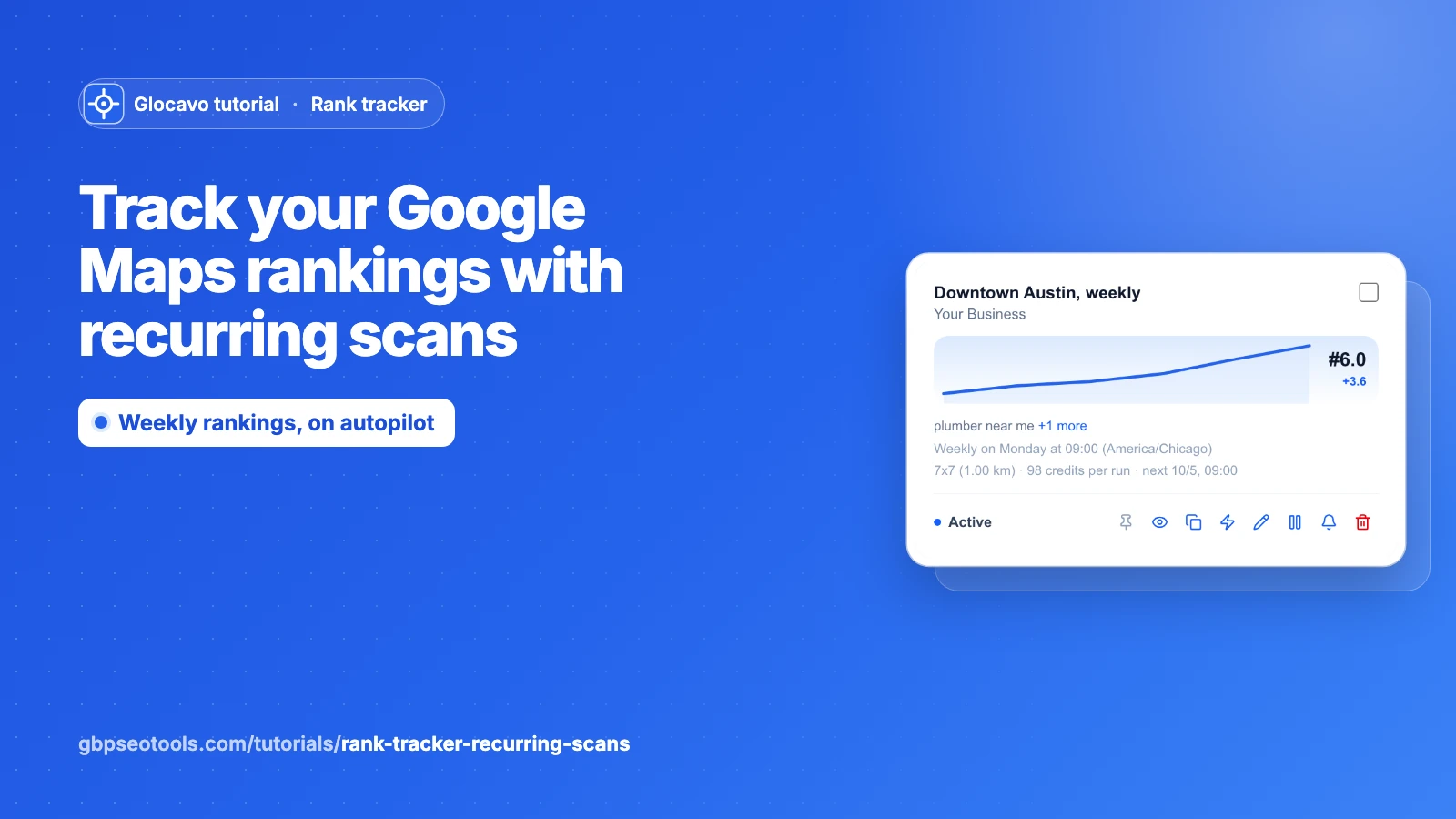
Rank tracker
Track your Google Maps rankings with recurring scans
Set up a recurring grid scan that checks your Google Maps rankings daily, weekly or monthly, read each card's trend, and run, edit, pause, pin, share or delete your recurring scans.
Read the recurring Google Maps scans guide6 min read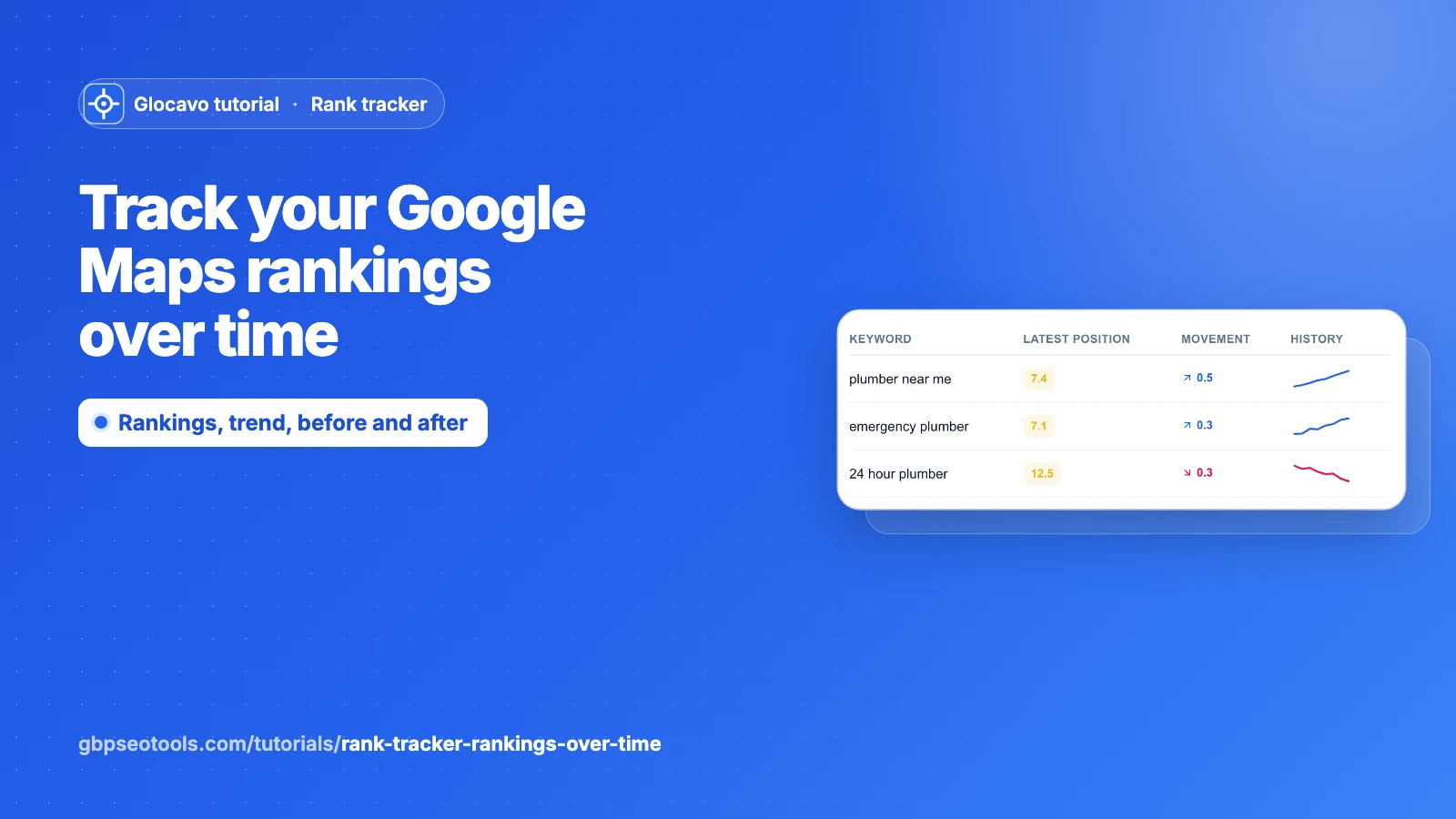
Rank tracker
Track your Google Maps rankings over time
Read the history of a recurring scan: every keyword run by run in Rankings, one keyword's line in Trend, and two dates side by side in Compare, with CSV, PDF and PNG exports.
Read the Google Maps rankings over time guide6 min read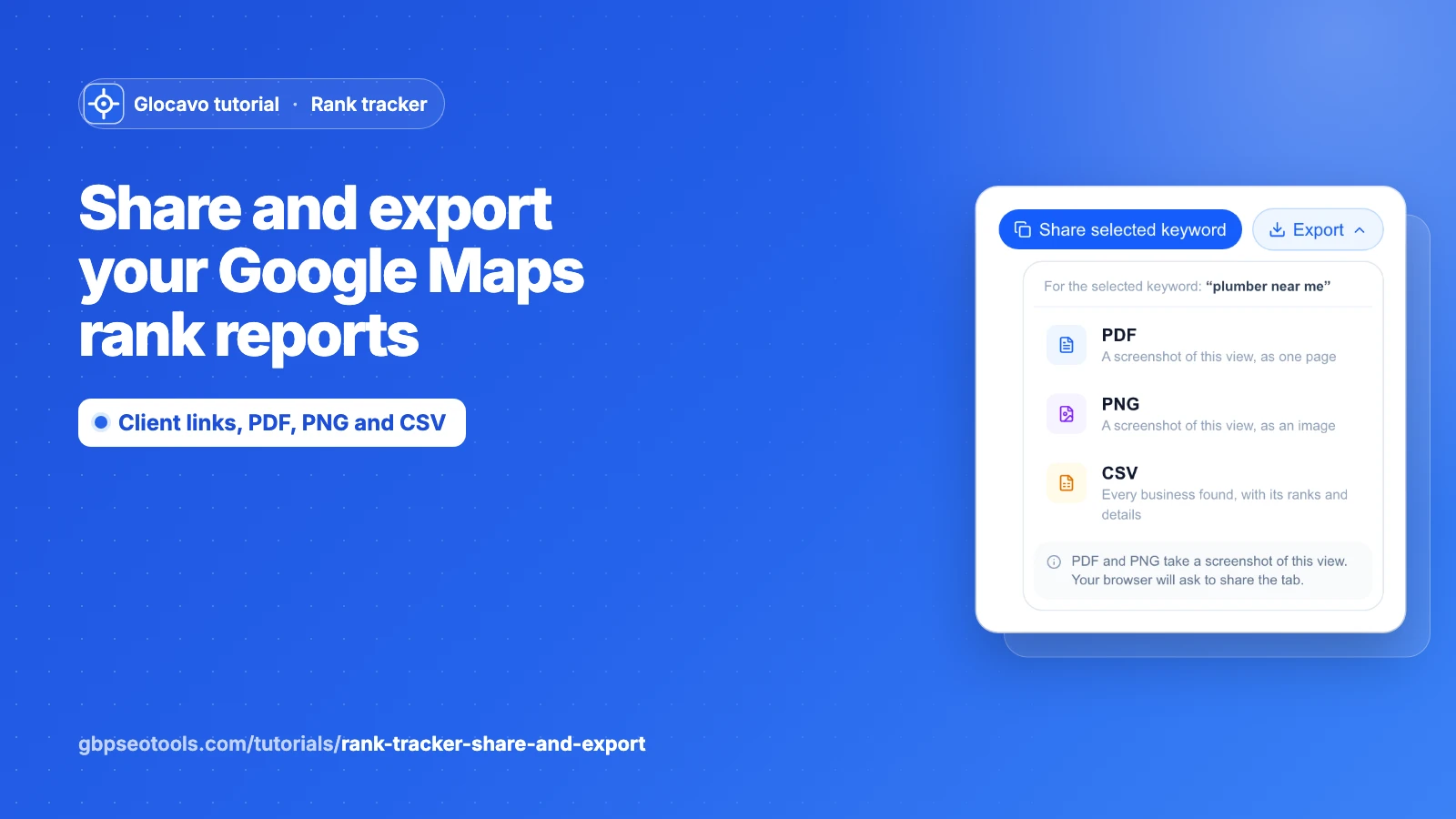
Rank tracker
Share and export your Google Maps rank reports
Send a client a link to any grid scan report, no login needed, share a recurring scan or just one keyword, export PDF, PNG or CSV, and manage or remove links in Shared links.
Read the share and export rank reports guide5 min read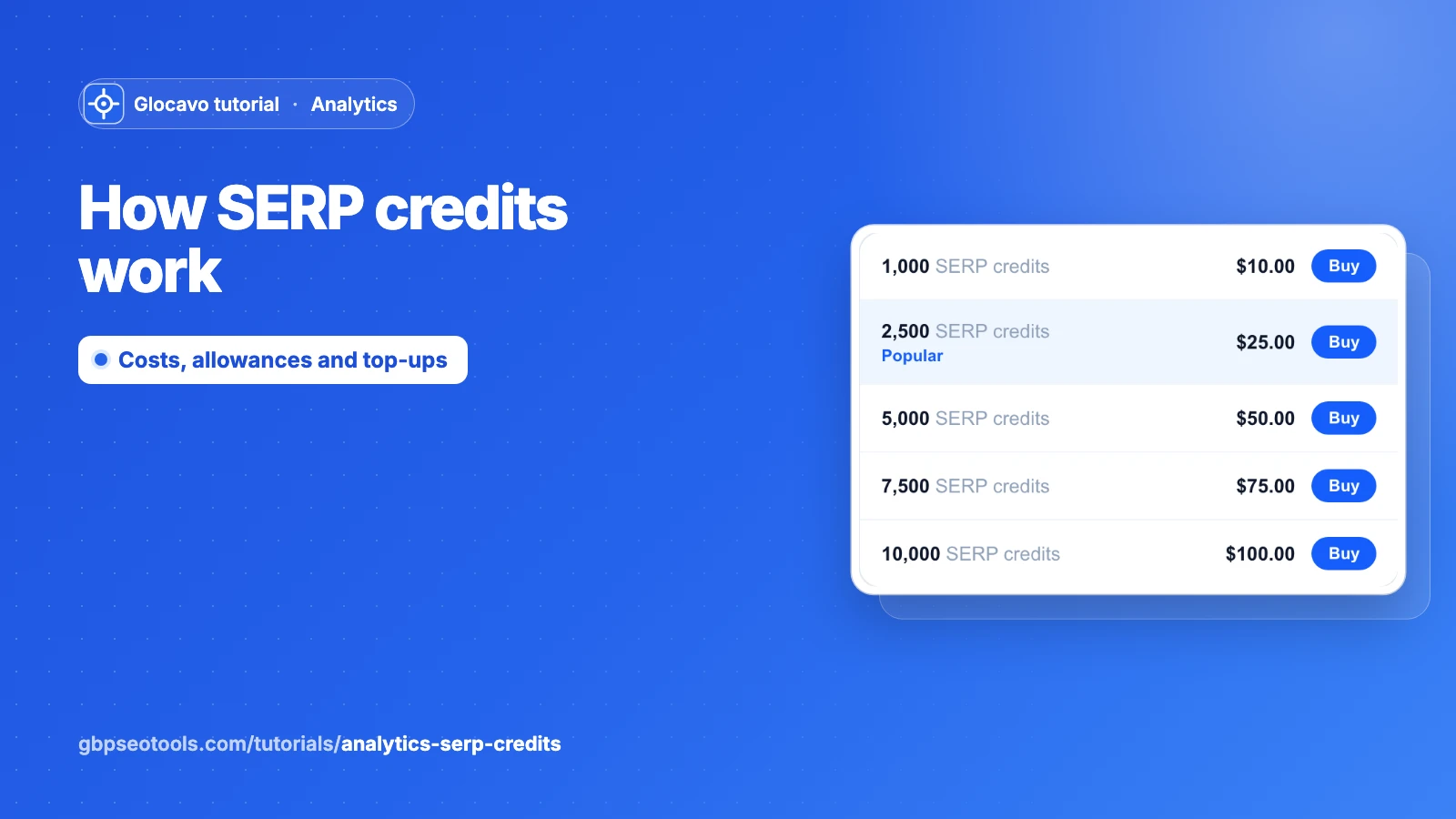
Analytics
How SERP credits work in Analytics
What a Google rank check costs in SERP credits, your monthly allowance per plan, how to plan a campaign that fits it, top-up packs, what happens when you run out and where your credits went.
Read the SERP credits guide5 min read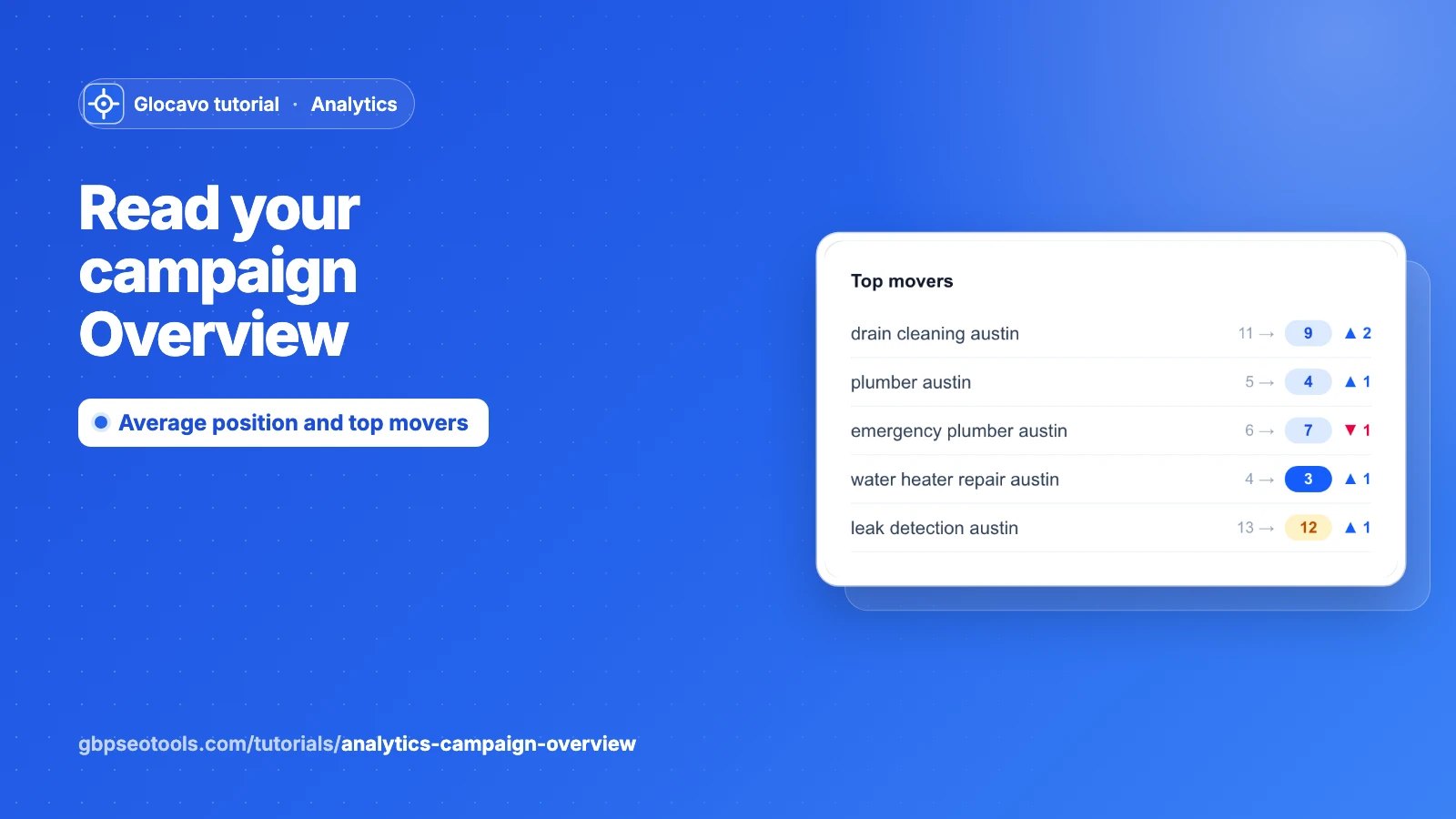
Analytics
Read your Analytics campaign Overview
Read the four numbers at the top of a campaign, see which keywords moved most since the last check in Top movers, check every rank at a glance and find your way around the campaign's tabs.
Read the Analytics Overview guide4 min read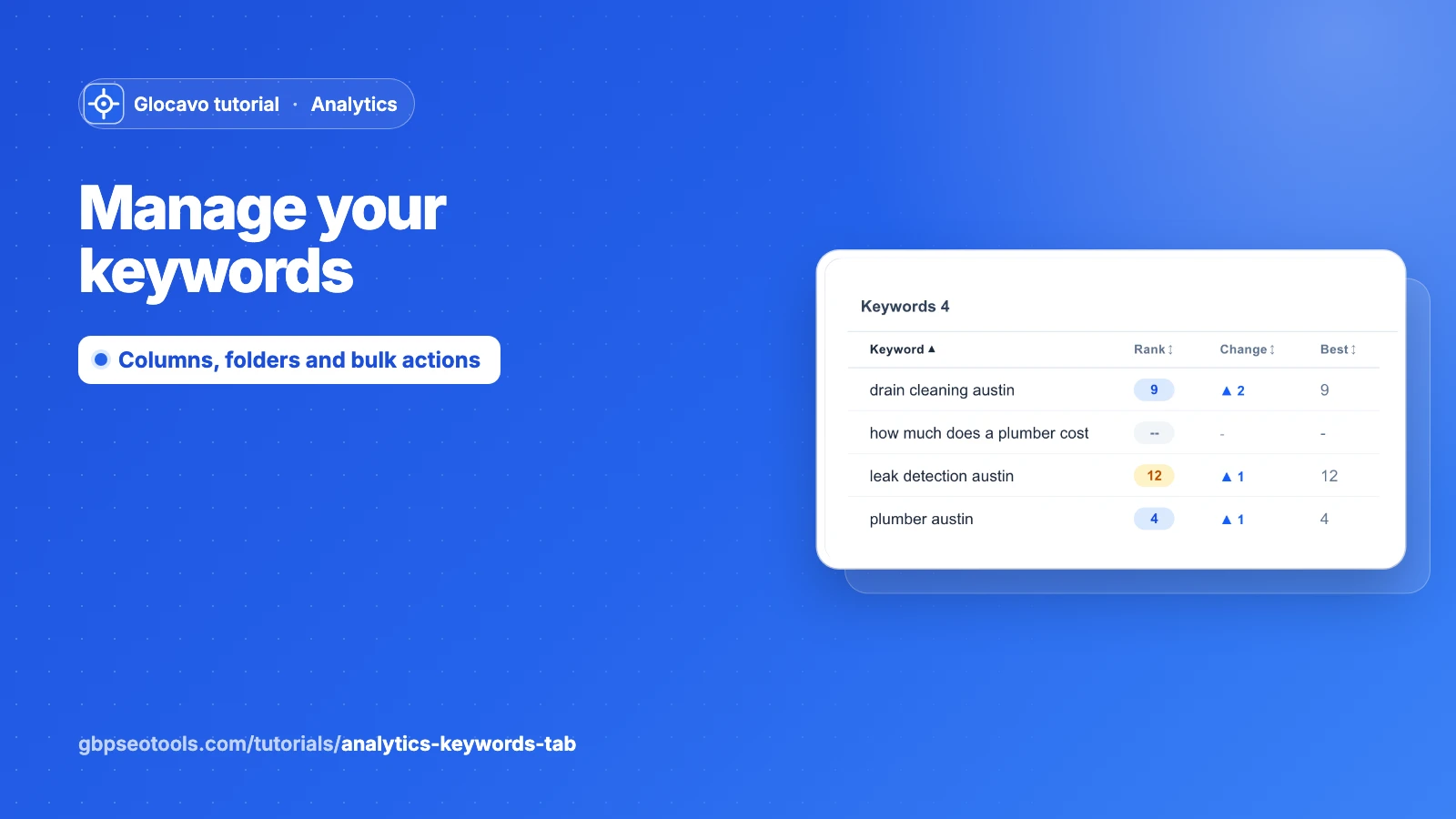
Analytics
Manage your keywords in Analytics
Read every column of the Keywords tab, sort and filter it, see which page of your site ranks, group keywords in folders, and run, move or delete several keywords at once.
Read the Analytics keywords guide5 min read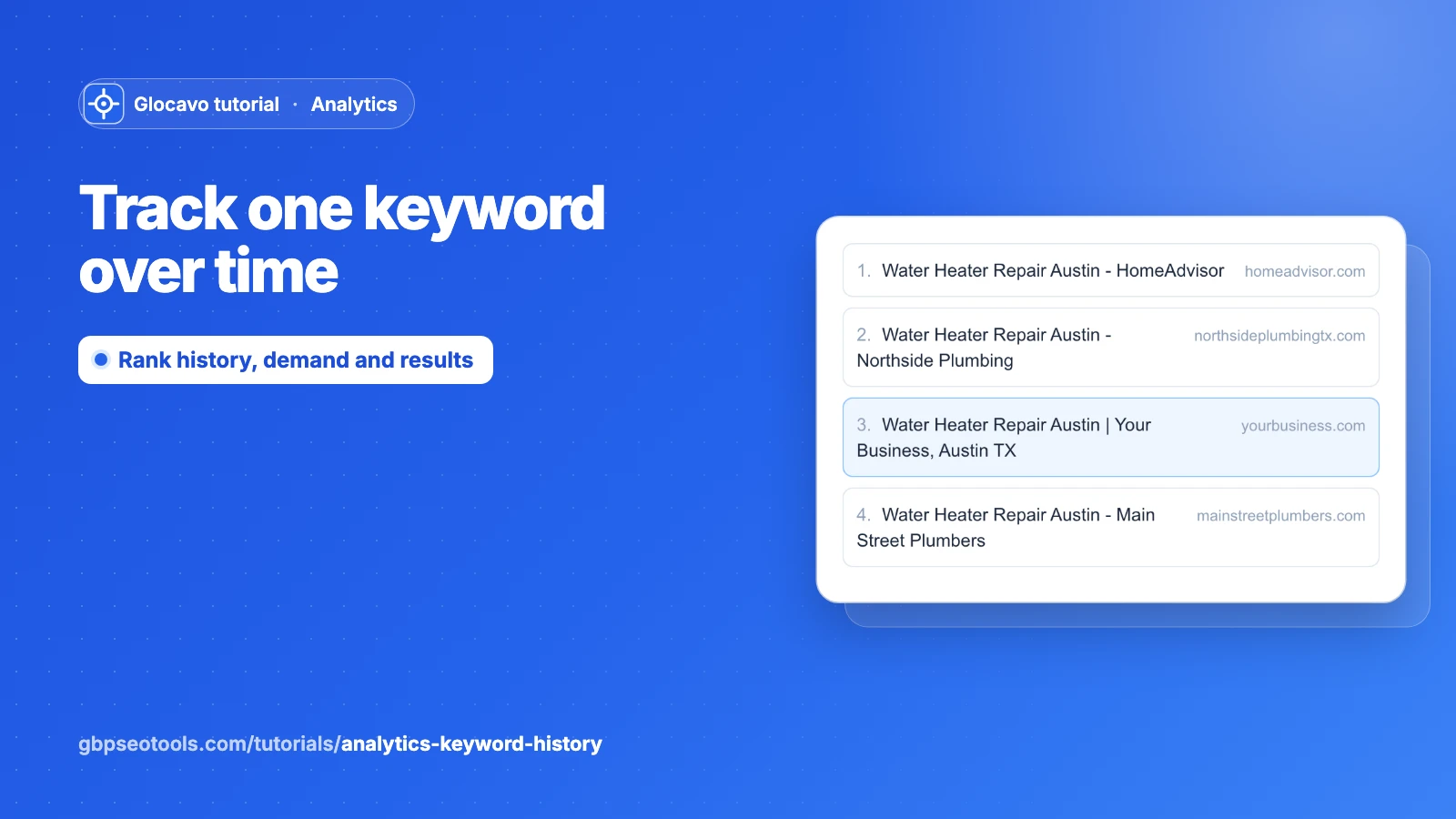
Analytics
Track one keyword's Google ranking history
Open any keyword to see how its Google rank moved over time, how many people search it month by month, what advertisers pay for it, and the top 20 results around your site at the last check.
Read the keyword ranking history guide5 min read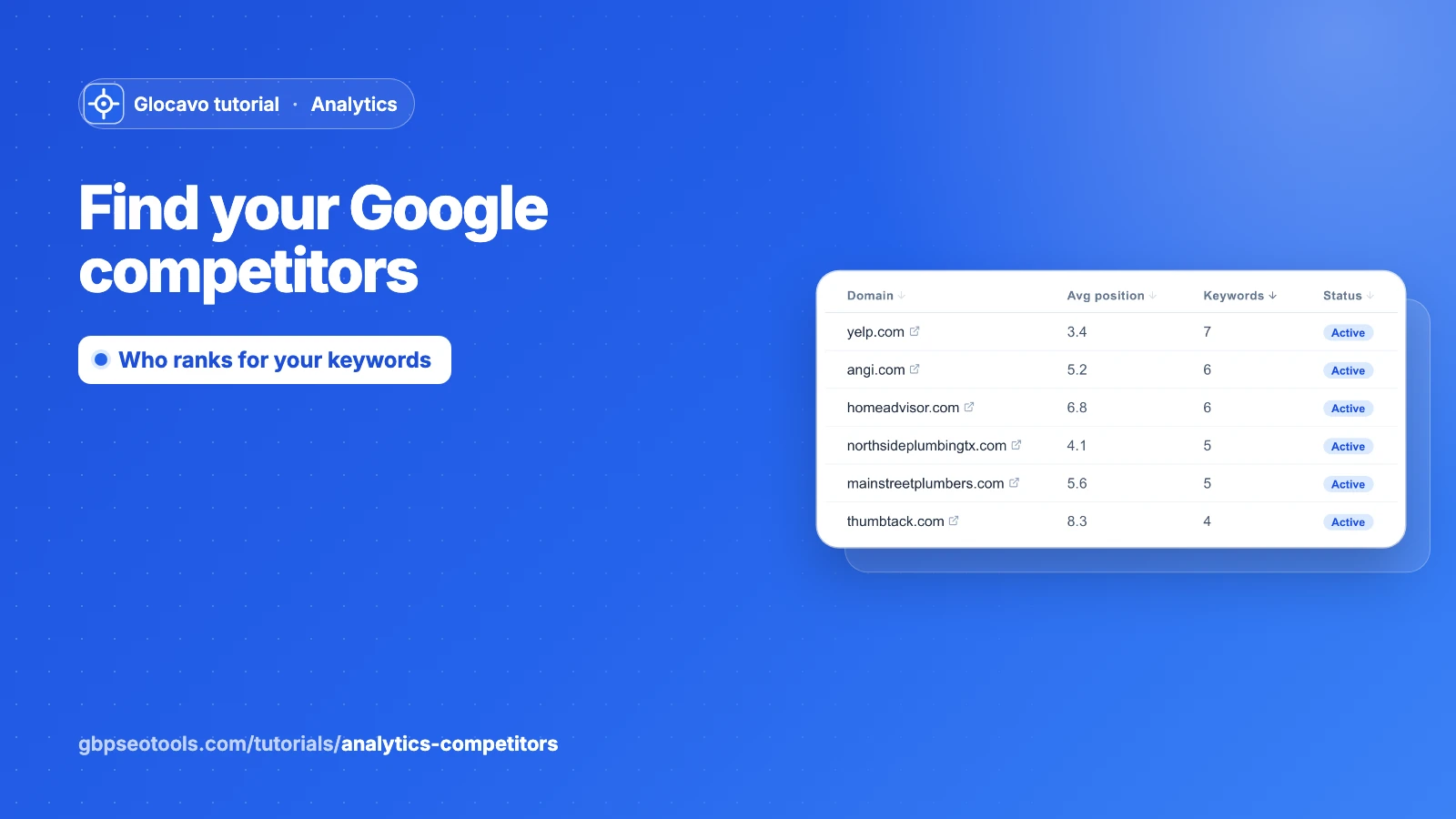
Analytics
Find your Google competitors in Analytics
See every website that ranks for your keywords, how high and for how many, find the strongest ones, spot who dropped out, and decide how to compete with directories and local rivals.
Read the Google competitors guide4 min read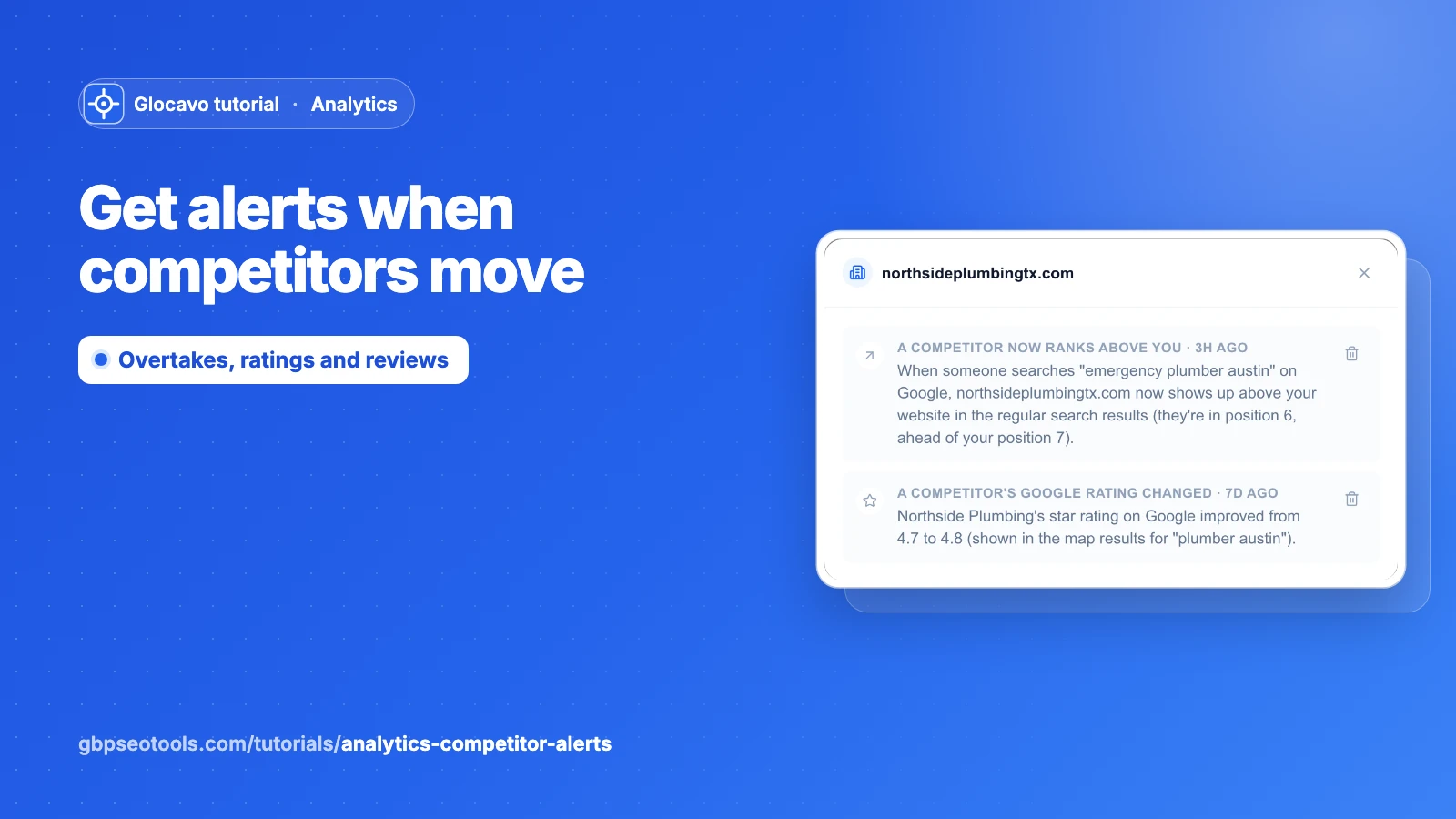
Analytics
Get alerts when Google competitors move
Read the alerts Glocavo raises after each check: a competitor ranking above you, a new website in the top 3, a rival's rating or reviews jumping, or your own map position changing.
Read the competitor alerts guide5 min read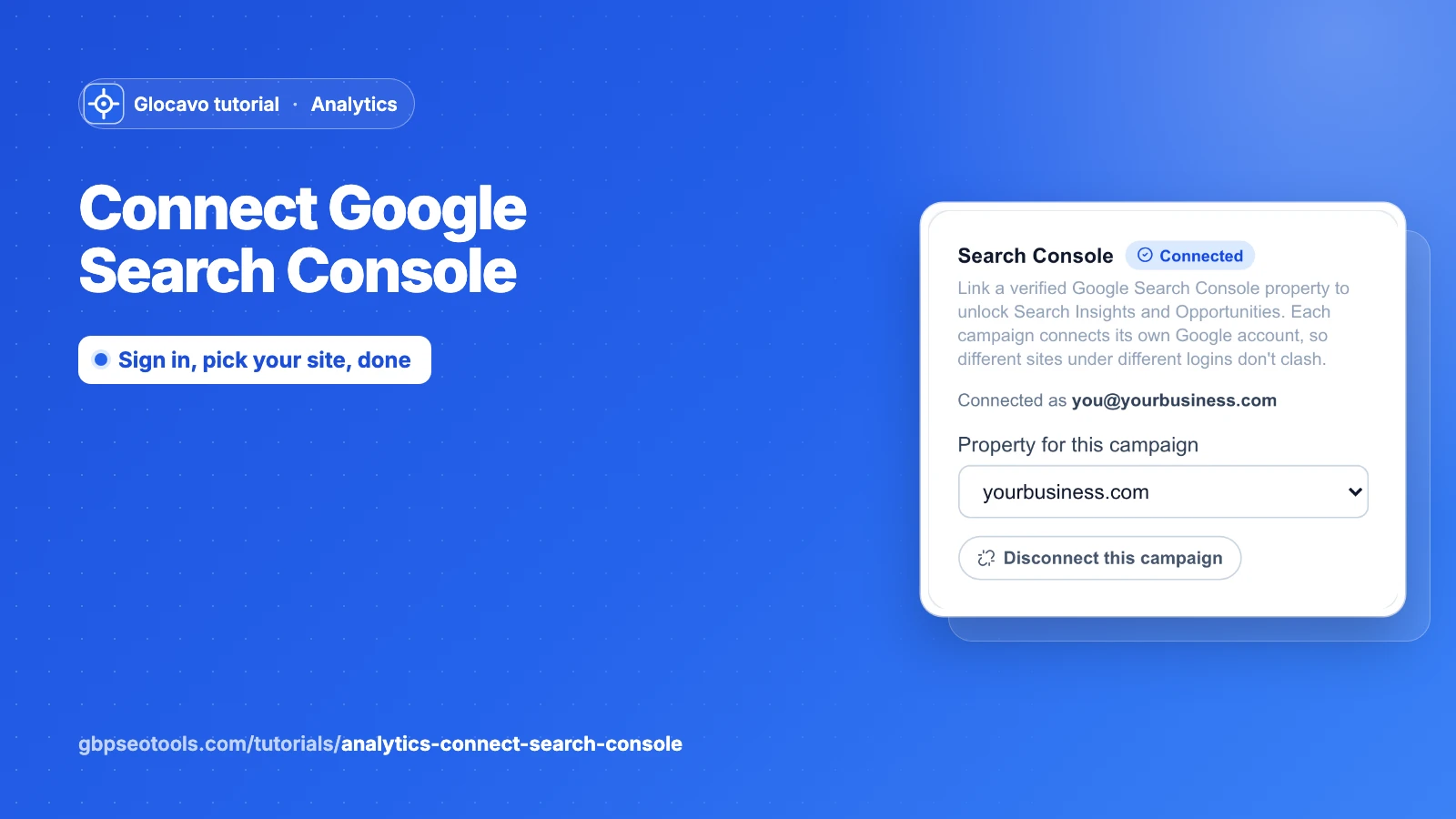
Analytics
Connect Google Search Console to Analytics
Link your Google Search Console to a campaign: sign in with the Google account that has your site, pick the right property and unlock Search Insights and Opportunities.
Read the connect Search Console guide4 min read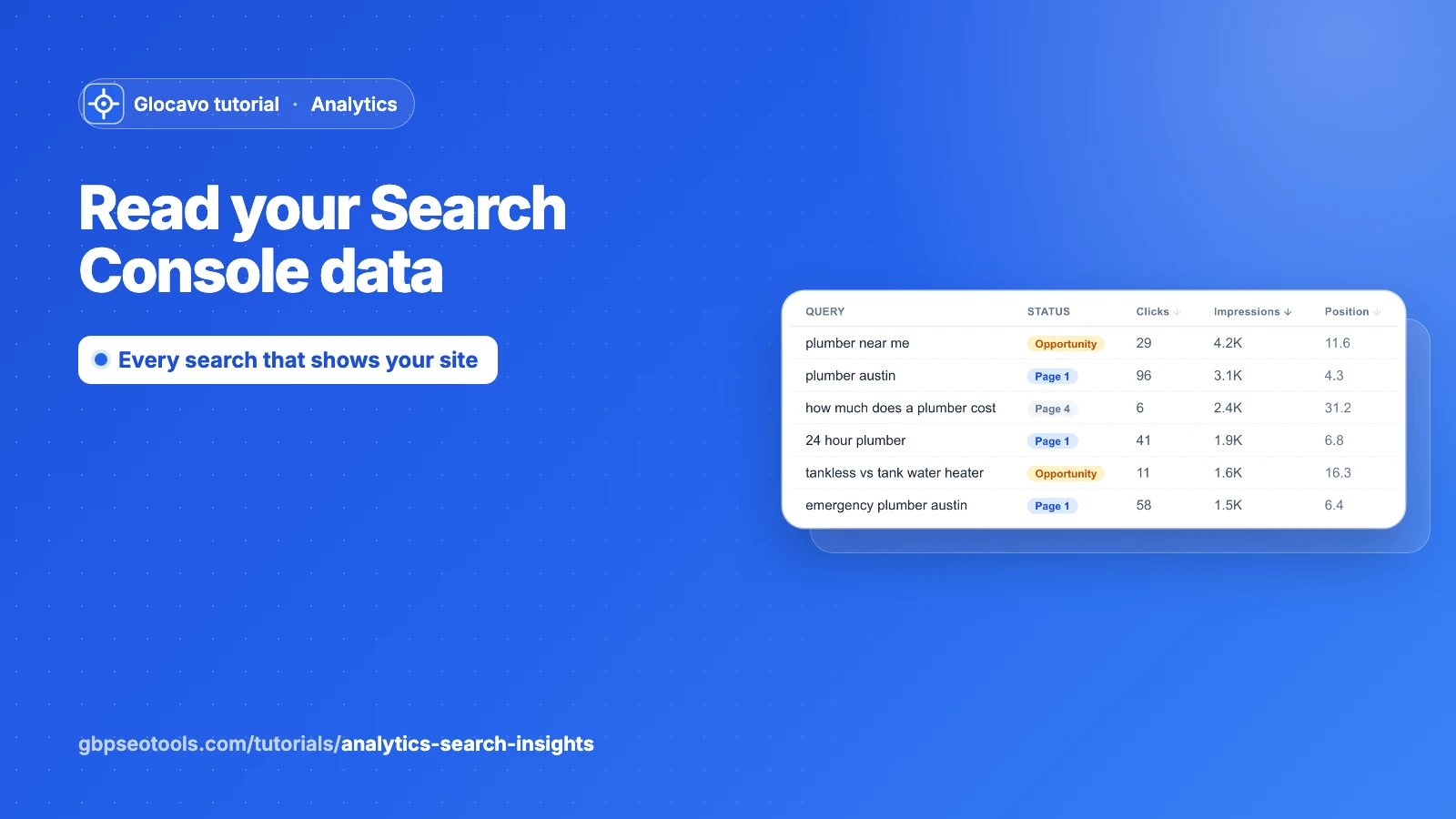
Analytics
Read your Google Search Console data
See every Google search that shows your site with its clicks, impressions, CTR and position, add search volume and ad prices, and track new keywords in one click.
Read the Search Insights guide6 min read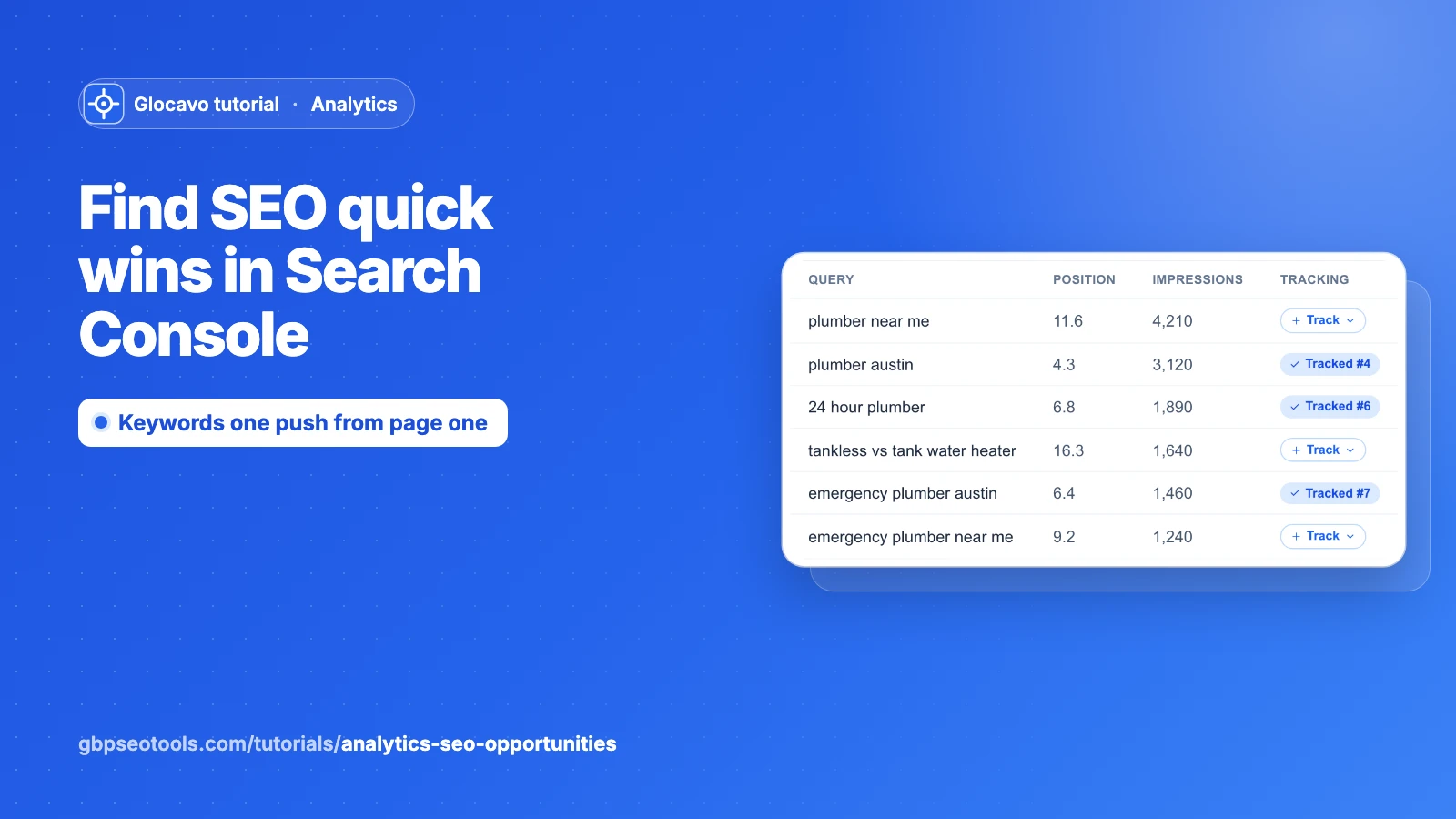
Analytics
Find SEO quick wins in your Search Console data
Use the Opportunities tab to find keywords close to page one, results people see but skip, pages losing impressions and pages competing for the same search, then fix them in order.
Read the SEO quick wins guide6 min read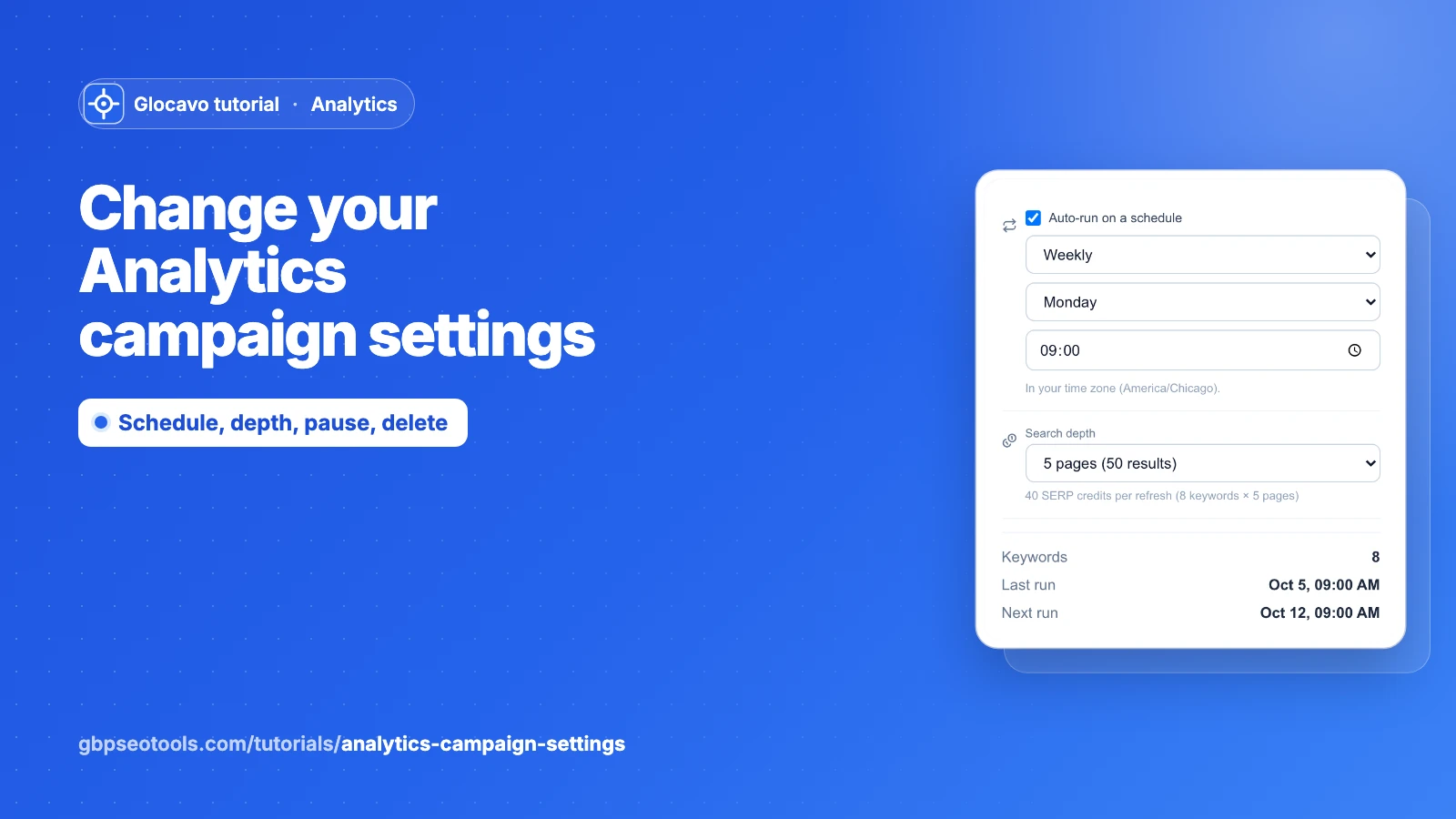
Analytics
Change your Analytics campaign settings
Rename a campaign or change its website, set how often and how deep it checks your Google rankings, choose the defaults for new keywords, pause it or delete it.
Read the campaign settings guide4 min read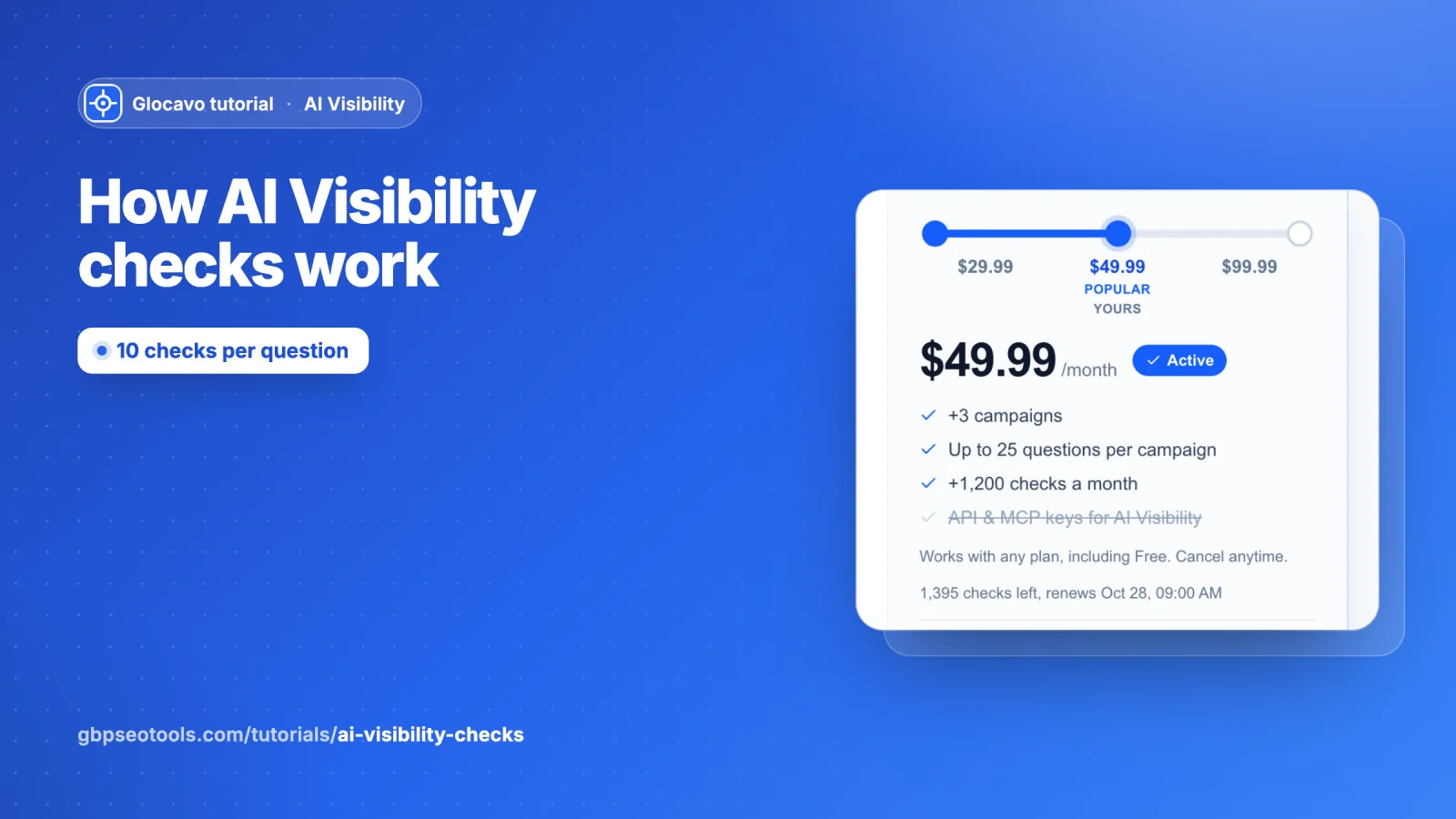
AI Visibility
How AI Visibility checks work
What a scan costs, the checks your plan includes, the $29.99, $49.99 and $99.99 add-on levels, top-up packs that never expire, which checks are used first and what happens when they run out.
Read the AI Visibility checks guide5 min read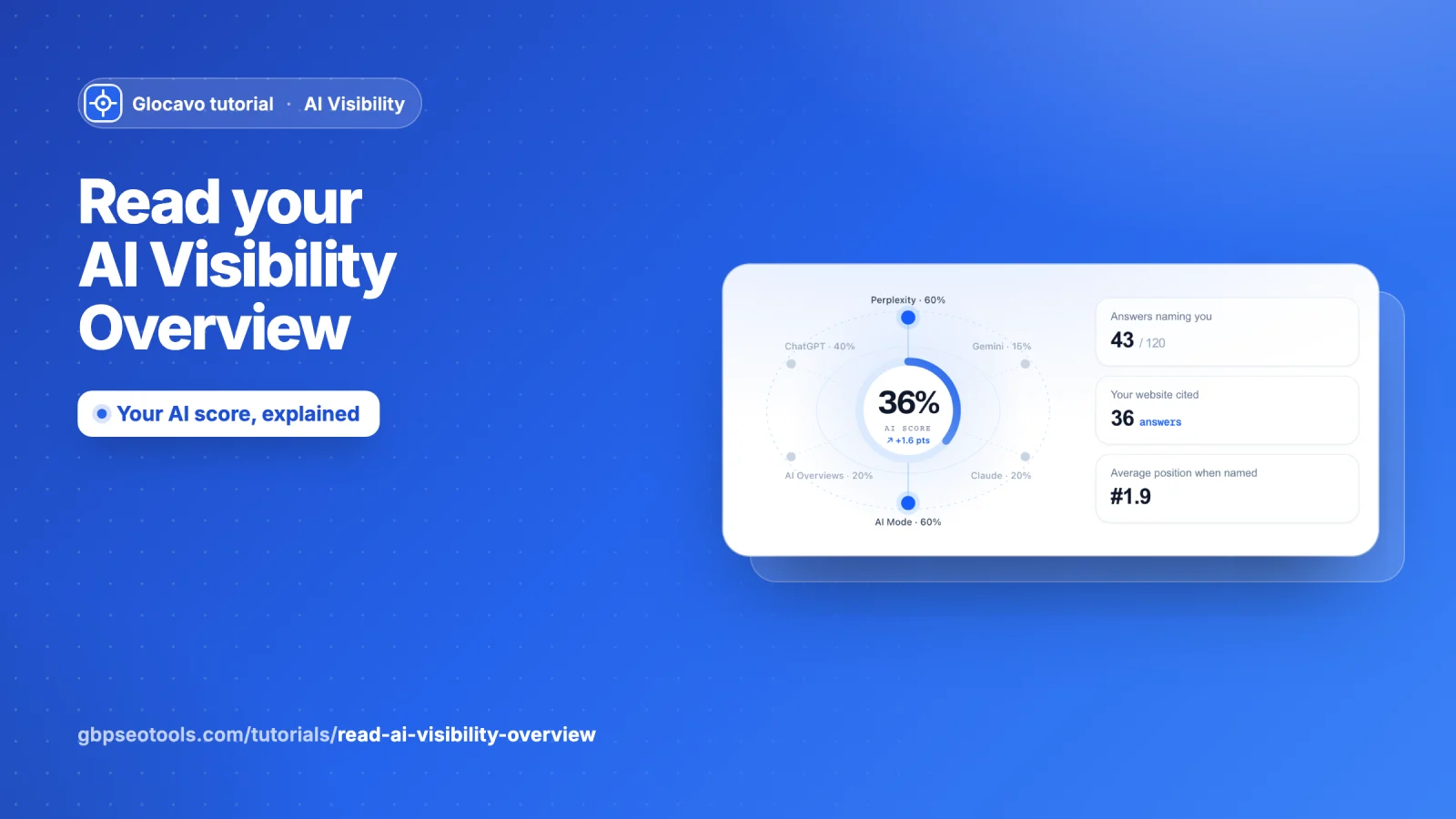
AI Visibility
Read your AI Visibility Overview
What every number and chart on the Overview means: your AI score, share of voice, next moves, you vs your competitors over time, who owns each topic, the sites AI reads and the questions you are losing.
Read the AI Visibility Overview guide8 min read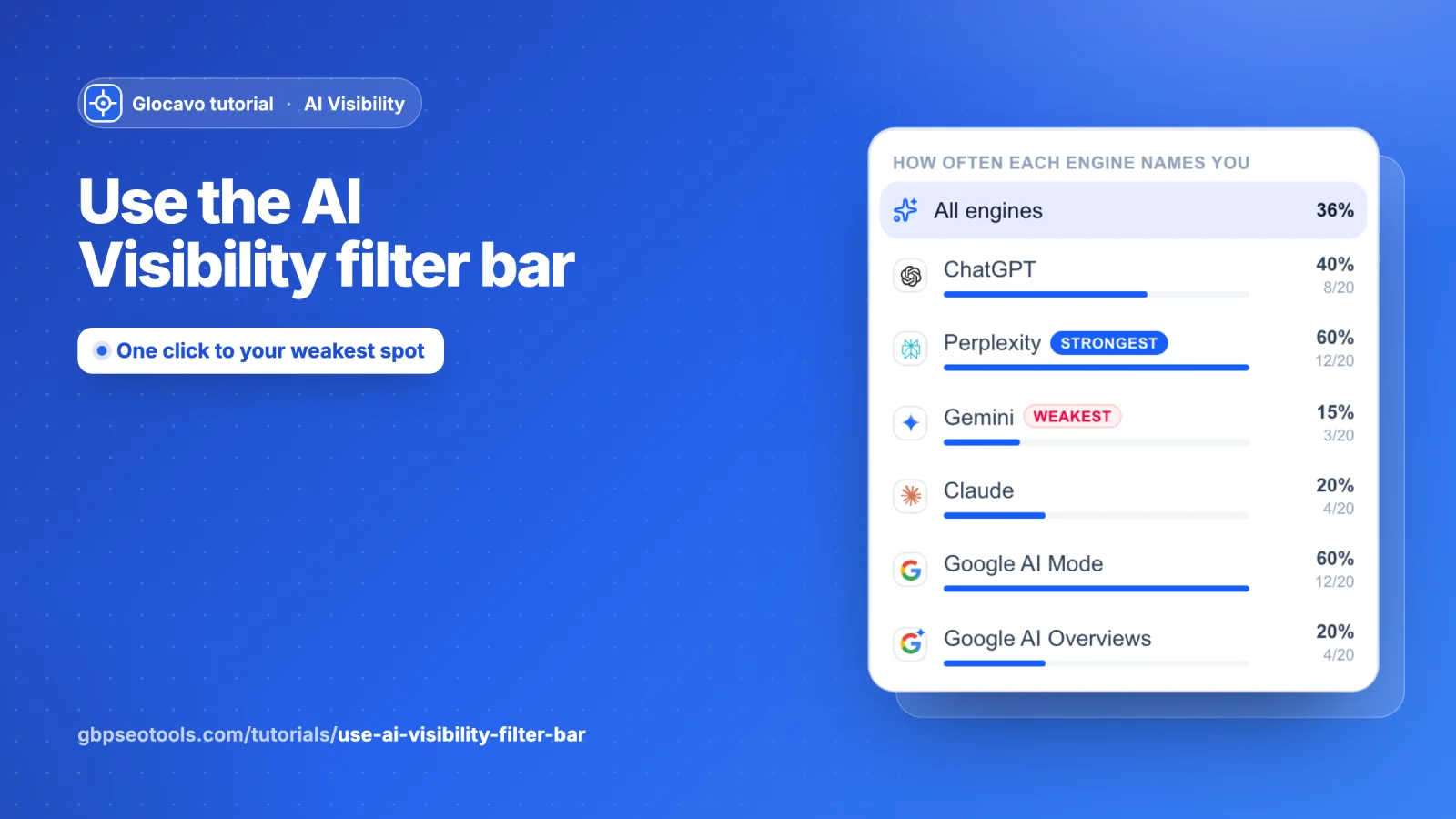
AI Visibility
Use the AI Visibility filter bar
Narrow the whole report to one AI engine, one topic or both, and let Where to look and What to do point you at your weakest engine, your biggest gap and the next step.
Read the filter bar guide4 min read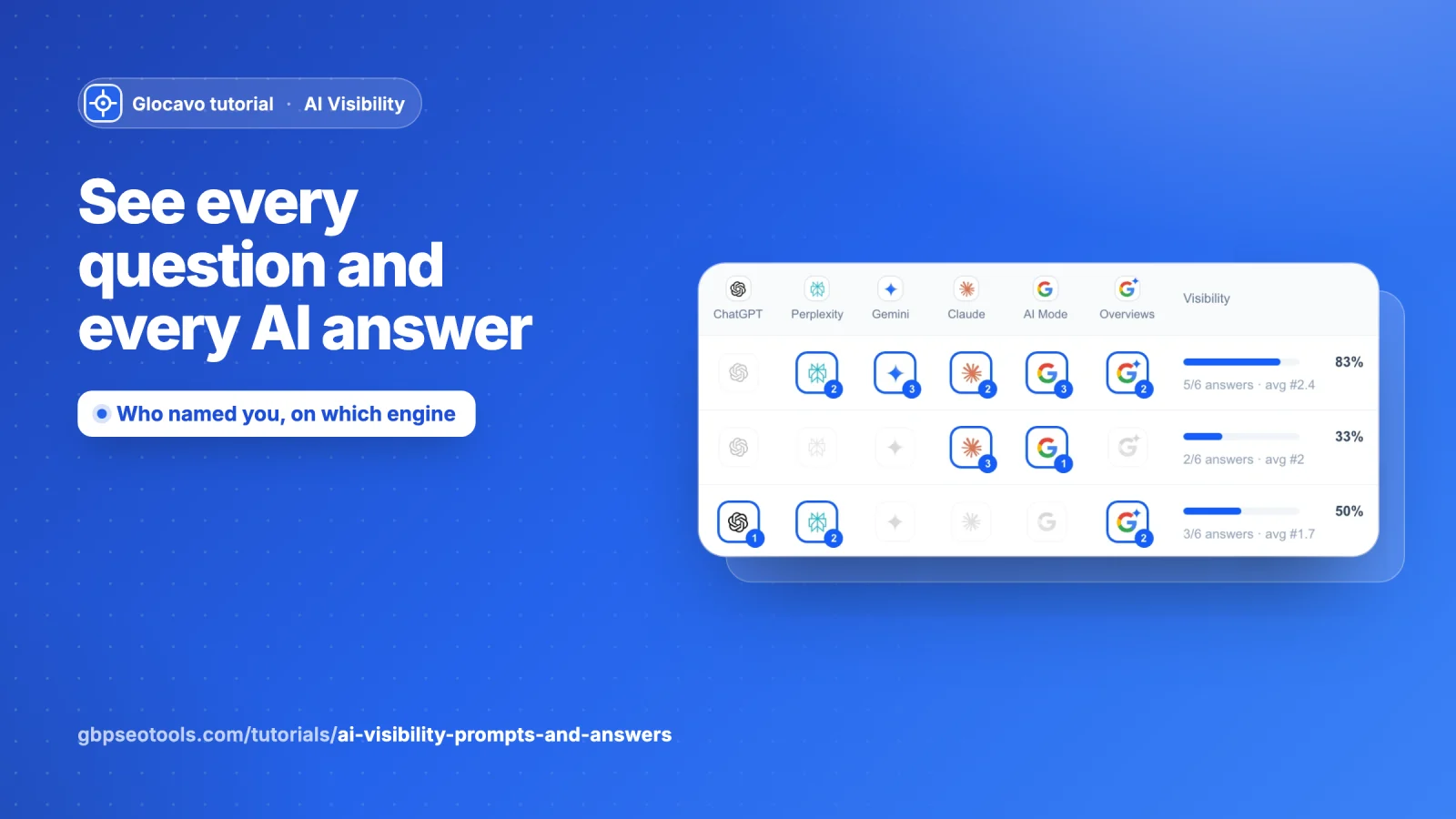
AI Visibility
See every question and every AI answer
Read the Prompts grid: which AI engines named you for each question and in what position, filter to the questions you lose, and open each engine's full answer with the businesses and sources it used.
Read the prompts and answers guide5 min read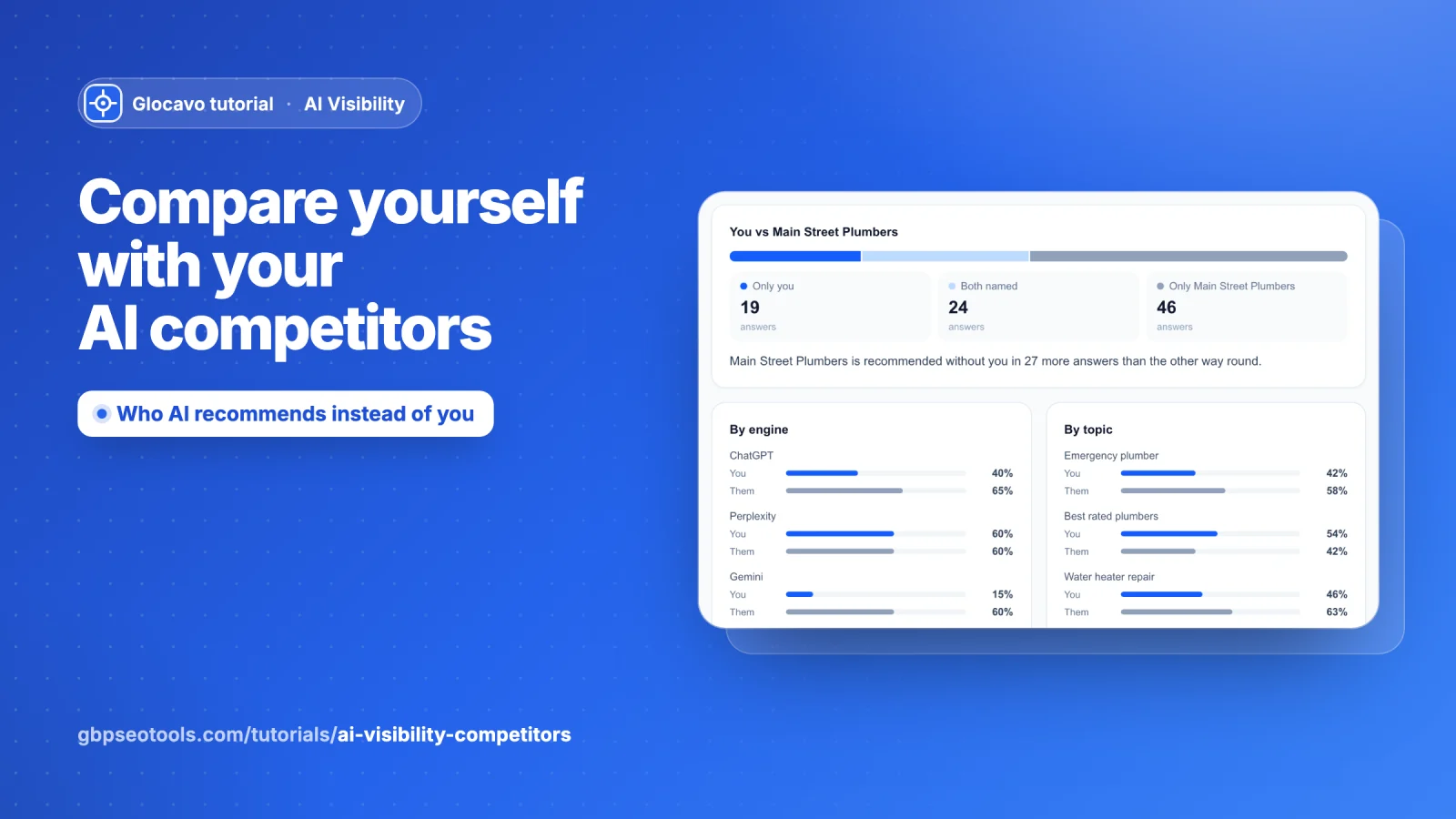
AI Visibility
Compare yourself with your AI competitors
Pick any competitor and see where AI engines recommend them instead of you: head to head, by engine and topic, the exact questions they win, the sites the engines read about them, and every business named.
Read the AI competitors guide5 min read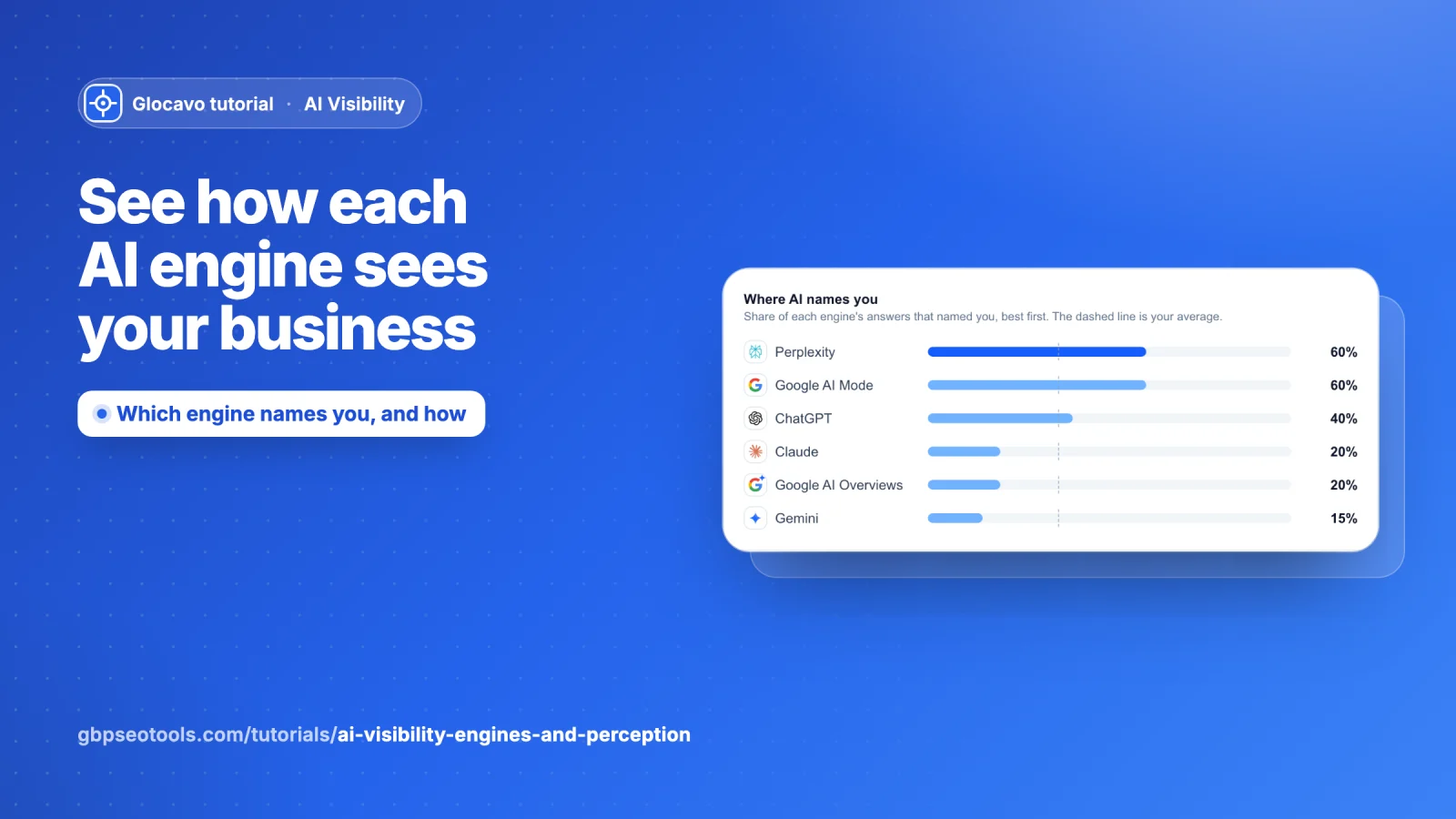
AI Visibility
See how each AI engine sees your business
Find out which AI engines name you and which ignore you, what each one recommends and reads, and how the engines describe you: the tone, the words they use and their exact sentences.
Read the engines and perception guide5 min read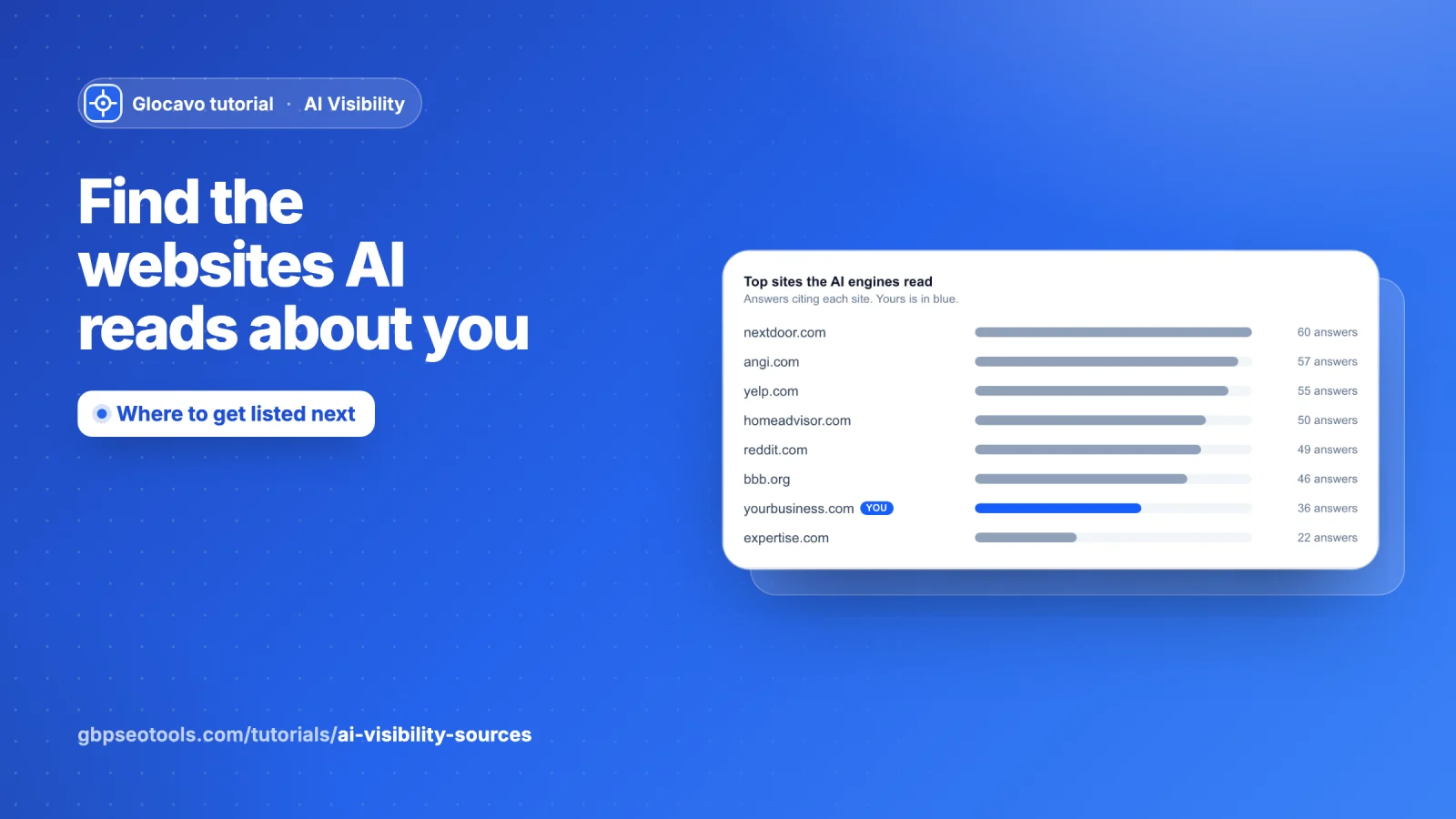
AI Visibility
Find the websites AI reads about you
See which websites and exact pages ChatGPT, Perplexity, Gemini, Claude and Google's AI read before they recommend a business, how often they quote your own site, and which directories to get listed on next.
Read the AI sources guide4 min read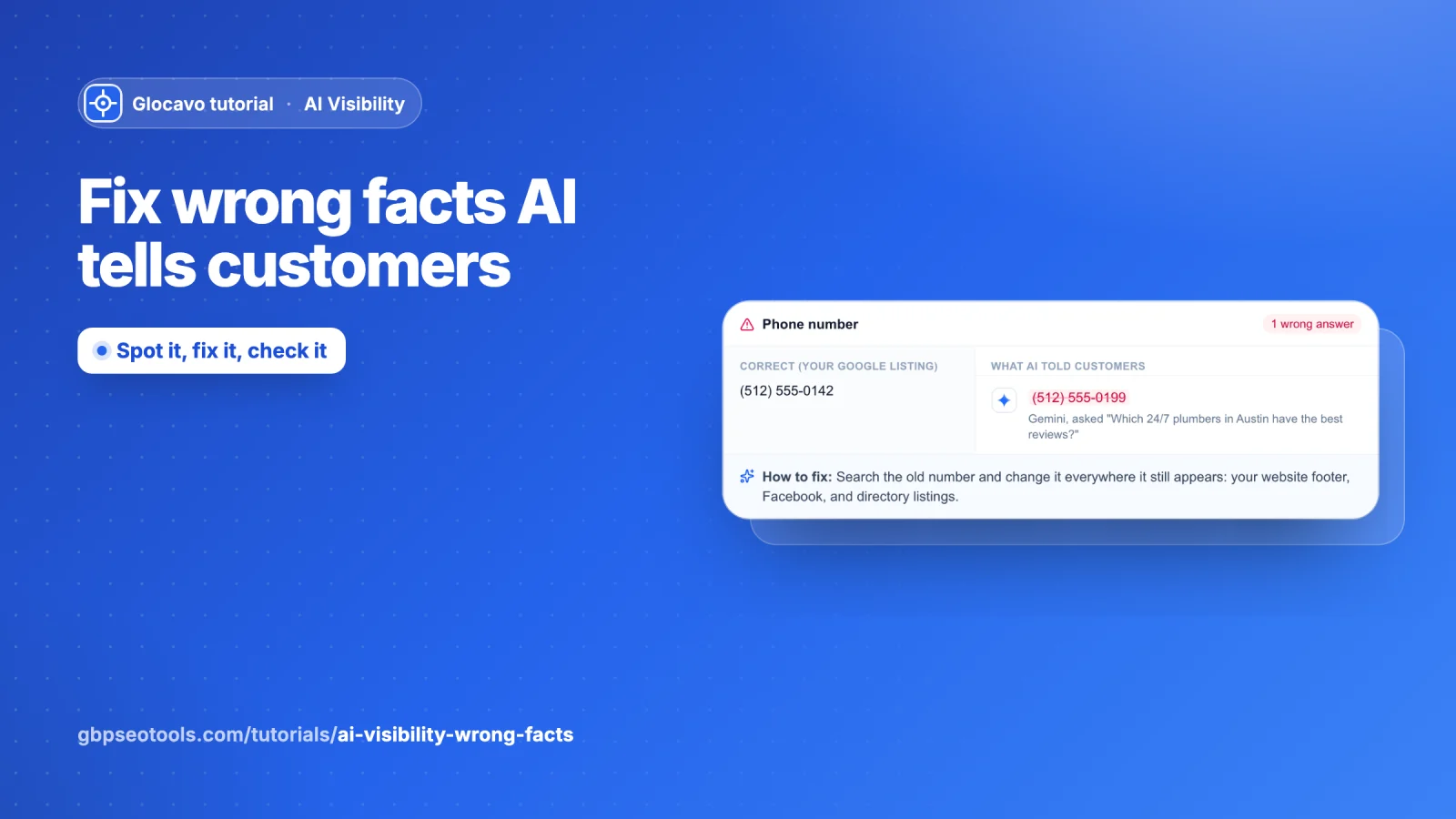
AI Visibility
Fix wrong facts AI tells customers
Find every AI answer that gives customers your old phone number, wrong opening hours or a wrong address, see exactly what to fix, and check in the next scans that the fix worked.
Read the wrong facts guide3 min read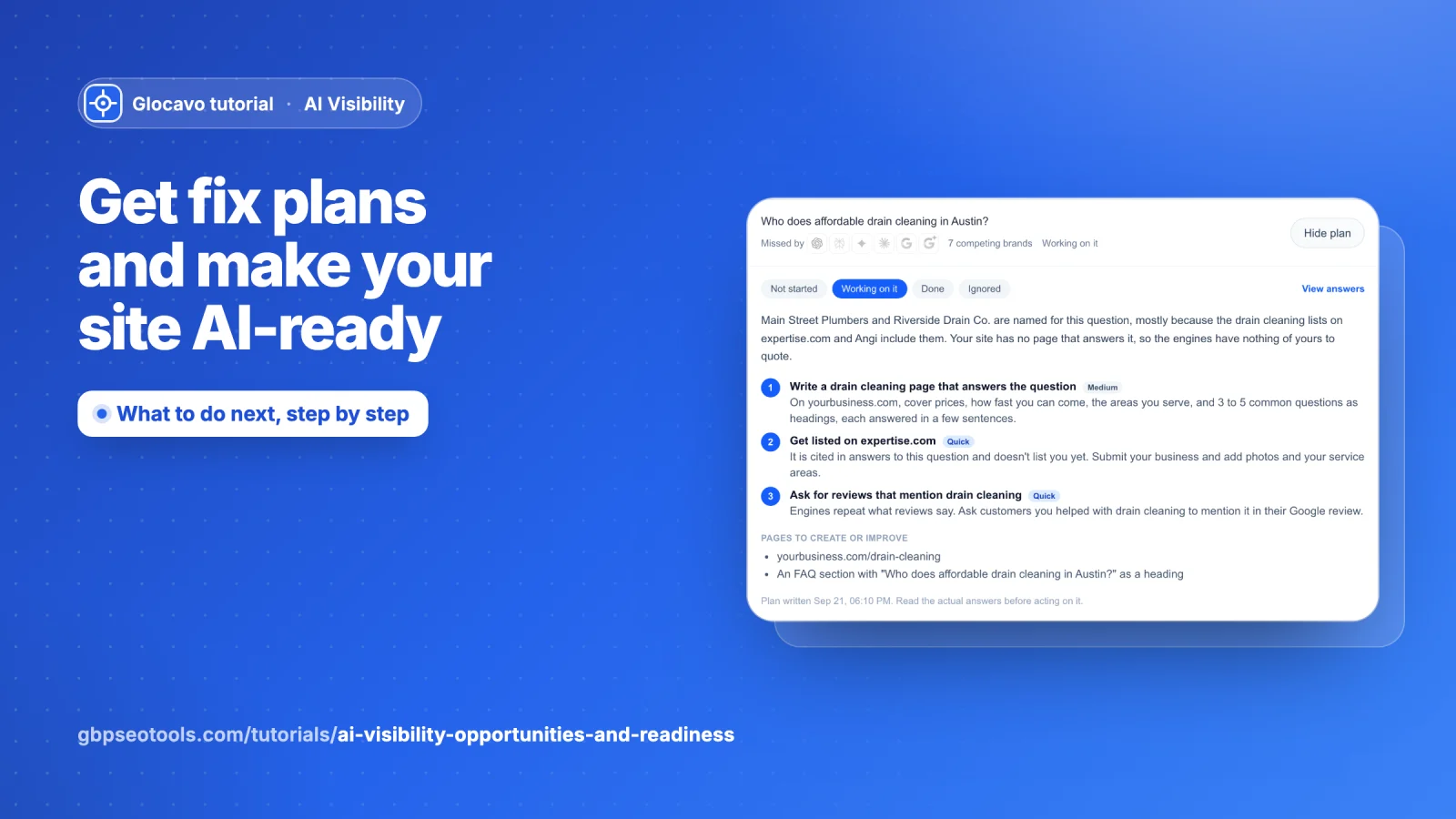
AI Visibility
Get fix plans and make your site AI-ready
Turn every question AI engines don't name you for into a step-by-step fix plan, track what you've done, and check your web pages for what makes ChatGPT, Perplexity and Google's AI able to read and quote them.
Read the fix plans and AI readiness guide6 min read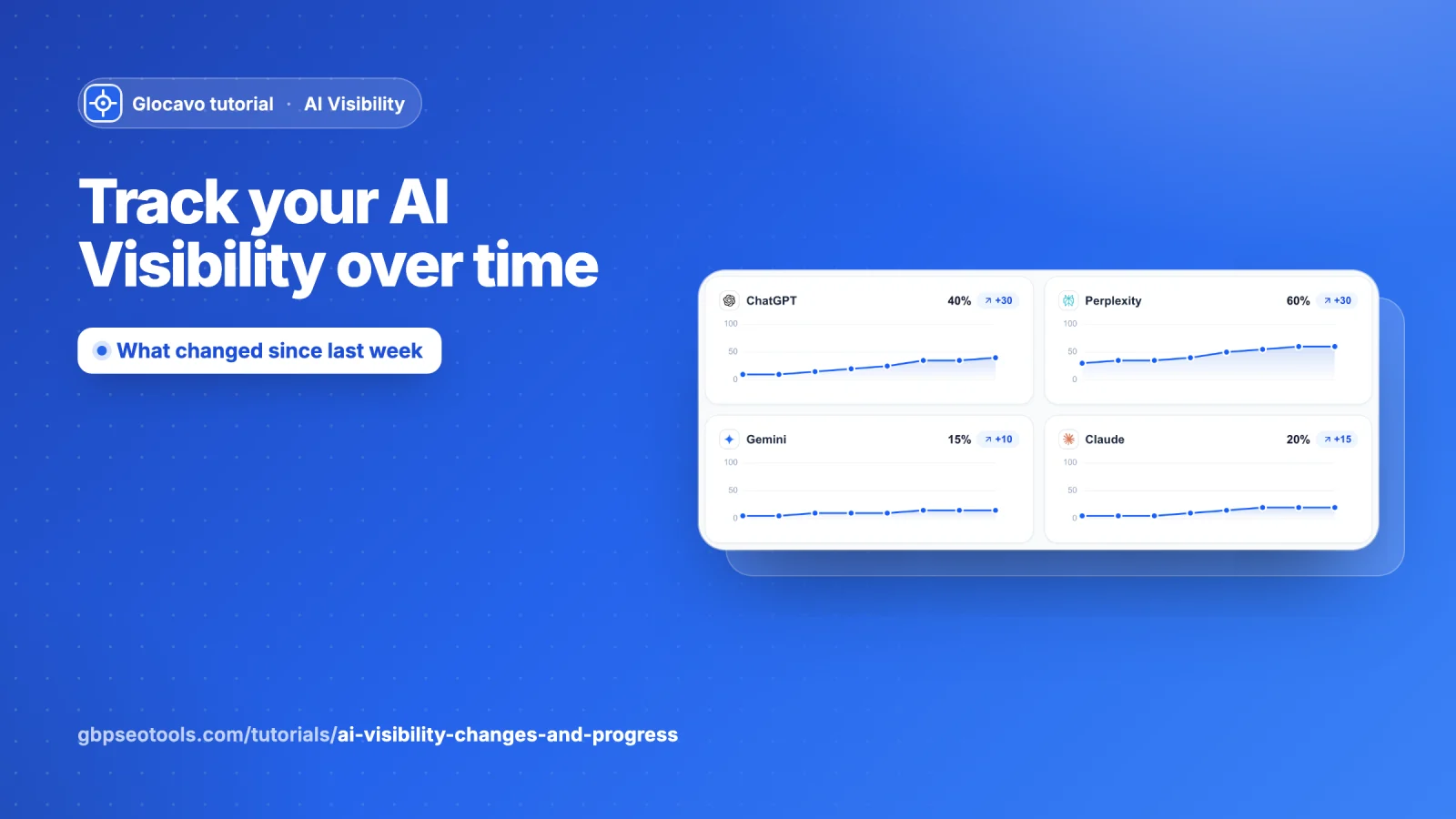
AI Visibility
Track your AI Visibility over time
See what changed since your last scan (questions won and lost, engines, competitors and sites), open any past scan from the calendar, and follow your AI score, each engine and each question across every scan.
Read the changes and progress guide5 min read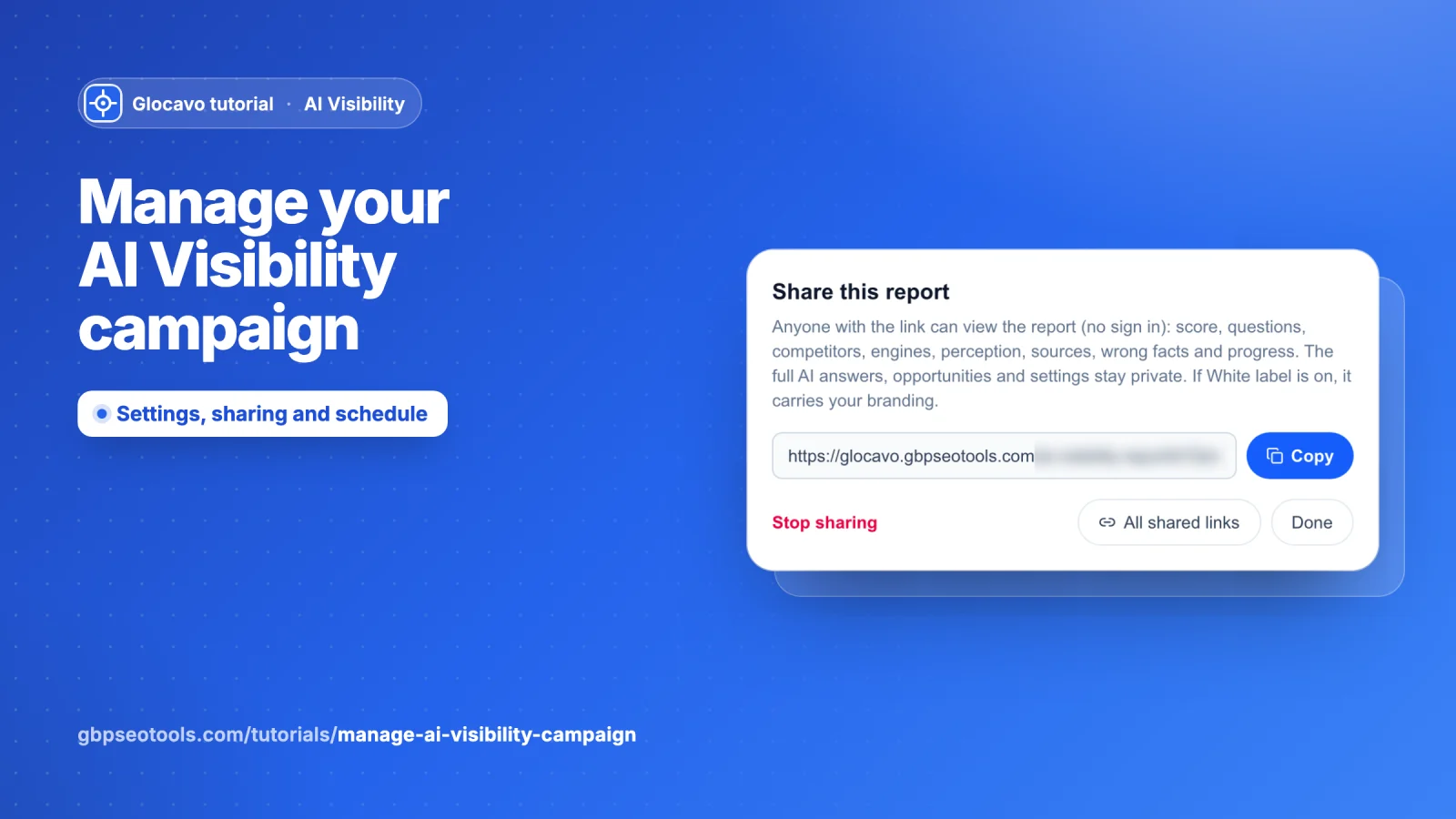
AI Visibility
Manage your AI Visibility campaign
Share a read-only report link, export to CSV, pause the schedule or its emails, edit the business, competitors, engines, schedule and questions, discover new questions, and delete a campaign.
Read the manage a campaign guide5 min read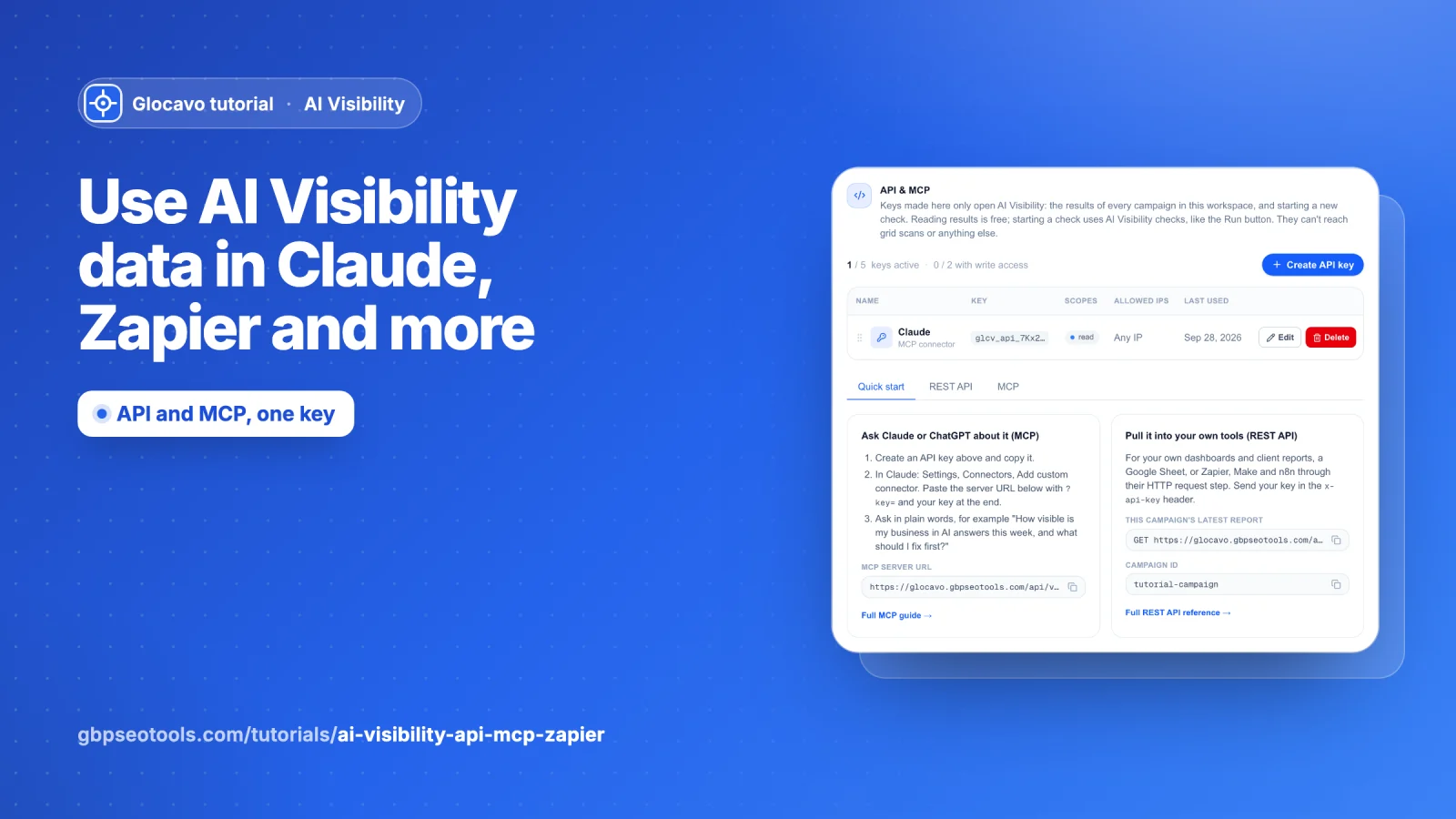
AI Visibility
Use AI Visibility data in Claude, Zapier and more
Create an AI Visibility API key, ask Claude or ChatGPT about your results through MCP, and send your AI score and wrong facts to Zapier, Make, n8n, Google Sheets or your own dashboard with the REST API.
Read the AI Visibility API, MCP and Zapier guide7 min read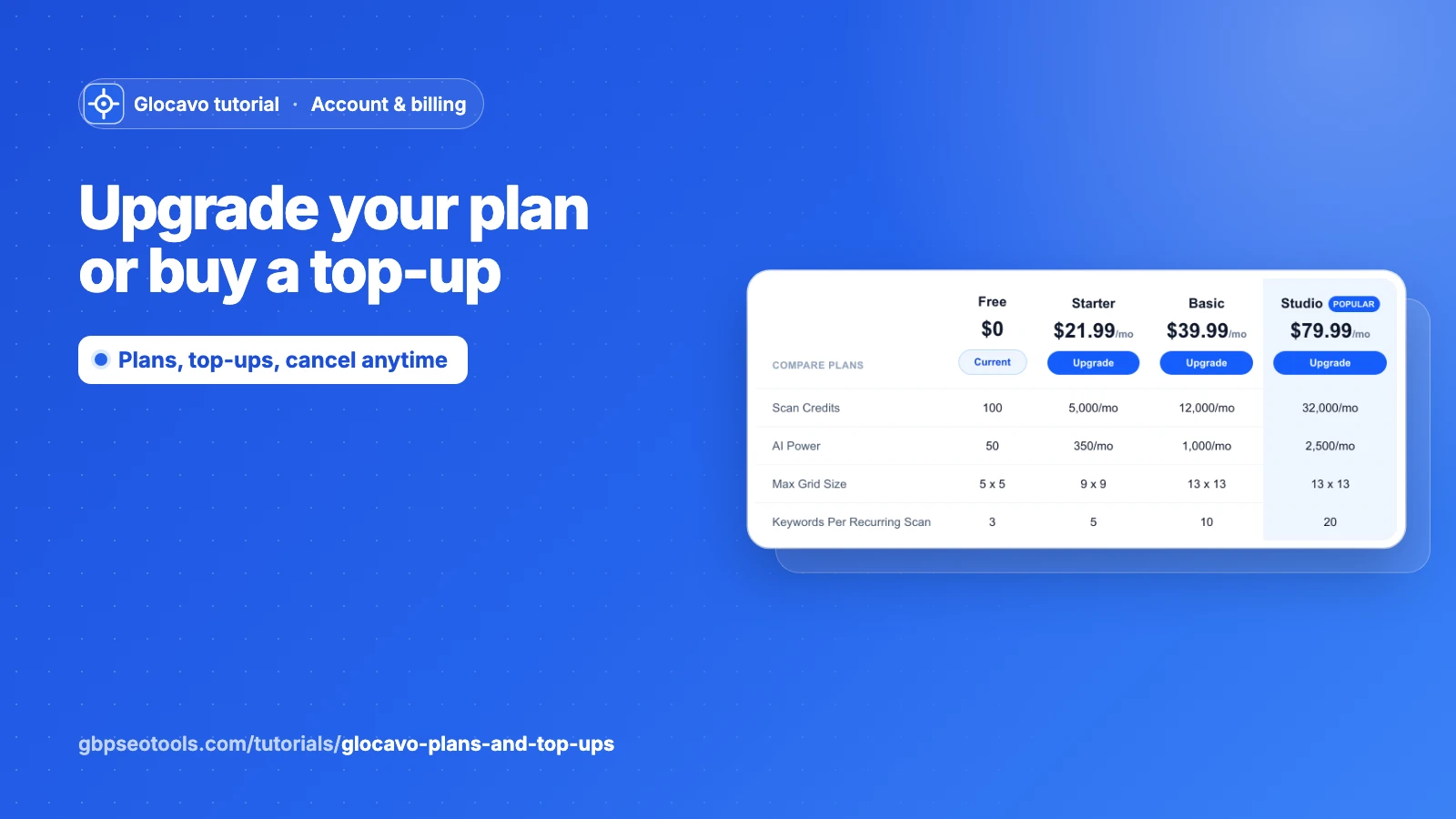
Account & billing
Upgrade your plan or buy a top-up
Check what you have left, compare the plans, upgrade from Free, switch to yearly, change or cancel a plan, and buy one-time credit top-ups.
Read the plans and top-ups guide5 min read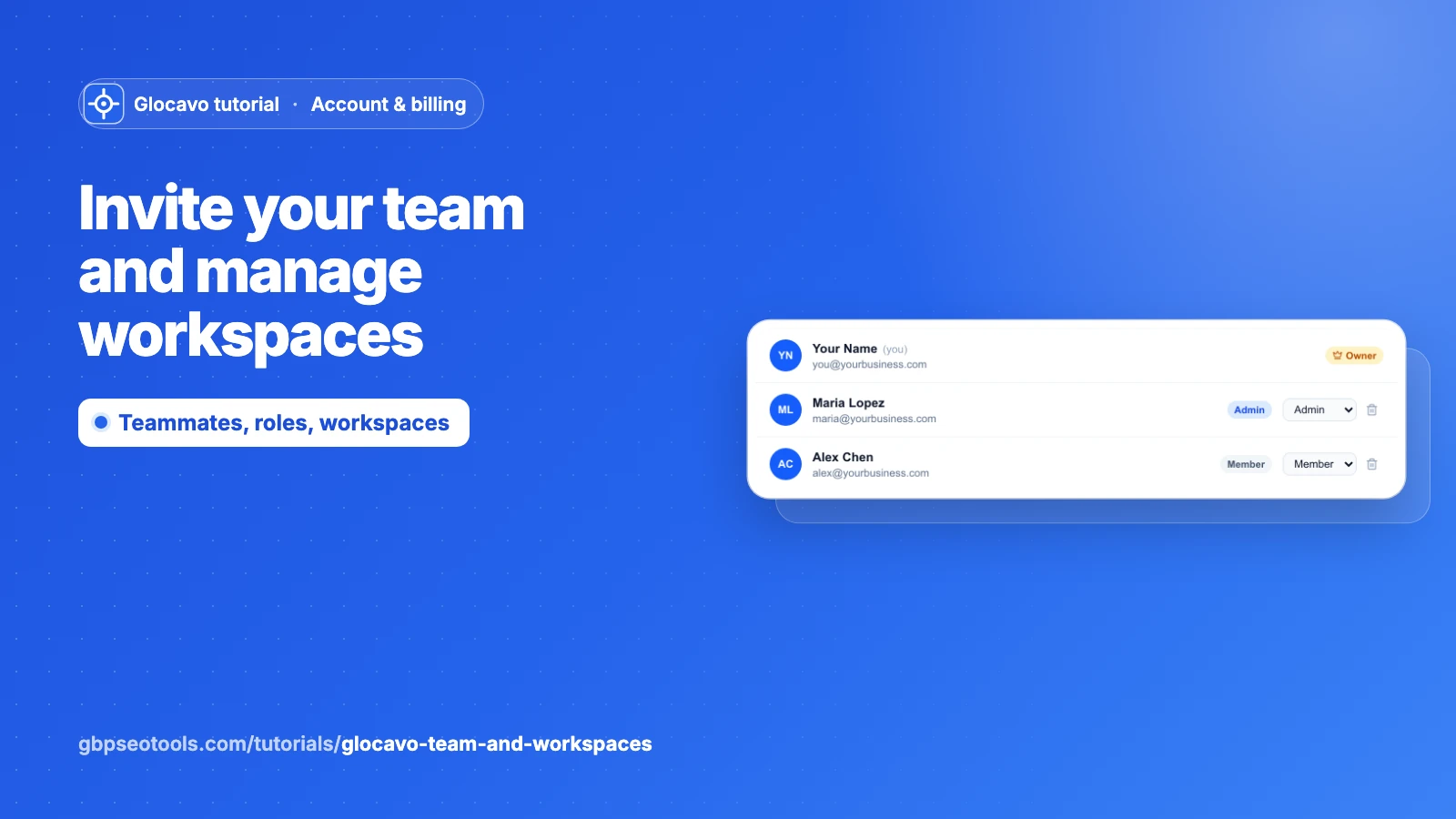
Account & billing
Invite your team and manage workspaces
Invite teammates by email, choose who can do what, manage pending invites, and use separate workspaces for each client.
Read the team and workspaces guide4 min read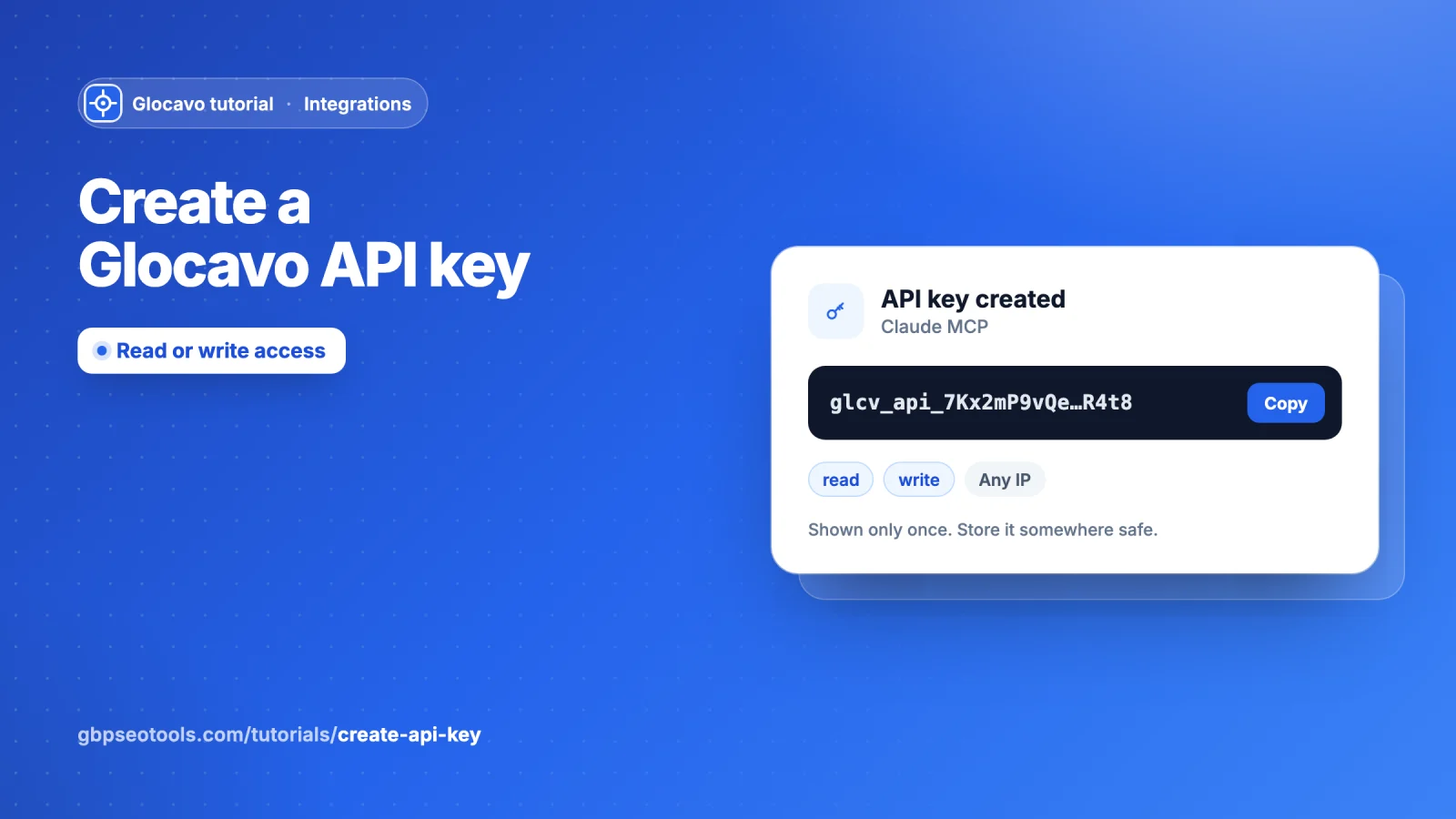
Integrations
Create a Glocavo API key
Generate a key for the Glocavo API and MCP server: name it, choose read or write access, optionally lock it to an IP, and copy it once.
Read the API key guide3 min read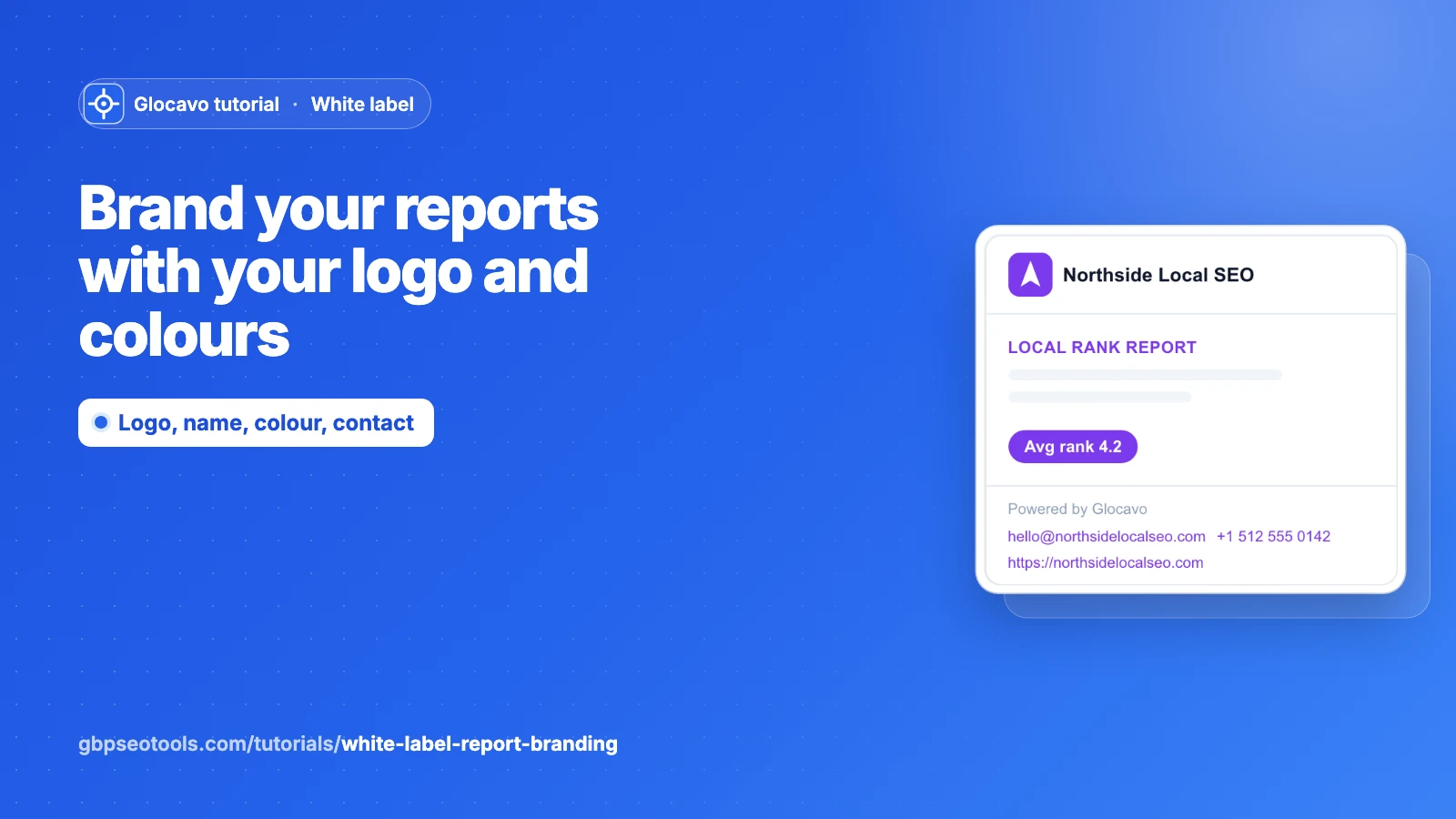
White label
Brand your reports with your logo and colours
Put your agency's logo, name, colour and contact details on every report link you share, so clients see your brand, not Glocavo's.
Read the report branding guide4 min read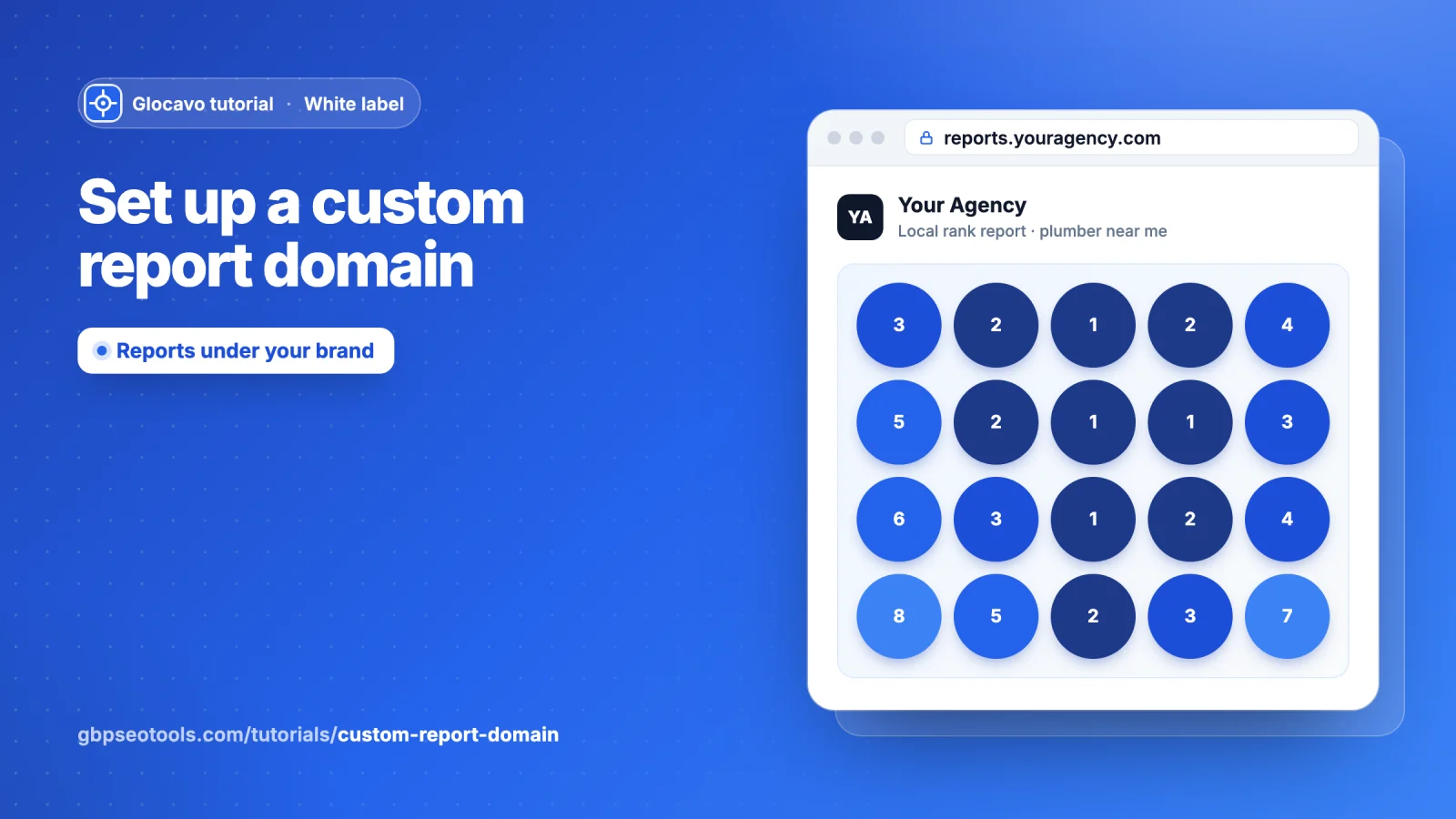
White label
Set up a custom report domain
Point your own sub-domain (reports.youragency.com) at Glocavo so shared rank reports open under your brand, with no Glocavo app around them and no login screen.
Read the custom report domain guide4 min read