AI Visibility
Manage your AI Visibility campaign
Share a read-only report link, export to CSV, pause the schedule or its emails, edit the business, competitors, engines, schedule and questions, discover new questions, and delete a campaign.
Updated September 28, 2026 · 5 min read
Once a campaign is running you will want to share it, adjust what it asks, change its schedule, or pause it for a while. This guide covers every control around the report.
- Where
- The buttons at the top of any campaign, and Settings in the campaign menu.
- Cost
- Changing settings, sharing, pausing and exporting use no checks. Run AI check, Discover questions and topic suggestions do.
The campaign buttons
Know the buttons at the top
Every campaign has the same row of buttons next to its name:
- Share (1): a read-only link to the report (step 2).
- Export CSV (2): downloads the scan on screen as a spreadsheet, with every question, every business named and every site cited.
- Pause (3) and email (4): see step 4.
- Delete (5): see step 10.
- Run AI check (6): runs a scan right now, on top of the schedule. It uses the same checks as a scheduled scan.
- The schedule (7): click it to see when the next scan runs and every question it asks.

Share the report with a link
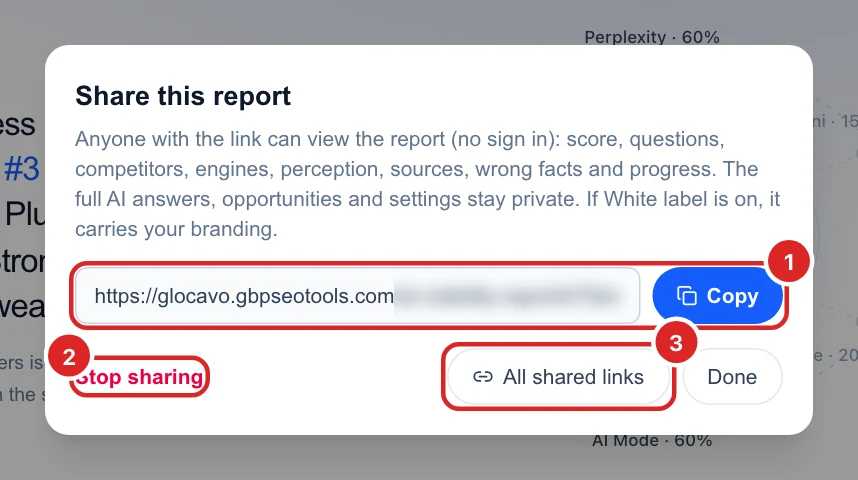
Click Share, then Create link. Anyone with the link can view the report without signing in: the score, questions, competitors, engines, perception, sources, wrong facts and progress. The full AI answers, opportunities and settings stay private.
- Copy (1) the link and send it to a client, a colleague or your boss.
- Stop sharing (2) turns the link off at once. Old copies of it stop working.
- All shared links (3) opens the page that lists every report you share (step 3).
With White label on, the shared report carries your branding, and it uses your own domain once one is set up. See Set up a custom report domain.
Find all your shared reports
Every report you share is listed in one place. In the sidebar, open Shared links (1) under Local rankings, then the AI Visibility (2) tab. Each shared report (3) shows its link, with buttons to copy it, open it, or stop sharing it. Search by business or website, or tick several to stop sharing them at once.
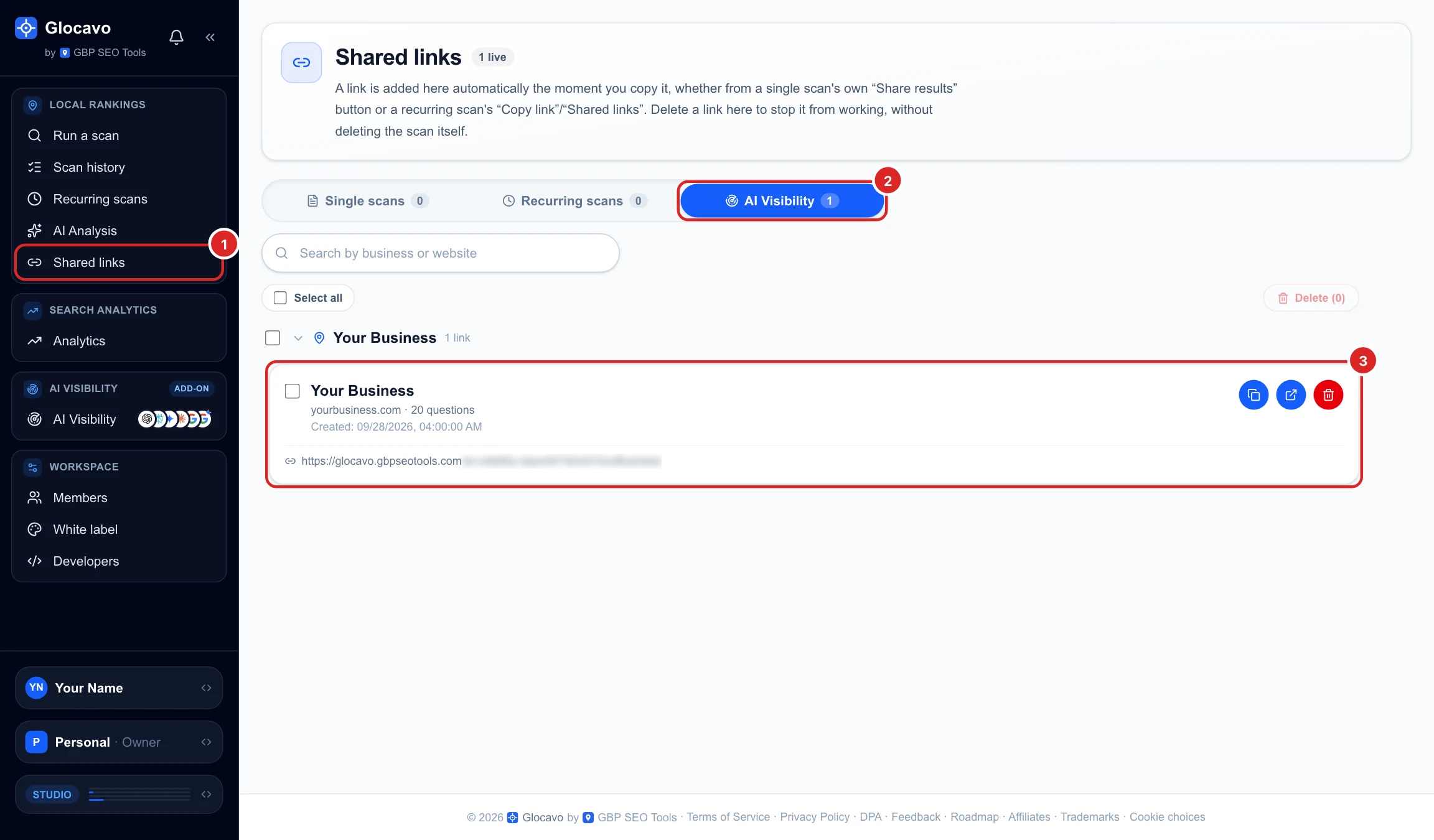
The same page also lists your shared Google Maps scans, under Single scans and Recurring scans.
Pause the schedule or turn off the emails
- Pause (1) stops the scheduled scans without changing anything else. The button turns into a play button, and the schedule reads (paused) (3). Click it again to resume. You can still use Run AI check while paused.
- Email (2) turns off the email you get after each scheduled scan. A crossed-out bell means the emails are off.

Settings
Update the business and your competitors
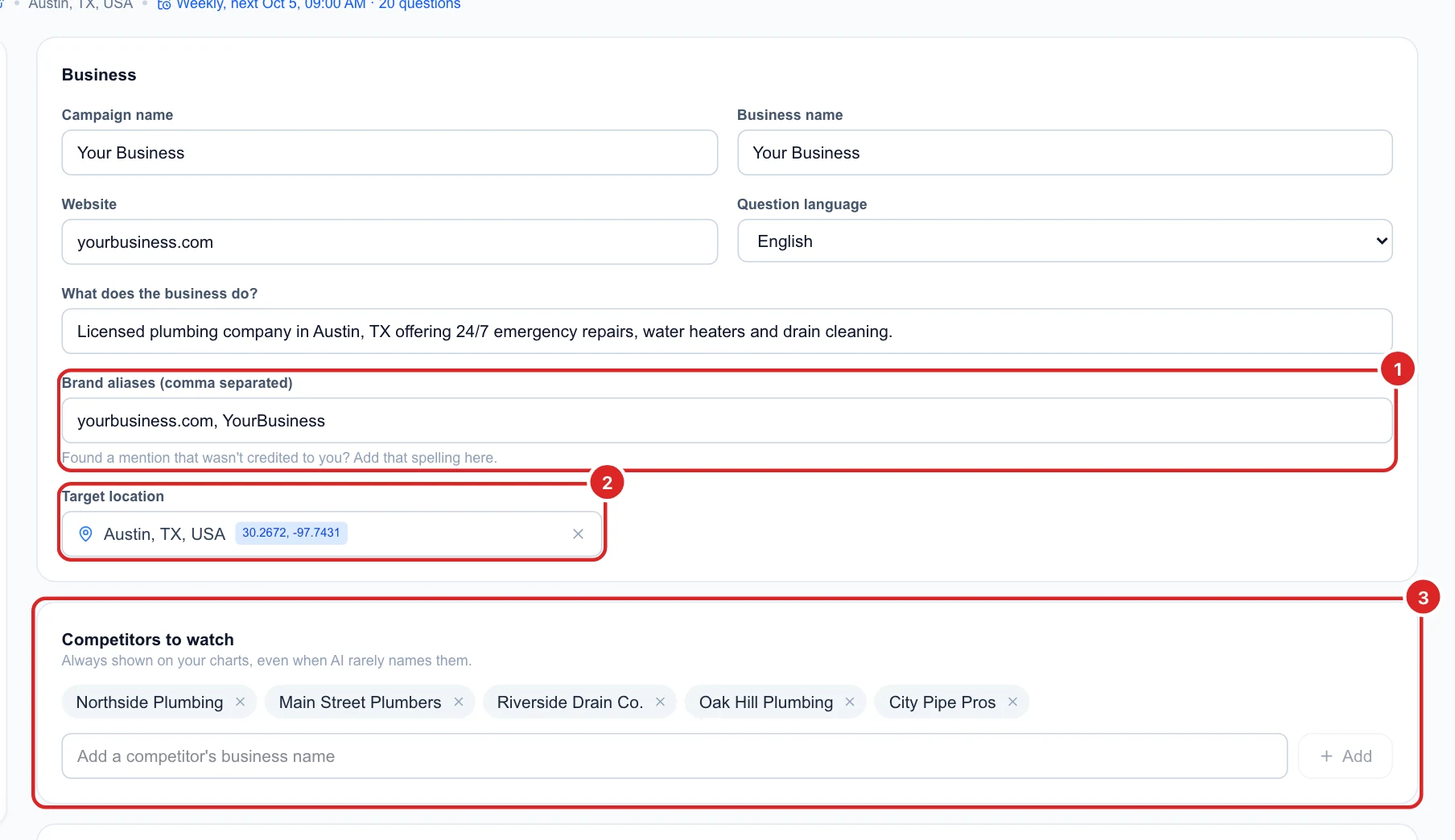
Click Settings in the campaign menu. The Business card holds the campaign name, business name, website, question language and what the business does. Two fields are worth a look:
- Brand aliases (1): other ways people write your name. If an answer mentions you in a way that was not counted, add that spelling here.
- Target location (2): the city, region or country the questions are asked from. Leave it empty for worldwide.
- Competitors to watch (3): these always appear on your charts, even when AI rarely names them. Add one by name, or click ✕ to remove it.
Choose the engines and the schedule
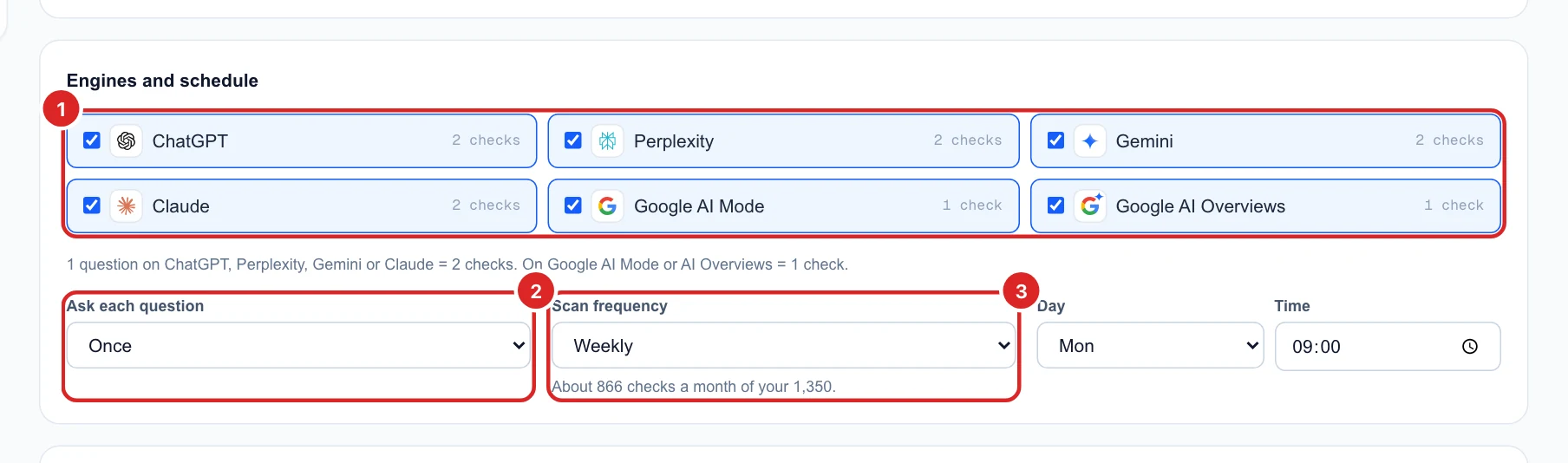
- Engines (1): tick the AI engines to ask. Each shows what one question costs on it: 2 checks on ChatGPT, Perplexity, Gemini and Claude, 1 on Google AI Mode and AI Overviews.
- Ask each question (2): once, or up to 3 times per scan. AI answers vary, so asking more than once gives steadier numbers, but multiplies the checks.
- Scan frequency (3): on demand, daily, weekly or monthly, with the day and time. Right under it, Glocavo shows how many checks this uses a month out of your monthly checks, and warns you in red if the schedule would run out before the month ends.
For how checks and top-ups work, see How AI Visibility checks work.
Edit the questions and topics
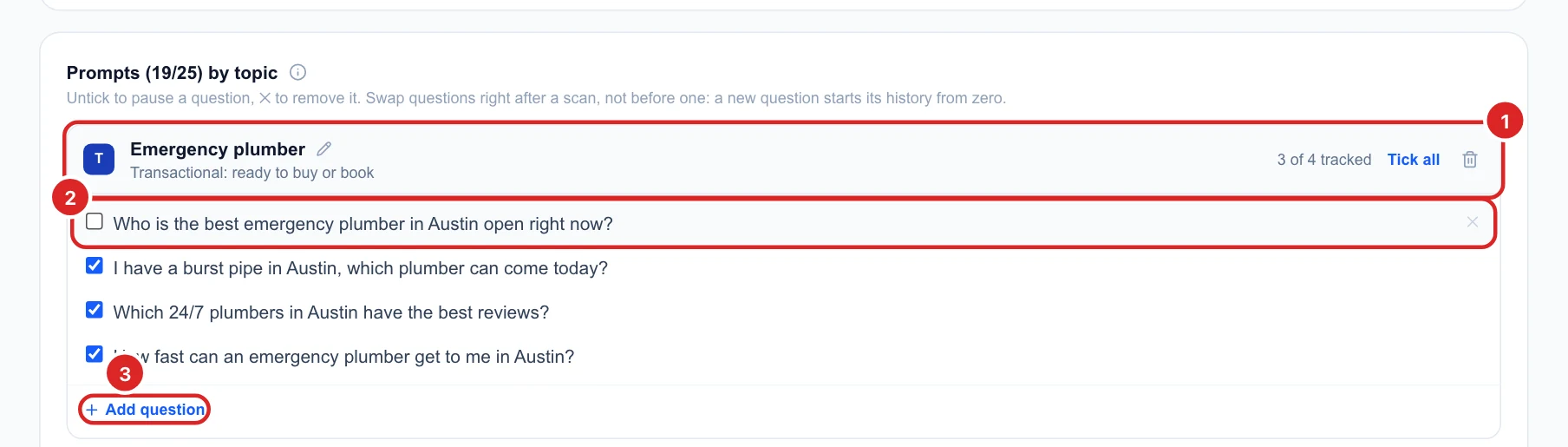
Questions are grouped by topic, each with its type of customer and how many of its questions are tracked.
- The topic (1): click the pencil to rename it, Tick all to track all its questions, or the bin to delete it.
- A question (2): untick it to pause it, or click ✕ to remove it.
- Add question (3): type a question and add it as it is, or type a keyword (like “tankless water heater”) and Make questions turns it into real customer questions for you to pick from, at no cost.
Below the topics, New topic adds a topic by hand (free), or suggests one with its questions (2 checks).
Change questions right after a scan, not just before one: a new question starts its history from zero.
Save your changes
As soon as you change anything, a bar stays at the bottom of the screen with You have unsaved changes and what each scan will cost with your changes. Click Save (1) to keep them, or Discard (2) to go back.

Find new questions and delete a campaign
Discover questions you are not tracking
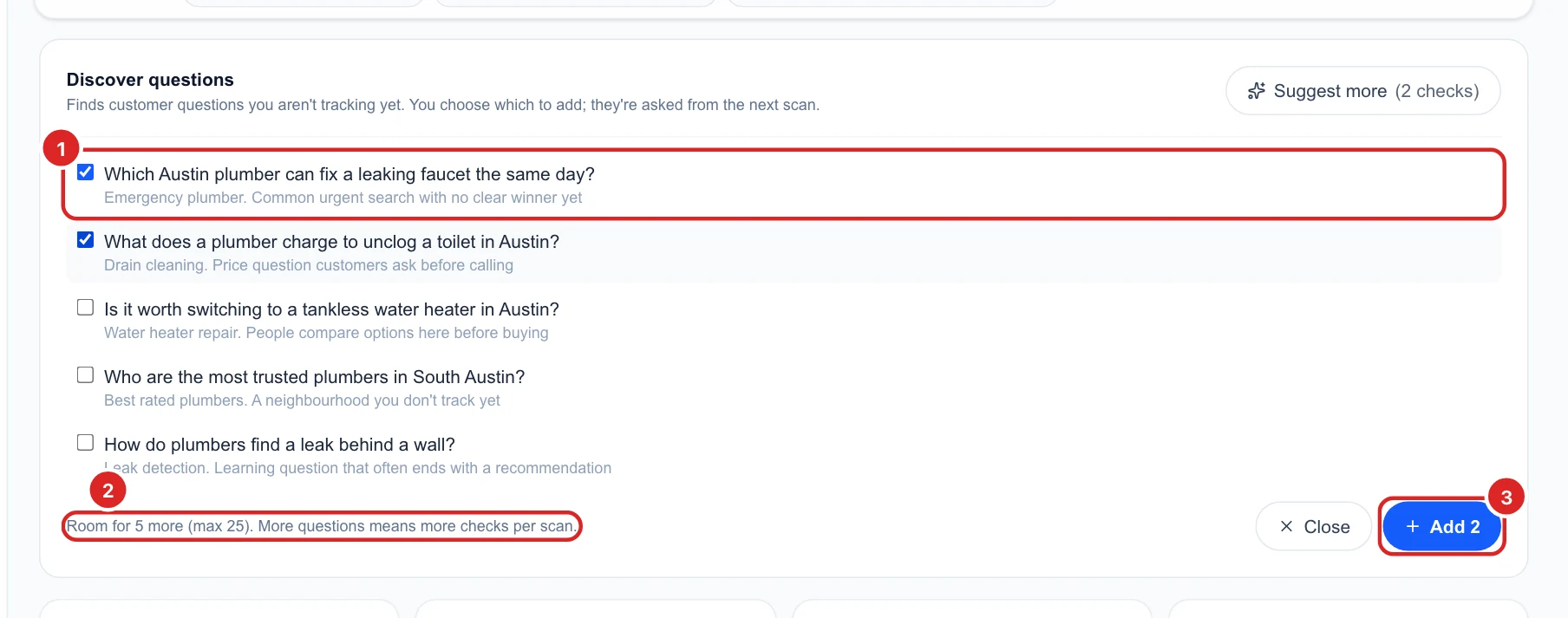
In Prompts, the Discover questions card finds customer questions you do not track yet (2 checks). Each suggestion shows its topic and why it is worth tracking. Tick the ones you want (1); the card shows how many more you have room for (2). Then click Add (3). They are asked from the next scan, or right away with Run AI check.
Delete a campaign
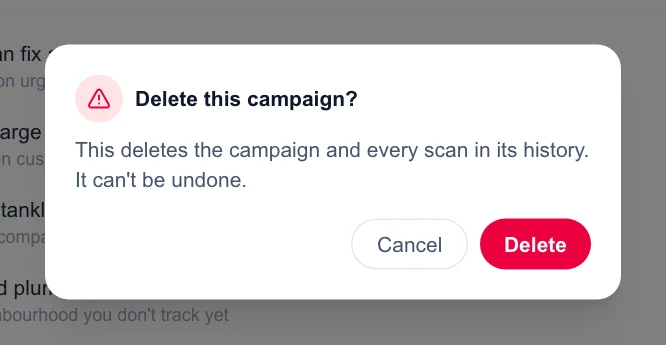
The bin at the top deletes the campaign and every scan in its history. Glocavo asks you to confirm first, and it cannot be undone. If you only want to stop the scans for a while, pause the schedule instead (step 4), so you keep your history.
Next
Starting again? See Create an AI Visibility campaign. Want the same data in Claude? See Connect Glocavo to Claude with MCP.