Integrations
Connect Glocavo to Claude with MCP
Add Glocavo as a custom connector so Claude can run Google Maps grid scans, read rank reports and check AI Visibility for you, using your own API key and credits.
Updated September 28, 2026 · 6 min read
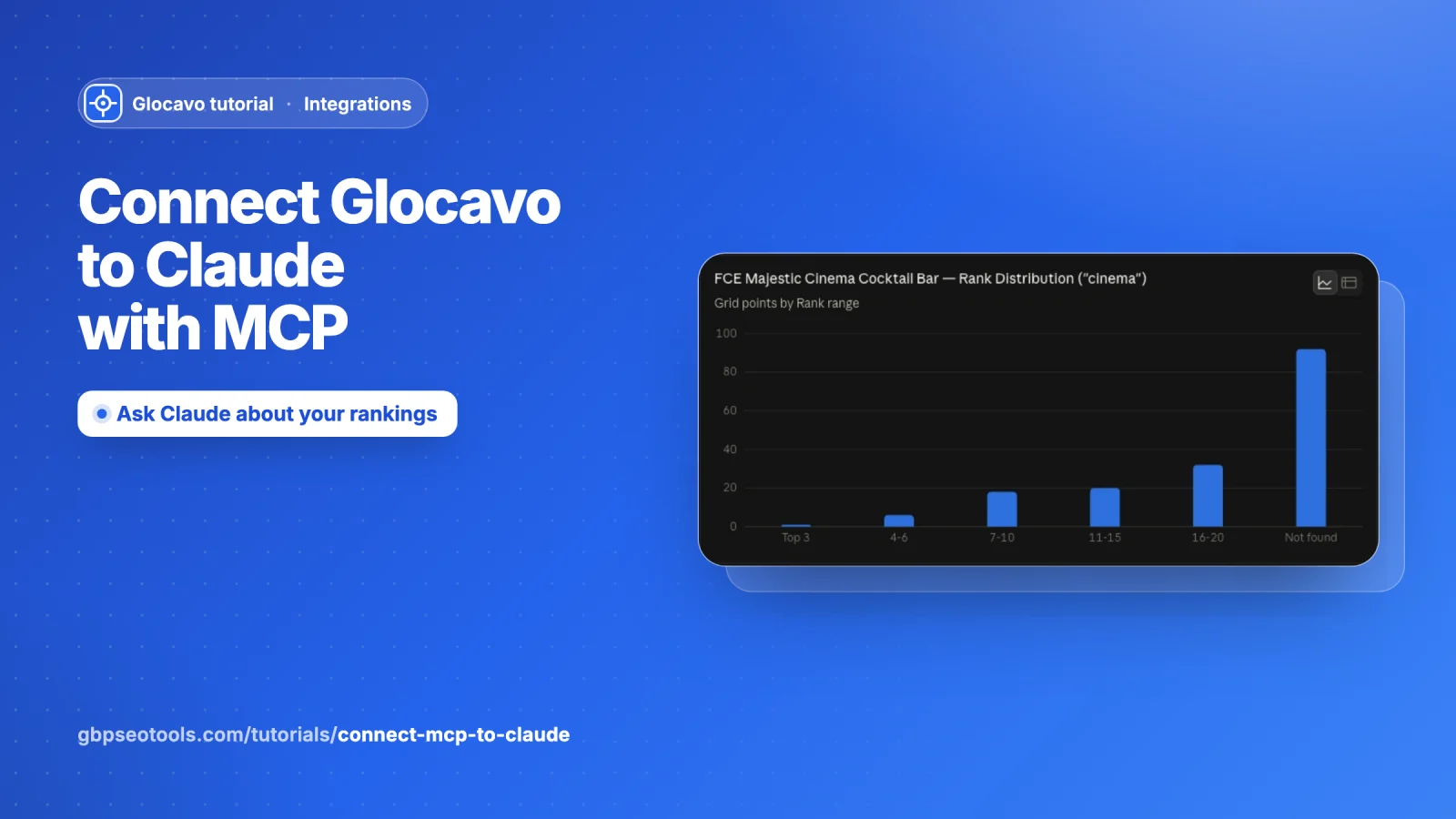
Glocavo speaks the Model Context Protocol (MCP), so Claude can run Google Maps grid rank scans, poll them, list them, generate AI reports and check your AI Visibility directly inside a chat. It uses the same API, the same key and the same credits as the Glocavo dashboard, exposed as tools Claude can call.
- Server URL
https://glocavo.gbpseotools.com/api/v1/mcp- Auth
- An
x-api-keyheader (no OAuth). - Requires
- A paid Claude plan, and a Glocavo workspace on Studio or Agency. On any other plan, the $99.99 AI Visibility add-on gives you a key for the AI Visibility tools only.
Create an API key
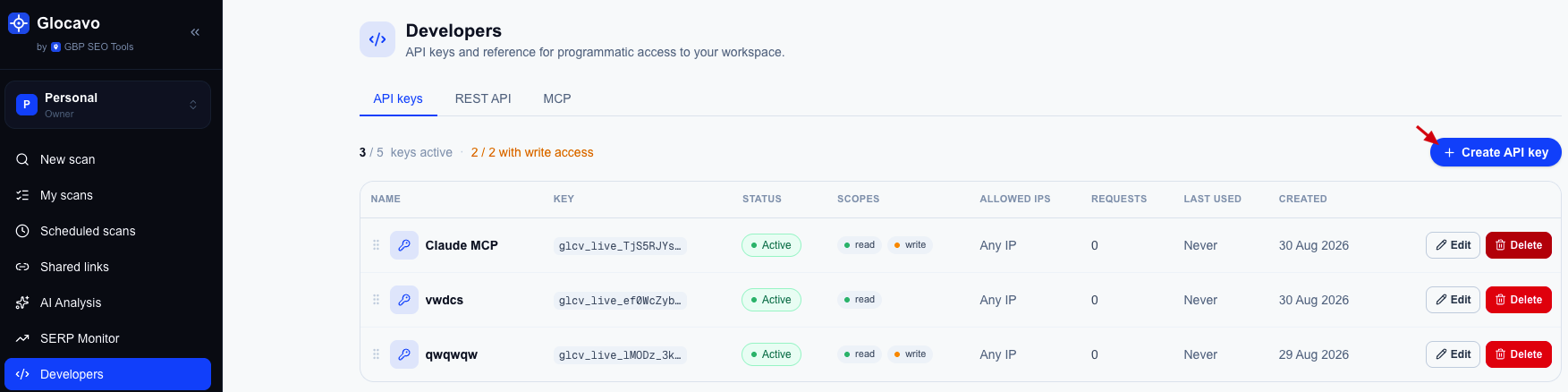
In Glocavo, open Developers in the left sidebar. On the API keys tab, click Create API key, name it (for example Claude MCP), and turn on Allow write access so Claude can start scans and generate reports. Full walkthrough: Create a Glocavo API key.
Click Create API key, then Copy. The full glcv_api_… key is shown only once, so store it somewhere safe.
Open Claude's settings
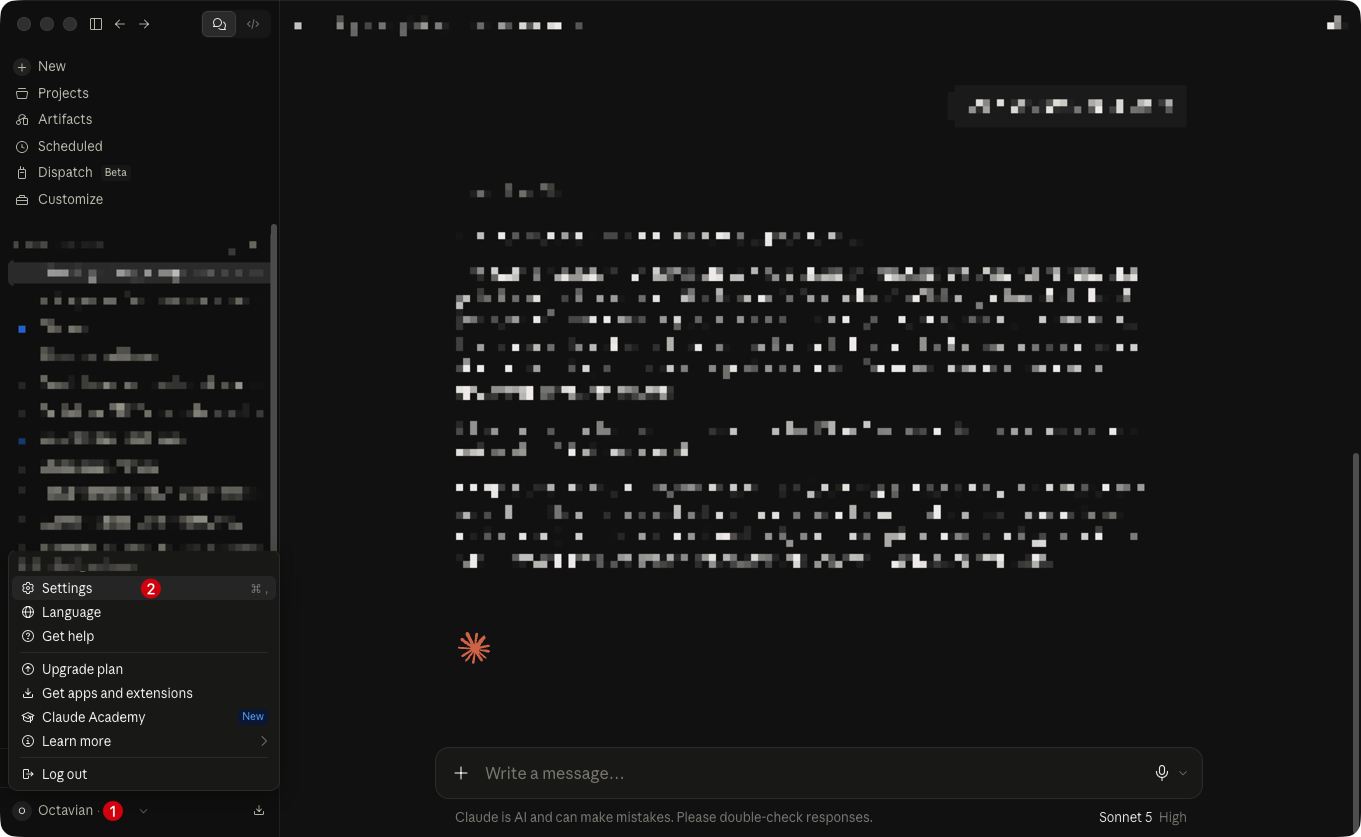
In Claude, click your profile icon in the bottom-left corner and choose Settings.
Start a custom connector
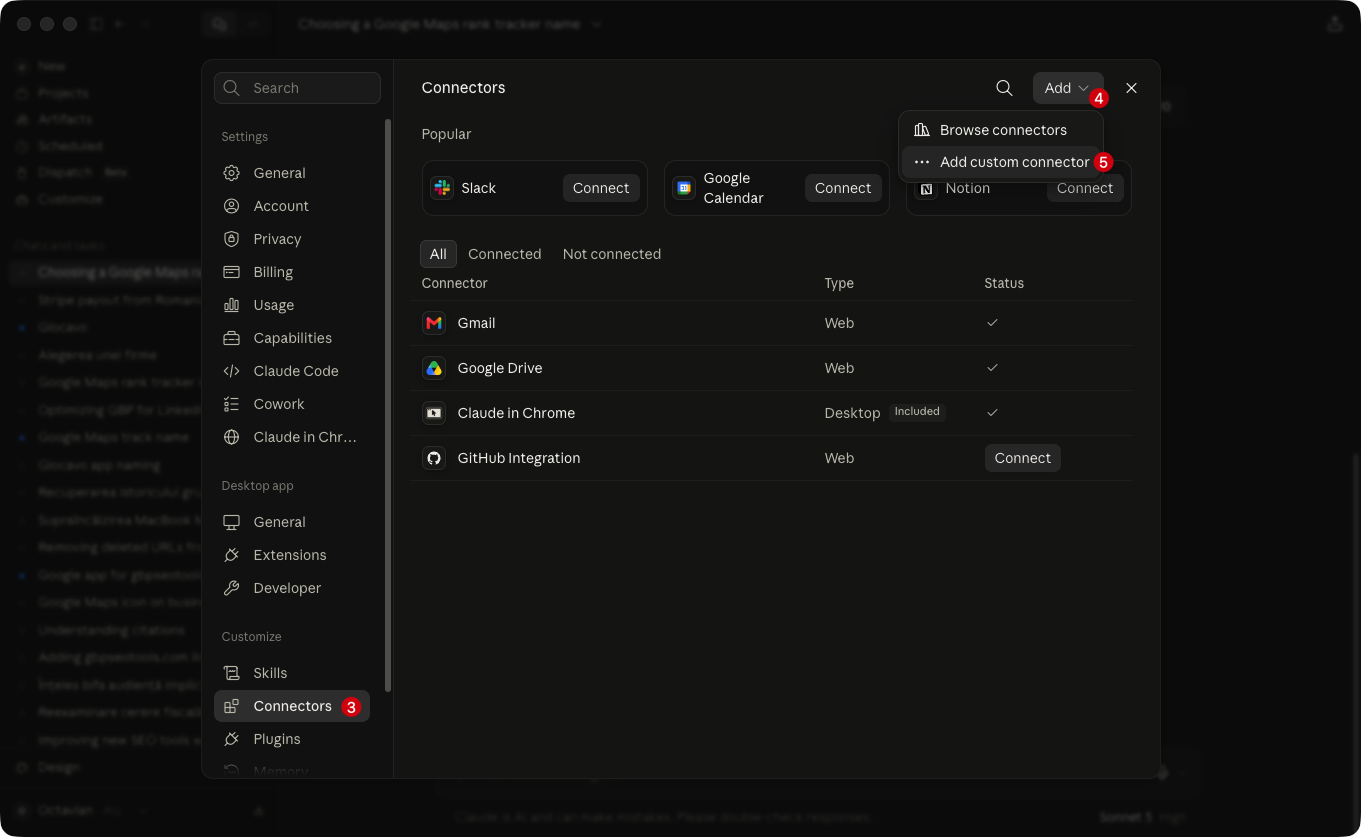
In the sidebar, open Connectors, then click Add and choose Add custom connector. Custom connectors require a paid Claude plan.
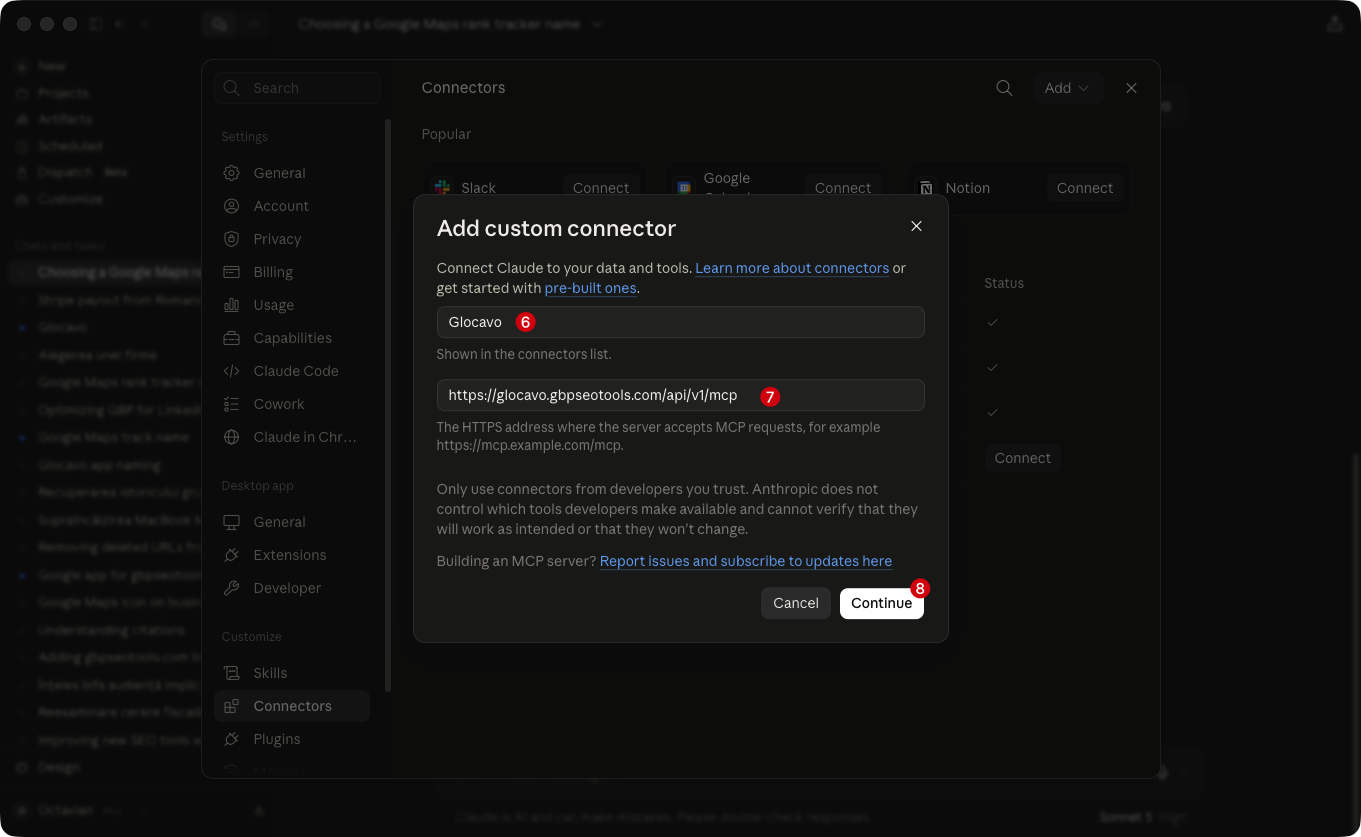
Name it and paste the URL
Name it Glocavo and paste the server URL:
https://glocavo.gbpseotools.com/api/v1/mcpClick Continue.
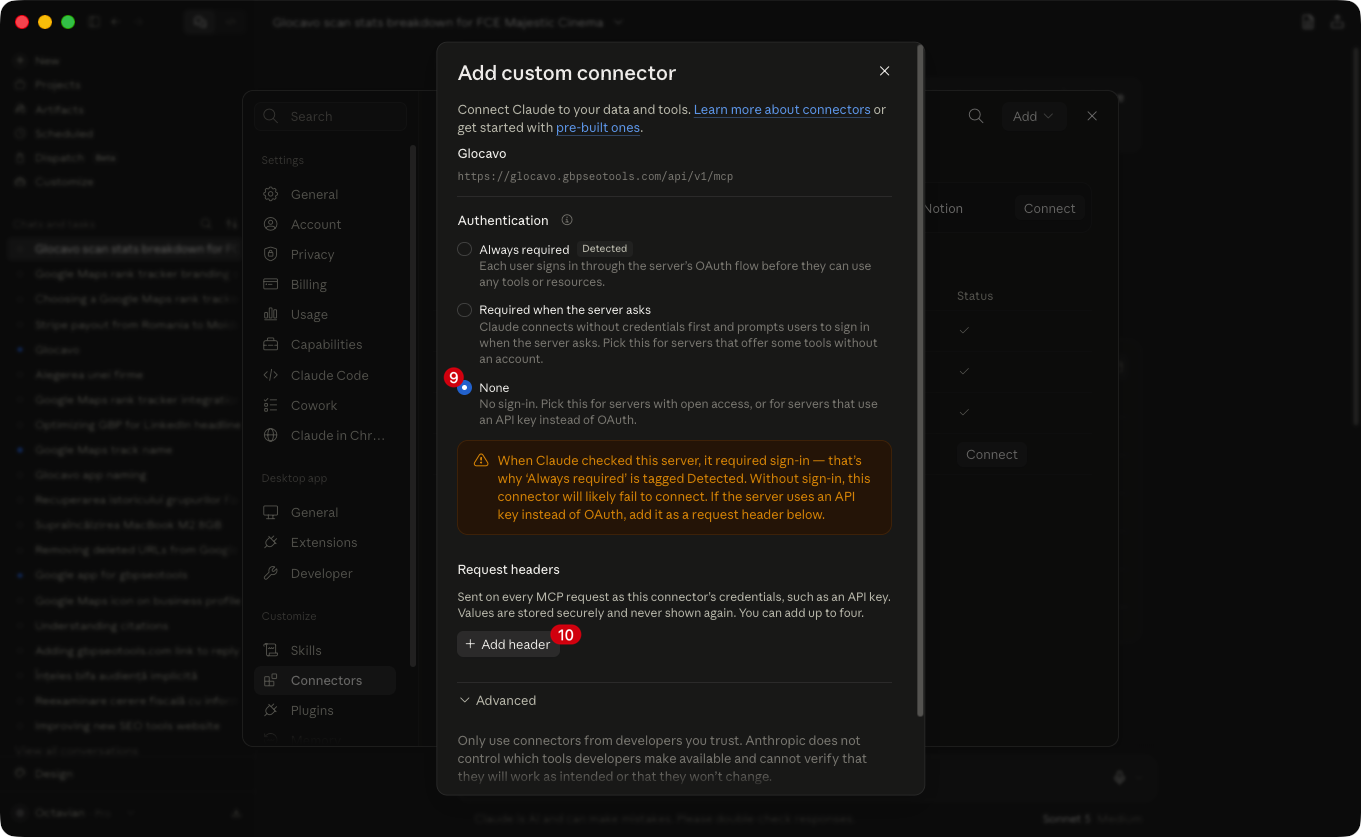
Set authentication to None and add the key
When you continue, Claude checks the server. Because Glocavo needs a key, it may default to Always required, tagged “Detected”. Glocavo does not use OAuth, so choose None. The yellow “it required sign-in…” warning that then appears is expected: the header you add next authenticates every request.
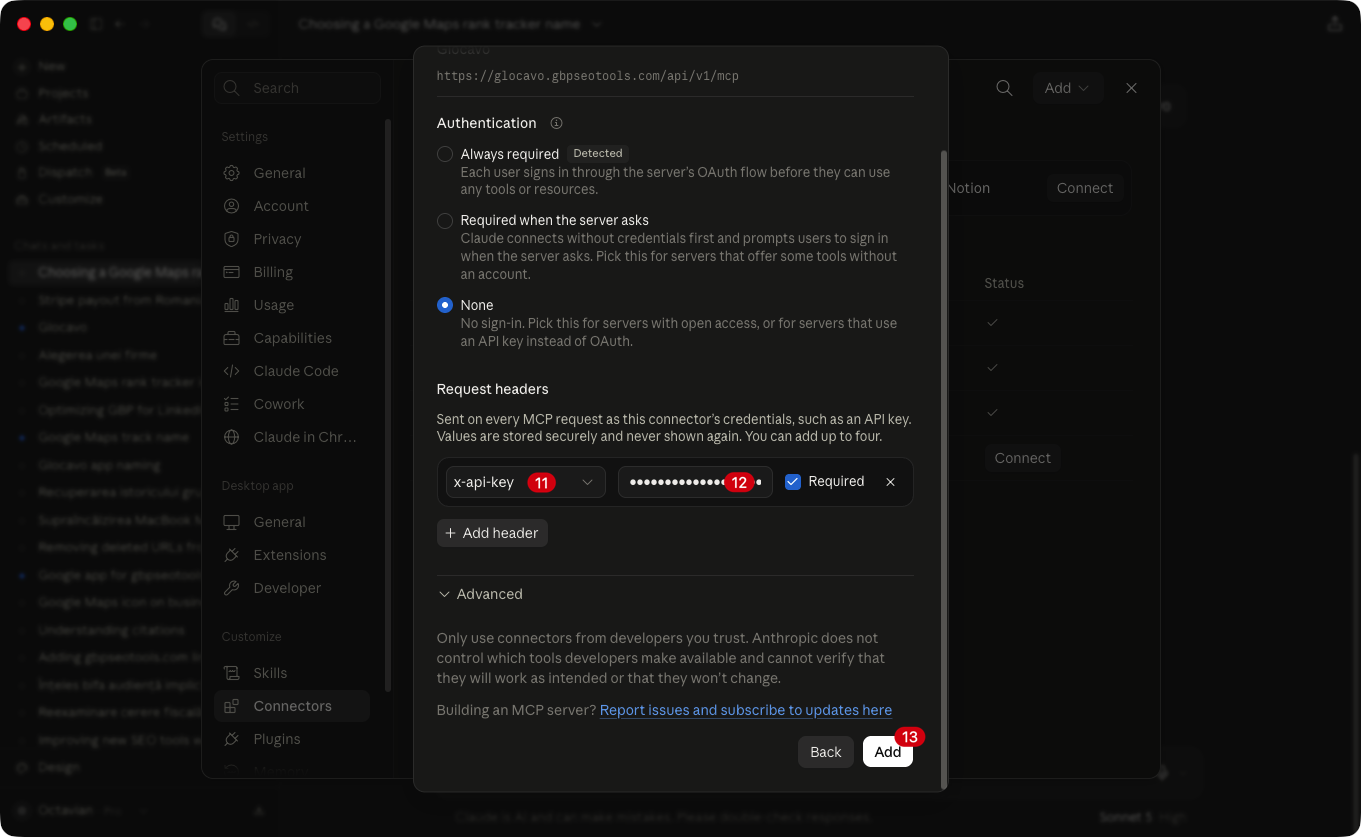
Now scroll to Request headers and click Add header. For the name enter x-api-key and for the value paste your glcv_api_… key from step 1. Leave Required ticked, then click Add. Claude masks the value and never shows it again.
Alternative: skip the header and put the key in the URL instead, as https://glocavo.gbpseotools.com/api/v1/mcp?key=glcv_api_YOURKEY. Claude then detects None by itself and you click straight through. The header is the better option because the key is stored securely instead of sitting in the URL.
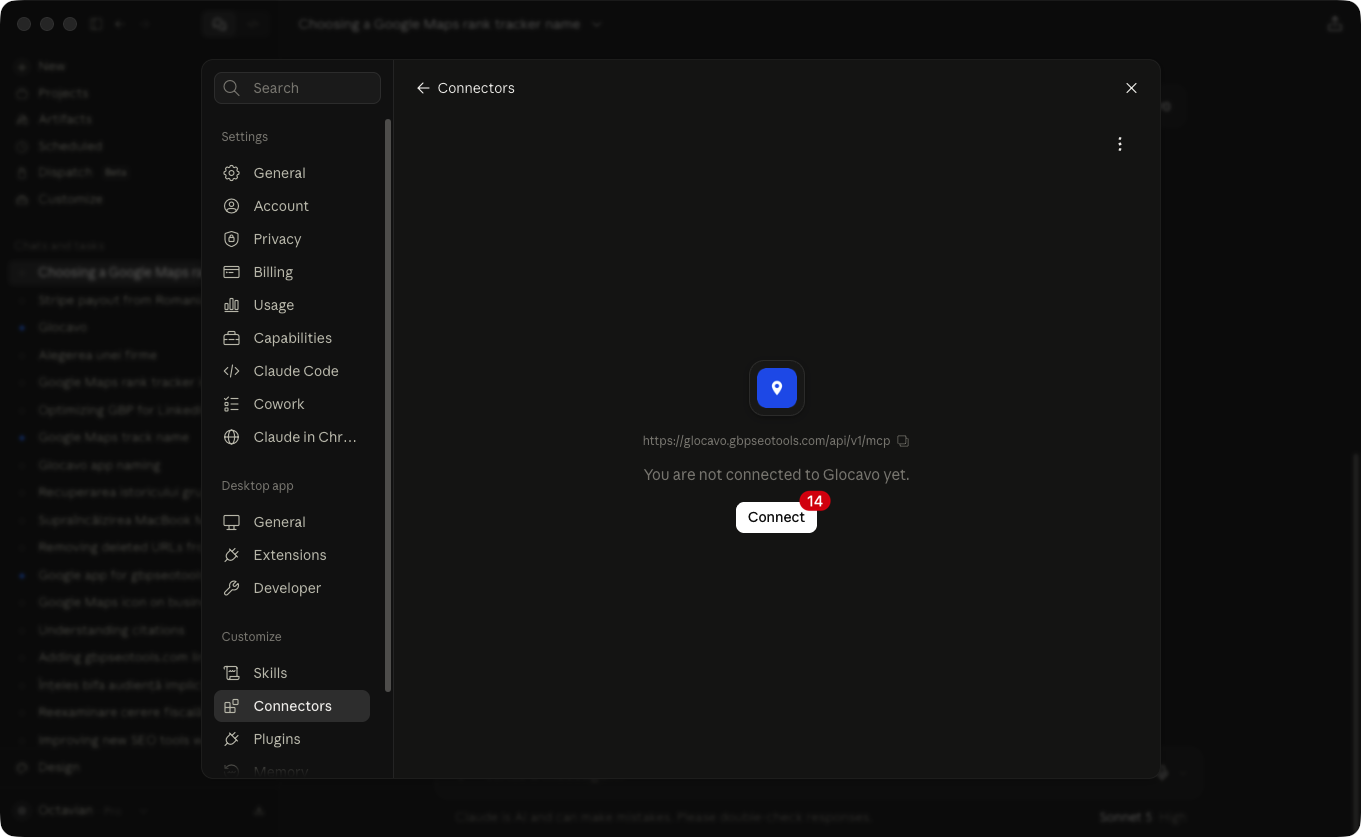
Connect
On the Glocavo row, click Connect. Accept the “not verified by Anthropic” prompt: here it only means the connector calls your own Glocavo workspace. There is no OAuth, so it connects with no sign-in popup.
Set tool permissions
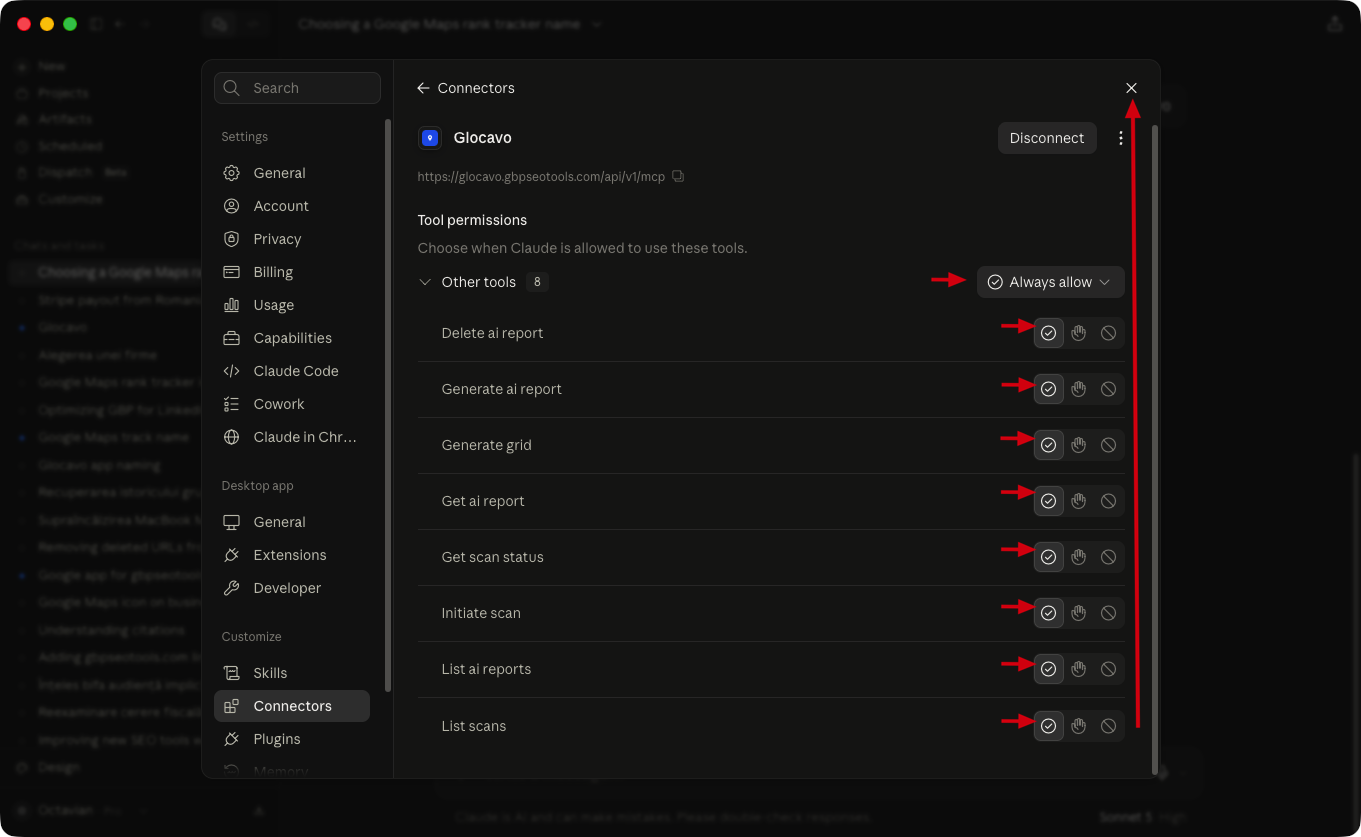
Click Configure on the Glocavo row to see the tools. Set each one to Allow, Ask or Off. The 4 write tools (initiate_scan, generate_ai_report, delete_ai_report and run_ai_visibility_scan) spend credits, so leaving those on Ask is sensible.
Enable it in a chat
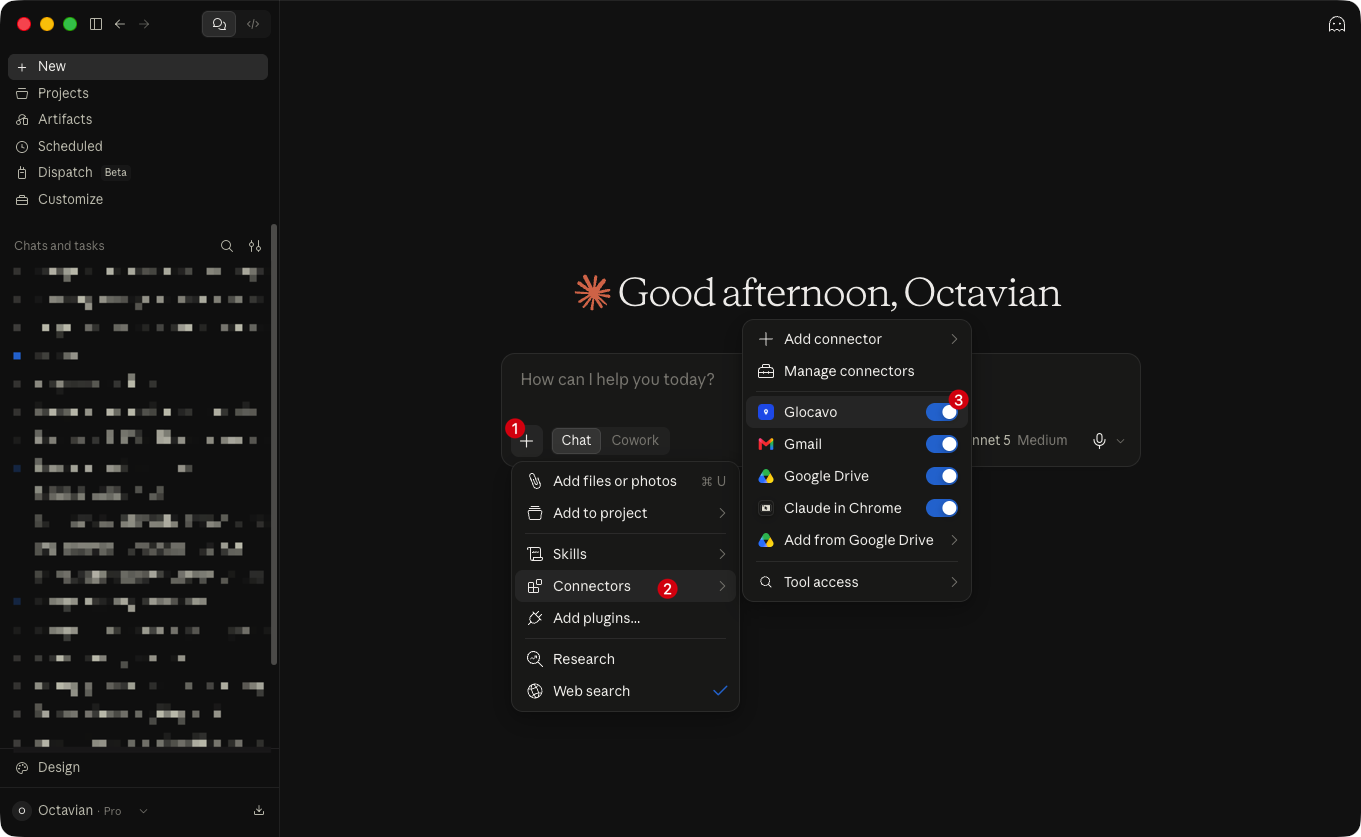
Open a new chat, click the + button, choose Connectors, and toggle Glocavo on for that chat.
Run a real prompt
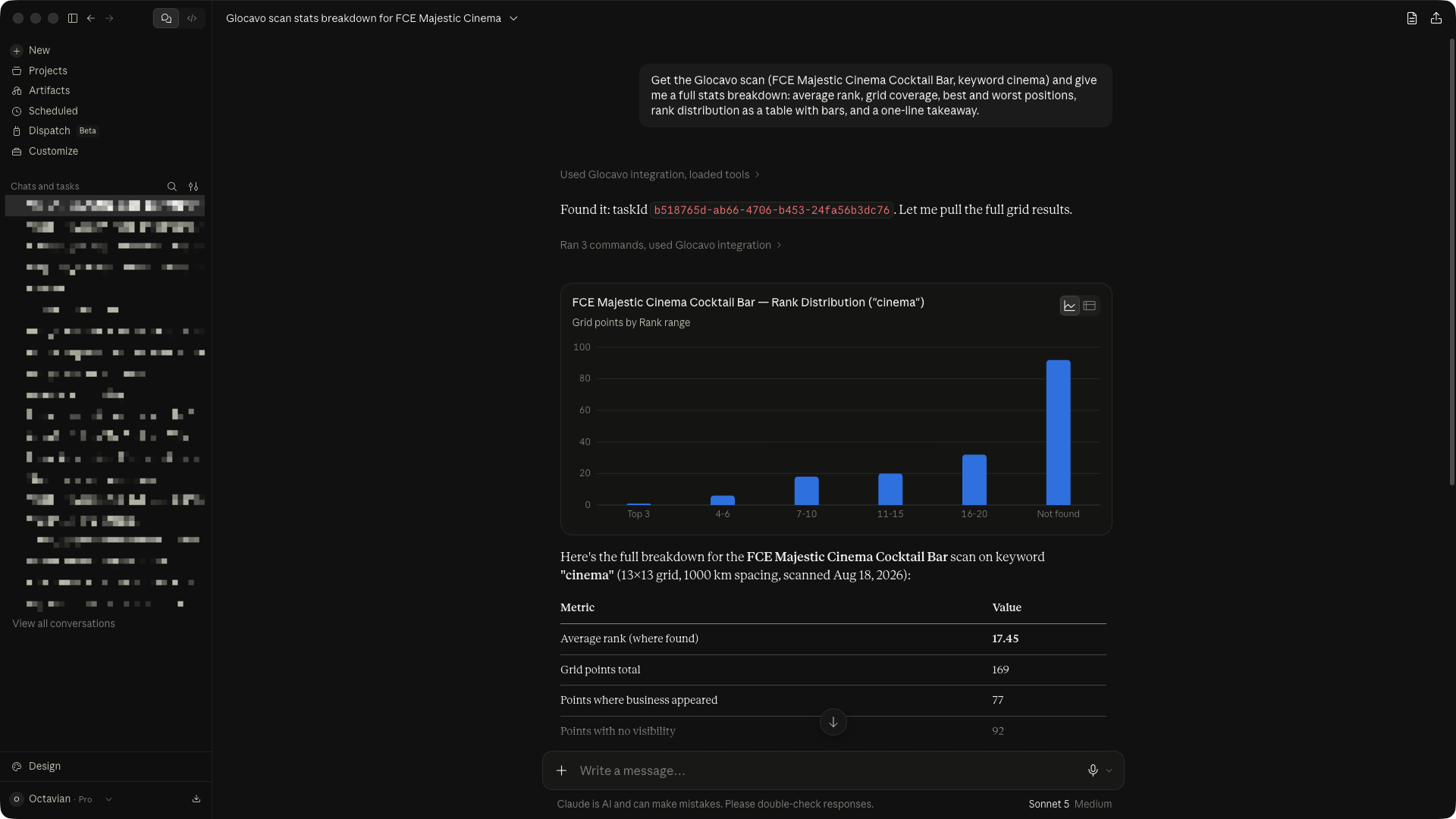
Try a stats-heavy request:
Get the Glocavo scan for FCE Majestic Cinema Cocktail Bar, keyword cinema. Give me a full stats breakdown: average rank, grid coverage, best and worst positions, rank distribution as a table with bars, and a one-line takeaway.Claude calls list_scans to find the scan, then get_scan_status for the full grid, then formats the numbers into a chart and table.
The 12 tools
The four AI Visibility tools work when your workspace has AI Visibility (included with every paid plan, or the add-on).
| generate_grid | read | Preview the lat/lng points a scan would cover. |
| initiate_scan | write | Start a grid scan for a place and keyword. |
| get_scan_status | read | Status and full grid results for one scan. |
| list_scans | read | List the workspace's scans, newest first. |
| list_ai_reports | read | List scans that have a saved AI report. |
| get_ai_report | read | Fetch one stored AI report. |
| generate_ai_report | write | Generate (or return the saved) AI analysis for a scan. |
| delete_ai_report | write | Clear a scan's saved AI report. |
| list_ai_visibility_campaigns | read | List AI Visibility campaigns with their latest AI Score. |
| get_ai_visibility_report | read | Full AI Visibility report for a campaign. |
| run_ai_visibility_scan | write | Start an AI Visibility scan (uses checks). |
| get_ai_visibility_scan_status | read | Progress of an AI Visibility scan. |
More prompts to try
Read, no credits
- “Analyze scan
<taskId>: average rank, grid coverage, best and worst points, and the rank distribution as a table with bars, then a one-line takeaway.” - “Generate a 5x5 grid centered on 28.0833, -16.7223 with 1 km spacing.”
- “Which of my scans have an AI report? Summarize the most recent one.”
- “What is my latest AI Score, and which AI engines don’t mention my business?”
Write, spends credits (Claude asks first)
- “Start a 7x7 scan for place ID
<placeId>on plumber near me, wait for it, then list the 3 grid points where I rank worst.” - “Run a scan for vegan bakery at place ID
<placeId>, then generate an AI report and summarize it.”
How it bills
- A scan costs one scan credit per grid point: 25 for a 5x5, 81 for a 9x9, 169 for a 13x13.
generate_gridand all read tools cost nothing. They only count against the per-key hourly rate limit.- AI Power credits are spent only the first time a report is generated for a scan. Later calls return the saved report with
cached: true. - An AI Visibility scan uses AI Visibility checks, the same as running it in the app.
- On Claude’s side, tool definitions and tool results use conversation context like any chat. Ask for summaries when you do not need every grid point.
Troubleshooting
| Symptom | Fix |
|---|---|
| “API key does not have the write scope” | The key is read-only. Create a new key with write access and update the x-api-key header. |
| 401 or “API key is not valid” | The key was deleted, or the header value has a stray space. Copy it again. |
| 429 | Hourly rate limit reached. Wait for the reset time given in the Retry-After value. |
| Connector icon looks wrong | Claude saves it when the connector is added. Remove and add the connector again. |
| “Add custom connector” is missing | Custom connectors need a paid Claude plan. This is set in Claude, not in Glocavo. |