Rank tracker
Compare yourself with your Google Maps competitors
Use the Leaderboard tab to compare your frequency, average rank, top-3 points and rating with the field, see where each competitor wins, read the rating landscape and the full competitor table.
Updated October 3, 2026 · 6 min read
The Leaderboard puts you side by side with the businesses you compete with on Google Maps: how often each one shows up, how high, how often in the top 3, and how its rating compares with yours. Every number is measured against your own, so you can see at a glance who is ahead and on what.
The screenshots use a made-up plumber called Your Business in Austin, TX, scanned on a 7x7 grid for plumber near me.
- Where
- Any finished scan → the Leaderboard tab.
- Who
- Every plan, Free included.
- Cost
- Nothing. It reads the scan you already ran.
Open the Leaderboard tab
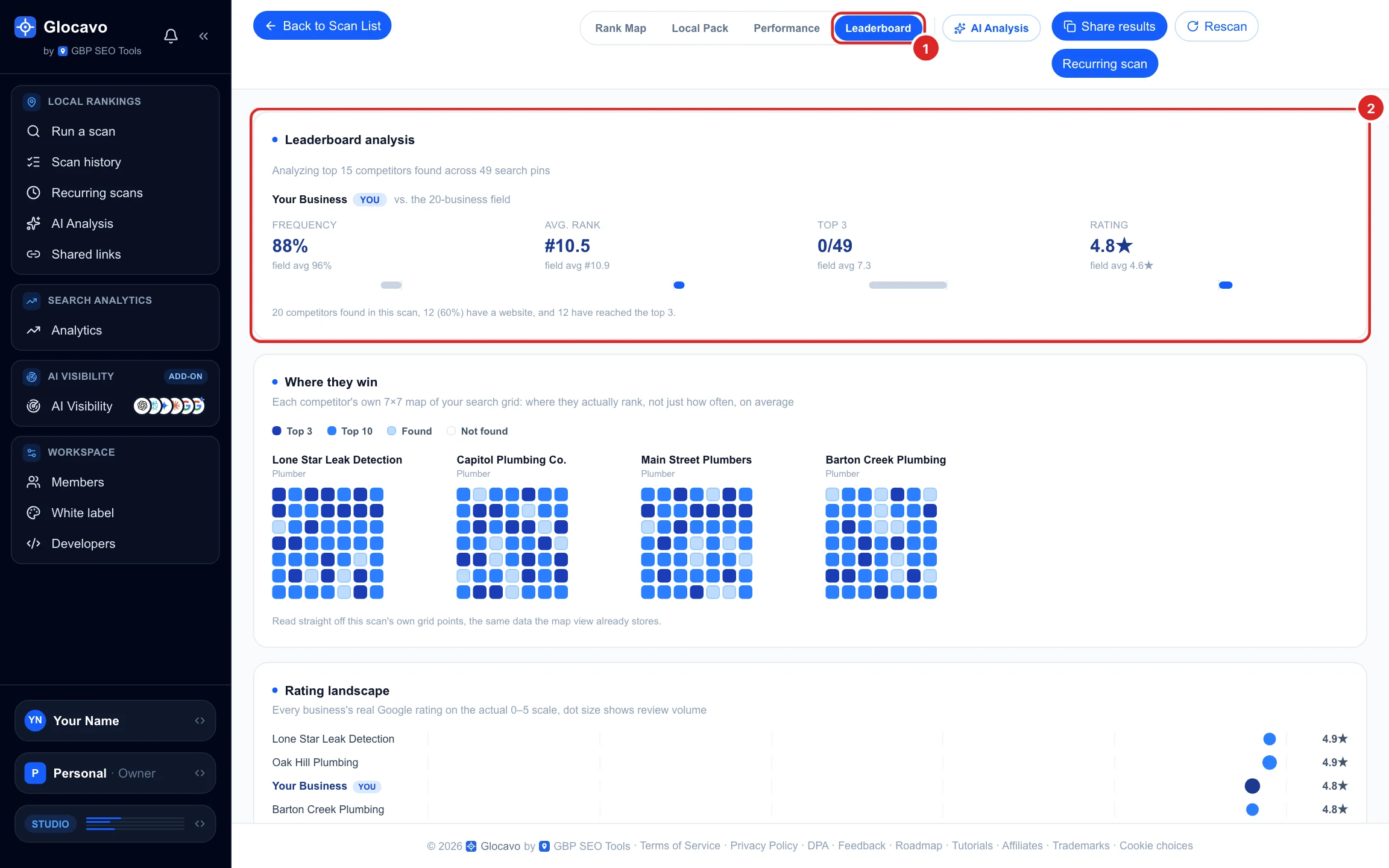
In a scan report, click Leaderboard at the top. The header says how many competitors are analyzed: the top 15 by how often they show up on your grid. Scroll down for the four cards.
Compare yourself with the field
The first card puts four of your numbers next to the average of every competitor in the scan (the field):
- Frequency: the share of points where you show up in the top 20. 88% against a field average of 96%.
- Avg. rank: your average position. #10.5 against #10.9, so slightly better than average.
- Top 3: at how many points you are in the local pack. 0 of 49, while the average competitor gets 7.3.
- Rating: your Google rating against theirs. 4.8★ against 4.6★.
The line under the numbers says how many competitors the scan found, how many have a website and how many reached the top 3 somewhere.
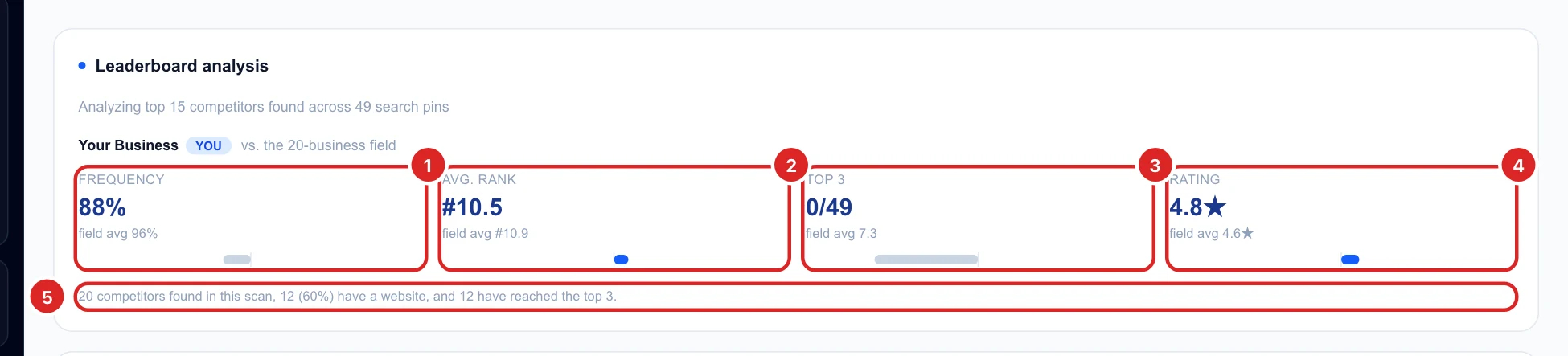
A good rating with no top-3 points, like here, means reviews alone are not holding you back. Look at the number of reviews, your categories and how close you are to the searcher instead.
See where each competitor wins
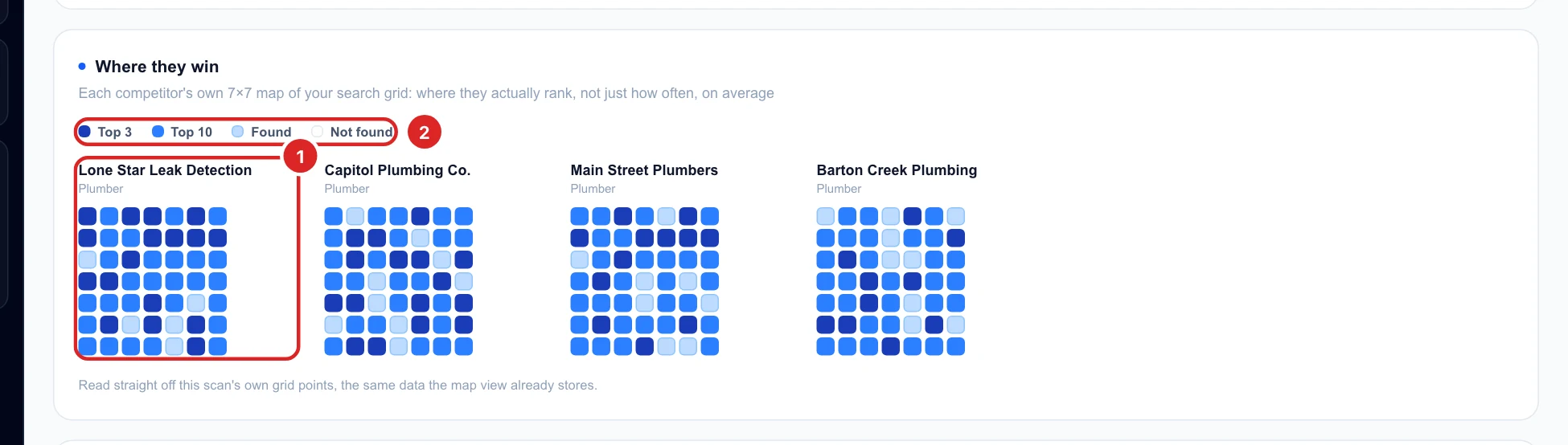
Where they win draws a small map of your grid for each of the four strongest competitors, laid out like the real map (north at the top). Each square is one point: top 3, top 10, found further down, or not found. A competitor with a solid block of top-3 squares in the middle owns the area around your business.
For any competitor’s full-size map, use the Rank Map tab: click it under Toughest competitors or in a point’s panel (Grid). Read your Google Maps rank map shows how.
Read the rating landscape
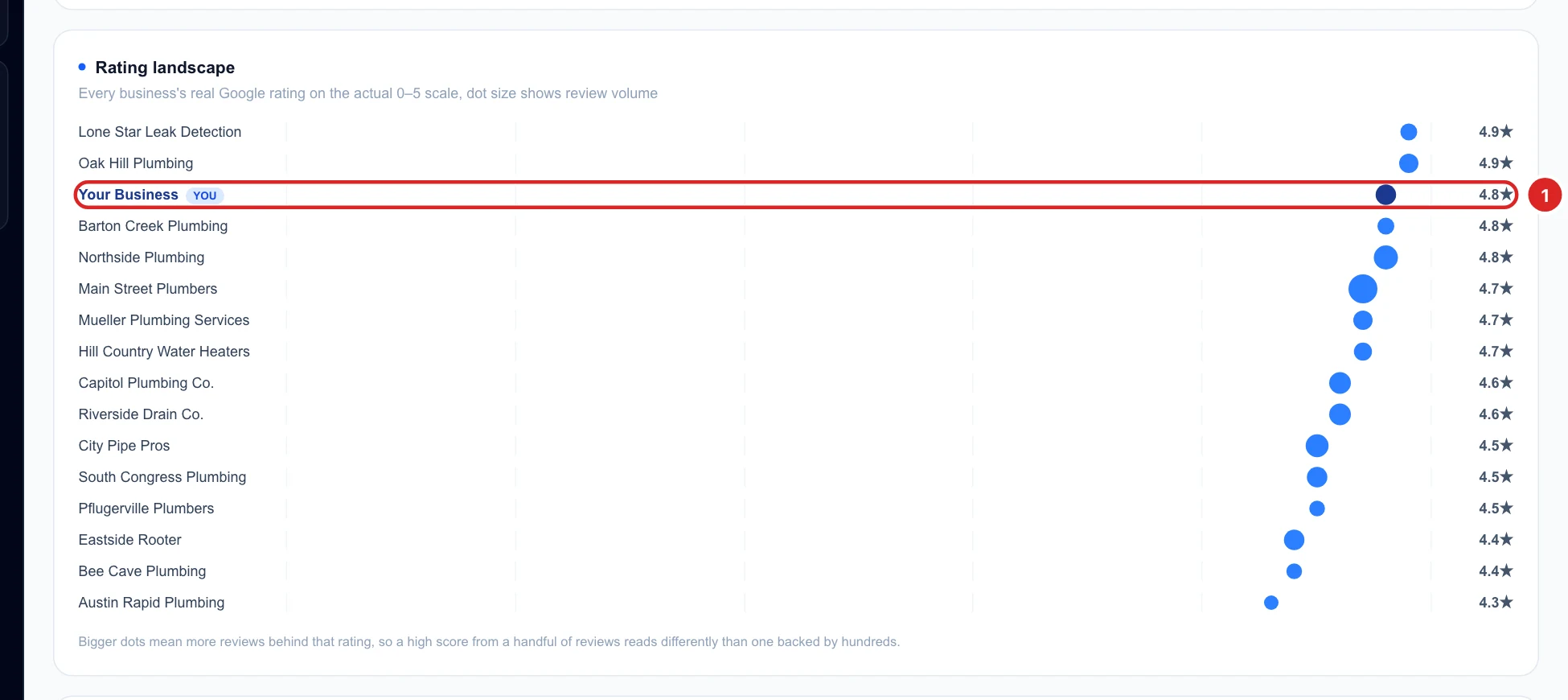
Rating landscape places every business on the same 0 to 5 star scale, best first, with your row highlighted. The size of each dot shows how many reviews stand behind the rating: a 4.9 from a handful of reviews is a small dot, a 4.7 from a thousand is a big one.
Use the competitor data table
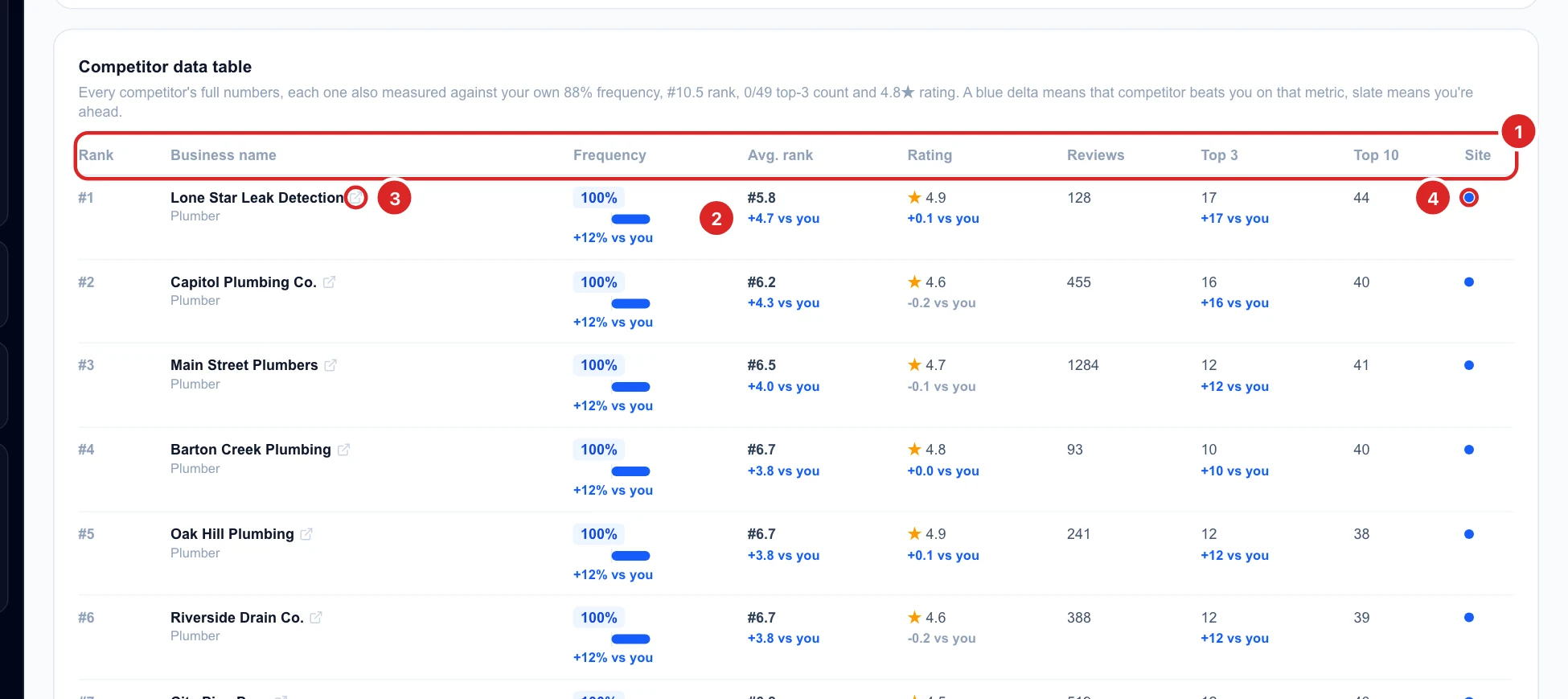
The Competitor data table has every number for each of the top 15: frequency, average rank, rating, reviews, top-3 points, top-10 points and whether they have a website. Under most numbers, a small line compares it with yours. Blue means that competitor beats you on it, grey means you are ahead. For average rank, +4.7 vs you means they rank 4.7 places higher on average.
Click the arrow icon next to a name to open that business on Google Maps. In the last column, a blue dot means the business has a website (click it to visit), an empty circle means it has none.
Decide what to do next
- Blue in the Top 3 column for most rows: your competitors reach the local pack and you don’t. Open the first few on Google Maps and compare their listing with yours line by line.
- They have far more reviews: review count often matters as much as the rating. Ask every happy customer, and reply to reviews.
- Most competitors have a website and you don’t: add one to your Google listing. Even a simple page with your services and area helps.
- A competitor wins one part of the grid: check its map in Where they win, then focus on that area (reviews from customers there, a page about it on your site).
- You are ahead on rating and rank but not top 3: you are close. Small improvements to your listing can be enough to move into the pack.