Rank tracker
Read your Google Maps rank map
Understand every part of a grid scan's Rank Map: the pins and colours, grid visibility, position, top-3 and no-rank points, your toughest competitors, what ranks at each point, and what to do about it.
Updated October 3, 2026 · 8 min read
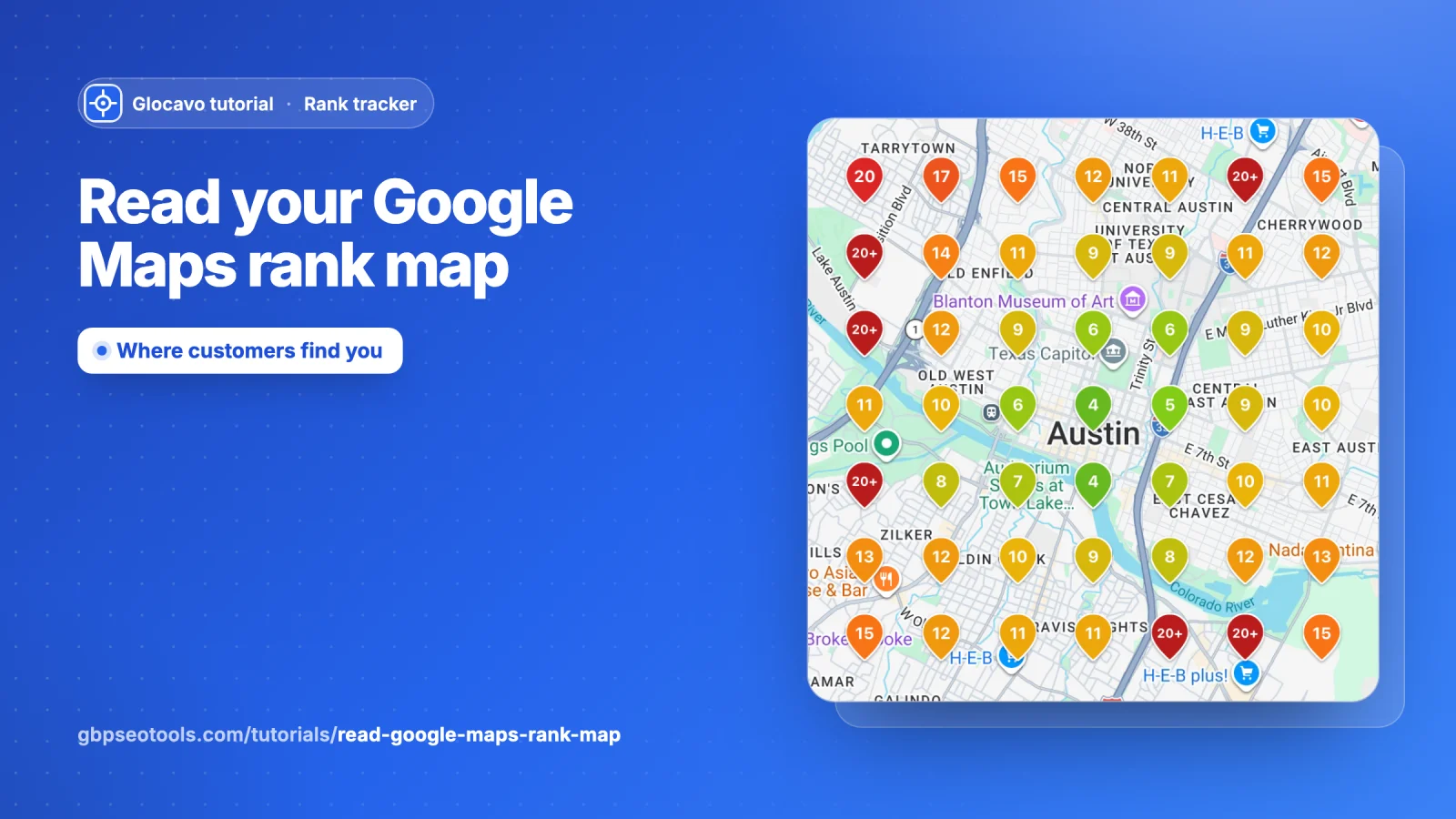
The Rank Map is the first thing you see after a grid scan. It answers three questions: where on the map customers find you, where they find someone else instead, and who that someone is. This guide goes through everything on it, what each number means and what to do about what you see.
New to grid scans? Start with Run your first Google Maps grid scan. The screenshots below use a made-up plumber called Your Business in Austin, TX, scanned on a 7x7 grid for plumber near me.
- Where
- Any finished scan → Rank Map, the first tab of the report. Open old scans from Scan history in the sidebar.
- Who
- Every plan, Free included.
- Cost
- Nothing. Reading a report, clicking points and plotting competitors uses no credits.
Get to know the Rank Map
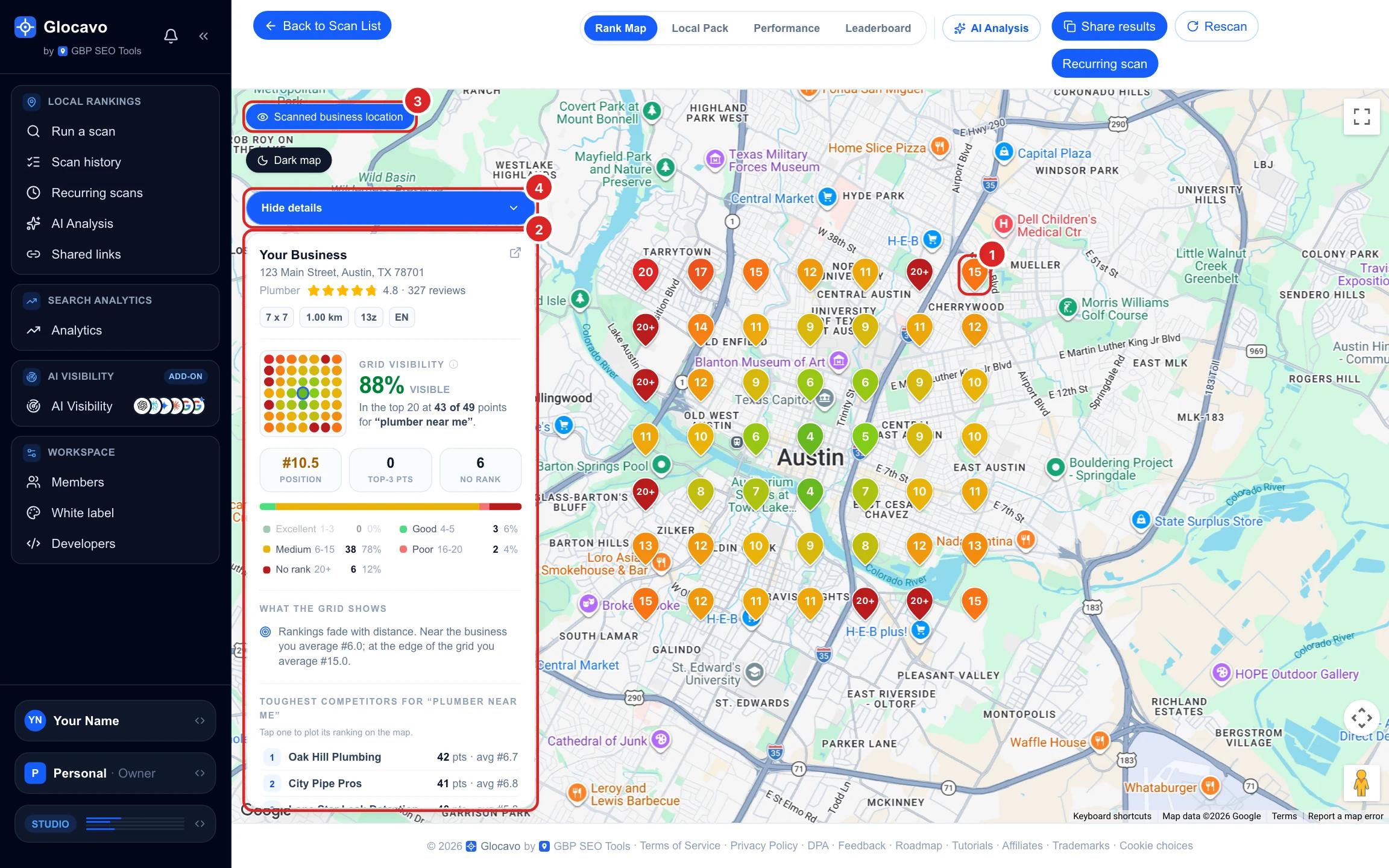
The tab has two parts:
- The map: one pin per grid point, with your rank at that spot written on it.
- The details card on the left: the summary of the whole scan.
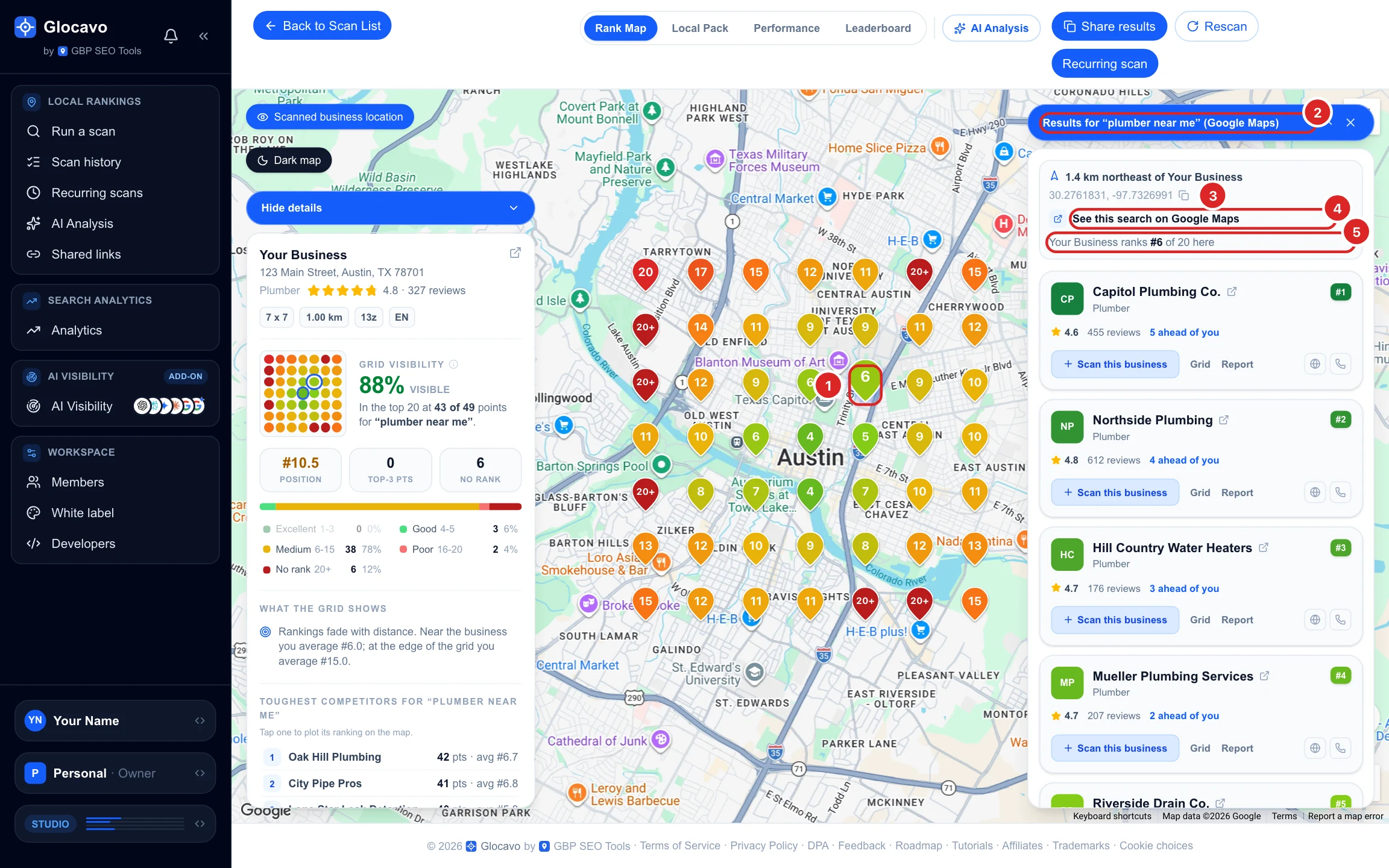
Scanned business location shows or hides your own pin, Dark map switches the map style and Hide details folds the card away so you can see the whole map. The buttons at the top (AI Analysis, Share, Rescan, Recurring scan) have their own guides.
Read the pins
The number on a pin is where your business shows in Google Maps for your keyword when someone searches from that spot: 4 means fourth. 20+ means you are not in the first 20 results there, so customers at that spot will almost never find you.
The colour follows the rank: green for the top spots, then yellow, orange and red as you drop, and dark red for 20+. Read the map as a heat map: a green middle that turns orange and red towards the edges is the most common picture for a local business.
Check what was scanned
The top of the card shows the business the map is about (name, address, category, rating and reviews) and the settings of this scan: grid size, distance between points, zoom and results language. The arrow icon opens the listing on Google Maps.
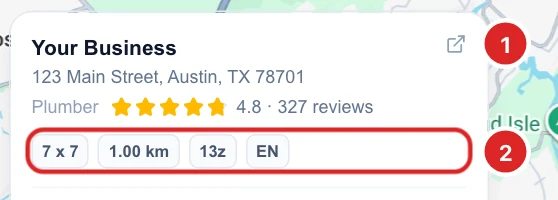
Only compare scans with the same settings. A 13x13 grid at 2 km covers a much bigger area than a 5x5 at 1 km, so its numbers are naturally lower.
Read your grid visibility
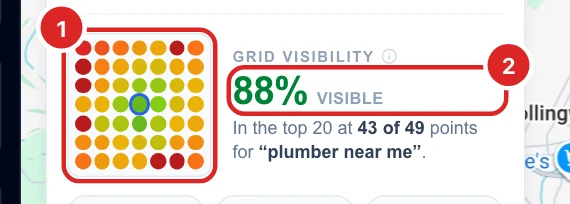
Grid visibility is the share of points where you are in the top 20. Here it is 88%: in the top 20 at 43 of 49 points. The colour tells you how good that is: green from 70%, yellow from 45%, orange from 25%, red below.
The mini grid next to it is the whole scan in small, with your own point ringed in blue. Click a dot to jump to that point on the map and open it.
From your second scan of the same keyword, a line under the figure shows the change since the last one, for example Rank up 1.2 · +3 pts covered since Sep 28.
Read position, top-3 points and no rank
- Position: your average rank over every point. Lower is better. #10.5 means you usually show around tenth.
- Top-3 pts: the points where you are in the top 3, which is Google’s local pack, the three businesses shown above the map in a normal search. This is where most calls and visits come from.
- No rank: the points where you are not in the top 20 at all.
The bar under the tiles splits every point into five bands: Excellent (1 to 3), Good (4 to 5), Medium (6 to 15), Poor (16 to 20) and No rank (20+), with the count and share of each.
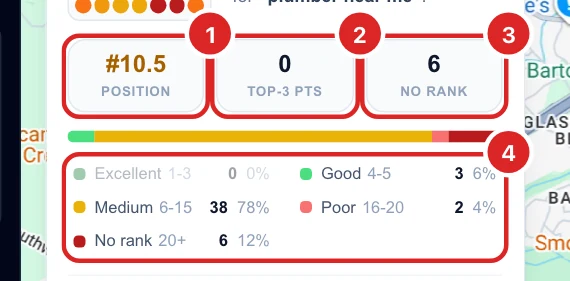
A high visibility with zero top-3 points, like this example, means customers can find you if they scroll, but you are not in the three results most of them click. Getting into the top 3 near your business is usually the first goal.
Highlight points on the map
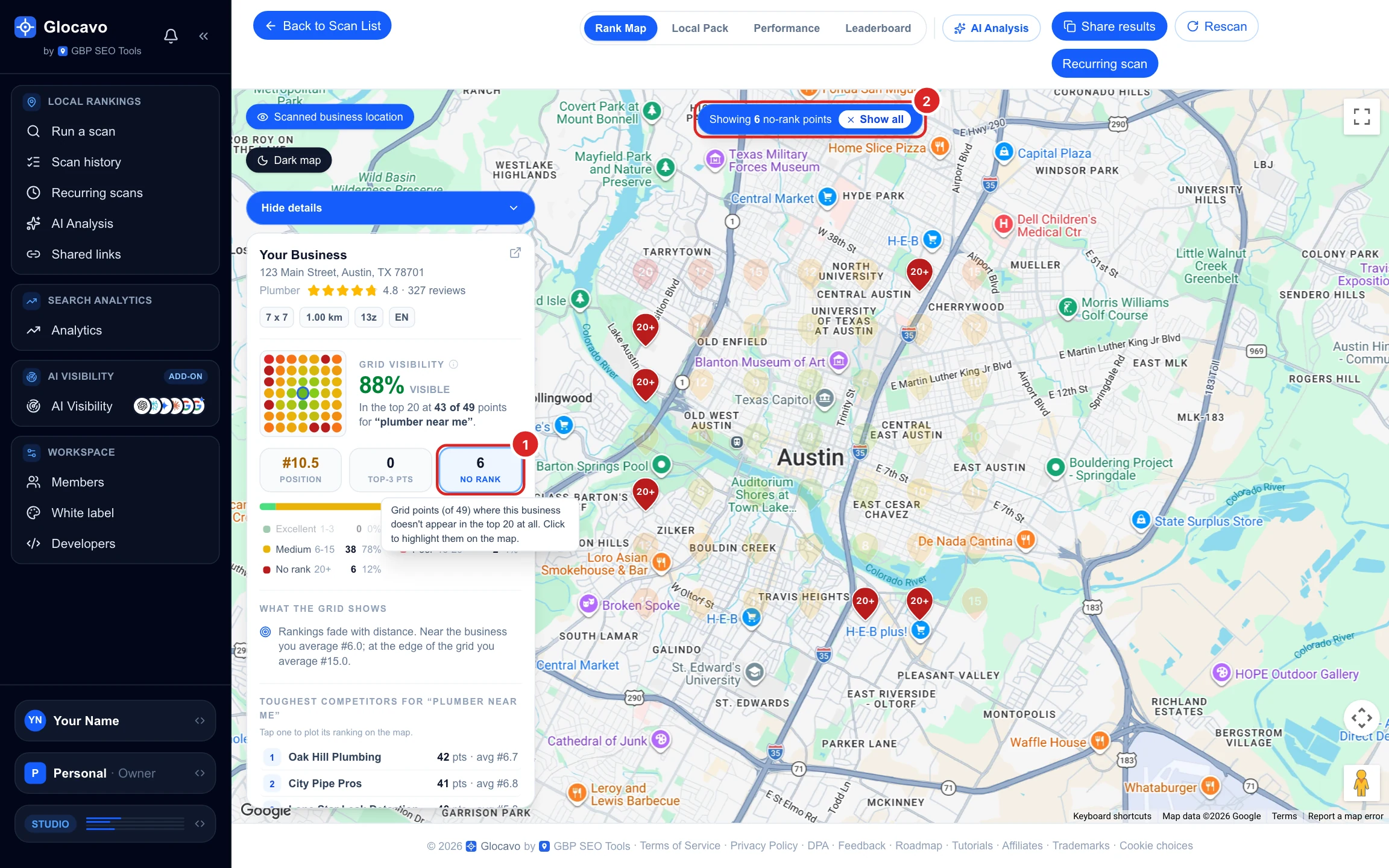
The three tiles are also filters. Click No rank and every other pin fades, so you see exactly where you are missing. Top-3 pts shows where you are in the local pack and Position shows every point where you rank. Click the tile again, or Show all at the top of the map, to bring back every pin.
Read what the grid shows and who beats you
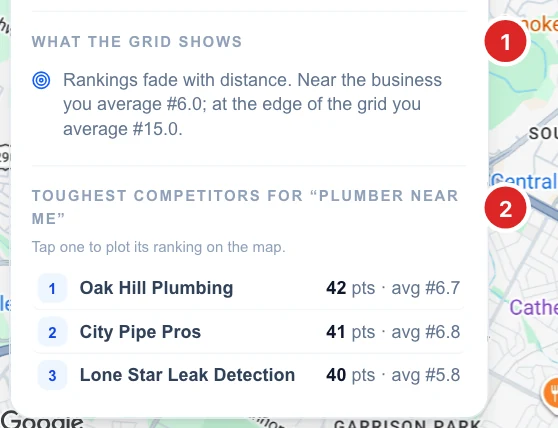
Further down the card, What the grid shows puts the pattern into words. It only shows a finding when the difference is real, so a short list is good news. You can see:
- Rankings fade with distance: your average near the business compared with the edge of the grid.
- Weakest to the north, south, east or west: the side where you rank at the fewest edge points.
- A competitor ahead of you at many points.
Toughest competitors lists the three businesses that beat you at the most points. For example, Oak Hill Plumbing, 42 pts · avg #6.7 means it ranks above you at 42 points and averages #6.7 across the grid.
See a competitor's map
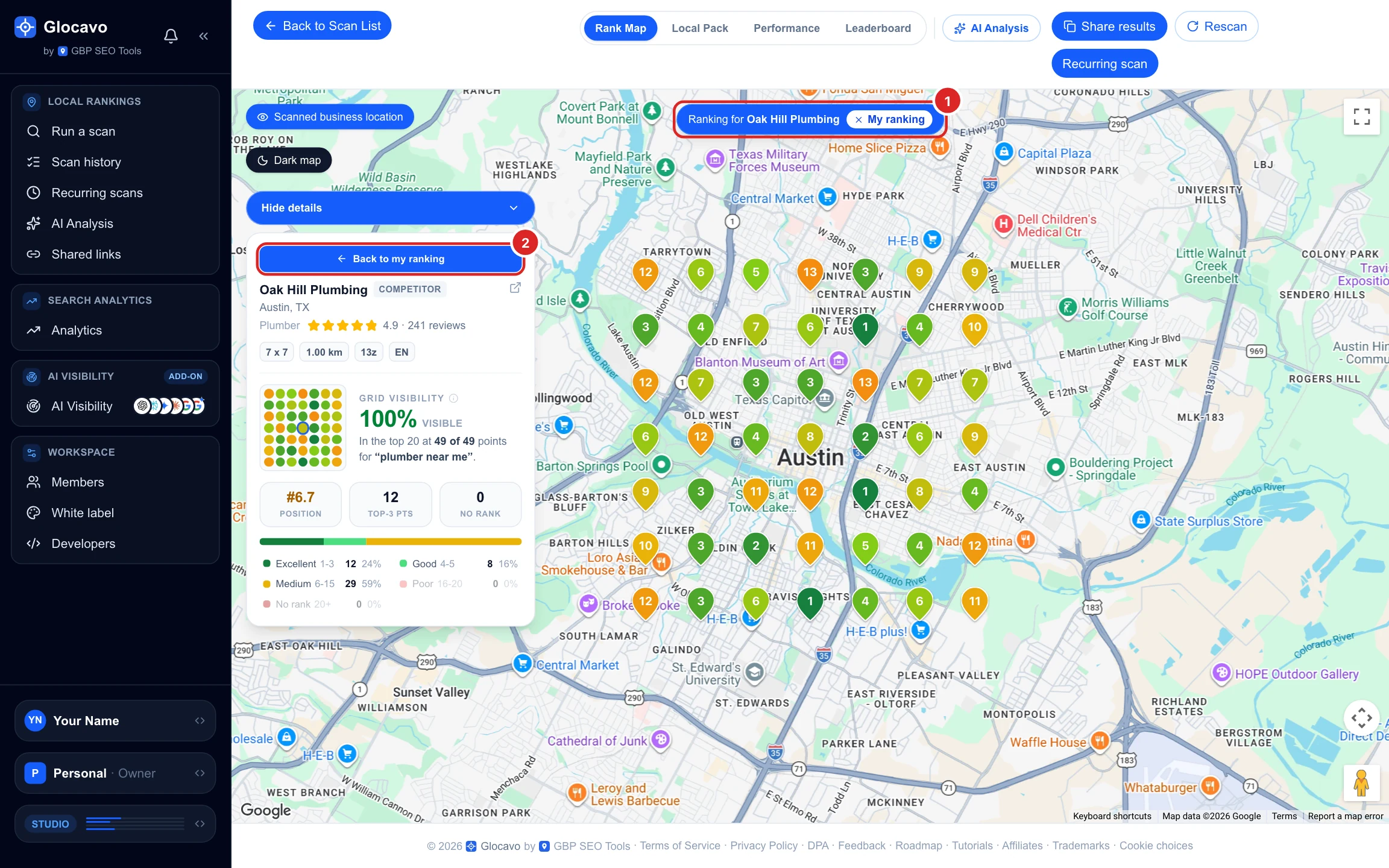
Click a business in Toughest competitors and the map redraws with its rank at every point. The card switches to that business, marked Competitor. Compare it with your map: where it is green and you are orange or red is where it takes your customers.
Click Back to my ranking on the card, or My ranking in the banner, to return to your own map.
Click a point
Click any pin to see the Google Maps results from that exact spot. The panel shows the keyword, how far the point is from your business and in which direction, and its coordinates (click them to copy).
See this search on Google Maps opens the same search centered on that point. Open it in a private window: your own location and search history change what Google shows you, and the scan avoids both. Small differences with the scan are normal.
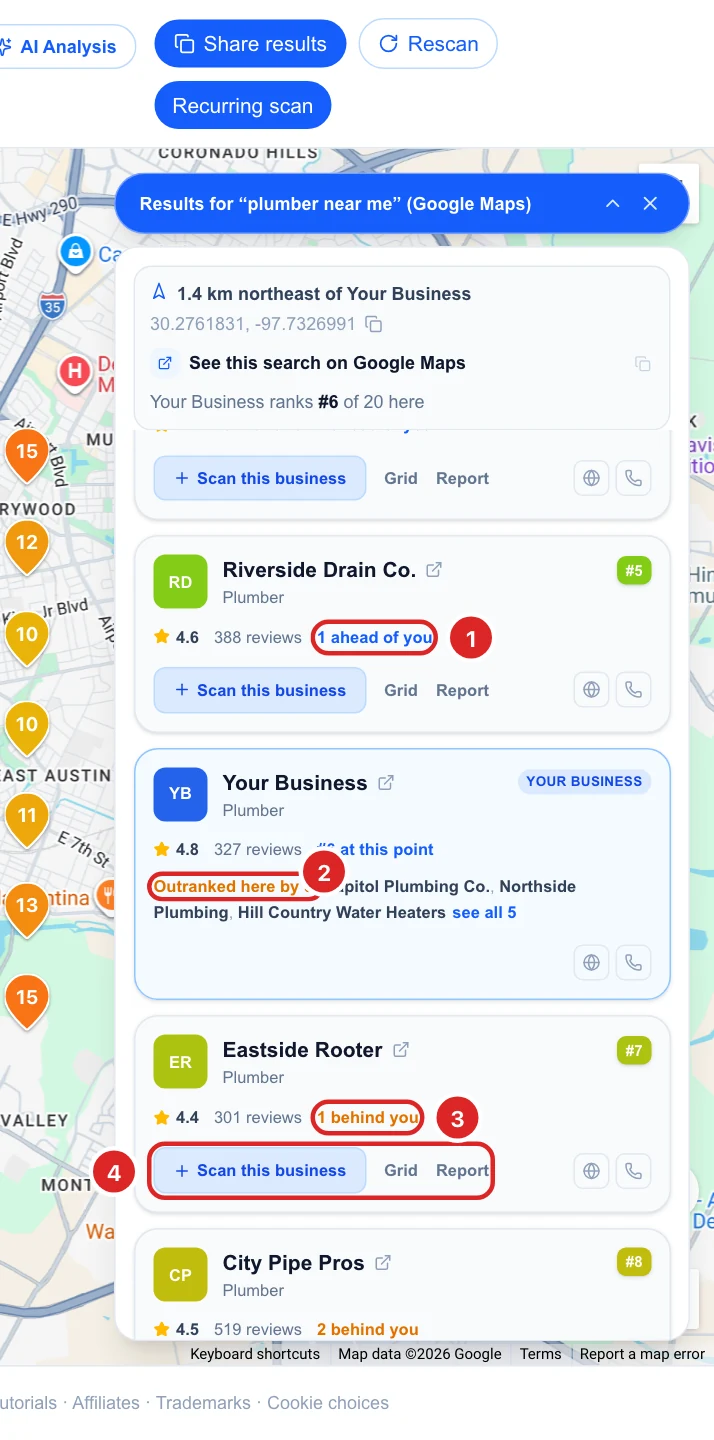
See who ranks at that point
Scroll the panel for the full top 20 at that spot. Each business shows its rank, rating, reviews and how many places it is ahead of or behind you. Your own row says who outranks you there.
Every competitor has three buttons:
- Scan this business: starts a new scan for that competitor, already filled in.
- Grid: redraws the map with that competitor’s rank at every point, like step 8.
- Report: opens that competitor’s own rank report in a new tab.
Hide the details card
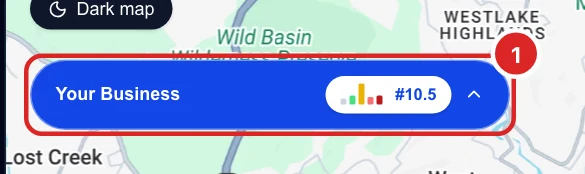
Click Hide details to fold the card into a small bar with your name, a mini bar chart of the five rank bands and your average position. Click it to open the card again.
Decide what to do next
What you see on the map points to what to work on:
- Not in the top 3 even near your business: start with your Google Business Profile. Check that your primary category matches the keyword (a plumber should be “Plumber”), list your services, add photos, and keep new reviews coming.
- Rankings fade with distance: normal, since Google favours businesses close to the searcher. To reach further, build up what Google sees as prominence: more reviews, consistent listings on other directories, and website pages about the areas you serve.
- Weak in one direction: click the competitors winning on that side (Grid and Report) and see what they do better. Ask customers from that area for reviews, and make sure your service area and website cover it.
- One competitor ahead almost everywhere: open its listing and compare categories, rating, number of reviews, photos and website with yours. The gap is usually there.
- Something looks off: check the point on Google Maps in a private window before acting on it.
After you make changes, give Google a few weeks, then click Rescan at the top of the report with the same settings to compare. A recurring scan does this for you automatically and shows the trend.