Rank tracker
Run your first Google Maps grid scan
See where your business ranks on Google Maps across your whole area: find your listing, add keywords (or get AI keyword ideas), set the grid, turn off pins you don't need and run the scan.
Updated October 3, 2026 · 8 min read
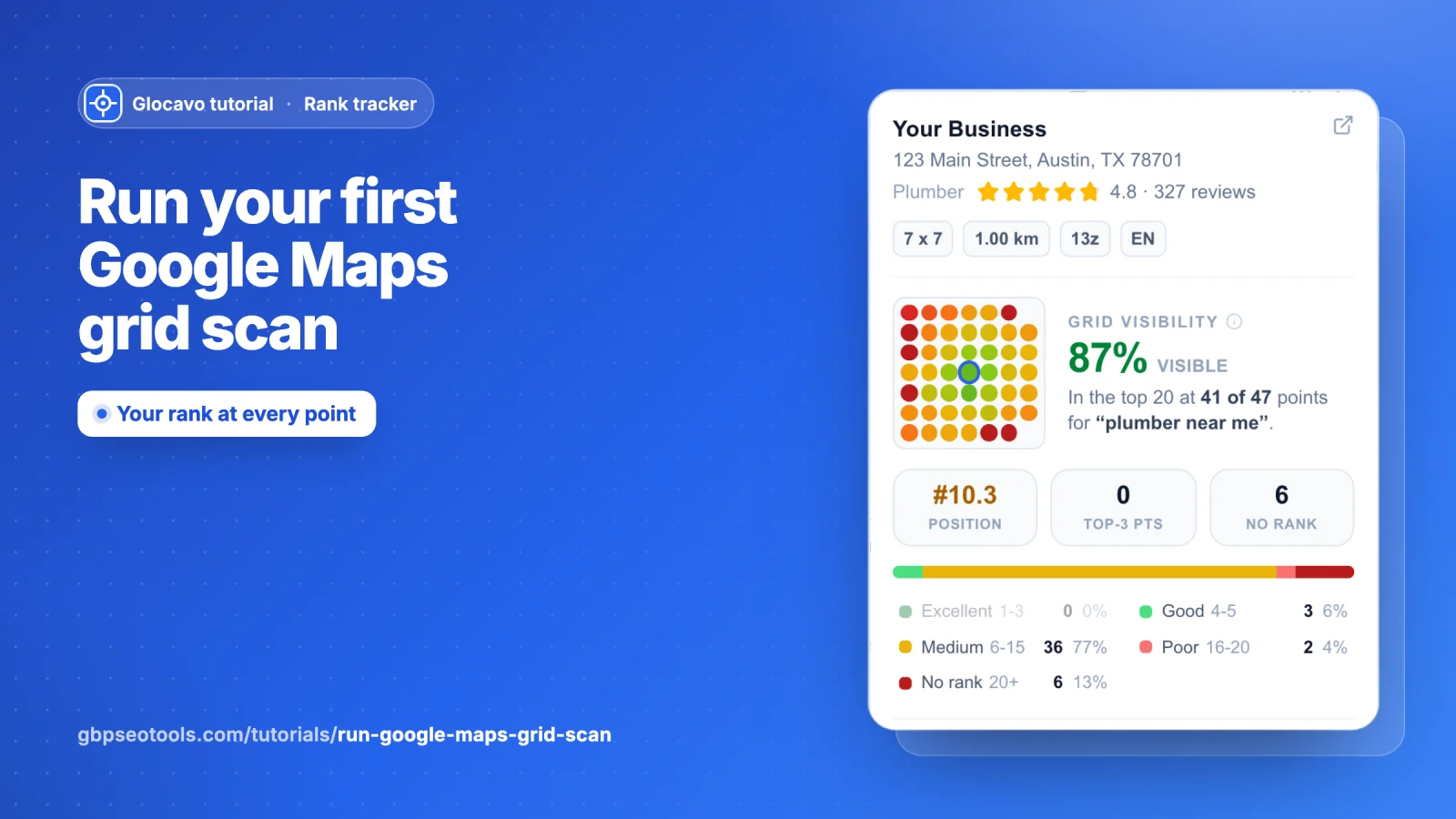
A grid scan shows where your business ranks on Google Maps across your whole area, not just at one address. Glocavo places a grid of points around your business and searches your keyword from each point, the way a customer standing there would. You get a map with your rank at every point, so you can see where customers find you and where a competitor shows up instead.
The screenshots below use a made-up plumber called Your Business in Austin, TX. Your screens show your own business and competitors.
- Where
- Glocavo → Run a scan in the left sidebar.
- Who
- Every plan, Free included. Free scans up to a 5x5 grid, Starter up to 9x9, and Basic, Studio and Agency up to 13x13.
- Cost
- 1 scan credit per point on the grid, for each keyword. A 7x7 grid is 49 points, so 49 credits per keyword. AI keyword ideas use 10 AI Power.
Open Run a scan
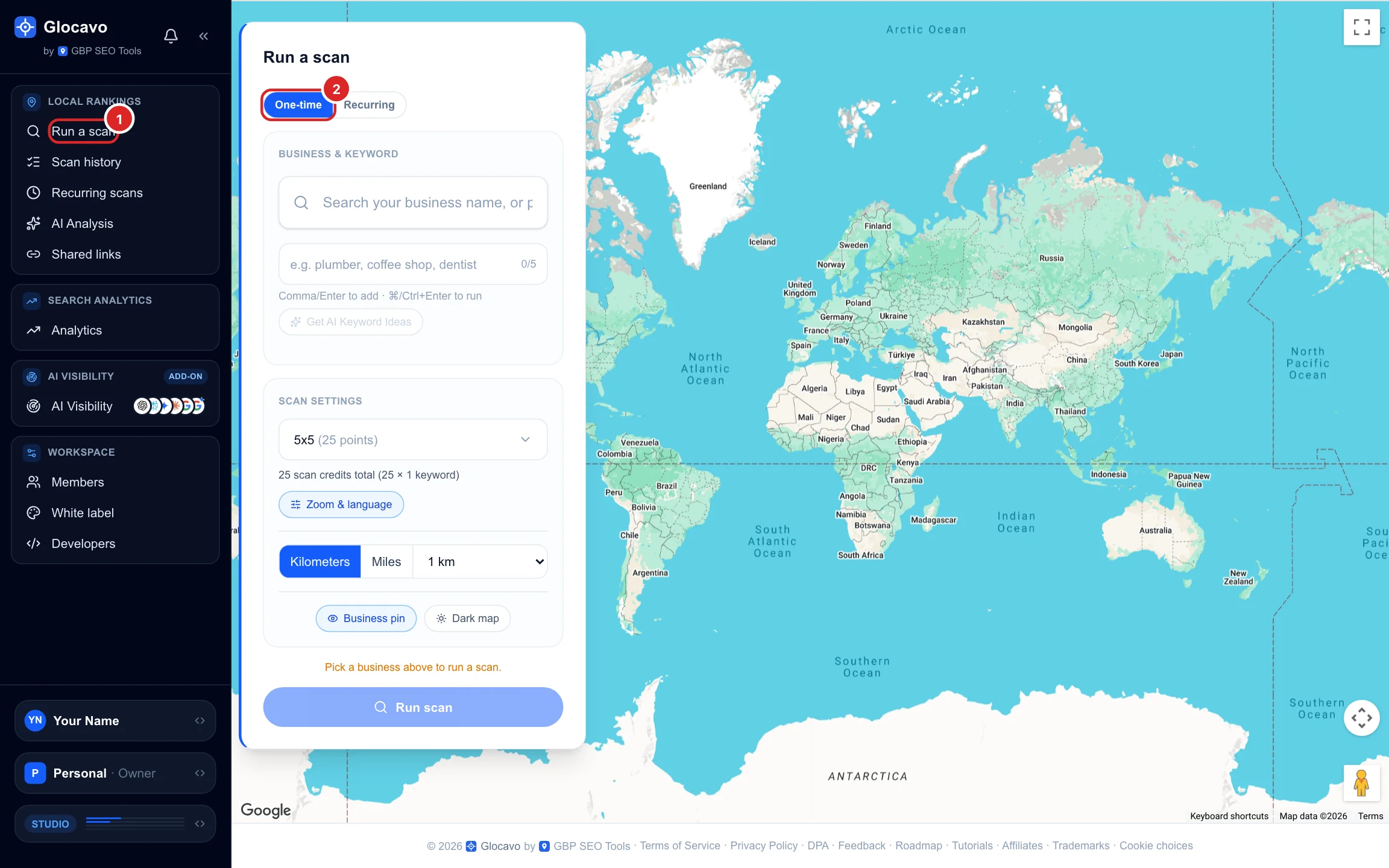
In Glocavo, click Run a scan in the left sidebar. The form opens over a map. Keep One-time selected for a single scan you run now. Recurring sets up a scan that repeats on a schedule, which has its own guide.
Find your business
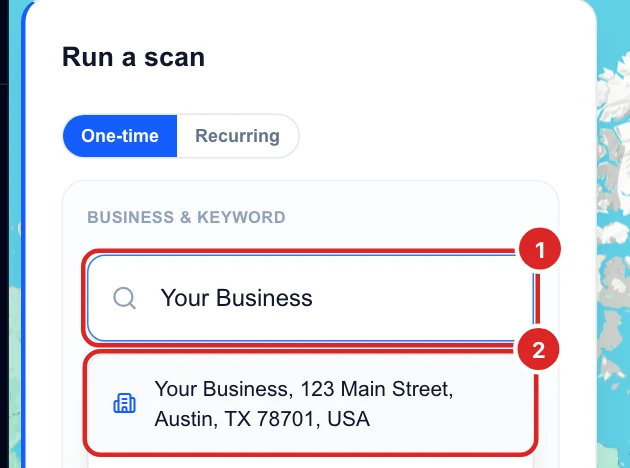
Type your business name as it appears on Google Maps and pick it from the list. Choose the listing with your exact address, since businesses with similar names often sit in the same city.
Service-area business that does not show up when you search by name? Paste your Google Maps link or your Place ID into the same box instead.
Check the business and the grid
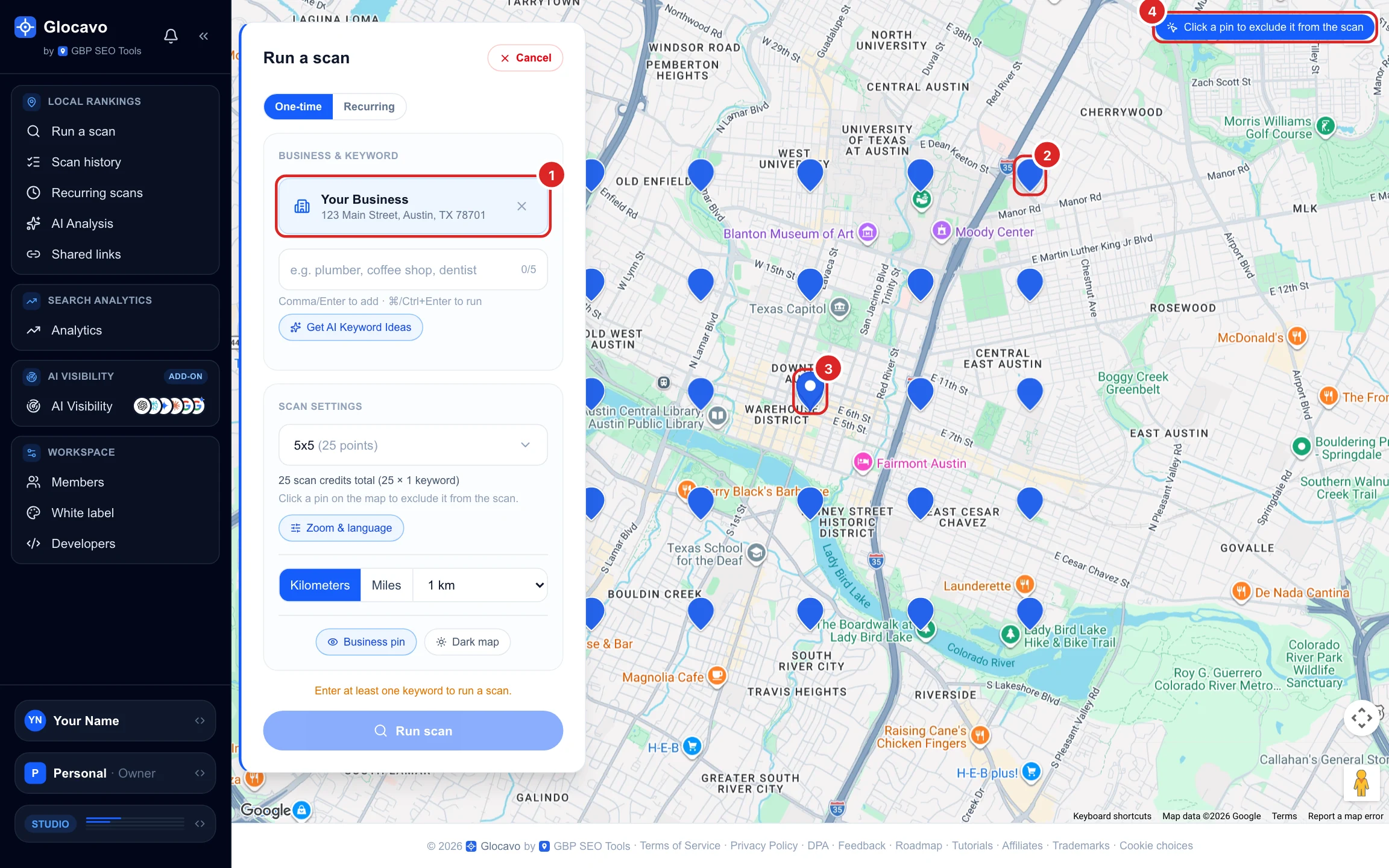
Once you pick it, Glocavo shows:
- The business card with its name and address. Click the × to pick a different one.
- The grid: each blue pin is a point Glocavo will search from. It starts at 5x5 (25 points), 1 km apart.
- Your business pin in the middle, so you can see where the grid sits around you.
Add your keywords
Type the search a customer would use, like plumber near me, and press Enter or a comma to add it. You can add up to 5 keywords. Each keyword runs as its own scan, so the cost is multiplied by the number of keywords. Click the × on a keyword to remove it.
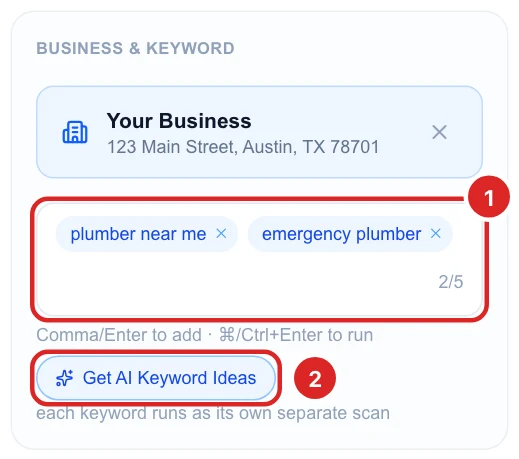
Pick keywords that show Google’s map results on a real search: a service plus “near me” or your city (plumber austin) works better than a bare product name.
Get keyword ideas with AI (optional)
Click Get AI Keyword Ideas, choose the language, then Get keyword ideas. Glocavo lists real Google searches for your kind of business with:
- The monthly search volume (18k/mo is about 18,000 searches a month).
- The intent: transactional means the person is ready to hire or buy, the best kind of keyword for a map scan.
Click Add to put a keyword in your scan. It turns into Added; click it again to take it out. Refresh ideas gives a new set, and Export CSV downloads the list.
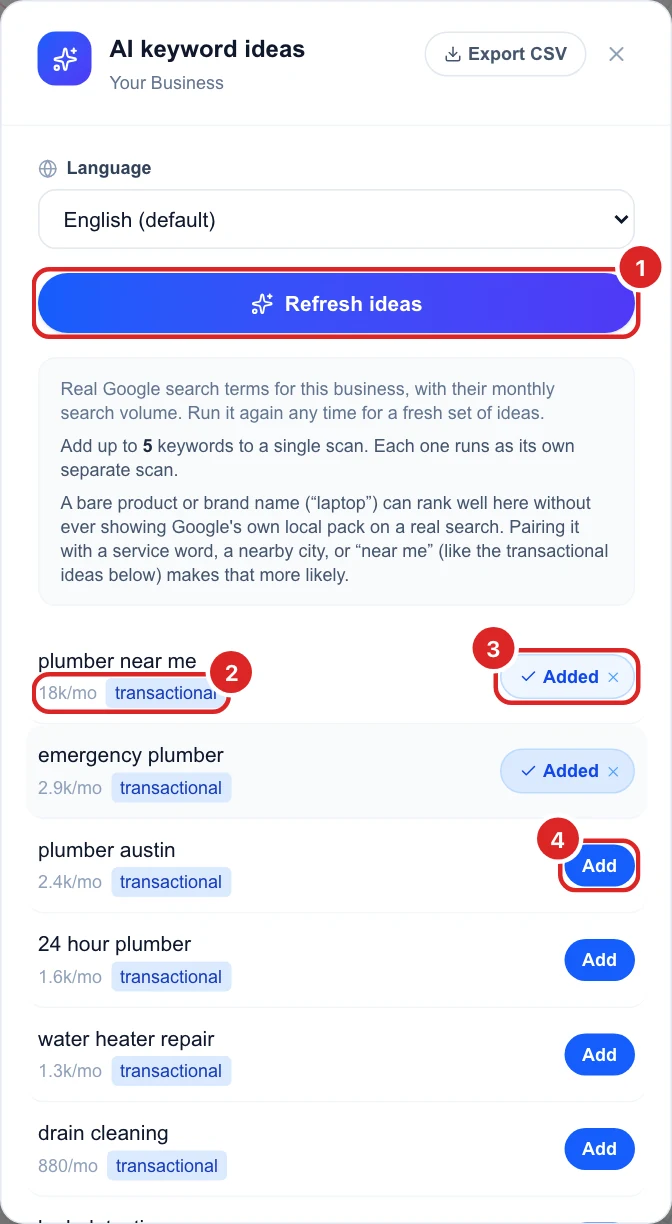
Each set of ideas uses 10 AI Power, not scan credits.
Pick the grid size
Open the grid menu under Scan settings. A bigger grid covers more ground and shows more detail, but costs more: every point is one scan credit per keyword. The list goes from 3x3 (9 points) up to your plan’s largest grid.
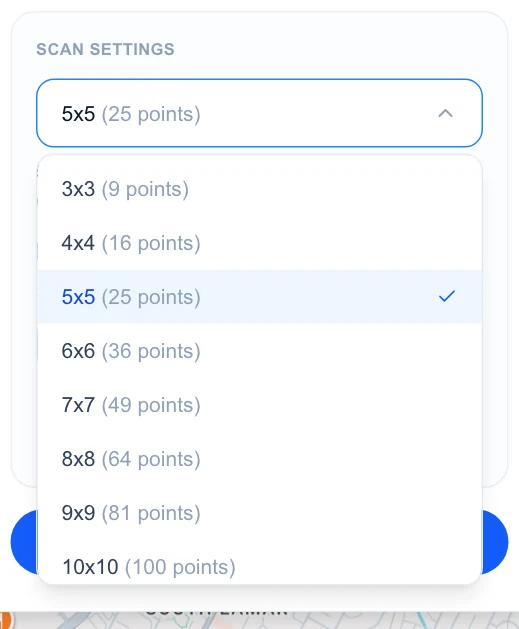
A 5x5 or 7x7 grid is a good first scan for a local business. Save 11x11 and 13x13 for a wide service area or a detailed check of a busy city.
Set the distance between points
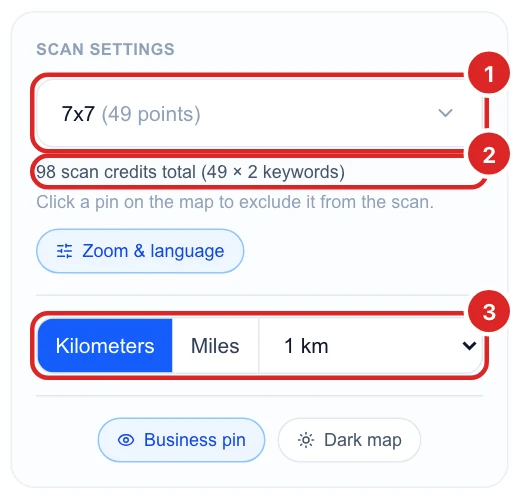
Choose Kilometers or Miles, then the distance between two pins (0.1 to 10). The grid covers its size minus one times that distance: a 7x7 grid with 1 km between pins is 6 km wide. Match it to how far your customers come from. A coffee shop needs a tight grid, a plumber who drives across the city a wider one.
The total cost under the grid menu updates as you change the grid (more on credits in the next step). Business pin shows or hides your pin on the map, and Dark map switches the map style. Neither changes the scan.
Check what the scan costs
Every point on the grid is 1 scan credit, for each keyword. The line under the grid menu does the math for you: 98 scan credits total (49 × 2 keywords) is a 7x7 grid (49 points) for two keywords. Pins you turn off (step 10) are not charged.
To see how many credits you have left, click your plan badge at the bottom of the sidebar. Plan usage shows:
- Scan credits: used this month out of your monthly allowance. Grid scans use these.
- AI Power: a separate balance for AI keyword ideas (10 each) and AI Analysis reports (25 each). It never pays for the scan itself.
- Top up: buy extra credits whenever you need more. Top-ups never expire and are used before your monthly allowance. The allowance itself resets every month.
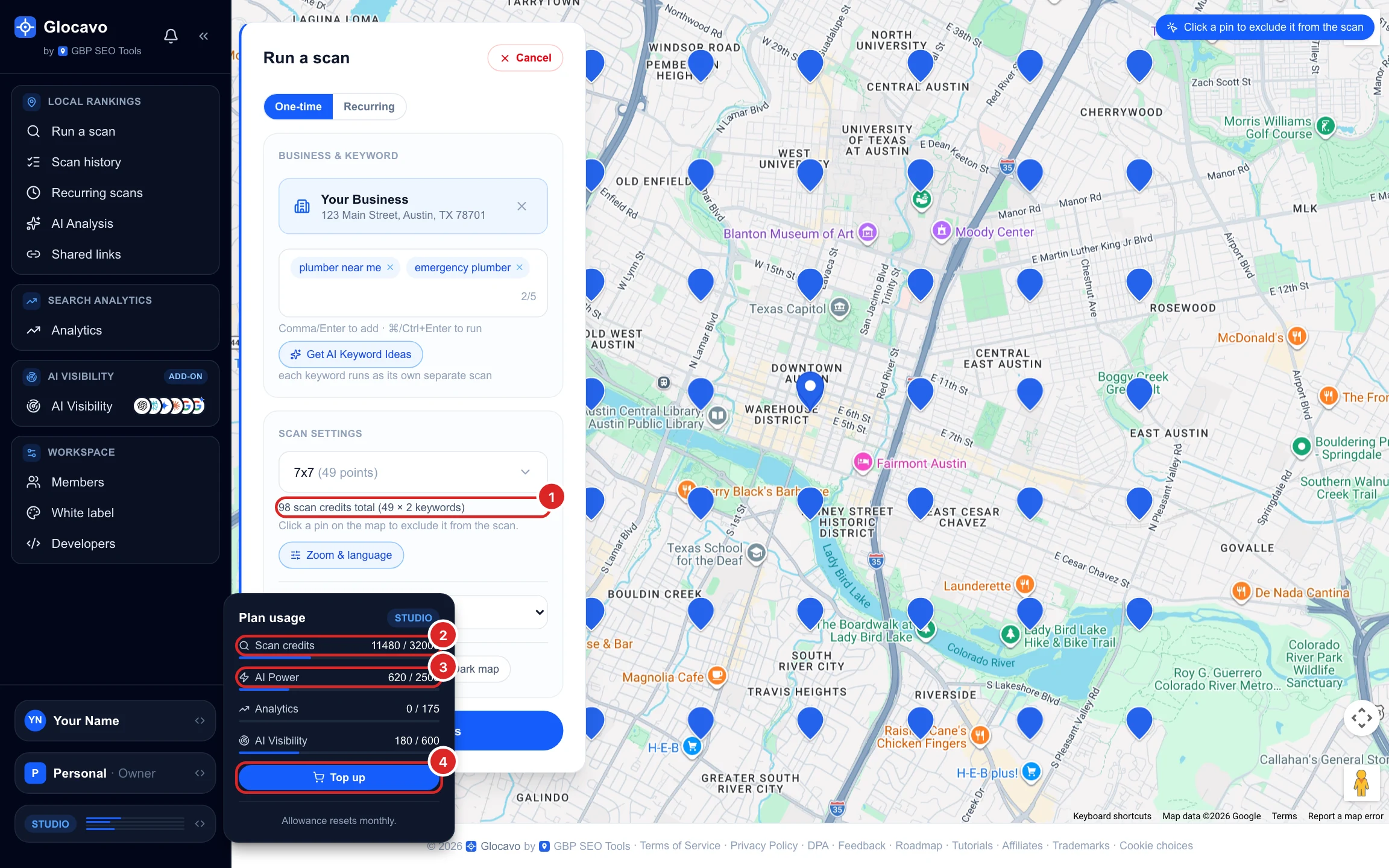
Monthly scan credits: Starter 5,000, Basic 12,000, Studio 32,000 and Agency 65,000. Free comes with 100 credits once. If a scan needs more credits than you have, it doesn’t run: Glocavo says you’re out of scan credits and shows a Top up button.
Change zoom and language (optional)
Zoom & language fine-tunes how Google Maps is searched:
- Zoom level: 13 is the default. Higher (15 to 20) searches a smaller, more detailed area around each point, lower (1 to 10) a broader one. Wide, Default and Detailed are shortcuts.
- Results language: the language of business names and other text in the results.
- Tick Remember these settings for future scans to keep them. Otherwise every new scan starts back at English and zoom 13.
Click Save settings.
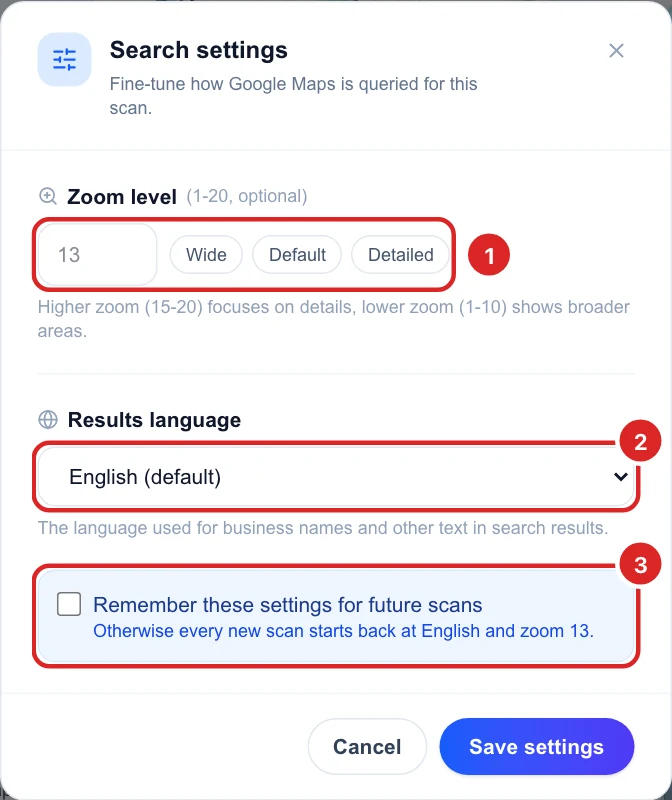
Zoom and language are on paid plans. On Free, every scan uses zoom 13 and English.
Turn off pins you don't need, then run
Click any pin on the map to turn it off. It turns red with a ×, is left out of the scan, and costs nothing. Use it for points where no customer can be, like a lake, a park or the edge of town, or for places you don’t serve. Click a red pin again to turn it back on.
The cost line updates right away: turning off 2 pins on a 7x7 grid with 2 keywords takes it from 98 to 94 credits (47 × 2). When everything looks right, click Run scan (or Run 2 scans with two keywords). You can also press ⌘/Ctrl+Enter in the keyword box.
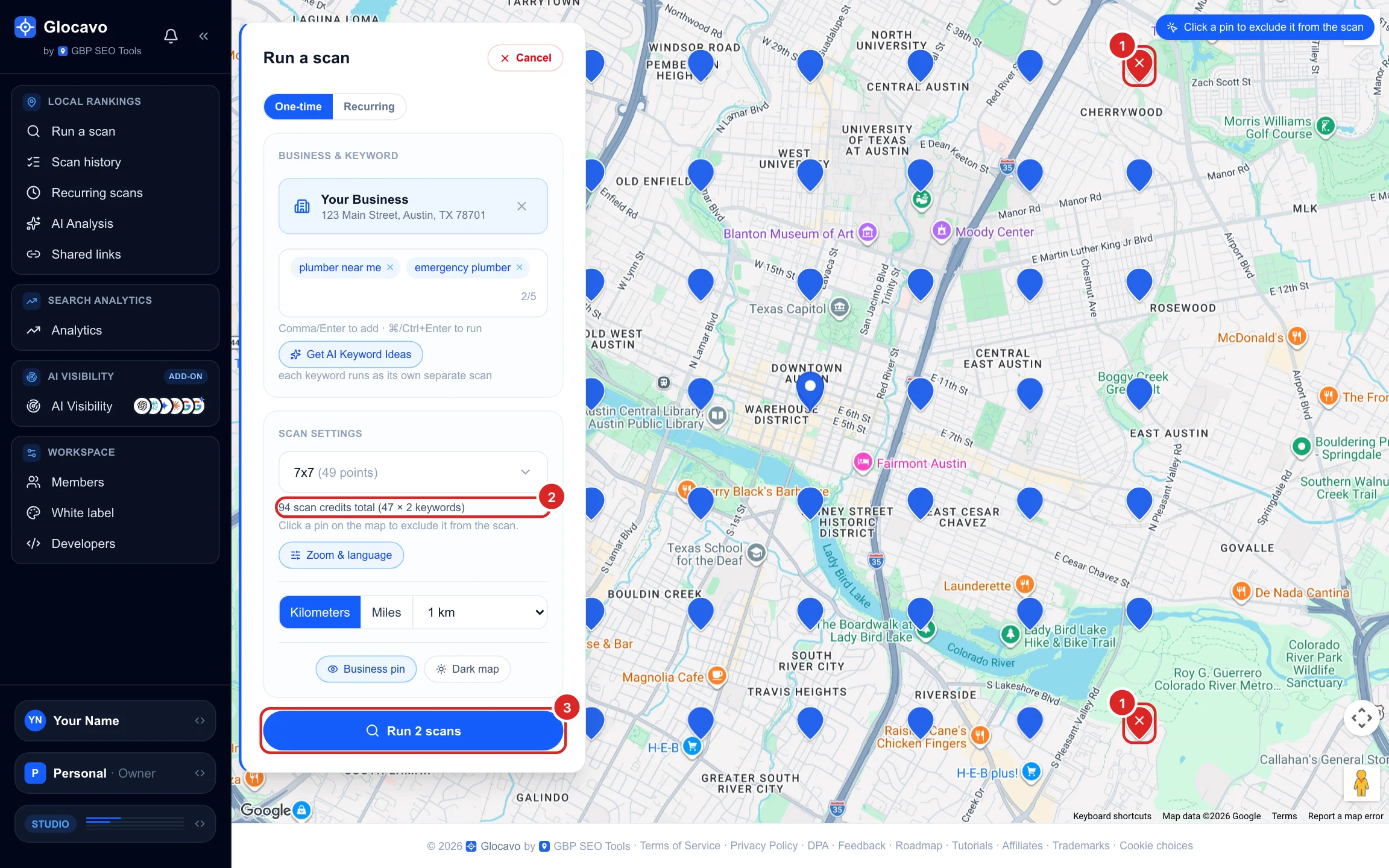
Turned-off pins are not shown in the results either, so your average rank only counts the area you really serve.
Wait for the scan
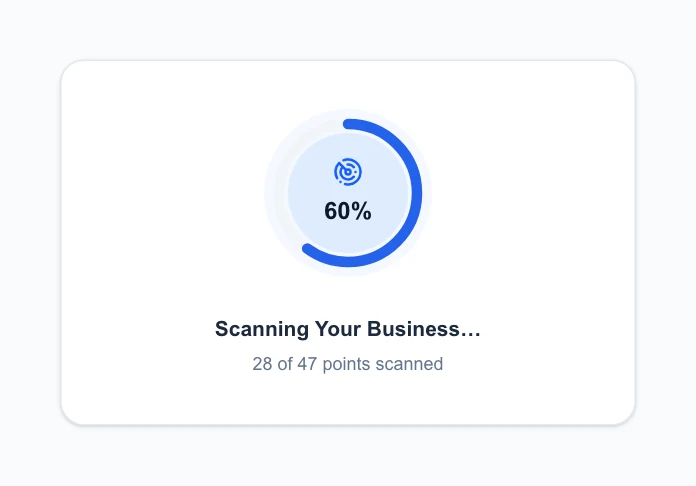
Glocavo shows how many points have been scanned so far, and the report opens on its own when the scan is done. You can also leave the page or close Glocavo: the scan keeps running, and you’ll find it in Scan history.
See your results
The scan report opens on the Rank Map: every point shows your rank there, green for the best ranks through yellow and orange to red, and dark red 20+ where you are not in the top 20. The panel on the left sums it up:
- Grid visibility: the share of points where you are in the top 20.
- Your average position, the number of top-3 points (where you are in Google’s local pack) and the points with no rank.
- A breakdown from Excellent (1 to 3) to No rank (20+), and what the grid shows in plain words.
With more than one keyword, switch between them with the Keywords menu at the top. The tabs next to Rank Map open the Local Pack, Performance and Leaderboard views.
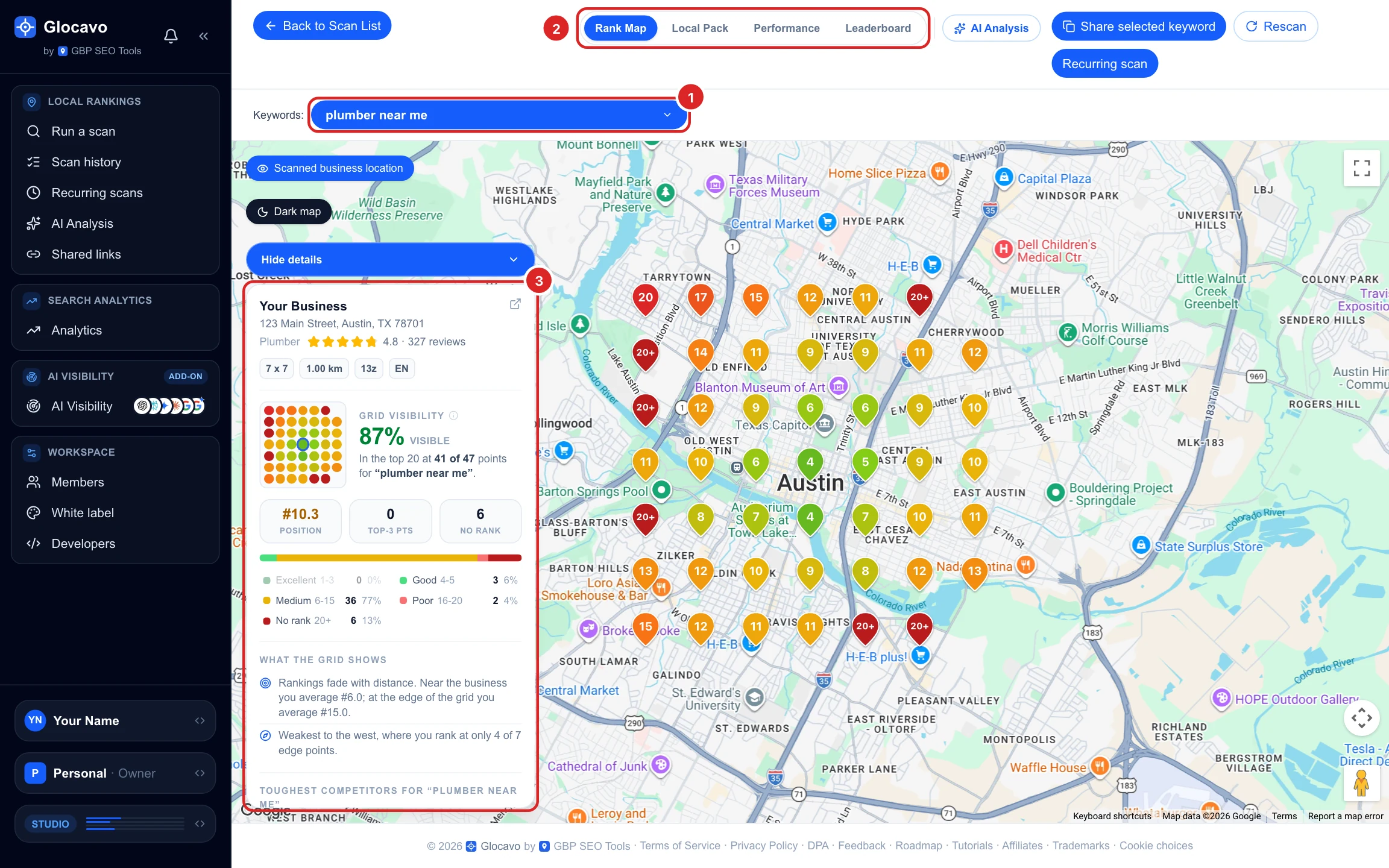
Click a point to see who ranks there
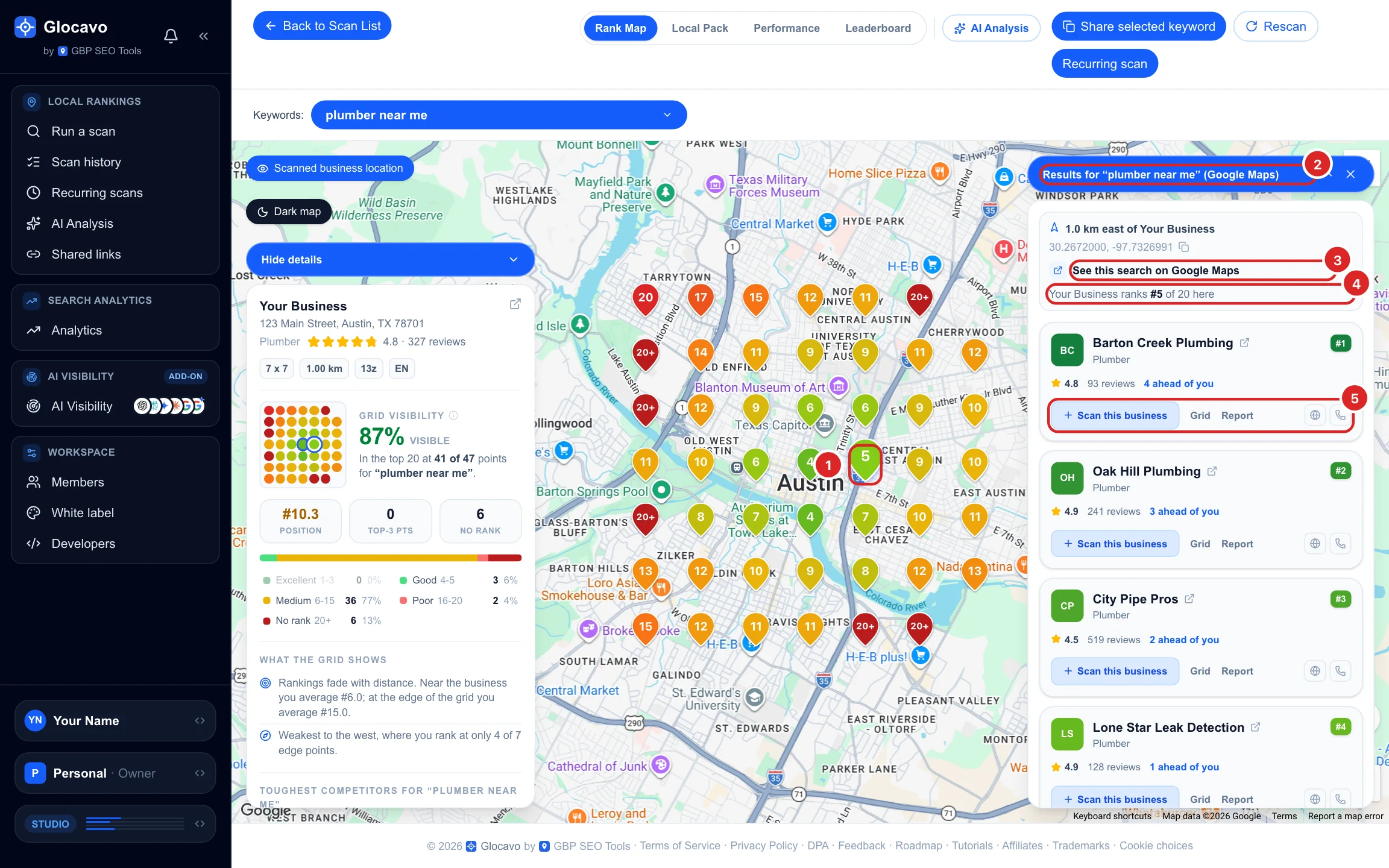
Click any pin on the map. A panel opens with the Google Maps results from that exact spot:
- The keyword, how far the point is from your business and in which direction, and its coordinates.
- See this search on Google Maps opens the same search on Google Maps, centered on that point. Open it in a private window so your own search history doesn’t change the results.
- Your rank there (Your Business ranks #5 of 20 here) and the full top 20, with each business’s rating, reviews and how many places it is ahead of or behind you. Your own row lists who outranks you at that point.
- Buttons on each competitor: Grid redraws the map with that competitor’s rank at every point, Report opens its own rank report in a new tab, and Scan this business starts a new scan for it.
Want Claude to run scans and read reports for you? See Connect Glocavo to Claude with MCP.