Rank tracker
Read your Google Maps ranking performance
Use the Performance tab to read your best position, visibility, dominance and volatility, meet the top-ranked competitor, compare categories and profile completeness, and browse every competitor.
Updated October 3, 2026 · 6 min read
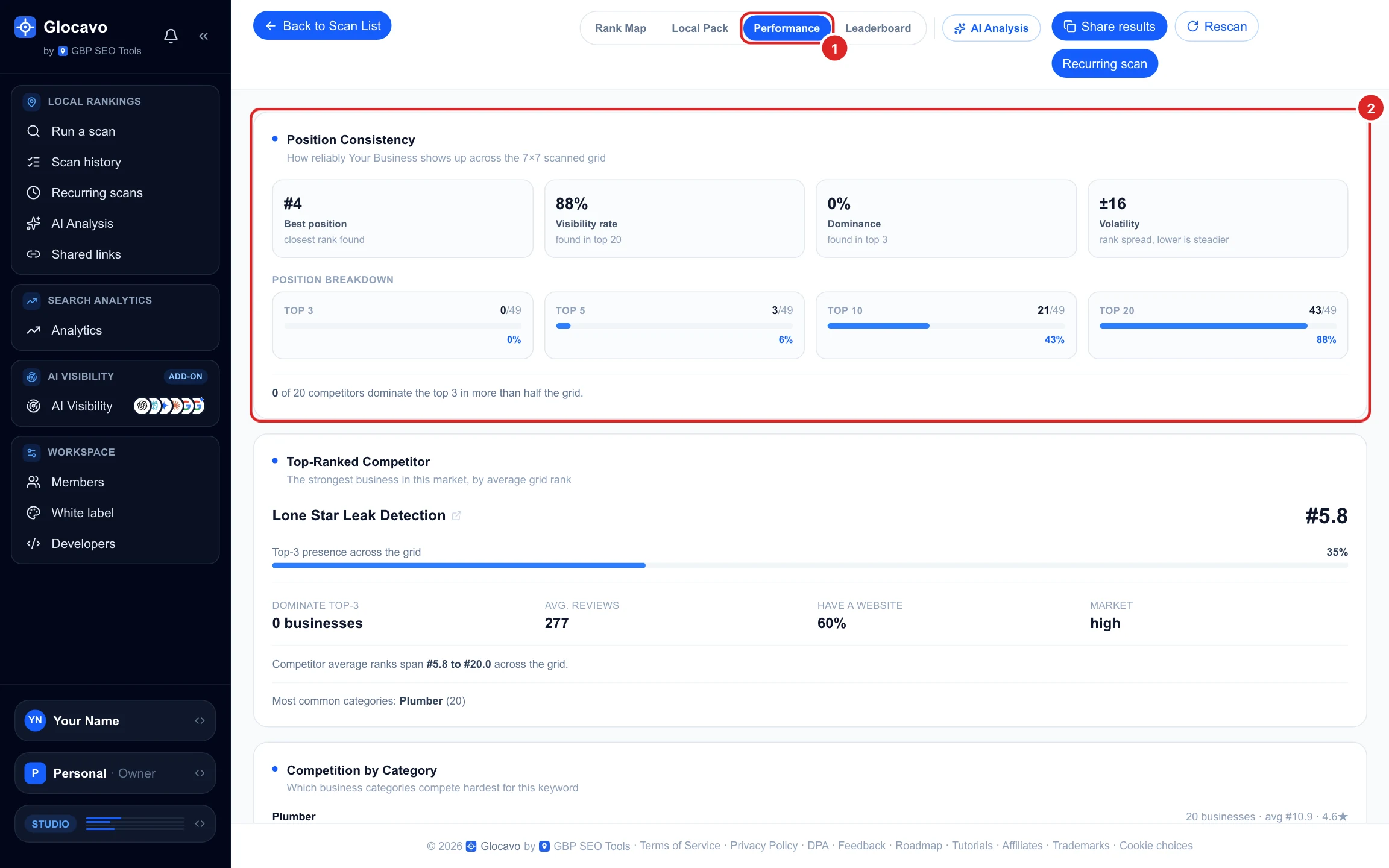
The Performance tab turns a grid scan into numbers: how steady your ranking is, who leads your market, which kinds of businesses you compete with, how complete your listing is next to theirs, and a directory of every competitor found. Use it to understand the market before deciding what to fix.
The screenshots use a made-up plumber called Your Business in Austin, TX, scanned on a 7x7 grid for plumber near me. For the map itself, see Read your Google Maps rank map.
- Where
- Any finished scan → the Performance tab.
- Who
- Every plan, Free included.
- Cost
- Nothing. It reads the scan you already ran.
Open the Performance tab
In a scan report, click Performance at the top. The tab is one page of cards; scroll down to see them all. With several keywords, it shows the keyword picked in the Keywords menu.
Read your position consistency
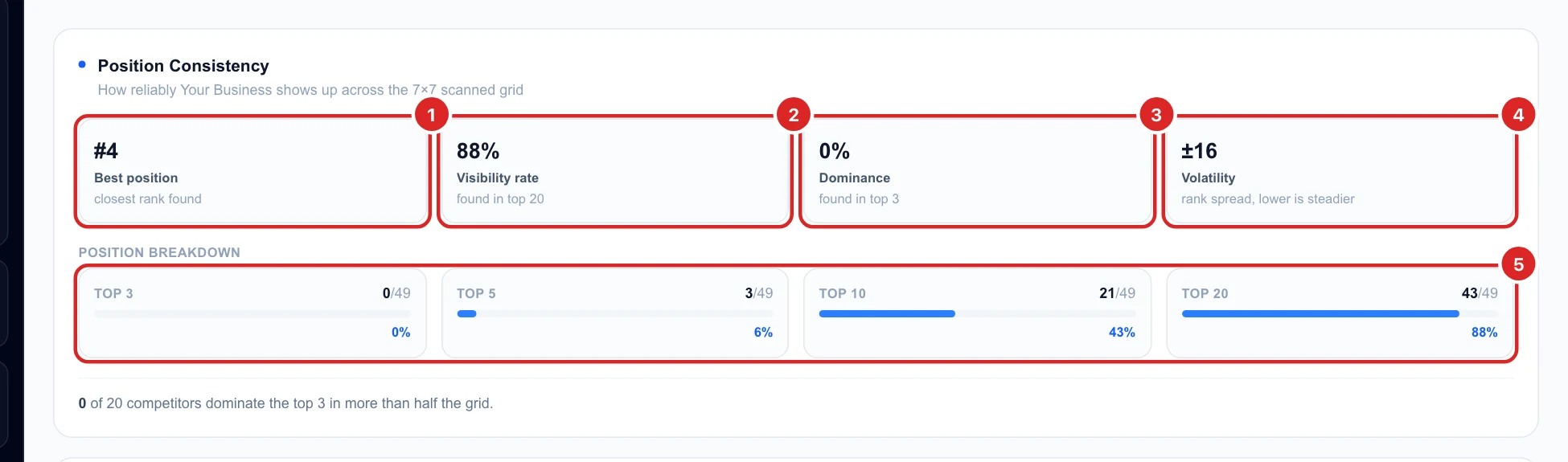
Four numbers sum up how you rank across the grid:
- Best position: the highest you rank anywhere on the grid. #4 means you were fourth at your best point.
- Visibility rate: the share of points where you are in the top 20 (88% here).
- Dominance: the share of points where you are in the top 3, the local pack (0% here).
- Volatility: the gap between your best and worst rank. ±16 means you range from #4 to #20 depending on where the customer is. Lower is steadier.
Position breakdown counts the points where you are in the top 3, 5, 10 and 20. The line under it says how many competitors are in the top 3 at more than half the grid: if none are, no one owns your area yet.
Meet the top-ranked competitor
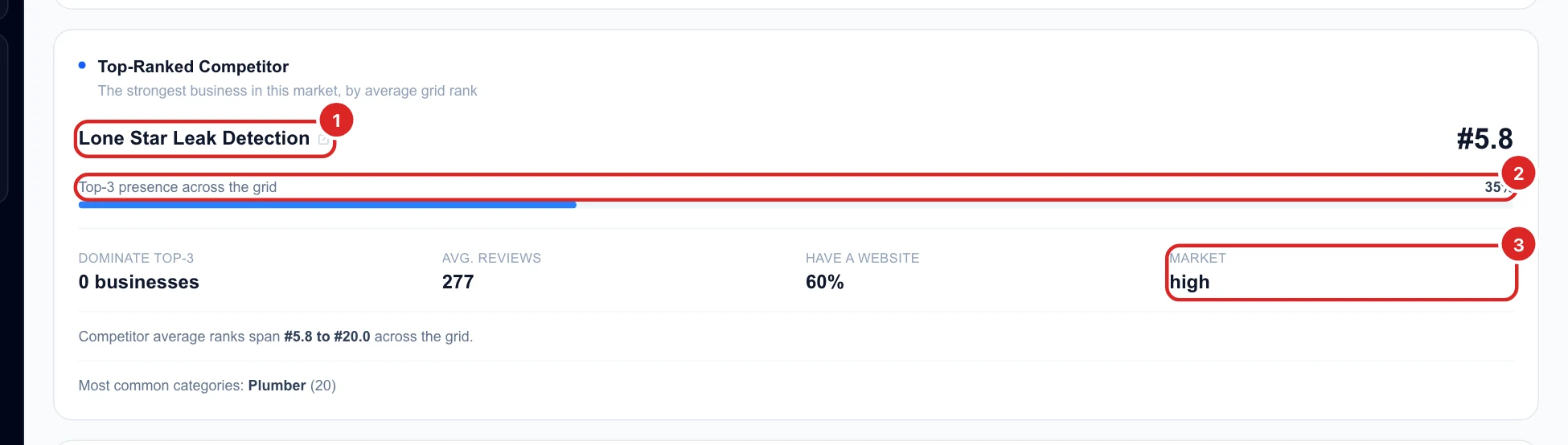
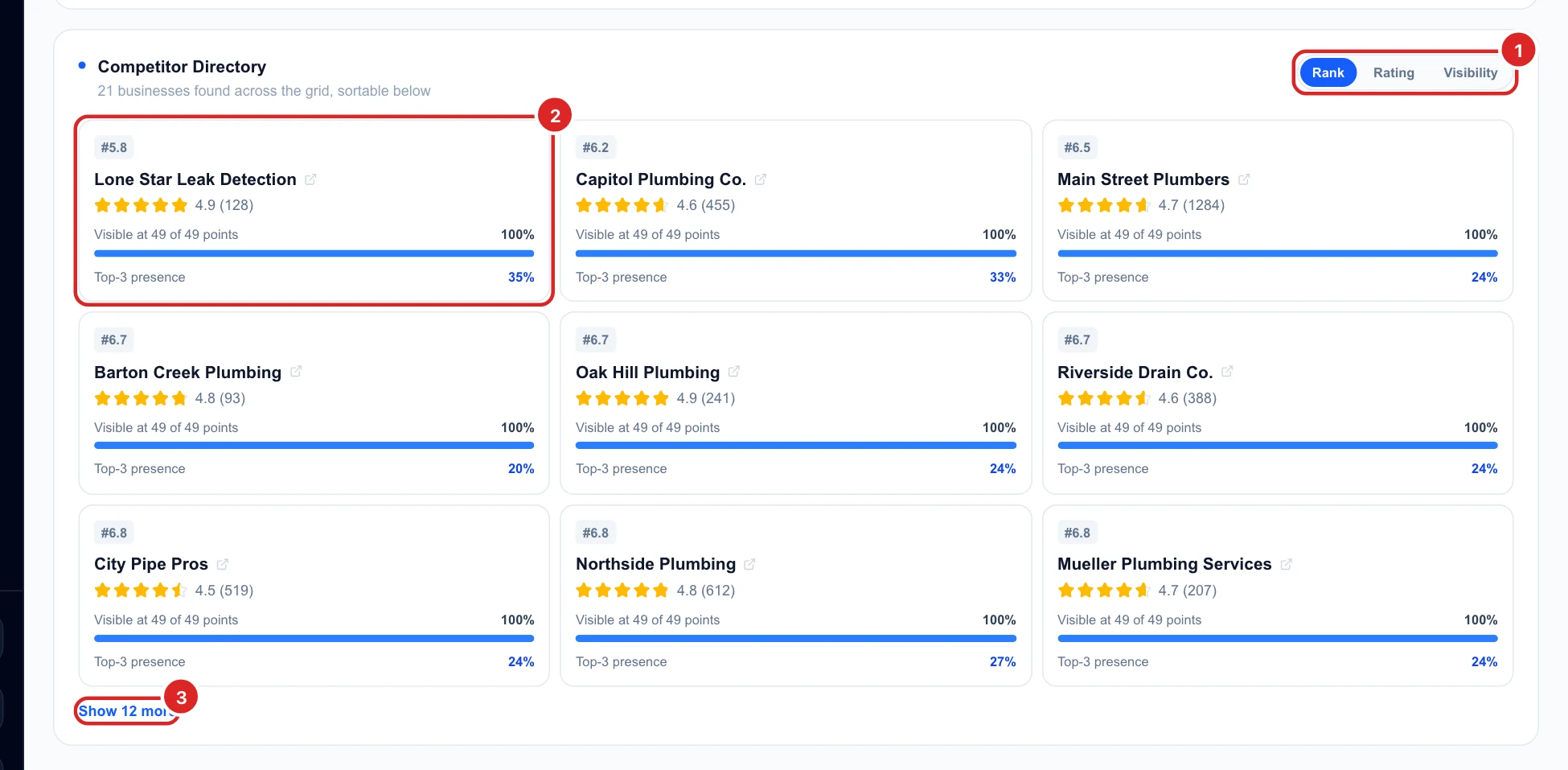
Top-Ranked Competitor is the business with the best average rank across your grid, here Lone Star Leak Detection at #5.8, in the top 3 at 35% of points. The strip under it describes the whole market:
- Dominate top-3: how many businesses are in the top 3 at more than half the points.
- Avg. reviews: the average review count of the competitors, a quick benchmark for your own.
- Have a website: the share of competitors with a website on their listing.
- Market: how crowded it is. High means 20 or more competing businesses showed up, medium 8 to 19 and low fewer than 8.
See which categories compete
Competition by Category groups the businesses by their Google category, with how many there are, their average rank and rating, and the best three in each. If a different category ranks better than yours for the same keyword, Google sees that category as a better match for the search.

Check your profile completeness
Profile Completeness compares three basics of your Google listing with the competitors in the scan: a website, a phone number and your categories. The score counts how many you have, where categories only count when you list more than one. Here Your Business has a single category, so it scores 67%.
The Competitor coverage column shows how many competitors have each one, or their average number of categories.
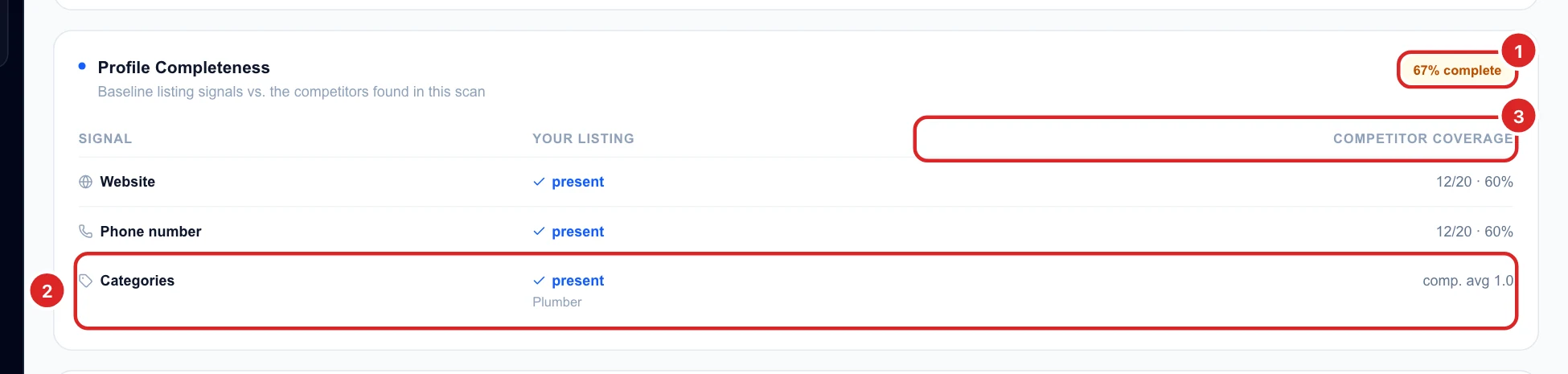
Opening hours are not part of the score: scan results often leave them out even when a listing has them, so counting them would mark you down unfairly.
Browse the competitor directory
Competitor Directory lists every business found in the scan (21 here). Sort it by Rank, Rating or Visibility. Each card shows the average rank, rating and reviews, at how many points the business shows up, and its top-3 presence. Show more adds the next nine.
Decide what to do next
- Dominance is low but visibility is high: Google knows you, you just don’t make the top 3. Compare your listing with the top-ranked competitor: reviews, rating, photos, categories.
- Fewer reviews than the competitor average: steady new reviews are one of the clearest ways to move up.
- Profile under 100%: add what is missing. A website and phone number on your listing, and secondary categories for the other services you offer (for example “Water heater repair service” next to “Plumber”).
- Another category ranks better: if it truly describes your business, add it as a secondary category.
- High volatility: you do well near your address and drop further out. See the Rank Map for which side is weakest.
- High market, nobody dominating: crowded but open. Consistent work on reviews and your listing pays off here.