AI Visibility
Read your AI Visibility Overview
What every number and chart on the Overview means: your AI score, share of voice, next moves, you vs your competitors over time, who owns each topic, the sites AI reads and the questions you are losing.
Updated September 28, 2026 · 8 min read
The Overview is the first thing you see when you open an AI Visibility campaign. It answers, top to bottom: how often AI recommends you, what to fix first, how you compare with your competitors, who wins each topic, which websites AI relies on, and what the AI engines are actually saying.
The screenshots use a made-up plumber called Your Business after several weekly scans. Blue is always you. Every number on the page comes from the scan picked at the top.
- Where
- Glocavo → AI Visibility → open a campaign → Overview.
- Needs
- A campaign with at least one finished scan. Trends and changes appear from the second scan.
- Cost
- Reading the Overview uses no checks.
Open the Overview and pick a scan
Open your campaign from the AI Visibility page. The campaign has its own menu on the left. Overview is the first item and opens by default.
At the top right, the scan picker shows the date of the scan you are looking at and its AI score. Click it to open an older scan: the last 5 are listed, and a calendar lets you pick any earlier day that has a scan. The whole Overview then shows that scan.
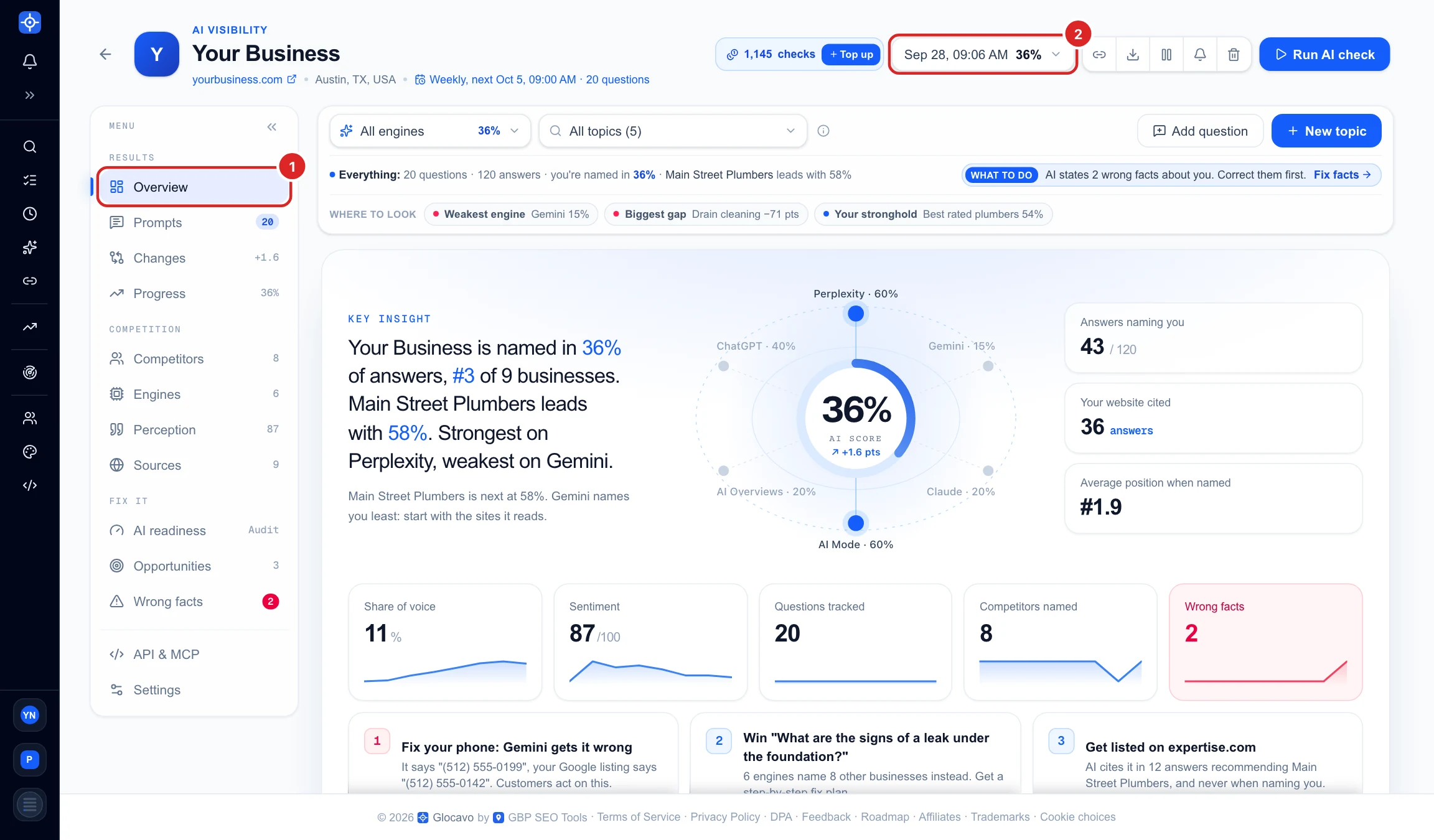
The bar above the Overview (All engines, All topics, Where to look, What to do) filters every number on the page to one AI engine or one topic. See Use the AI Visibility filter bar.
Read the key insight and your AI score
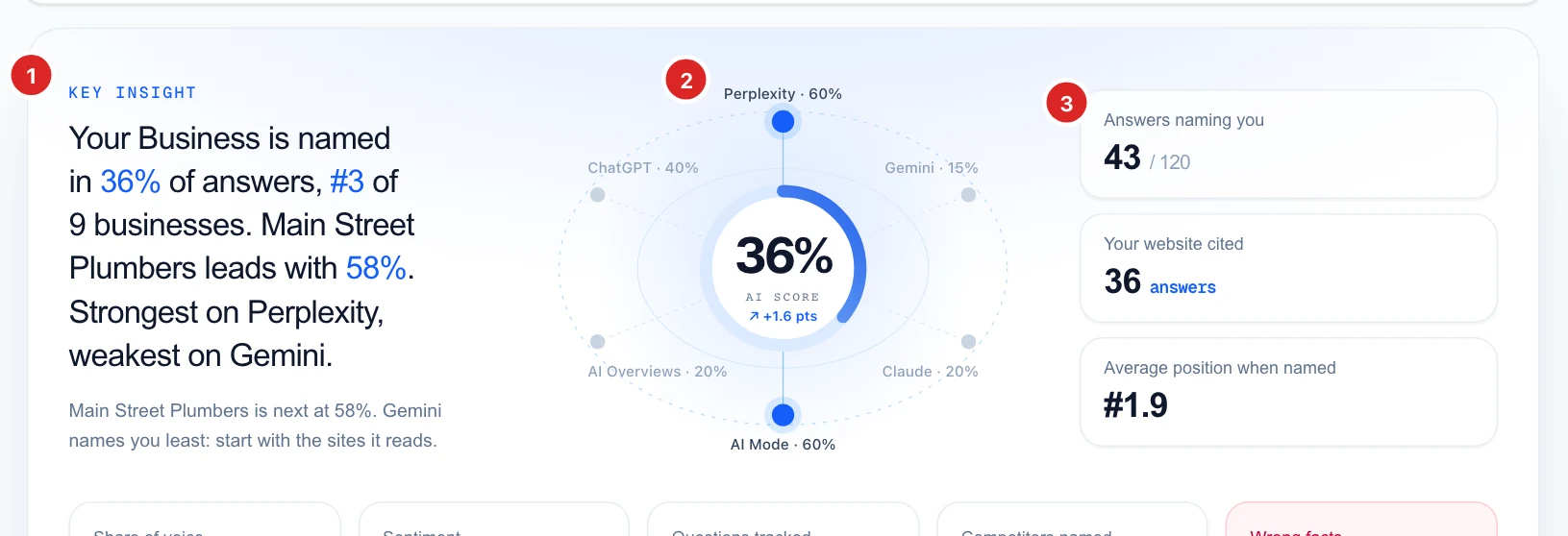
- Key insight (1): one sentence with the most important facts: how often you are named, your rank among all the businesses AI named, who leads and by how much, and your strongest and weakest engine. The smaller line below says who is next and where to start.
- AI score (2): the big number in the ring: the share of AI answers that named your business. The engines around it show the same score per engine; the brighter ones name you most. Under the score you see the change since the previous scan (here +1.6 pts).
- Answers naming you (3): how many answers named you out of all answers in the scan.
- Your website cited: how many answers used a page of your own website as a source. Click it to open Sources.
- Average position when named: where you usually appear in the answer when you are named. #1 means listed first, so lower is better.
Check the five tiles and your next moves
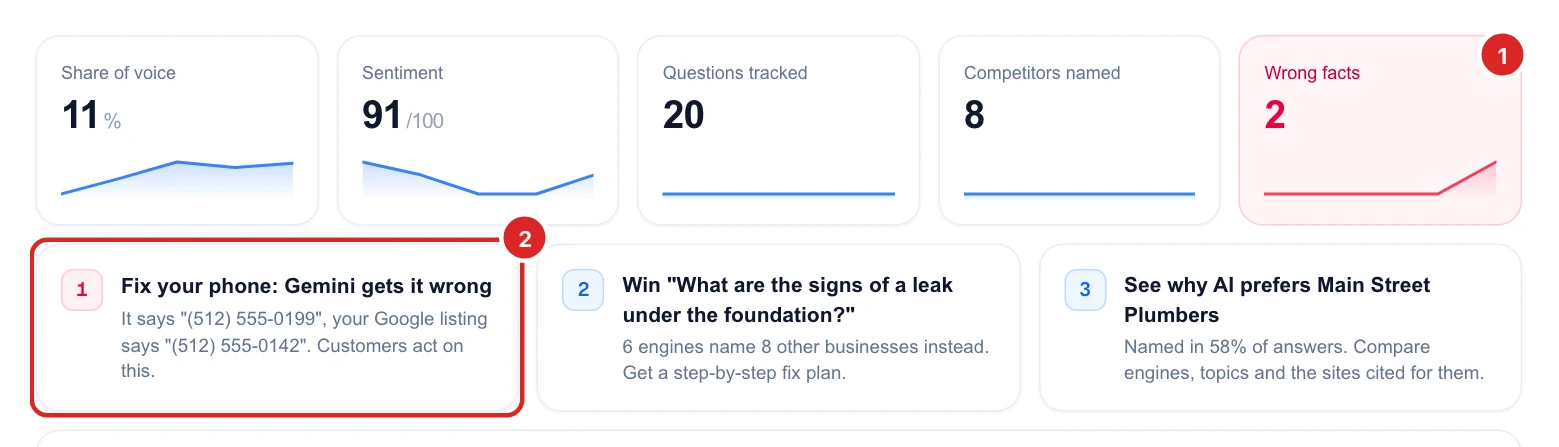
Each tile has a small trend line over your recent scans. Click a tile (all but Share of voice) to open its section.
- Share of voice: your slice of all the times any business was named. Everyone together makes 100%.
- Sentiment: how positively AI describes you, from 0 to 100 (positive 100, neutral 50, negative 0). Opens Perception.
- Questions tracked: how many questions the scan asked. Opens Prompts.
- Competitors named: how many other businesses AI named. Opens Competitors.
- Wrong facts (1): things AI says about you that do not match your Google listing, such as an old phone number. The tile turns red when there are any. Opens Wrong facts.
Under the tiles are up to three next moves (2), the most useful things to do now, most important first. A red number means urgent (usually a wrong fact). Click a move to open the section where you fix it: Wrong facts, Opportunities (a step-by-step plan to win a question), Competitors or AI readiness.
See who AI recommends
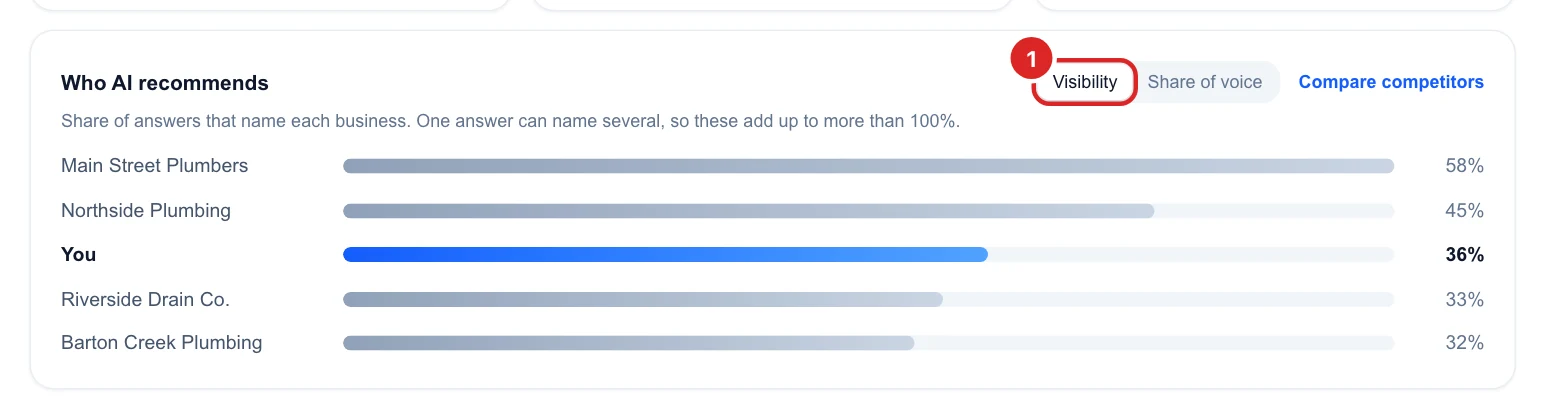
Who AI recommends ranks you against the four businesses AI names most. Switch between two measures (1):
- Visibility: the share of answers that name each business. One answer can name several businesses, so these add up to more than 100%.
- Share of voice: each business’s slice of all mentions. These add up to 100%.
Compare competitors opens the Competitors section with the full detail. See Compare yourself with your AI competitors.
Follow you vs your top competitors over time
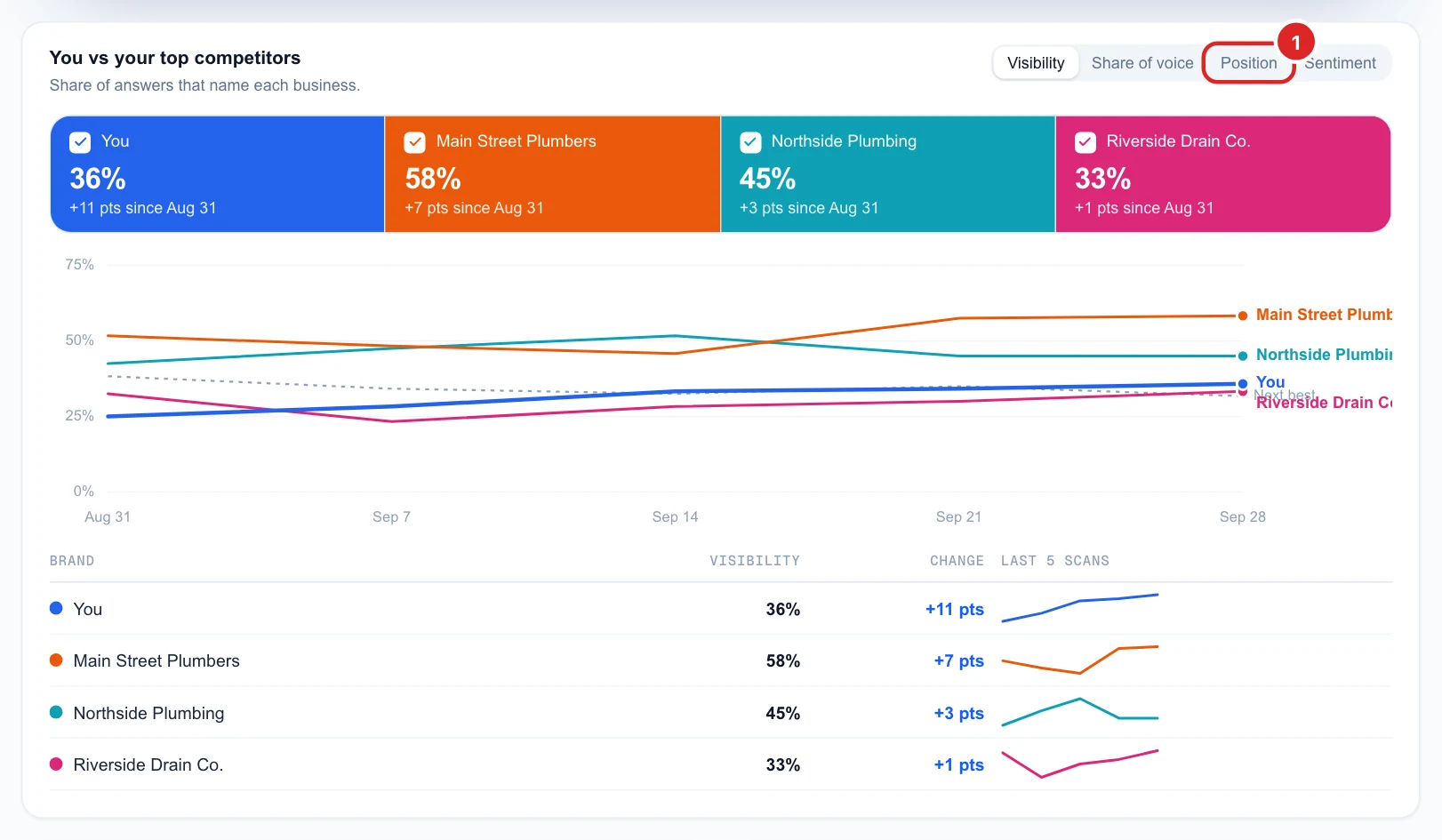
This chart follows you and your top 3 competitors across every scan, like Google Search Console does for clicks.
- Choose the measure with the switch (1): Visibility, Share of voice, Position (#1 = listed first, so lower is better) or Sentiment.
- The coloured cards show each business’s number now and its change since the first scan in the chart. Click a card to hide or show its line. You are always blue.
- The table below repeats the numbers with the change and a small trend per business.
After only one scan there is nothing to draw yet. Click See an example to preview the chart with made-up history. It is labelled as example data and uses no checks.
Rank race, share of voice river and engine heat map
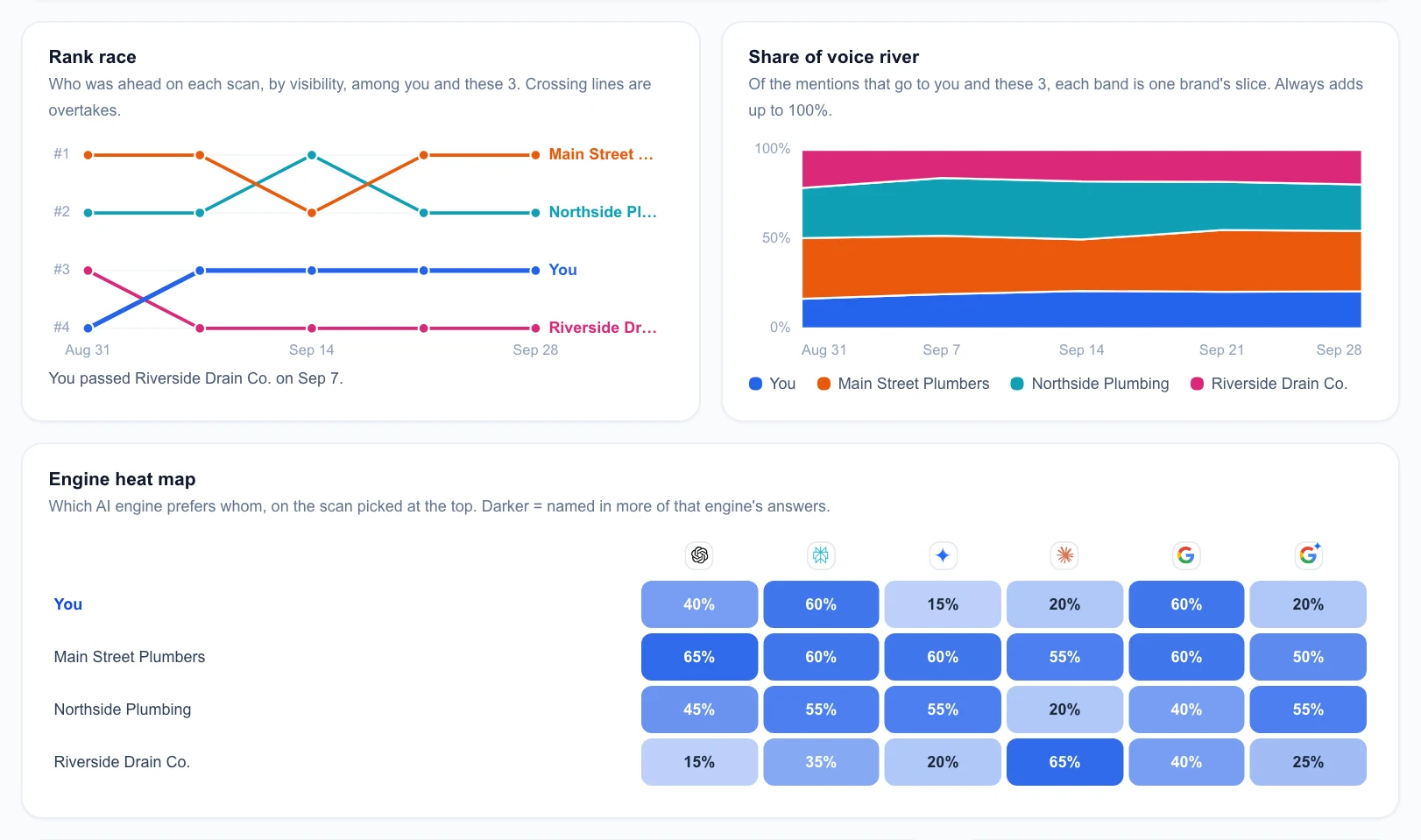
- Rank race: who was ahead on each scan among you and the same 3 competitors. Crossing lines are overtakes, and the line under the chart names the latest one (for example You passed Riverside Drain Co. on Sep 7).
- Share of voice river: of the mentions that go to you and these 3, how big each slice is on each scan. A band that grows is winning attention.
- Engine heat map: which AI engine prefers whom, on the scan picked at the top. Each cell is the share of that engine’s answers naming the business; darker means more. A pale cell in your row is an engine to work on.
See who owns each topic and which sites AI reads
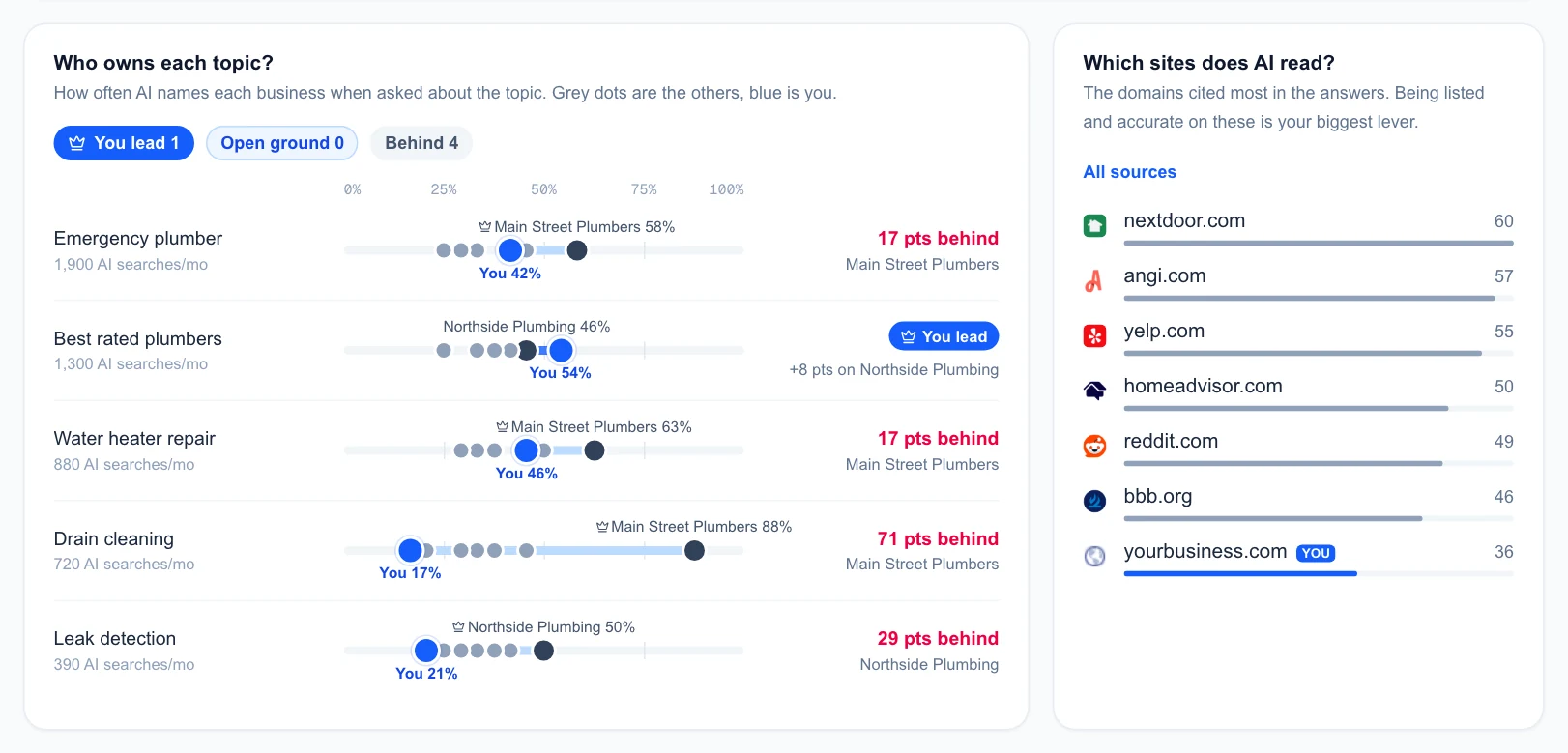
Who owns each topic? gives each topic one lane from 0% to 100%, sorted by how many AI searches it gets a month. The big blue dot is you, the grey dots are the other businesses, and the leader is named above the lane. On the right you see the verdict: You lead (and by how many points), Behind (how many points to catch up and who leads) or Open ground (no one is named yet, an easy win). The chips at the top count each kind.
Which sites does AI read? lists the websites cited most in the answers, with how many answers cited each one. Your own site is tagged YOU. Being listed, with correct details and good reviews, on the sites at the top is often the fastest way to be recommended more. All sources opens the full list.
Find the questions you are losing and read the answers
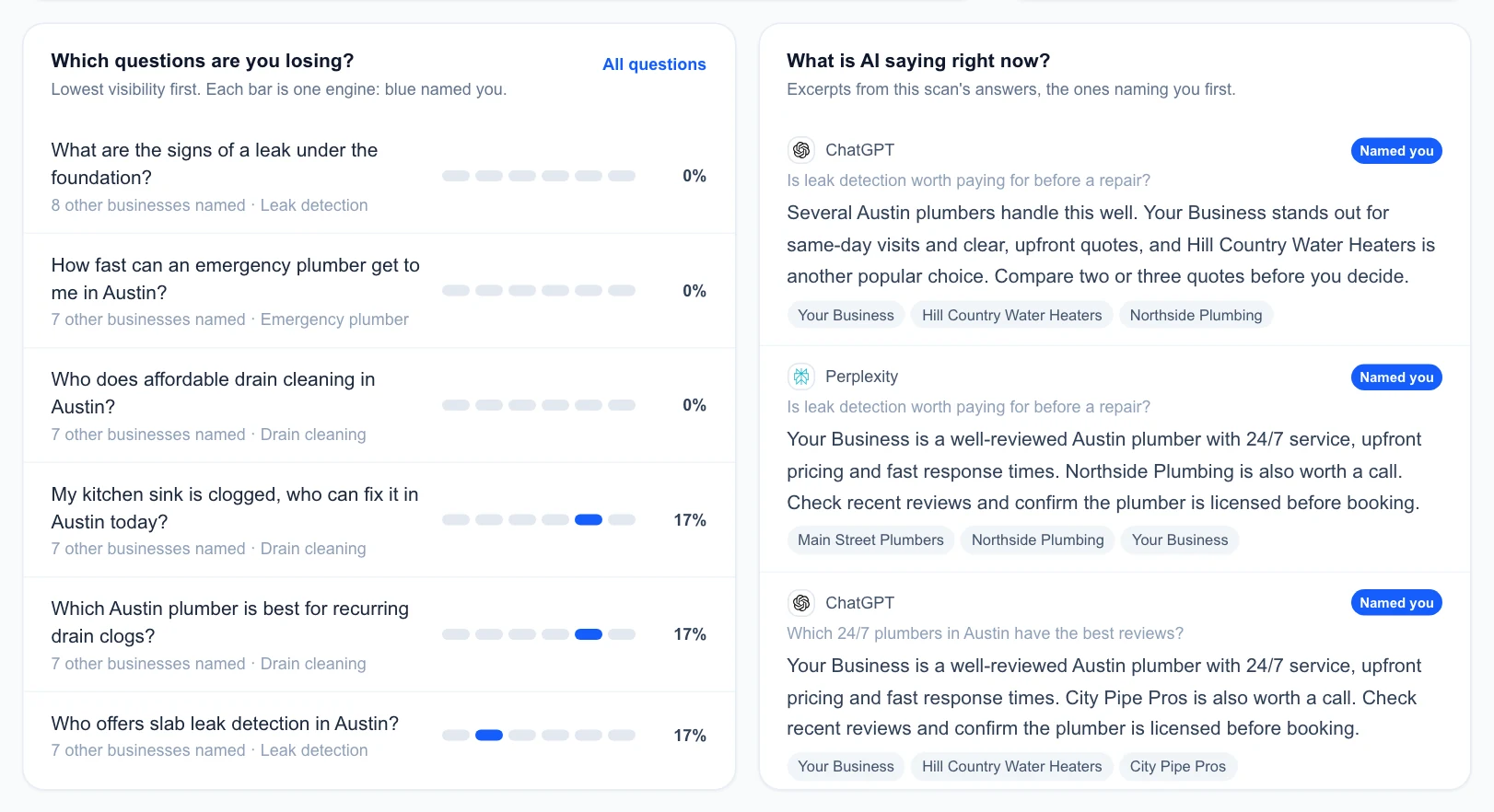
Which questions are you losing? lists your weakest questions first. The six small bars are the six engines: blue named you, grey did not. The line under each question says how many other businesses were named instead. All questions opens Prompts with every question and answer.
What is AI saying right now? shows short excerpts of real answers from this scan, the ones that name you first, with the engine, the question and the businesses mentioned. It is the quickest way to see how AI talks about you.
Next
No campaign yet? Start with Create an AI Visibility campaign. To ask Claude about these numbers in a chat, use the MCP connector for Claude.