AI Visibility
Use the AI Visibility filter bar
Narrow the whole report to one AI engine, one topic or both, and let Where to look and What to do point you at your weakest engine, your biggest gap and the next step.
Updated September 28, 2026 · 4 min read
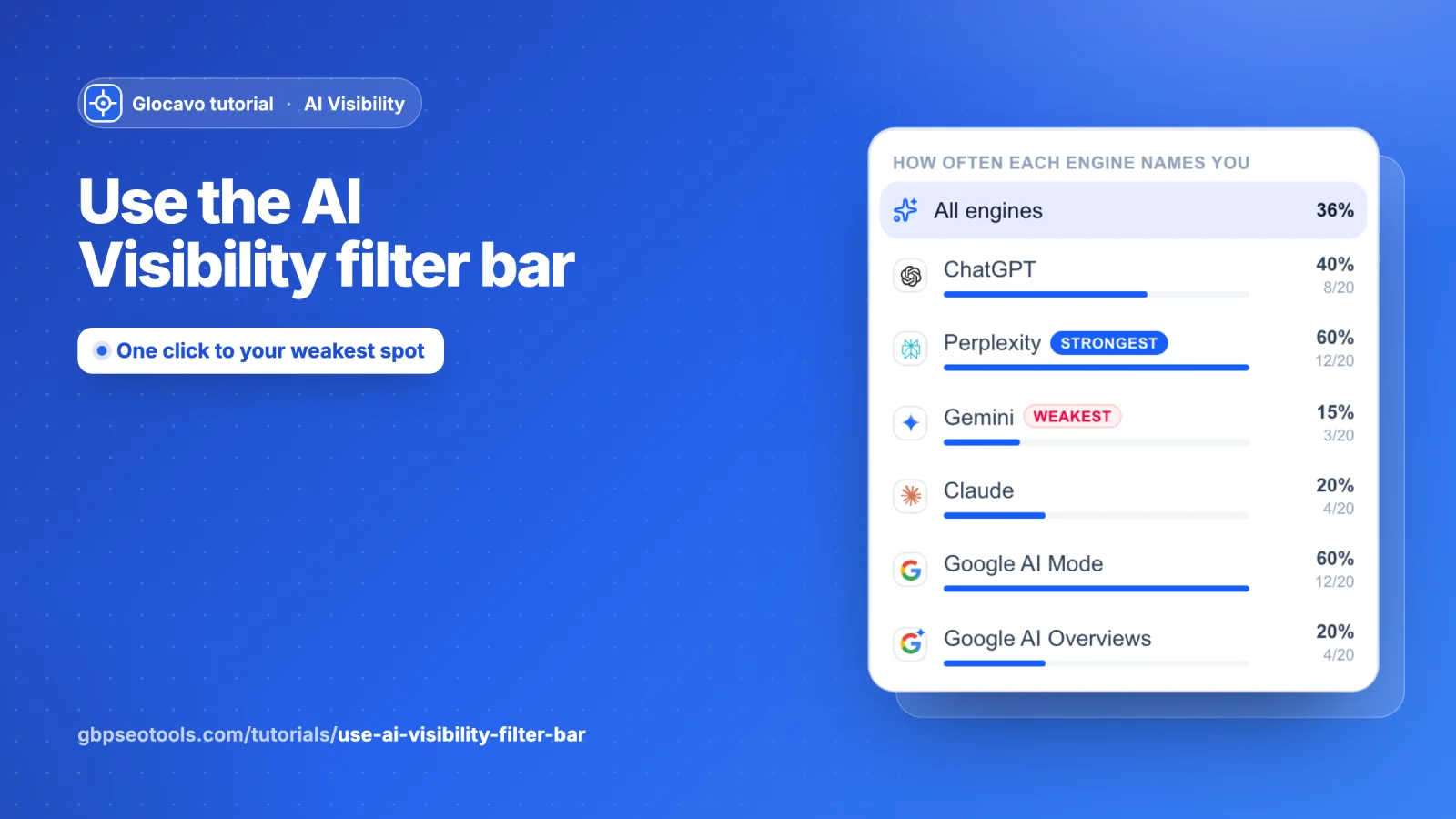
The filter bar narrows the whole report to one AI engine, one topic, or both. Every number, chart and tab then shows only that part, including your trends over past scans. It also tells you where to look first and what to do next, so you rarely have to hunt through the report yourself.
- Where
- At the top of every AI Visibility campaign report, above the Overview and every other section.
- Cost
- Filtering uses no checks.
Find the filter bar
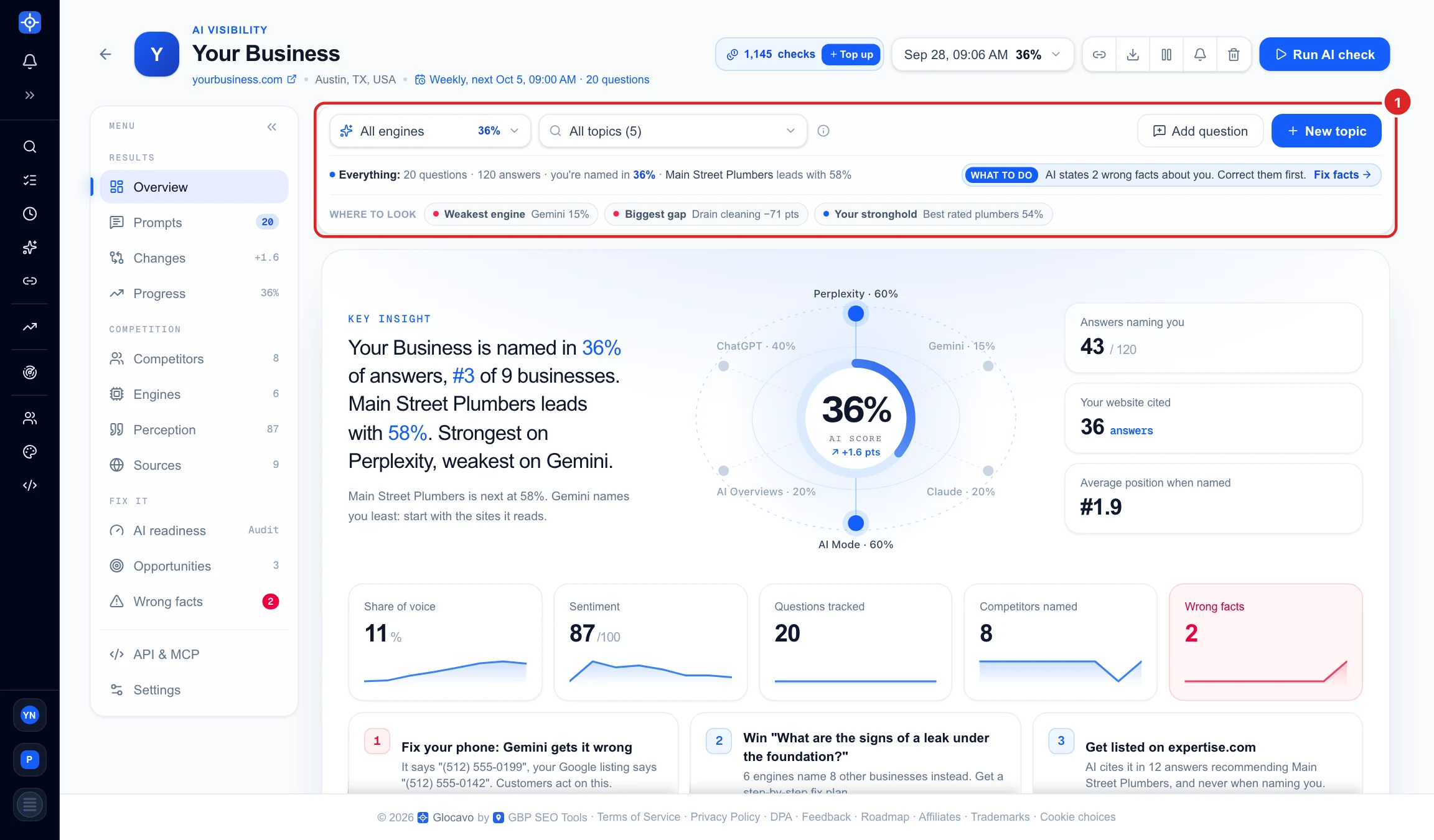
Open a campaign. The bar sits above the report (1) and stays pinned at the top while you scroll on a computer. From left to right it has the engine box, the topic box, a small (i) with a short explanation, and on the right Add question and New topic, which take you to the campaign’s Settings to add them.
Filter by AI engine
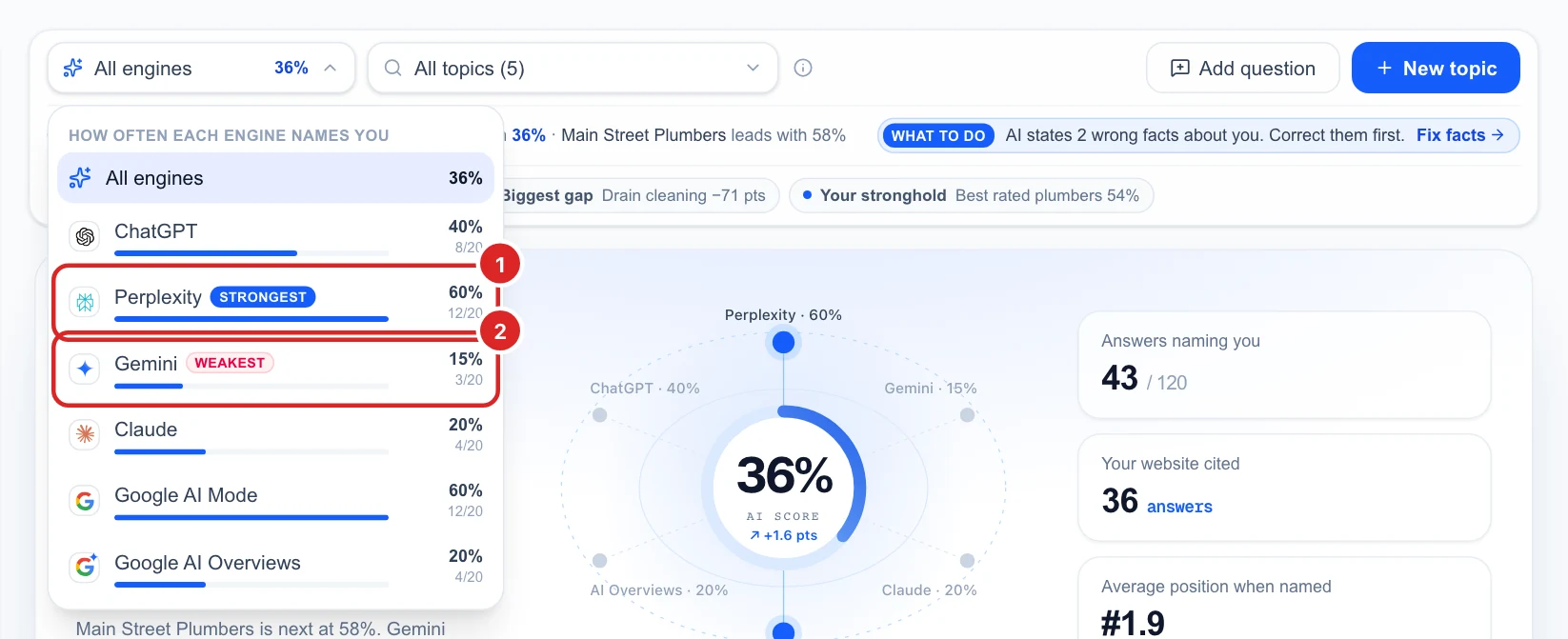
Click the engine box. The list shows how often each engine names you, before you pick it: the percentage, a bar, and how many of that engine’s answers named you (for example 12/20). Glocavo tags your strongest (1) and weakest (2) engine. Pick one to see the whole report through that engine’s eyes; pick All engines to go back.
Filter by topic
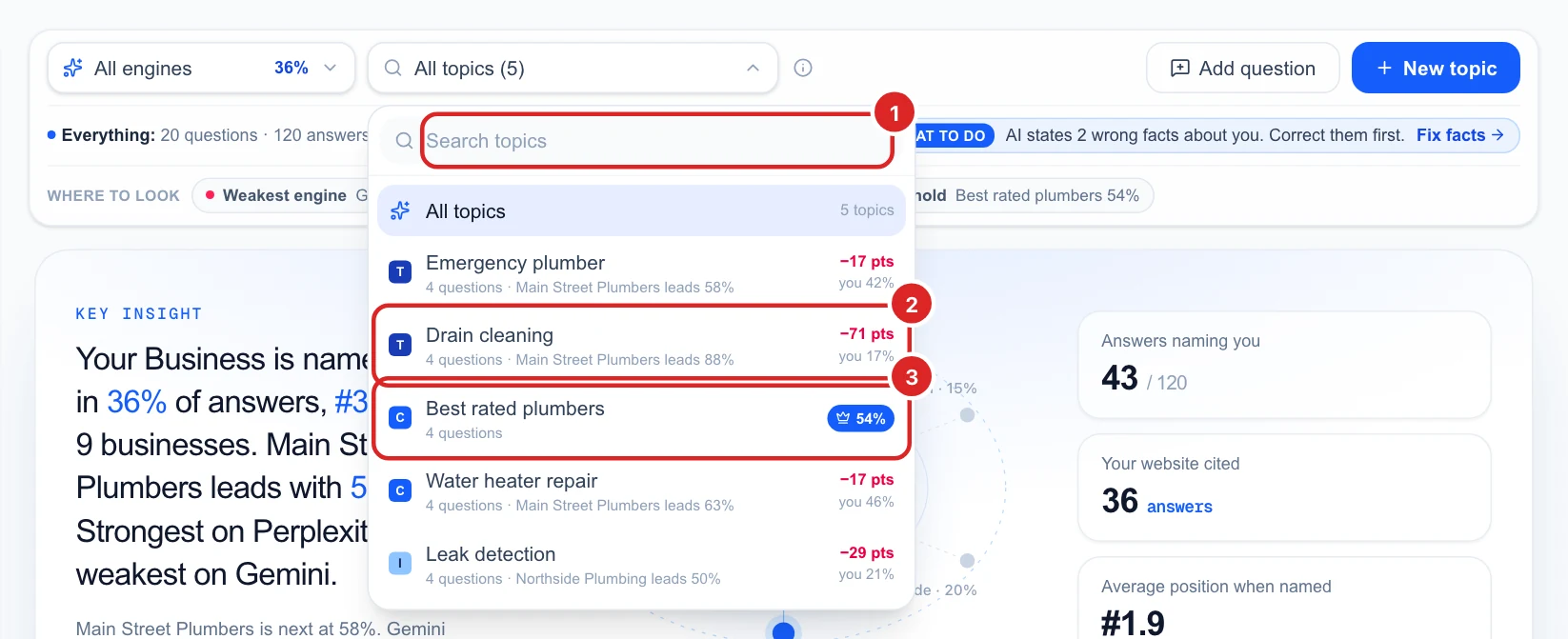
Click the topic box. Type in the search (1) to find a topic quickly. Each topic shows:
- A letter for who is asking: T ready to buy, C comparing options, I just learning, N looking for you by name.
- How many questions it has, and who leads it.
- On the right, where you stand: a red −pts number is how far behind the leader you are (2), a blue crown means you lead (3), and Open means no business is named yet.
Use Where to look and What to do
Where to look is the row of shortcuts at the bottom of the bar. Glocavo finds, for you:
- Weakest engine: the engine that names you least.
- Biggest gap: the topic where you are furthest behind the leader.
- Open ground: a topic no business owns yet, when there is one.
- Your stronghold: the topic where you are strongest.
One click filters the report to it (3); a second click clears it. The line under the boxes (1) always says what you are looking at: how many questions and answers, how often you are named, and who leads. What to do (2) gives the one next step for what is on screen, and its link opens the right section, for example Get a fix plan when a competitor is far ahead on a topic. Clear (4) brings back everything.
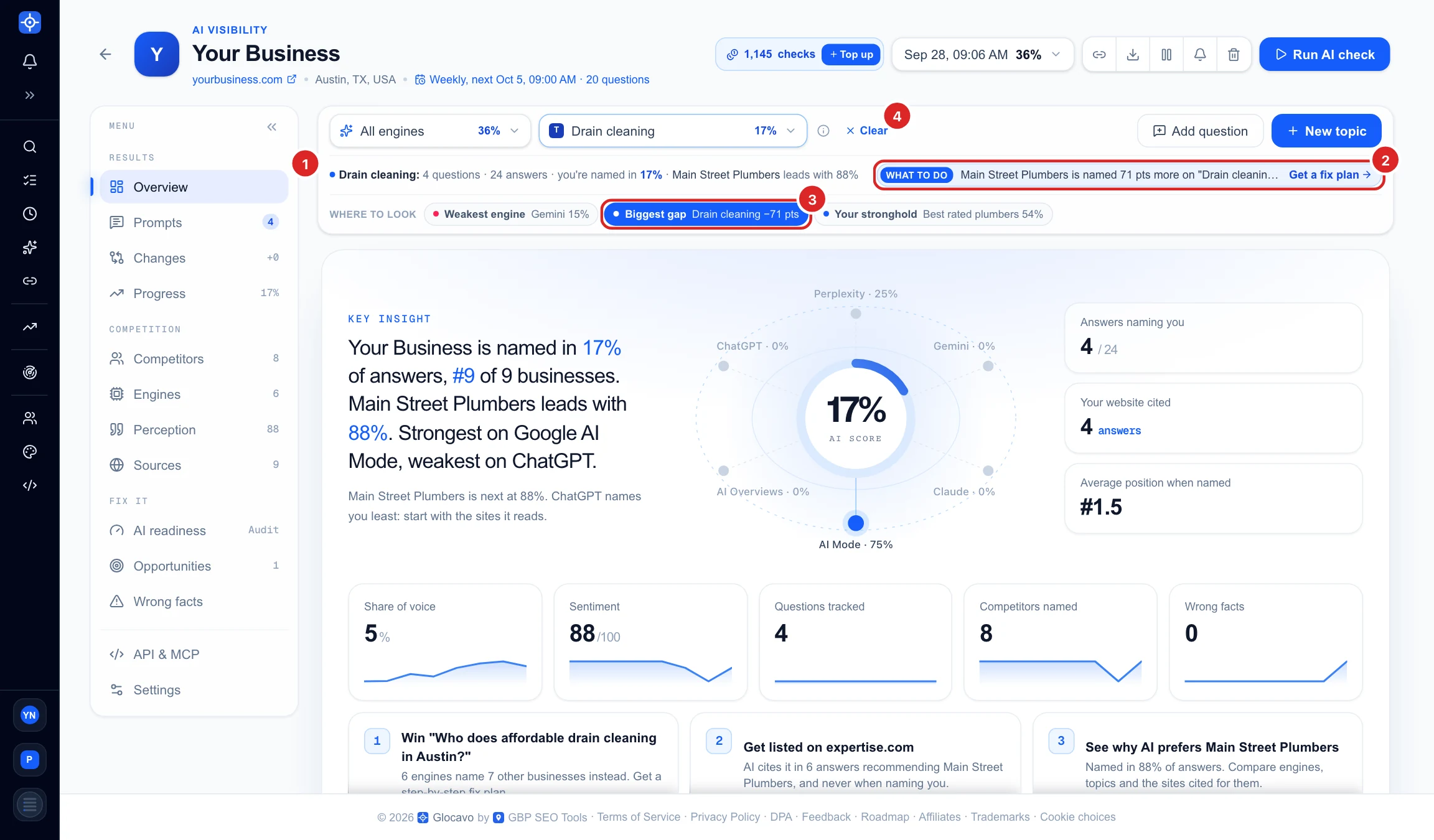
Combine an engine and a topic
You can set both boxes at once to answer a very precise question, for example “does Gemini ever recommend us for drain cleaning?” The summary line (1) then reads Gemini × Drain cleaning and shows the answer straight away: here you are named in 0% of those answers, so that is the place to work on.

The percentages inside the engine and topic lists always come from the whole scan, so they do not change while you filter. The rest of the report follows your filter.
Get a reminder with the (i) button
Forgot what something means? Click the small (i) next to the topic box for a short explanation of every part of the bar, right inside the app.
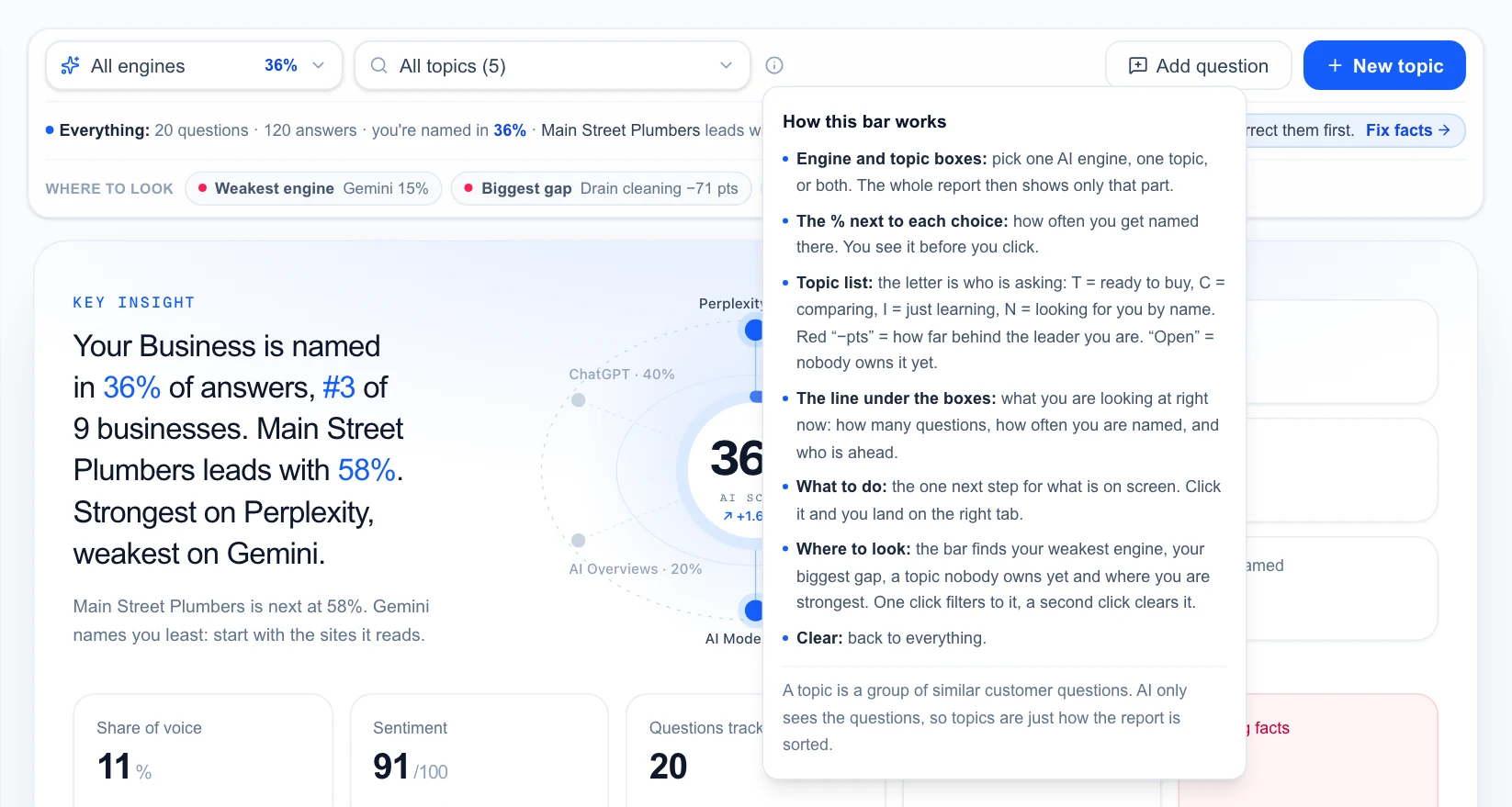
Next
See what every number on the page means in Read your AI Visibility Overview.