Rank tracker
Track your Google Maps rankings with recurring scans
Set up a recurring grid scan that checks your Google Maps rankings daily, weekly or monthly, read each card's trend, and run, edit, pause, pin, share or delete your recurring scans.
Updated October 5, 2026 · 6 min read
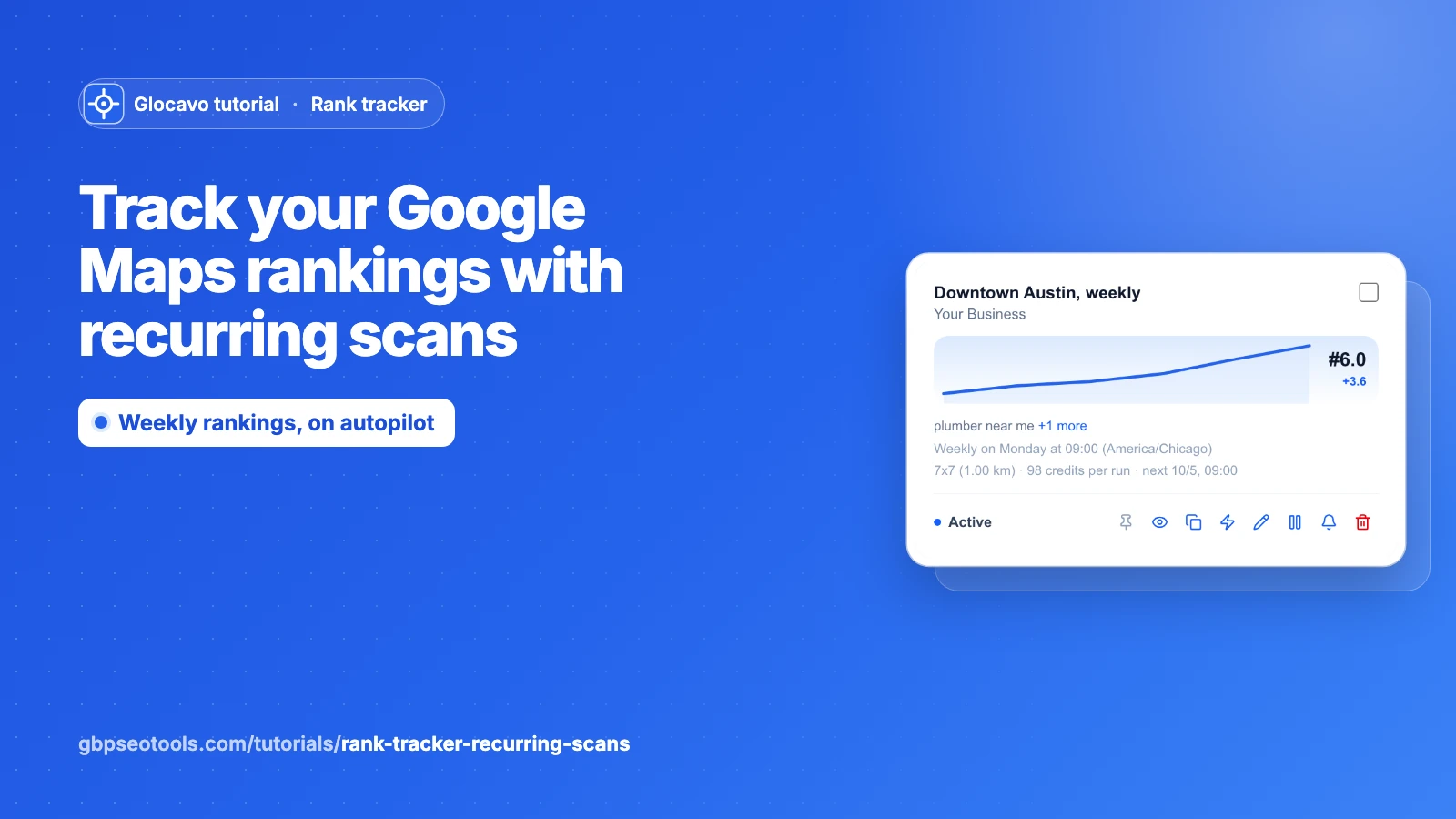
A recurring scan runs the same grid scan for you, daily, weekly or monthly, so your Google Maps rankings are checked on a schedule without you lifting a finger. Every run is saved like a normal scan, so you can see how your rankings move over weeks and months.
The screenshots use a made-up plumber called Your Business in Austin, TX, with four recurring scans. Your own recurring scans look the same.
- Where
- The left sidebar → Recurring scans.
- Who
- Every plan, Free included. Keywords per recurring scan: 3 on Free, up to 30 on Agency.
- Cost
- Each run costs the same as running the scans yourself: one scan credit per point, per keyword.
Create a recurring scan
Open Recurring scans in the left sidebar and click New recurring scan. Then:
- Search for the business and pick it.
- Give it a name you’ll recognise later, for example Downtown Austin, weekly.
- Add your keywords. Each keyword runs as its own scan every time. You can add up to 3 keywords on Free, 5 on Starter, 10 on Basic, 20 on Studio and 30 on Agency.
- Choose the grid size and how often it runs: daily, weekly or monthly.
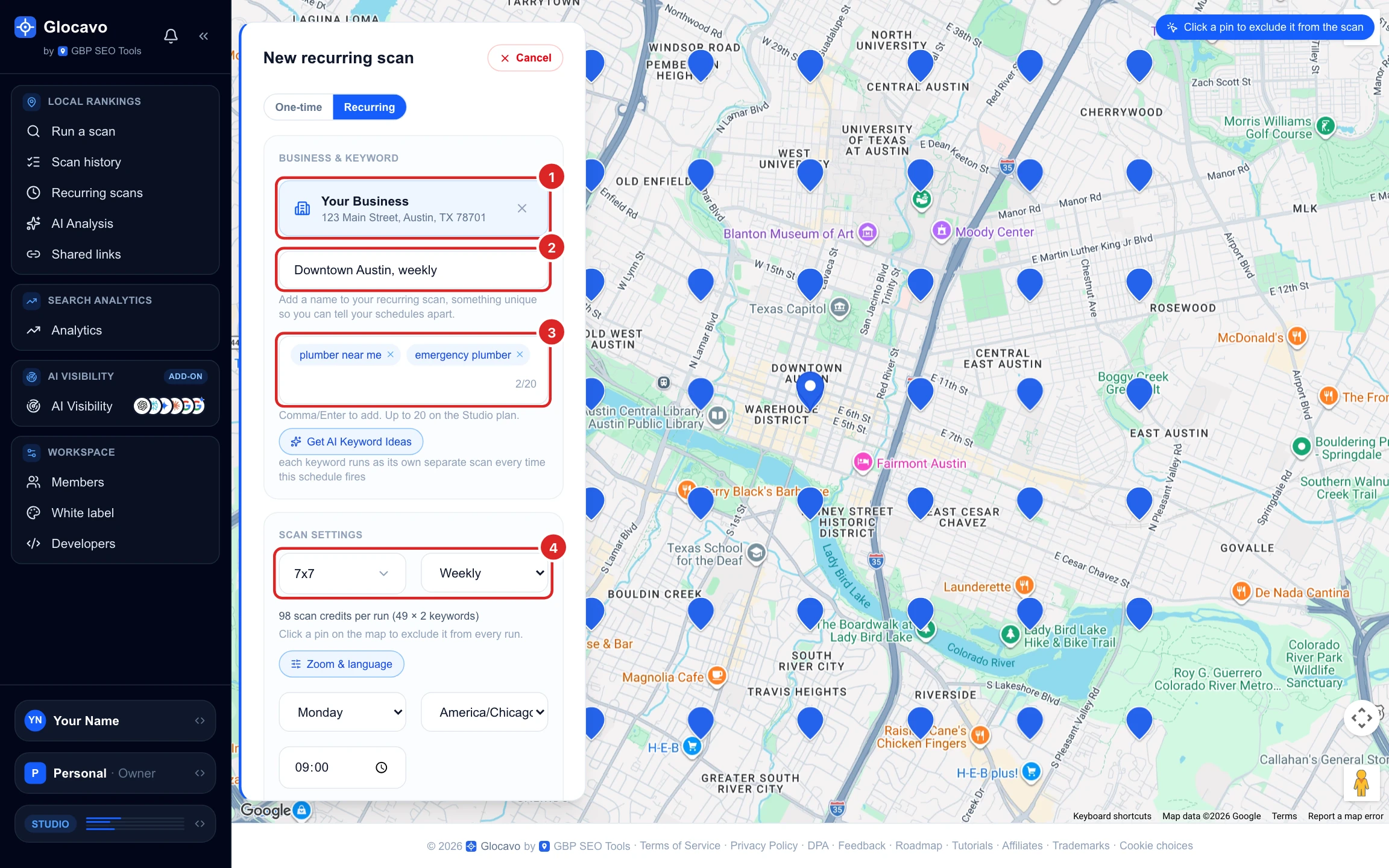
You can also start a recurring scan from Run a scan (switch One-time to Recurring), or from Scan history with Make recurring, which fills in the form from scans you already ran.
Pick when it runs and create it
Choose the day (for weekly or monthly), the time and the time zone. The form shows what each run costs: here 98 scan credits, 49 points for each of the 2 keywords. Click a pin on the map to turn it off for every run, for example a point in a lake or outside your service area: turned-off pins are not scanned or charged. Then click Create recurring scan.
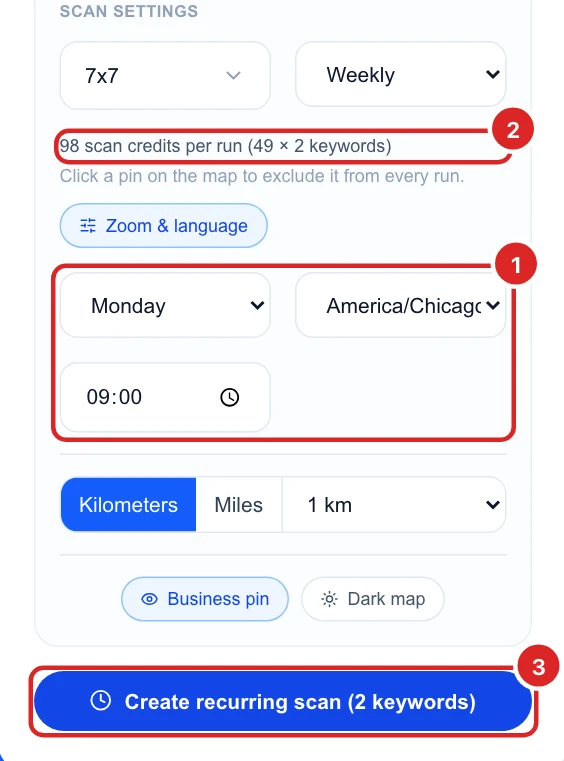
The first run happens at the next scheduled time, not right away. For a report today, click Run now on the card (step 4). A monthly scan can run on day 1 to 28 of the month.
Read a recurring scan card
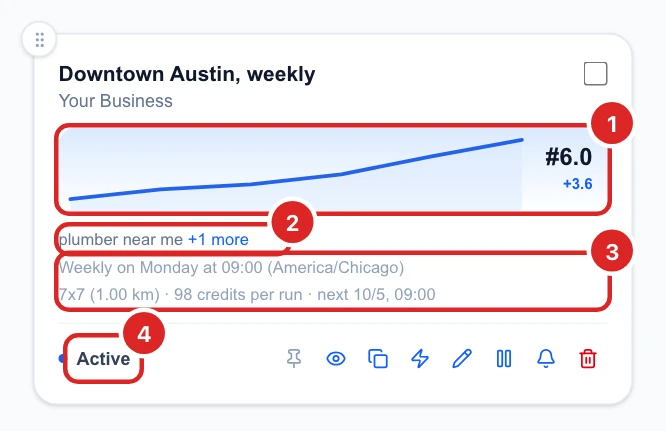
Each recurring scan gets a card:
- The trend line: your average rank over the last six runs (the average of all its keywords), with the latest rank on the right and the change since the first run on the line. Blue means you are moving up, amber means you are slipping.
- The keywords. Click +1 more to see them all.
- The schedule, then the grid size and distance, what each run costs and when the next run is.
- Active or Paused.
A brand-new recurring scan shows No runs yet until its first run.
Use the card's icons

From left to right:
- Pin: keeps it in the left sidebar (step 7).
- View: opens the latest report.
- Copy link: copies a link to the latest report that anyone can open, no login needed.
- Run now: runs it straight away and opens the new report. It costs the same as a scheduled run and doesn’t change the schedule.
- Edit: changes the settings (step 5).
- Pause or Resume (step 6).
- Notifications: with the bell on, you get an email with the results after every scheduled run.
- Delete (step 9).
Run now works once every 24 hours for each recurring scan, and a scheduled run counts too. When it’s not available, hover the icon to see when it will be again.
Edit a recurring scan
Click the pencil to change the name, the keywords, the grid size, how often it runs, the day, the time zone and the time. Click Save changes. The changes apply from the next run; scans that already ran stay as they are.
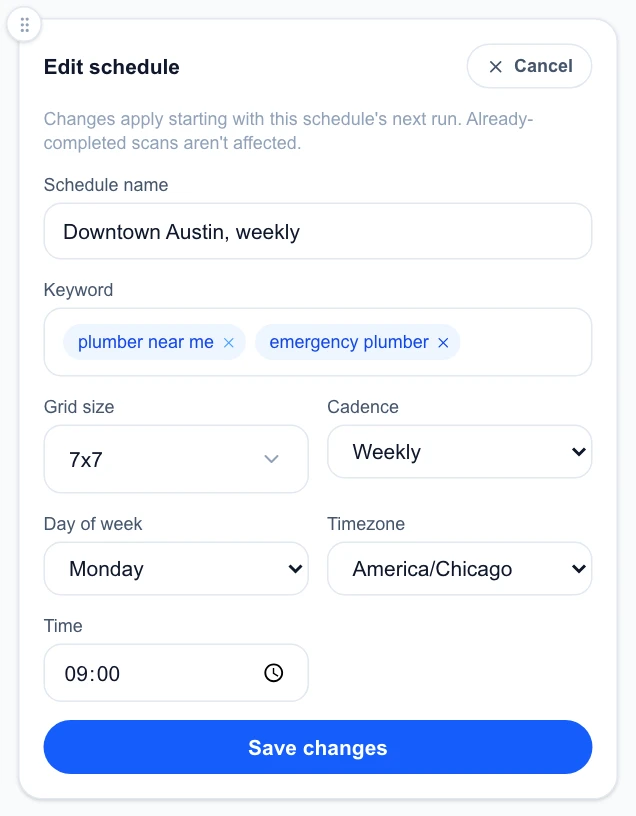
The distance between points, the zoom, the language and the pins you turned off can’t be changed after creating it. To change them, create a new recurring scan and delete the old one.
Pause it or mute its emails
Click Pause to stop the runs for a while, for example during a quiet season. A paused recurring scan doesn’t run or use credits, and keeps all its past results. Click Resume to start again from the next scheduled time. Click the bell to turn its emails off or on.
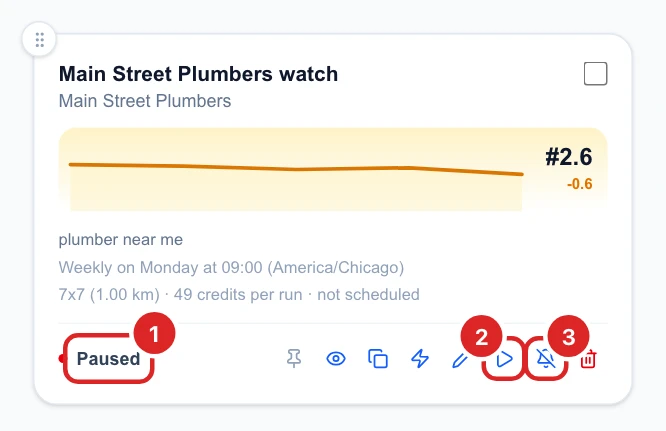
Tracking a competitor, like Main Street Plumbers here, works the same way. An amber line on a competitor means they are slipping.
Pin your most important ones
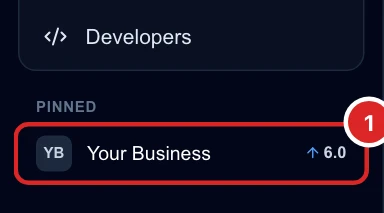
Click the pin on a card to add it to Pinned in the left sidebar, with its latest rank and an arrow when it moved up since the run before. Click it to open the latest report from anywhere in Glocavo. Click the pin again to remove it.
Manage many recurring scans
Tick the box on the cards you want, or Select all, then use the buttons at the top:
- Compact shows smaller cards, and Newest or Oldest sorts them by when you created them.
- Shared links copies a link to the latest report of each one, with its name, ready to paste in an email.
- Positions opens a table of every keyword’s rank across its runs.
- Scan now runs all the selected ones straight away, with the same once-a-day rule as Run now.
- Drag a card by its handle to put the cards in your own order.
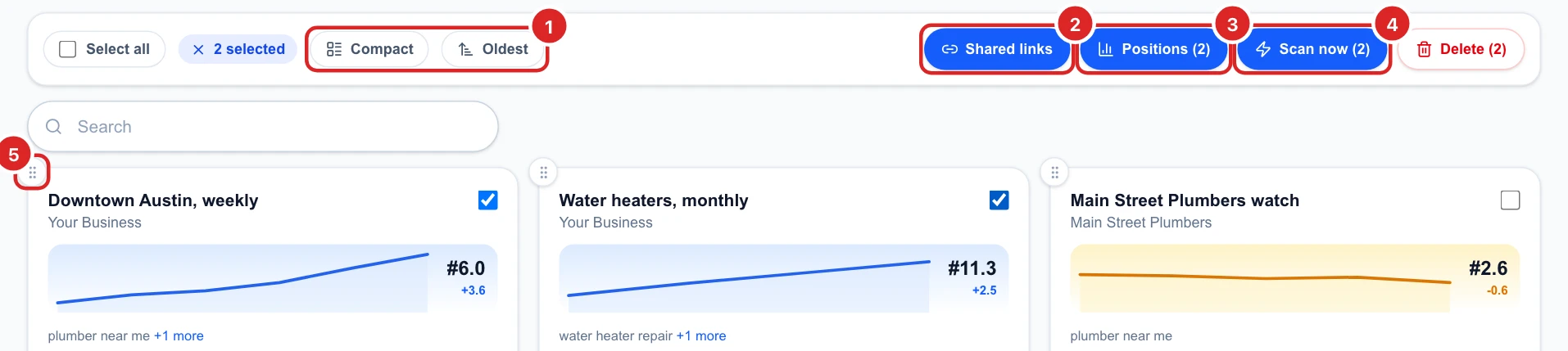
The search box finds recurring scans by name, business or keyword.
Delete a recurring scan
Click the bin on a card, or select several and click Delete, then confirm. All future runs stop, for every keyword, and this can’t be undone.
The scans it already ran are not deleted: they stay in Scan history, listed as single scans. To keep tracking but stop for a while, pause it instead.
Know what happens when you run out of credits
A recurring scan only runs when you have enough scan credits. If you run out, its runs wait and a notice appears at the top of Recurring scans. They start again on their own as soon as you top up or your monthly credits reset, nothing to restart. See how scan credits and AI Power work.
Decide what to do next
- Start with weekly for your most important keywords. Rankings rarely change day to day, and weekly uses about a seventh of the credits of daily.
- Pin your main recurring scan so its rank is always one click away.
- Track one or two competitors the same way, to see whether a change in your rank is you or the market.
- When a trend line turns amber, open the latest report and read the rank map to see where you lost ground.