Analytics
Get alerts when Google competitors move
Read the alerts Glocavo raises after each check: a competitor ranking above you, a new website in the top 3, a rival's rating or reviews jumping, or your own map position changing.
Updated October 5, 2026 · 5 min read
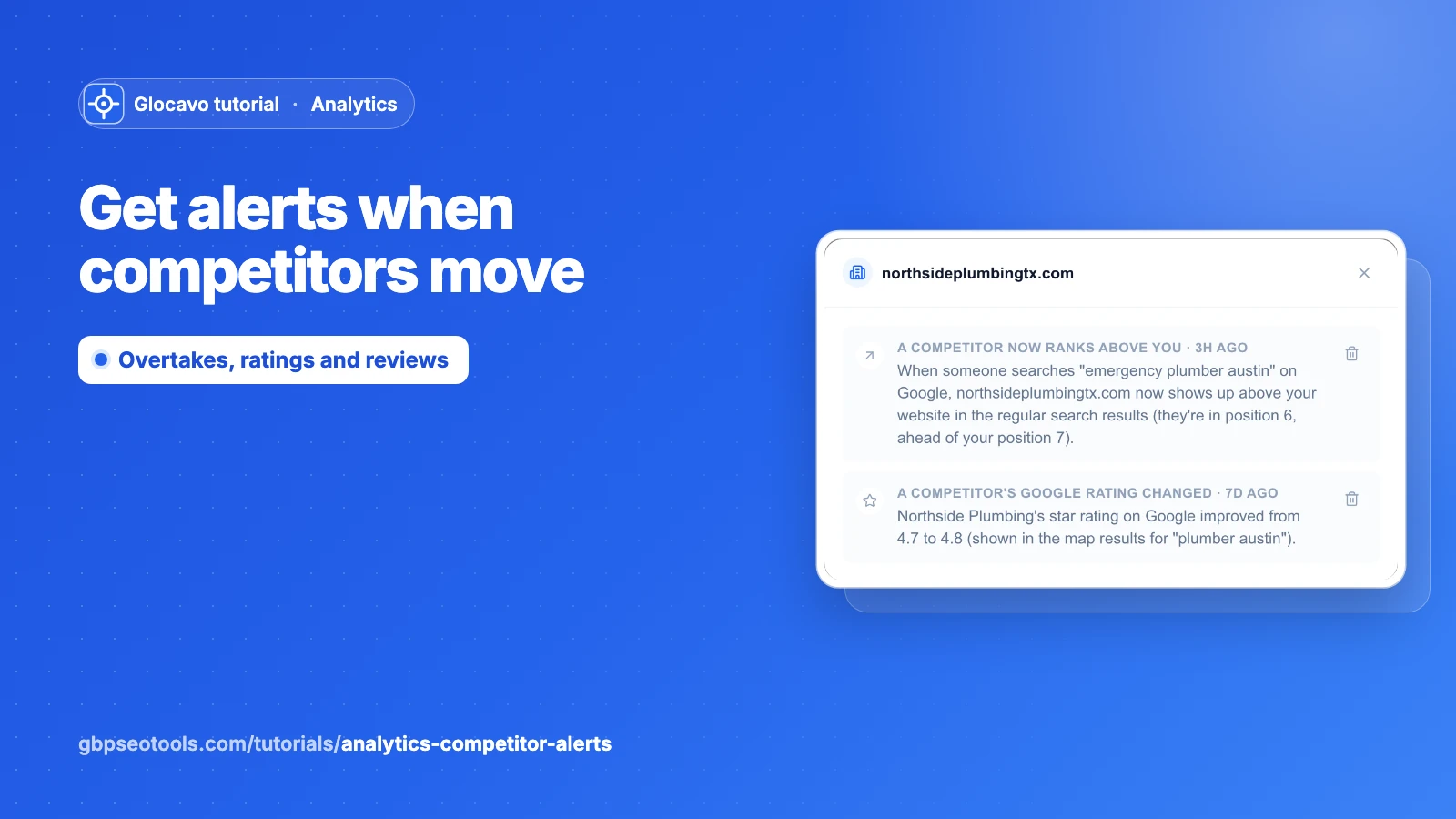
Alerts tell you what changed around you since the last check: a competitor that now ranks above you, a new website in the top results, a rival whose rating or reviews jumped, or your own business moving in Google’s map results. Instead of comparing tables yourself, you read a short list in plain words.
The screenshots use a made-up website, yourbusiness.com, with six alerts from its last two weekly checks.
- Where
- Analytics → a campaign → Alerts.
- Who
- Starter plan and up. On by default for new campaigns.
- Cost
- Uses no credits: alerts come from the checks your campaign already runs.
Open the Alerts tab
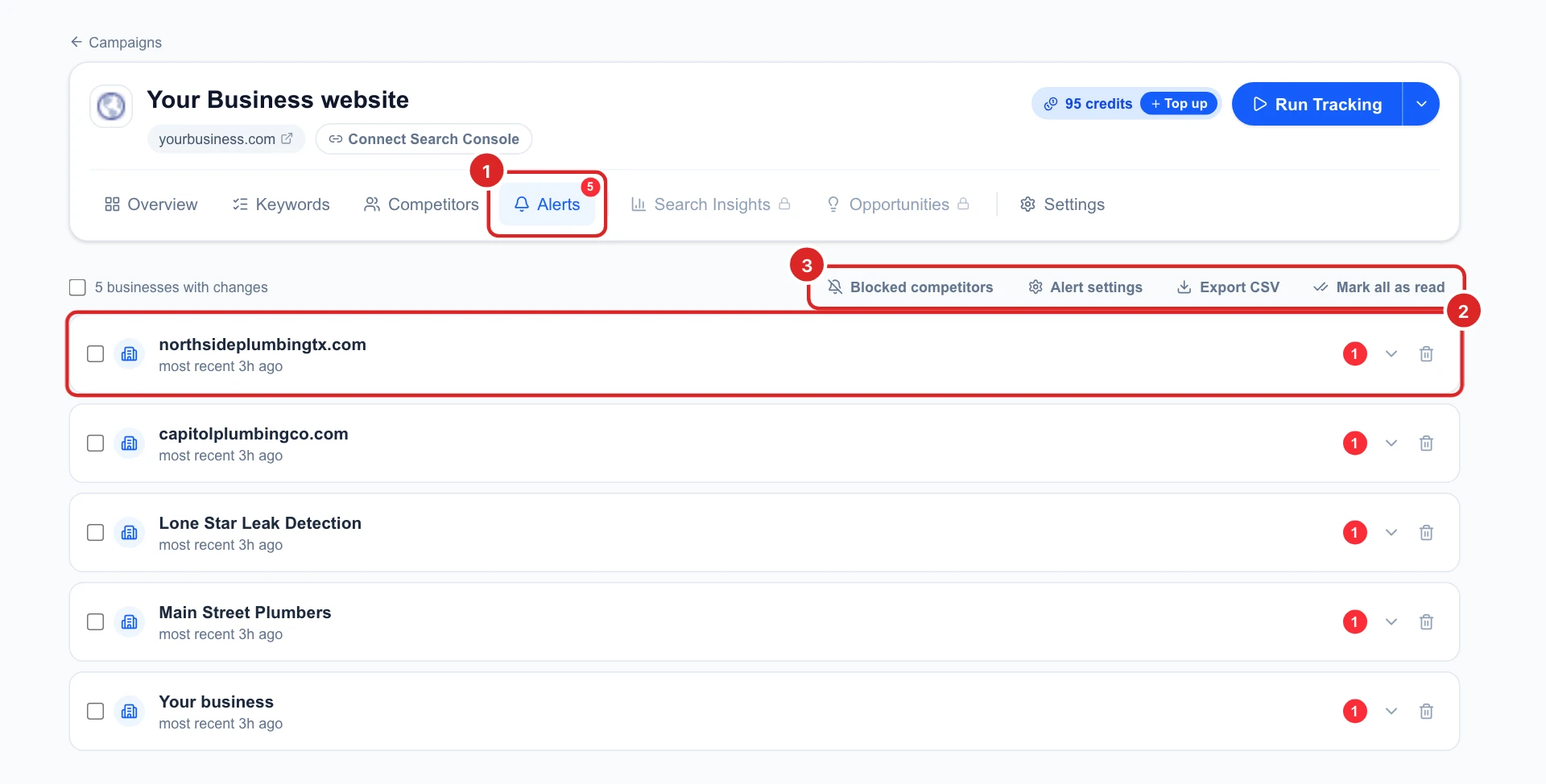
After each check, Glocavo compares the results with the check before. The red number on the Alerts tab is how many alerts you haven’t read yet. Open the tab to see them grouped by business, the one with the most changes first and your own business last.
Read what a competitor did
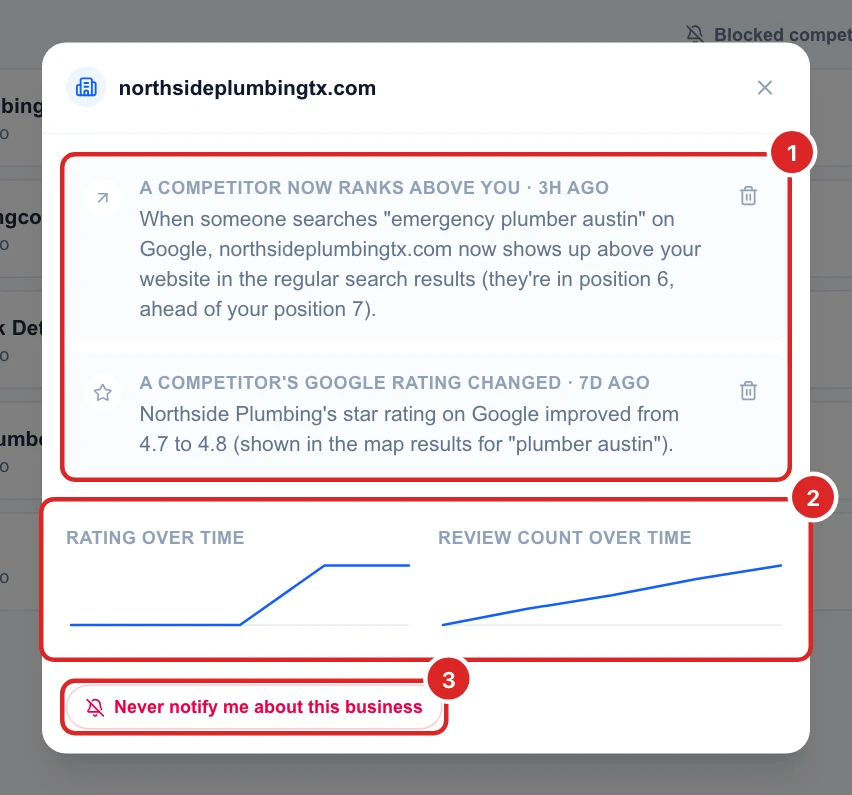
Click a business to open its alerts. Opening them marks them as read.
- Each alert says what happened, for which keyword and when, in plain words.
- Rating and review count over time: for a business in Google’s map results, how its stars and its number of reviews moved over the last 90 days of checks.
- Never notify me about this business: stops all alerts about it, for example a directory you don’t compete with.
Know every kind of alert
- A competitor now ranks above you in the regular search results for one of your keywords.
- New competitor in search results: a website that just entered the top 3 for one of your keywords.
- A competitor’s Google rating changed, in the map results for your keyword.
- A competitor got a wave of new reviews, usually a sign of more customers or a review campaign.
- New competitor in the map results: a business that just joined the 3 businesses Google shows on the map.
- Your position in the map results changed, under Your business.
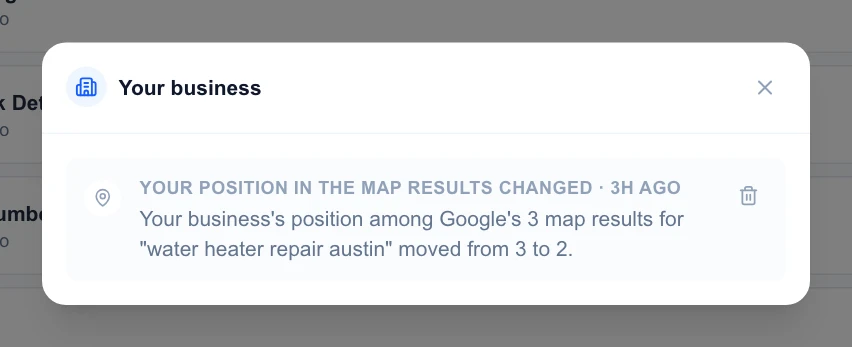
The map alerts need your Google Business Profile on the campaign, so Glocavo can tell your business apart from the others. You pick it when you create the campaign.
Choose which alerts you get
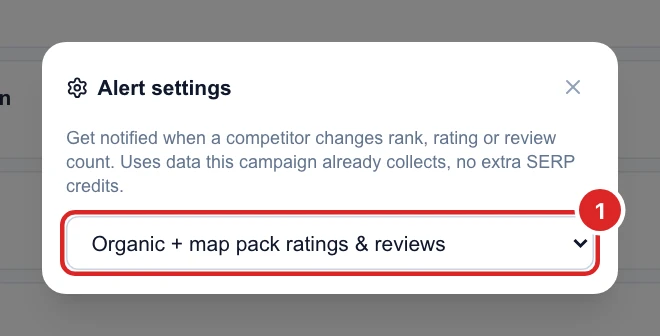
Click Alert settings and pick:
- Organic + map pack ratings & reviews: everything above. The default for new campaigns.
- Organic rank changes: only the regular search results.
- Off: no alerts for this campaign.
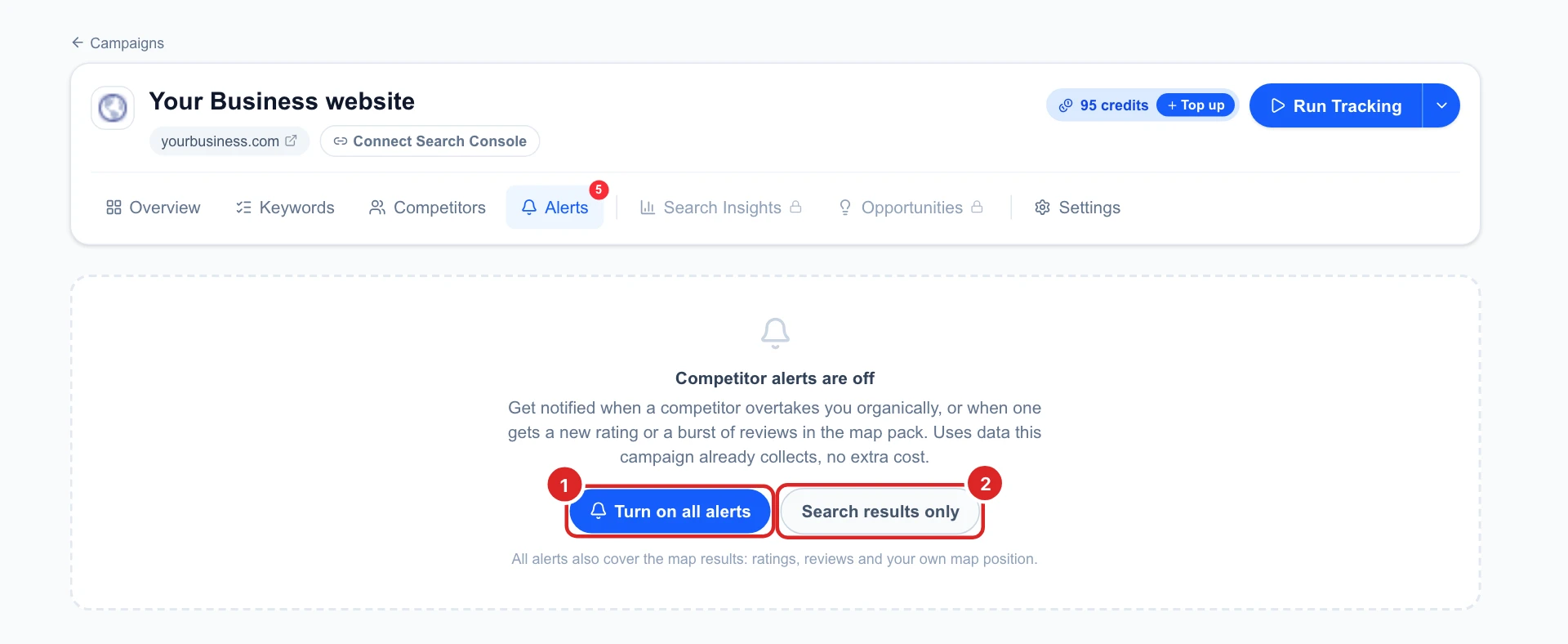
If alerts are off, the tab offers both choices: Turn on all alerts or Search results only.
Keep the list tidy
- Mark all as read clears the red number without deleting anything.
- The bin on a business deletes its alerts. Tick several businesses to delete them together.
- Blocked competitors lists the businesses you asked never to hear about again, with Unblock.
- Export CSV downloads every alert for a spreadsheet or a client report.
An alert with no new change for 7 days is removed by itself, so the list only holds what’s recent. The rating and review charts keep 90 days of history, so they still show the trend after the alert itself is gone.
Decide what to do next
- A competitor overtook you: open the keyword’s page to see their result and compare it with yours.
- A wave of reviews: they’re probably asking customers for reviews. It’s a good moment to ask yours too.
- New competitors keep showing up? See them all on the Competitors tab.
- Check the tab after each scheduled run: the red number tells you if there’s anything new.