Analytics
Track one keyword's Google ranking history
Open any keyword to see how its Google rank moved over time, how many people search it month by month, what advertisers pay for it, and the top 20 results around your site at the last check.
Updated October 5, 2026 · 5 min read
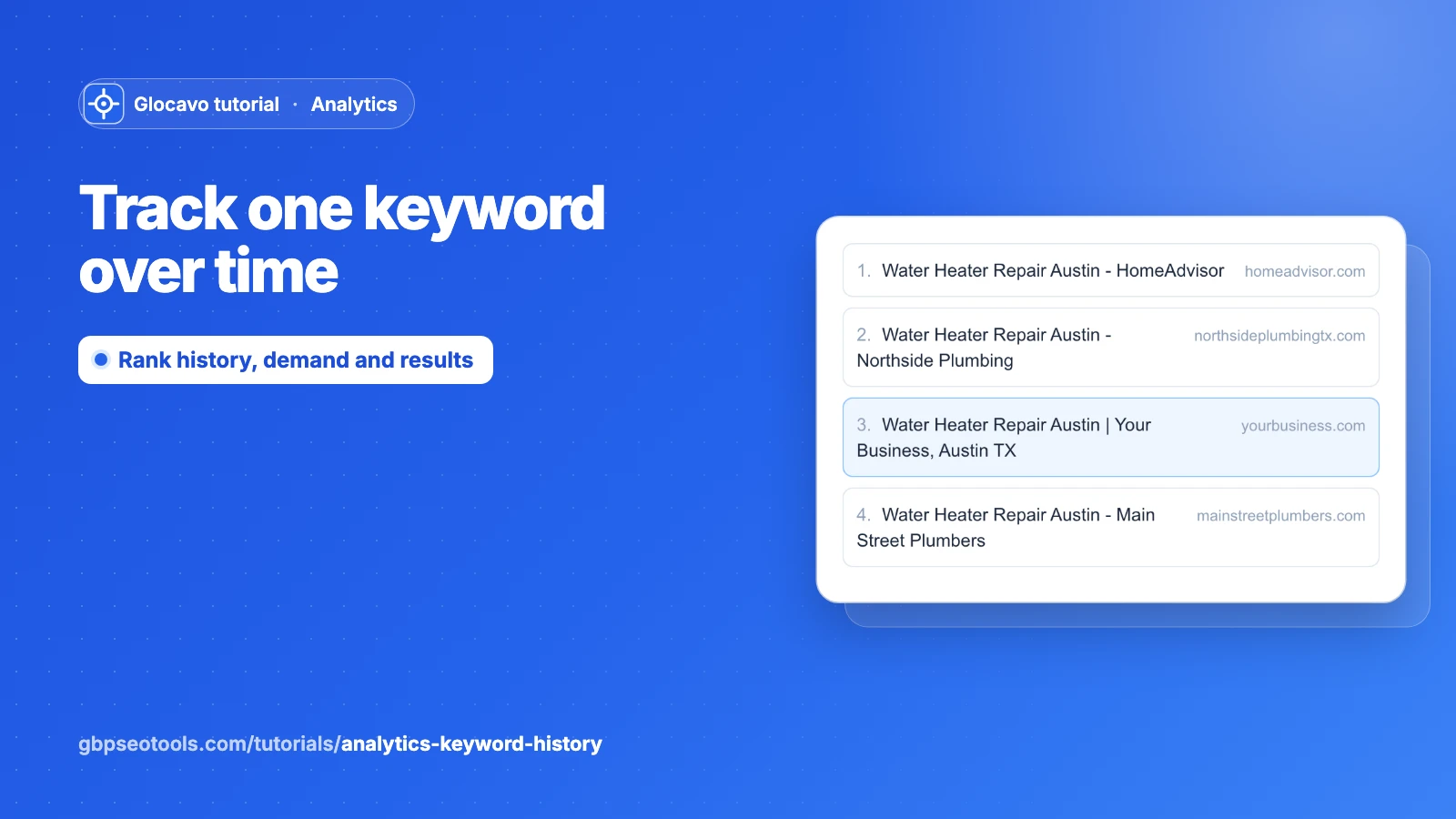
Every keyword has its own page: how its rank moved over time, how many people search for it month by month, and the full list of results Google showed at the last check, with your site highlighted. It answers the question “why did this keyword move?”
The screenshots use a made-up website, yourbusiness.com, and the keyword water heater repair austin after 5 weekly checks.
- Where
- Click a keyword’s name on the Keywords tab or the Overview.
- Who
- Starter plan and up.
- Cost
- Opening the page uses no credits. Refresh checks the keyword again and uses SERP credits.
Open a keyword
On the Keywords tab, click the name of a keyword. The names under Top movers and Keywords on the Overview open the same page.
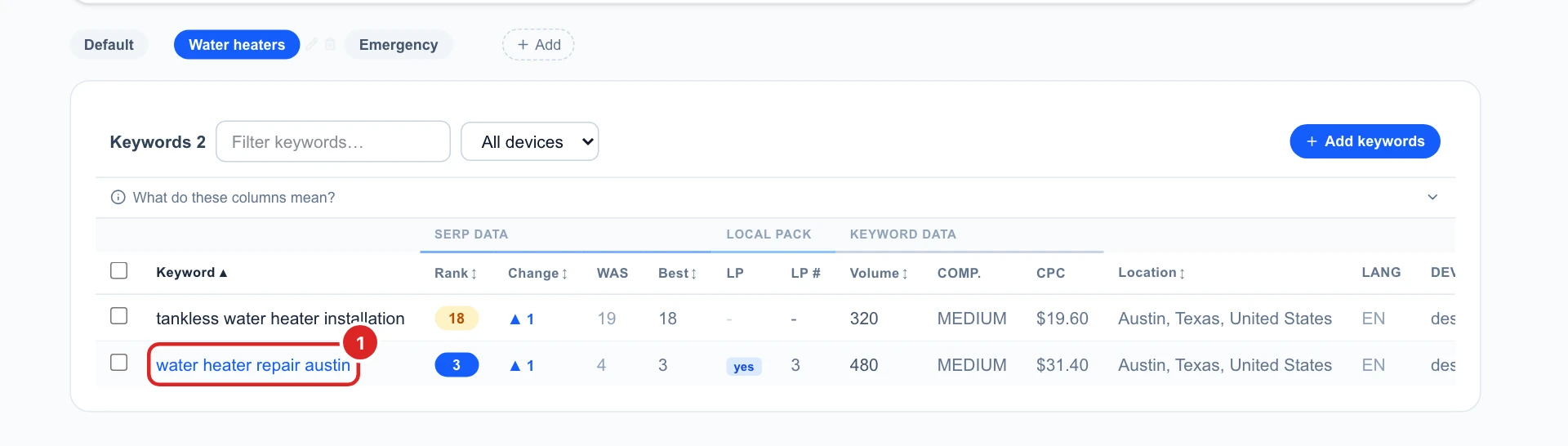
Read the top of the page
- The keyword, its rank at the last check, the device, the place it’s searched from and when it was last checked. The copy icon copies the keyword.
- Refresh checks this one keyword now. It costs its search depth in SERP credits, and a keyword can be checked by hand once an hour.
- View Campaign takes you back to the Keywords tab.

Follow the ranking history
Ranking history has one dot per check, with the date under it. Position 1 is at the top, so a line going up means you’re climbing: here from 6 to 3 in five weeks. Hover a dot for its exact rank and date.
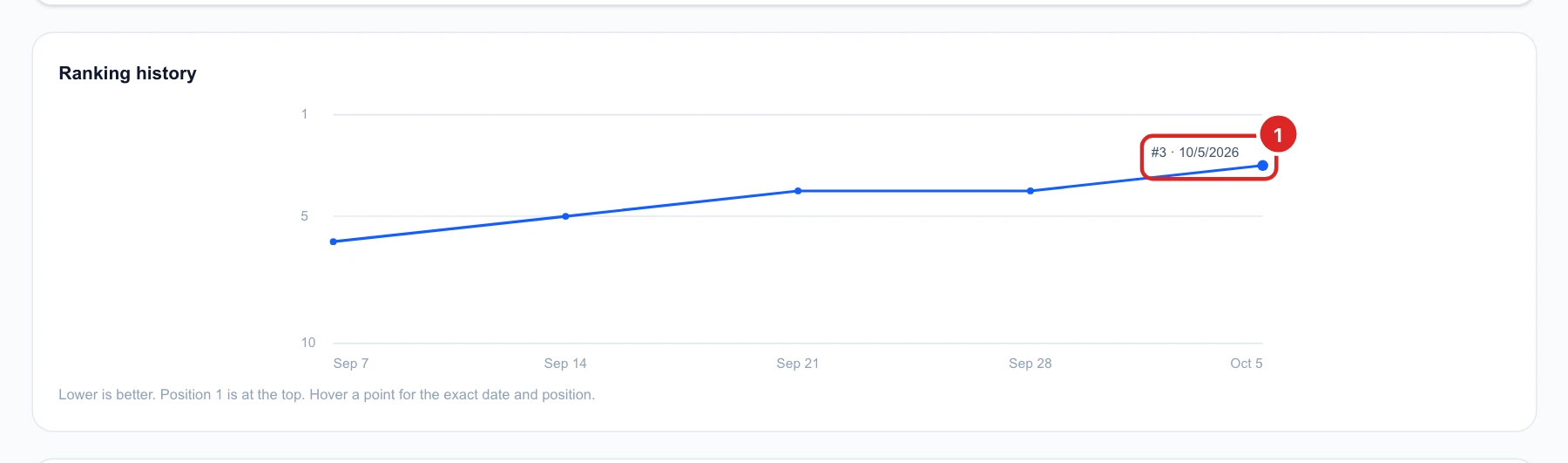
A gap in the line means your site wasn’t found within the search depth on that check. If gaps keep appearing on a keyword you care about, a deeper search depth in the campaign’s Settings shows where it really is.
Check the demand for the keyword
Keyword metrics come from Google Ads and are the same for everyone:
- Avg monthly searches: how many people search it in the place you track.
- Competition: how many advertisers bid on it, low, medium or high.
- Top of page bid: the low and high price advertisers pay per click to show at the top. A high bid means the searchers are worth a lot, which makes the keyword worth ranking for.
- 12-month search trend: the searches month by month. Here water heater repairs peak in winter.
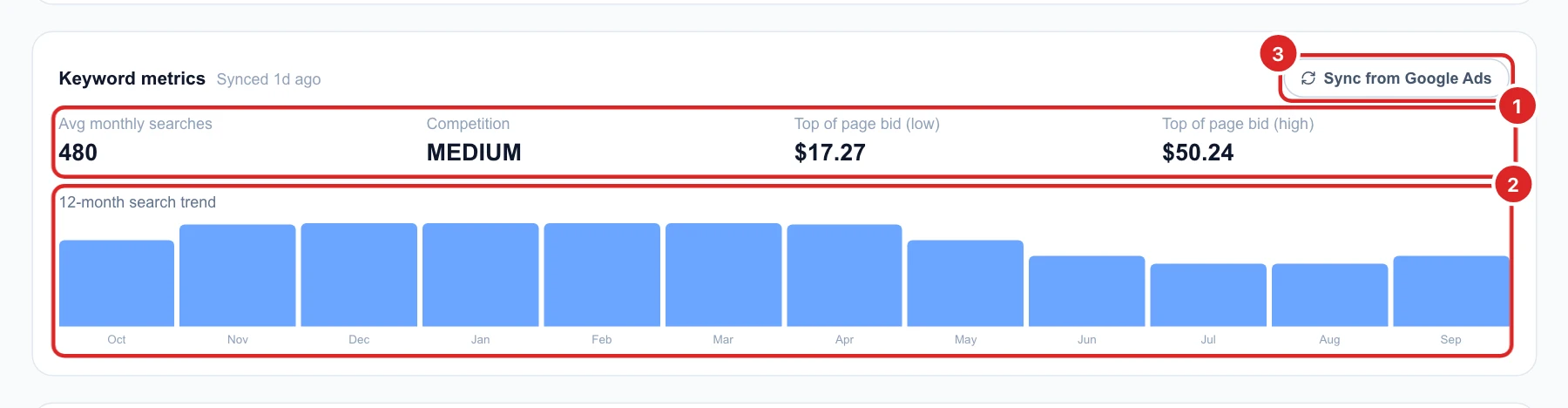
These figures change monthly. Sync from Google Ads fetches the latest ones and uses no credits; if they were synced in the last day, it tells you they’re already up to date.
See who ranks around you
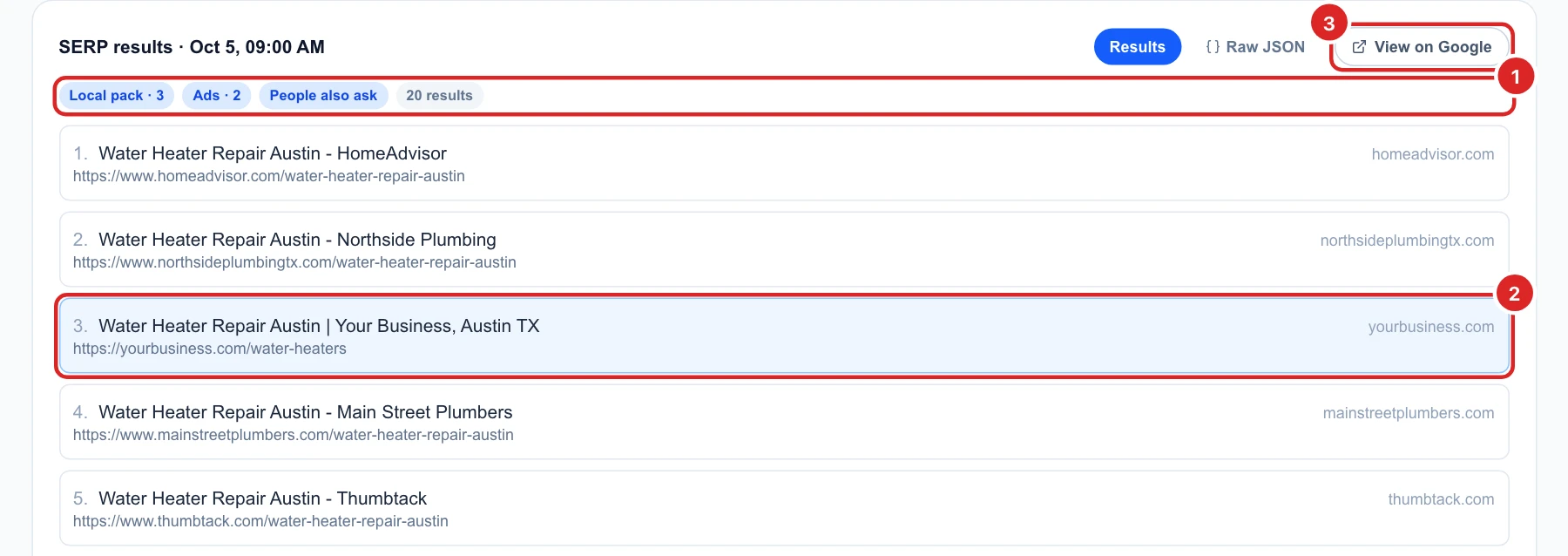
SERP results lists the top 20 results Google showed at the last check, with your site highlighted in blue.
- The chips above the list show what else was on the page: Google’s map box (local pack) and how many businesses in it, ads, “People also ask” questions, a featured snippet.
- View on Google runs the search in a new tab. What you see there depends on where you are, so it can differ from the results checked from your campaign’s place.
- Raw JSON shows the same data as code, for developers.
Decide what to do next
- When a keyword drops, look at the results above you: a new competitor page, or a directory like a review site that moved up?
- Open the pages that rank above yours and compare: what do they cover that your page doesn’t?
- Use the 12-month trend to time your work: improve a seasonal page a month or two before its busy season.
- For every domain that ranks across your keywords, see the Competitors tab. Back to all your keywords.