Analytics
Manage your keywords in Analytics
Read every column of the Keywords tab, sort and filter it, see which page of your site ranks, group keywords in folders, and run, move or delete several keywords at once.
Updated October 5, 2026 · 5 min read
The Keywords tab is the full table of a campaign: every keyword with its rank, how it moved, its best rank so far, the search volume and the page of your site that ranks. This guide shows how to read it, sort it, group keywords in folders and act on several keywords at once.
The screenshots use a made-up website, yourbusiness.com, with 8 keywords in three folders: Default, Water heaters and Emergency.
- Where
- Analytics → a campaign → Keywords.
- Who
- Starter plan and up.
- Cost
- Sorting, folders, moving and deleting use no credits. Running keywords uses SERP credits.
Open the Keywords tab
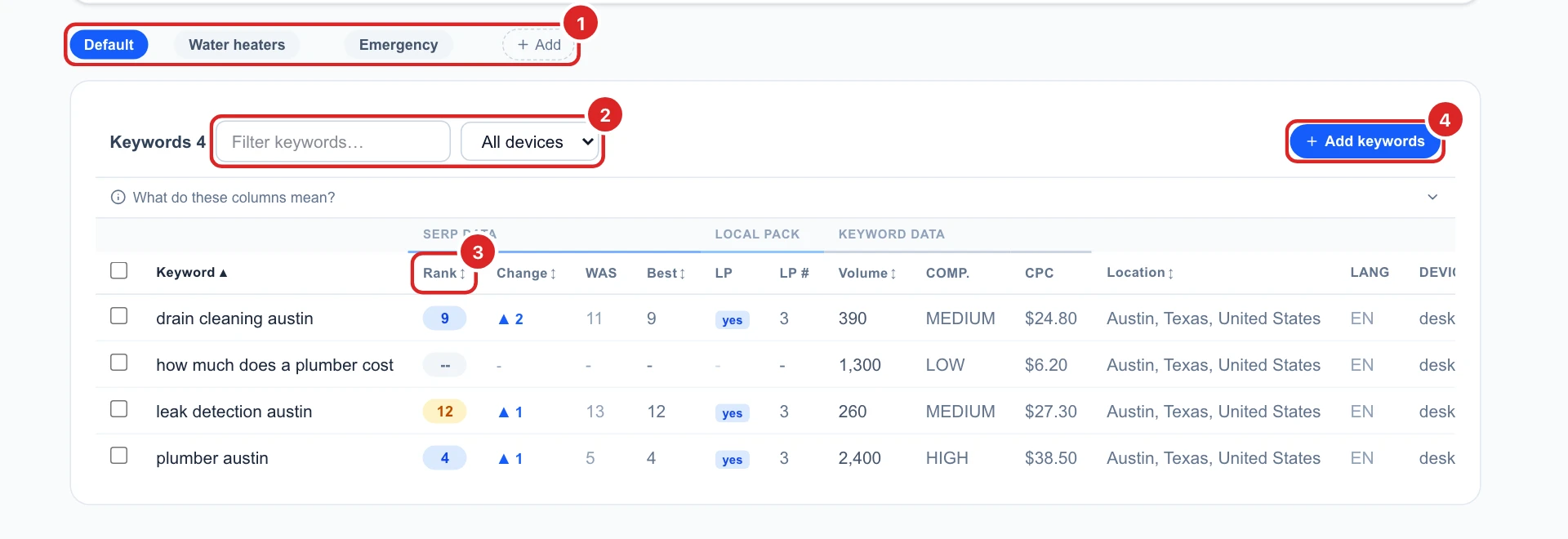
Open a campaign and click Keywords, or View all on the Overview. At the top:
- Folders: the table shows one folder at a time. Default holds every keyword that isn’t in another folder.
- Filter and device: type part of a keyword to find it, or show only desktop or mobile keywords.
- Sort: click a column title with arrows (Keyword, Rank, Change, Best, Volume, Location). Click again to reverse the order.
- Add keywords: add more, see your first campaign, step 5.
Know what each column means
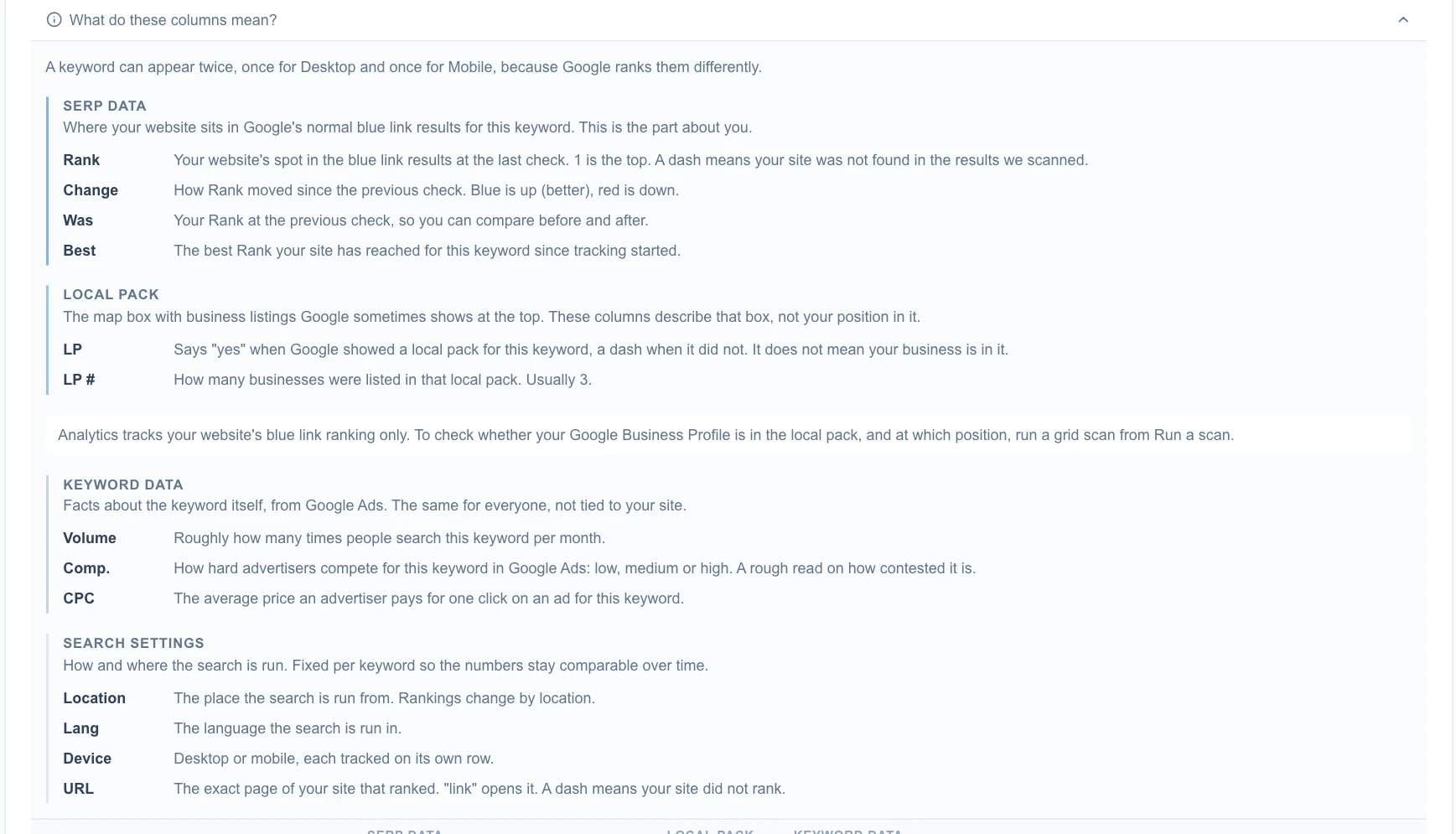
Click What do these columns mean? above the table for a short guide. The columns come in groups:
- SERP data, about your site: Rank at the last check, Change since the check before (blue up, red down), Was, the rank before, and Best, the best rank so far.
- Local pack: whether Google showed its map box for the keyword (LP) and how many businesses were in it (LP #). It says nothing about your own place in it: for that, run a Google Maps grid scan.
- Keyword data, the same for everyone: monthly searches (Volume), how much advertisers compete for it (Comp.) and what an ad click costs (CPC).
See where it searches and which page ranks
Scroll the table to the right for the last columns: where the search is run from (Location), in which language (Lang) and on which device. URL shows the page of your site that ranked: click link to open it. A dash means your site wasn’t found for that keyword.
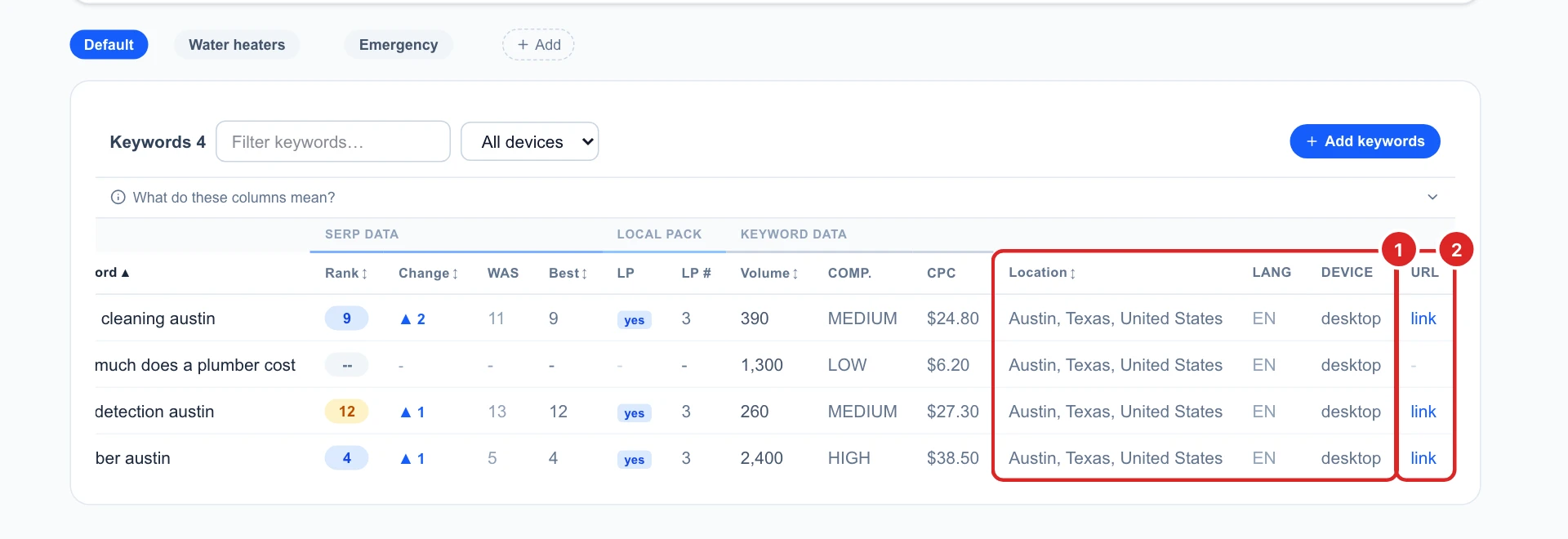
If the page that ranks isn’t the one you want (say, your home page instead of your water heater page), that page is a good place to start improving.
Group keywords in folders
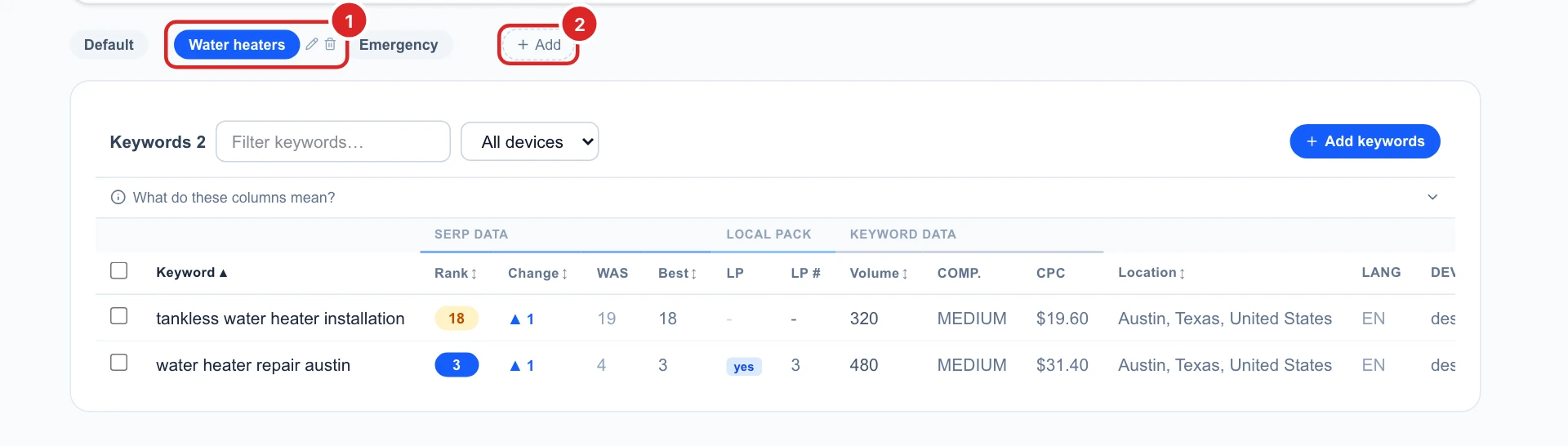
Folders keep a big campaign readable, for example one folder per service. Click a folder to show its keywords.
- New folder: click + Add, type a name and press Enter.
- Rename: hover a folder and click the pencil, or double-click its name. Default can be renamed too.
- Delete: hover a folder and click the bin. Its keywords go back to Default, with their ranking history.
Act on several keywords at once
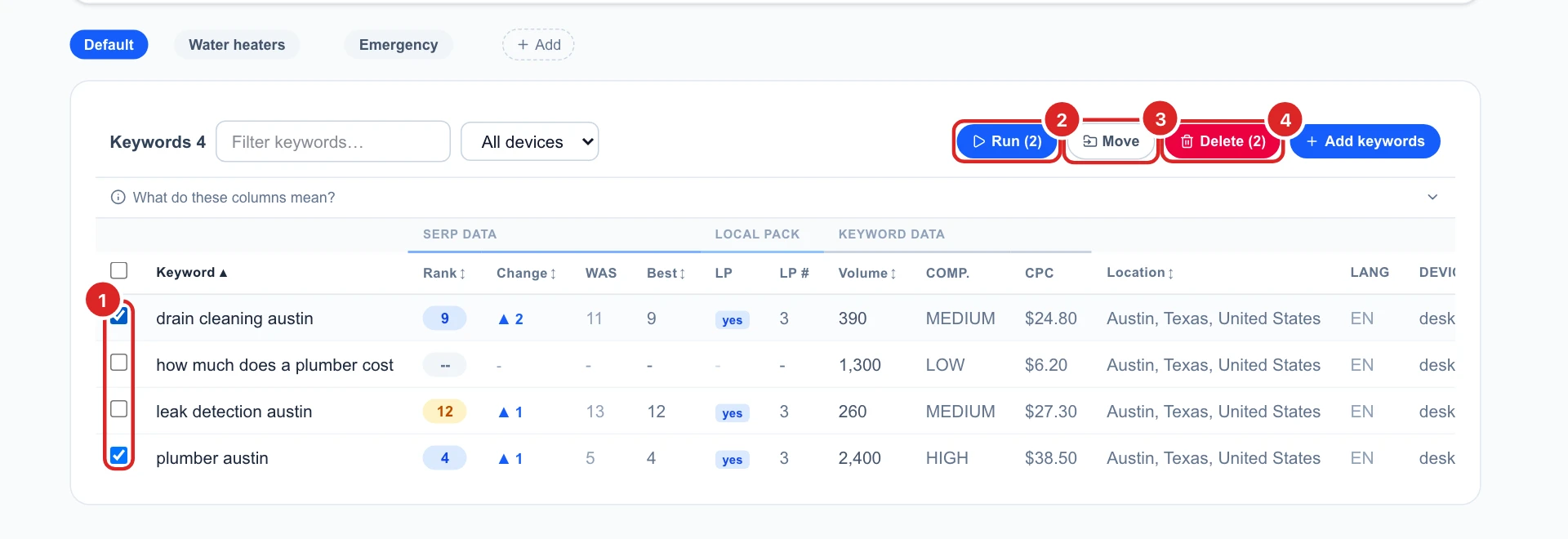
Tick the keywords you want, or the box at the top of the table to tick all of them. New buttons appear:
- Run: checks only these keywords now. Each costs its search depth in SERP credits, see how SERP credits work.
- Move: puts them in another folder.
- Delete: removes them from the campaign.
Move keywords to a folder
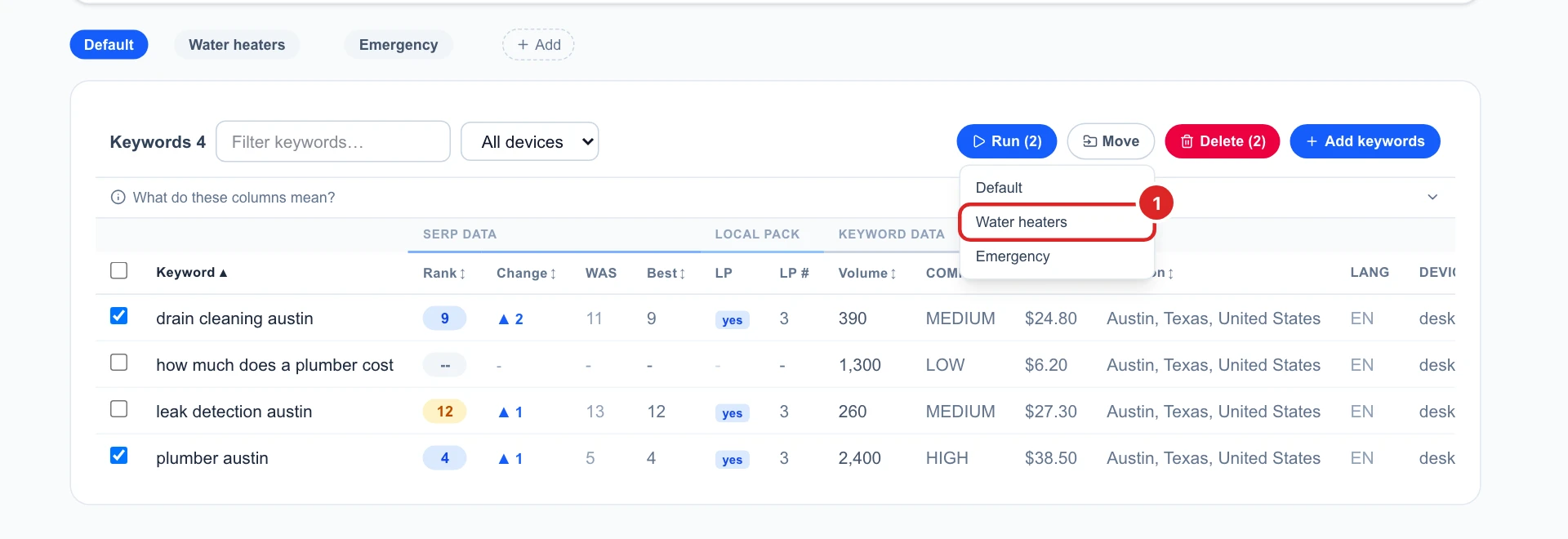
Click Move and pick the folder. The keywords keep their ranking history.
Delete keywords you no longer need
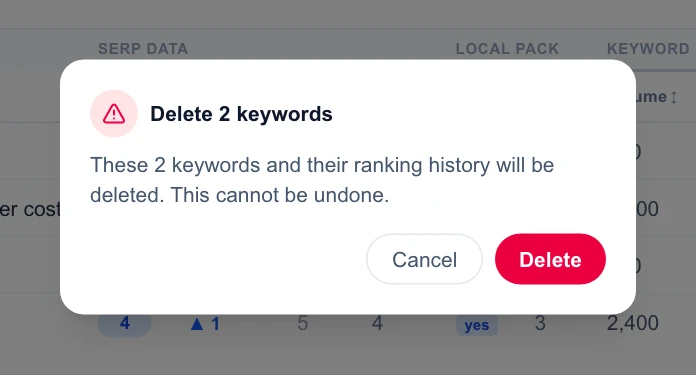
Click Delete and confirm. The keywords and their ranking history are deleted for good, and they stop costing credits on the next run.
Folders don’t pause anything: every keyword in the campaign is checked on each run, whatever its folder. So deleting is the only way to stop paying for a keyword, and it loses its history.
Decide what to do next
- Sort by Rank to see your best keywords, or by Change to spot the ones that dropped.
- Sort by Volume: a keyword with lots of searches where you rank 11 to 20 is often worth more work than a top 3 keyword nobody searches.
- Click a keyword’s name to open its own page, with its full rank history.
- Delete keywords that never bring customers: they cost SERP credits on every run.