Analytics
Track your Google rankings with an Analytics campaign
Track where your website ranks in Google search for your keywords: create a campaign, pick where to search from, set a schedule and search depth, add keywords and run your first check.
Updated October 5, 2026 · 6 min read
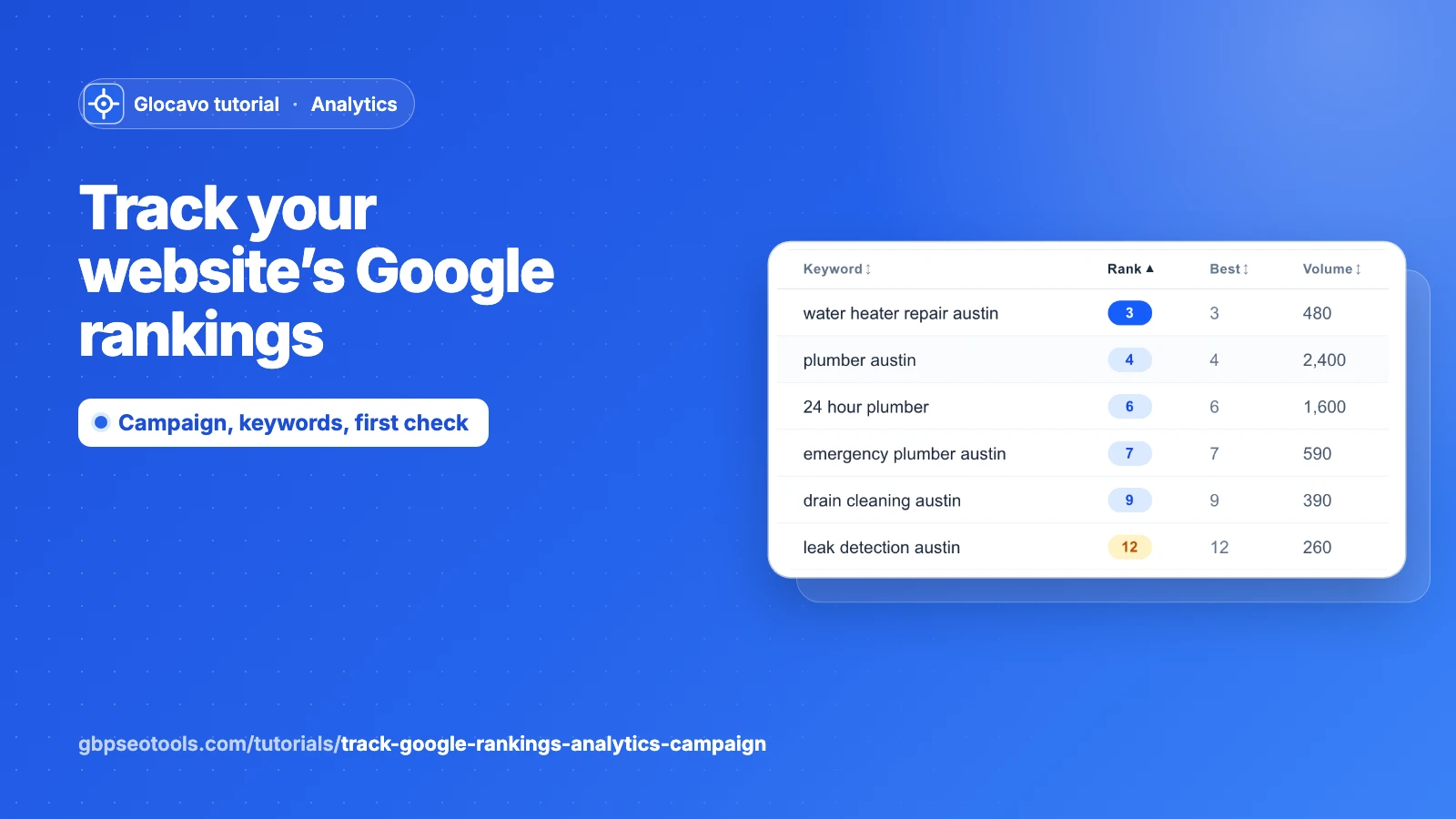
Analytics tracks where your website ranks in Google’s normal search results, the blue links, for the keywords you choose. A campaign is one website, its keywords and the place the searches are run from. Glocavo checks them on a schedule, so you see your rankings change over time.
It’s the website side of local SEO. To see where your Google Business Profile ranks on the map, use a Google Maps grid scan instead.
The screenshots use a made-up plumber in Austin, TX, with the website yourbusiness.com.
- Where
- The left sidebar → Analytics.
- Who
- Starter plan and up: 2 campaigns on Starter, 4 on Basic, 8 on Studio and 15 on Agency.
- Cost
- Creating a campaign and adding keywords uses no credits. Each check uses SERP credits.
Start a new campaign
Click Analytics in the left sidebar, then New campaign. Under the title you see how many campaigns your plan allows and its monthly SERP credits.

Enter your website
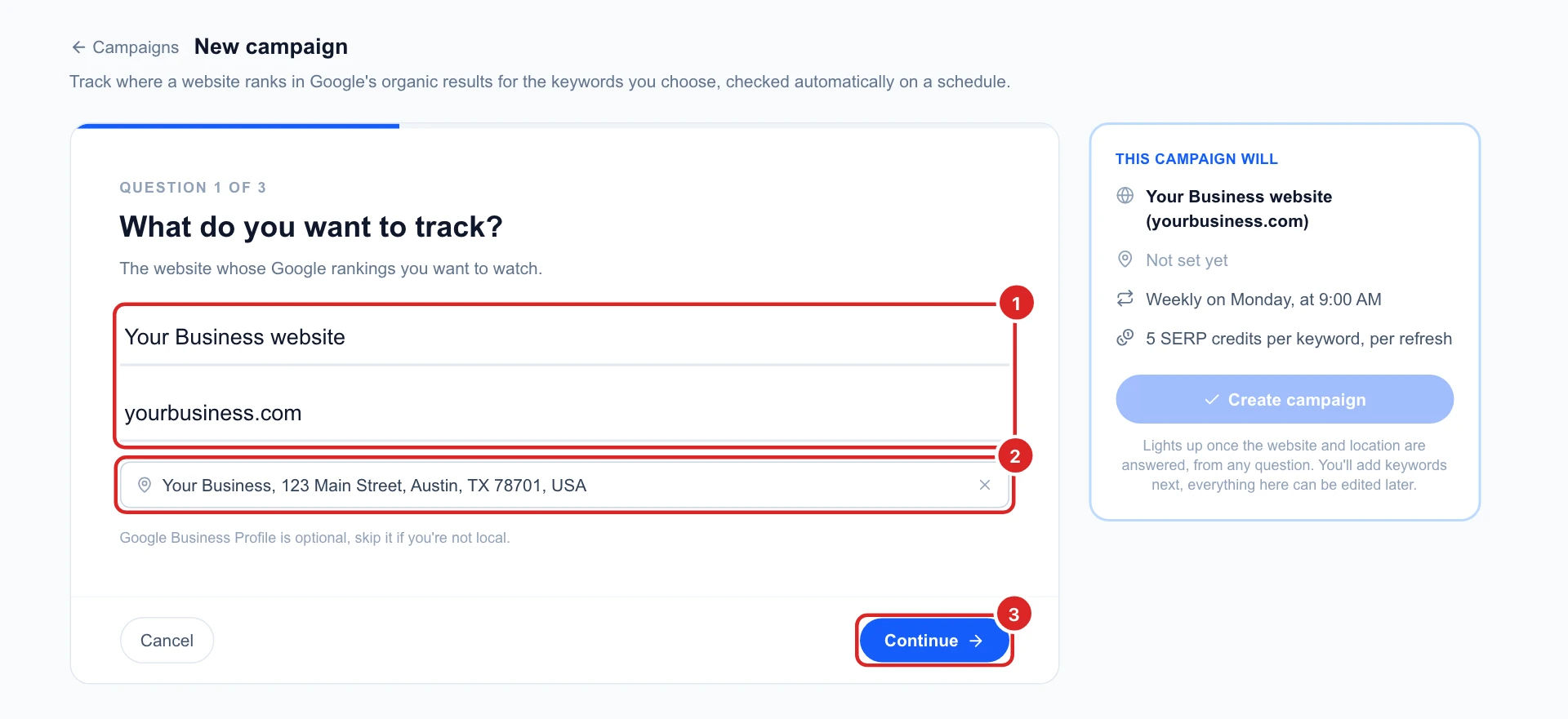
The form asks three questions, one at a time. The first is the website:
- A campaign name, anything that helps you find it later, and the domain, without https://, for example yourbusiness.com.
- Your Google Business Profile, optional. Start typing the business name and pick it from the list. It lets Alerts tell you when your business moves in Google’s map box above the results. Skip it if you don’t have one.
Then click Continue. The summary on the right fills in as you go.
Pick where to search from
Google shows different results in different places, so pick the city, region or country your customers search from. Type it and click it in the list. For a plumber in Austin, that’s Austin, Texas, United States.
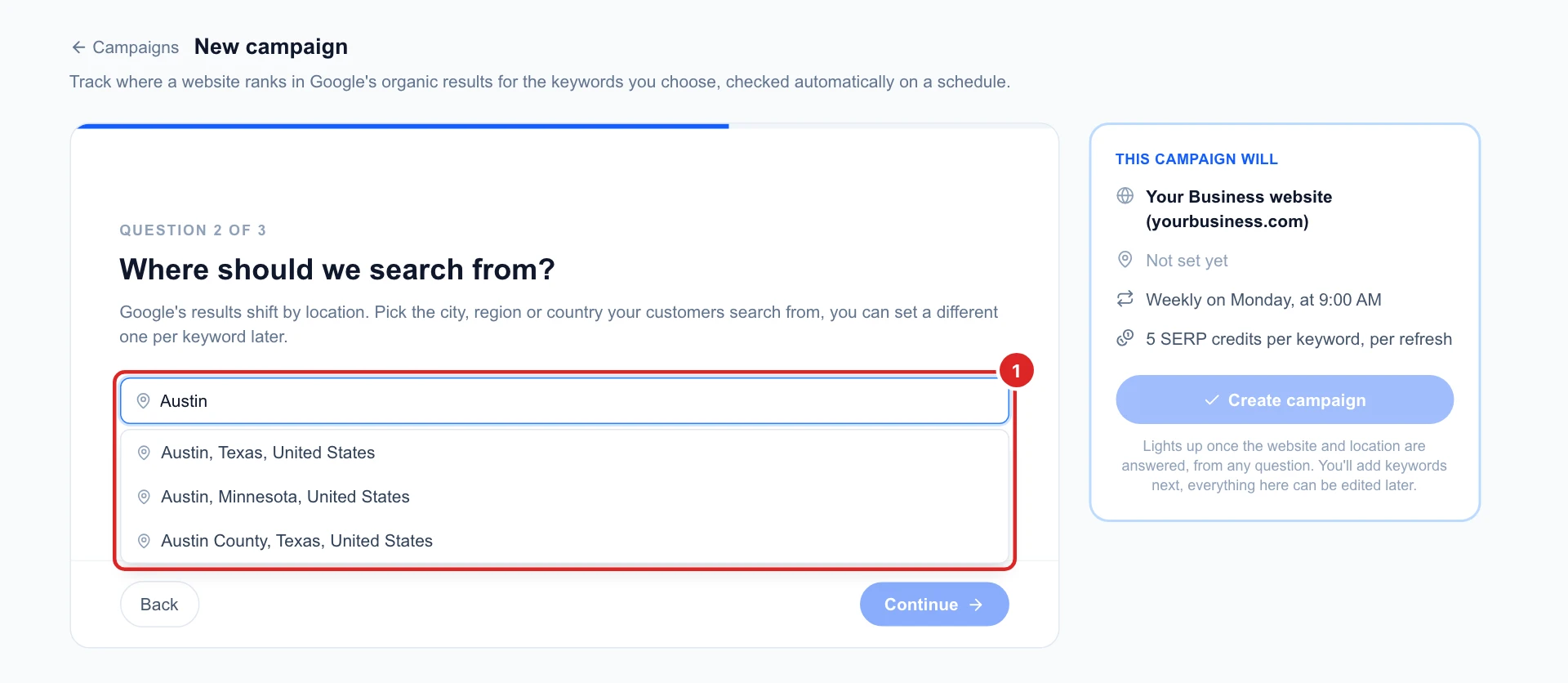
You can give single keywords another place later, for example a keyword for a second city. To search from an exact spot, click Use exact coordinates instead and enter a latitude and longitude.
Choose how often and how deep to check
- How often: daily, weekly or monthly, on the day and at the time you pick, in your own timezone. Weekly suits most websites: rankings rarely change much from one day to the next.
- Search depth: how far down Google’s results Glocavo looks for your site. 1 page is the top 10 results, 5 pages the top 50 and 10 pages the top 100. Deeper costs more credits per keyword.
Check the summary, then click Create campaign. It lights up as soon as the website and the place are filled in.
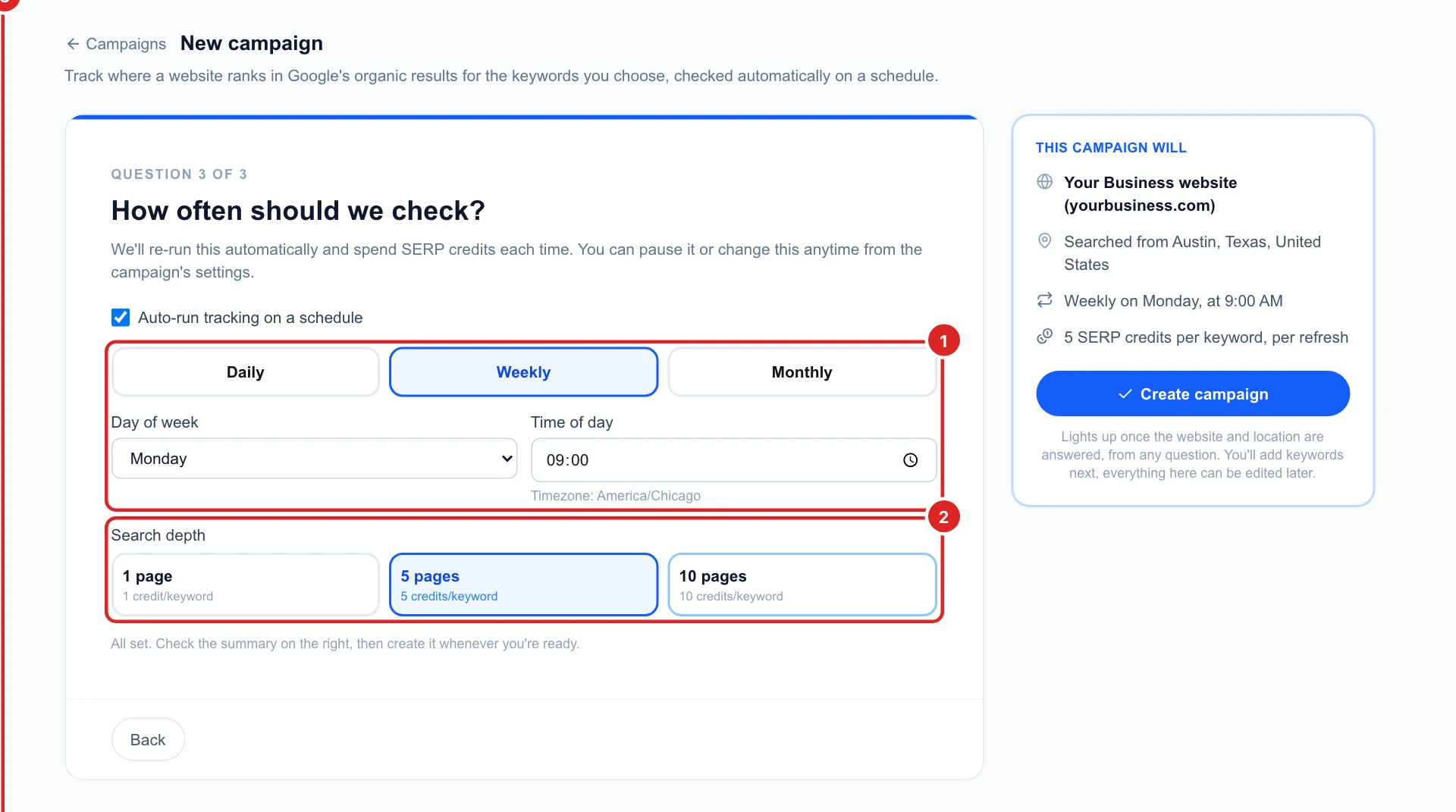
Untick Auto-run tracking on a schedule if you only want to check by hand. Everything here can be changed later in the campaign’s Settings.
Add your keywords
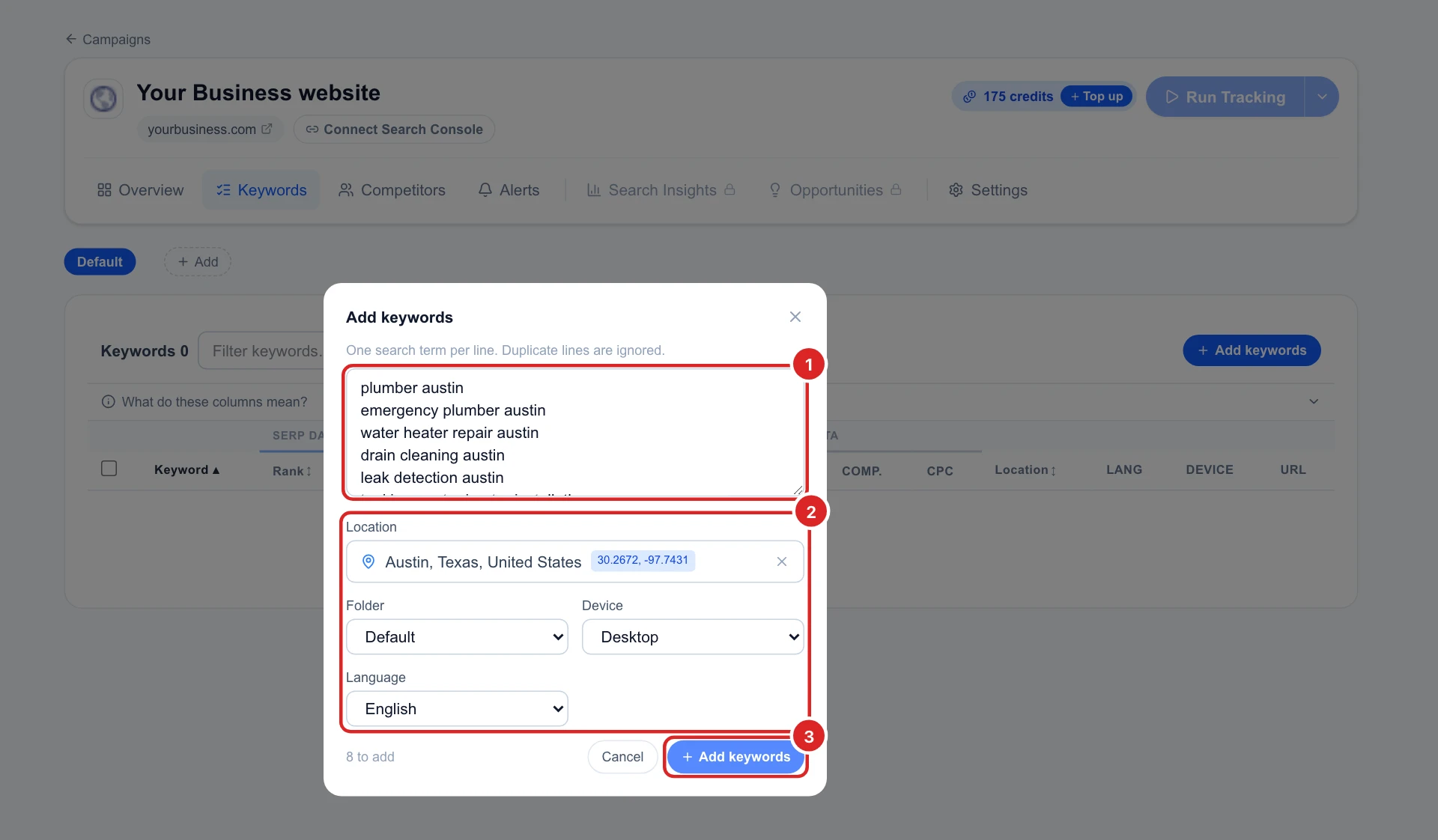
The campaign opens on its Keywords tab. Click Add keywords, then:
- Type or paste your keywords, one per line: the searches your customers make, like plumber austin or water heater repair austin.
- Check the settings: the place (your campaign’s, filled in for you), the folder, the device and the language. Both devices adds every keyword twice, once for desktop and once for mobile, because Google ranks them differently.
Click Add keywords. The count at the bottom shows how many rows will be added.
Run the first check
New keywords have no rank yet. Click Run Tracking to check them now instead of waiting for the schedule. The arrow next to it gives you a choice:
- All keywords: checks every keyword of the campaign.
- New keywords only: checks only the ones that have never been checked, handy when you add a few keywords to a campaign that already runs.
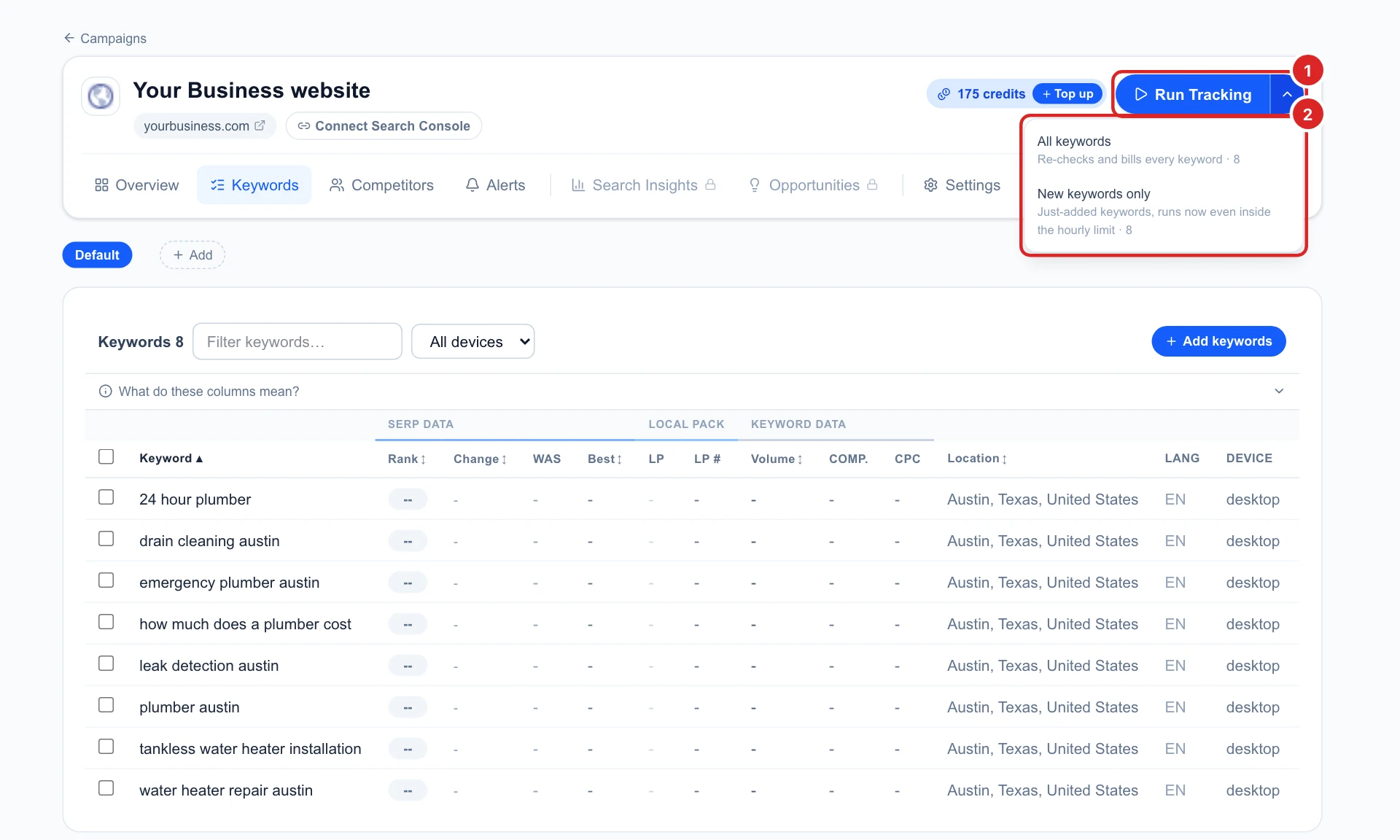
Each keyword costs its search depth in SERP credits: here 8 keywords × 5 pages = 40 credits. The credits left are shown next to the button. A keyword can be checked again by hand once an hour.
See your first rankings
After a few seconds a line under the website says how many keywords were checked and in how many your site was found. The Rank column shows your position in Google’s results for each keyword: 1 is the top.
- Dark blue: top 3. Light blue: 4 to 10, the first page. Amber: 11 to 20. Red: lower than 20.
- A dash: your site wasn’t found within the search depth. Here how much does a plumber cost isn’t in the top 50.
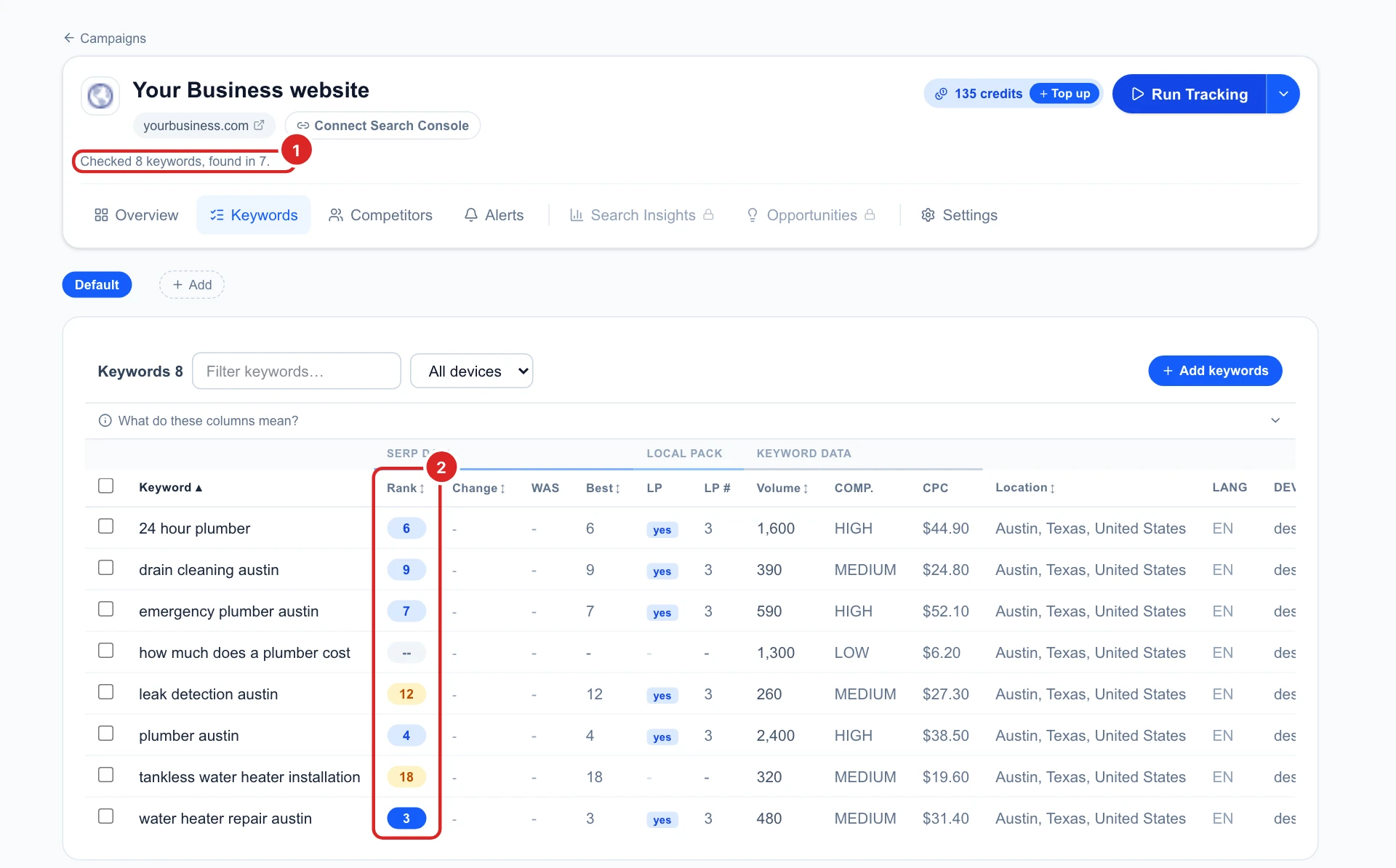
The first check also fills in each keyword’s monthly searches (Volume), how hard advertisers compete for it (Comp.) and its cost per click (CPC). Click What do these columns mean? above the table for every column.
Find your campaign later
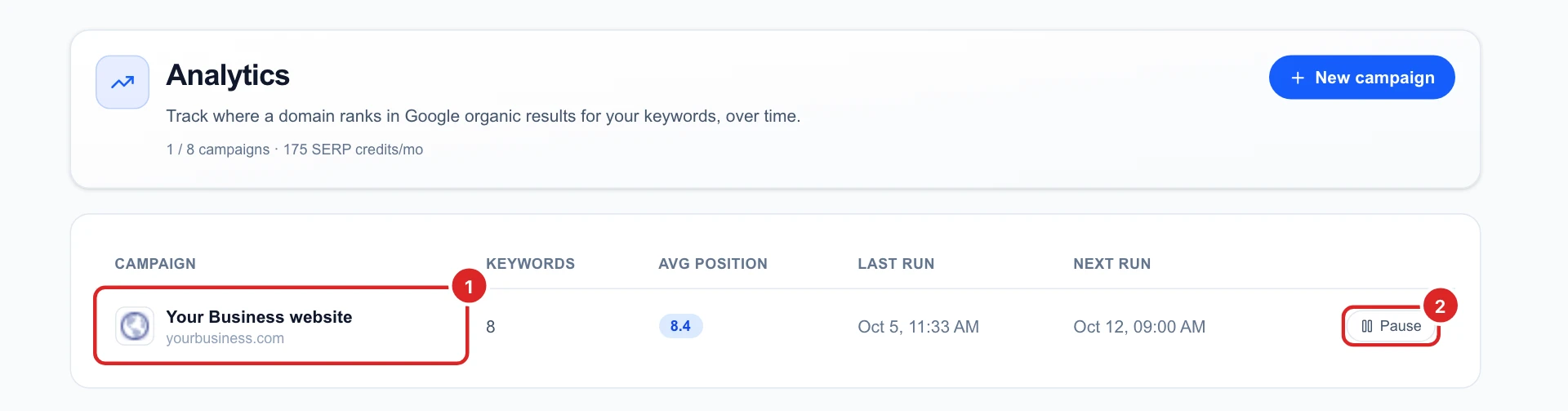
Analytics in the sidebar lists all your campaigns with their number of keywords, average position, last check and next one. Click a campaign’s name to open it, or Pause to stop its scheduled checks for a while. Nothing is deleted while it’s paused.
Decide what to do next
- Add the searches that bring you customers, not only your main one. A dash or a red rank on a keyword that matters is where to start working.
- Keywords in the top 20 (amber) are often the quickest wins: a better page for that search can move it onto the first page.
- Connect Google Search Console with the Connect Search Console button under the campaign name, to see the searches that already bring people to your site.
- Come back after the next scheduled check: the Overview tab then shows which keywords moved up or down.