Account & billing
Get started with Glocavo
Create your account, see what the Free plan includes, find your way around and run your first Google Maps grid scan.
Updated October 11, 2026 · 4 min read
Glocavo shows where a business ranks on Google Maps, street by street, and tracks it over time. It also tracks your website on Google search and checks what AI assistants say about the business. This guide gets you from a new account to your first scan, and points you to the guide for each next step.
- You need
- A Google account or any email address. No card to start.
- Free plan
- 100 scan credits and 50 AI Power, scans up to a 5x5 grid.
Create your account
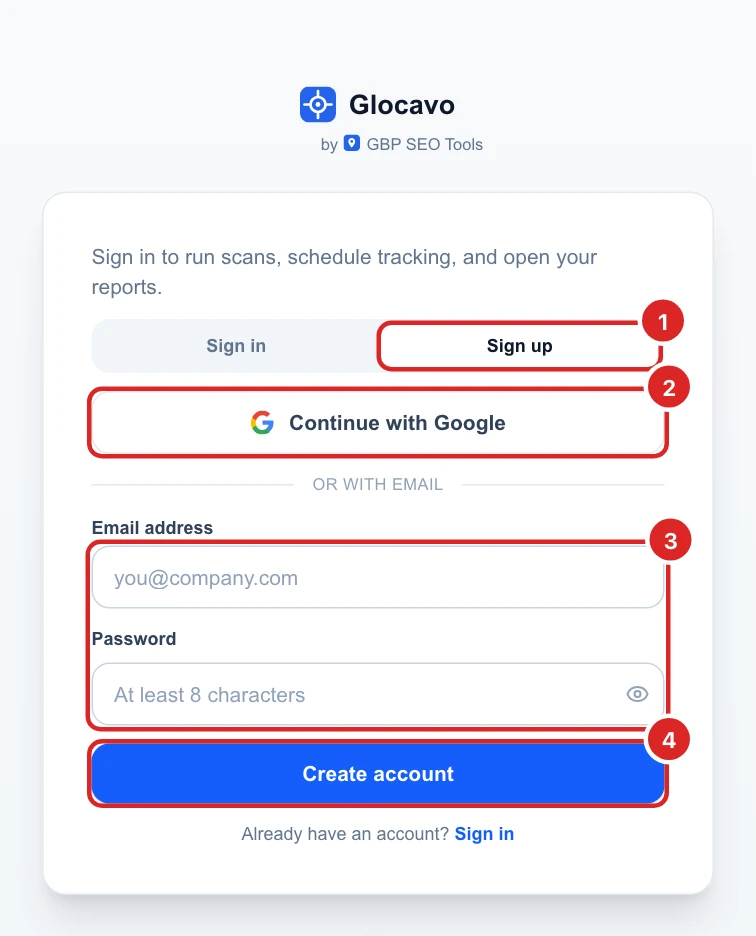
Open glocavo.gbpseotools.com and click Sign up. Then either:
- click Continue with Google and pick your Google account, or
- type your email and a password of at least 8 characters and click Create account. Open the email Glocavo sends you and click the link to confirm your address, then sign in.
Forgot your password later? Click Forgot? on the Sign in tab, or Email me a sign-in link instead to get in without one.
Know what the Free plan includes
Every new account starts on the Free plan:
- 100 scan credits. One scan point costs one credit, so a 5x5 scan for one keyword costs 25: four scans to try it out.
- 50 AI Power, enough for an AI Analysis of a scan (25) or keyword ideas (10).
- Grids up to 5x5, recurring scans, shared report links and one workspace.
The Free plan’s credits are given once and don’t refill each month, and the Free plan never expires while you have scan credits left. When you need more, buy a top-up or pick a plan, see plans and top-ups.
Find your way around
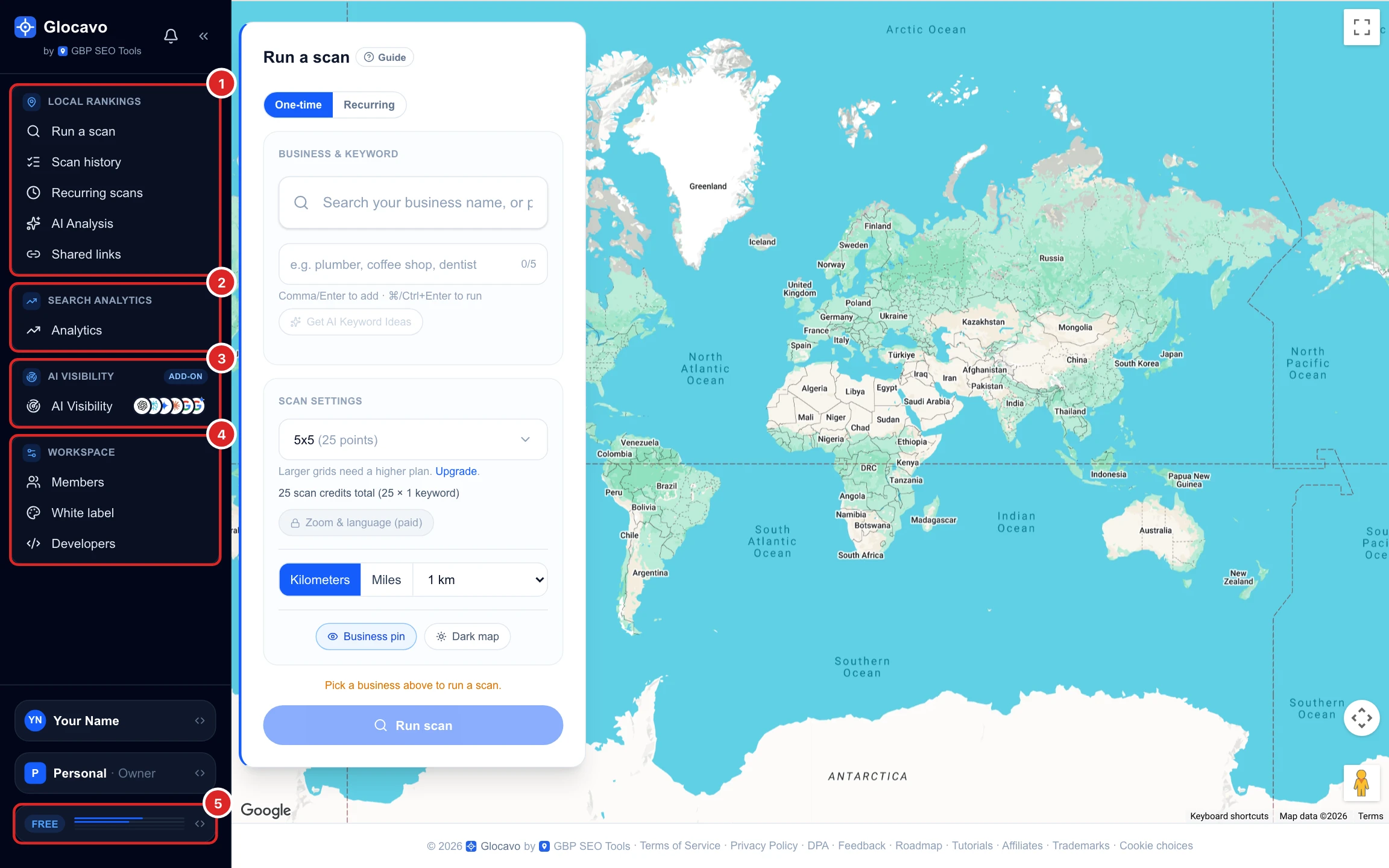
Everything is in the sidebar on the left, in four groups:
- Local rankings: run Google Maps grid scans, see your scan history, set up recurring scans, get an AI Analysis and manage the links you shared.
- Search analytics: track where your website ranks on Google search, with Search Console data. On Starter and up.
- AI Visibility: check whether ChatGPT, Gemini and other AI assistants mention and recommend the business. An add-on.
- Workspace: teammates, white label and API keys.
At the bottom are your profile, the workspace you’re in and your plan. Click the plan to see how many credits are left.
Run your first scan
Run a scan opens first. Search for the business by name and pick it from the list, type a keyword a customer would search, for example plumber near me, and press Enter. Leave the grid at 5x5 and 1 km, then click Run scan.
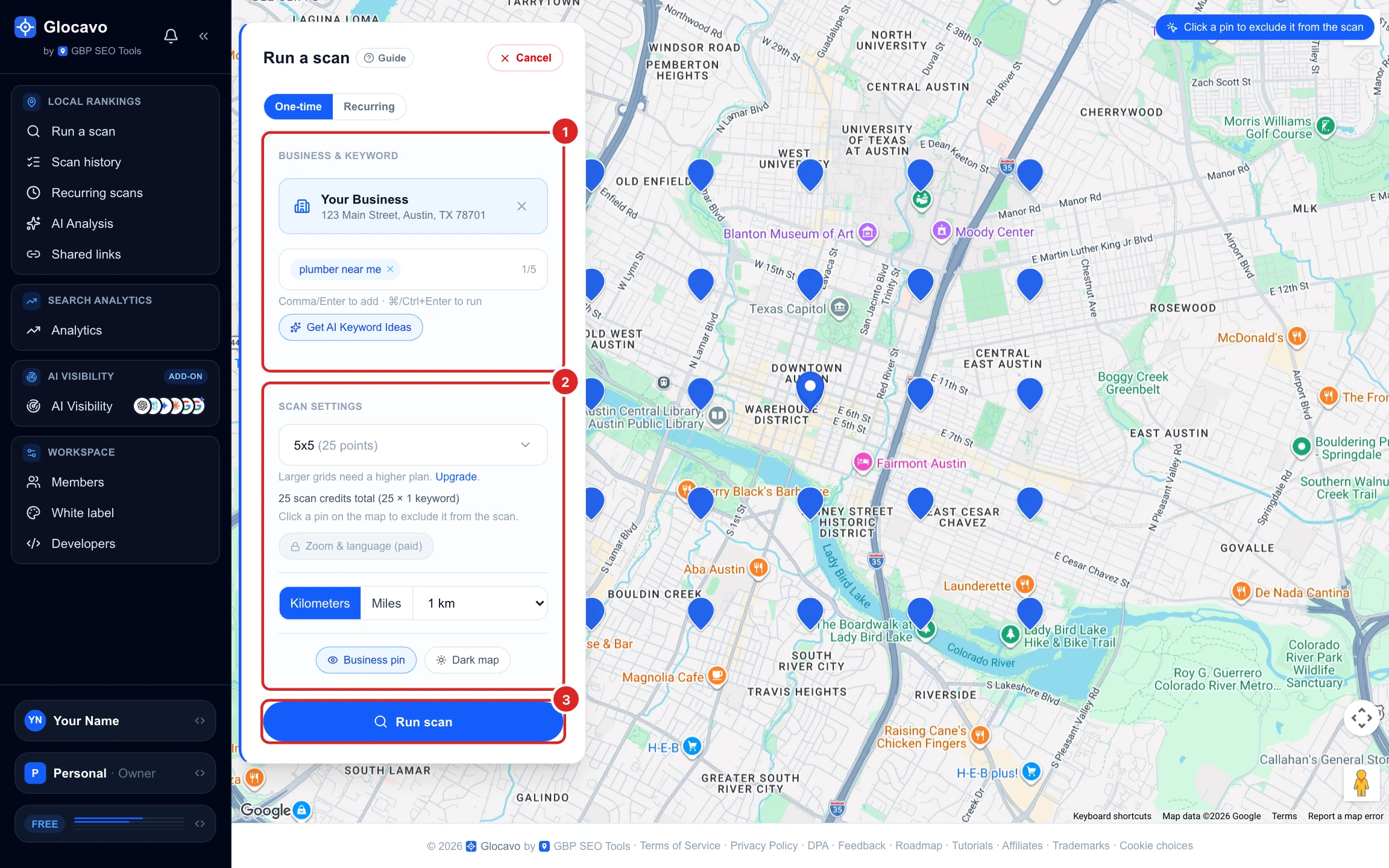
The pins on the map show where Glocavo will search from. When it finishes, the report shows your rank at every pin. The full walkthrough is in run a Google Maps grid scan, and read the rank map explains the results.
Use the Guide button
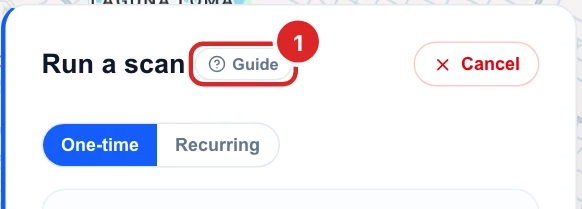
Most screens have a Guide button next to their title. It opens the step-by-step guide for that screen in a new tab.
Pick your next step
- Track the same keywords every week: set up a recurring scan.
- Send a report to a client or your boss: share and export a report.
- Follow your website on Google search: create an Analytics campaign.
- See what AI assistants say about the business: create an AI Visibility campaign.
- Bring in your team: team and workspaces.
Stuck? Email support@gbpseotools.com.