Rank tracker
Share and export your Google Maps rank reports
Send a client a link to any grid scan report, no login needed, share a recurring scan or just one keyword, export PDF, PNG or CSV, and manage or remove links in Shared links.
Updated October 5, 2026 · 5 min read
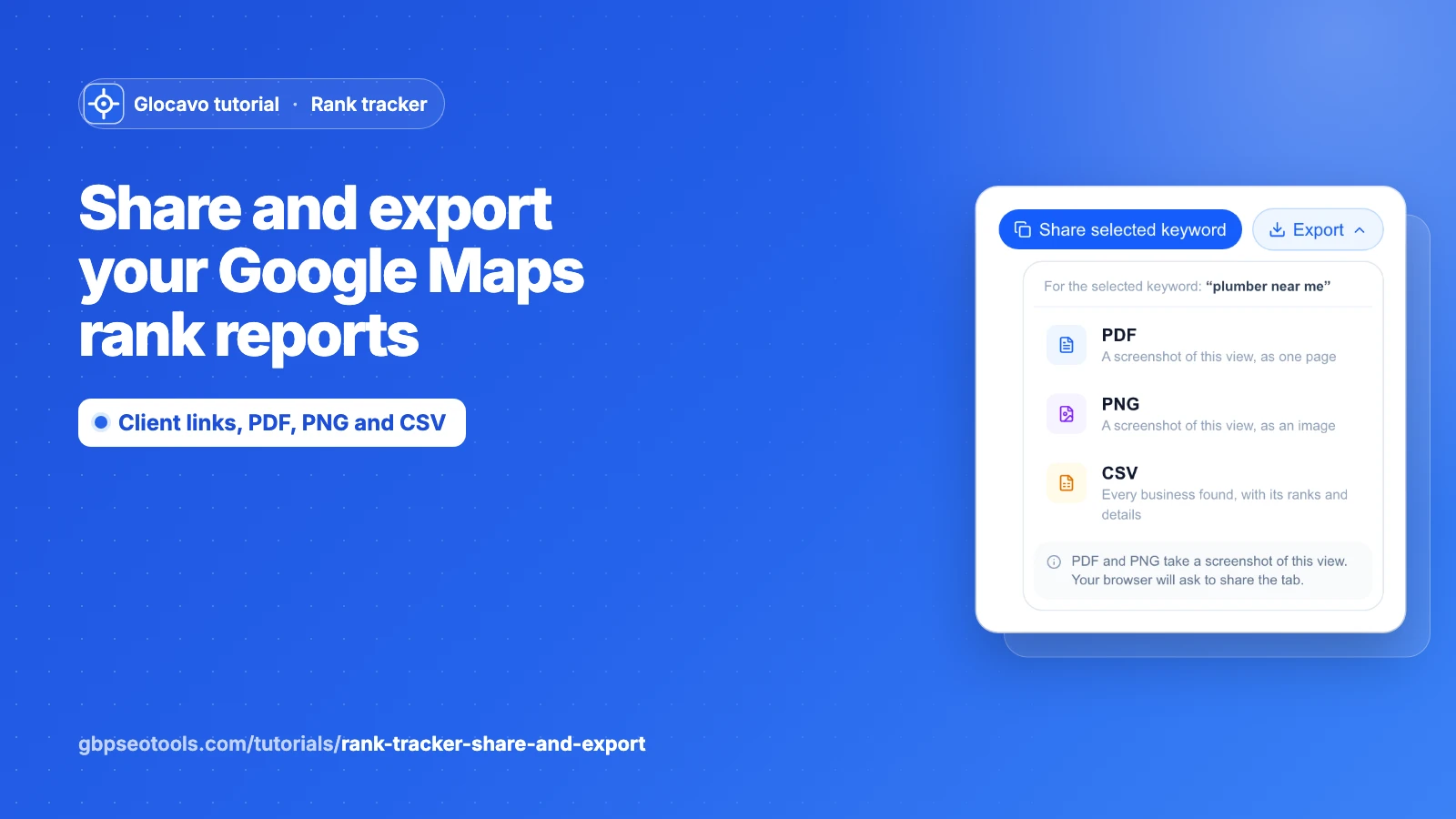
Any grid scan can be shared as a link: a read-only report your client, your boss or your team opens in a browser, without a Glocavo account. From a shared report anyone can also download it as a PDF, a PNG image or a CSV file.
The screenshots use a made-up plumber called Your Business in Austin, TX. The links themselves are blurred.
- Where
- The Share button of any scan report, and Shared links in the sidebar.
- Who
- Every plan. Whoever has the link can open the report, no account needed.
- Cost
- Free. Sharing, opening a shared report and exporting never use credits.
Share a one-time scan
Open the scan’s report and click Share results. The link is copied, ready to paste in an email or a message. It works straight away and keeps working until you remove it (step 6).

Share a recurring scan
A recurring scan can be shared two ways:
- All its keywords: on Recurring scans, click the copy icon on its card. Your client gets the whole report and switches keyword themselves.
- One keyword: in the report, pick the keyword, then click Share selected keyword. That link only shows that keyword, handy when a client should only see their own service.
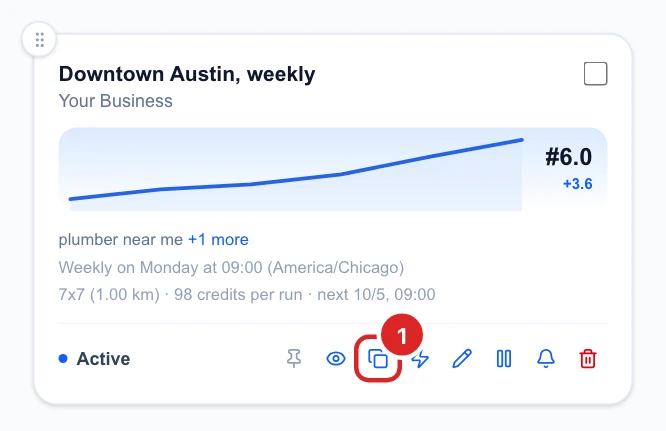

You only send the link once. Every new run of the recurring scan shows up on it by itself: your client clicks the newest date at the top.
See what your client sees
A shared report looks like yours, without your account around it. Your client can read the Rank Map, Local Pack, Performance and Leaderboard tabs, and for a recurring scan also:
- The dates of every run.
- Keywords, when you shared all of them.
- Overview, Rankings, Trend and Compare, see rankings over time.
- Export (step 4).
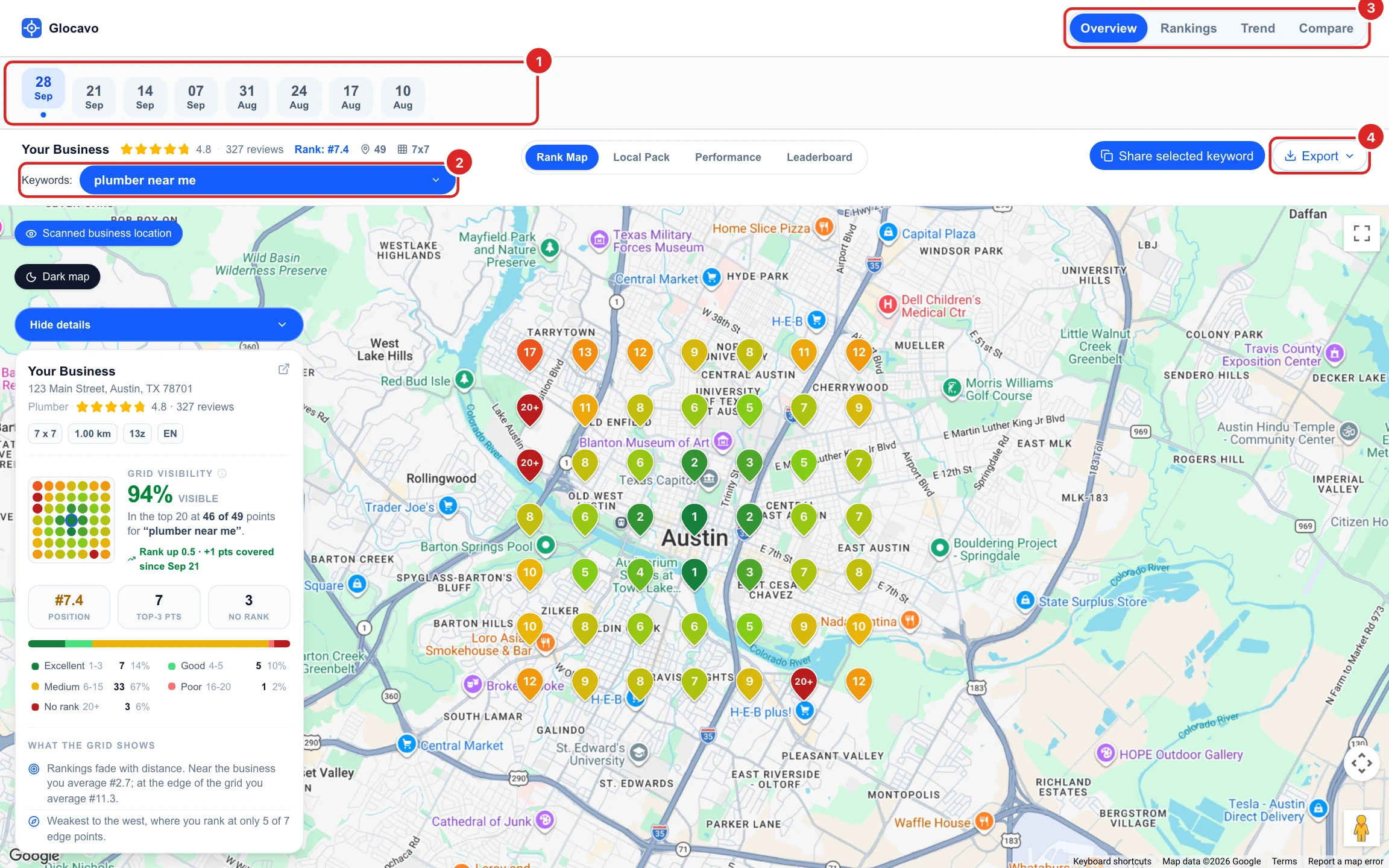
A shared report never shows the AI Analysis, your other scans or anything else in your account, and nobody can run a scan or spend your credits from it.
Export a report
On a shared report, click Export:
- PDF or PNG: a picture of exactly what is on screen, map included. Your browser asks to share the tab: pick this tab and click Share. Nothing leaves your computer, it’s only used to take the picture.
- CSV: every business the scan found, with its average and best rank, how often it showed up and in the top 3, its rating, reviews, categories, address, phone and website. Open it in Excel or Google Sheets.
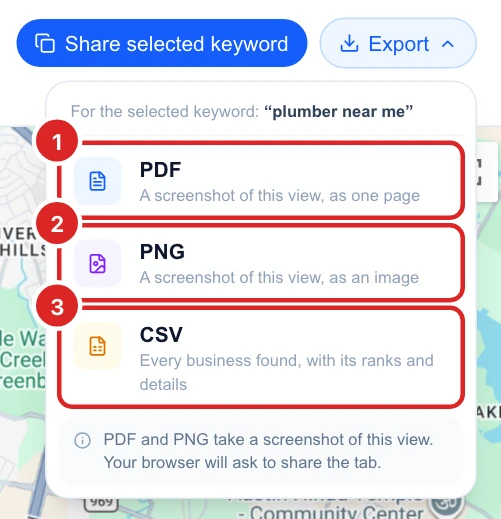
To export your own report, open its shared link (step 5) and use Export there. Inside Glocavo, the Trend and Compare views have their own Export (PDF, PNG), Rankings has Export CSV, and the AI Analysis exports too.
Find every link in Shared links
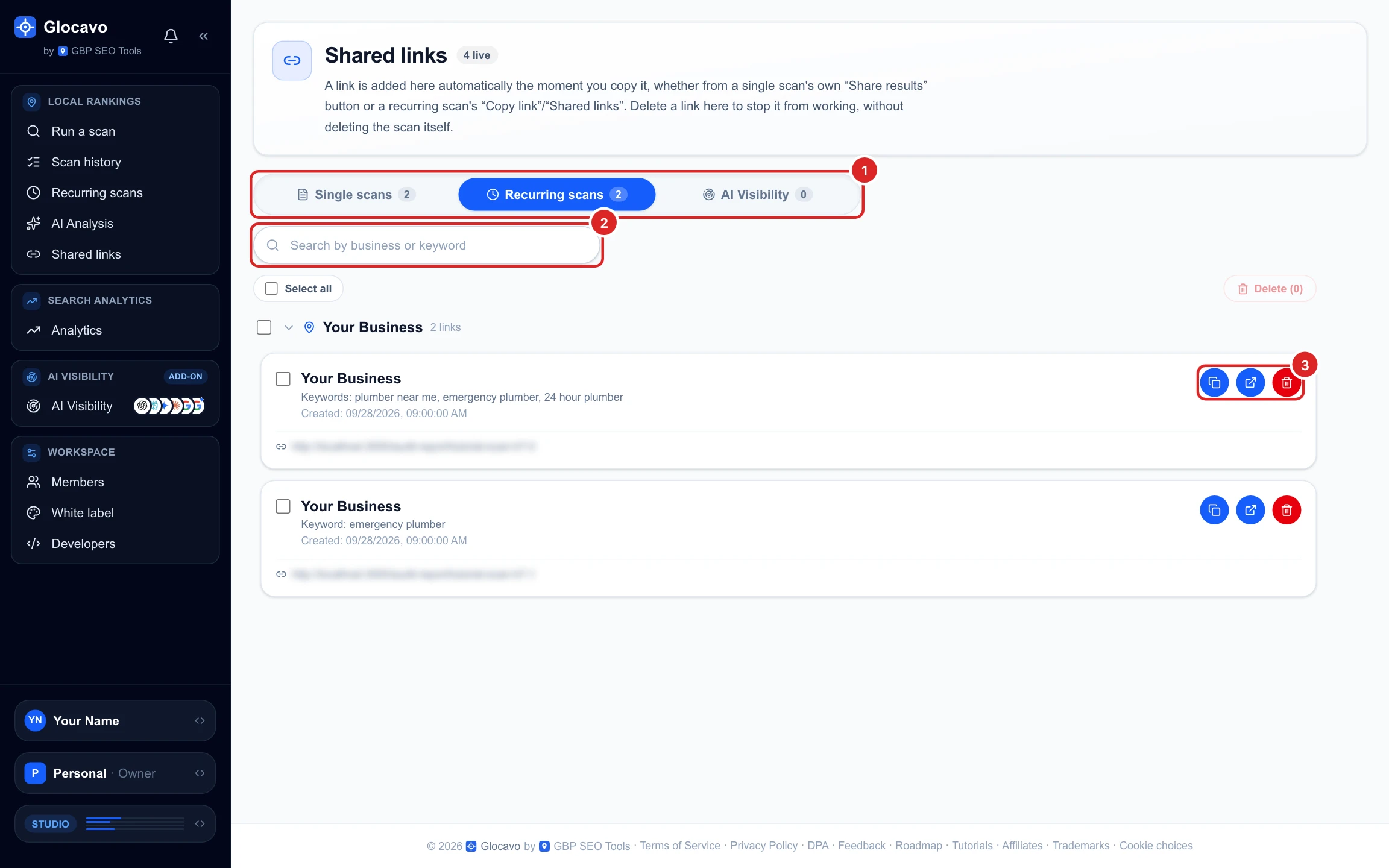
Shared links in the left sidebar lists every link you’ve shared, grouped by business, in three tabs: Single scans, Recurring scans and AI Visibility. Search by business or keyword, and on each link:
- Copy the link again.
- Open it in a new tab, exactly as your client sees it.
- Remove it (step 6).
Stop sharing a report
Click the red bin on a link and confirm, or tick several links and click Delete. The link stops working at once. The scan itself is not deleted: share it again any time and the same link works again.
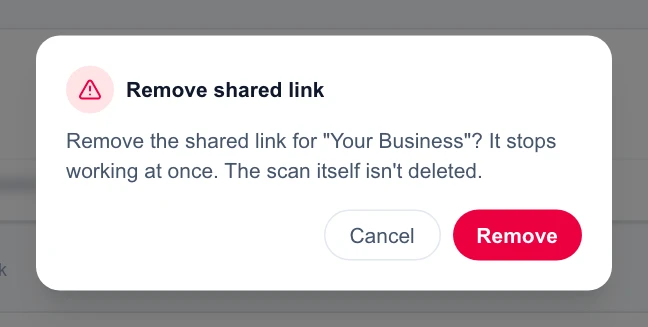
A recurring scan stays visible while any of its links is shared. To stop sharing it completely, remove all of its links on the Recurring scans tab. Deleting a scan in Scan history also removes its link.
Share under your own brand
On a plan with White label, shared reports show your logo and colours instead of Glocavo’s, and the links can use your own domain, for example reports.youragency.com. Set it up once, and every link you share from then on uses it. See custom report domains.
Decide what to do next
- For an ongoing client, share their recurring scan once and let the new runs show up on the same link.
- Send a PDF of the Trend or Compare view with your monthly update: it shows progress at a glance.
- Clean up Shared links now and then, and remove links for clients you no longer work with.
- AI Visibility reports are shared the same way, see manage an AI Visibility campaign.