Analytics
Read your Google Search Console data
See every Google search that shows your site with its clicks, impressions, CTR and position, add search volume and ad prices, and track new keywords in one click.
Updated October 5, 2026 · 6 min read
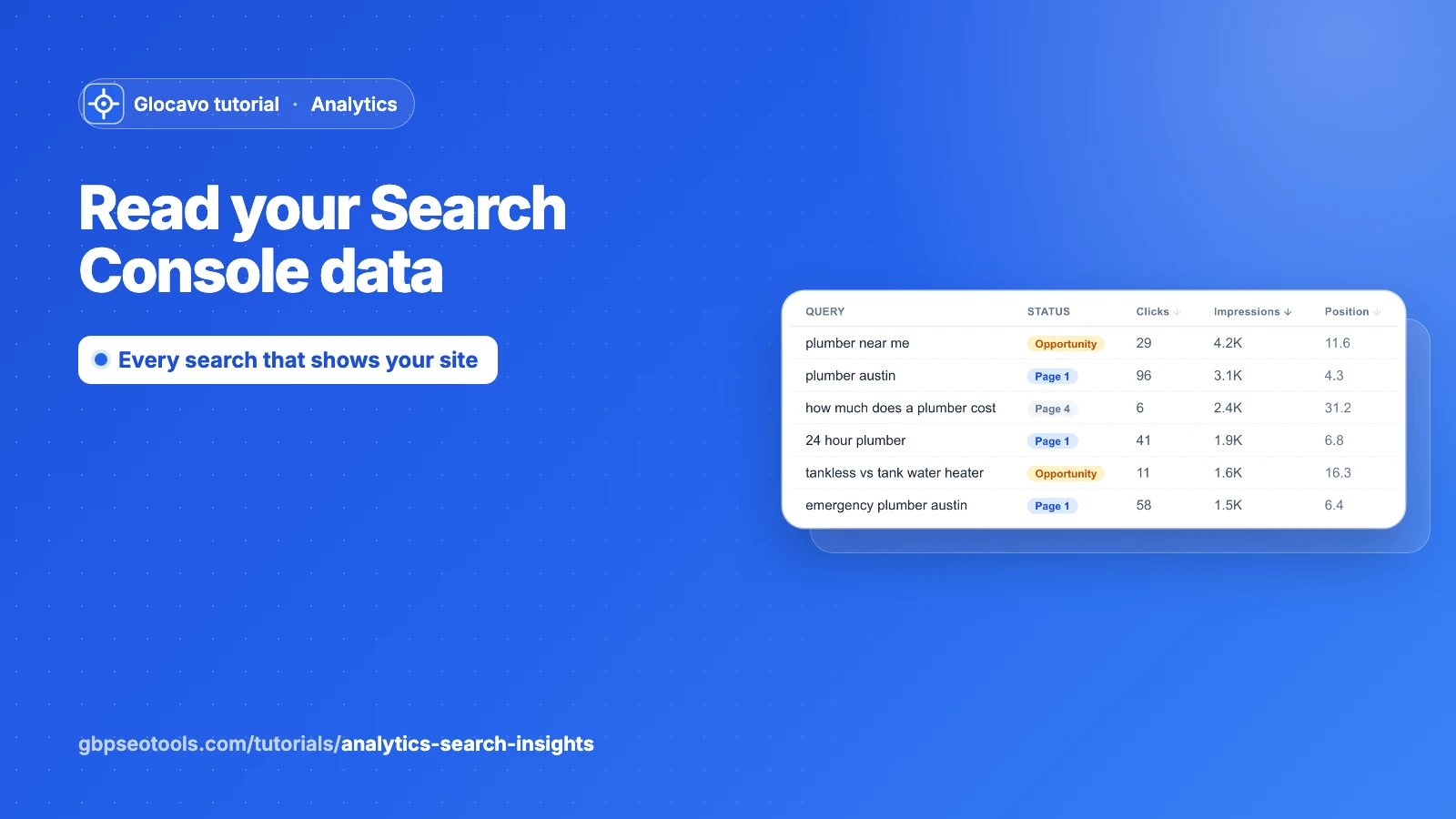
Search Insights shows your website the way Google sees it: every search that showed your site, how often it was shown, how often people clicked and your average position. It’s the best place to find keywords you didn’t know you ranked for, and to add them to your campaign with one click.
The screenshots use a made-up website, yourbusiness.com, with 28 days of made-up Search Console data.
- Where
- Analytics → a campaign → Search Insights.
- You need
- Google Search Console connected to the campaign, see how to connect it.
- Cost
- Uses no credits. Tracking a new keyword from here costs credits on its next check.
Read the totals
Open Search Insights and pick a period: 24 hours, 7 days, 28 days, 3 months or all time. The cards sum up that period:
- Clicks: visits from Google search to your site.
- Impressions: how many times your site was shown in the results.
- Avg CTR: the share of impressions that turned into a click.
- Avg position: your average rank in those results.
- Queries and Pages: how many different searches showed your site, and how many of your pages.
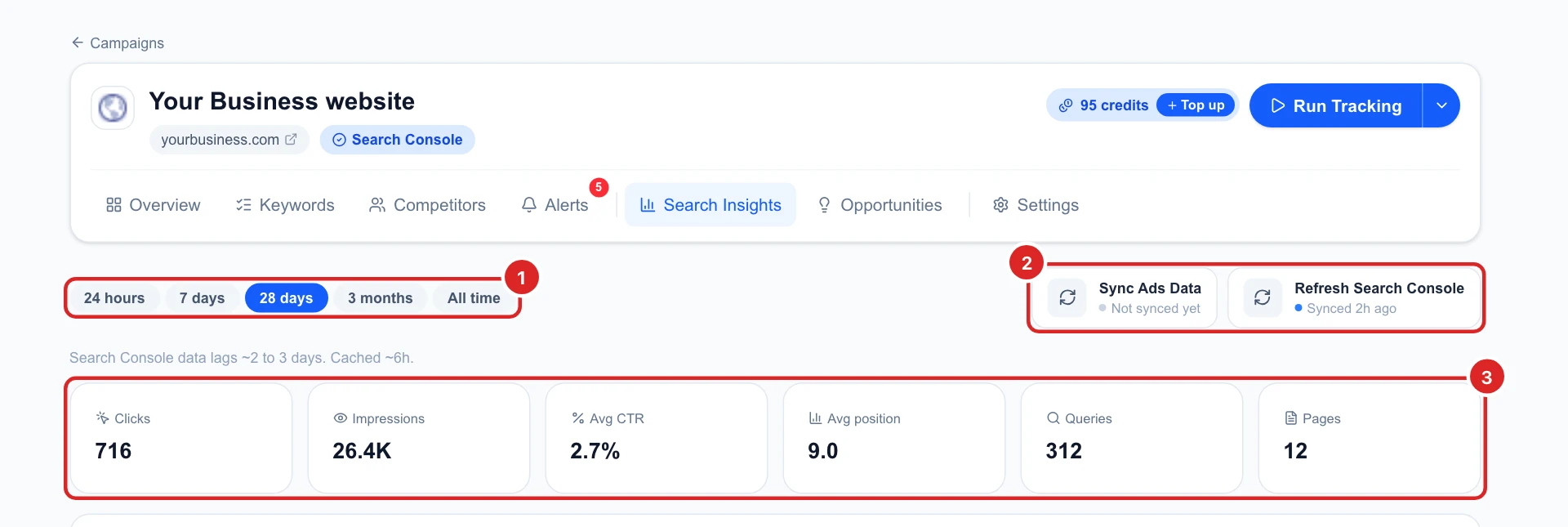
Search Console data runs about two days behind and Glocavo refreshes it every few hours. Click Refresh Search Console to fetch it now.
Follow the trend over time
Performance over time draws clicks and impressions day by day. Click the names under the chart to show or hide a line: Avg CTR and Avg Position are there too. Hover the chart for a day’s numbers.
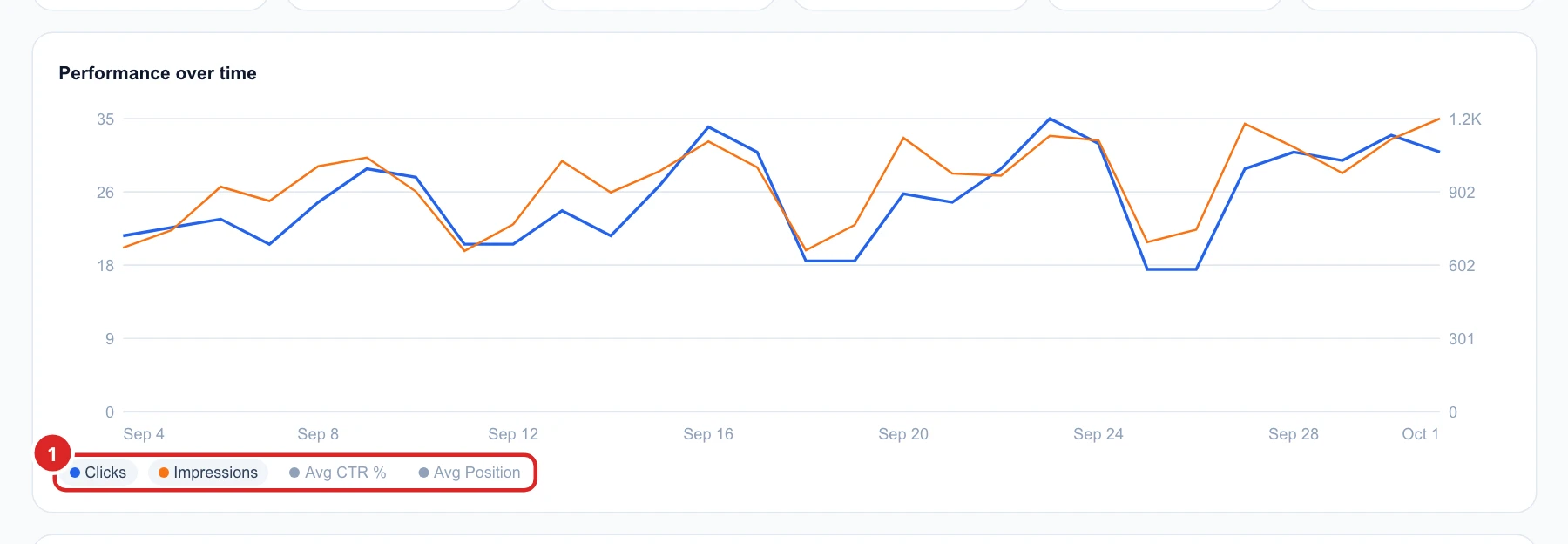
Dips every weekend are normal for most local businesses. Look at the week-to-week direction, not single days.
Read the Queries table
Under the chart, Queries lists every search that showed your site, most impressions first:
- Tracking: Tracked #4 means the keyword is in your campaign, ranking 4 at the last check. + Track adds it (step 5).
- Ads: how many ads Google showed for that search, for keywords you track.
- Status: Top 3, Page 1, Opportunity (positions 11 to 20 with at least 50 impressions: close to the first page) or the page it’s on.
- Clicks, Impressions, CTR and Position for that search.
- Searches, Comp. and CPC: monthly searches and ad prices, after Sync Ads Data (step 4).
- Top Page: the page of your site that showed most for it.
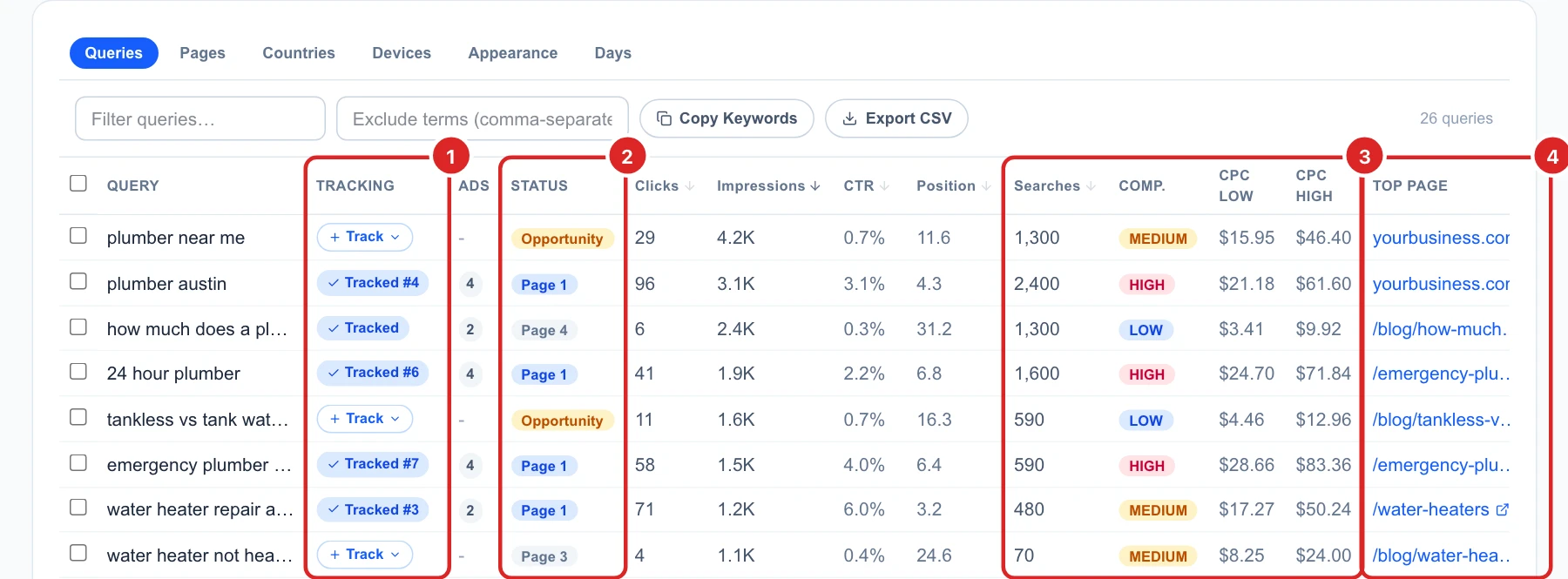
Search Console’s position is an average over everyone who searched, from everywhere and on every device. Glocavo’s own rank is checked from your campaign’s place, so the two can differ.
Add search volume and ad prices
Click Sync Ads Data at the top. It fills Searches, Comp. and the CPC columns from Google Ads for your 200 queries with the most impressions. It uses no credits, and the figures are kept for 30 days.
A query with many monthly searches and a high CPC is worth a lot: advertisers pay that much for each click you could get for free.
Track a query in one click
Click + Track next to a query, and pick a folder if your campaign has folders. The query joins your campaign’s keywords, with the campaign’s place, language and device, and is checked on the next run.
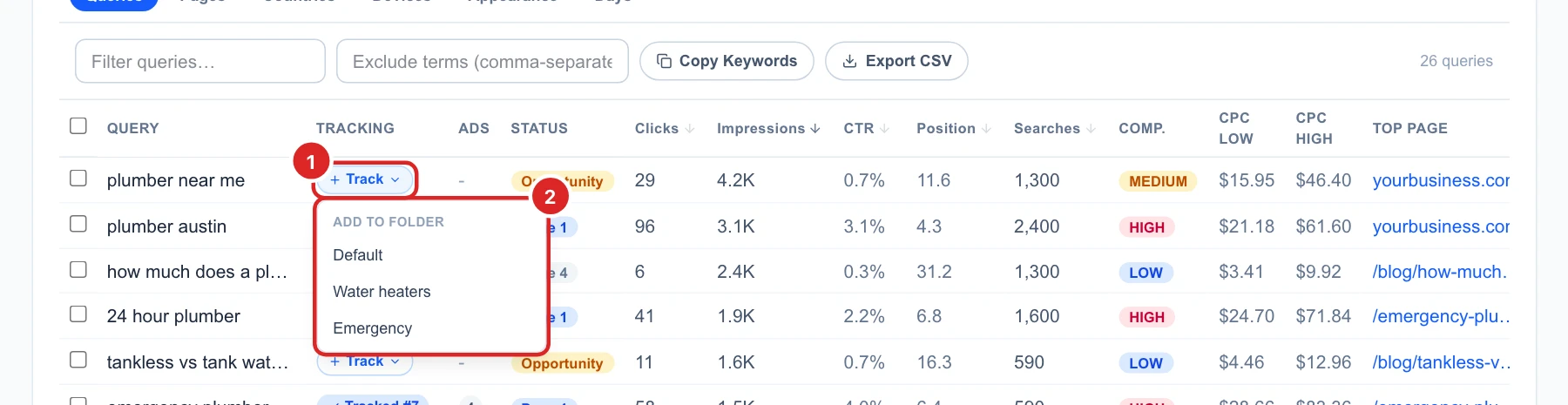
Each tracked keyword costs SERP credits on every check, see how SERP credits work. Track the searches that bring customers, not every query in the list.
Filter, copy and export
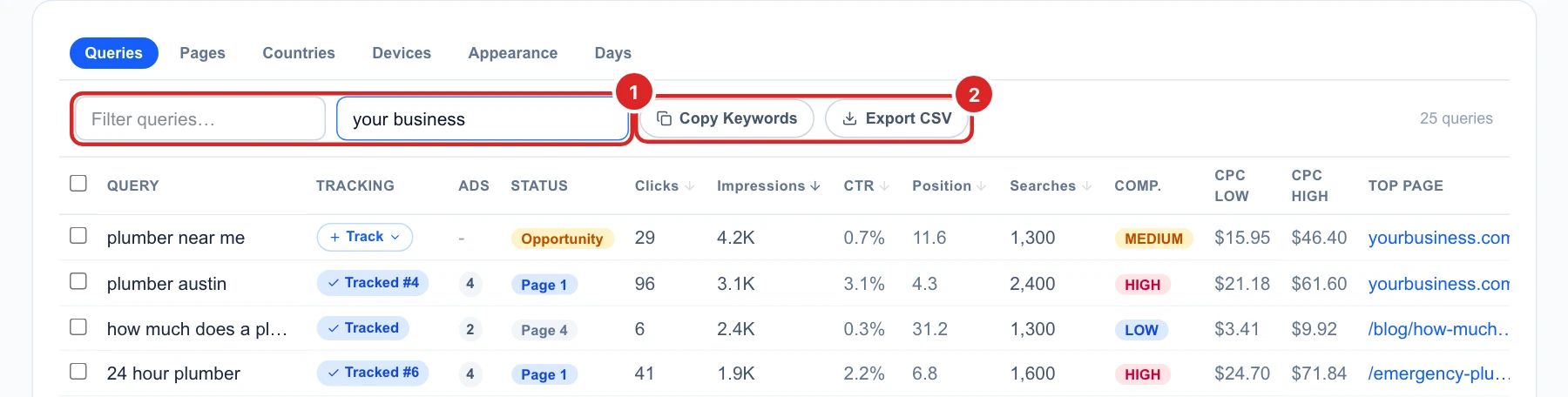
- Filter queries keeps only the searches containing a word, for example water heater.
- Exclude terms hides searches with words you list, separated by commas. Exclude your business name to see only the people who didn’t already know you.
- Copy Keywords and Export CSV act on the ticked rows, or on everything shown when nothing is ticked.
Look at pages, countries and devices
The tabs above the table break the same data down another way:
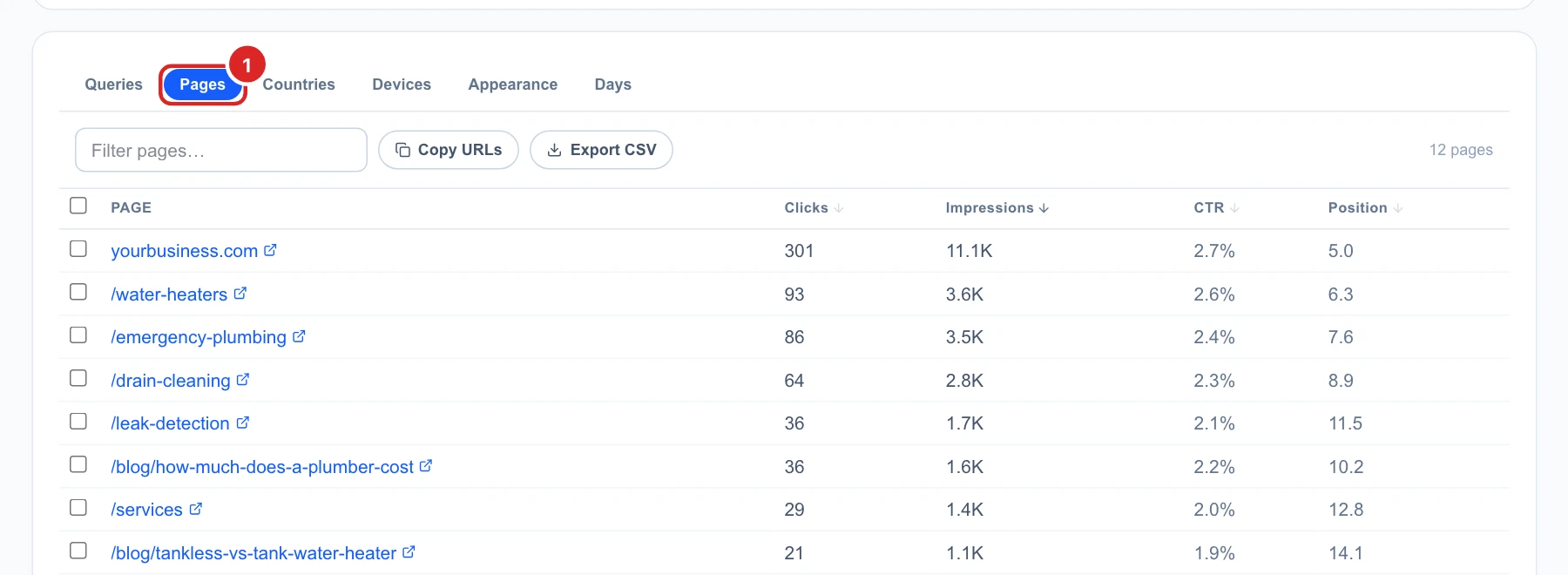
- Pages: which pages of your site get the clicks. Copy or export the list.
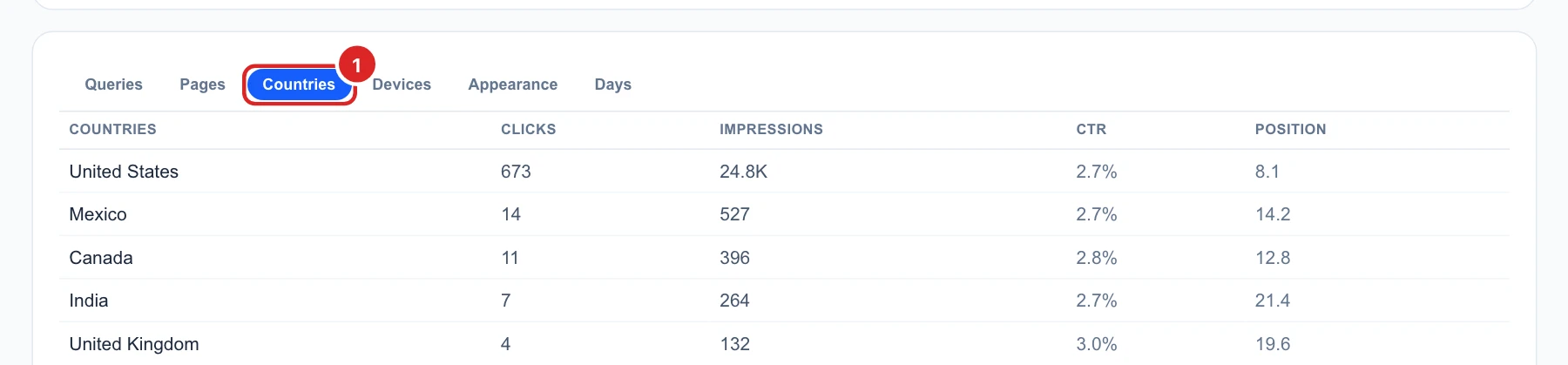
- Countries: where the searchers are. For a local business, almost everything should be your own country.
- Devices: mobile, desktop or tablet.
- Appearance: special result types your site got, like review stars or FAQs.
- Days: the chart’s numbers, day by day.

Decide what to do next
- Queries marked Opportunity are close to the first page: a better page for that search is often enough to move them up. Track the ones that matter.
- Many impressions but a low CTR? Your result shows up but people don’t click: rewrite that page’s title and description in Google.
- Most clicks on mobile? Check your site on a phone first.
- The Opportunities tab does this sorting for you: keywords close to page one, clicks you miss and pages that lose ground.