Analytics
Connect Google Search Console to Analytics
Link your Google Search Console to a campaign: sign in with the Google account that has your site, pick the right property and unlock Search Insights and Opportunities.
Updated October 5, 2026 · 4 min read
Glocavo’s checks show where you rank for the keywords you chose. Google Search Console shows the other side: every search that actually showed your site, with its clicks, impressions and position. Once you connect it, two more tabs open in the campaign, Search Insights and Opportunities.
The screenshots use a made-up website, yourbusiness.com.
- Where
- A campaign → Settings → Search Console.
- You need
- Your website verified in Google Search Console, and the Google account that has access to it.
- Cost
- Uses no credits. Search Console data comes from your own Google account.
See what's locked
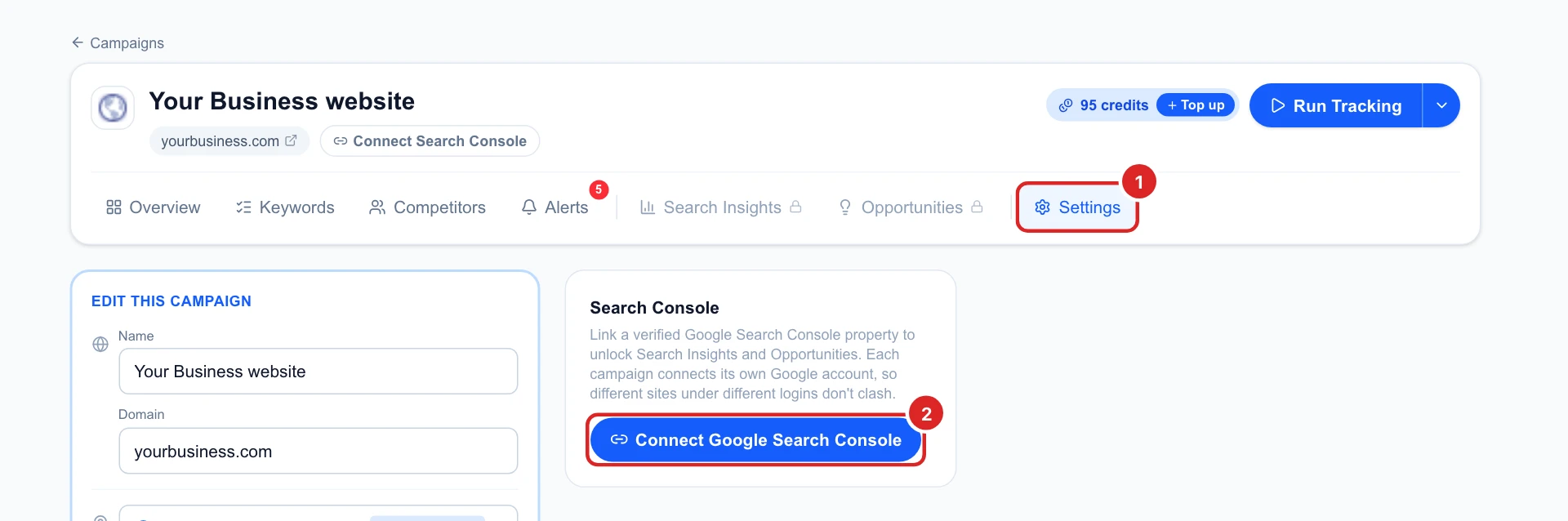
Until Search Console is connected, Search Insights and Opportunities show a lock, and the campaign shows Connect Search Console under its name. That button starts the connection too.

Start the connection
Open the campaign’s Settings tab and click Connect Google Search Console in the Search Console card.
Sign in with Google
Google opens its own sign-in window:
- Pick the Google account that has your website in Search Console. It doesn’t have to be the account you use for Glocavo.
- Allow Glocavo to view your Search Console data. It’s read-only: Glocavo can’t change anything in your Search Console.
Google sends you back to the campaign’s Settings, connected.
Not sure which account has the site? Open Google Search Console and check the account in the top right corner. If your site isn’t there at all, add and verify it first.
Pick your website's property
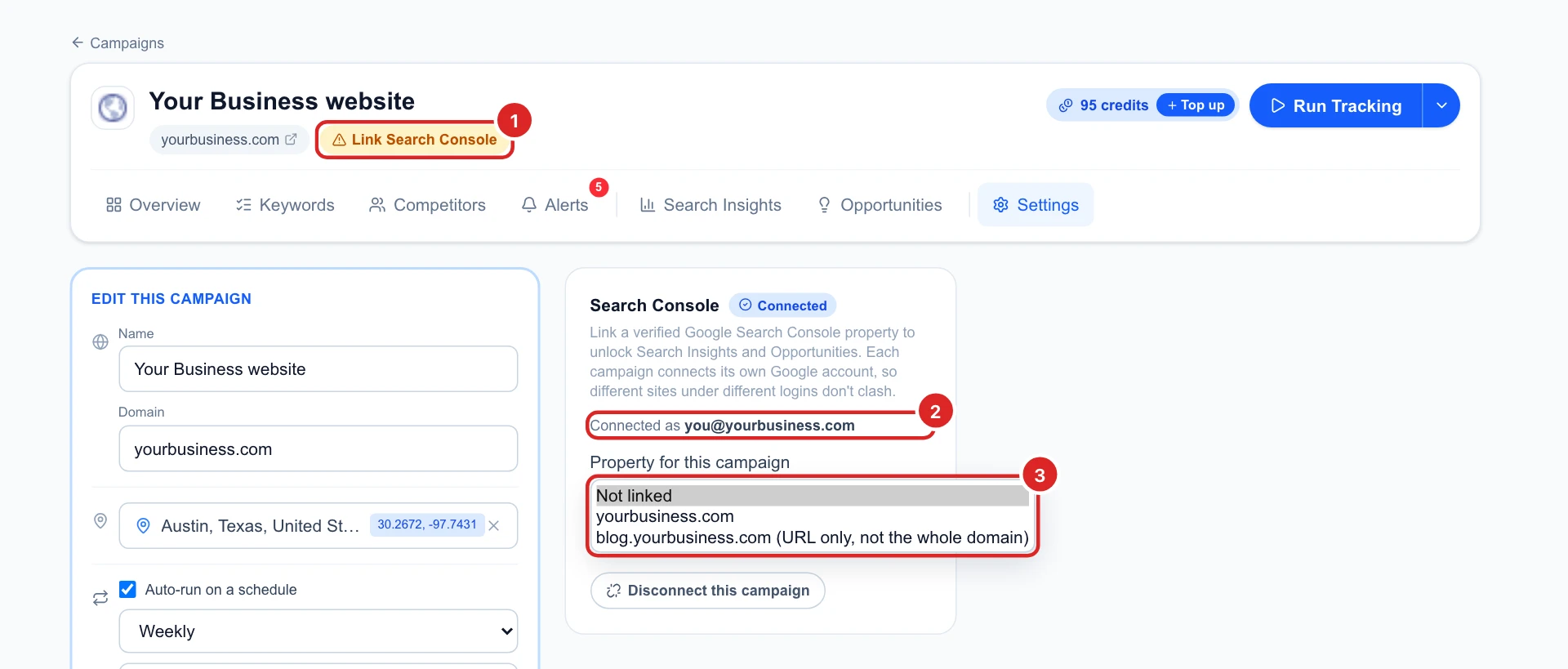
Back in Settings, the card says which Google account is connected. Under Property for this campaign, pick your website. Until you do, the campaign shows Link Search Console under its name.
- A plain domain, like yourbusiness.com, is a Domain property: it covers your whole site, with and without www and on every subdomain. Pick it when you have one.
- “URL only, not the whole domain” covers just that exact address, for example only your blog.
Check it worked
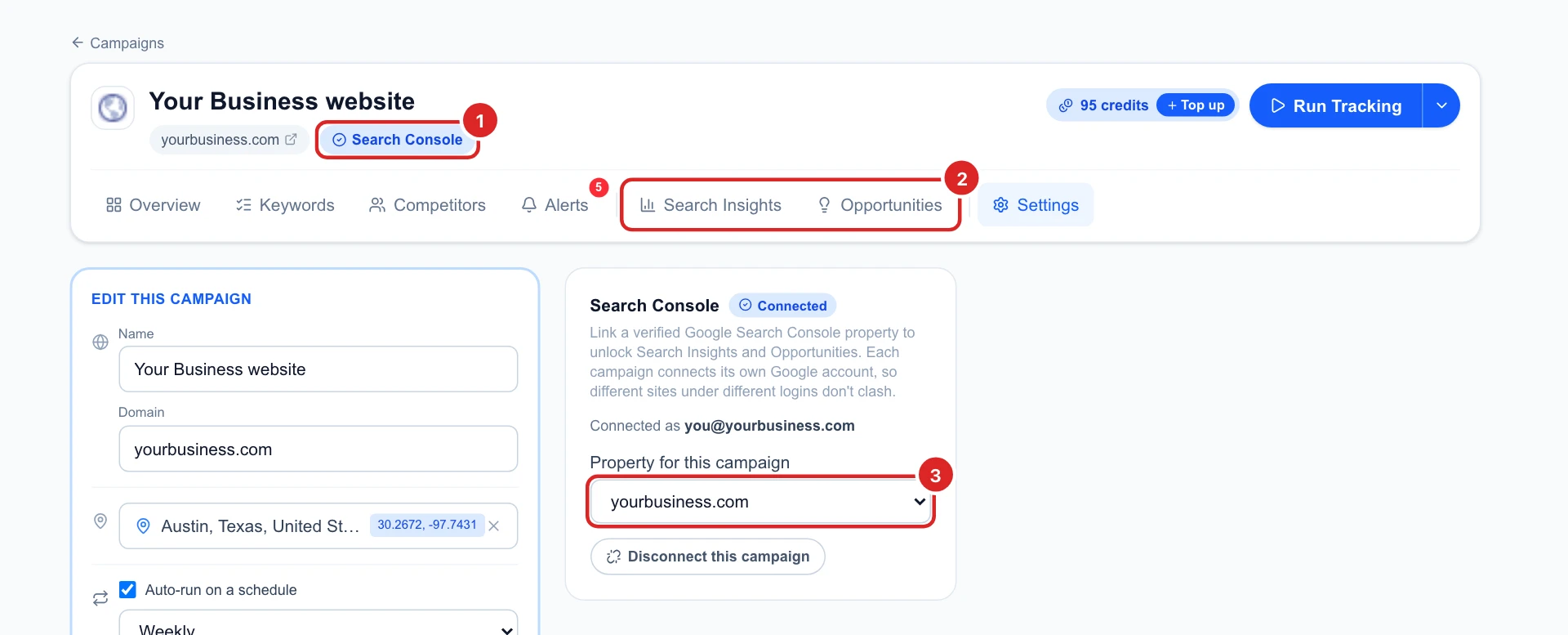
The button under the campaign name turns into a blue Search Console, and Search Insights and Opportunities open.
Search Console data runs about two days behind, and Glocavo refreshes it every few hours. So yesterday’s searches may not show yet.
Connect each campaign on its own
Every campaign has its own connection. An agency can connect each client’s campaign to that client’s Google account, and they never mix.
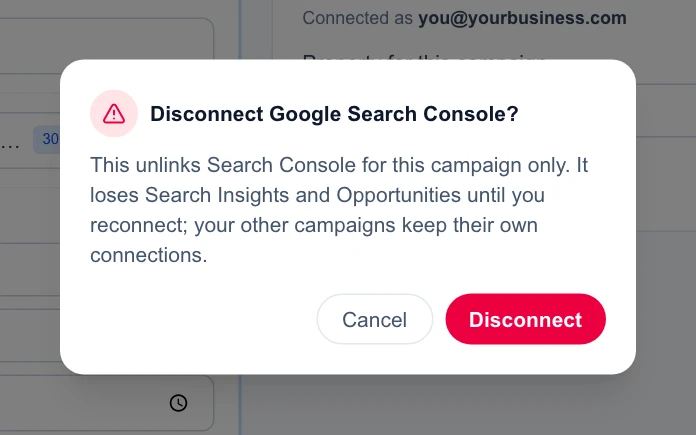
To remove a connection, click Disconnect this campaign in Settings. Only that campaign loses Search Insights and Opportunities; your other campaigns keep theirs.
Fix common problems
- “No verified properties on this Google account”: you signed in with an account that doesn’t have the site. Disconnect and connect again with the right one.
- Your site isn’t in the list: check it’s verified in Search Console under that same account, or ask its owner to add you as a user there.
- The tabs show no data: a site that’s new to Search Console needs a few days before Google has anything to show.
Decide what to do next
- Open Search Insights to see every search that shows your site, and add the best ones to your tracked keywords.
- Open Opportunities for keywords close to the first page and pages that are losing clicks.
- New to Analytics? Start with your first campaign.