Analytics
Read your Analytics campaign Overview
Read the four numbers at the top of a campaign, see which keywords moved most since the last check in Top movers, check every rank at a glance and find your way around the campaign's tabs.
Updated October 5, 2026 · 4 min read
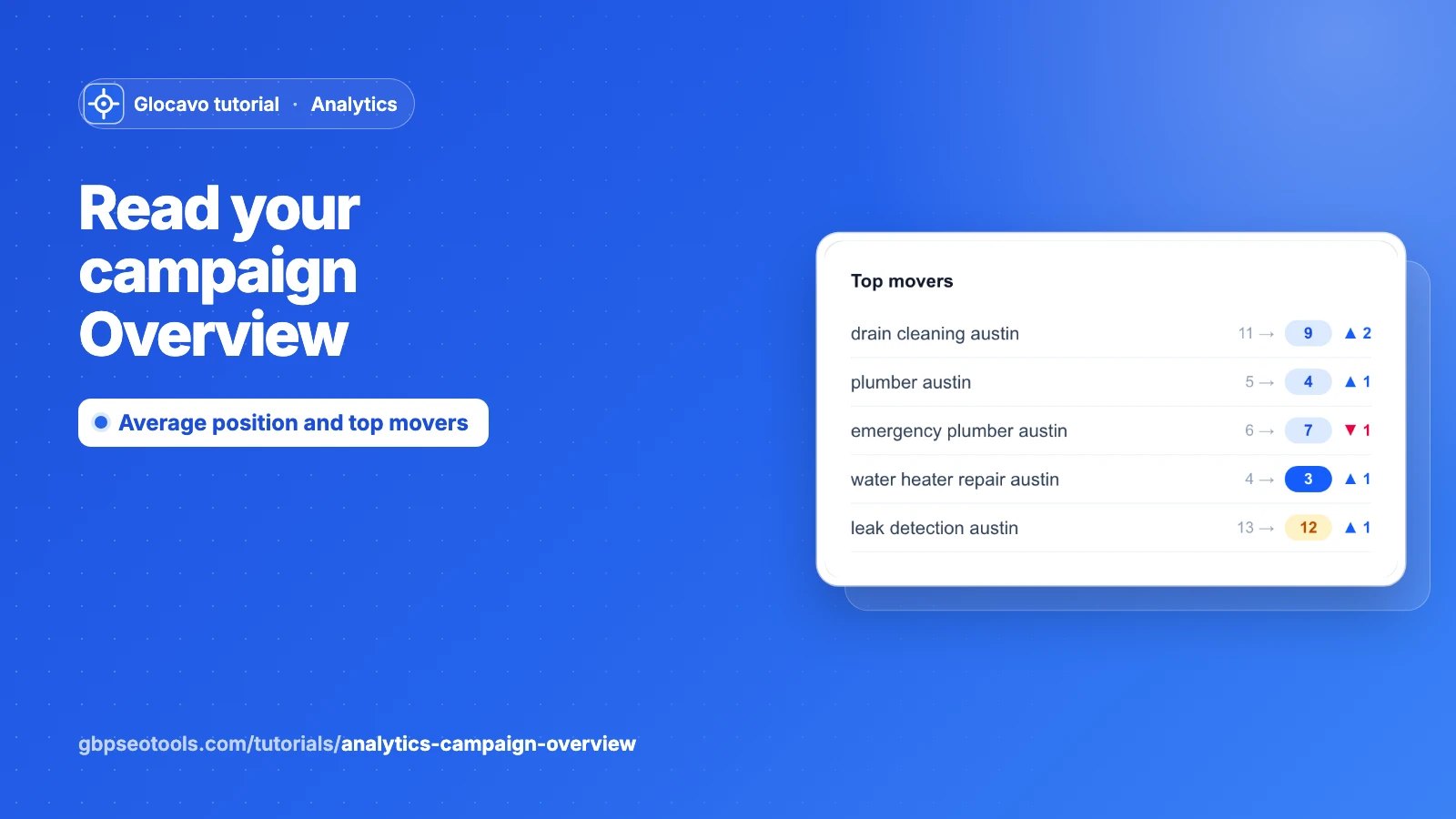
The Overview is the first thing you see when you open a campaign: how many keywords you track, your average position in Google, how many keywords moved since the last check, and which ones moved the most. It’s the page to glance at after every scheduled run.
The screenshots use a made-up website, yourbusiness.com, with a weekly campaign of 8 keywords that has run 5 times.
- Where
- Analytics → click a campaign. It opens on Overview.
- Who
- Starter plan and up.
- Cost
- Opening the Overview uses no credits. It shows the result of your last check.
Read the four numbers
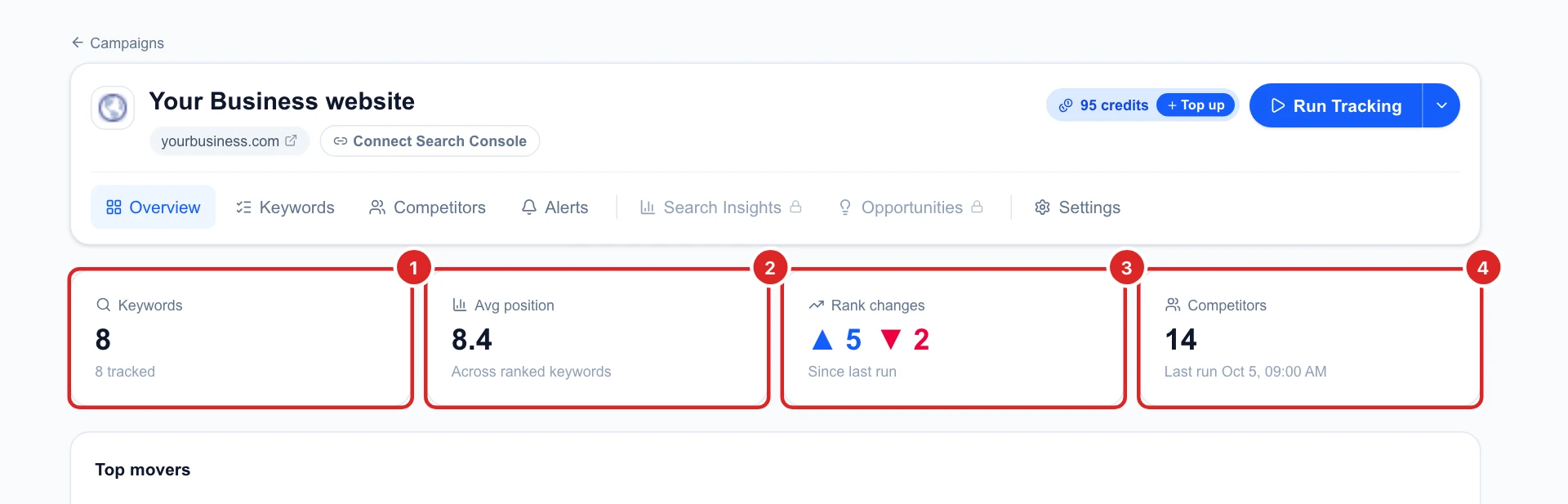
Click Analytics in the left sidebar, then the name of a campaign. Four cards sum it up:
- Keywords: how many keywords the campaign tracks, and how many have been checked at least once.
- Avg position: your average rank in Google across the keywords where your site was found. Lower is better: 8.4 means you’re usually on the first page. Keywords where you weren’t found don’t count.
- Rank changes: how many keywords moved up (blue) and down (red) since the check before.
- Competitors: how many other websites showed up in the results for your keywords, and when the last check ran.
See what moved in Top movers
Top movers lists the keywords that moved the most since the check before, biggest first. Each line shows the old rank, the new one and by how many places it moved: here drain cleaning austin went from 11 to 9, up 2. Click a keyword to see its full history.
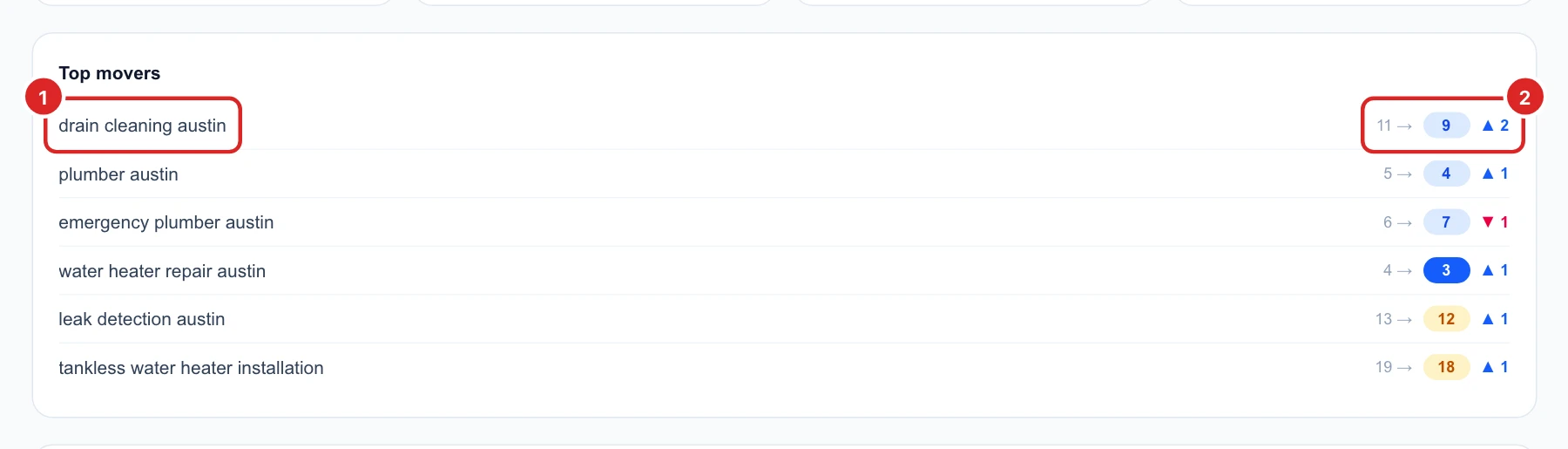
A move of one or two places from one week to the next is normal: Google’s results shift a little all the time. Look for a keyword that keeps going the same way over several checks.
Check every keyword at a glance
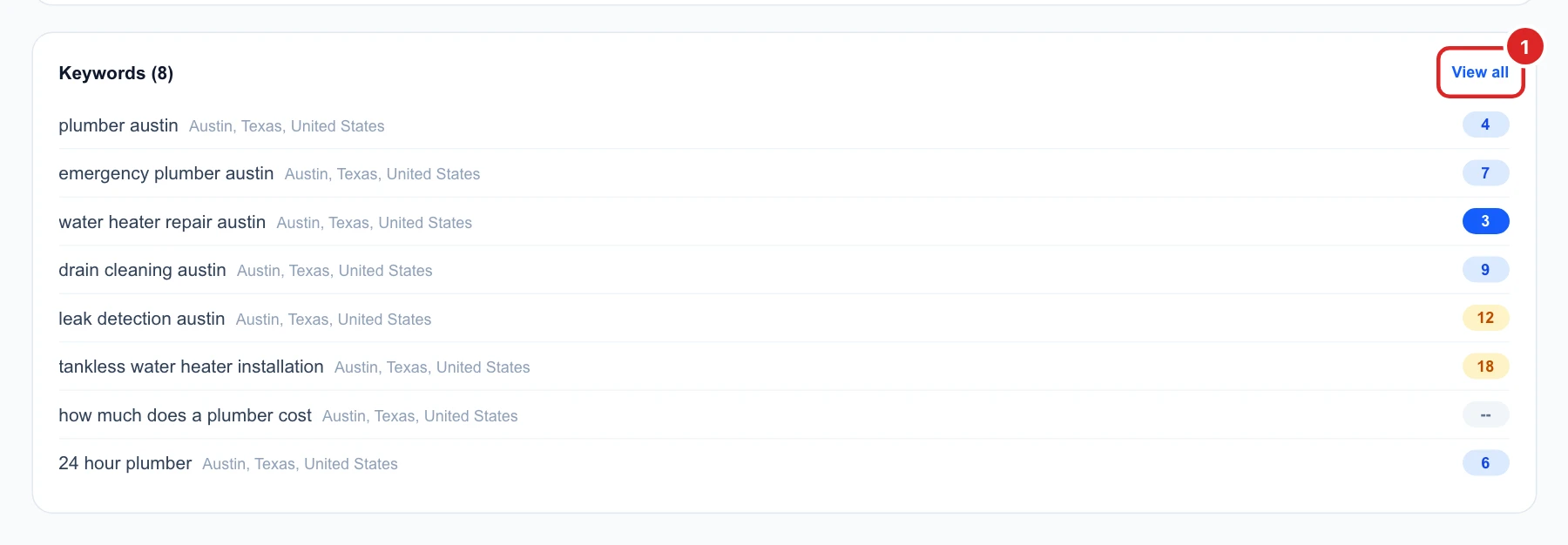
Under it, Keywords lists your keywords with the place they’re searched from and your current rank, in the same colours as everywhere in Analytics: dark blue for the top 3, light blue for 4 to 10, amber for 11 to 20 and red below that. A dash means your site wasn’t found. Click View all for the full table with search volume, best rank and more.
Find your way around the campaign
The top of the campaign stays the same on every tab:
- Connect Search Console: links your Google Search Console, to see the searches that already bring visitors to your site.
- Your SERP credits and Run Tracking: check your keywords now instead of waiting for the schedule.
- Overview, Keywords, Competitors and Alerts: what Glocavo found in Google for your keywords, and alerts when a competitor overtakes you or a new one shows up.
- Search Insights and Opportunities: your data from Google Search Console. They show a lock until you connect it.
- Settings: the website, place, schedule and search depth.

To rename the campaign, hover its name and click the pencil. The domain under it opens your website in a new tab.
Decide what to do next
- After each scheduled run, look at Rank changes and Top movers. More red than blue two runs in a row is worth a closer look.
- Click a keyword that dropped to see its history and which pages now rank above you.
- A falling average position with no keyword dropping much usually means new keywords were added that rank lower, not that you lost ground.
- Not tracking yet? Start with your first Analytics campaign.