AI Visibility
Fix wrong facts AI tells customers
Find every AI answer that gives customers your old phone number, wrong opening hours or a wrong address, see exactly what to fix, and check in the next scans that the fix worked.
Updated September 28, 2026 · 3 min read
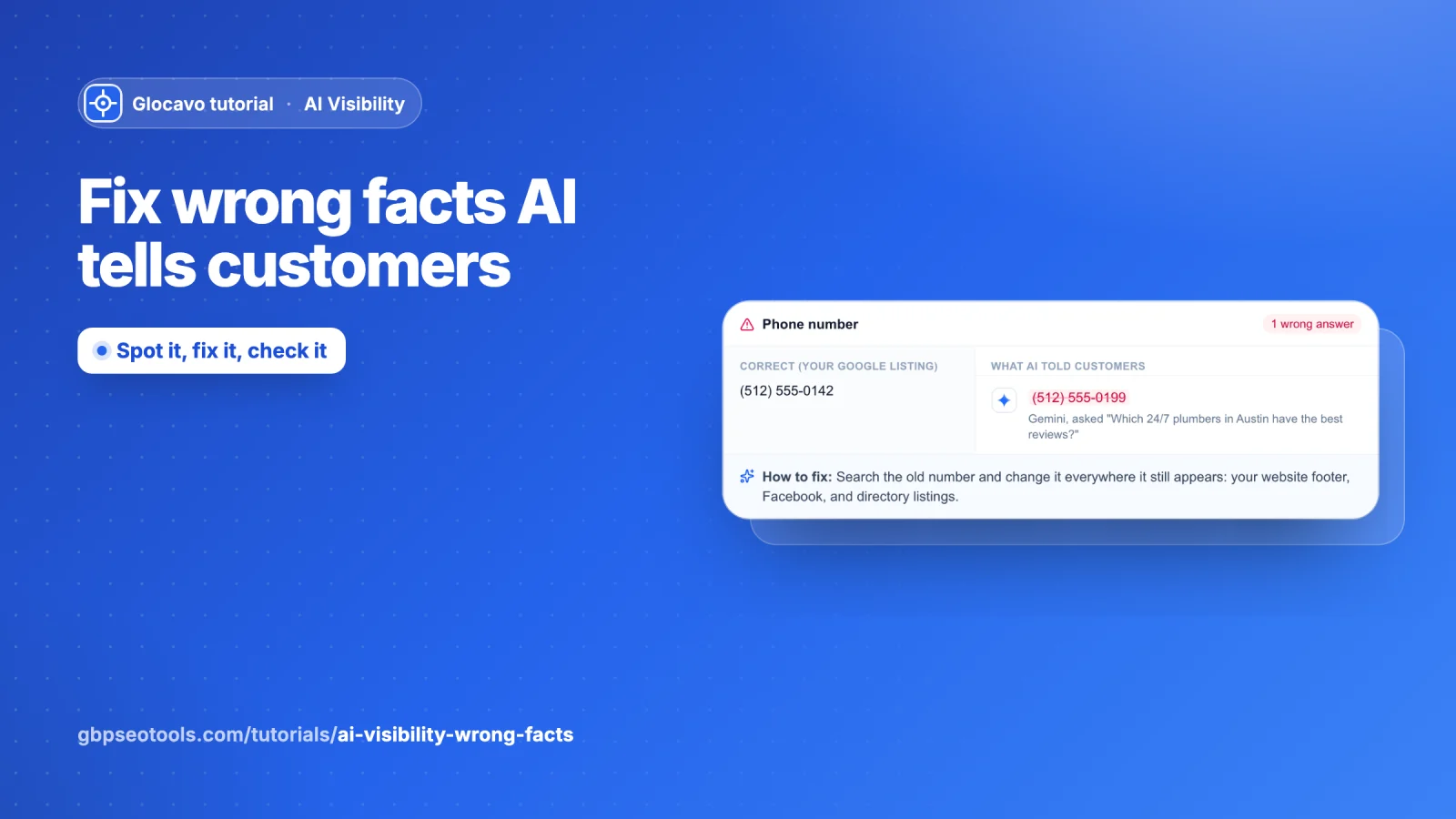
An AI engine that recommends you with an old phone number or the wrong opening hours sends customers away. Glocavo compares every answer that mentions your phone, hours, address, website, name or status with your Google Business Profile, and lists every one that does not match, with what to fix.
- Where
- Open a campaign → Wrong facts in the campaign menu.
- Cost
- Checking facts is part of every scan. Reading them uses no checks.
Spot wrong facts
You do not have to go looking. Wrong facts show up in three places:
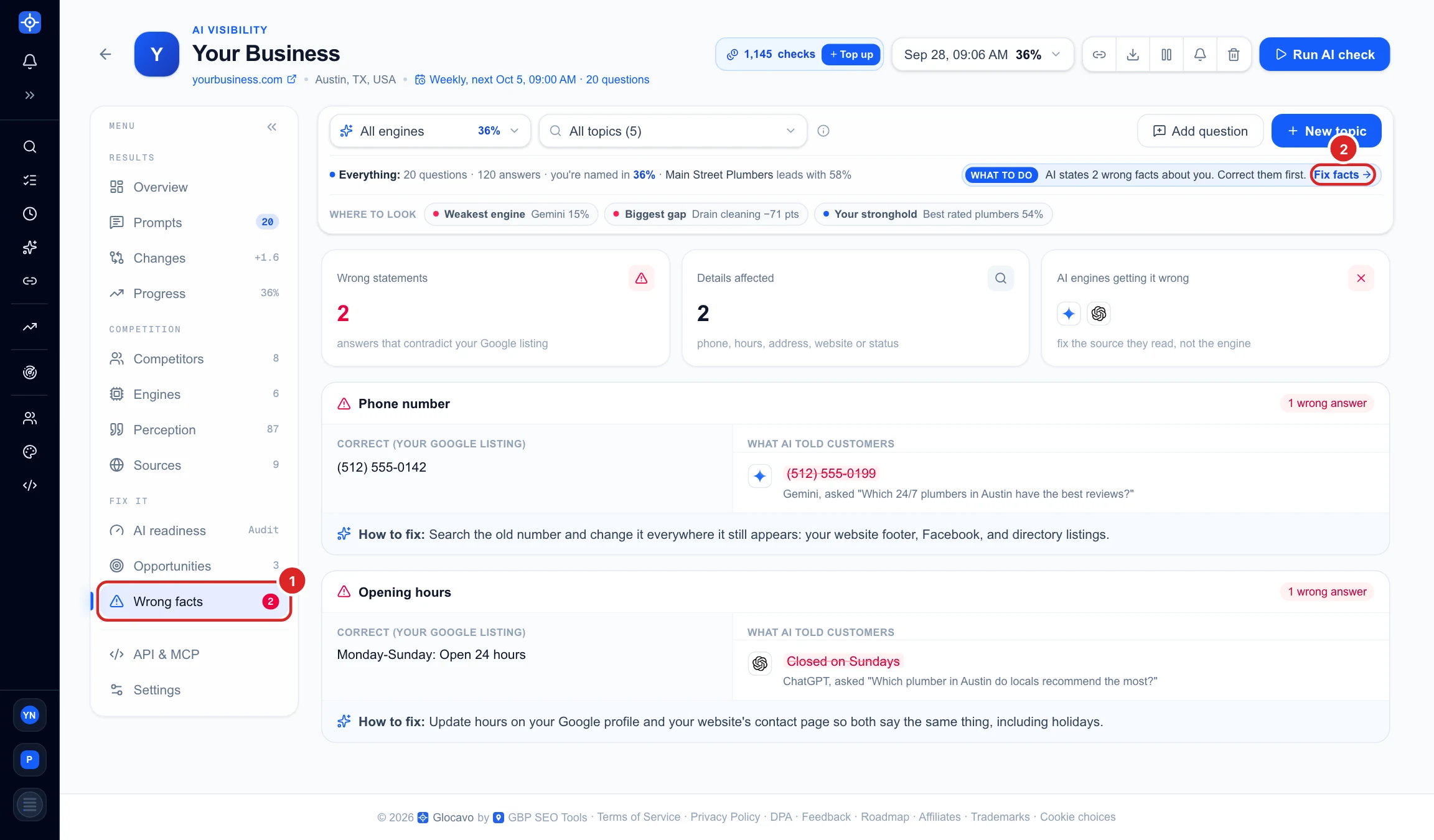
- A red number on Wrong facts (1) in the campaign menu: how many wrong statements the scan found.
- What to do in the filter bar puts them first, because they are the quickest thing to fix. Fix facts (2) opens this section.
- The email you get after each scheduled scan lists them at the top.
Read the summary
- Wrong statements (1): answers that contradict your Google listing.
- Details affected (2): how many different details are wrong, such as phone and hours.
- AI engines getting it wrong (3): which engines said it. You cannot correct an engine directly: you fix the websites it reads, and the engine picks up the change.

See what is wrong and how to fix it
Each wrong detail has its own card:
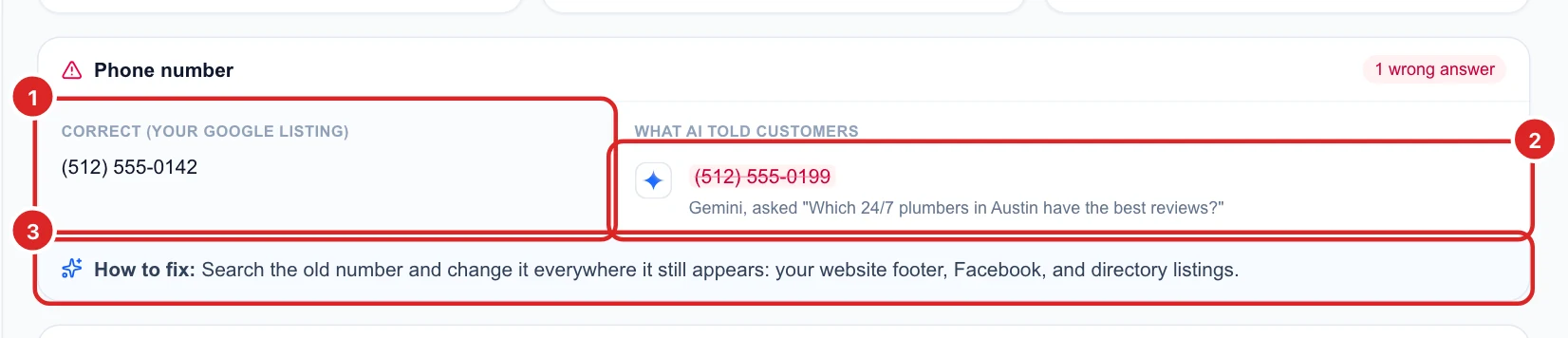
- Correct (1): what your Google Business Profile says.
- What AI told customers (2): the wrong value, crossed out, with the engine and the question it was answering. Here Gemini gave an old phone number.
- How to fix (3): the steps for that kind of detail. For a phone number, search the old number and change it everywhere it still appears: your website footer, Facebook and directory listings.
The same number written differently, like (512) 555-0142 and 512-555-0142, is not counted as wrong. Only real contradictions are listed. To read the whole answer around a wrong fact, open the question in Prompts: see See every question and every AI answer.
Check that your fix worked
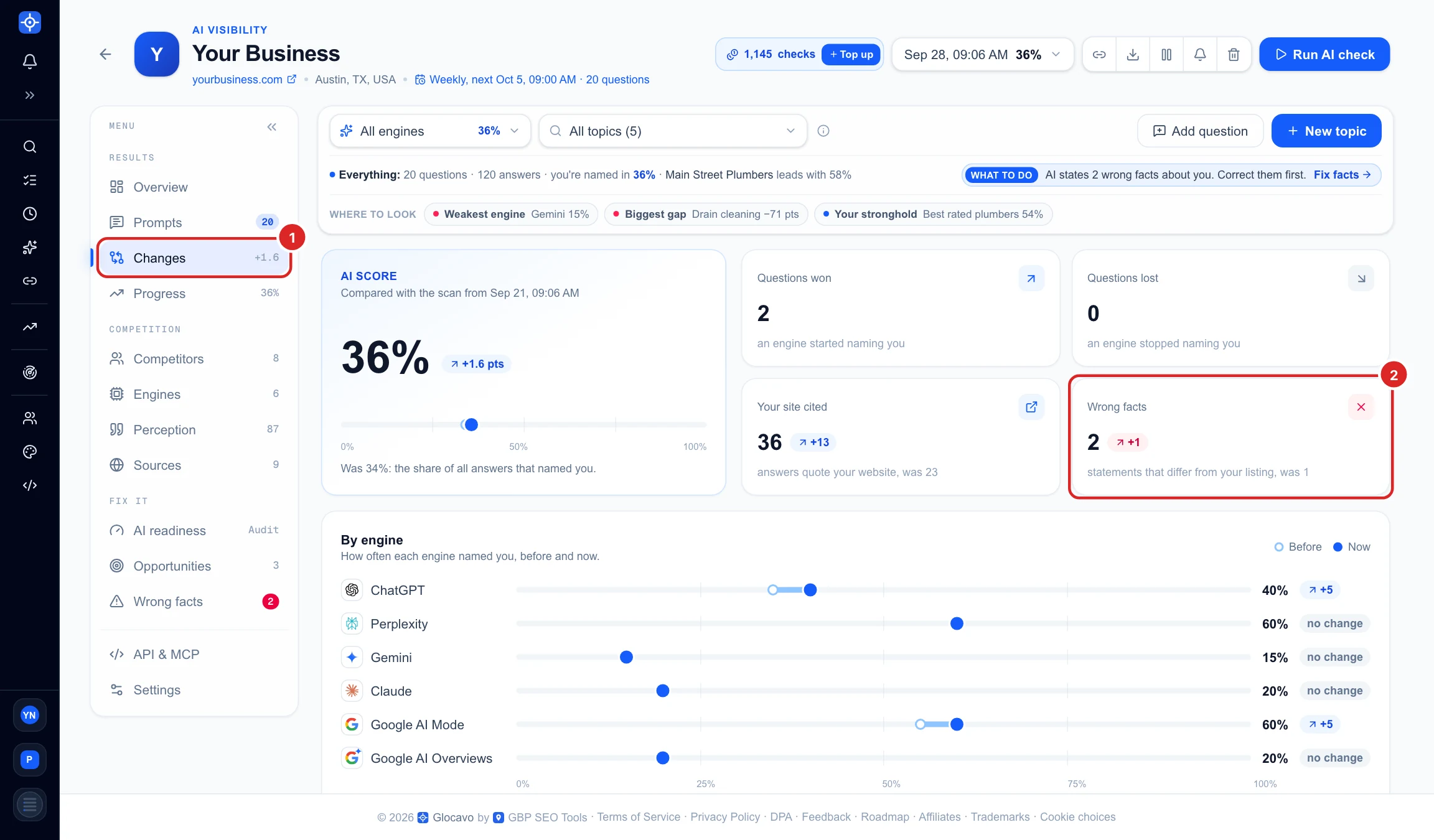
AI engines take time to read your updated pages, so give it a scan or two. Then open Changes (1): the Wrong facts (2) tile compares this scan with the one before. A number going down, in blue, means your fix is working. A red +1, like here, means a new wrong fact appeared since the last scan.
Wrong facts are checked against the Google business you picked for the campaign. If it is missing or changed, pick it again in the campaign’s Settings.
Next
Find the directories and pages the engines read, so you know where to correct a detail, in Find the websites AI reads about you.