Analytics
Find SEO quick wins in your Search Console data
Use the Opportunities tab to find keywords close to page one, results people see but skip, pages losing impressions and pages competing for the same search, then fix them in order.
Updated October 10, 2026 · 6 min read
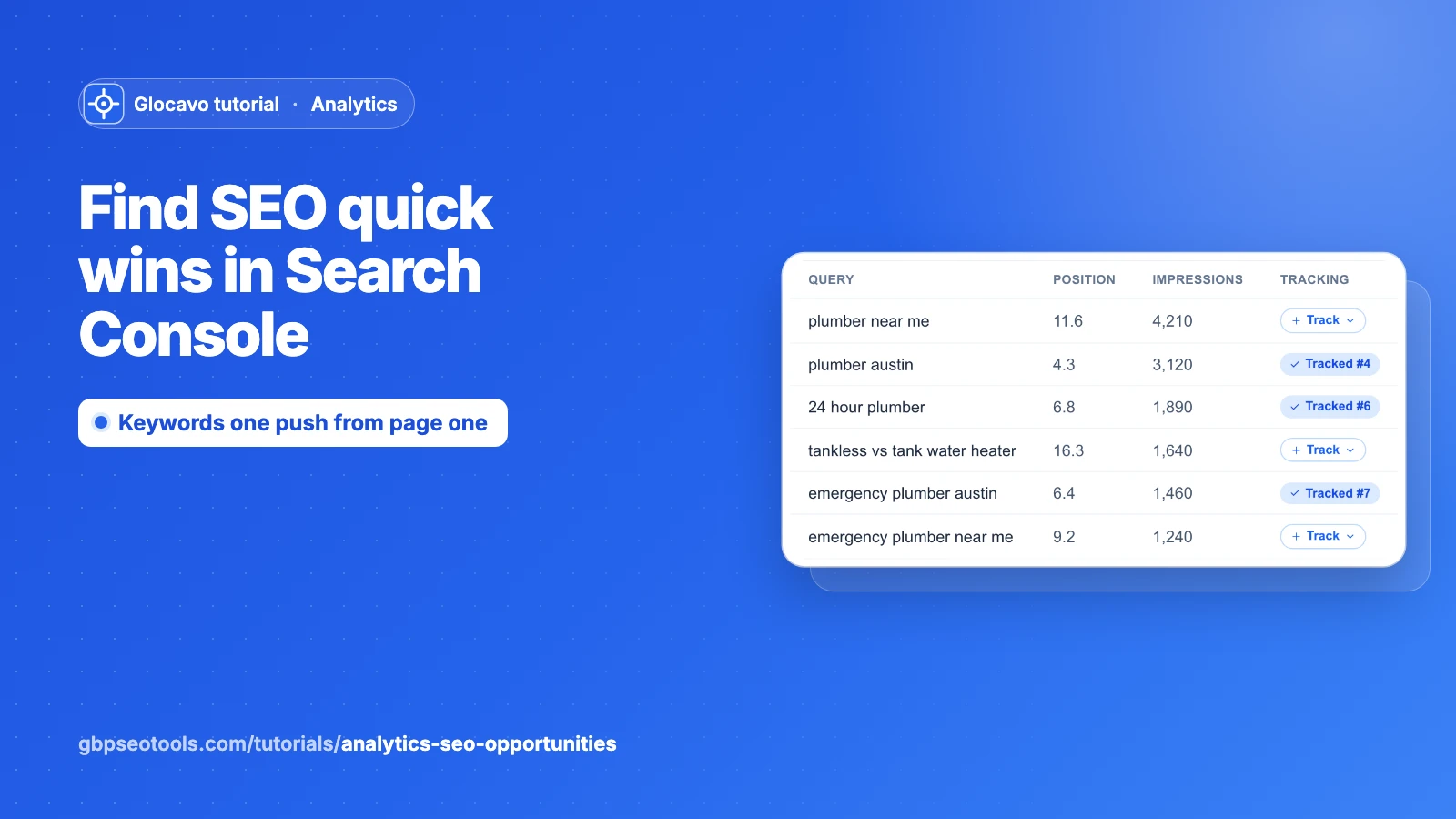
Opportunities turns your Search Console data into four short to-do lists: searches where you’re close to page one, results people see but skip, pages losing ground, and searches where your own pages compete with each other. Each list tells you which page to work on next.
The screenshots use a made-up website, yourbusiness.com, with made-up Search Console data.
- Where
- Analytics → a campaign → Opportunities.
- You need
- Google Search Console connected to the campaign, see how to connect it.
- Cost
- Uses no credits. Tracking a new keyword from here costs credits on its next check.
Open Opportunities
Open a campaign and click Opportunities. The buttons along the top are the lists, each with how many searches or pages it holds: Quick Wins, CTR Gaps, Decay, Cannibalization and Excluded.
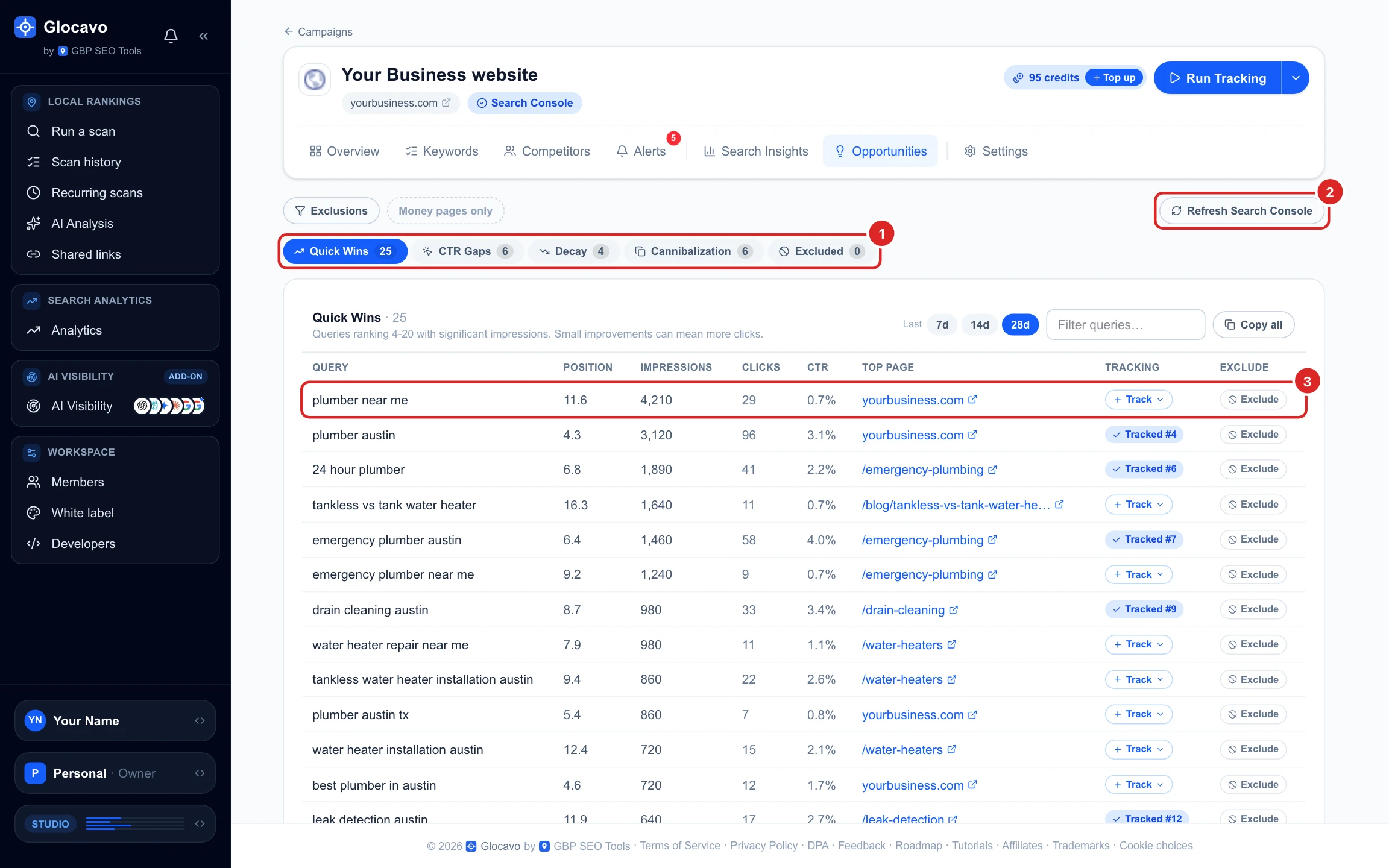
The lists cover the last 28 days of Search Console data, which runs about two days behind. Pick 7d or 14d at the top of any list for a shorter period: it changes every list. Glocavo refreshes them every few hours. Click Refresh Search Console to fetch them now.
Read Quick Wins
Quick Wins lists the searches where your site ranks 4 to 20 on average and was shown at least 50 times, most impressions first. These are the keywords one push away from page one, or from the top 3 where most clicks go.
- Position: your average rank for that search.
- Impressions, Clicks and CTR: how often you were shown, clicked, and the share that clicked.
- Top Page: the page of your site Google shows most for it. That’s the page to improve.
- Tracking: Tracked #4 means the keyword is already in your campaign, ranking 4 at the last check.
In the example, plumber near me sits at 11.6, the top of page two, with 4,210 impressions. Moving it onto page one is where the clicks start.
To move a quick win up, work on its top page: use the search’s words in the page title and a heading, answer what the searcher wants better than the pages above you, and link to the page from your other pages.
Track a quick win
Click + Track next to a search, and pick a folder if your campaign has folders. It joins your campaign’s keywords and is checked on the next run, so you can see whether your changes move it.
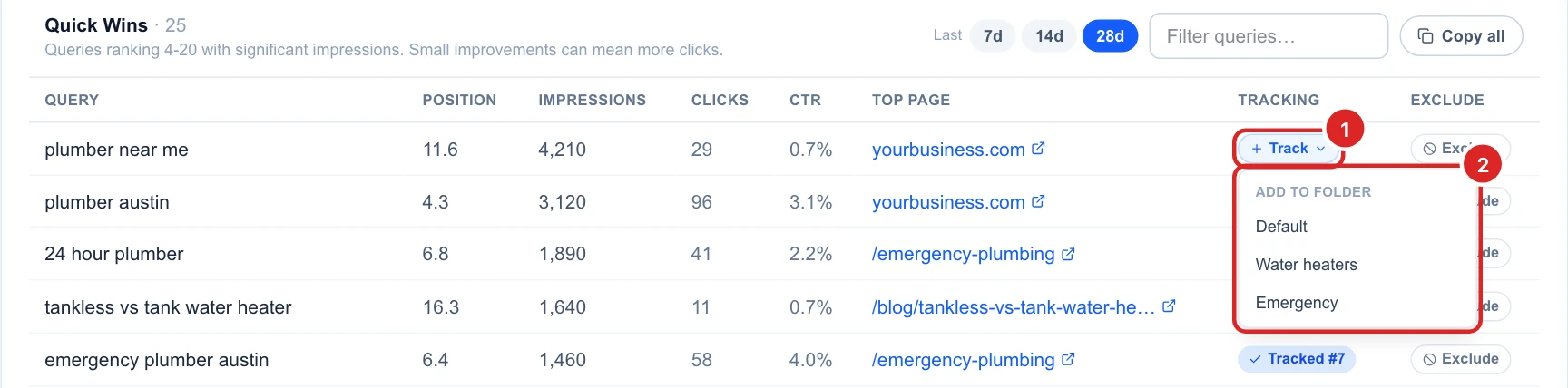
Each tracked keyword costs SERP credits on every check, see how SERP credits work. Track the quick wins you plan to work on, not the whole list.
Find results people skip: CTR Gaps
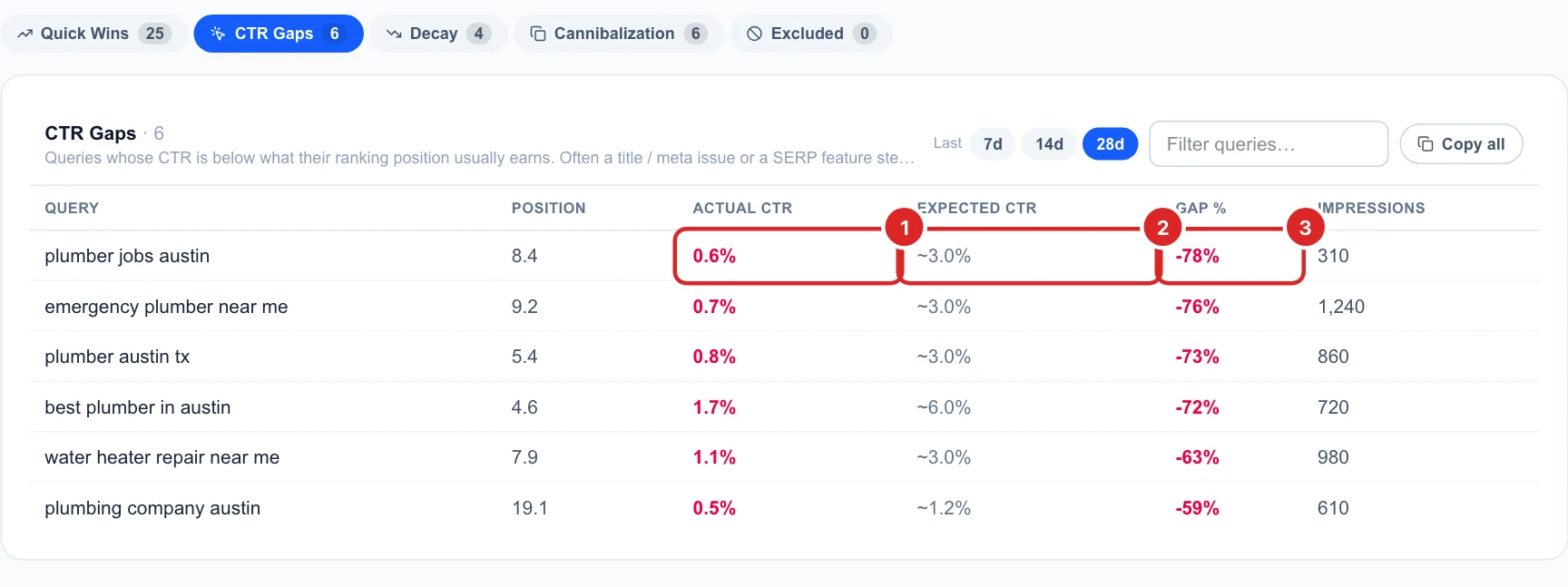
CTR Gaps lists searches in your top 20 with at least 100 impressions where your click rate is less than half of what that position usually gets. Your result shows up, but people choose another one. The biggest gaps come first.
- Actual CTR: the share of impressions that turned into a click.
- Expected CTR: what a result at that position usually gets. It’s a rough average, not a promise.
- Gap %: how far below that you are.
What to do about a gap:
- Rewrite the page’s title and meta description so they match the search and give a reason to click: a price, a guarantee, “same-day”, your review rating.
- Search it on Google yourself. Ads, the map pack or other boxes above you can take the clicks, even at a good position.
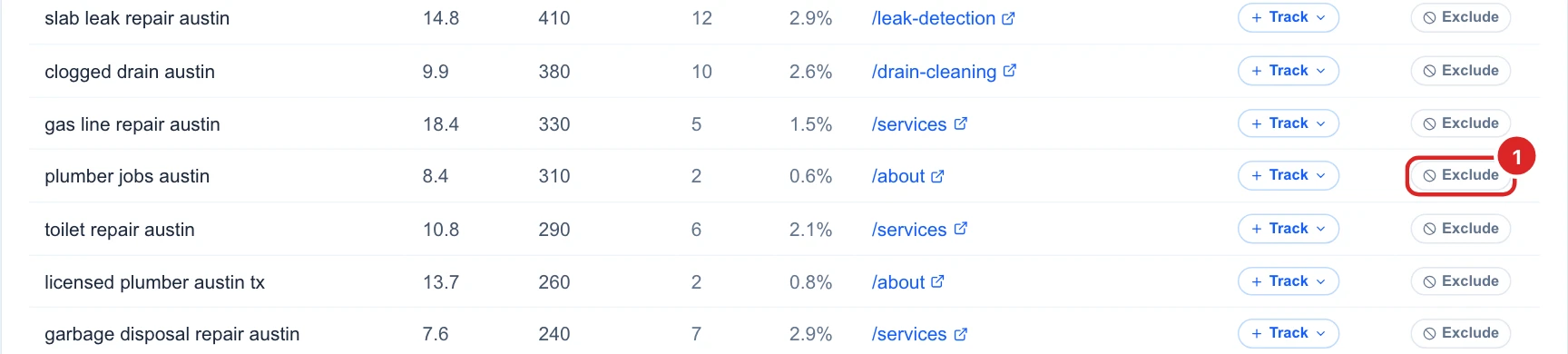
- Some gaps are searches that aren’t for you. plumber jobs austin is people looking for a job, not a plumber: exclude it (step 7).
Catch pages losing ground: Decay
Decay lists pages whose impressions fell by 40% or more compared with the period just before, among pages that had at least 100. Pick 7d, 14d or 28d to compare the last 7, 14 or 28 days with the same number of days before them. The biggest drops come first.
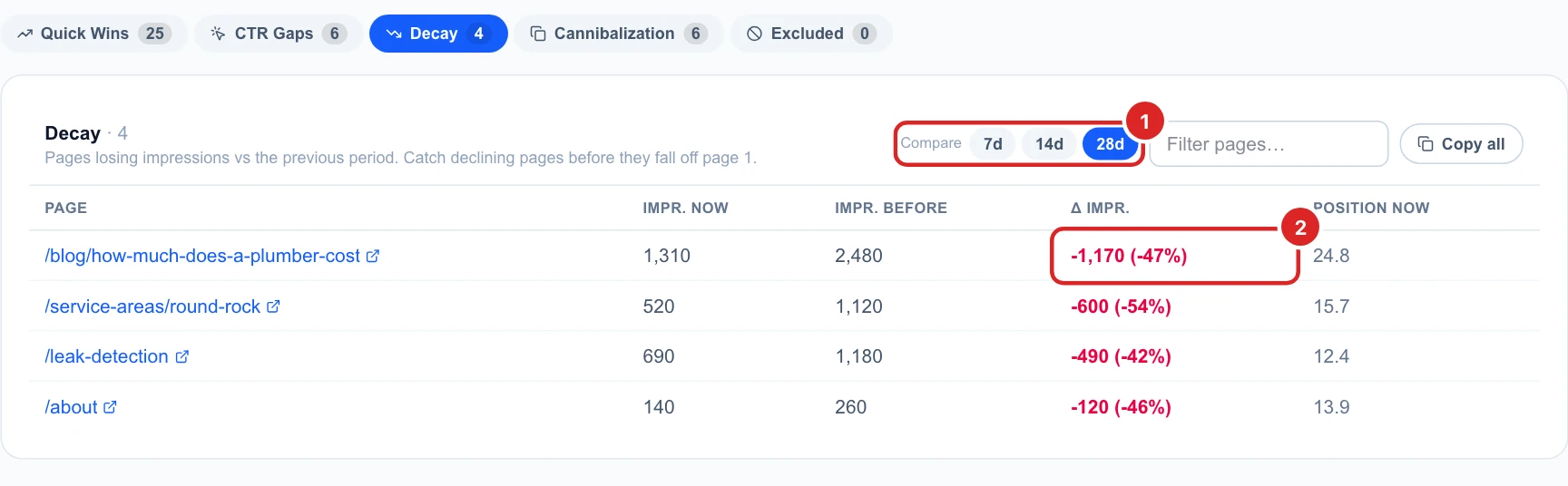
What to do about a page that’s slipping:
- Check it still opens, and that nothing changed by accident: its title, its text, its address.
- Update it: new prices, current photos, answers to the questions customers ask today.
- Track its main keyword to see whether it lost a ranking or just fewer people searched. Seasonal services drop every year on their own.
Fix pages that compete: Cannibalization
Cannibalization lists searches where two or more of your pages each got at least 10 impressions. Google keeps switching between them, and neither ranks as well as one strong page would.
- Pages: how many of your pages showed for that search.
- Winning Page: the one that got the most impressions.
- Under each search, every competing page with its impressions and average position.
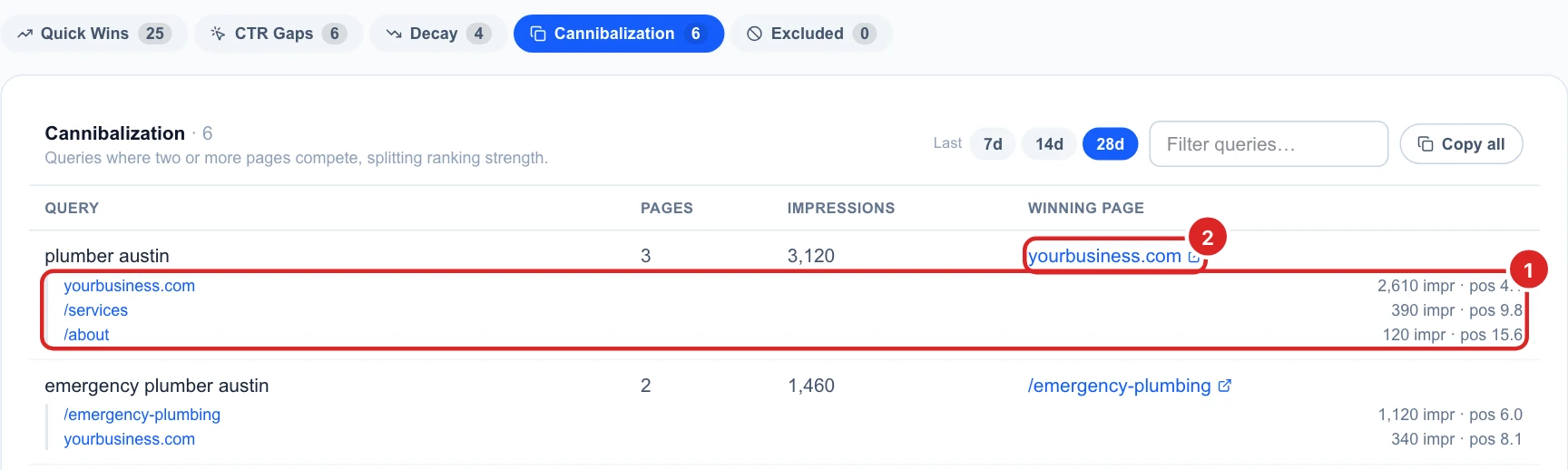
Decide which page should rank for the search. Then make the other pages link to it using the search’s words, and if two pages say the same thing, merge them into one and redirect the old address. If the winning page isn’t the one you want, strengthen the one you want instead.
Hide searches that aren't customers
Click Exclude on a row of Quick Wins to hide that search from every list.
Excluded (or the Exclusions button) shows everything you hid. Type words to exclude, several separated by commas, and click Add. Click Restore to bring a search back.
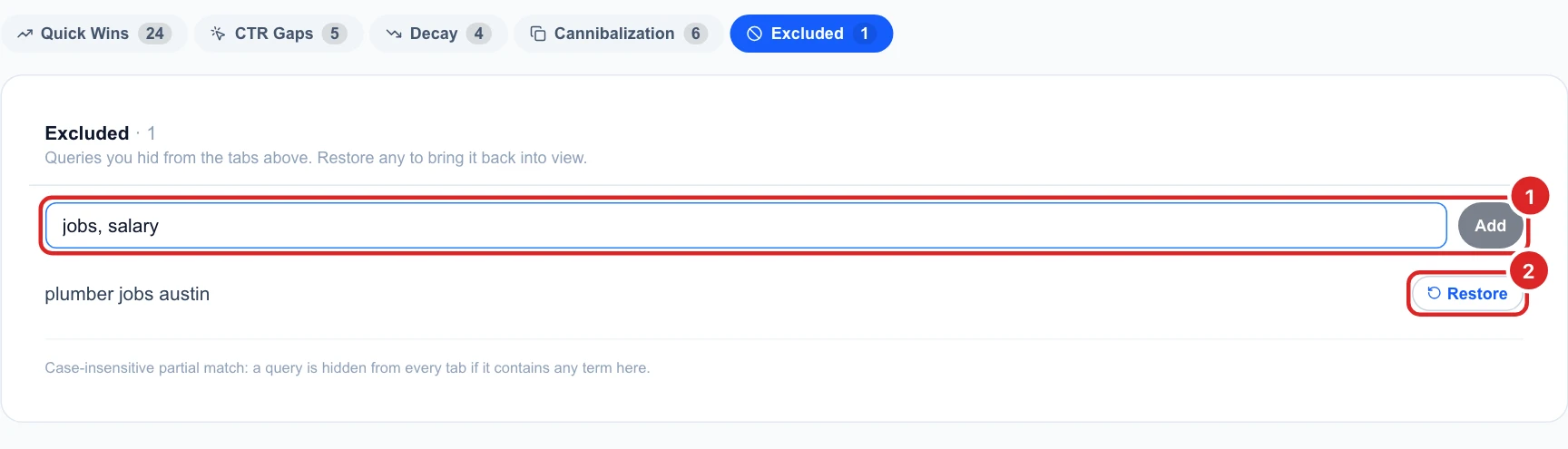
A search is hidden if it contains any excluded word, in upper or lower case: jobs hides plumber jobs austin and plumbing jobs near me. Exclusions are saved with the campaign, so everyone on your workspace sees the same lists. They don’t change Search Insights, which has its own Exclude terms box.
Filter and copy a list
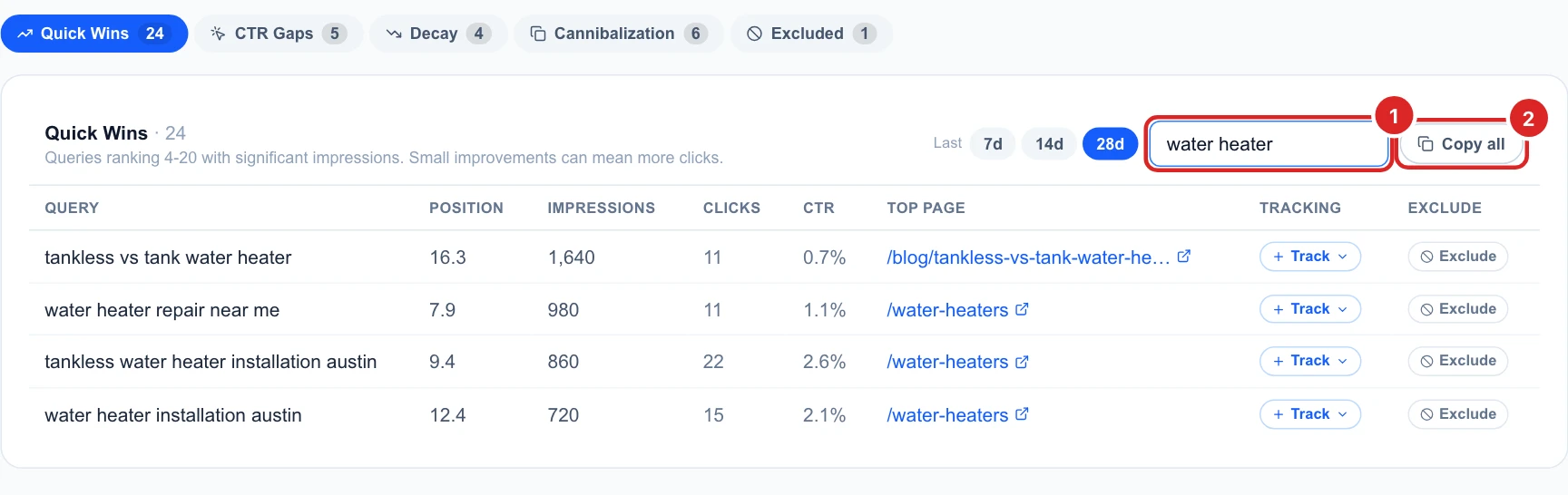
Filter queries (or Filter pages on Decay) keeps only the rows containing a word, for example water heater. Copy all copies every row shown with all its columns, ready to paste into a spreadsheet. On Cannibalization it adds a column listing every competing page.
Decide what to do next
A simple routine that works for most local businesses:
- Every week: check Decay on 7 days, so a slipping page gets fixed early.
- Every month: pick the three Quick Wins with the most impressions, improve their top pages and track them. Rewrite the titles of your biggest CTR Gaps.
- Now and then: clear up Cannibalization on your most important searches.
Then follow the keywords you track in the Keywords tab, see how to read one keyword’s ranking history.