GBP Management
Audit widget for agencies: win clients from your website
Put a Google Business Profile check on your website. Visitors see their score, get the full report from your own email, and land in your leads.
Updated November 6, 2026 · 10 min read
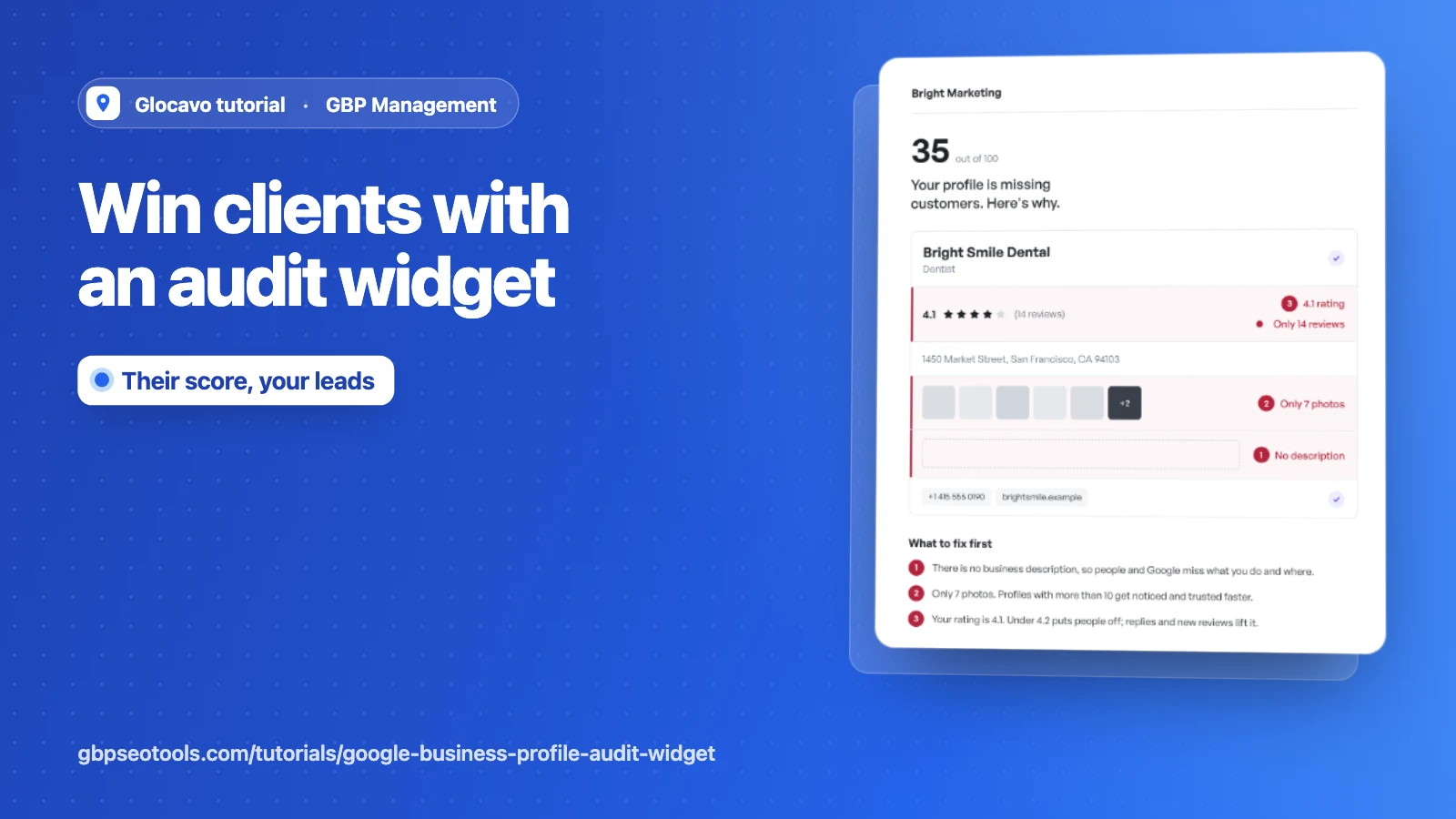
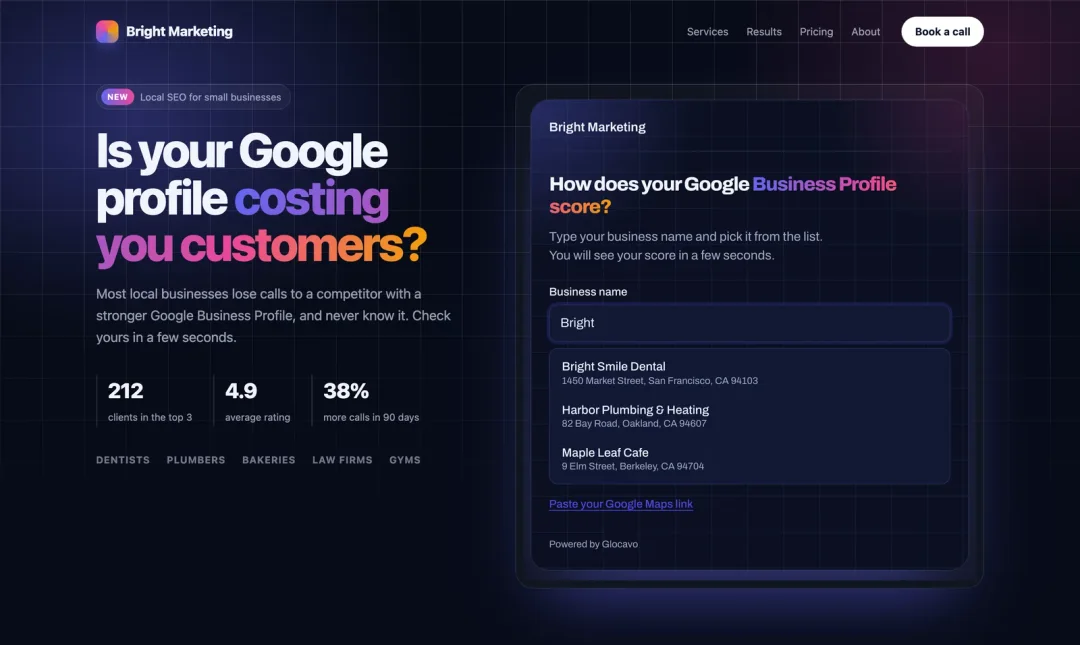
The GBP audit widget puts a Google Business Profile check on your website. A local business owner types their business name and sees their score in a few seconds. To get the full report, they leave their name and email. The report reaches them from your own email address, with your name and design on it, and they land in your list as a lead.
- Where
- GBP Management, Audit widget
- You need
- Any paid plan, and an email address to send the reports from
- Cost
- 5 AI Power per score, 40 per full report. The same business again within 7 days costs nothing.
Know what it does and what it costs
The widget is built for anyone who sells local SEO or marketing: agencies, freelancers and consultants. It works on a one-person website too. Your visitors get:
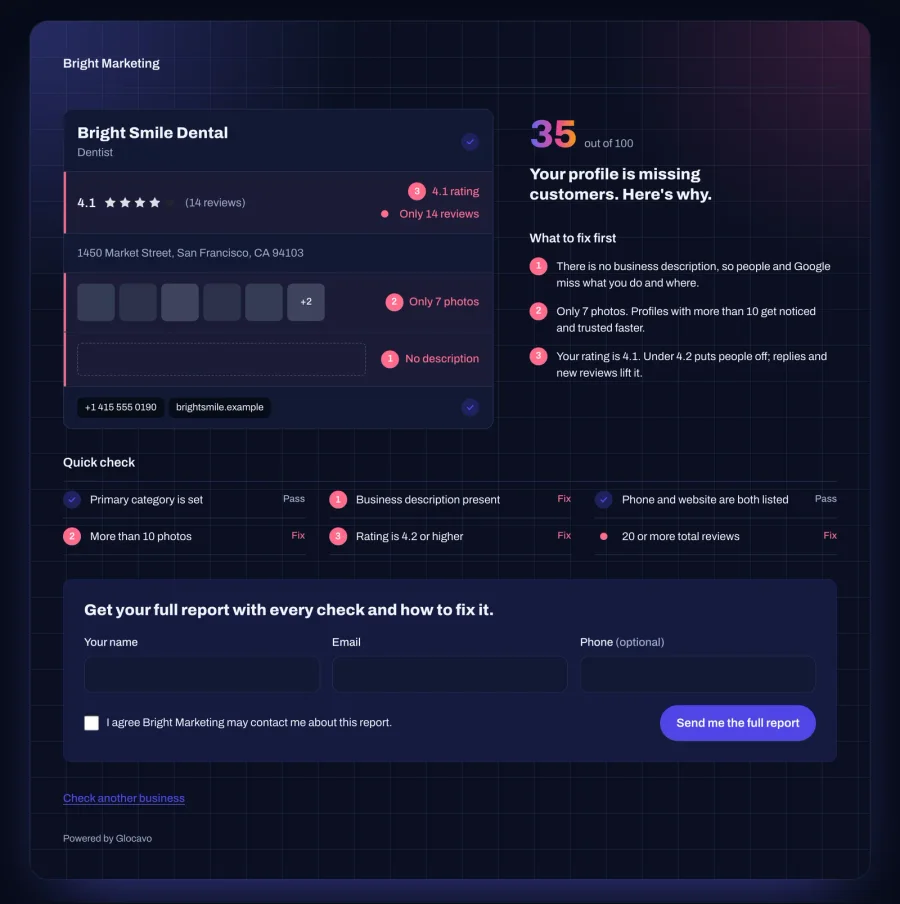
- A live score, out of 100, with the problems marked on a picture of their listing and the three to fix first. No details asked.
- The full report by email once they leave their name and email: 48 checks, how to fix each one, and your button to book a call.
Both are paid from your workspace’s AI Power:
- 5 AI Power for each score.
- 40 AI Power for each full report, so a complete lead costs 45.
- Nothing when the same business was checked in the last 7 days. The saved result is used again.
The audit widget is on every paid plan: Starter, Basic, Studio and Agency. You get one widget per workspace.
Open the Audit widget page
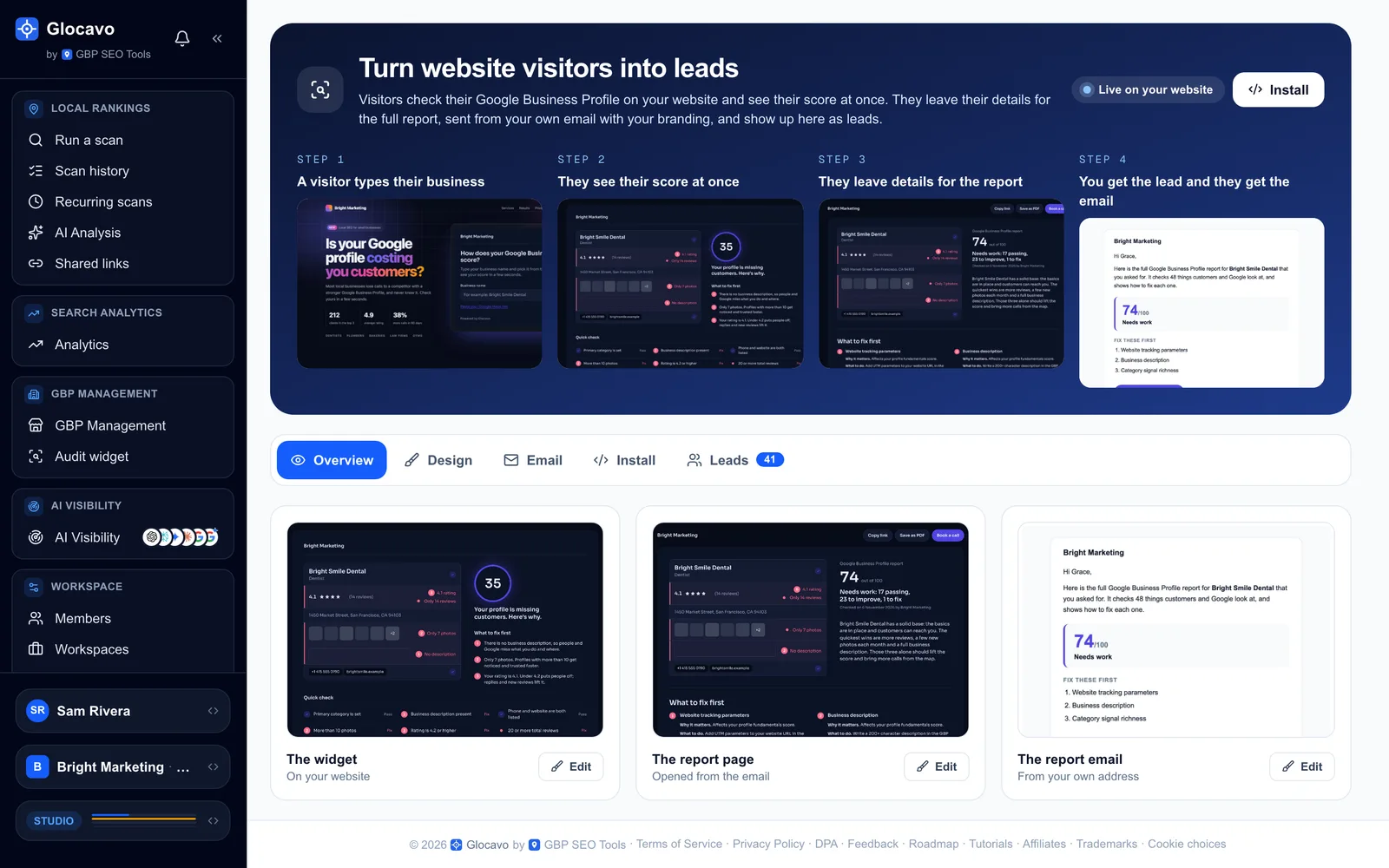
In the menu on the left, under GBP Management, click Audit widget. The band at the top shows the four steps a visitor goes through, whether the widget is live, and an Install button. Under it, a menu splits the page into five parts:
- Overview: your widget, report page and report email side by side, and what’s left to set up.
- Design: how everything looks.
- Email: the address your reports come from.
- Install: the code for your website, the on/off switch and your daily limit.
- Leads: everyone who asked for a report, with this month’s numbers.
Pick a template
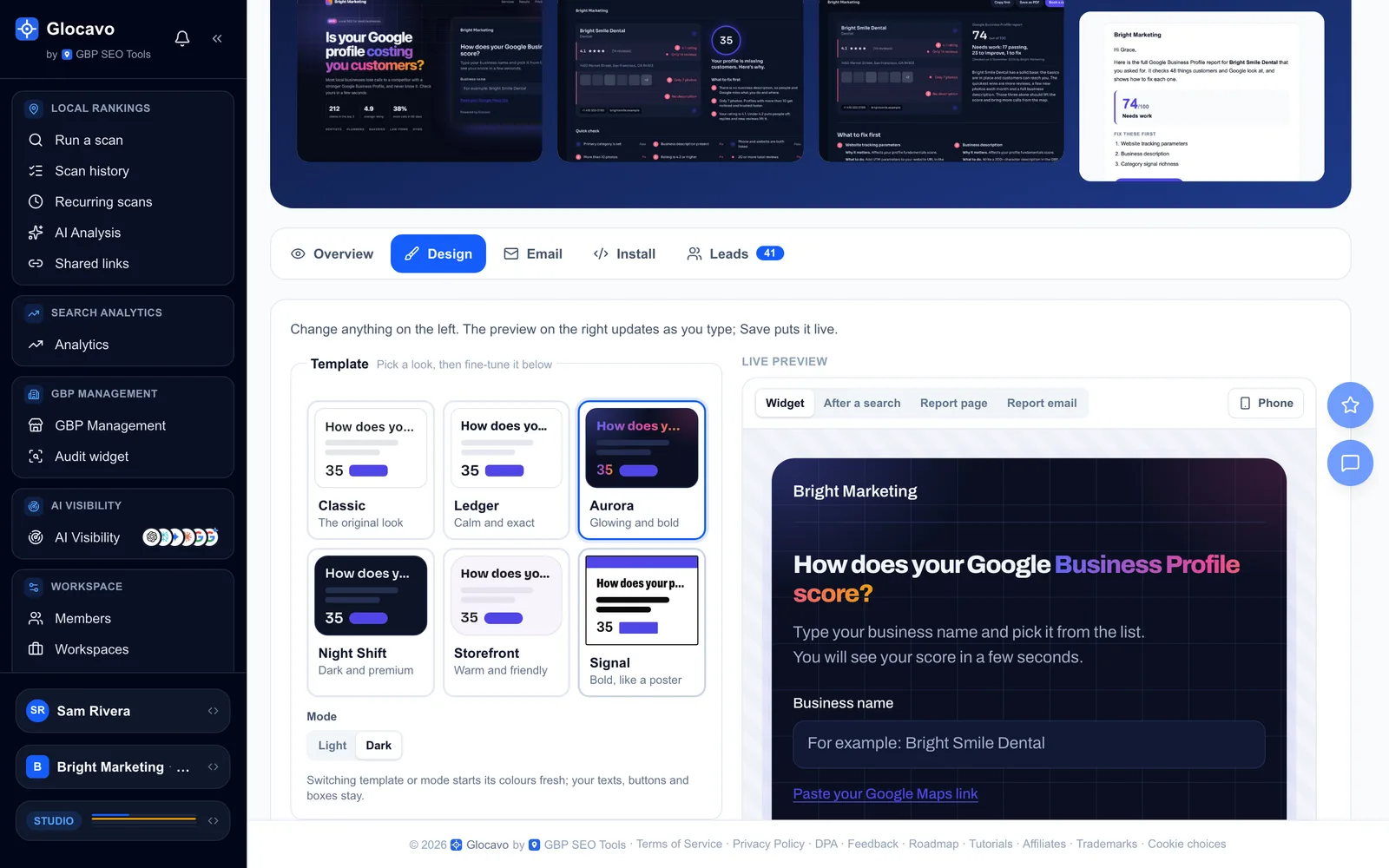
Open Design. The left side holds every setting, and the Live preview on the right changes the moment you click. Start with a Template:
- Classic: the original look.
- Ledger: calm and exact.
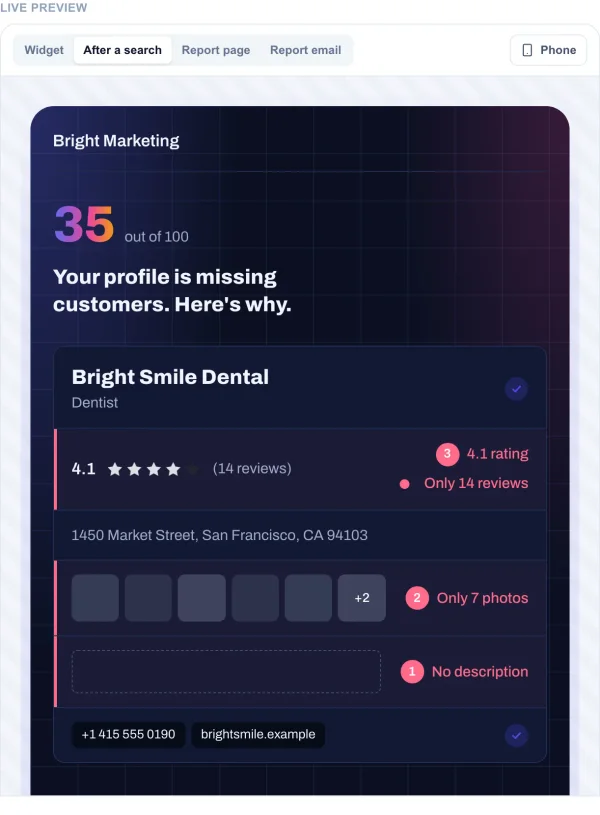
- Aurora: dark, with a glowing headline and a soft grid behind the card.
- Night Shift: dark and premium.
- Storefront: warm and friendly.
- Signal: bold, like a poster.
Every template has a Light and a Dark version under Mode. Switching template or mode starts its colours fresh. Your texts, buttons and boxes stay.
Nothing goes live until you click Save design in the bar at the bottom. It says Saved when there’s nothing new to save, and Glocavo asks before you leave with unsaved changes.
Add your agency details
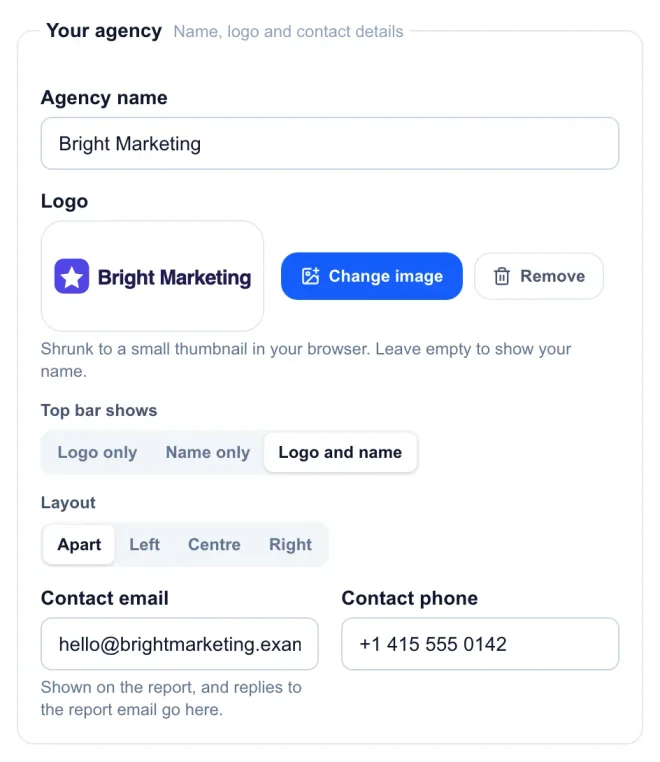
Under Your agency go your name, logo and contact details. If you already set up white-label branding, they’re filled in for you.
- Agency name: the only required field.
- Logo: upload an image (your browser shrinks it to a small thumbnail). On a dark design it sits on a small white plate, so a dark logo stays readable.
- Top bar shows: your logo, your name, or both.
- Layout: where they sit. Apart puts the name left and the logo right; Left, Centre and Right keep them together. The report page and email follow it.
- Contact email and Contact phone: shown on the report. Replies to the report email go to this address.
Set your colours and font
Under Colours, a Quick accent colours your buttons and links in one click. Below it, set any colour exactly: click the swatch to pick one, or type its HEX code. Reset goes back to the template’s colour.
Headline glow puts a colour gradient on the last words of the headline and on the score number, on any template. Pick Aurora, Ocean, Sunset, Candy, Lime or Gold, the template’s own, or None for plain text.
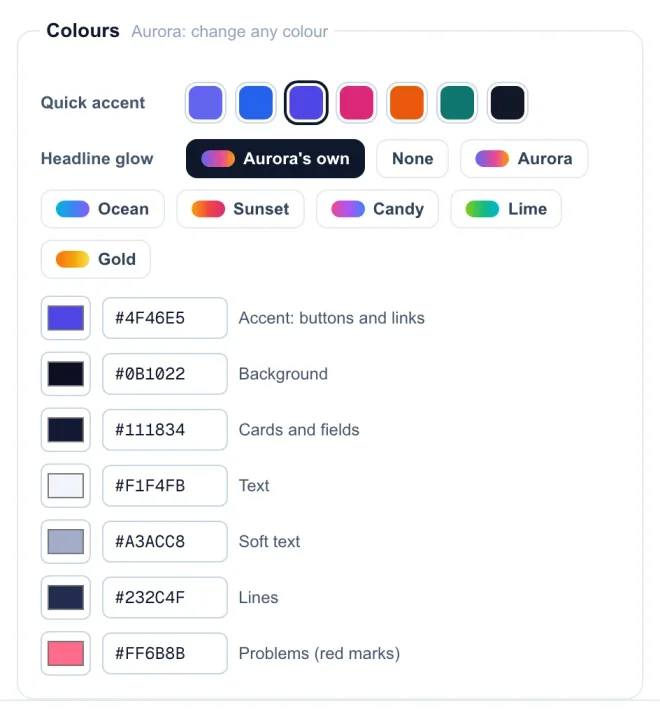
Under Font and shape, pick a Font. Same as my website uses the font of the page the widget sits on: Google Fonts and the fonts every computer has work by themselves, and a paid font falls back to the template’s. Type your font’s name to see it in the preview too. Then choose the Corners and the Shadow (None, Minimal, Medium or Strong).
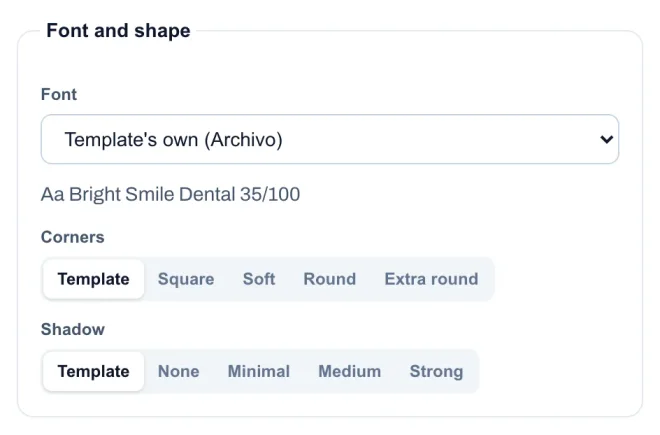
Emails use the closest safe font, since email programs can only show the fonts a computer has.
Change the texts, buttons and boxes
Texts holds every word visitors read: the headline, the intro, the search label, the lead form title, the trust line and the contact box. Leave one empty to keep the text shown in grey.
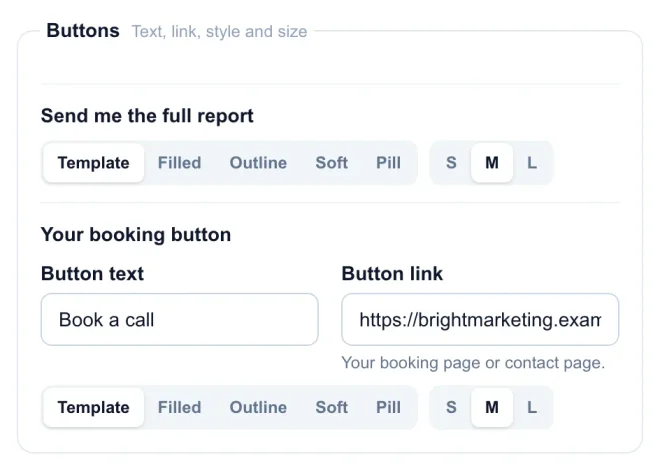
Buttons sets the style (Filled, Outline, Soft or Pill) and size of two buttons: the visitor’s Send me the full report, and your booking button, with its text and the link to your booking or contact page.
Boxes lists what shows after the score. Drag a box by its handle to change the order (or use the arrow keys on a keyboard), and switch each one on or off. The search box, profile card and lead form always show, so the widget keeps working. Business details picks what the profile card shows: reviews, address, photos, description, phone and website.
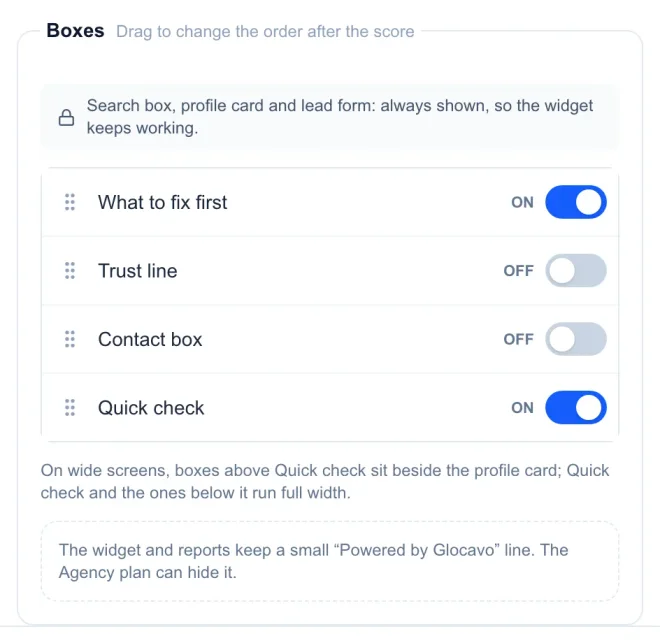
Every widget and report carries a small “Powered by Glocavo” line. On the Agency plan, a switch in Design hides it.
Check every page in the preview
The tabs above the preview show each thing a visitor sees, with your design:
- Widget: the search box on your website.
- After a search: the score, with a sample business.
- Report page and Report email: the full report.
Phone shows them at phone size. Searching inside the preview uses sample businesses, so nothing is charged or saved.
Connect the email your reports come from
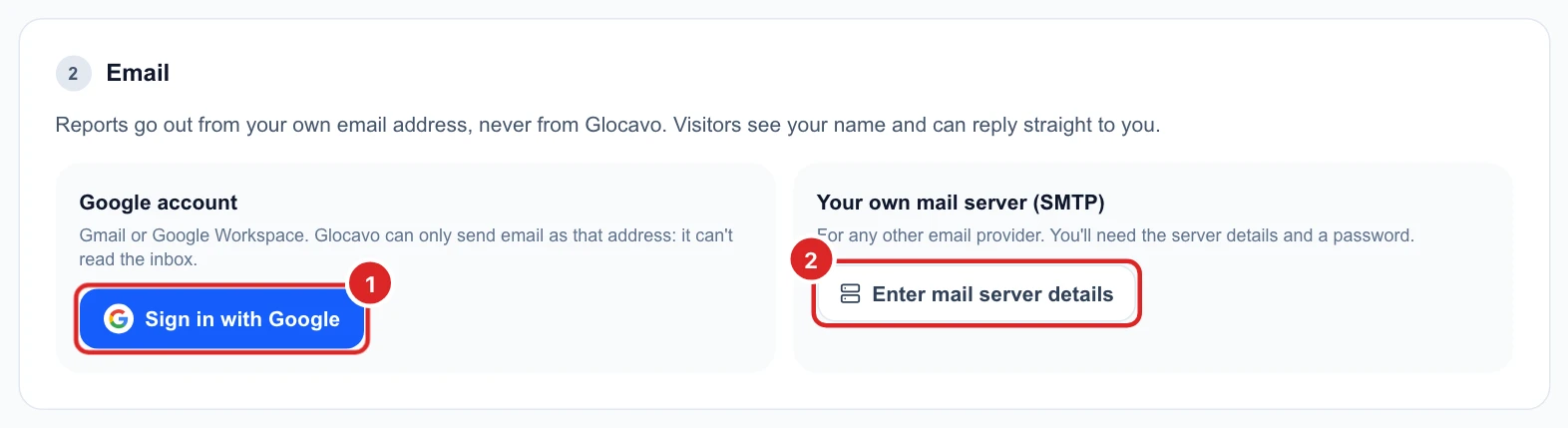
Open Email. Reports always go out from your own email address, never from Glocavo. Your visitor sees your name in their inbox and can reply straight to you. Pick one:
- Sign in with Google: for Gmail or Google Workspace. Glocavo can only send email as that address. It can’t read your inbox.
- Enter mail server details: for any other provider. Type your address, and for the best-known providers the server details fill in by themselves. Most need an app password, not your normal one.
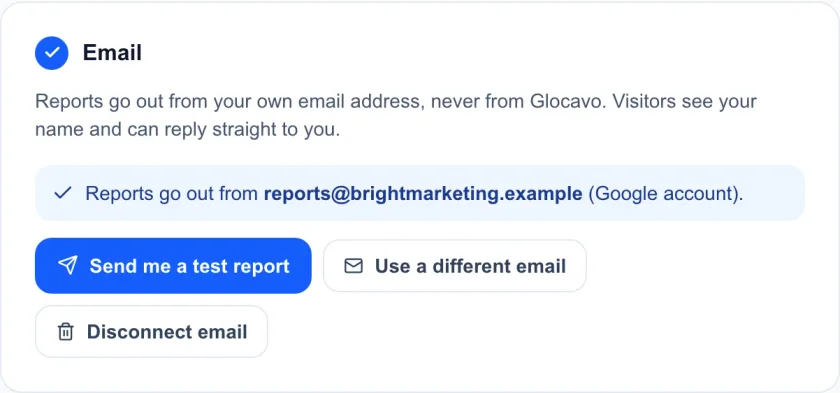
A mail server login is checked before it’s saved, and the password is stored encrypted. Once connected, click Send me a test report to see exactly what your visitors will get.
The widget can only be switched on once your email works. If the email stops working later, the widget switches off and new leads wait until you connect it again.
Put it on your website
Open Install and turn Widget on. While it’s off, visitors see a short “not available” message. Then pick how people reach it:
- Add it to your website: pick where your site is built (any website, WordPress, Wix, Squarespace, Webflow or Shopify) for the right steps, then Copy script and paste it where the check should appear. It sizes itself to fit, on computers and phones.
- Email it to my web person: sends the code and the steps to whoever looks after your website, from your own email.
- Share it as its own page: Copy link gives the same check on its own page, for emails, social posts and ads.
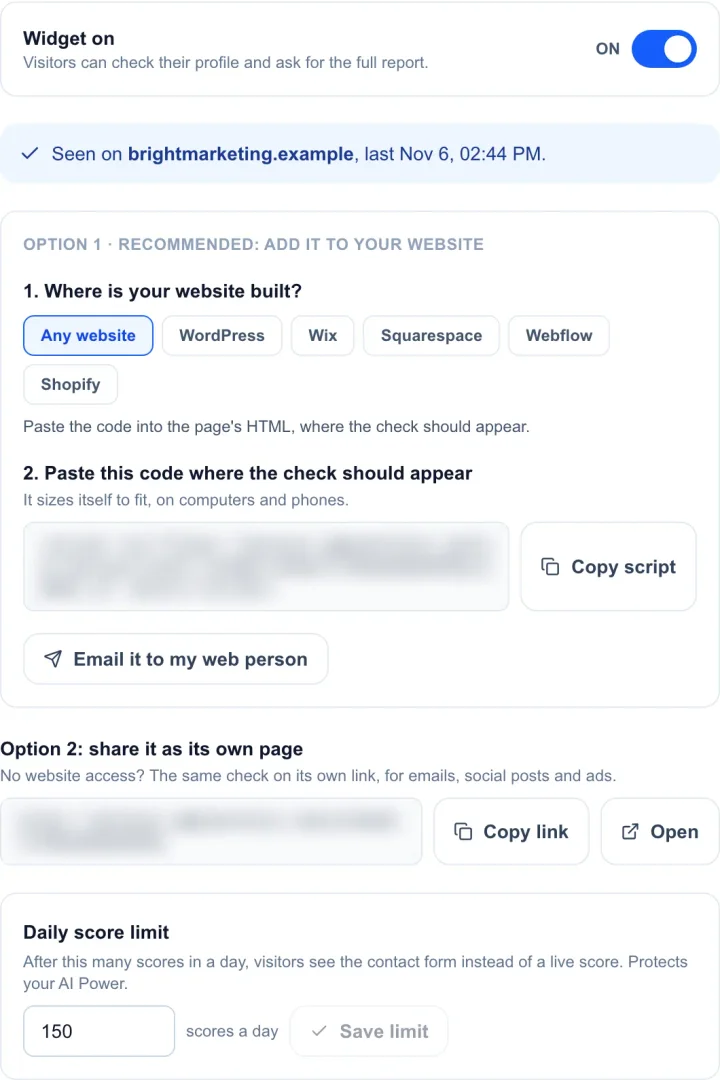
Once someone opens a page with your code, Seen on shows the website it’s live on, so you know the install worked.
The Daily score limit protects your AI Power. It’s 150 scores a day unless you change it, anywhere from 10 to 1,000. It also sets two more limits:
- Scores: past the limit, visitors see the contact form instead of a live score, so you still get the lead.
- Full reports: up to a fifth of the score limit a day (30 with 150). Leads past that wait and go out on the next days.
- Leads: up to three times the report limit a day (90 with 150). Past that, visitors are asked to come back later.
If you set up a custom report domain, your script, link and report pages use it.
See what your visitors see
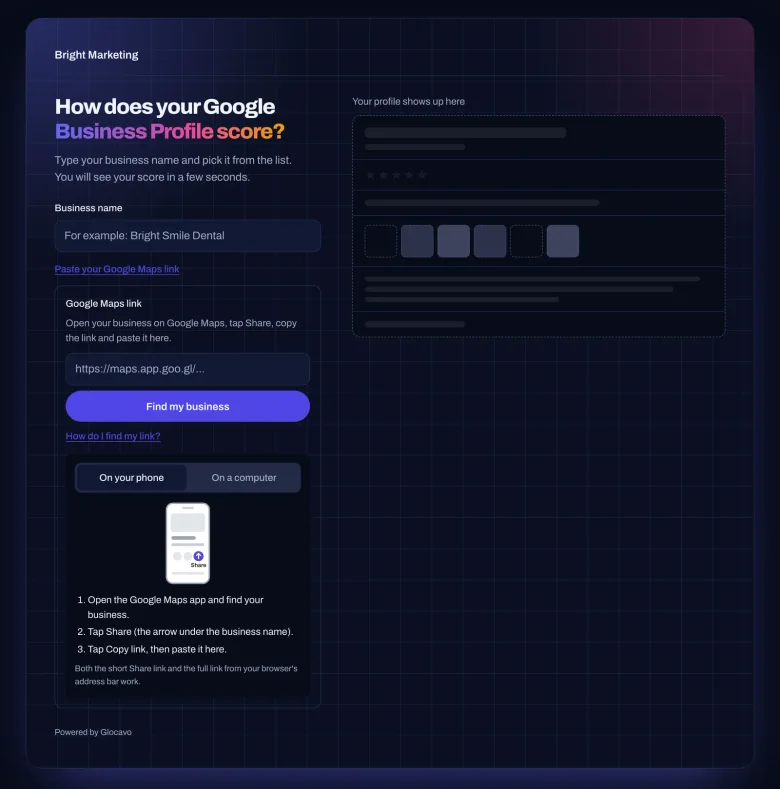
Your visitor types their business name and picks it from the list. A service-area business that doesn’t show up can use Paste your Google Maps link instead.
How do I find my link? opens a short how-to with drawings, for a phone or a computer.
The score comes up in a few seconds. Each problem is marked on a picture of their own listing, next to the three to fix first and six quick checks. Below it, a short form asks for their name, email and, if they like, phone, with a tick to agree that you may contact them about the report.
After they send it, the report email reaches them from your address within a few minutes, with your logo, design, button and contact details.
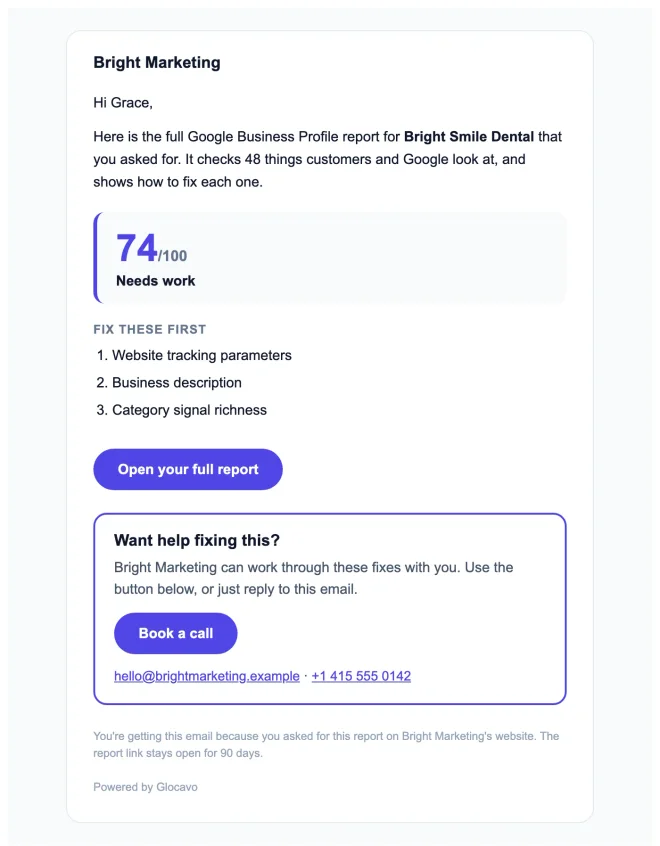
The full report checks 48 things, including where they show up in the map results nearby, so its score is often different from the quick score. Every problem comes with what to do about it.
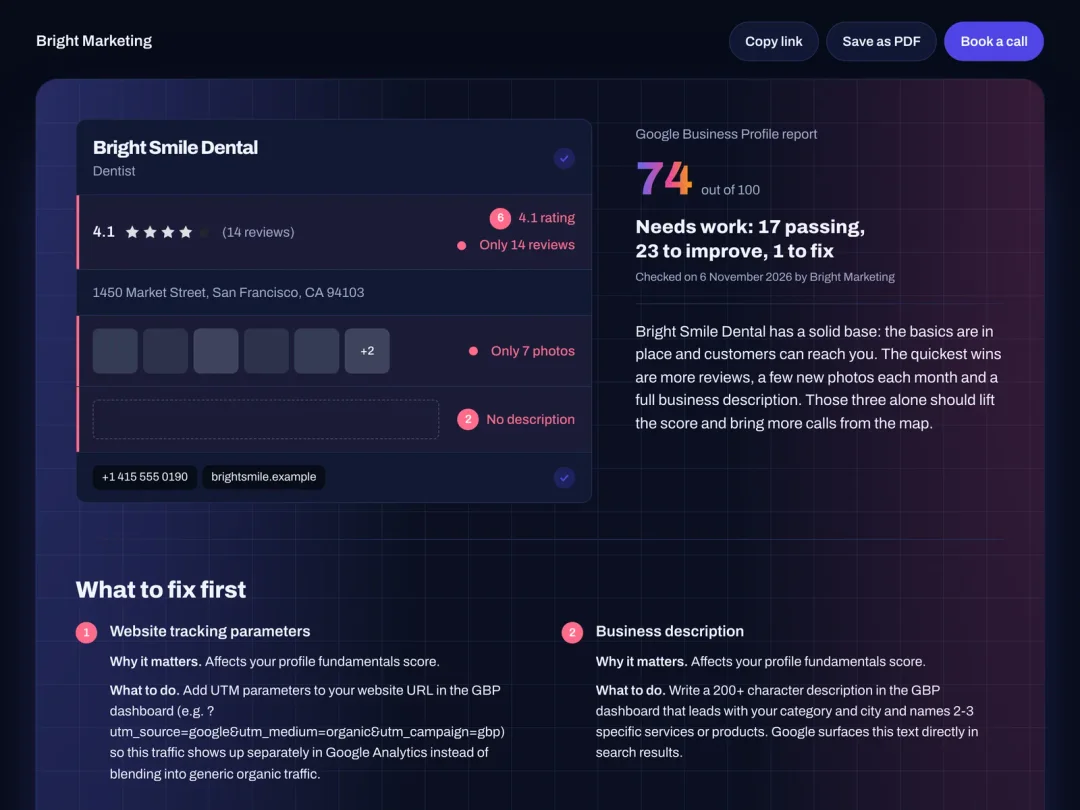
The report page stays open for 90 days.
Follow up with your leads
Open Leads. This month counts each step since the 1st: how many saw the widget, checked their score, left their details and booked a call.

Below it, every visitor who asked for the report, newest first, with their business, score, contact details and date. Each lead has a status:
- Report sent: the report is in their inbox.
- Waiting for AI Power: top up and it goes out by itself.
- Daily limit reached: it’s tried again for 3 days while there’s room. Raise the daily limit in Install to send more.
- Email problem: reconnect: connect your email again in Email, then it goes out.
- Email could not be delivered: the address didn’t work. Check it with the lead, or call them.
- Report failed, retrying: it’s tried again every hour, and nothing is charged until it works.
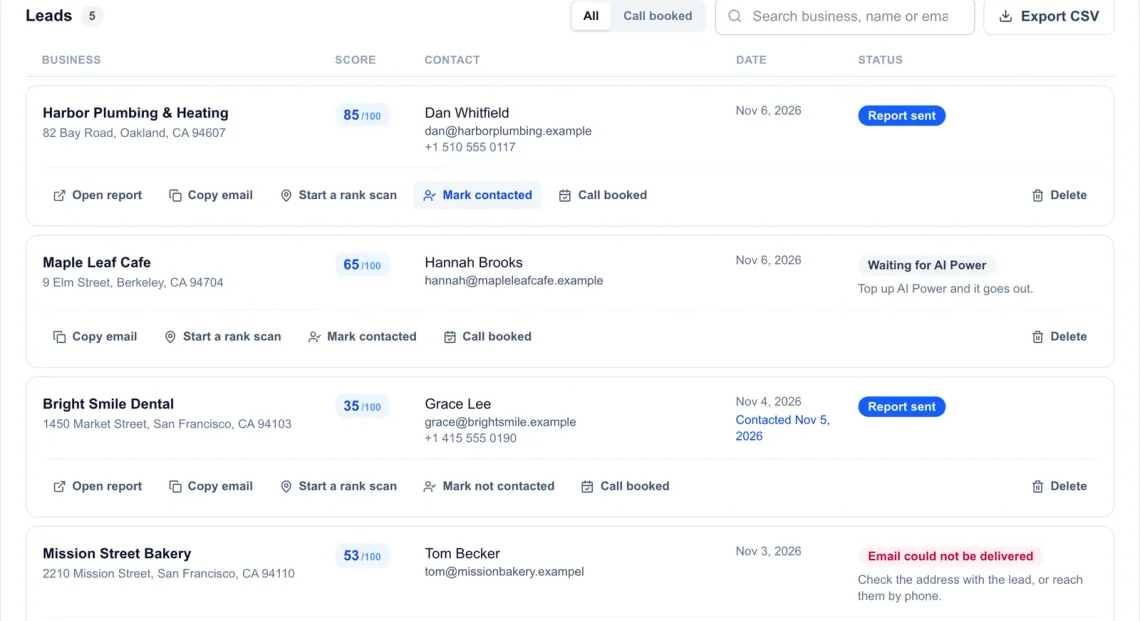
For each lead you can:
- Open report: the same report your lead got.
- Copy email: to write to them yourself.
- Start a rank scan: opens the scan form with their business filled in, so you can show them where they rank. It uses your usual scan credits, see run your first grid scan.
- Mark contacted: keeps track of who you’ve already reached.
- Call booked: marks the leads that booked a call, for the last number in This month.
- Delete: removes the lead for good.
Call booked at the top shows only those leads. Search finds a lead by business, name or email, and Export CSV downloads the list for your CRM, with a Call booked column.
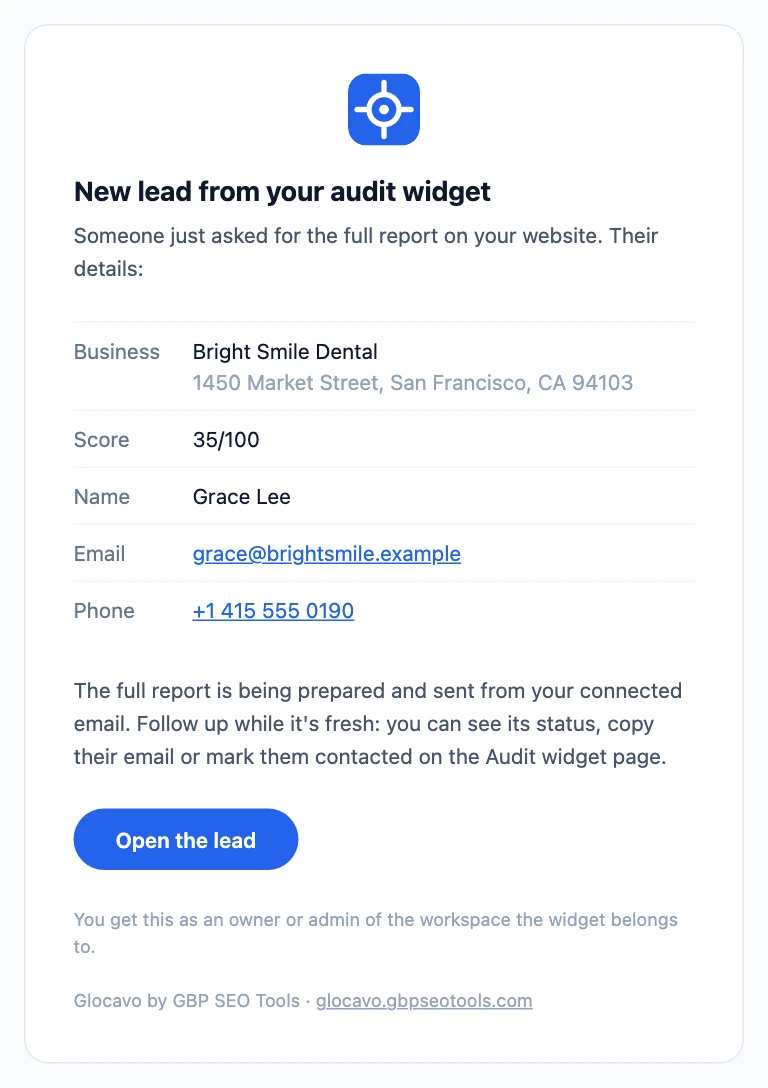
You don’t have to keep the page open. The workspace owner and admins get a New lead email the moment someone asks for a report, with their details and a button to the lead.
Keep enough AI Power
The box at the top of Install shows your AI Power left and how many leads are waiting for it. Click Top up AI Power to add more.

When AI Power runs low, nobody is turned away:
- Under 5 left: visitors skip the score and see the contact form, so the lead is still saved.
- Under 40 left: the lead is saved as Waiting for AI Power, and the report goes out once you top up.
See plans and top-ups for how AI Power is added each month and how top-ups work.