GBP Management
Send Google Business Profile reports to your clients
Make monthly reports your clients can open without logging in, choose what's inside and email them automatically. Also: the reviews API and room for more businesses.
Updated November 1, 2026 · 6 min read
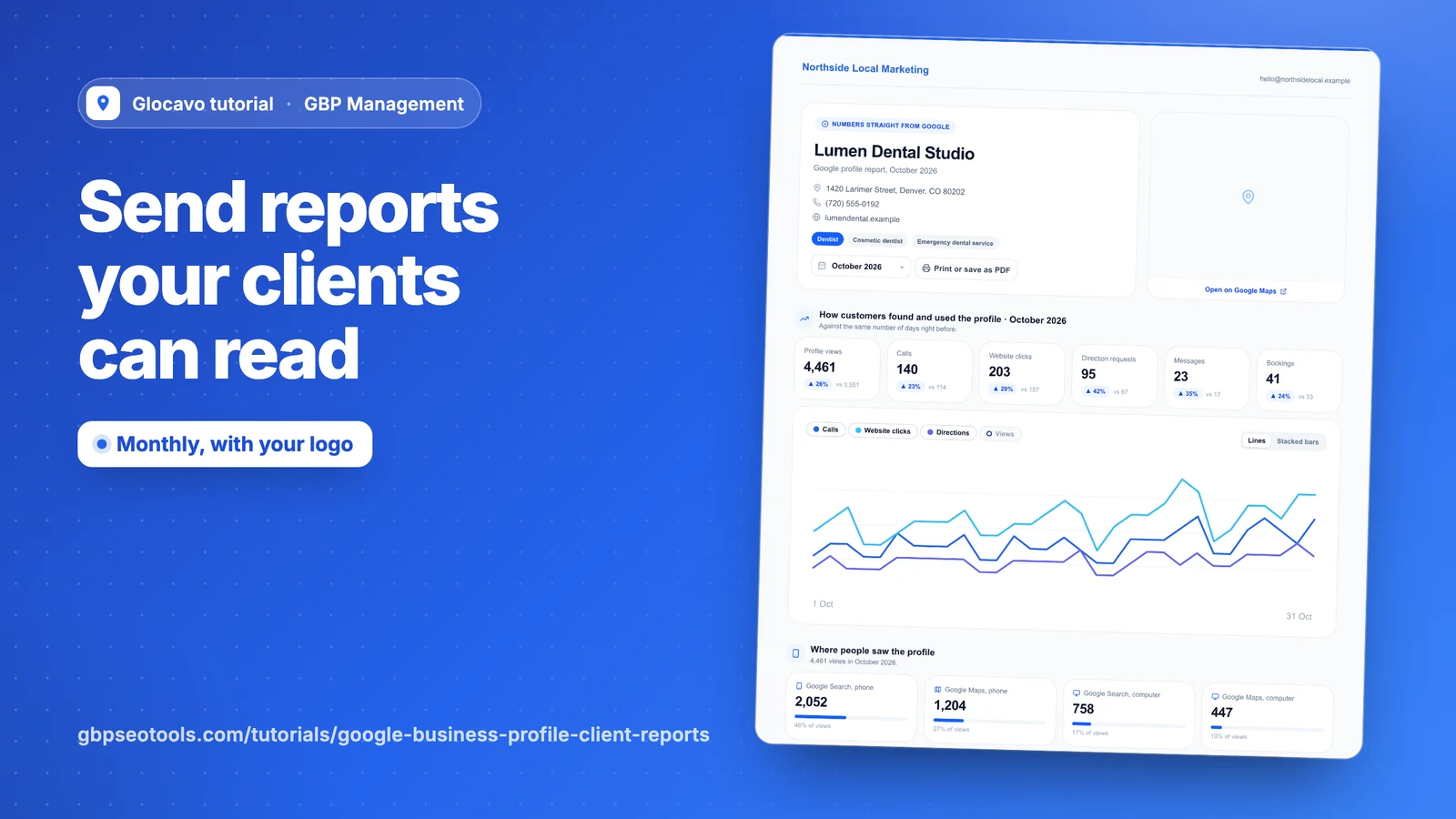
Client reports turns a business’s traffic, searches, reviews and rankings into a clean report your client can open without logging in. Send it by email every month or week. This guide also covers using your reviews in your own tools and adding room for more businesses.
- Where
- GBP Management, open a business, Website & reports, Client reports
- You need
- A connected business, see connect your Google Business Profile
- Cost
- Included, no AI Power
Make a report
Click Website & reports, then Client reports. Pick any of the last 18 months and click Make the report. Every report you make stays in the list with its own link.
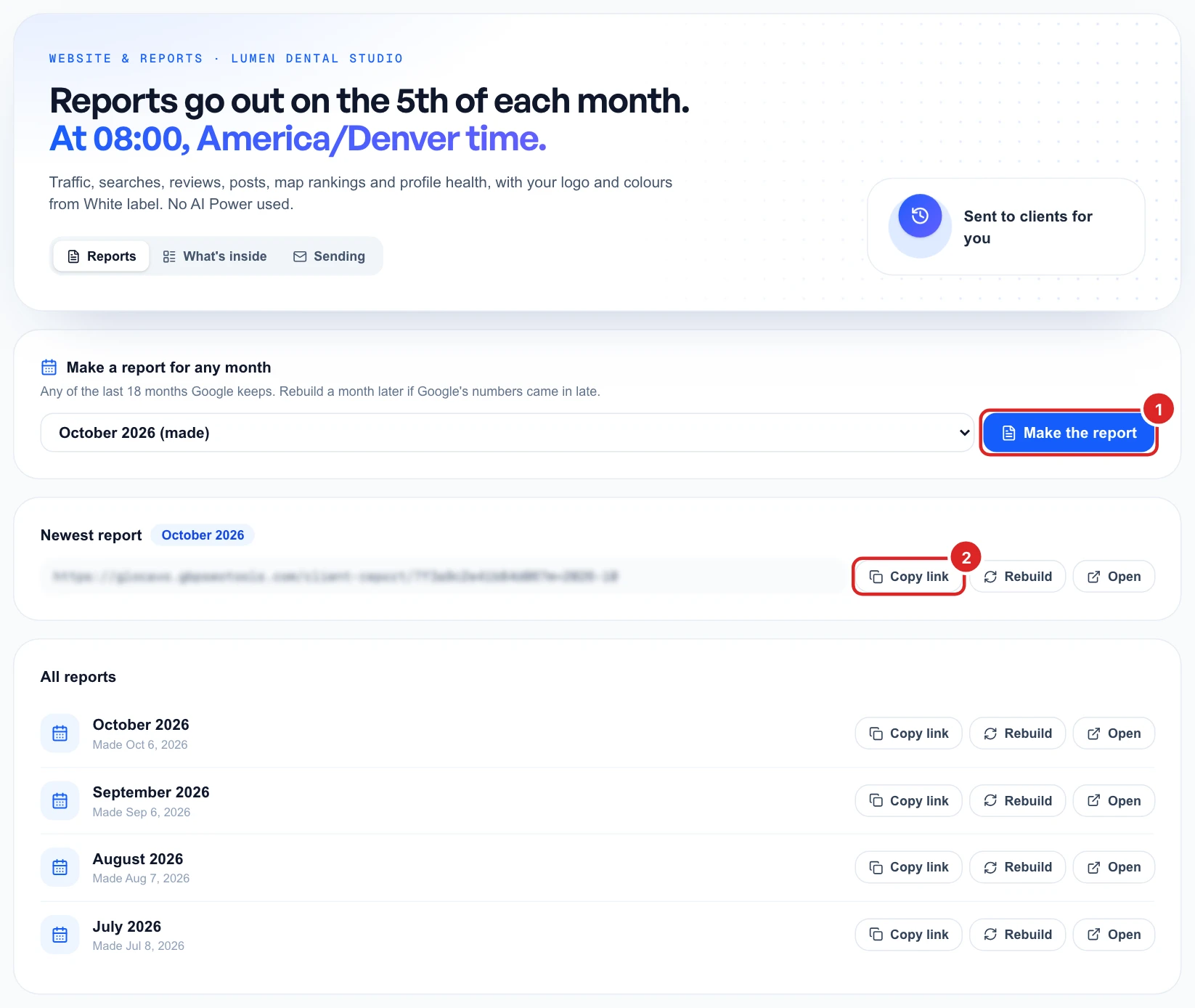
Rebuild remakes a month, which helps if Google’s numbers came in late.
Anyone with the link can open the report, so share it only with the people it’s for.
See what your client sees
Click Open to see the report. It has one month at a time, and your client can switch to other months or use Print or save as PDF.
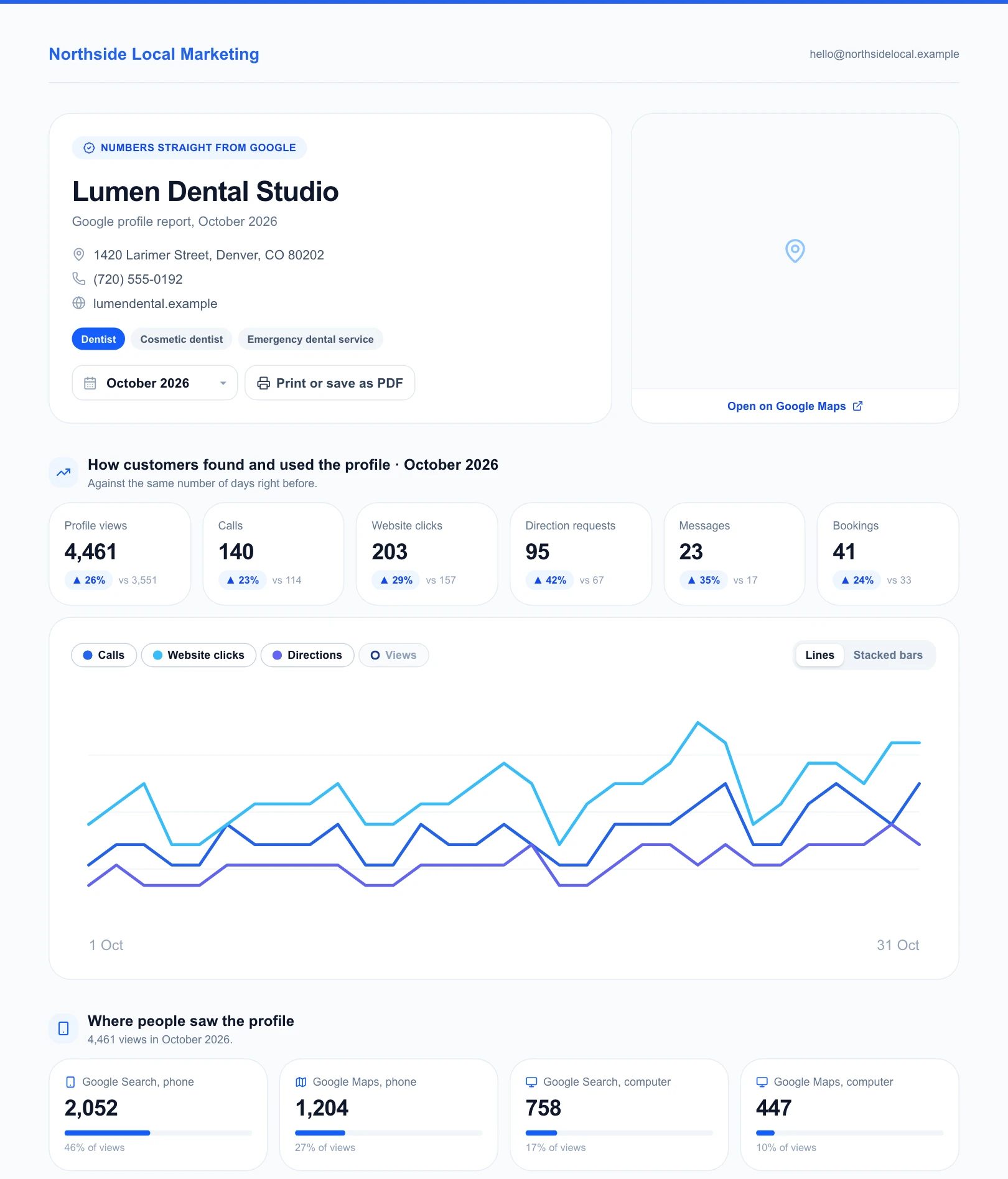
To show your own logo, colors and contact details, set up white-label branding.
Choose what's inside
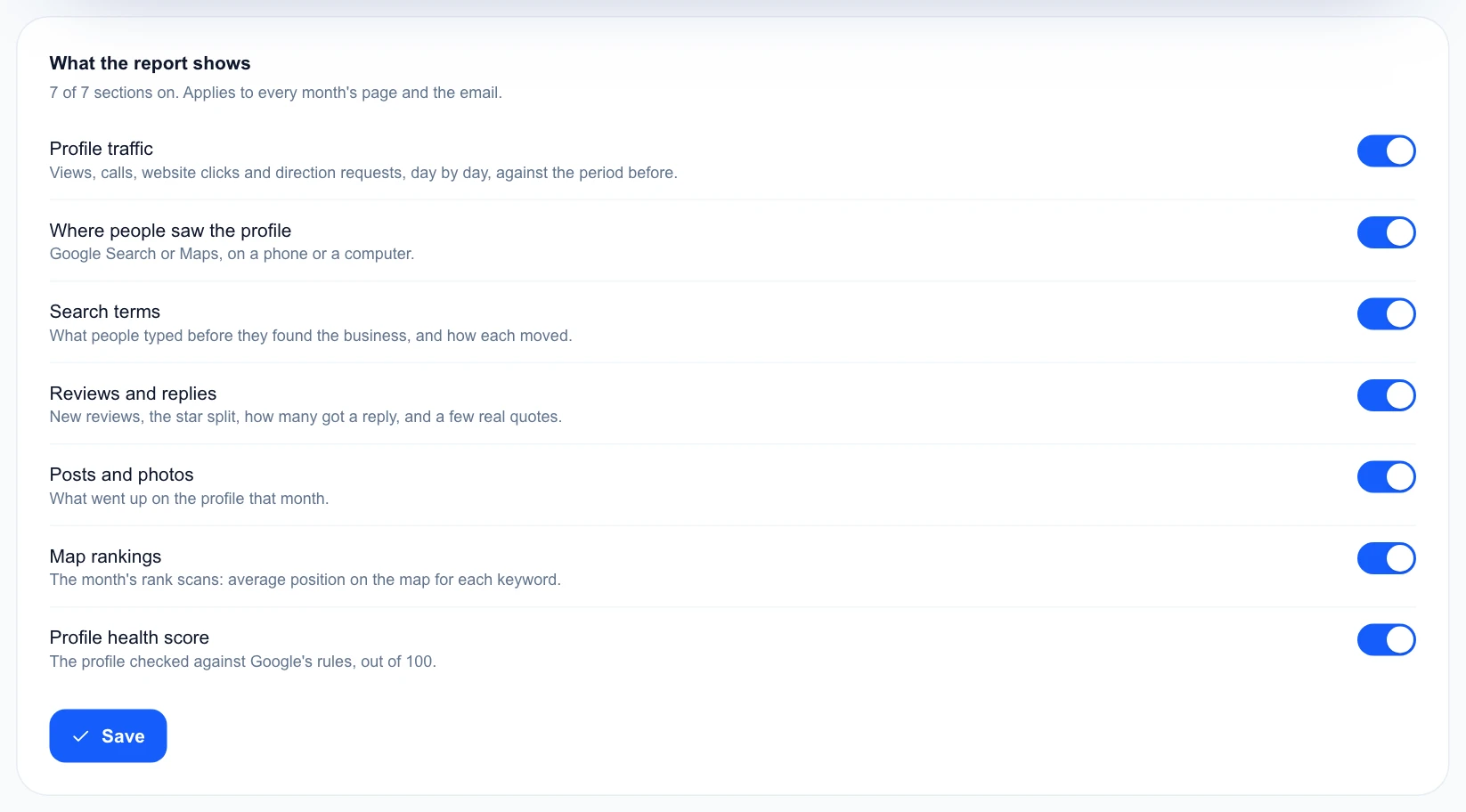
Click What’s inside and switch off anything you don’t want to show, then click Save. It applies to every month’s page and the email.
Send it by email
Click Sending, switch on Send reports by email, and add up to 5 people. Then choose:
- Monthly: last month’s report on the day you pick, from the 4th to the 28th. Google’s numbers for a month settle about 3 days after it ends.
- Weekly: the last 7 days, every Monday.
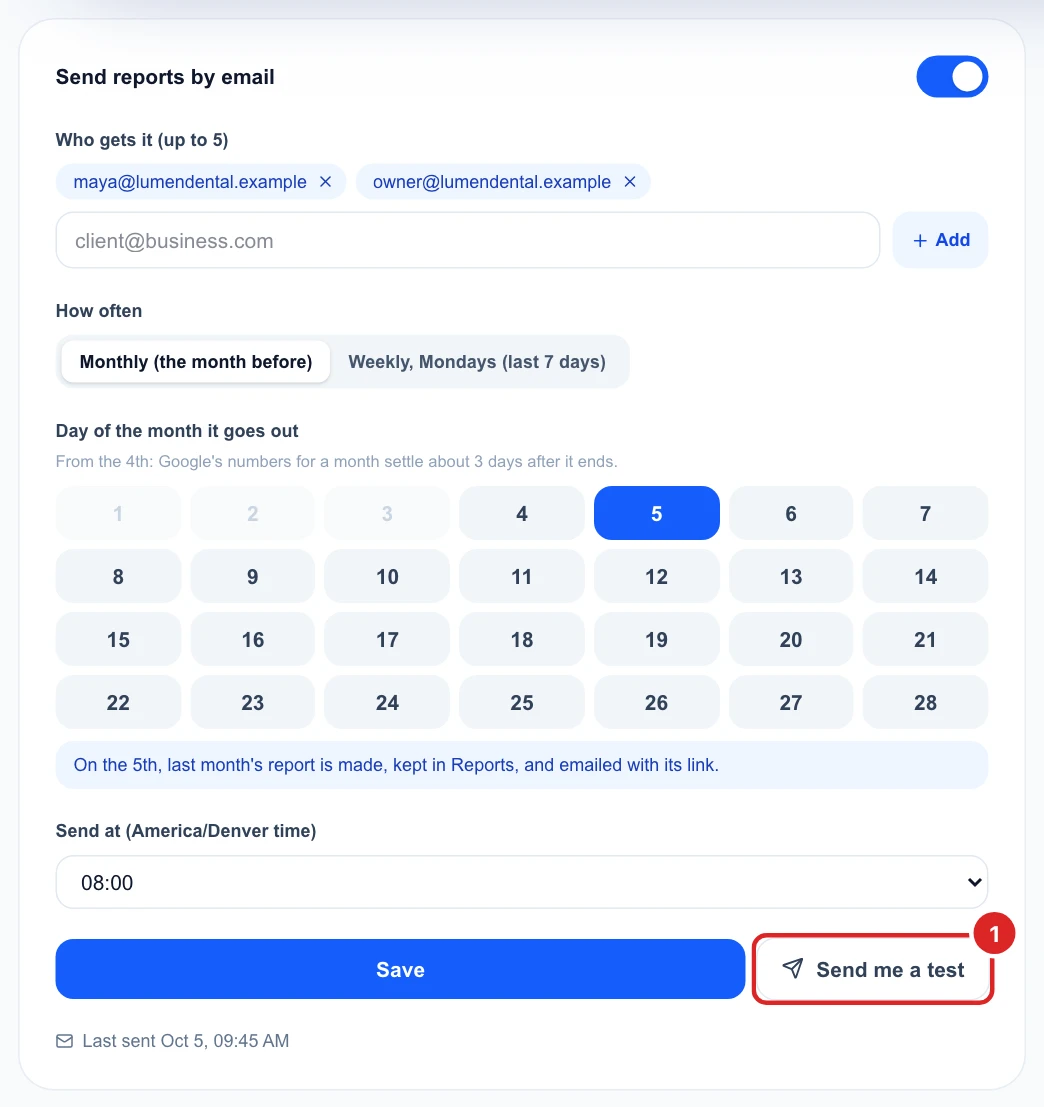
Pick the hour and click Save. Send me a test goes only to you, so you can check it before your client sees it.
Use your reviews in your own tools
On the Studio and Agency plans, you can read a business’s reviews and post replies from your CRM, helpdesk or scripts. Click Settings, then API access. The examples are ready to copy, with this business’s id filled in.
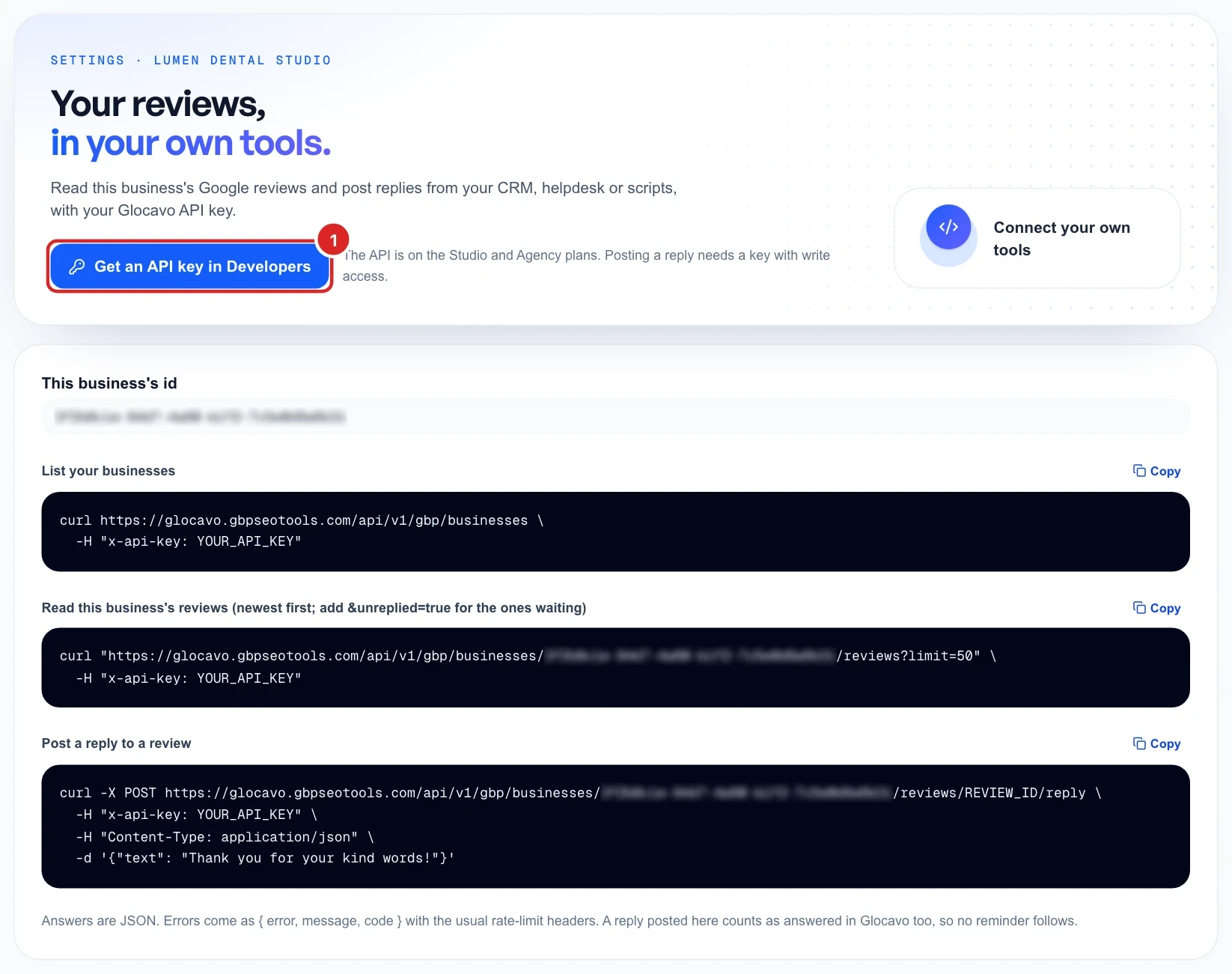
To post replies, your key needs write access. See create a Glocavo API key. A reply posted this way counts as answered in Glocavo too, so no reminder follows.
Add room for more businesses
Your plan includes 1 to 12 businesses, and that count covers all your workspaces. When every slot is in use, your campaign page offers Room for more businesses. Extra capacity has three levels:
- +5 businesses: $19.99 a month, with 300 more AI Power and 250 more review requests a month.
- +15 businesses: $49.99 a month, with 900 more AI Power and 750 more review requests a month.
- +40 businesses: $99.99 a month, with 2,400 more AI Power and 2,000 more review requests a month.
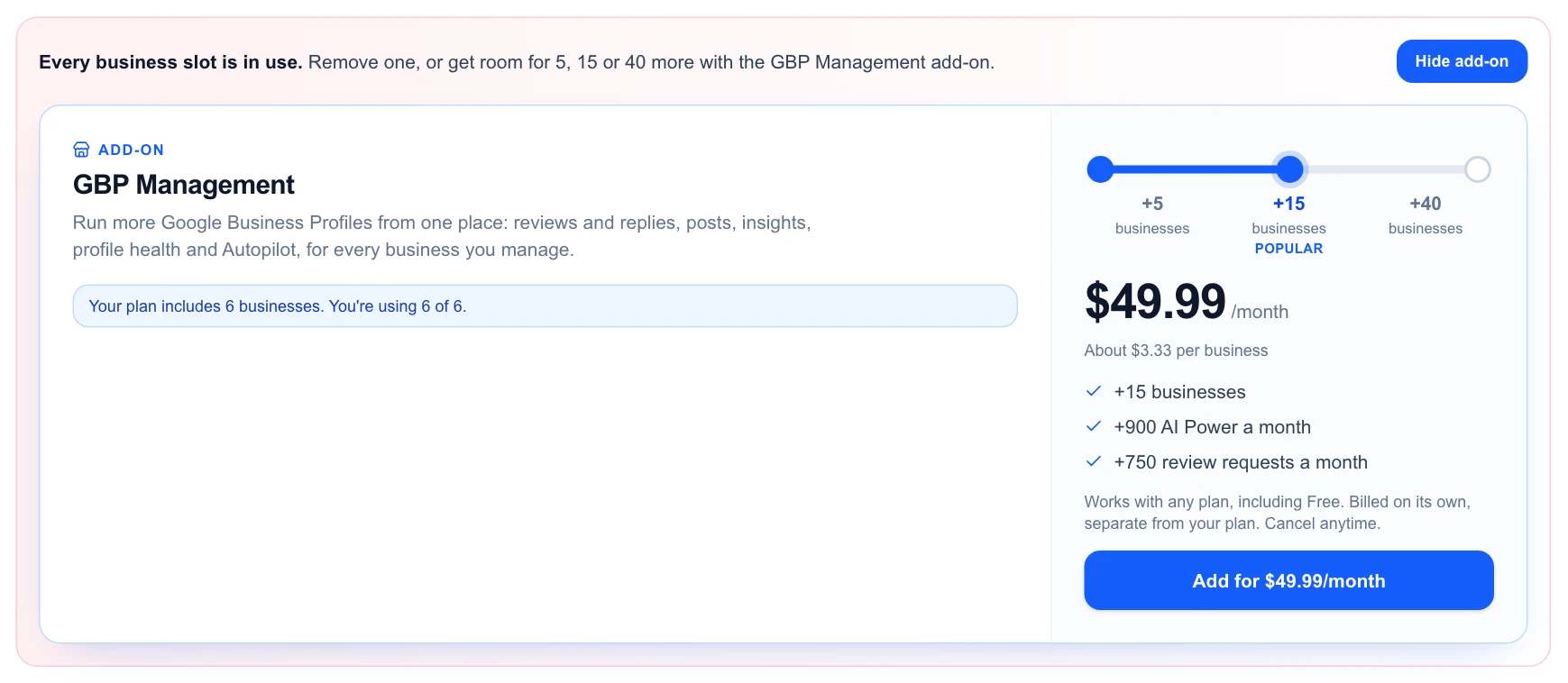
It works with any plan and is billed on its own, so you can cancel it any time. See plans and top-ups for how plans work.