GBP Management
Reply to your Google reviews in Glocavo
Find the reviews waiting for an answer, draft a reply with AI, post it to Google, and teach the AI your tone, language and sign-off.
Updated October 31, 2026 · 5 min read
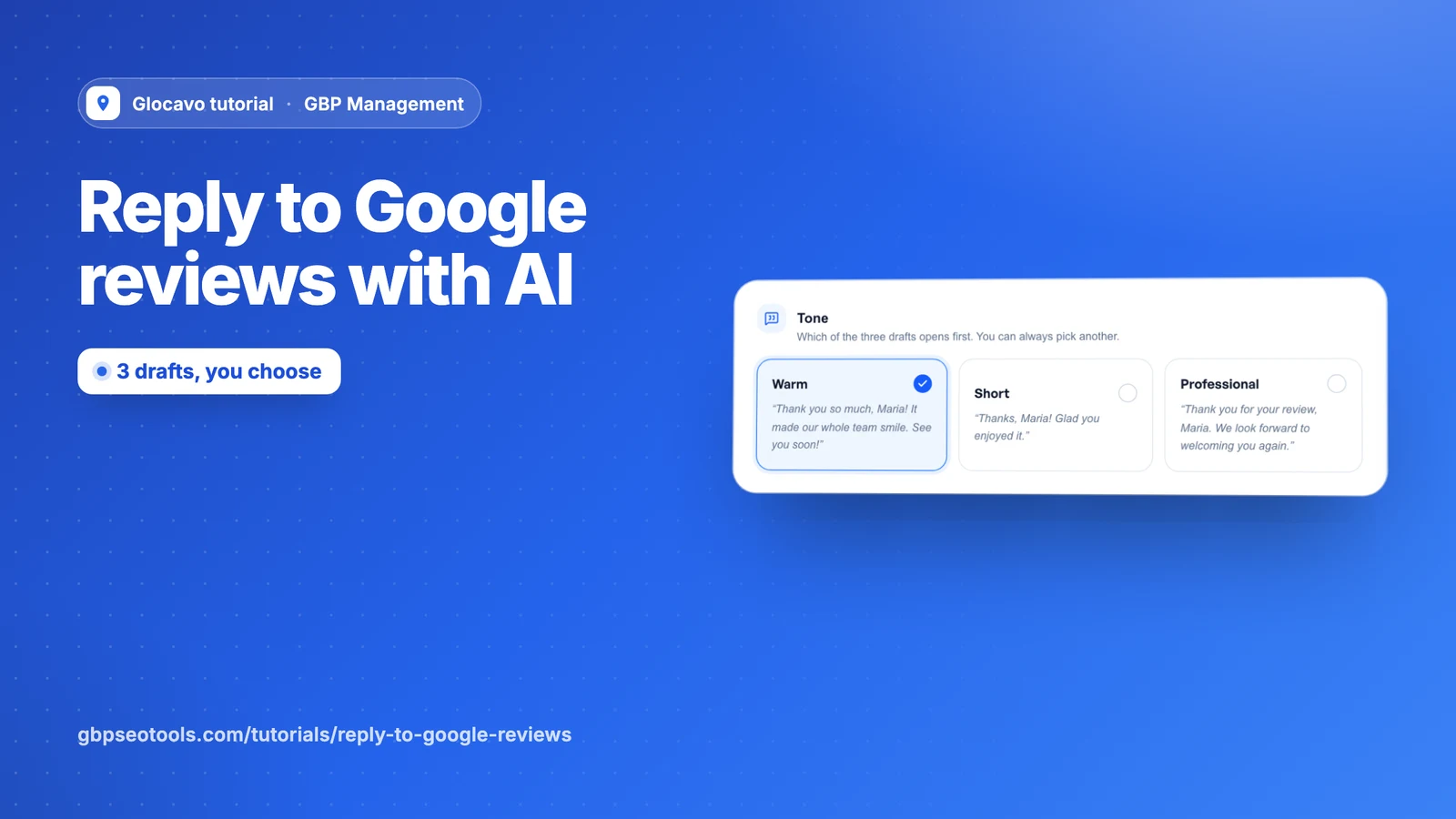
Customers read your replies as well as your reviews. This guide shows you how to find the reviews waiting for an answer, draft a reply with AI, post it to Google and teach the AI to sound like you.
- Where
- GBP Management, open a business, Reviews
- You need
- A connected business, see connect your Google Business Profile
- Cost
- Replying is included. Three AI drafts cost 10 AI Power.
Find the reviews to answer
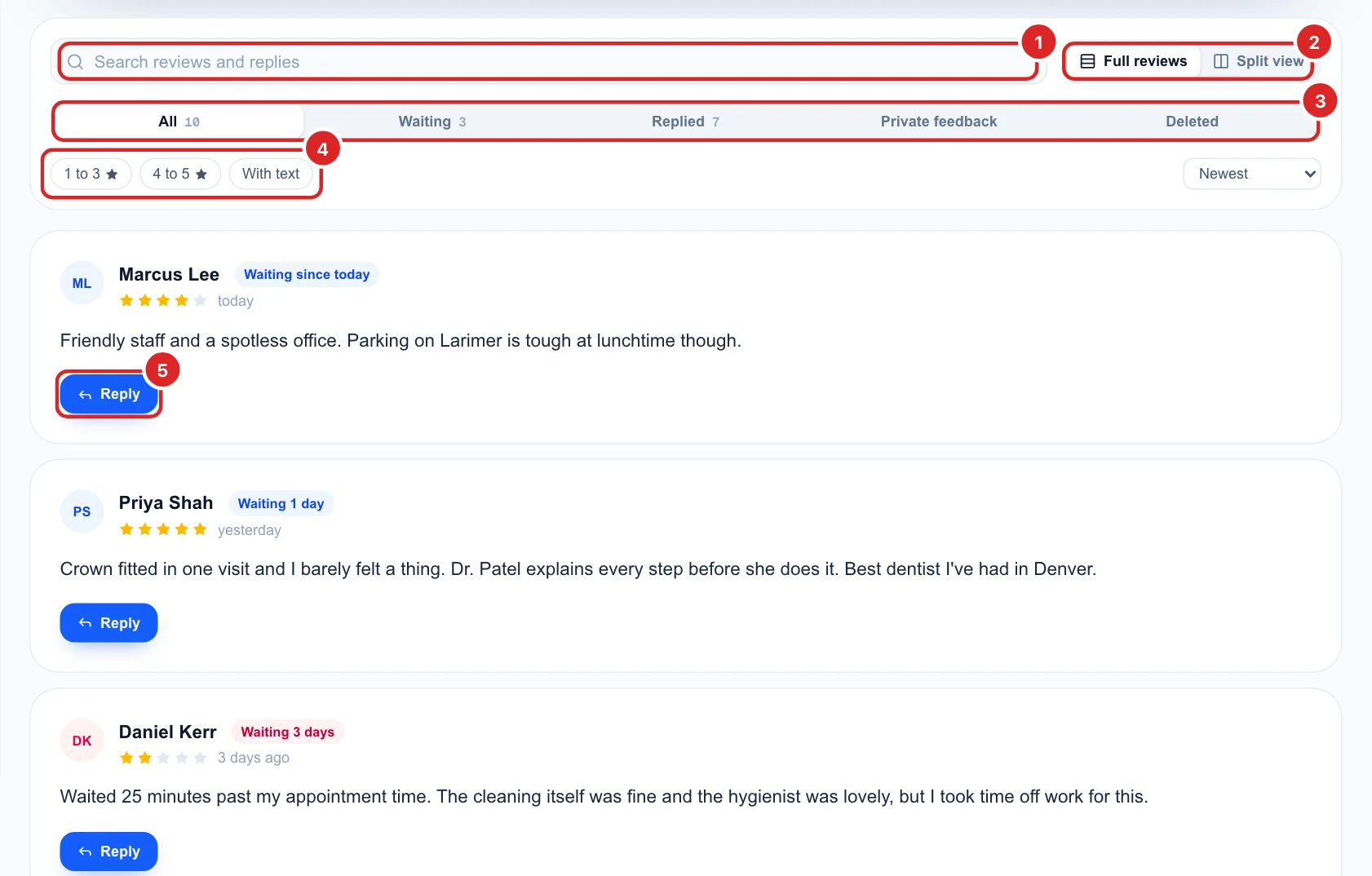
Click Reviews in the business menu. The number on the tile is how many reviews are waiting for a reply. Inbox shows all of them, and Waiting for reply opens on the unanswered ones. Then narrow the list:
- Search: find a name or a word in the reviews and replies.
- Full reviews or Split view: read them in a feed, or as a list with the open review beside it.
- Tabs: All, Waiting and Replied. Private feedback and Deleted are also here.
- Filters: low ratings (1 to 3), high ratings (4 to 5) or only reviews with text, and sort with the list on the right.
Answer the unhappy ones first: a calm reply under a low review matters most. To keep a filter you use often, click Save view. It then appears under Saved views for your whole team.
Draft a reply with AI
Click Reply on a review, then Write with AI. You get three drafts, Warm, Short and Professional, and the reply box fills with one of them. Click another to swap it in, and change any words you like. New drafts writes three more for another 10 AI Power.
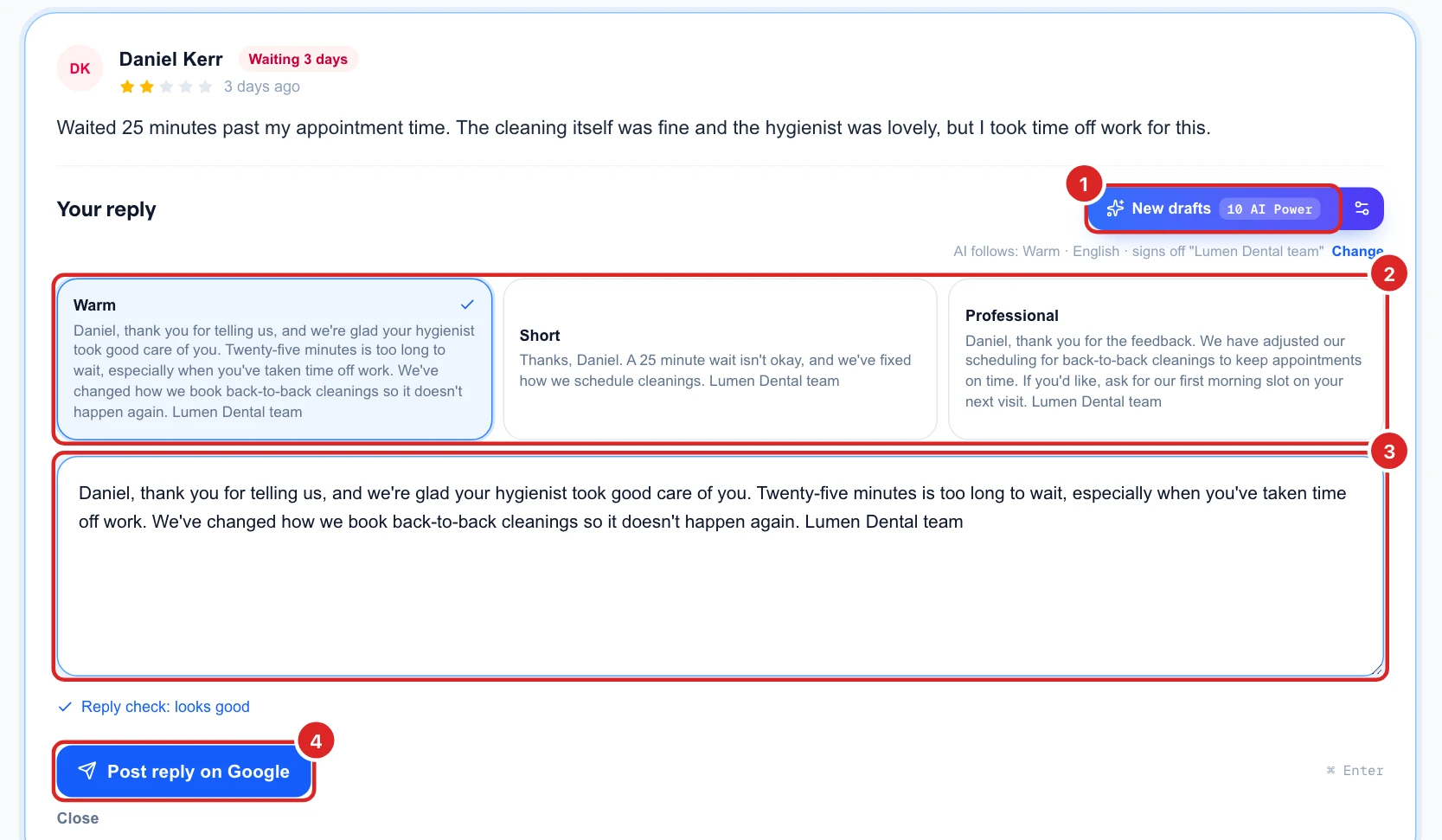
The line under the button shows what the AI follows: your tone, language and sign-off. Click Change to edit those, see step 5. Prefer your own words? Just type in the box.
Check it and post it
Reply check, under the box, reads your reply as you type. It warns about things Google asks owners to avoid, like links, phone numbers and promotion, and suggests a fuller answer for a low rating. It says looks good when it finds nothing.
Click Post reply on Google. Nothing is posted until you do. The reply is public on your profile, and the review moves to the Replied tab.
Faster with a keyboard: R writes AI drafts, Cmd or Ctrl + Enter posts and E edits a reply you already posted. In Split view, J and K move between reviews.
Change or remove a reply
Under a review you already answered, click Edit reply, change it and click Save on Google. To take it down, click Delete and confirm. The review goes back to Waiting.
Teach the AI to sound like you
Open Settings, then AI reply settings. These rules apply to every draft for this business, so set them once:
- Tone: which of the three drafts opens first.
- Language and sign-off: reply in the reviewer’s language or always in one, the name at the end of each reply, and emoji in happy replies.
- What to always say, and never say: type your own rules or click a suggestion.
- Replies you like: up to 3 examples. The AI copies your voice and length, not the words.
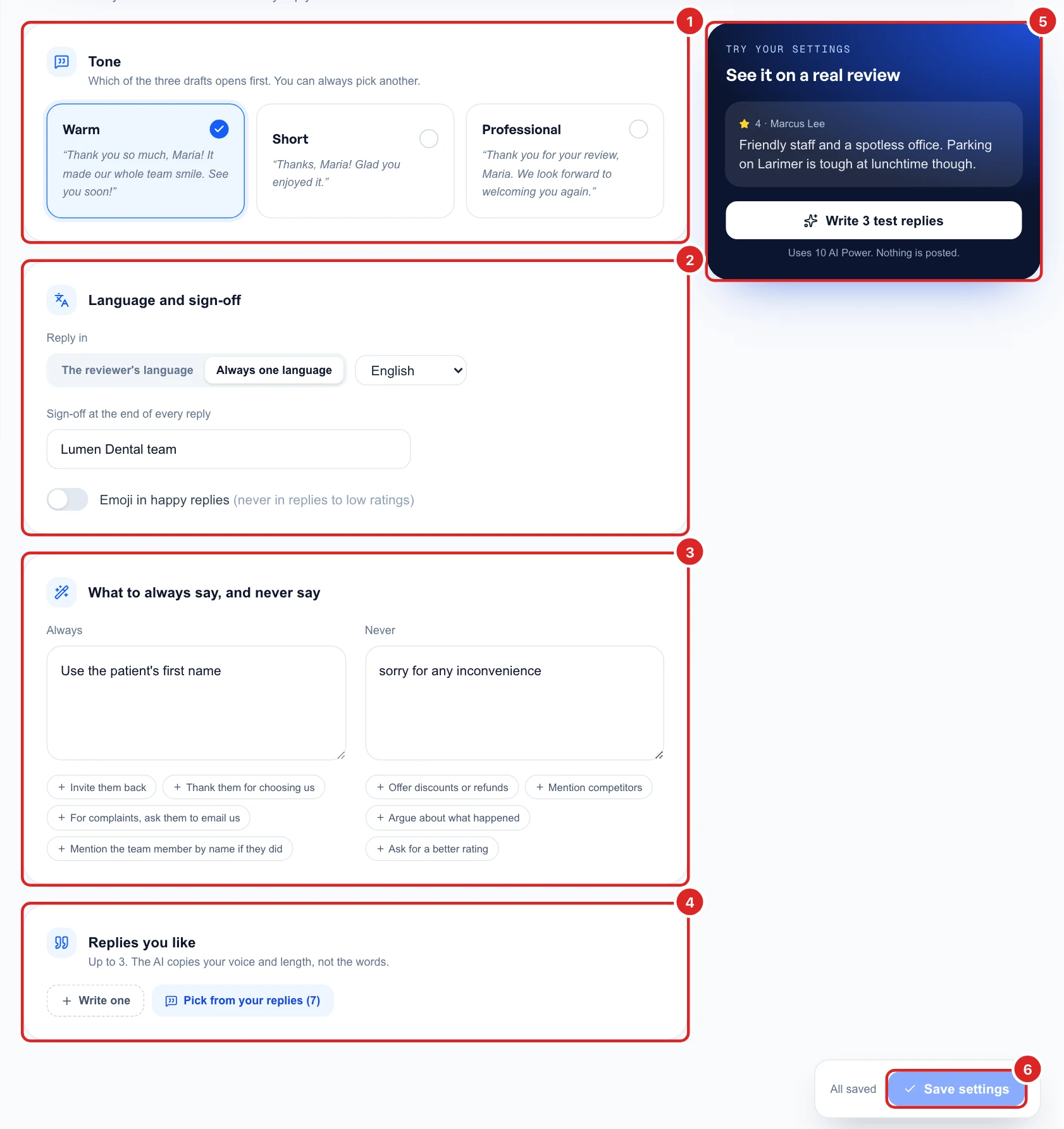
Click Save settings. To see the result, Write 3 test replies drafts answers to one of your real reviews for 10 AI Power, and nothing is posted.
Need more AI Power? See plans and top-ups.