GBP Management
Manage your Google Business Profile from the Today page
Read the Today page from top to bottom: what needs you now, your next moves, what customers see on Google, and how your reviews and calls are doing.
Updated October 31, 2026 · 5 min read
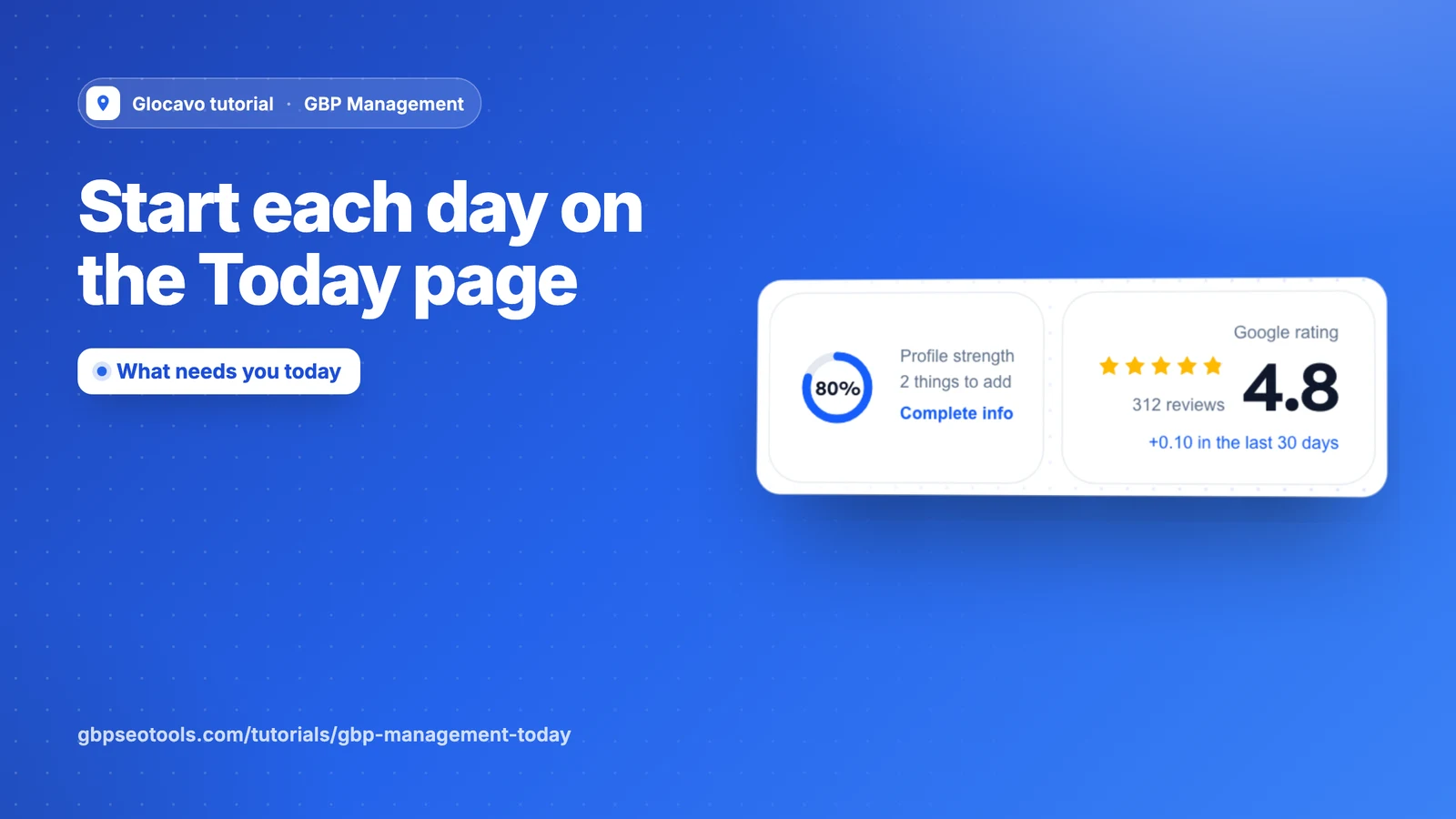
Today is the page a business opens on. It tells you what needs you now, shows what customers see on Google and how the profile is doing, so you can start here each day and leave when the list is done.
- Where
- GBP Management, open a business, Today
- You need
- A connected business, see connect your Google Business Profile
Read the top of the page
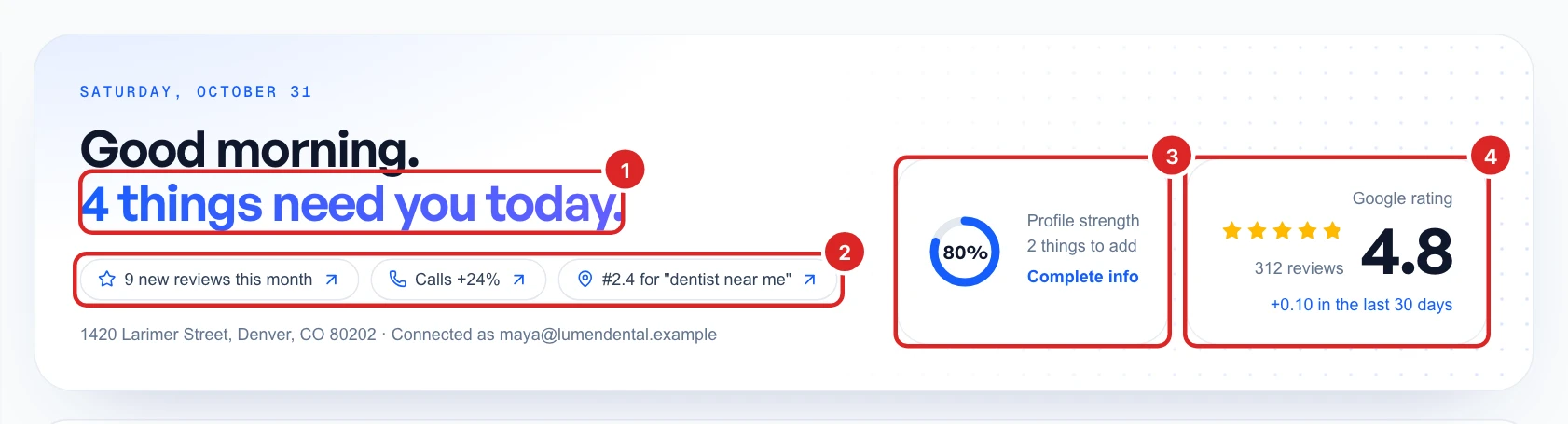
The header gives you the state of the business at a glance:
- How many things need you today: the moves listed further down.
- The three highlights: for example new reviews this month, calls and your rank. Click one to go to its detail.
- Profile strength: how complete your profile is. Complete info shows what to add. This is Glocavo’s own score, not a number from Google.
- Google rating: your stars, your review count and the change over the last 30 days.
Use the shortcuts
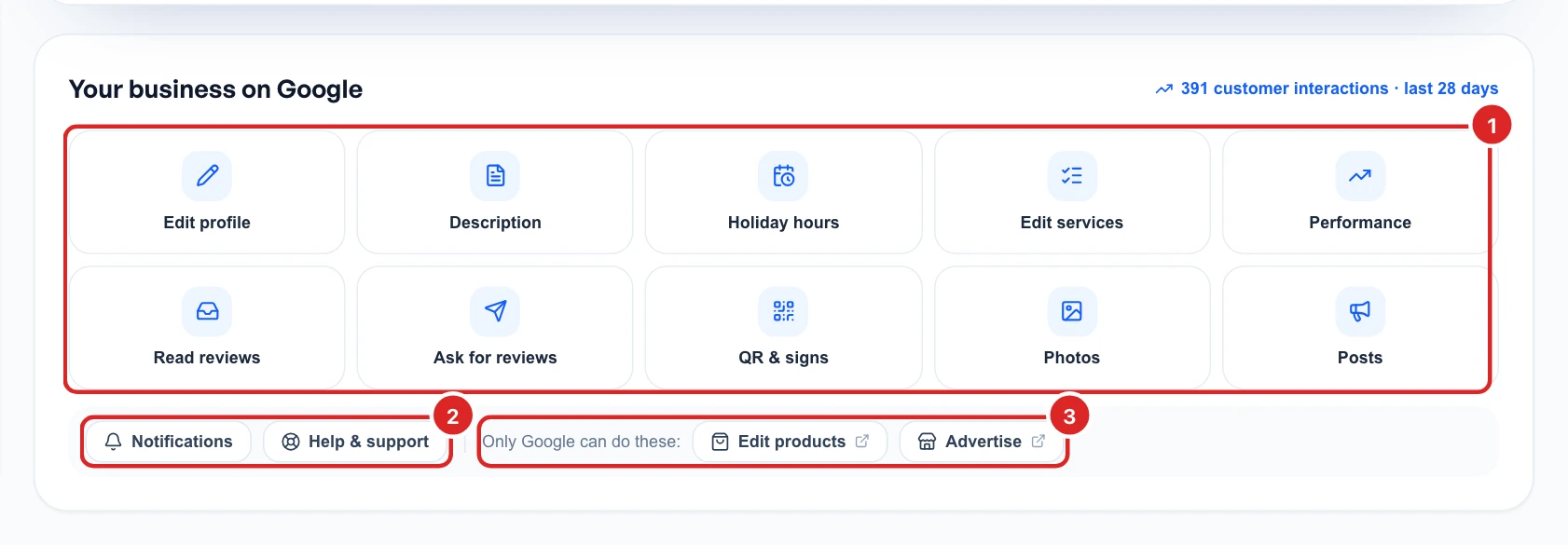
Your business on Google takes you straight to the jobs you do most: edit the profile, description, holiday hours and services, read and ask for reviews, QR signs, photos and posts.
Below them, Notifications sets who gets an email about new reviews and other changes, and Help & support is there when you are stuck. Products and ads can only be changed on Google, so those two buttons open Google in a new tab.
Work through your next moves
Your next moves is your to-do list, most important first. The dark card at the top is where to start. Each card says what happened and has a button that takes you to the fix.
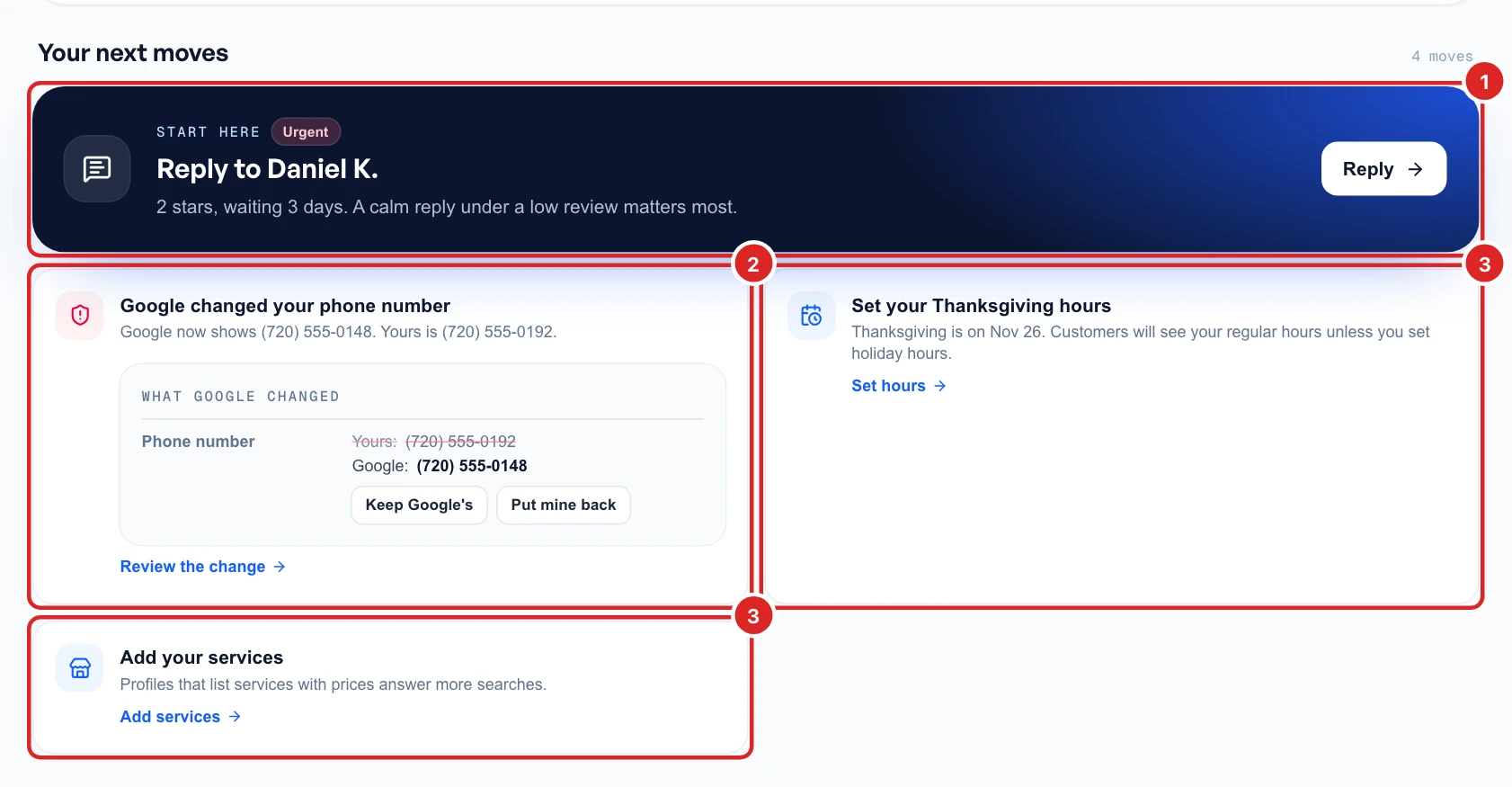
A card goes away once the job is done. You might see, for example:
- a review waiting for a reply, or a post Google rejected
- a holiday coming up with no hours set
- missing information on the profile
- no post in the last 30 days, or no new photo in 45
- competitors getting reviews faster than you
When Google changes your listing, the card shows your version next to Google’s. Choose Keep Google’s if theirs is right or Put mine back if it isn’t. Customers see Google’s version until you answer. Changing your name, address or pin can make Google check your profile again.
Check what customers see
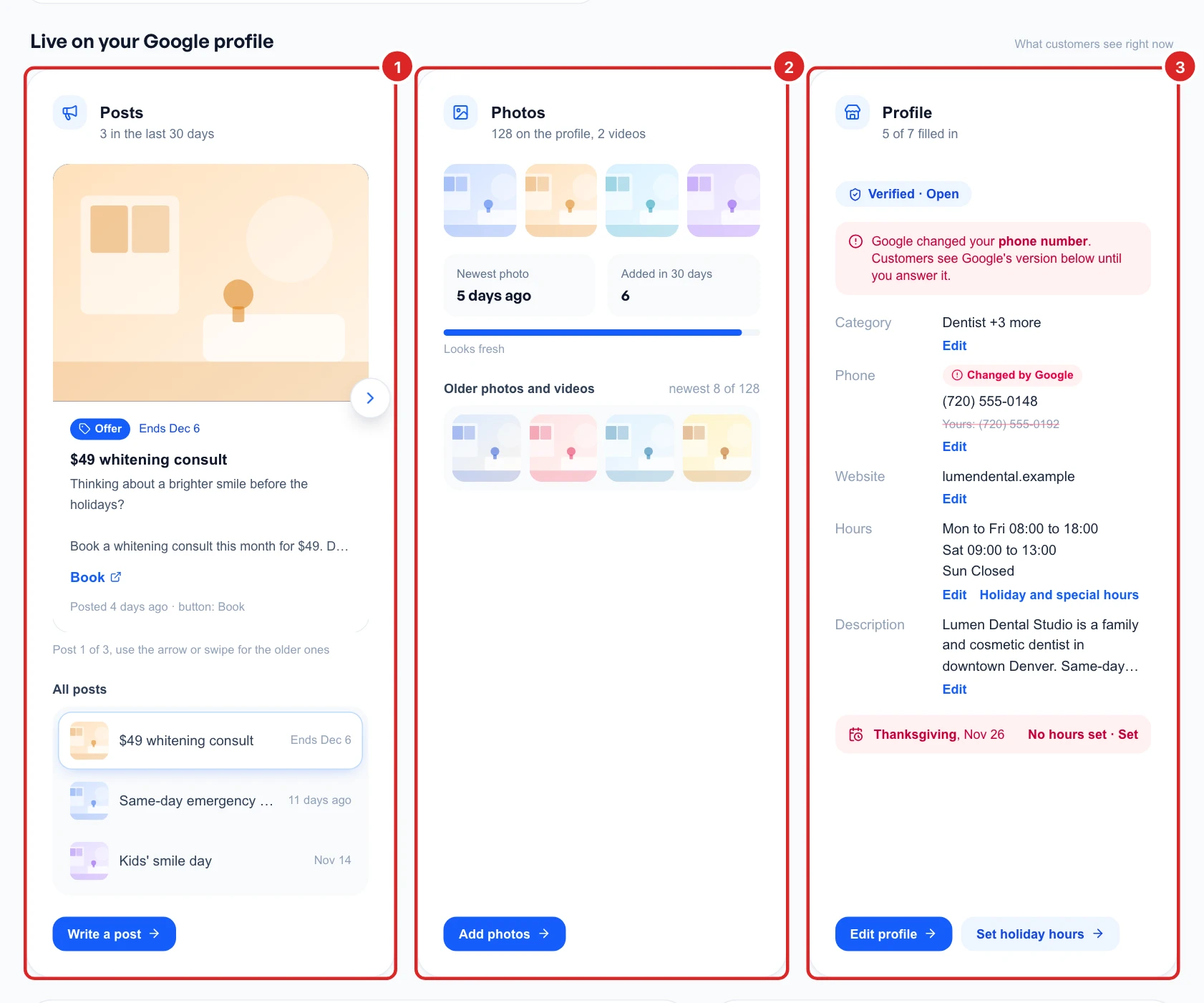
Live on your Google profile shows what is on Google right now, so you don’t have to look it up:
- Posts: your newest posts, with Write a post to add one.
- Photos: how many you have, how old the newest is, and Add photos.
- Profile: your category, phone, website, hours and description, each with Edit. Anything Google changed is marked.
See how the profile is doing
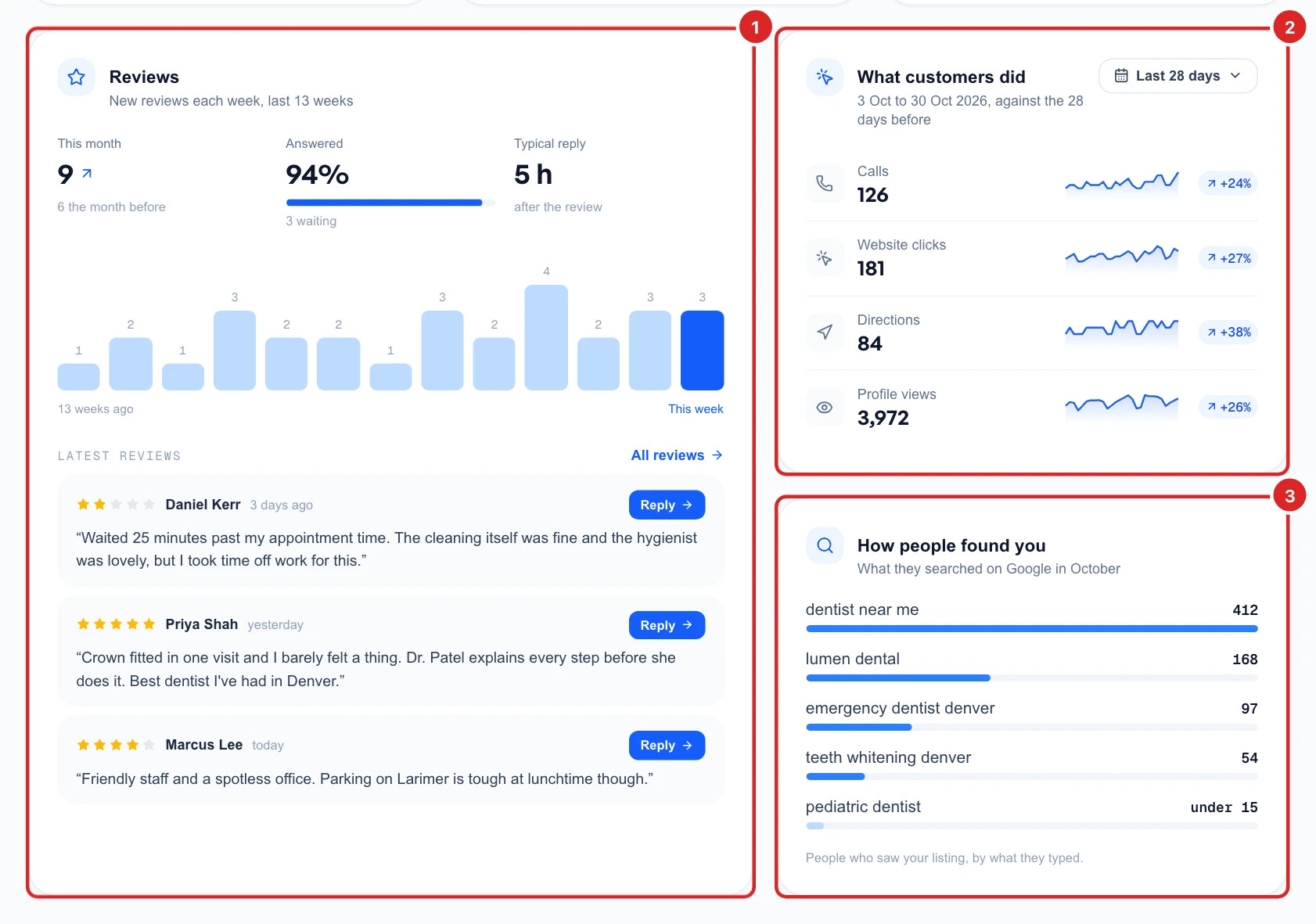
Reviews shows new reviews each week for the last 13 weeks, how many you answered, how fast you usually reply and the latest reviews with a Reply button.
What customers did counts calls, website clicks, direction requests and profile views over the last 28 days, against the 28 days before. How people found you lists what they searched on Google to see your listing.
Compare yourself with the competition
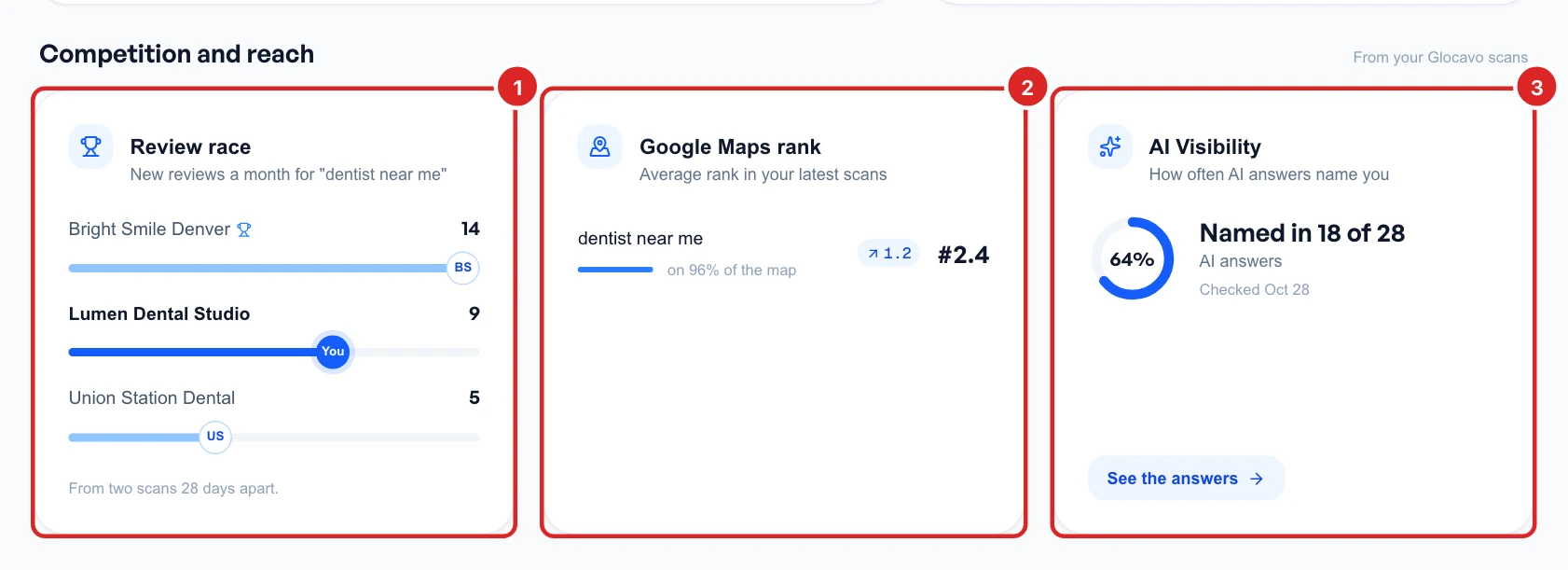
Competition and reach brings in your other Glocavo results. Each card fills in once it has data, and until then offers the first step:
- Review race: new reviews a month for you and the businesses that beat you on Maps. It needs two scans, see run a Google Maps grid scan.
- Google Maps rank: your average rank in your latest scan. To read it, see read the rank map.
- AI Visibility: how often AI answers name you. See create an AI Visibility campaign.