GBP Management
Write and schedule Google Business Profile posts with AI
Write updates, offers and events, get post ideas from your reviews, schedule them, and plan a series of 3, 5 or 7 posts with pictures in one go.
Updated November 1, 2026 · 7 min read
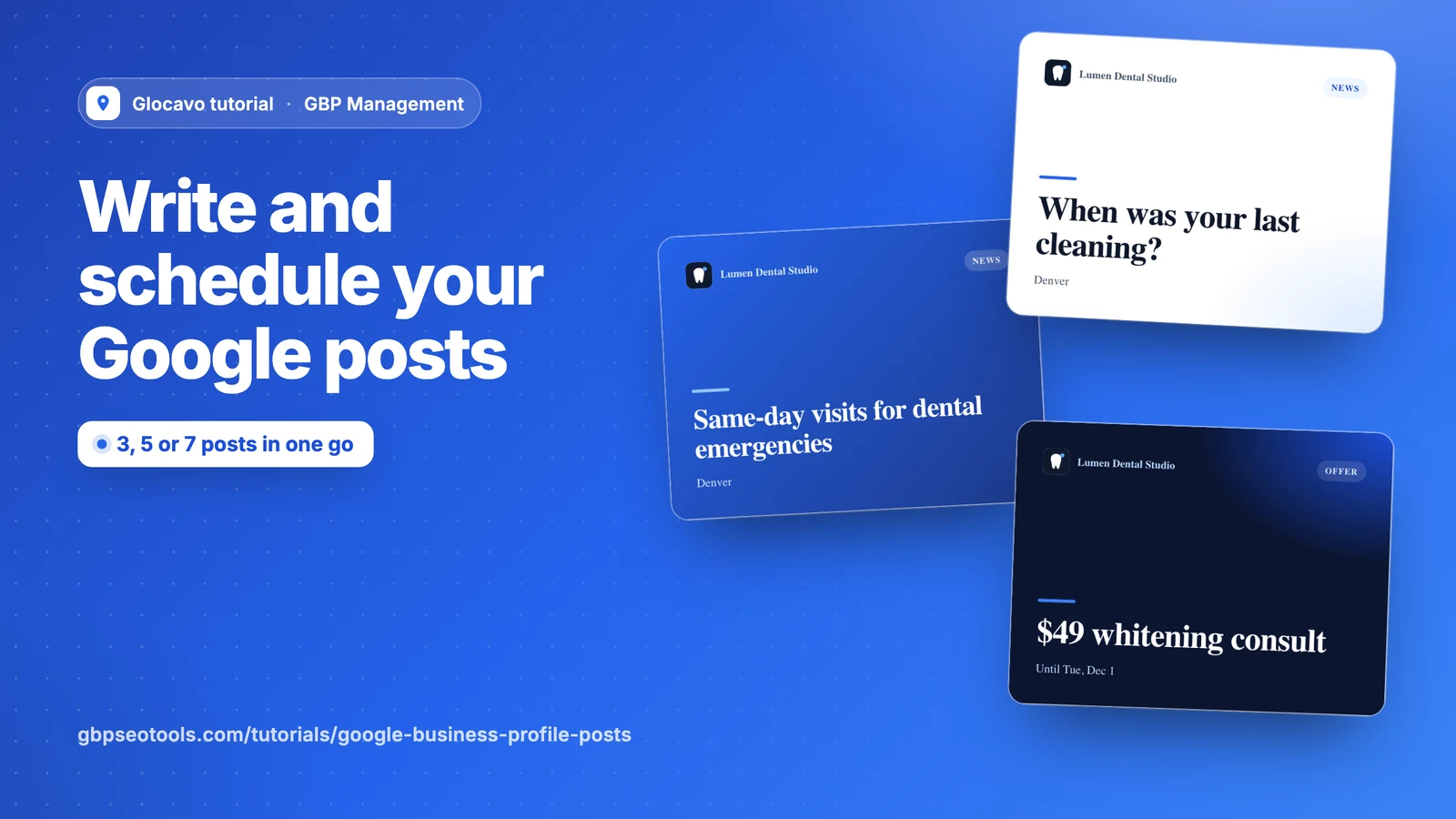
Posts show right on your Google profile. Write one yourself or with AI, post it now or schedule it, and see what Google did with it. To fill the next few weeks in one go, plan an AI post series.
- Where
- GBP Management, open a business, Posts & photos, Posts
- You need
- A connected business, see connect your Google Business Profile
- Cost
- Writing your own post is included. AI costs 10 AI Power per post, and a designed picture 5.
See where your posts stand
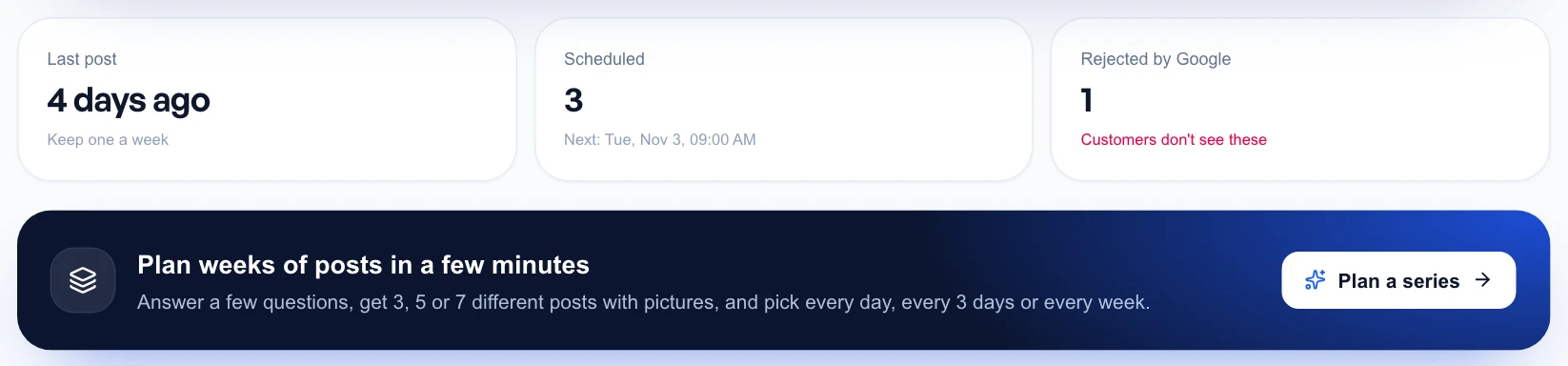
Click Posts & photos, then Posts. The top of the page shows when you last posted, what’s scheduled and how many posts Google rejected. A post a week is enough to keep you looking active.
Write a post
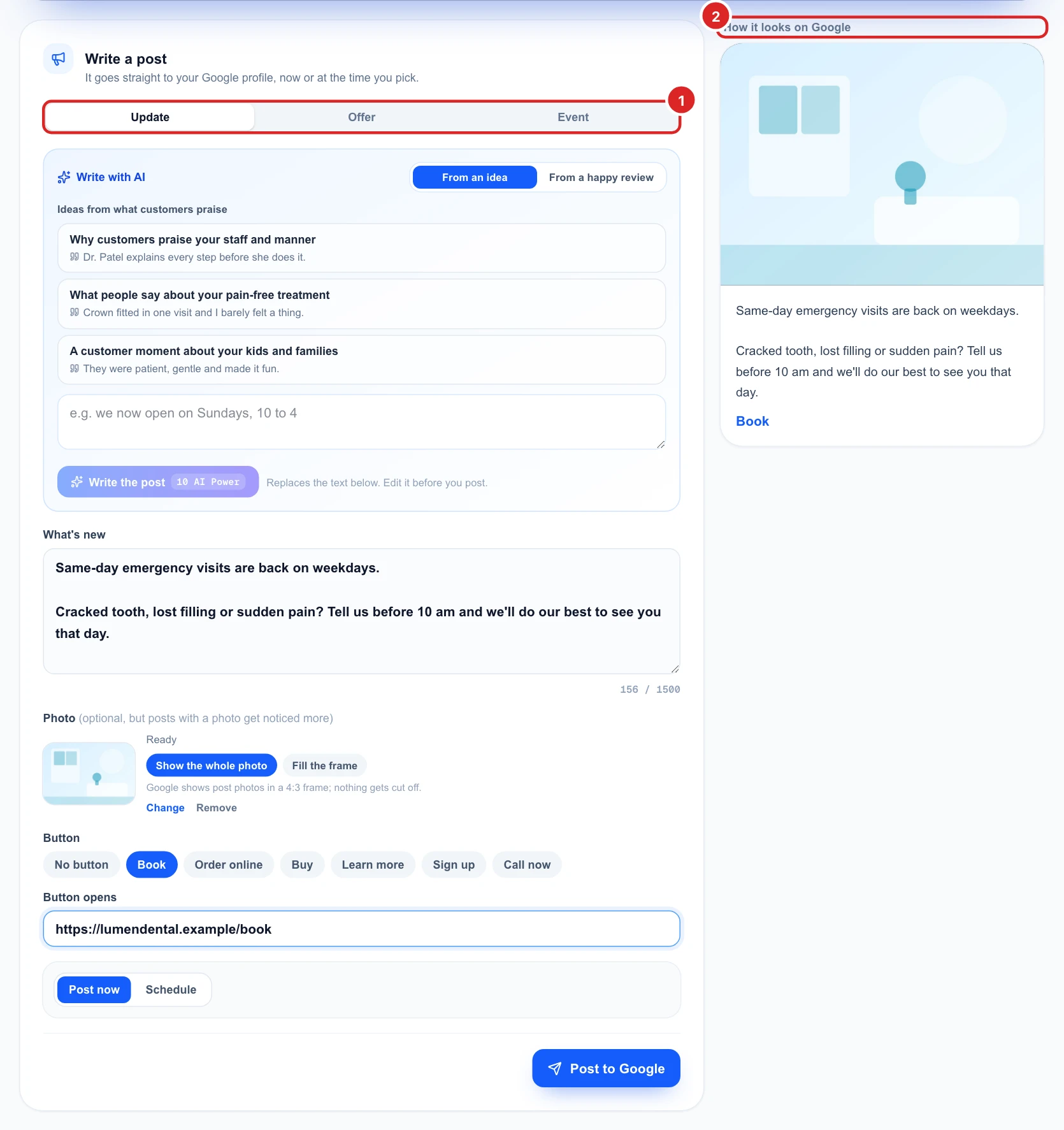
Pick the kind of post, then fill it in:
- What’s new: your text, up to 1,500 characters.
- Photo: optional, JPG or PNG. Google shows post photos in a 4:3 frame. Show the whole photo keeps all of it, and Fill the frame lets Google crop the edges.
- Button: Book, Order online, Buy, Learn more or Sign up open the address you give. Call now calls the number on your profile.
Let AI write it from an idea
In Write with AI, describe your idea in a few words. For an update, you can also pick one of the Ideas from what customers praise. Each one comes with a customer’s own words, and complaints never become ideas.
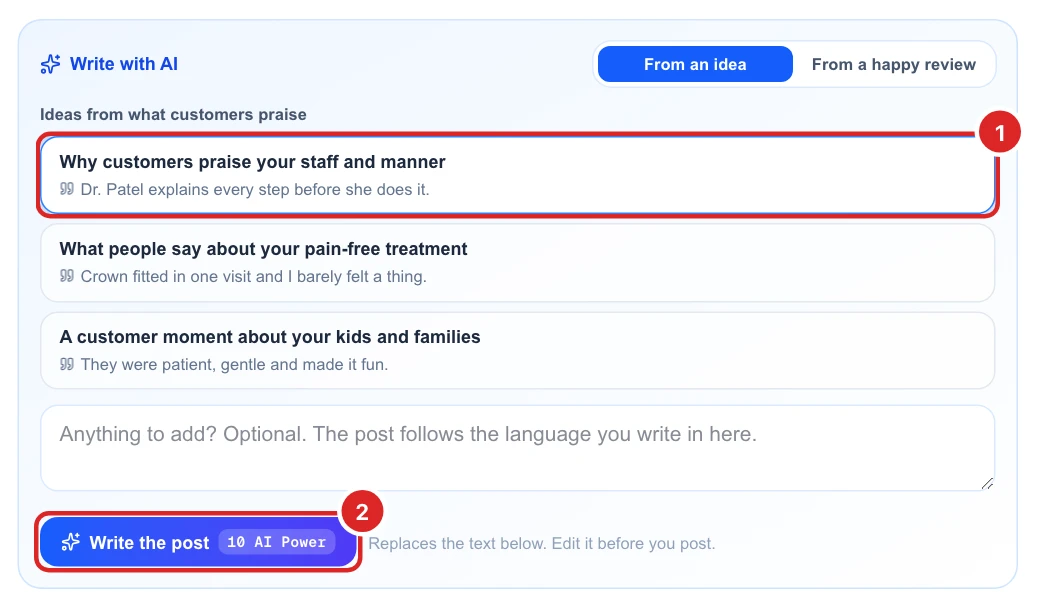
Picking an idea is included, and writing the post costs 10 AI Power. The text lands in the box below, replacing what was there, so check it and edit it before you post.
Ideas come from your review analysis, so run What customers say once if you don’t see any.
Turn a happy review into a post
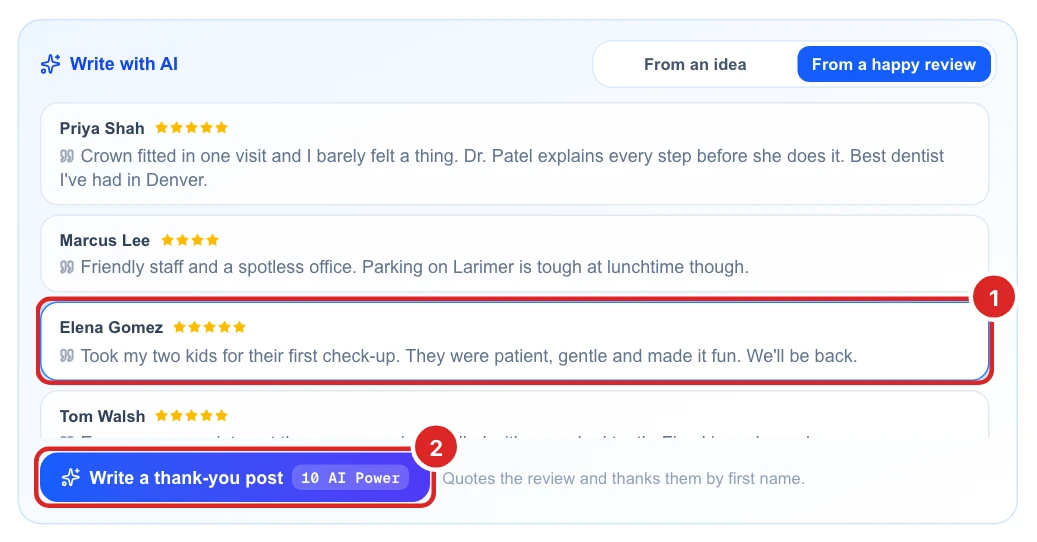
Click From a happy review. You’ll see your 4 and 5 star reviews from the past year that have words in them. Pick one, then click Write a thank-you post. AI quotes the review and thanks the customer by first name, for 10 AI Power.
Write an offer or an event
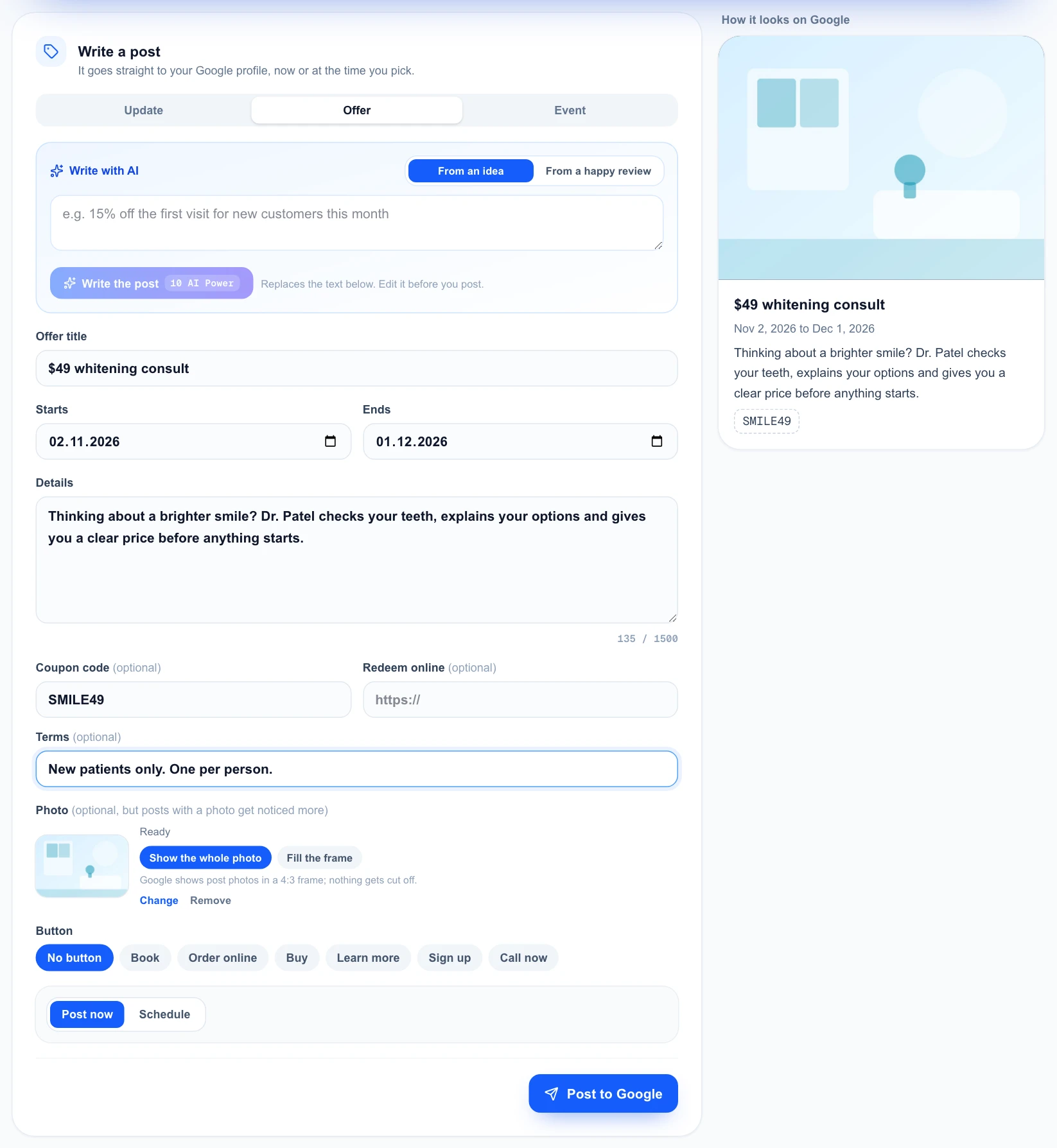
Click Offer or Event. Both need a title and a start and end date.
- Offer: you can add a coupon code, a link to redeem it online and your terms.
- Event: you can add a start and end time. Leave both empty for an all-day event.
Post it now or schedule it
Glocavo warns you about things that often get a post rejected: a phone number, a link or an email address in the text, lots of emojis, or all capital letters. Put phone numbers and links in the button instead.
To post straight away, click Post to Google. To post later, click Schedule, pick a time at least a few minutes ahead, then click Schedule post.
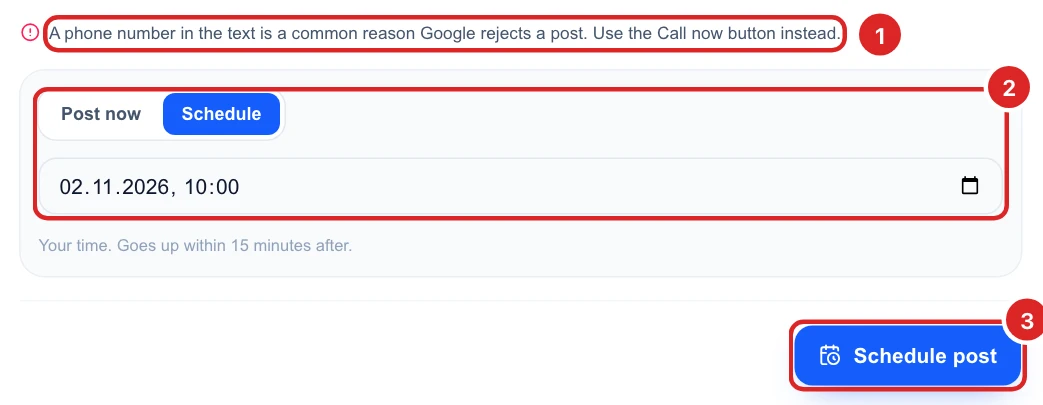
The time is your own, and the post goes up within 15 minutes after it. Google usually shows a post within a few minutes, sometimes after a short check.
Change what's scheduled
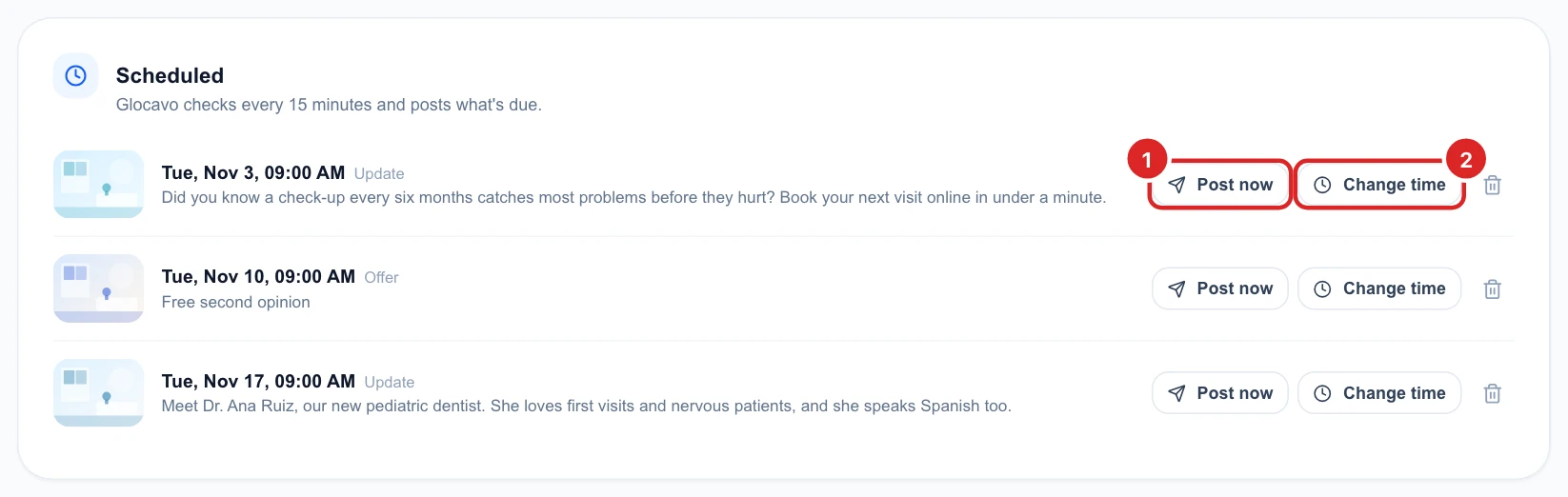
Everything waiting to go up sits under Scheduled. For each post you can post it now, change its time or remove it with the bin.
Glocavo tries a post 3 times. If it still fails, the post says Didn’t go up with a Try again button.
Check what Google did with your posts
On your Google profile shows your posts, newest first, each with Google’s verdict: Live, Google is checking it, Rejected or Not shown.
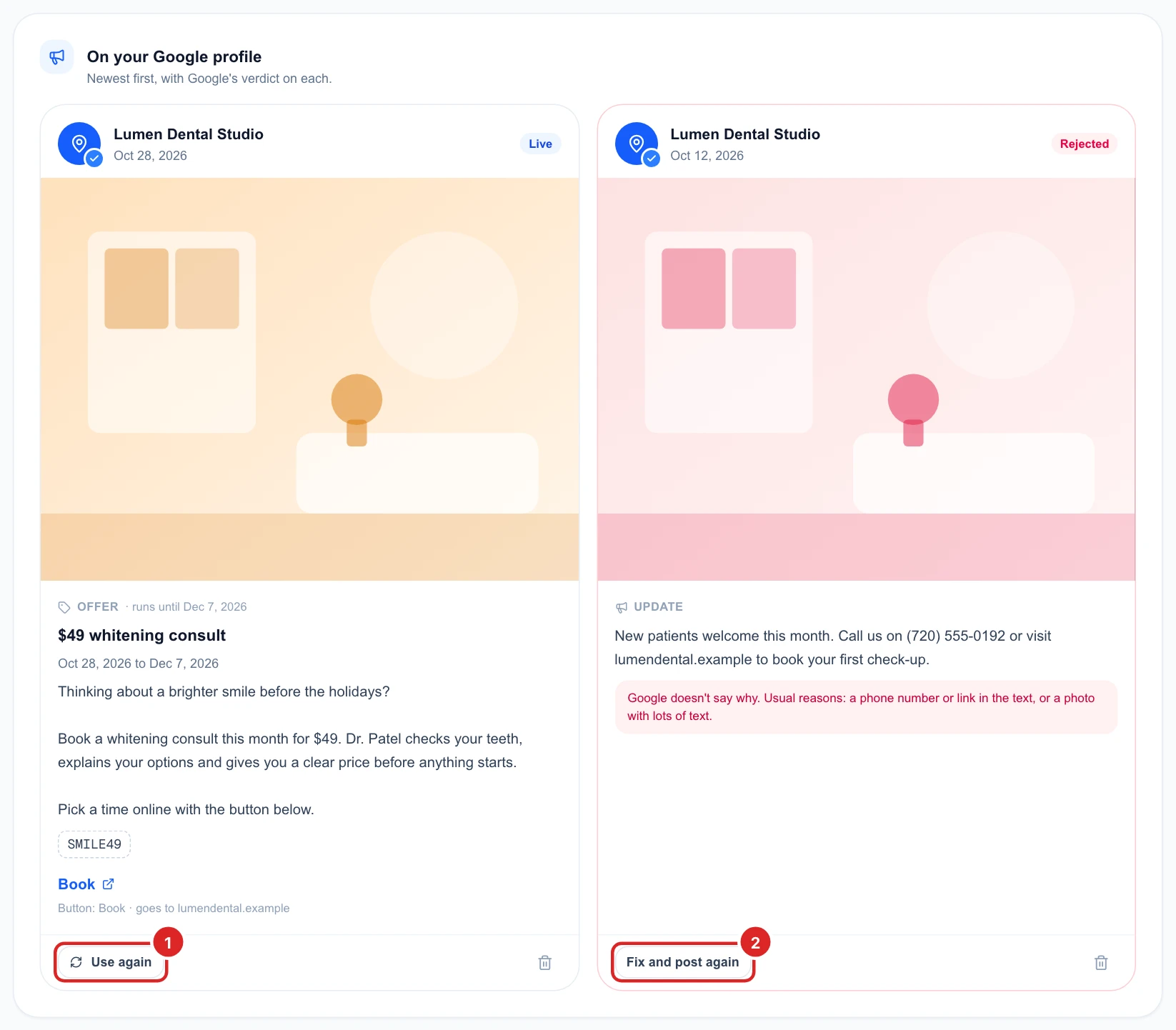
Google doesn’t say why it rejects a post. The usual reasons are a phone number or link in the text, or a photo with lots of text. Fix and post again puts the post back in the box above so you can change it. The bin removes a post from your profile.
Plan a series: tell the AI what to write
Click Plan a series at the top of the page, then choose 3, 5 or 7 posts, for 10 AI Power per post.
- Offers and events: use the plus buttons to add them. Each needs its own words and date.
- Updates: these fill the rest. Say what each one is about, or leave it to the AI.
- Services: pick up to 5 from your profile or add your own. You can also say what’s new and who the posts are for.
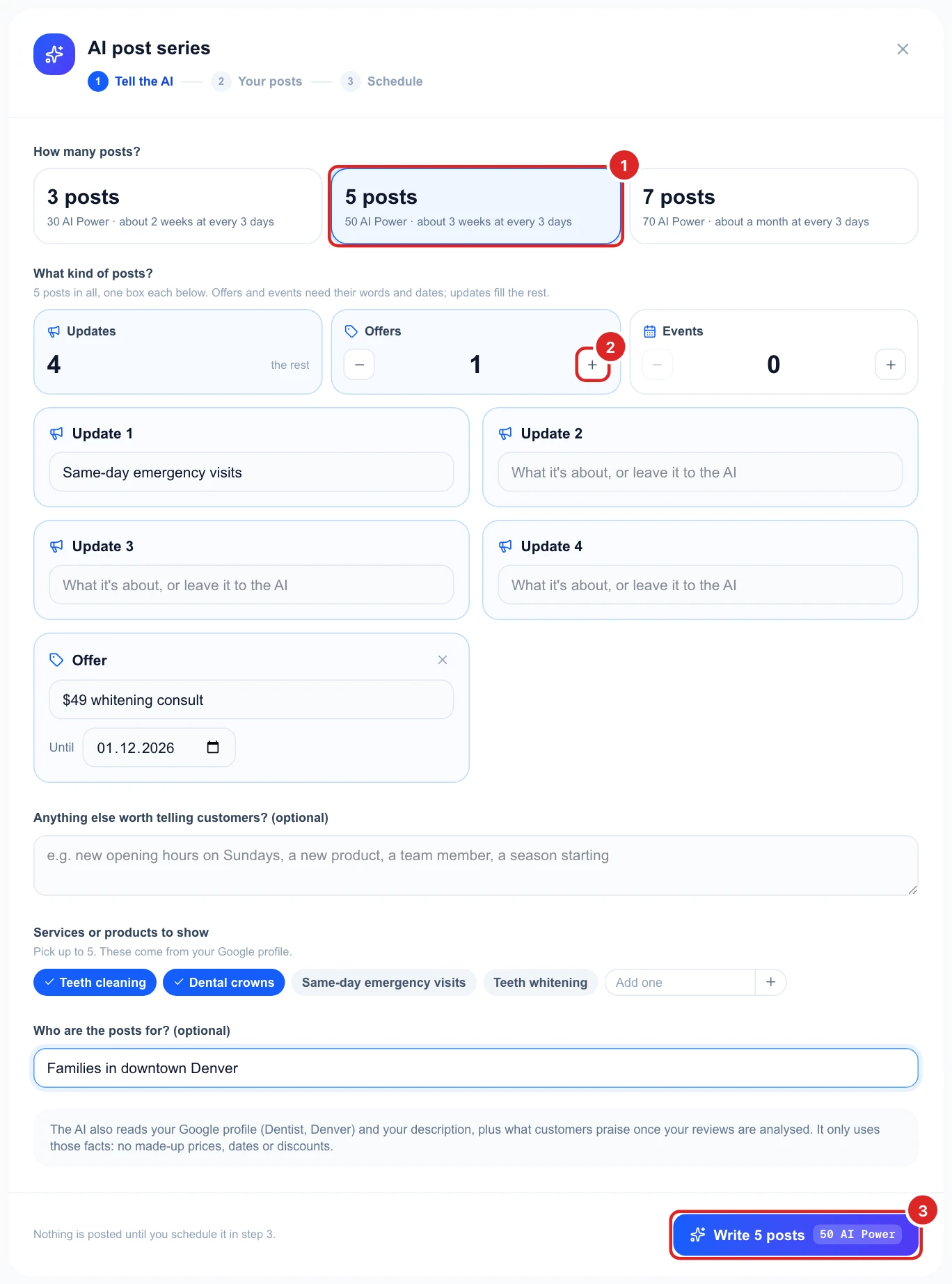
If you leave the updates empty, tell the AI what’s new or pick a service so it has something to write about. It also reads your Google profile and what customers praise, and it won’t make up prices, dates or discounts.
Check each post and its picture
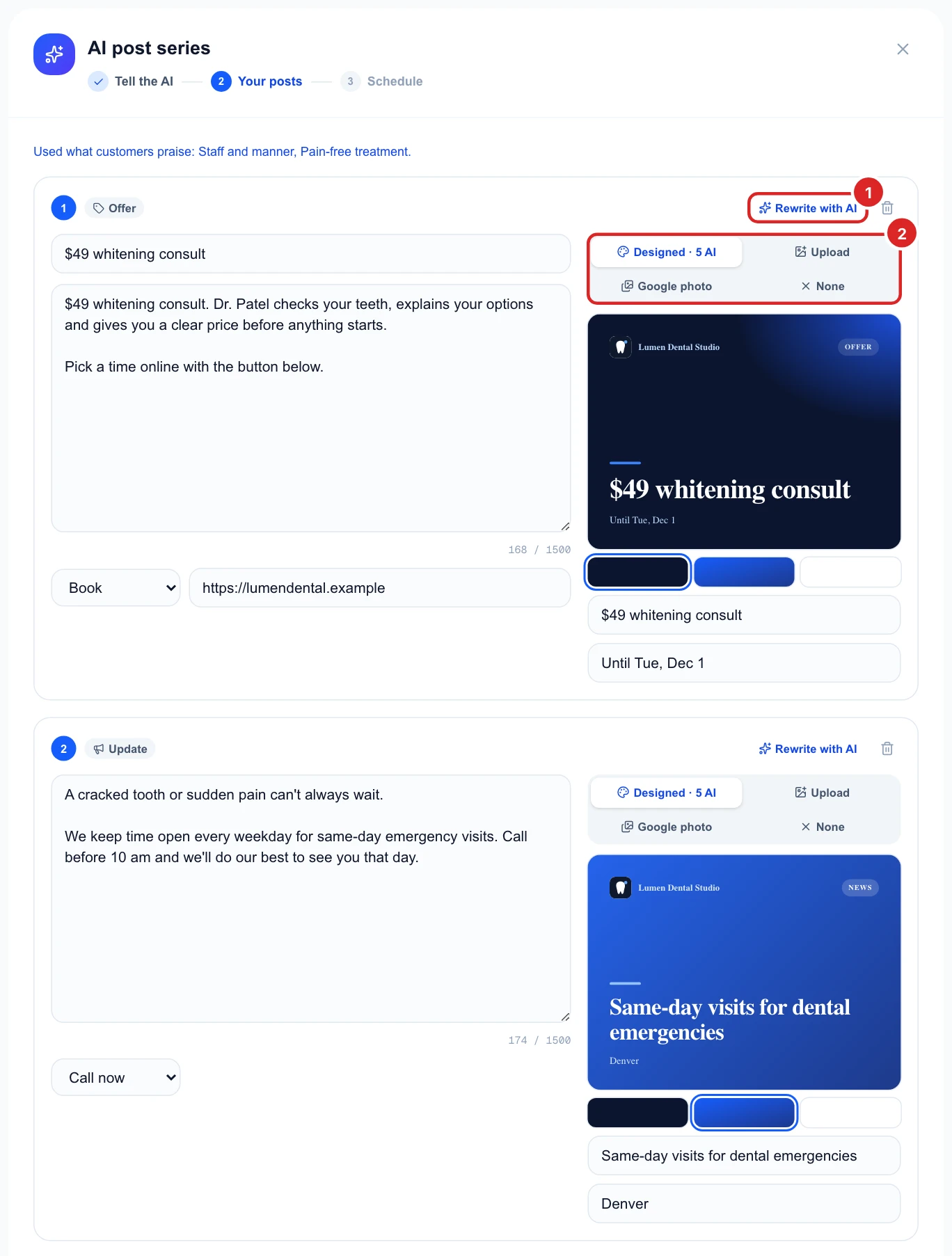
You get every post to edit. Click Rewrite with AI and say what to change, like “make it shorter”, for 10 AI Power. Each post also needs a picture choice:
- Designed: a picture Glocavo makes, with your logo, for 5 AI Power. Pick one of three styles and edit its words.
- Upload or Google photo: your own photo, at no cost.
- None: no picture, though posts with one get more attention.
Pick the dates and schedule the series
Choose Every day, Every 3 days or Every week, then the date and time of the first post. You’ll see the date each post goes out. Click Schedule to finish.
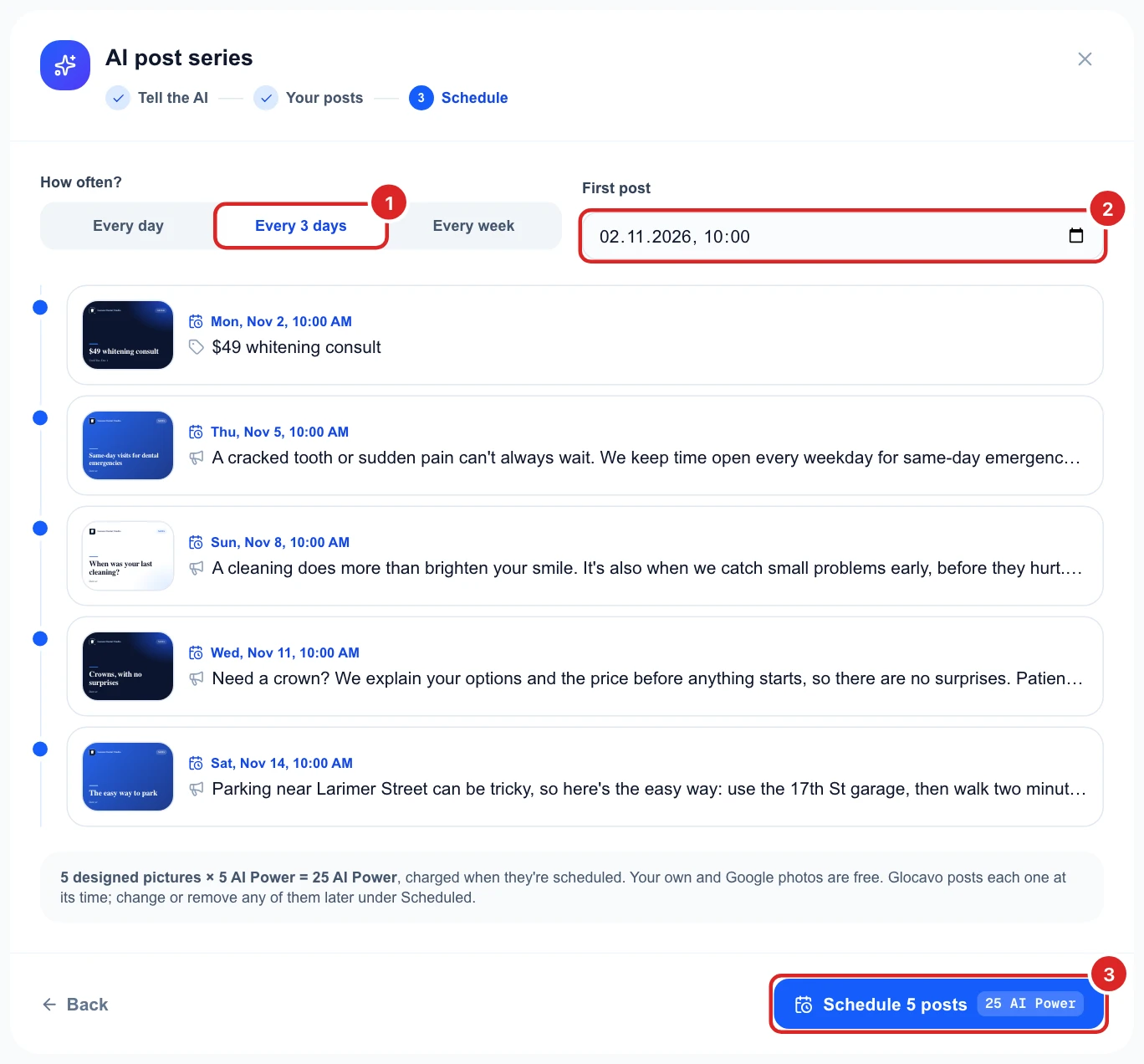
Designed pictures are charged at this point. If a post would go out after its offer ends or its event has passed, it turns red, so pick an earlier start or a faster rhythm. Once scheduled, each post sits under Scheduled, where you can still change or remove it.