GBP Management
Add and schedule photos on your Google Business Profile
See which photos your profile is missing, add new photos and videos straight to Google, and plan photos ahead so they post themselves on a schedule.
Updated November 3, 2026 · 5 min read
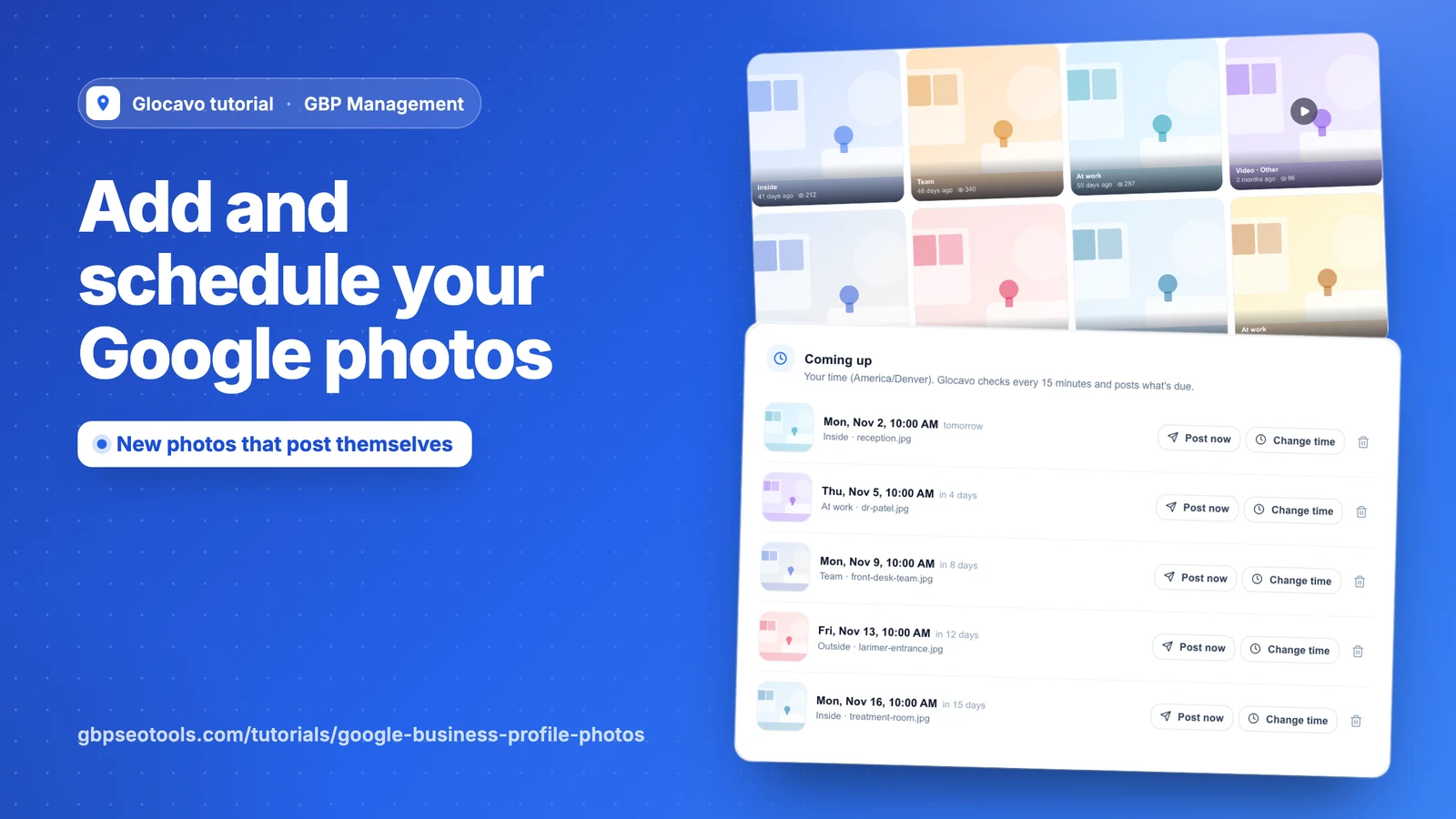
Photo library shows every photo and video on your Google profile, what’s missing, and lets you add new ones. Photo drops posts photos for you on a schedule, so your profile keeps getting new ones.
- Where
- GBP Management, open a business, Posts & photos
- You need
- A connected business, see connect your Google Business Profile
- Cost
- Included, no AI Power
See which photos you're missing
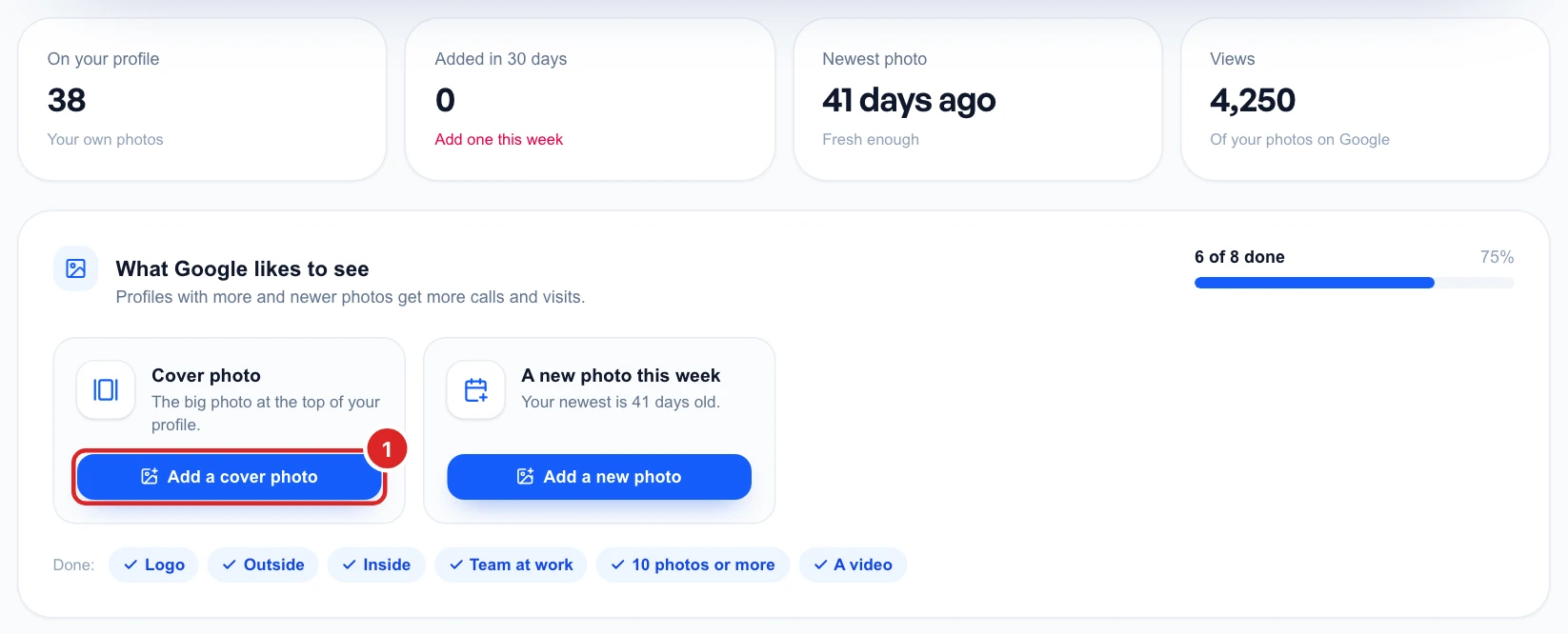
Click Posts & photos, then Photo library. The top shows how many photos you have, how new they are and how often they were viewed.
What Google likes to see checks for eight things: a logo, a cover photo, outside and inside photos, your team at work, at least 10 photos, a video, and a new photo this week. Anything missing gets its own card with a button.
Add photos and videos
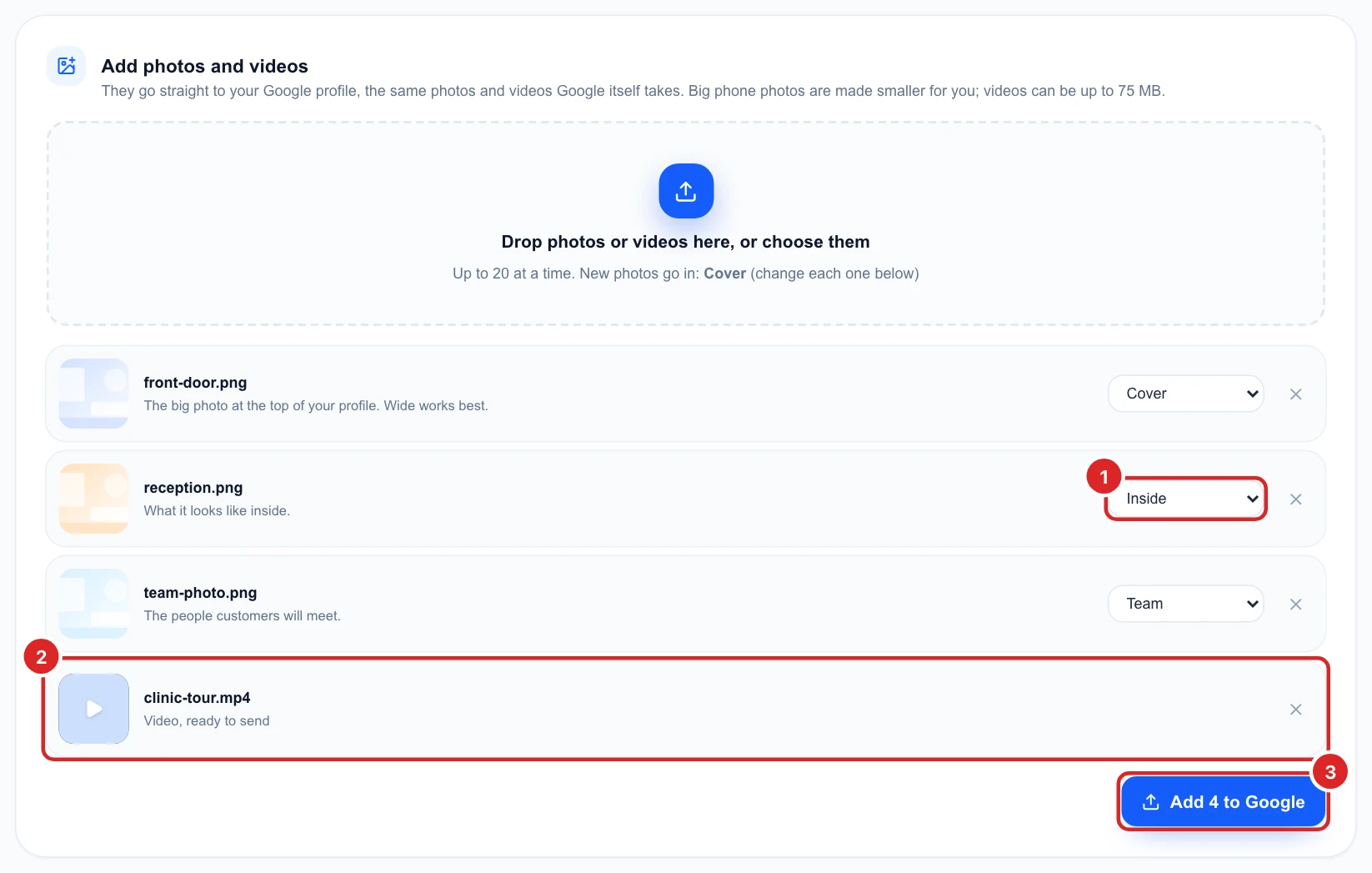
Click a card’s button, or drop up to 20 photos and videos into Add photos and videos. On a phone, choosing them opens your gallery, Google Photos included. Glocavo checks each one against Google’s rules first.
- Photos: the same ones Google takes. Big phone photos are made smaller for you, and formats like iPhone HEIC are turned into JPG.
- Videos: any video up to 75 MB, the same as Google. If Google turns one down, Glocavo shows you Google’s reason.
Choose the right category for each photo (videos don’t need one), then click Add to Google. Photos go straight to your profile. A video shows once Google has checked it, which can take a few hours, so keep the page open until it says it was sent.
Browse your photos
Further down, every photo shows its category, its age and its views. Switch between your photos and customers’, or filter yours by category. To remove one of your photos, move over it and click the bin. Glocavo asks you first.
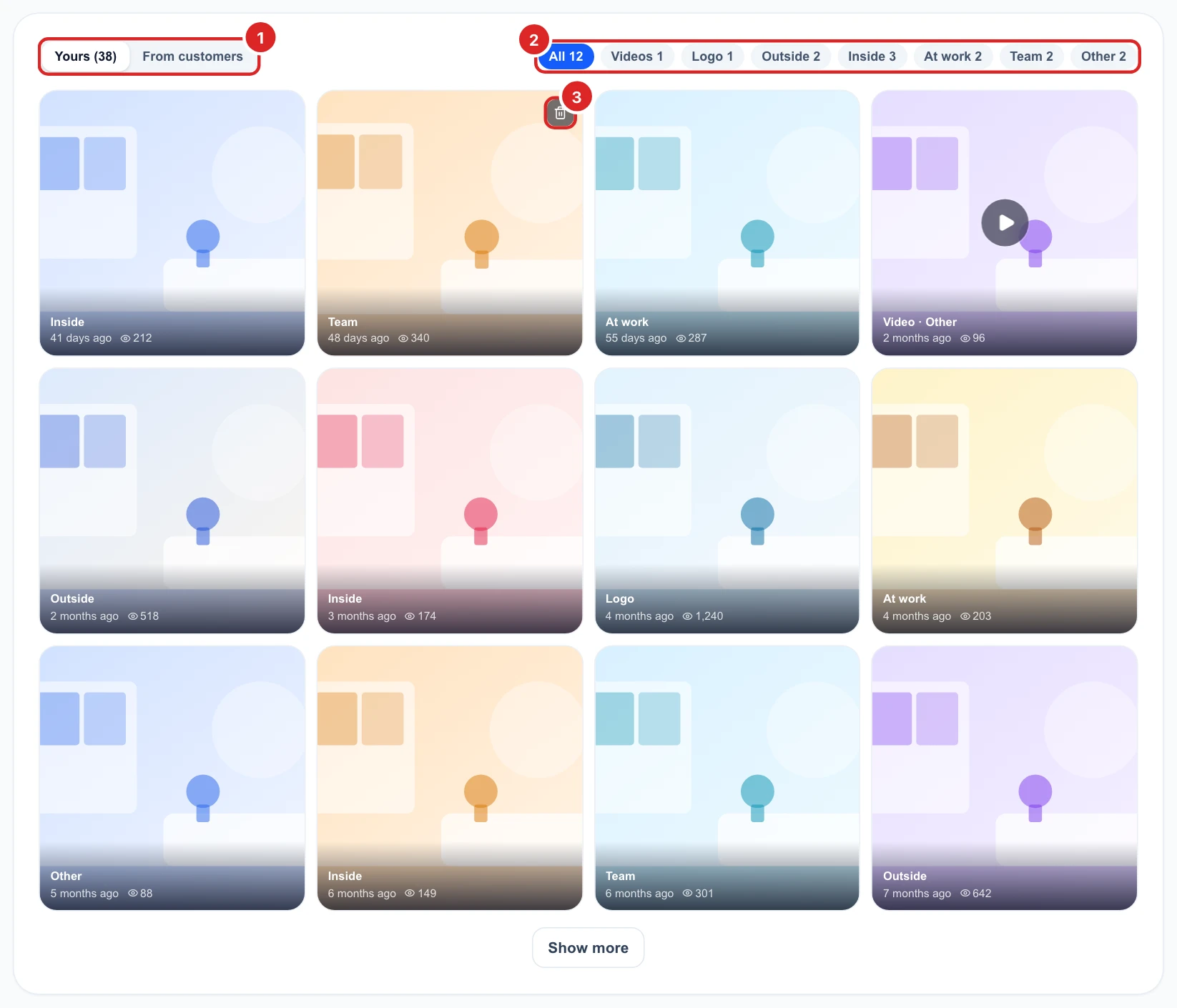
Videos show here too, with a play button. Click Videos to see only those. Google shares only a still of each video with apps, so open a video and click Watch on Google Maps: your listing opens, then tap Photos and Videos.
A video added in the last 48 hours is marked New. Google checks new videos before customers see them (Google shows them as Pending), but it doesn’t tell apps when that’s done, so Glocavo can’t show the exact moment one goes live. While it’s pending, only you can see it: click See it while pending, which searches your business on Google. Signed in to the same Google account, open Photos and videos there.
Open a photo
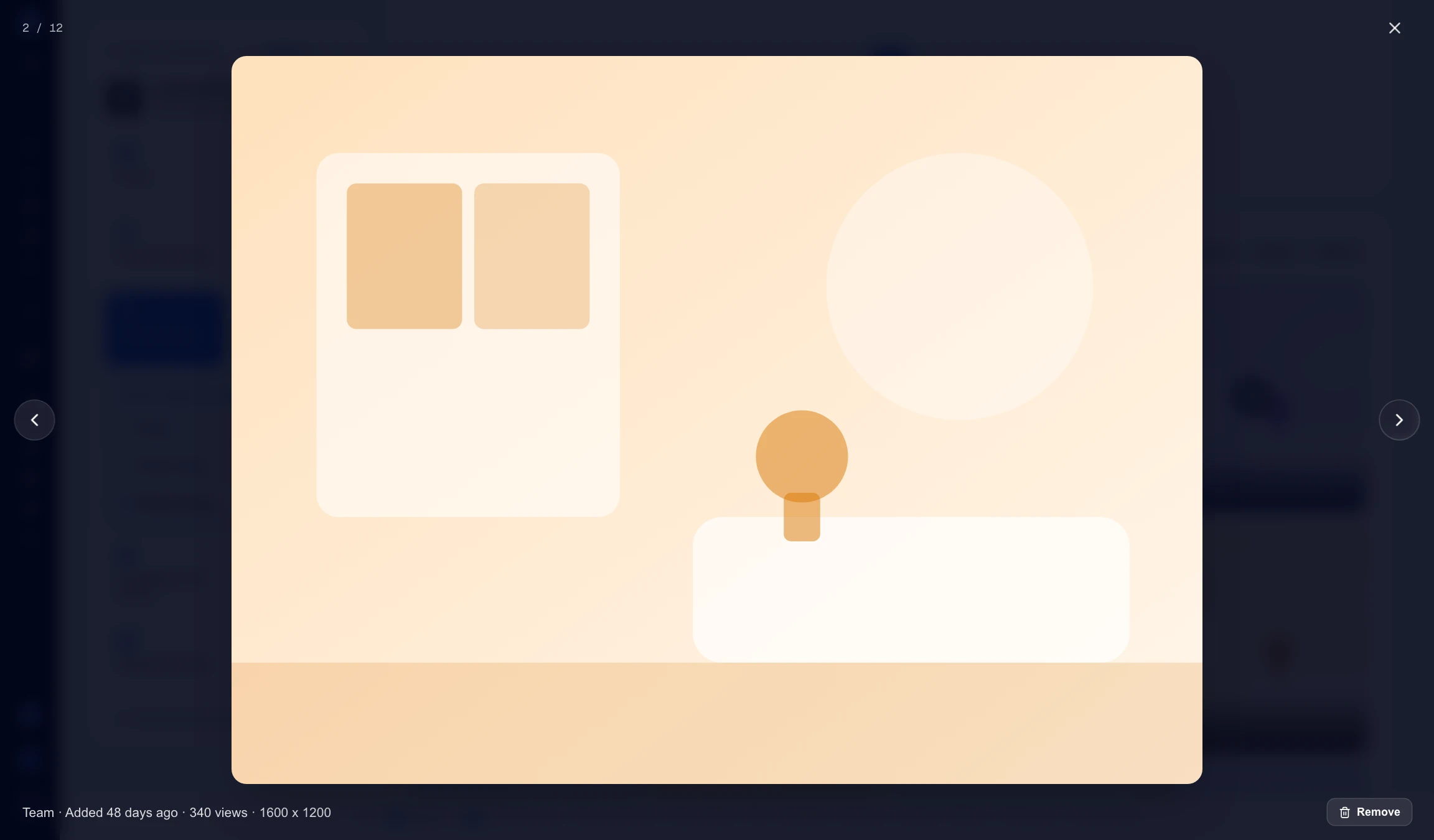
Click a photo to see it large, with its details underneath. Use the arrows or your keyboard’s arrow keys to move through them, and Esc to close.
See what customers added
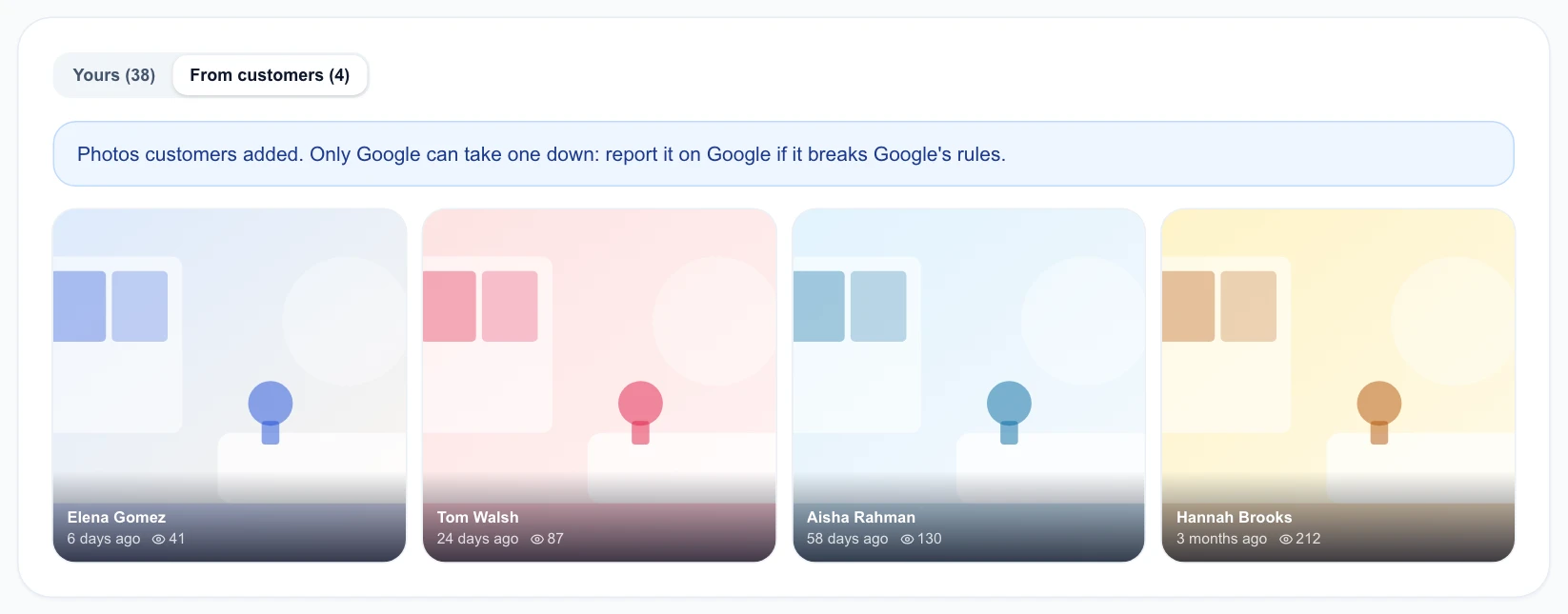
Click From customers to see photos customers added, with who added each one. You can’t remove these. Only Google can, so report one on Google if it breaks Google’s rules.
Plan photos ahead with Photo drops
Click Photo drops. Choose when the first photo goes up, how many days to leave between photos, and the category new photos go in. Then drop in up to 30 photos. Photo drops takes photos only; add videos in Photo library.
Each photo gets a time from your plan, and you can change the time or category of any of them. Click Schedule to finish.
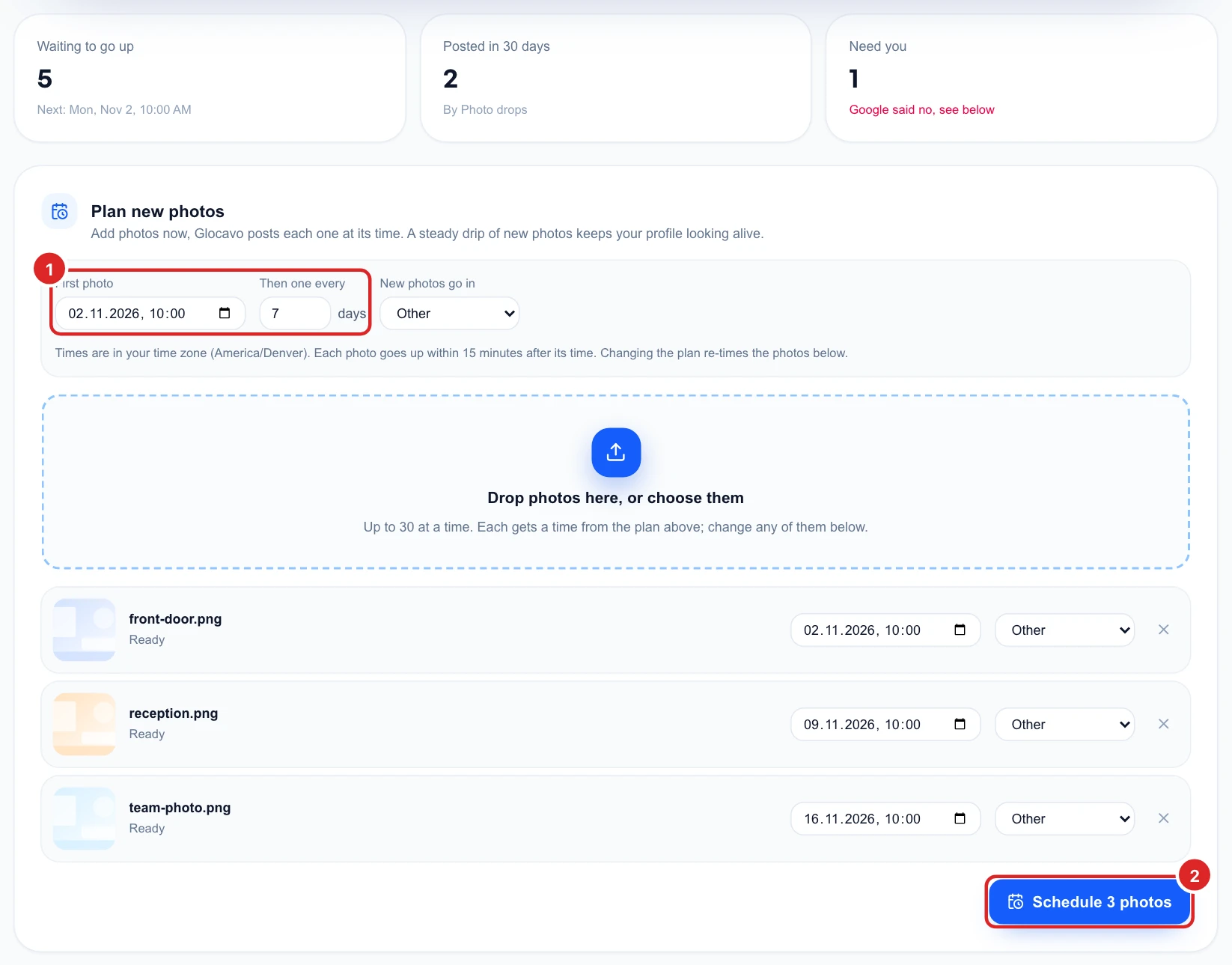
Times are in your own time zone, and each photo goes up within 15 minutes after its time.
Change what's coming up
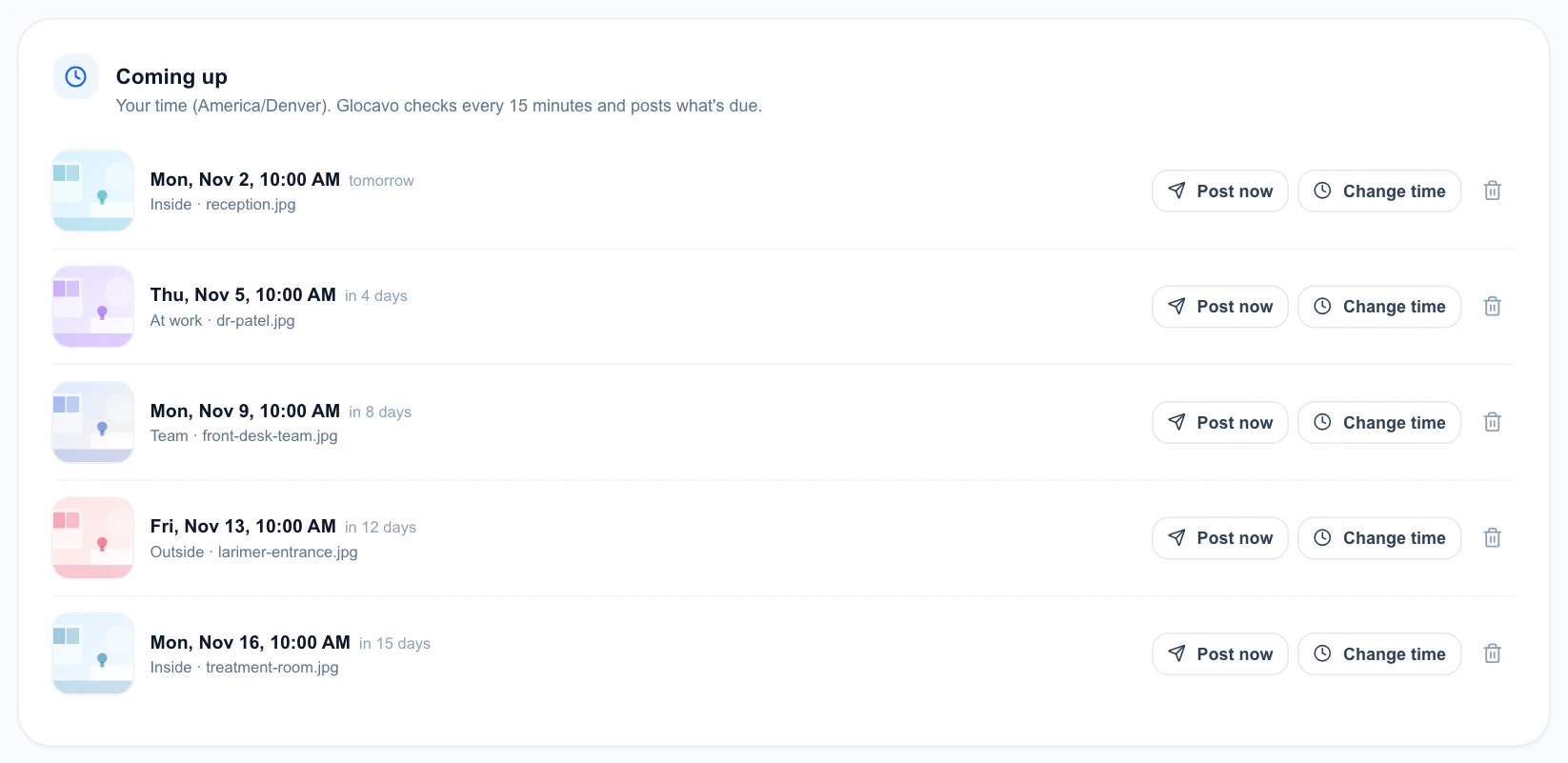
Coming up lists every photo still waiting. For each one you can post it now, change its time or remove it with the bin.
Fix a photo that didn't go up
If Google turns a photo down or can’t be reached three times, the photo moves to Didn’t go up and the Need you number at the top counts it. Try again, change the time or remove it.

Glocavo can also email you when this happens. Turn it on under Today, Notifications.
Check what's been posted
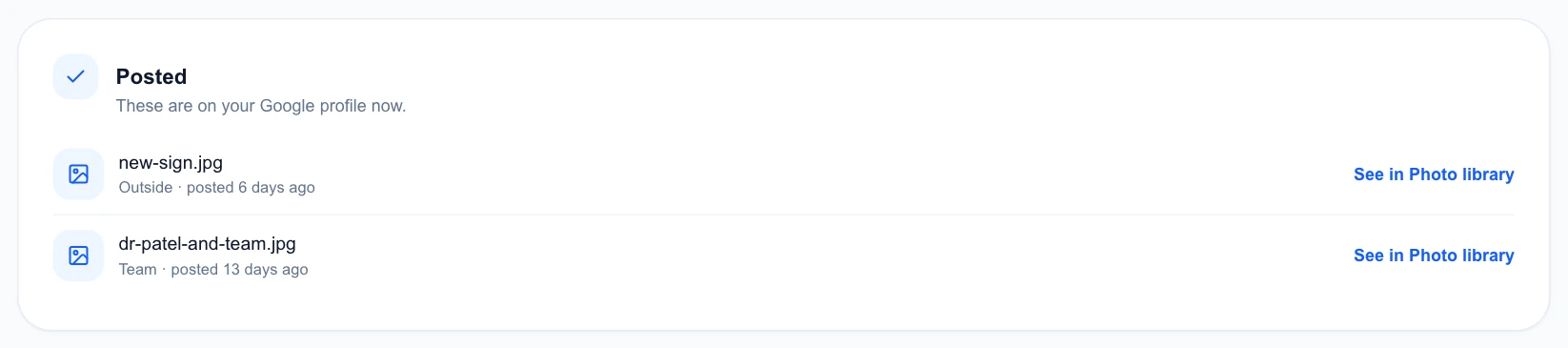
Posted lists the photos that went up. Glocavo deletes its own copy once Google has the photo, and See in Photo library takes you to it on your profile.