GBP Management
Let AI assistants prepare your Google Business Profile work
Turn on assistants that draft replies and posts, watch your listing and suggest next steps, ask questions about your business, and approve everything first.
Updated November 4, 2026 · 6 min read
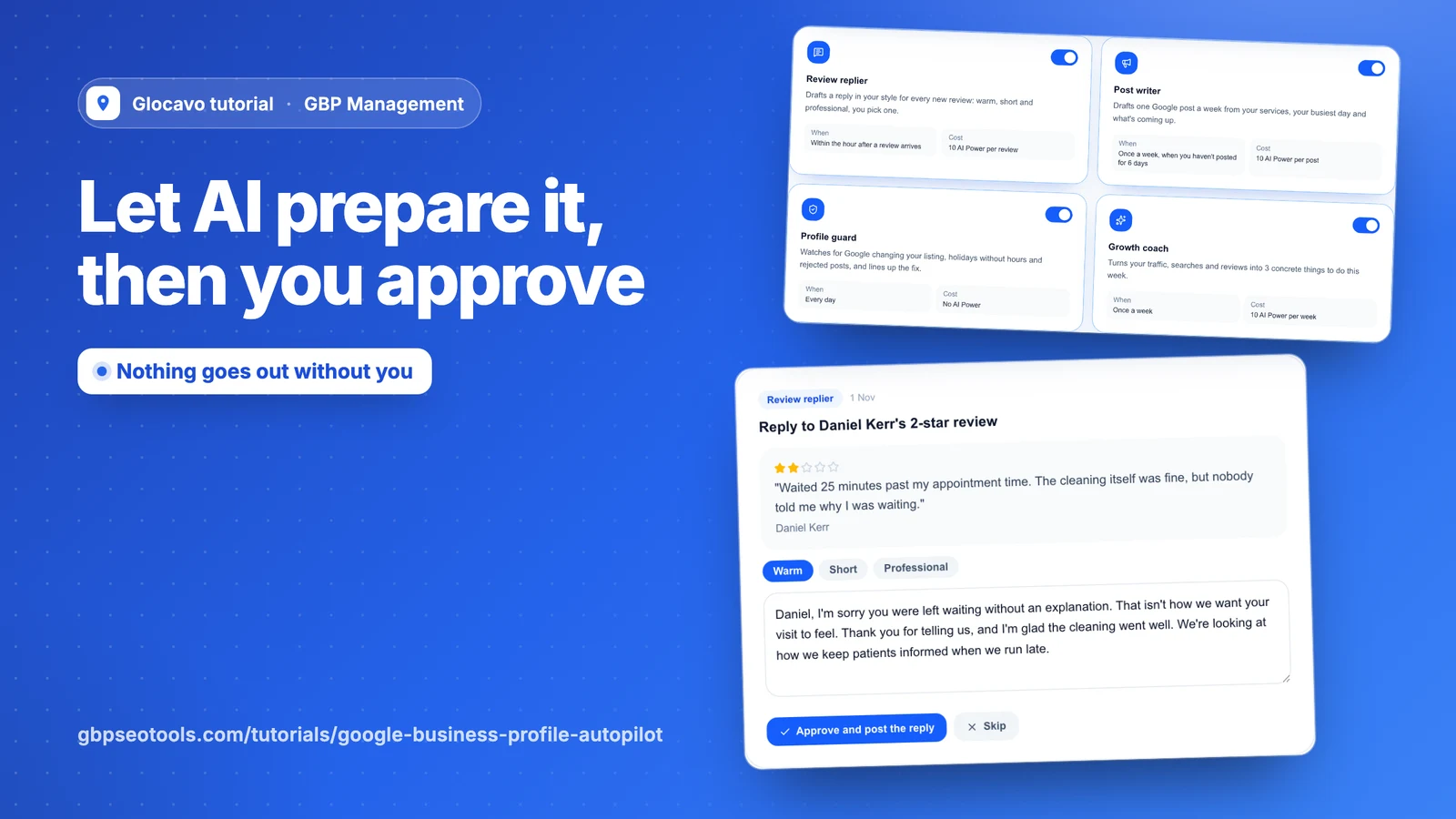
Autopilot gives you four AI assistants that draft replies and posts, watch your listing and suggest what to do next. They only prepare the work: nothing reaches Google until you approve it.
- Where
- GBP Management, open a business, Autopilot
- You need
- A connected business, see connect your Google Business Profile
- Cost
- AI Power, depending on the assistants you turn on. Profile guard uses none.
Choose your assistants
Click Autopilot, then Assistants. Use the switch on each card to turn it on or off:
- Review replier: drafts a reply in your style within the hour after a review arrives. It costs 10 AI Power per review.
- Post writer: drafts a post once a week if you haven’t posted for 6 days. It costs 10 AI Power per post.
- Profile guard: checks every day for changes by Google, holidays without hours and rejected posts. It uses no AI Power.
- Growth coach: picks 3 things to do each week from your traffic, searches and reviews. It costs 10 AI Power per week.
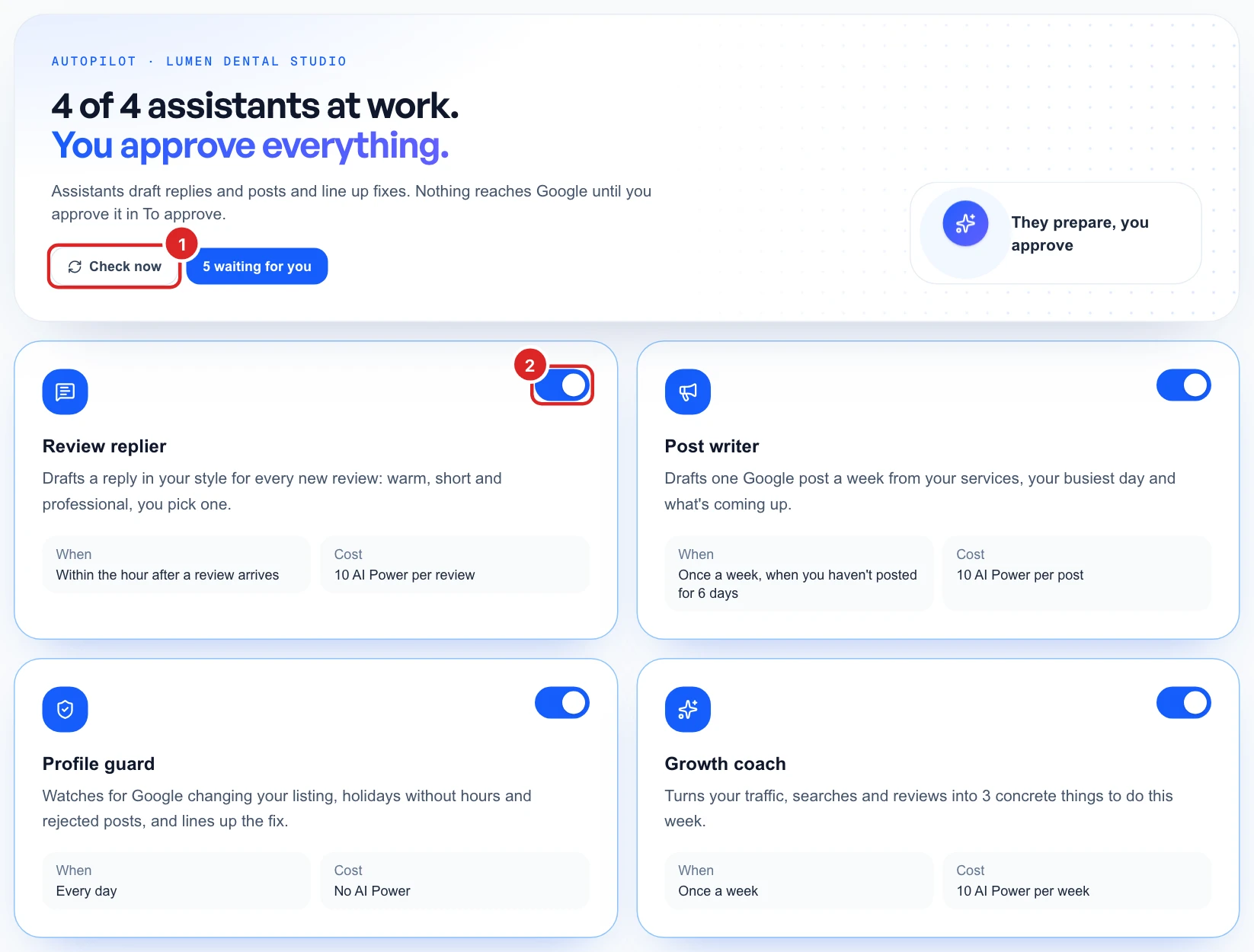
An assistant starts as soon as you turn it on, so its first work shows up right away. To set the tone of your replies, see reply to Google reviews.
AI Power is used when an assistant writes a draft, so a draft you skip still counts. If you run out, the assistants stop writing until you have more.
See what's ready for you
Click To approve. Everything your assistants prepared waits here, and each card names the assistant that made it.
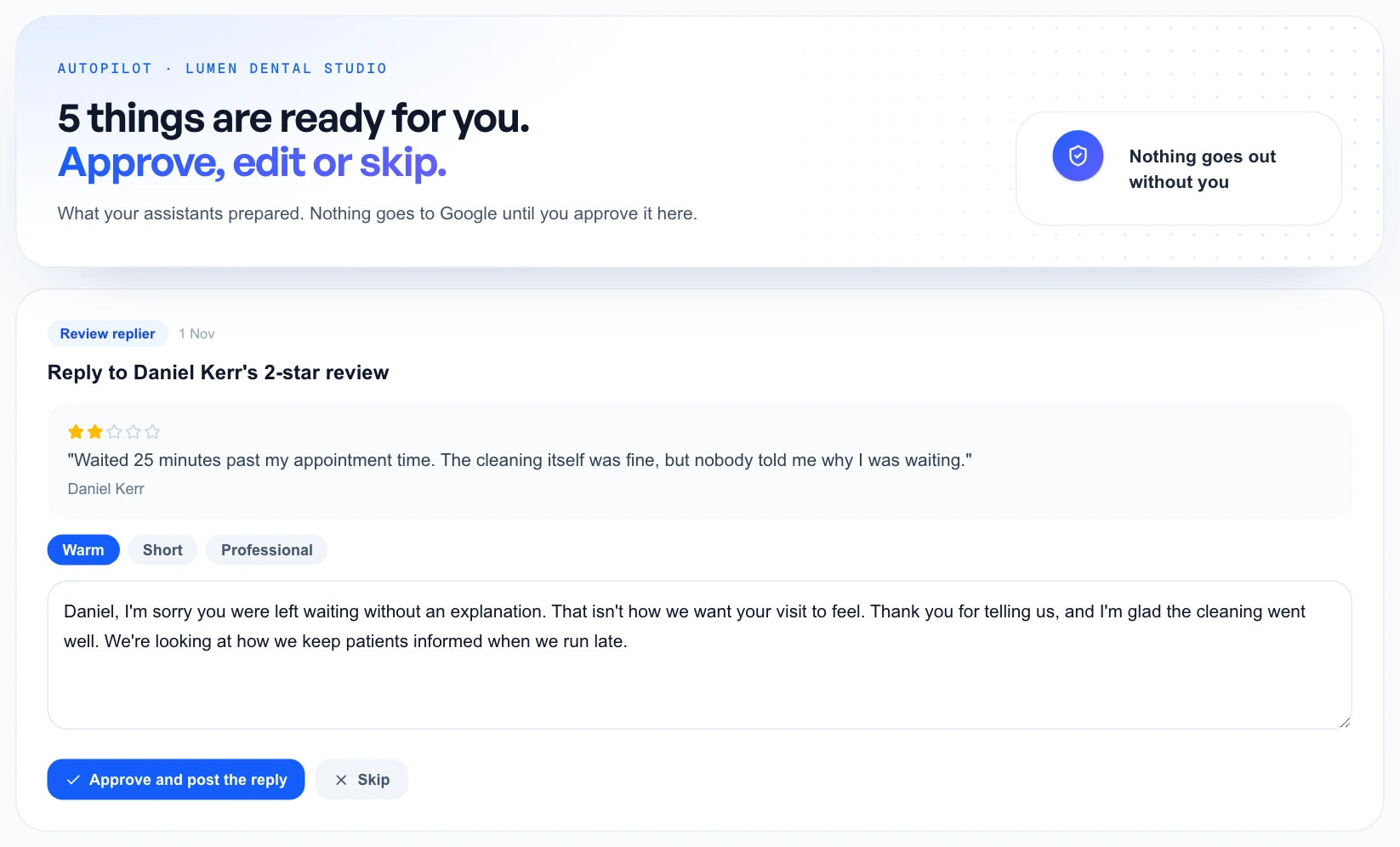
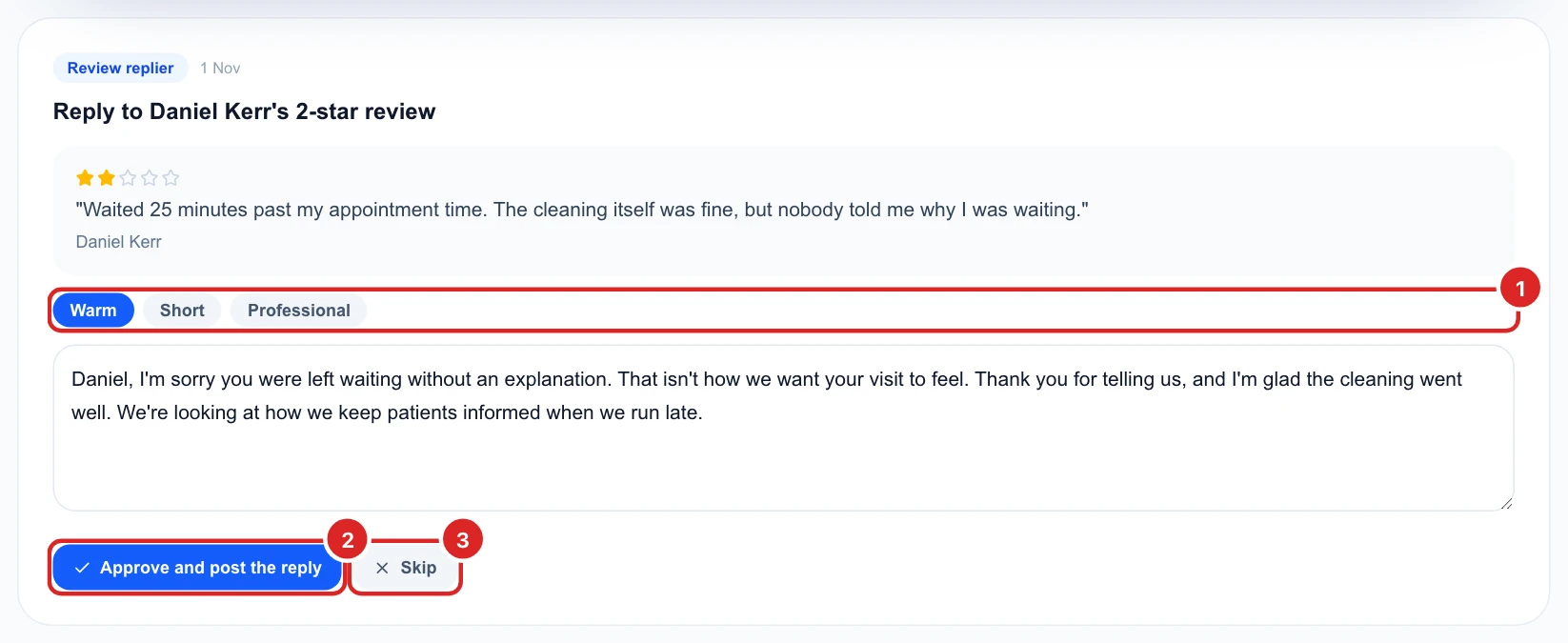
Approve a review reply
Read the review, pick Warm, Short or Professional, and change anything you like in the box. Then click Approve and post the reply, and it goes to Google straight away.
Approve a post
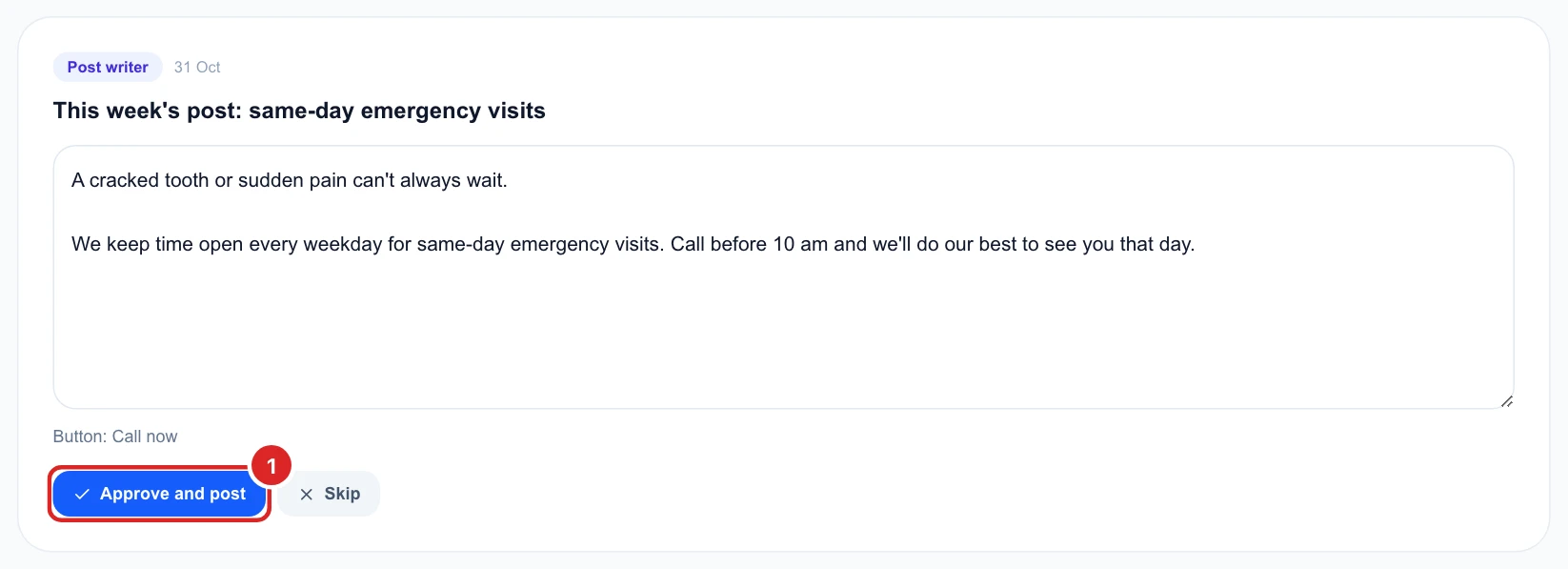
Edit the text if you like, then click Approve and post. This posts it right away, with the button shown under the box. To pick a date or add a photo, write it under Posts instead.
Handle fixes and tasks
Fixes from Profile guard and tasks from Growth coach each have one main button:
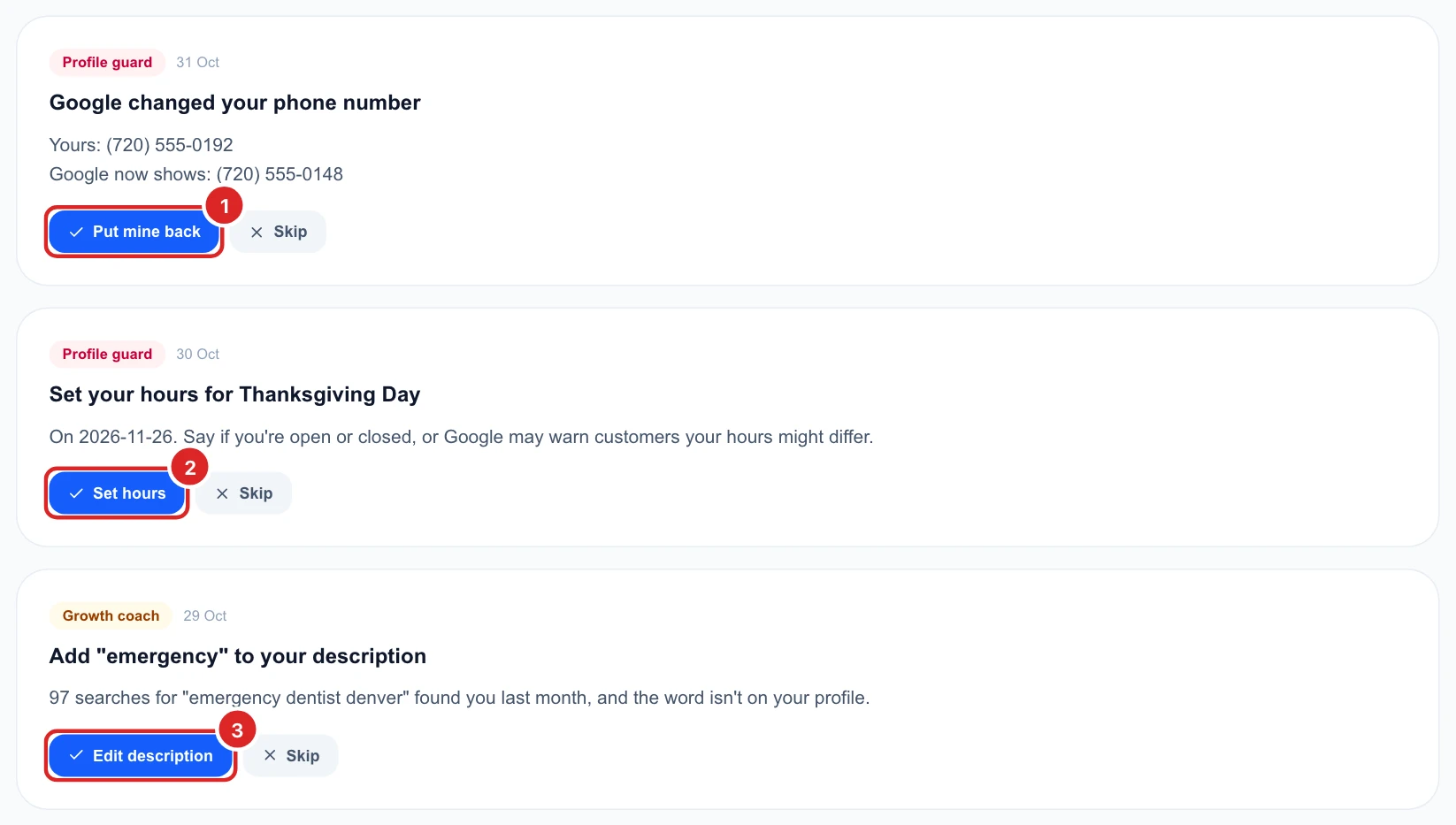
- Put mine back: sends your version to Google, as in Edit watch.
- Other buttons: open the right editor or page for you to finish the job.
Clicking one of the other buttons marks the card as done, even before you save. Finish the job while the editor is open.
Ask about your business
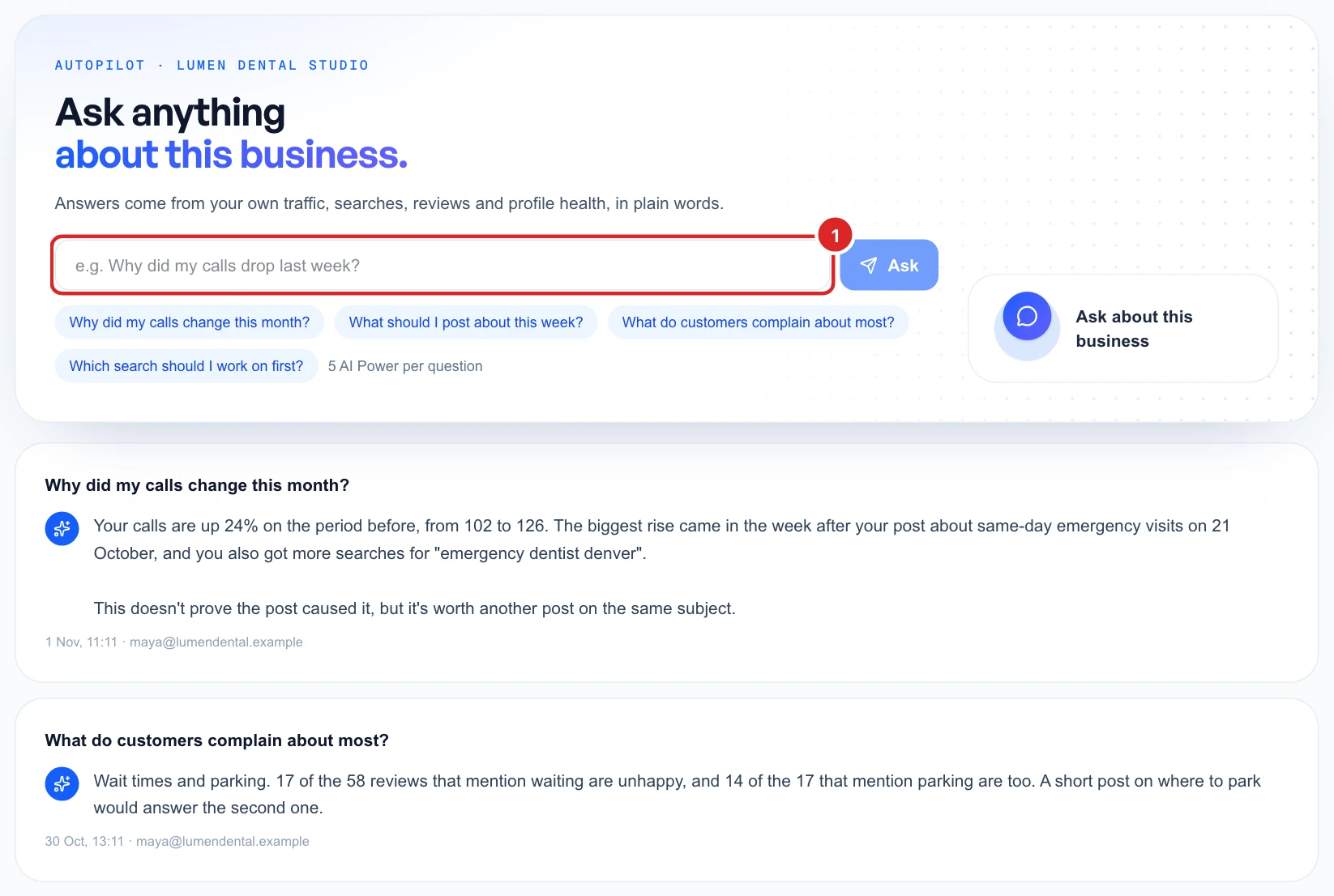
Click Ask and type a question, or click one of the suggestions. Answers come from your own traffic, searches, reviews and profile health, for 5 AI Power per question. Your last 20 questions stay on the page.
See everything that happened
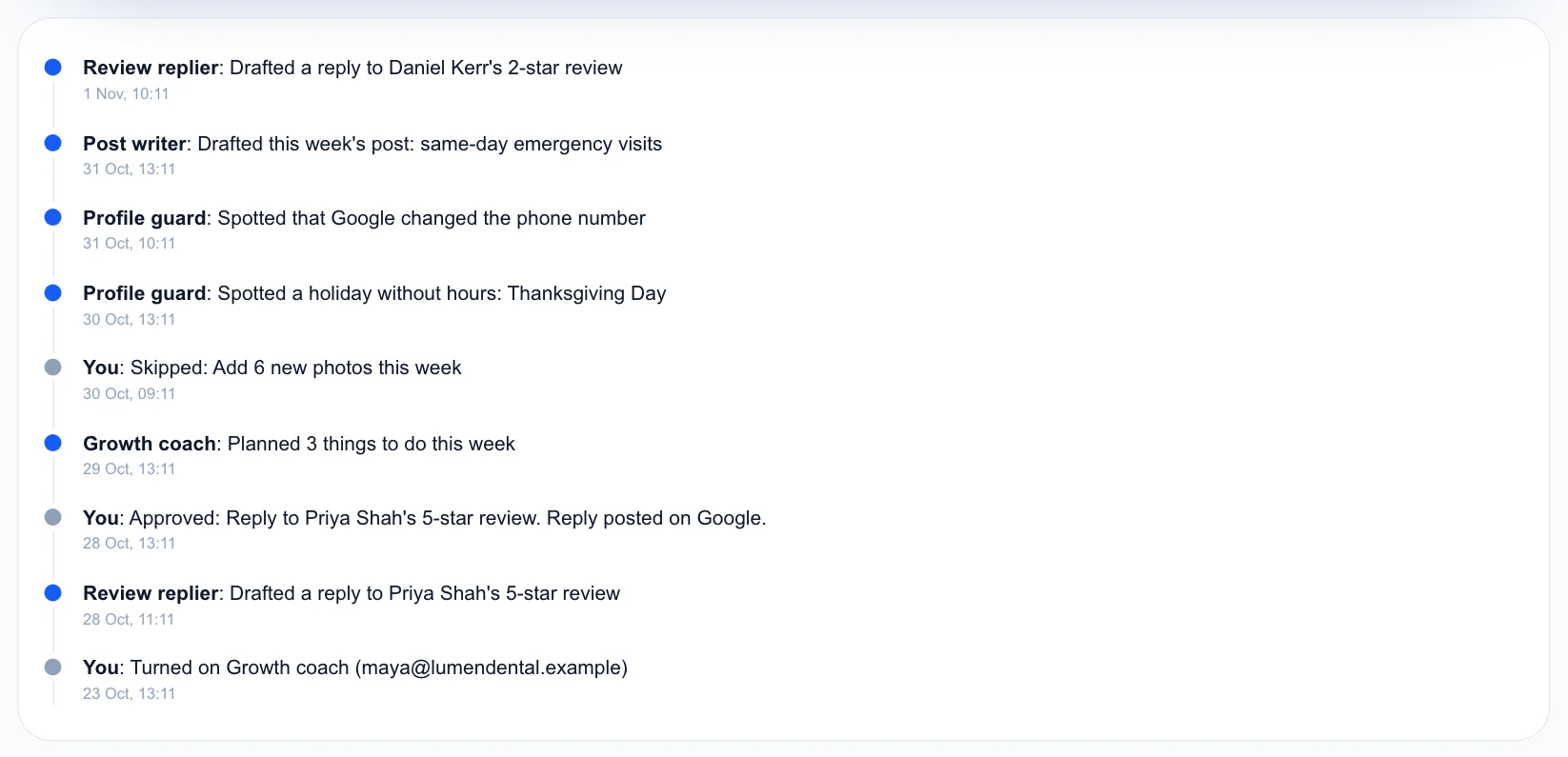
Activity log lists what each assistant prepared, what you approved or skipped, and what Google said.
Bring back something you skipped
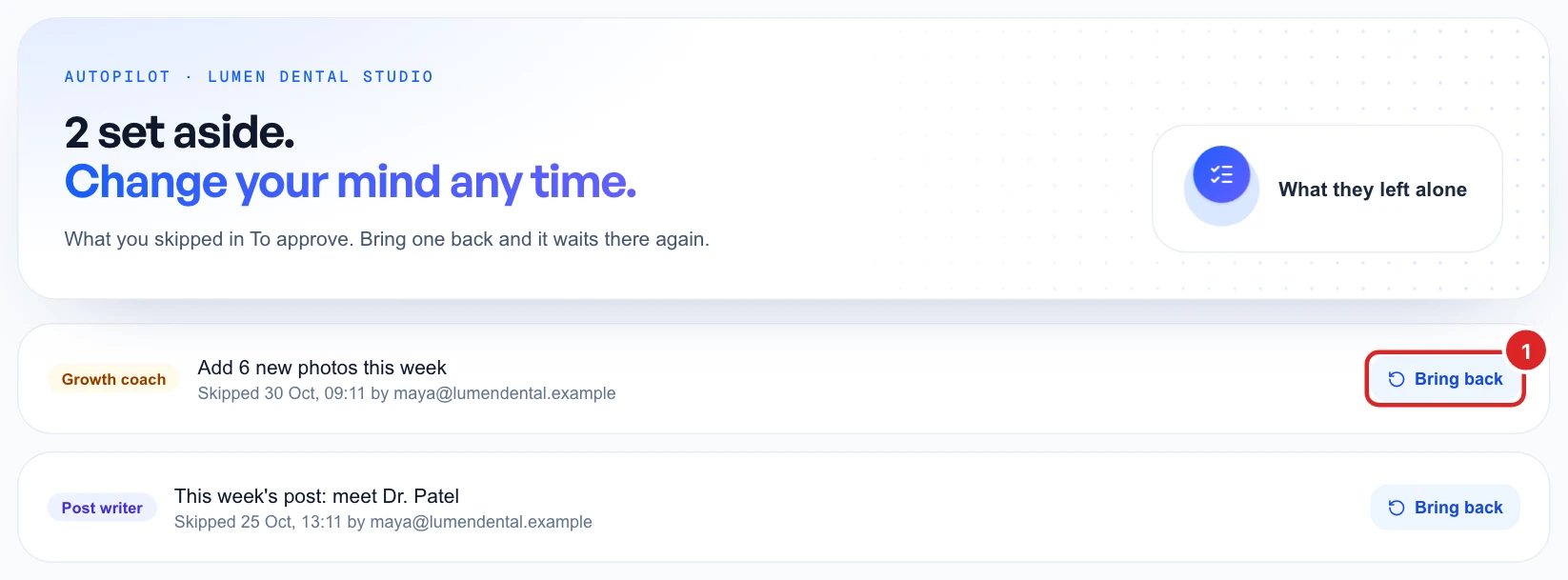
Skip moves a card to Skipped. Click Bring back and it waits in To approve again.
Approve drafts from Claude or ChatGPT
You can also ask your own AI assistant, such as Claude or ChatGPT, to write replies and posts for you. Its drafts wait in the same To approve list, so nothing reaches Google until you approve it. Here is everything you do, from start to finish.
Once, to set it up
- Connect your assistant to Glocavo, see connect Glocavo to Claude.
- On the Glocavo Allow screen, leave Also let it prepare drafts and start scans (uses your credits) on. With it off, your assistant can read your reviews but can’t leave drafts for you.
Every time
- In a chat with your assistant, turn Glocavo on and ask it for drafts. For example:
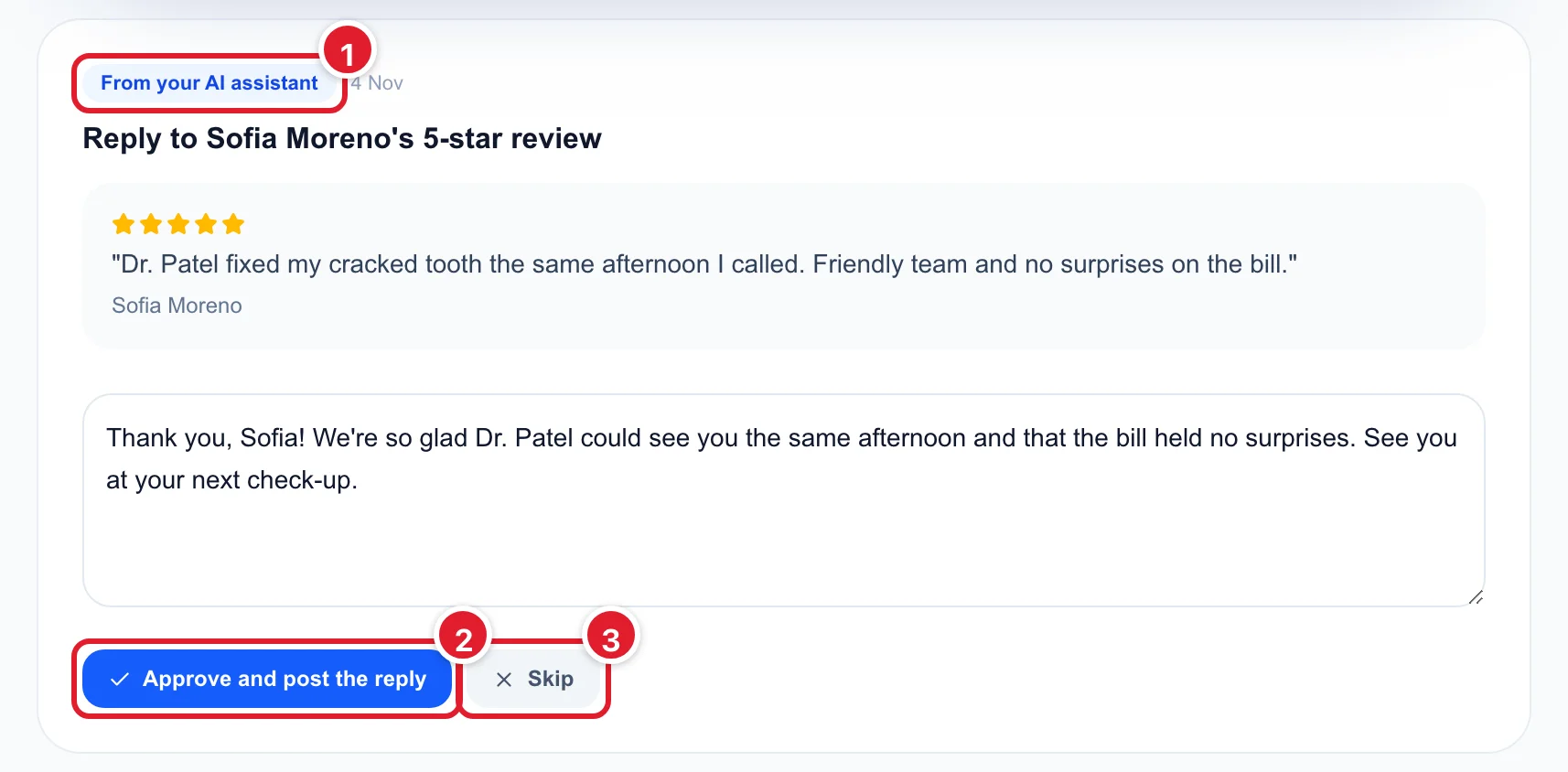
Draft a warm, short reply to each unanswered review of [your business] in Glocavo, and one Google post about [this week's offer].- In Glocavo, open GBP Management, click your business, then Autopilot and To approve. Cards from your assistant are labelled From your AI assistant.
- Read the review and the reply. Change any words you want in the box.
- Click Approve and post the reply (or Approve and post for a post). It goes live on Google straight away and shows in the Activity log.
- Don’t want it? Click Skip. Nothing is sent to Google, and you can bring it back from Skipped.
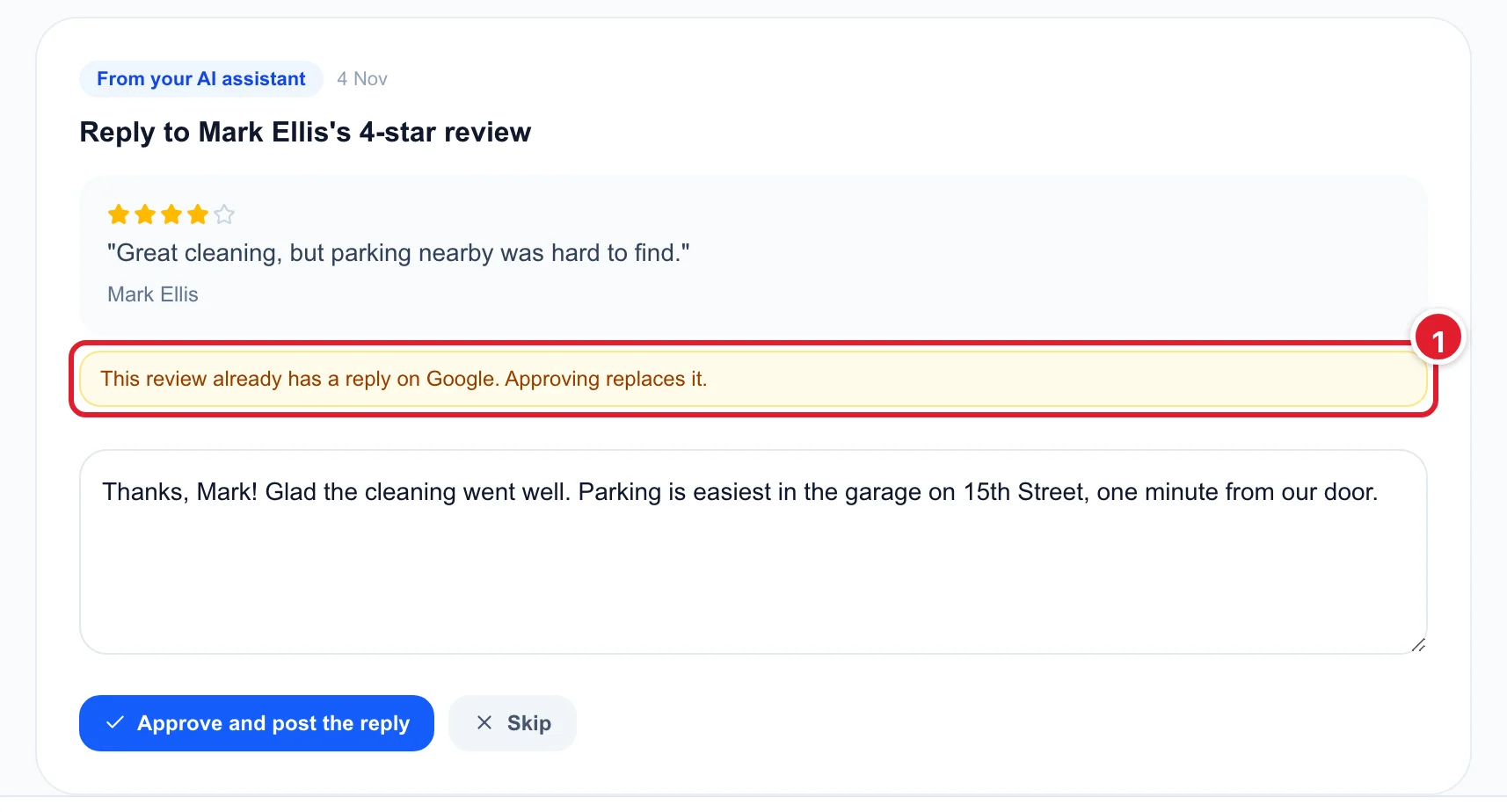
If a review already has a reply on Google, the card shows a yellow note. Approving puts the new reply in place of the old one, so read it first.
Drafts from your assistant use no credits or AI Power. Up to 20 can wait per business, and your assistant can ask Glocavo what happened to them. Forgot a step? Click How this works at the top of To approve.