GBP Management
Catch Google's edits and duplicate listings on your Business Profile
See what Google changed on your listing, keep its version or put yours back in one click, then find duplicate listings and get them removed.
Updated November 1, 2026 · 5 min read
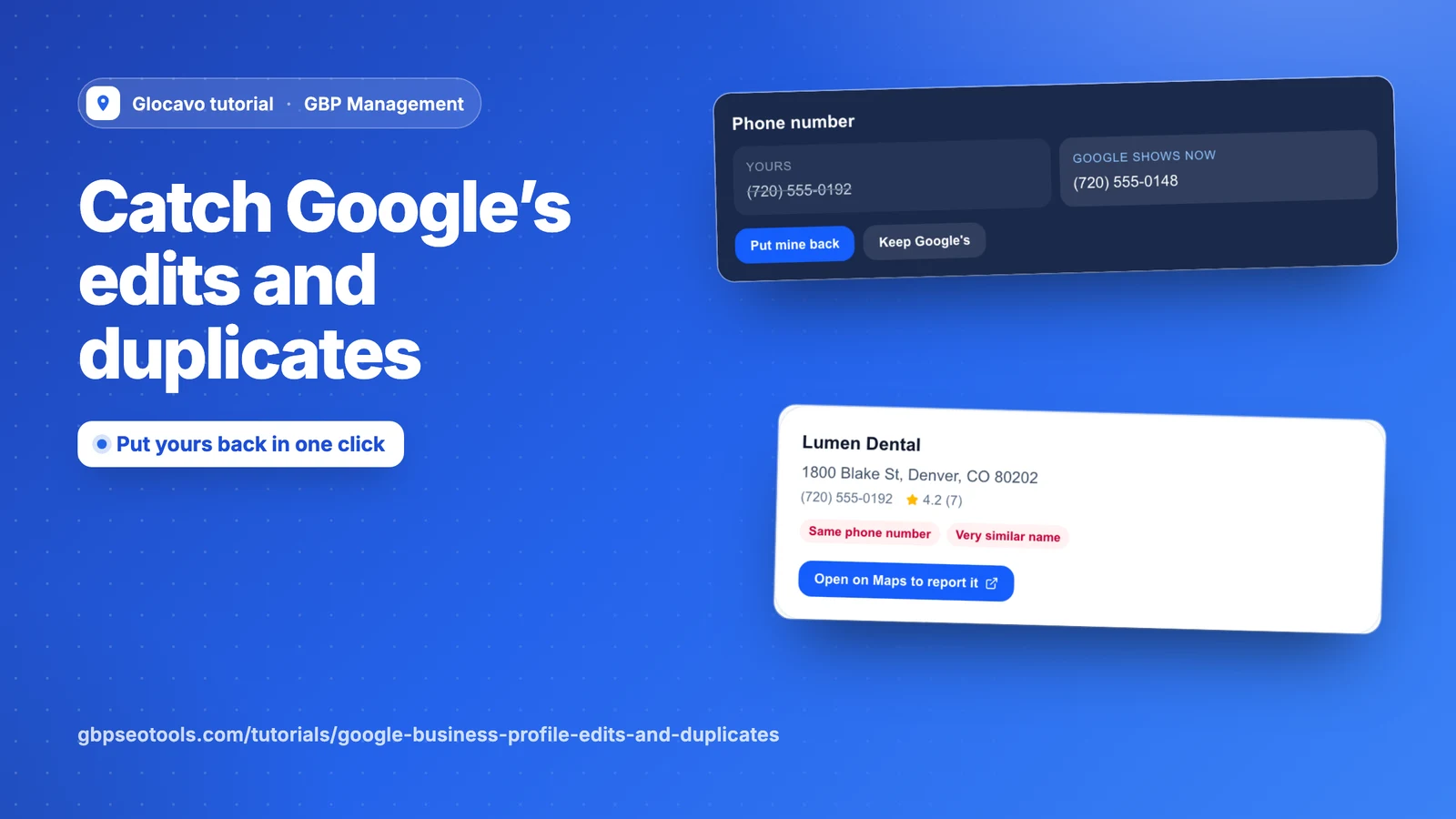
Google can change your listing without asking you, and a second listing for your business can split your reviews. Edit watch shows what changed and who changed it. Duplicates looks for other listings that look like yours.
- Where
- GBP Management, open a business, Profile
- You need
- A connected business, see connect your Google Business Profile
- Cost
- Included, no AI Power
See what Google changed
Click Profile, then Edit watch. Google edits listings from public suggestions and its own data, and customers see Google’s version until you answer. Each change shows your version next to what Google shows now.
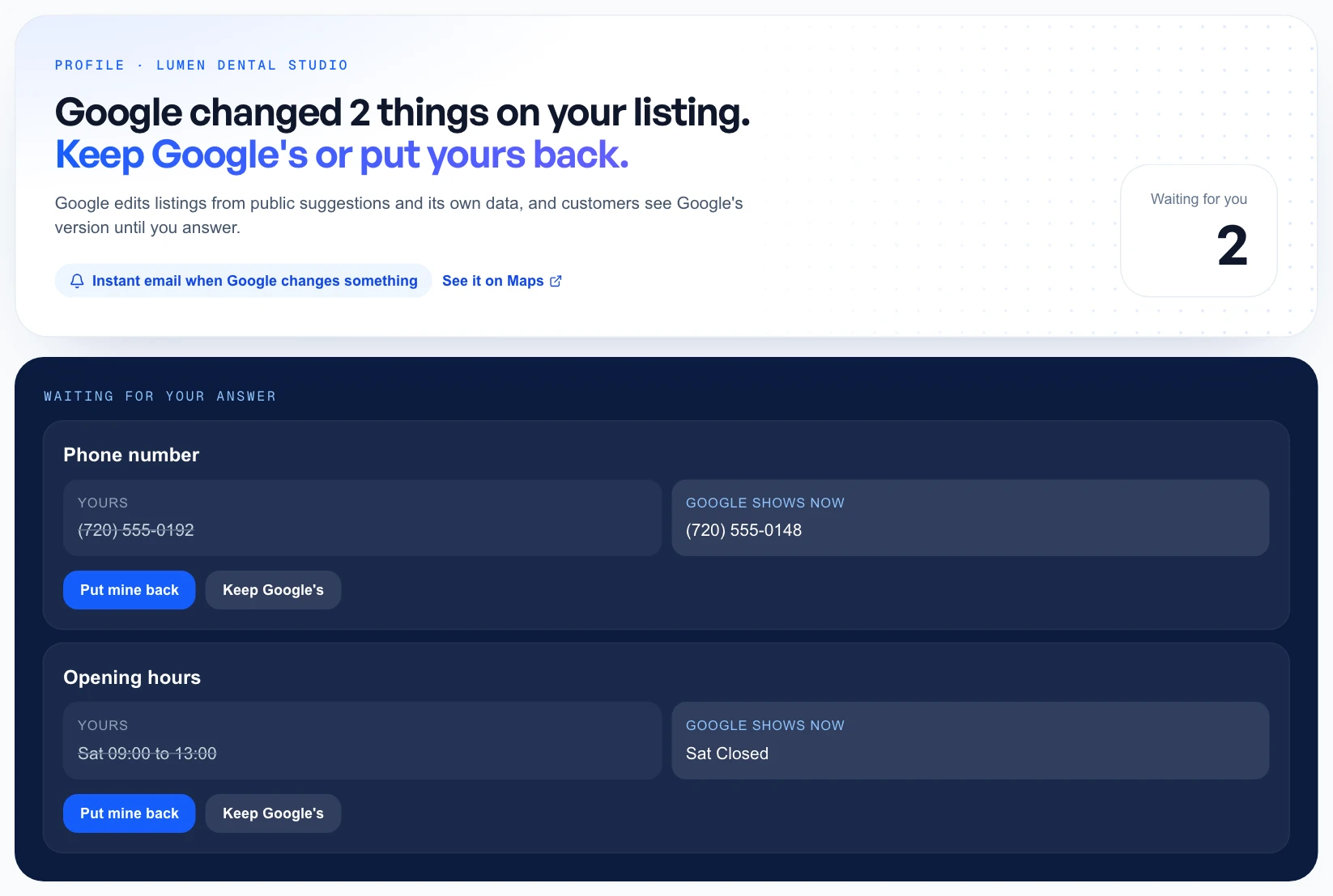
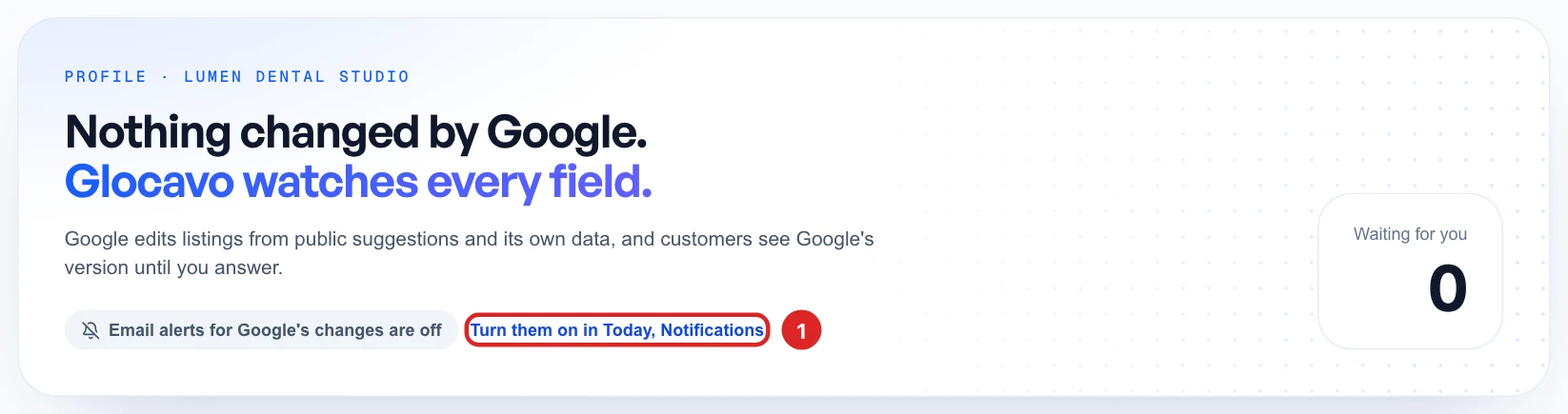
If Google hasn’t changed anything, the page says Nothing changed by Google.
Keep Google's version or put yours back
Check which version is right, then answer each change with one click:
- Put mine back: sends your version to Google again.
- Keep Google’s: use this when Google got it right, like a new number you forgot to update.

Your answer goes to Google straight away, but Google can take time to show it, and may review it first.
Spot your own changes still landing
After you save a change from Glocavo, Google’s version can lag behind for a few hours, sometimes a day or two. That isn’t a change by Google, so this note appears instead of a question.

Glocavo holds these back for 3 days after your save. If Google really did change that field, it asks you after that.
Check your own changes went live
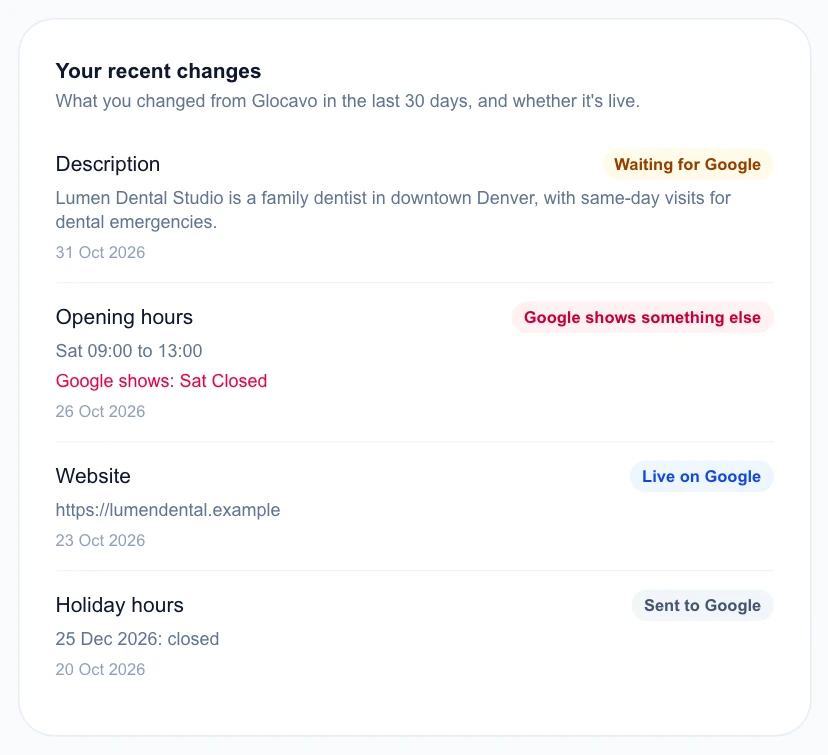
Your recent changes lists the latest change to each field you made from Glocavo in the last 30 days. Changes you make directly on Google aren’t listed. Each one has a status:
- Live on Google: Google shows what you saved.
- Waiting for Google: Google is still updating or reviewing it.
- Google shows something else: Google’s version differs, and the red line tells you what it shows.
- Sent to Google: Glocavo sent it, but can’t compare this kind of change, like holiday hours.
See who changed what
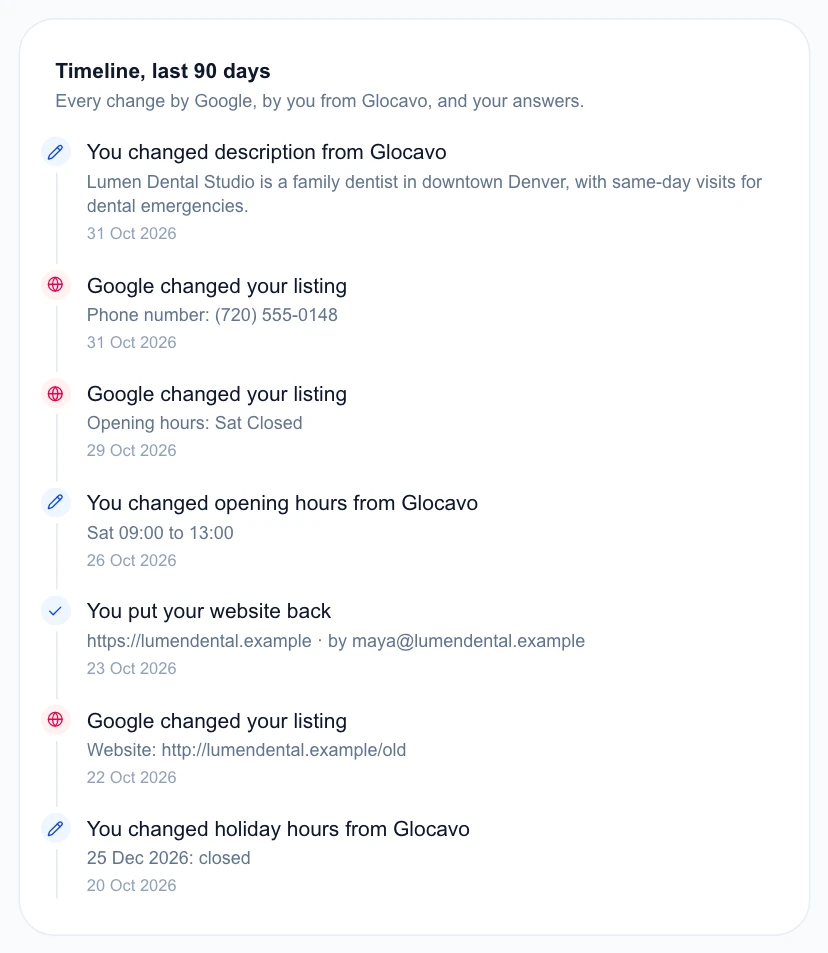
The Timeline covers the last 90 days: changes by Google, your changes from Glocavo and your answers. Each answer shows who gave it, which helps when a team shares the profile.
Get an email when Google changes something
The label at the top tells you if email alerts are on. If they’re off, click the link beside it to turn them on under Today, Notifications.
Search for duplicate listings
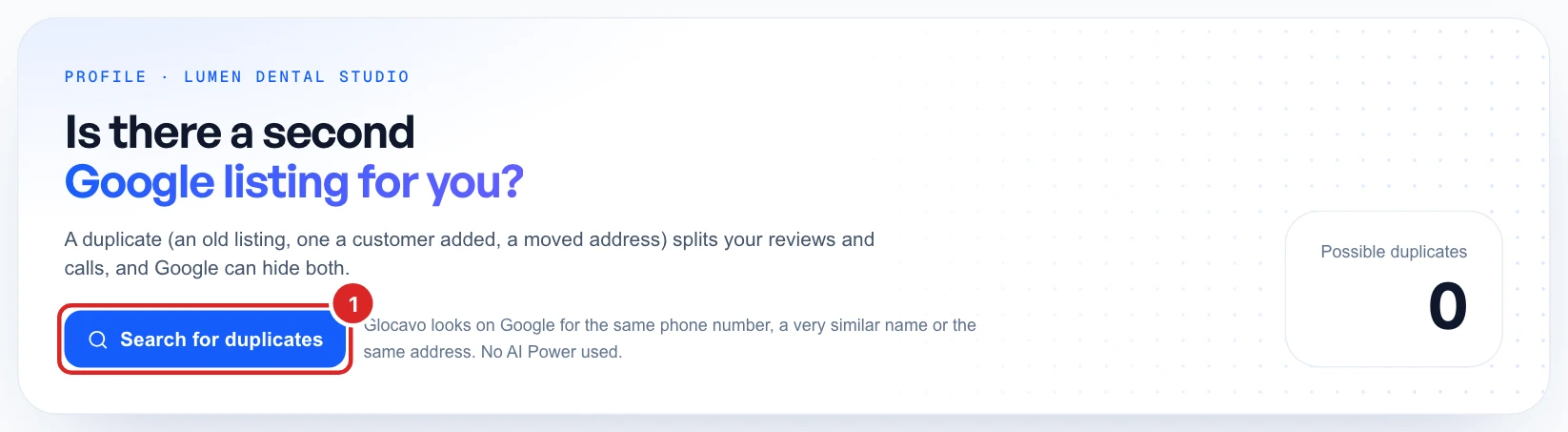
Click Duplicates, also under Profile. A duplicate can be an old listing, one a customer added or one left behind by a move. It splits your reviews and calls, and Google can hide both listings.
Click Search for duplicates. Glocavo looks on Google for the same phone number, a very similar name or the same address.
Read the results
Each card shows a listing and why it looks like yours. A similar name alone doesn’t count, because plenty of businesses share words in their names. Marked closed means Google lists it as closed for good, and it can still confuse customers.
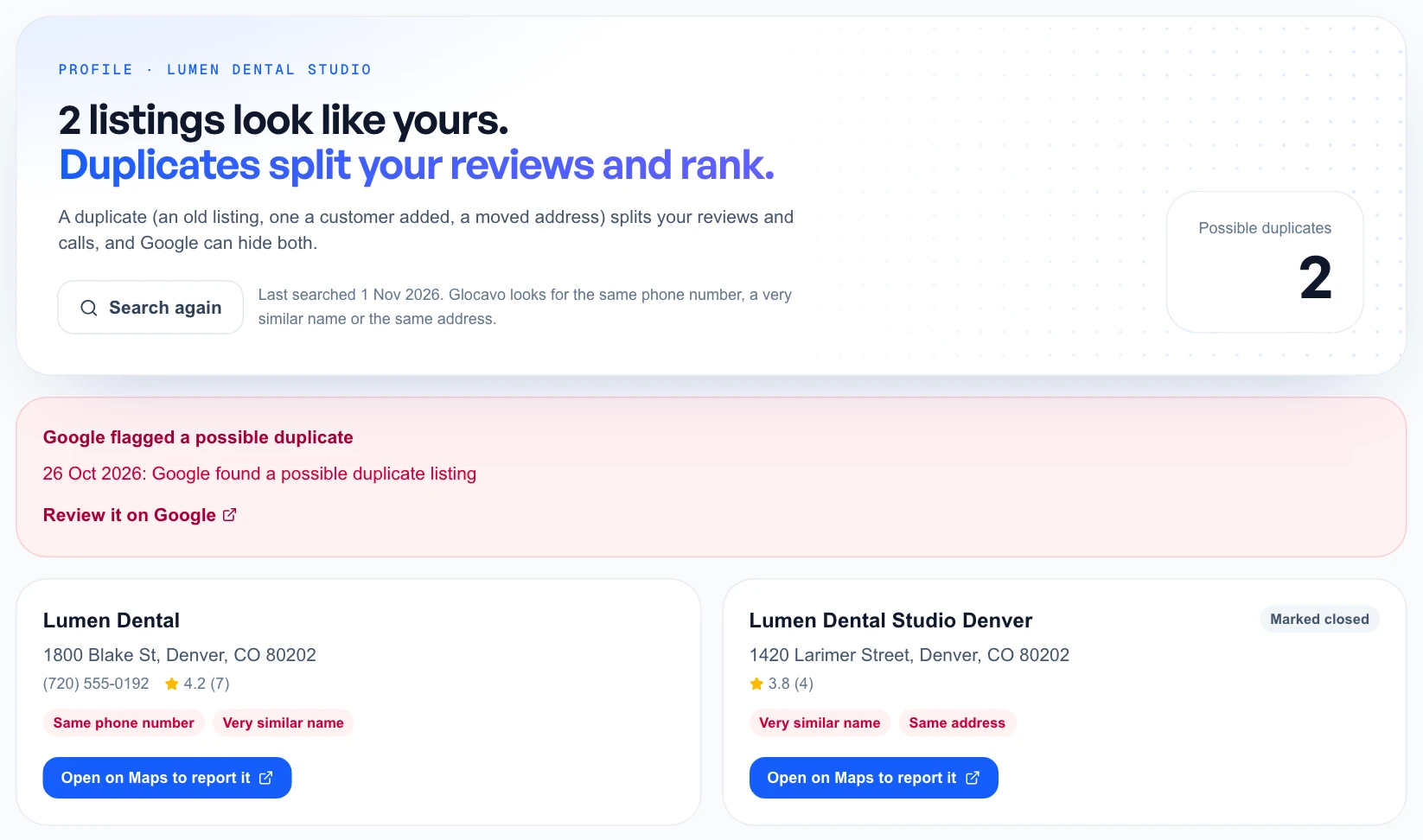
Your results stay for 30 days. Check each one before you report it: a real second branch or another business in your building can match too. If nothing matches, the page says No duplicates found.
Get a duplicate removed
Click Open on Maps to report it on the card, then follow the steps at the bottom of the page.
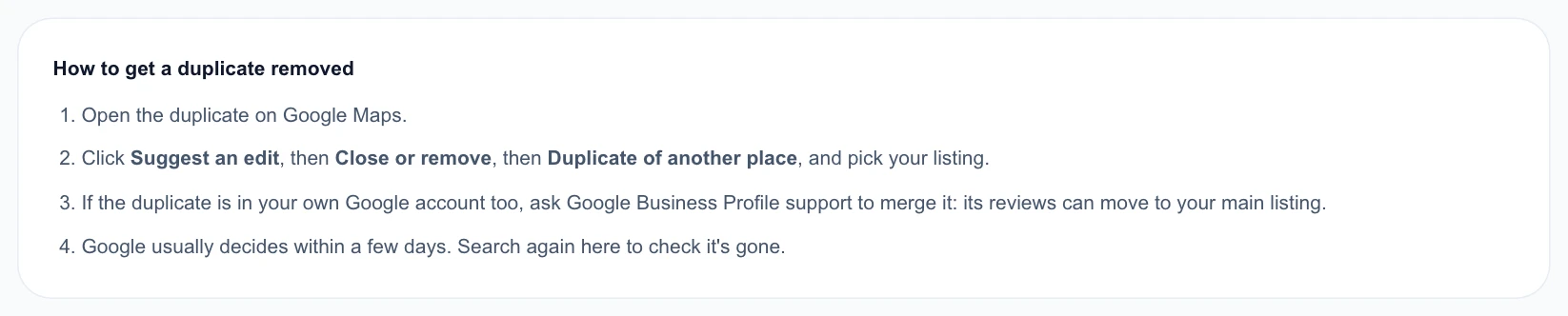
Google usually decides within a few days. Click Search again to check it’s gone.