GBP Management
Private feedback and deleted Google reviews
Read what unhappy customers told you privately, see which reviews left Google, and use the Recovery kit to try to get the good ones back.
Updated October 31, 2026 · 6 min read
Google doesn’t show you two things: what an unhappy customer would rather tell you privately, and which reviews have disappeared from your profile. This guide shows you where to find both, and what to do about them.
- Where
- GBP Management, open a business, Reviews
- You need
- A connected business, see connect your Google Business Profile
- Cost
- Included. Rewriting a message with AI costs 10 AI Power.
Read your private feedback
Click Reviews, then Private feedback. When someone gives 1 to 3 stars on your rating page, they can send you a message. The Google link stays on every step, so they can still review you on Google too.
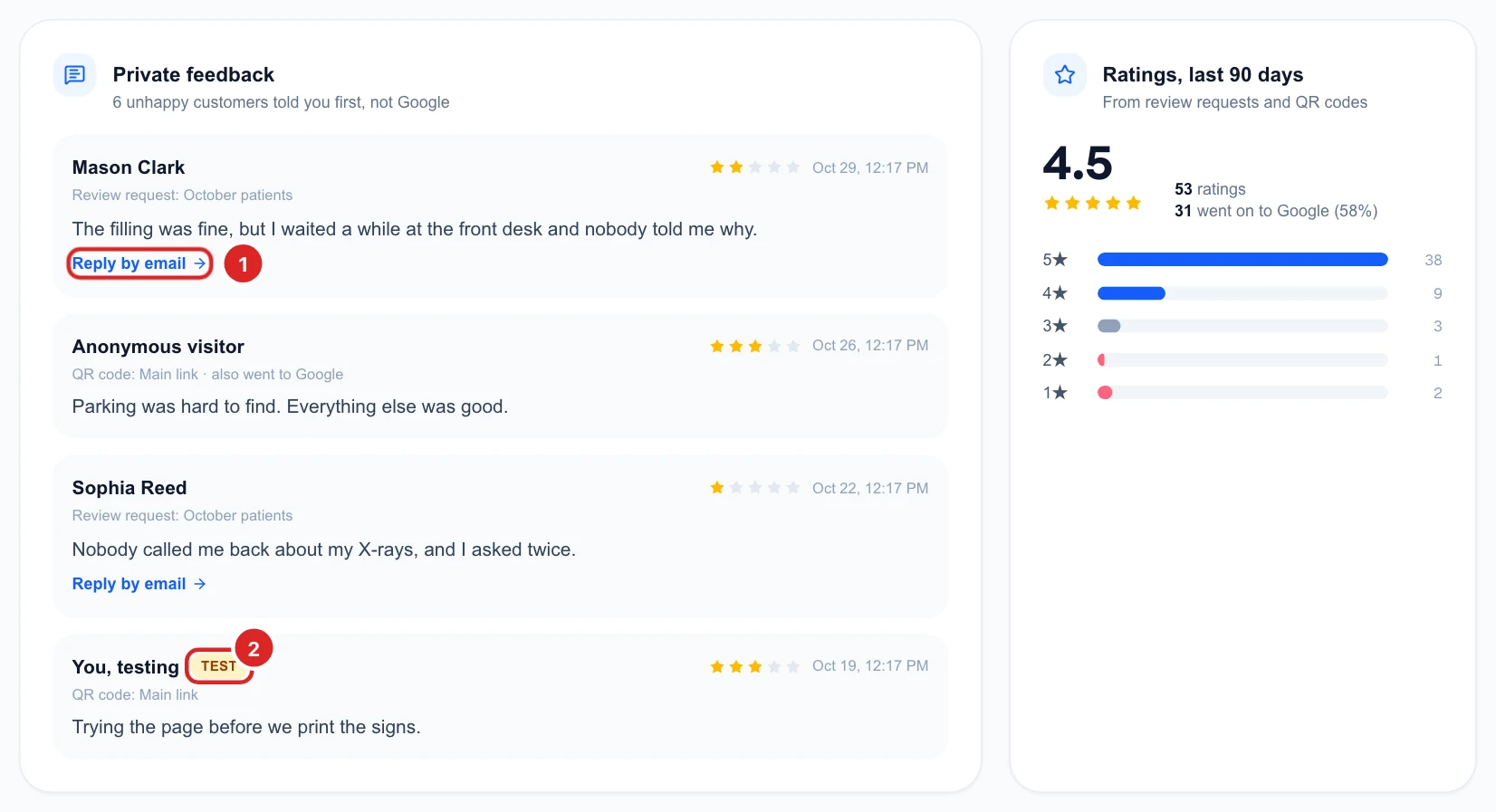
- Each message: the rating, the date, and whether it came from a review request or a QR code.
- Reply by email: this opens your own email app. It only shows when you have the customer’s address, so someone who scanned a QR code without leaving one shows as an anonymous visitor.
- Test: left by you when trying the page. It shows here but is never counted.
- Ratings, last 90 days: your star split, and how many went on to Google.
See which reviews were deleted
Click Deleted reviews. A review can be removed by Google or by the customer who wrote it, and neither tells you. Glocavo keeps a copy of every review it sees, so you can still read what it said.
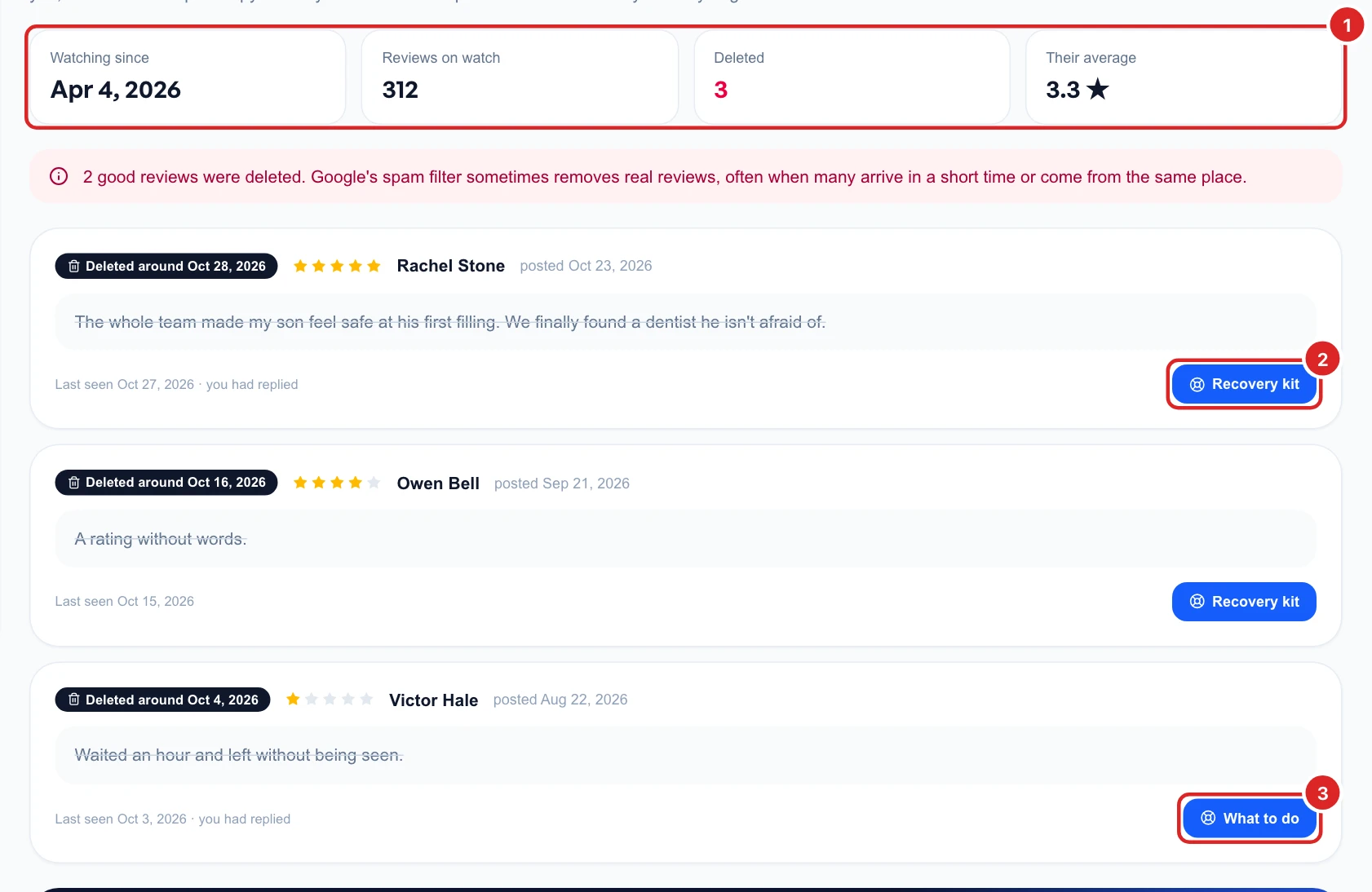
Glocavo can only spot reviews deleted since Watching since. The date on each one is approximate: it’s when Glocavo noticed the review was gone.
Ask the customer to post it again
On a review with 4 or 5 stars, click Recovery kit. Google rarely puts a review back because an owner asks, so the kit starts with what works most often: the customer posting it again.
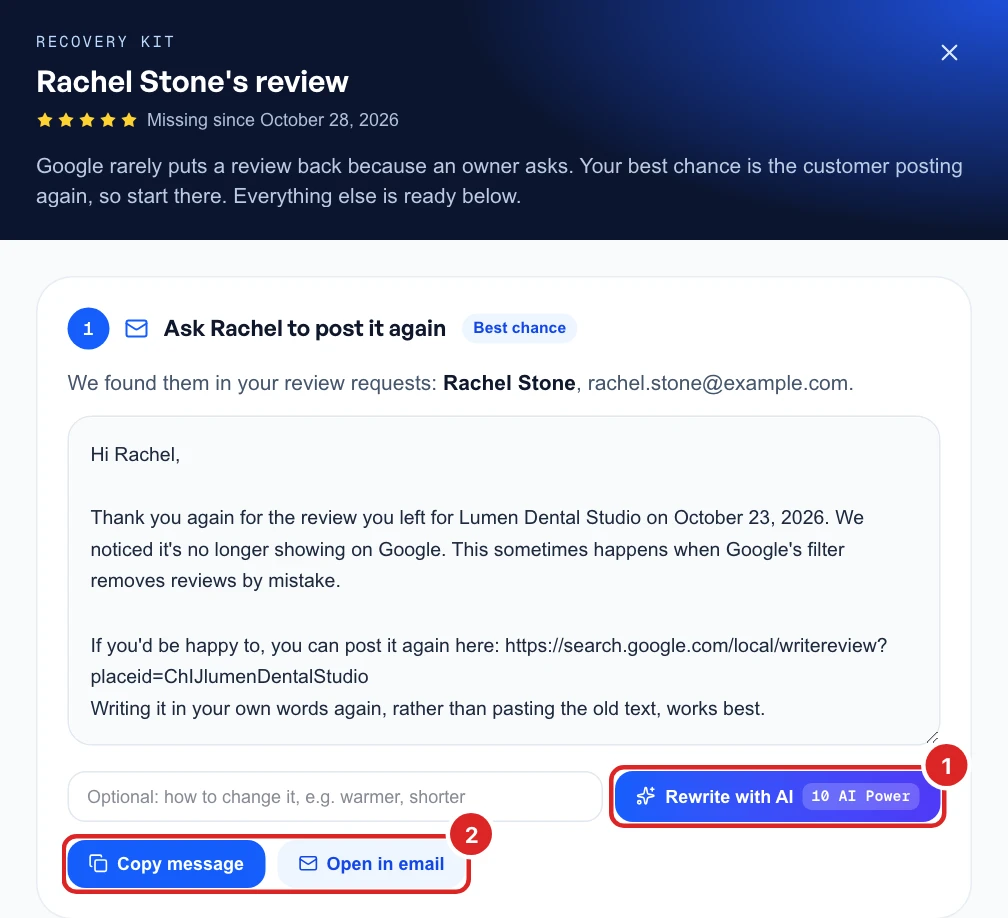
The message is ready, with your Google review link in it. Edit it in the box, or type how you’d like it changed and click Rewrite with AI. Then click Copy message, or Open in email or Open as text message if you have those details. Glocavo doesn’t send it for you.
The kit finds the customer by matching the reviewer’s name with your review requests, so check it’s the right person before you send anything.
Tell Google support
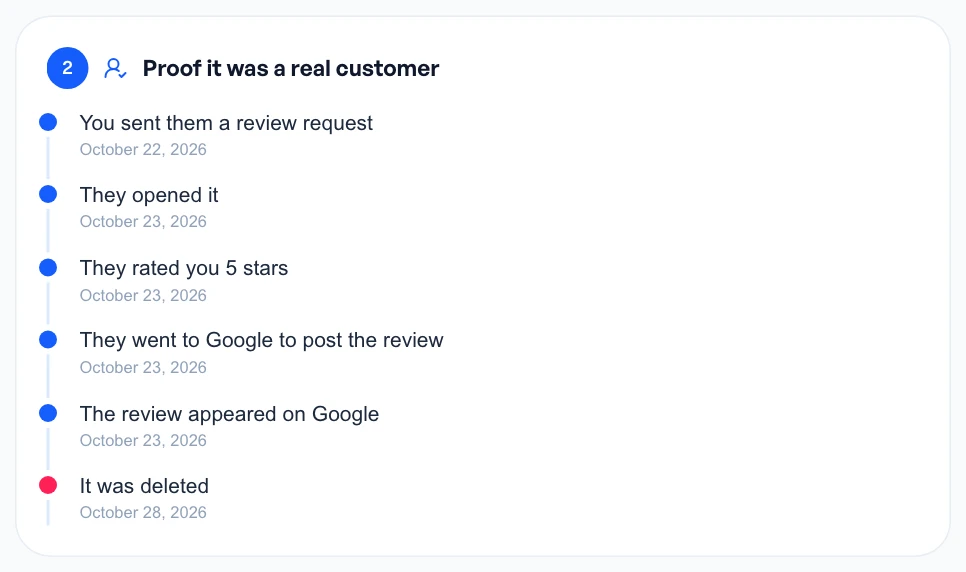
If the kit found the customer, Proof it was a real customer lists the dates from your request to the review appearing and being deleted.
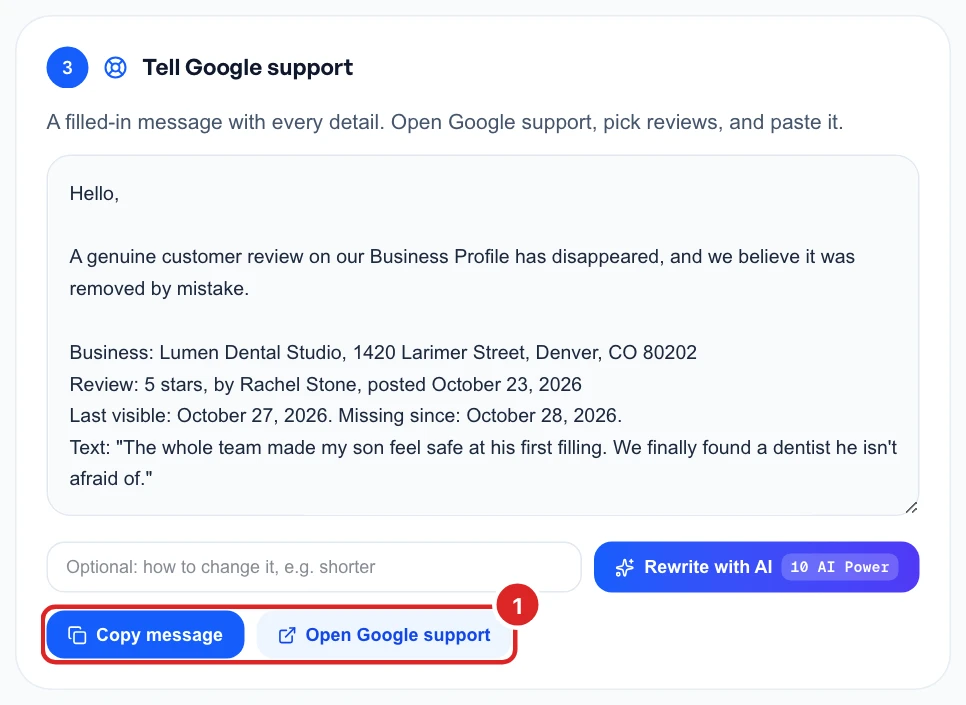
Tell Google support has a message with those details filled in. Click Copy message, then Open Google support, choose reviews and paste it.
See why, and keep the evidence
Why it may have been deleted lists what Glocavo can see, like a burst of reviews around the same time. These are likely reasons, because Google doesn’t say. Download evidence sheet gives you one page with the review, its dates, the customer record and the reasons, to print or save as a PDF.
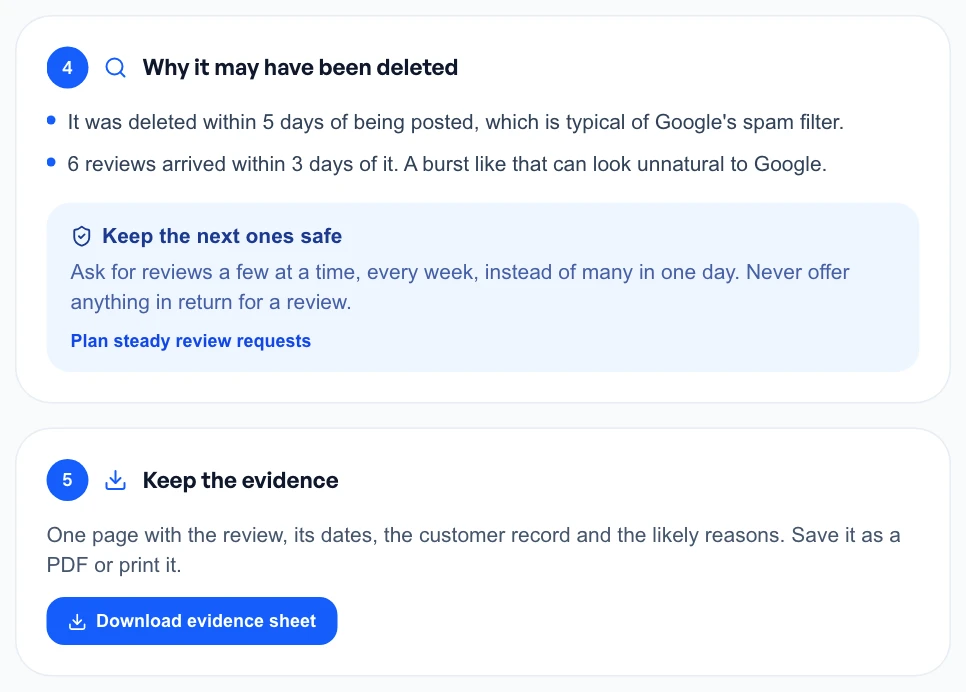
The bottom of the Deleted reviews page sums up why reviews usually go:

To protect the next ones, ask a few customers every week instead of many in one day, and never offer anything in return for a review. Auto-send spreads your requests out by itself.
Handle a deleted low rating
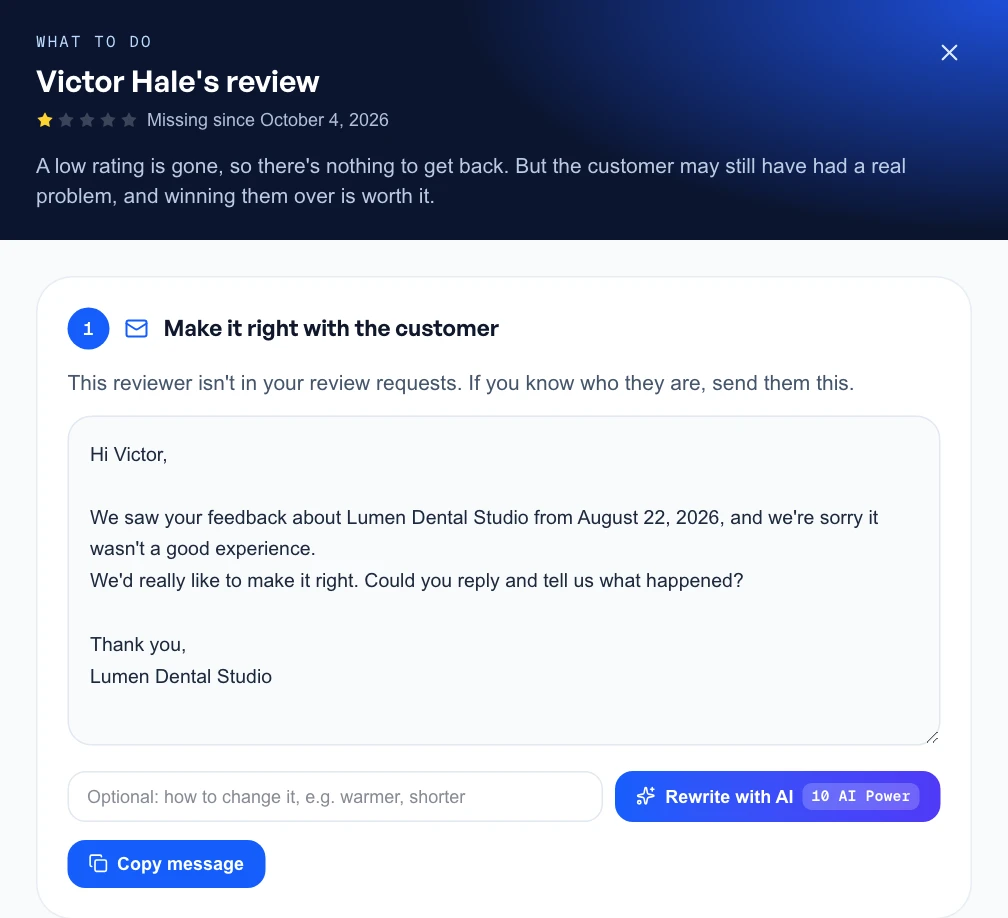
On a review with 1 to 3 stars, the button says What to do. The rating is gone, so there’s nothing to get back, but the customer may still have had a real problem. You get a message offering to make it right, the likely reasons and the evidence sheet.