GBP Management
Connect your Google Business Profile to Glocavo
Create a campaign, connect the Google account that manages your business, add your businesses and find your way around GBP Management.
Updated October 31, 2026 · 4 min read
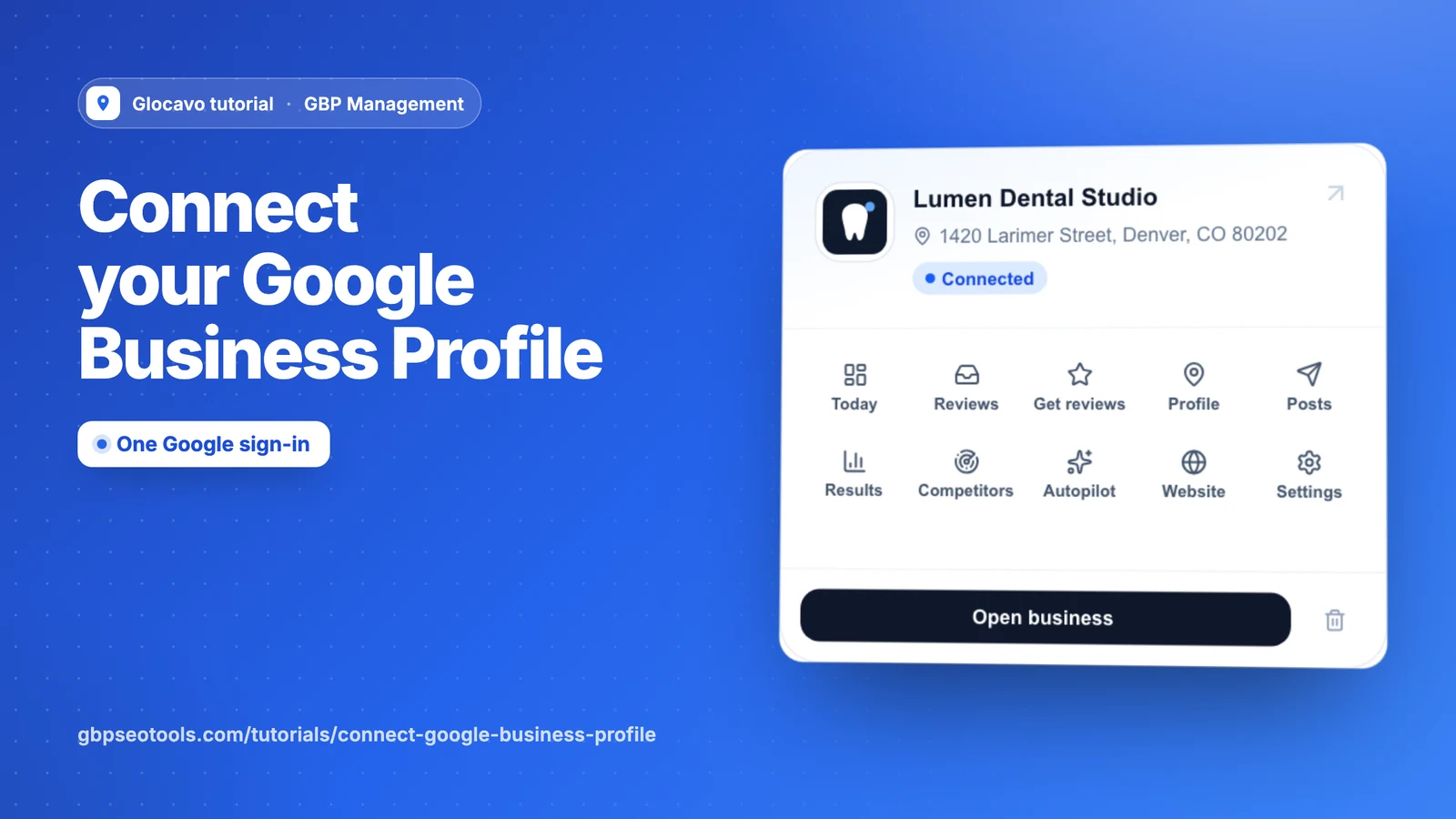
GBP Management is where you run a Google Business Profile from inside Glocavo: reply to reviews, ask for new ones, edit the profile, post and see the results. This guide connects your first business and shows you around.
- Where
- GBP Management in the Glocavo sidebar
- You need
- A Google account that owns or manages the Business Profile
- Who can do it
- The workspace owner or an admin
Check you have room for the business
How many businesses you can connect depends on your plan:
- Starter: 1 business
- Basic: 3 businesses
- Studio: 6 businesses
- Agency: 12 businesses
Extra GBP Management capacity gives you room for 5, 15 or 40 more. The Free plan includes none, so on Free the page shows what the feature does and offers extra capacity. See plans and top-ups for how to change your plan.
Create a campaign
A campaign is one Google account and the businesses it manages. If one Google account manages all your businesses, one campaign is enough. An agency usually makes one campaign per client, because each client has their own Google account.
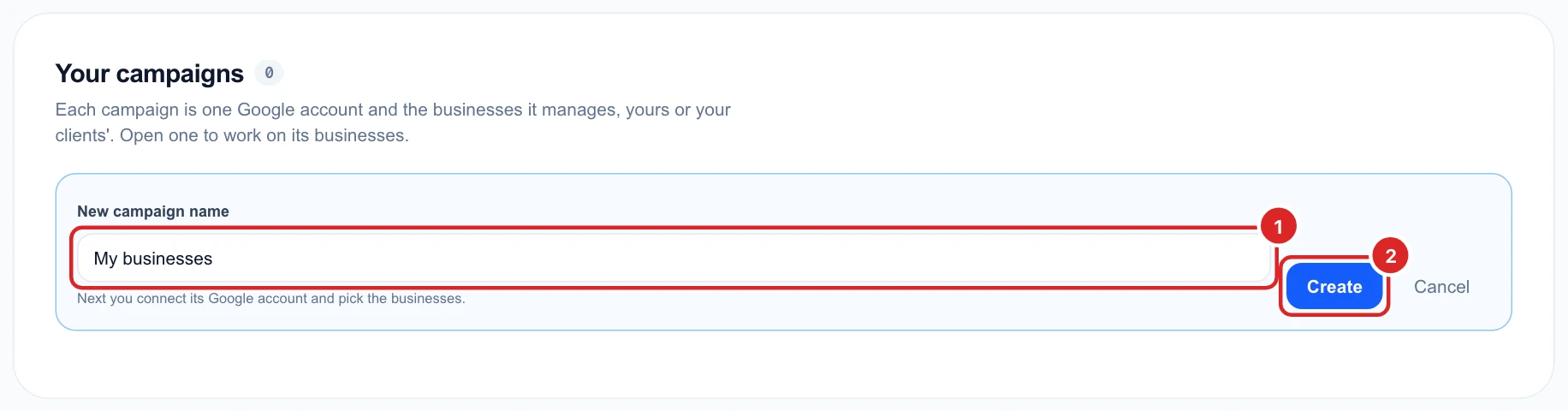
Click GBP Management in the sidebar, then New campaign. Give it a name only you will see and click Create.
Connect the Google account
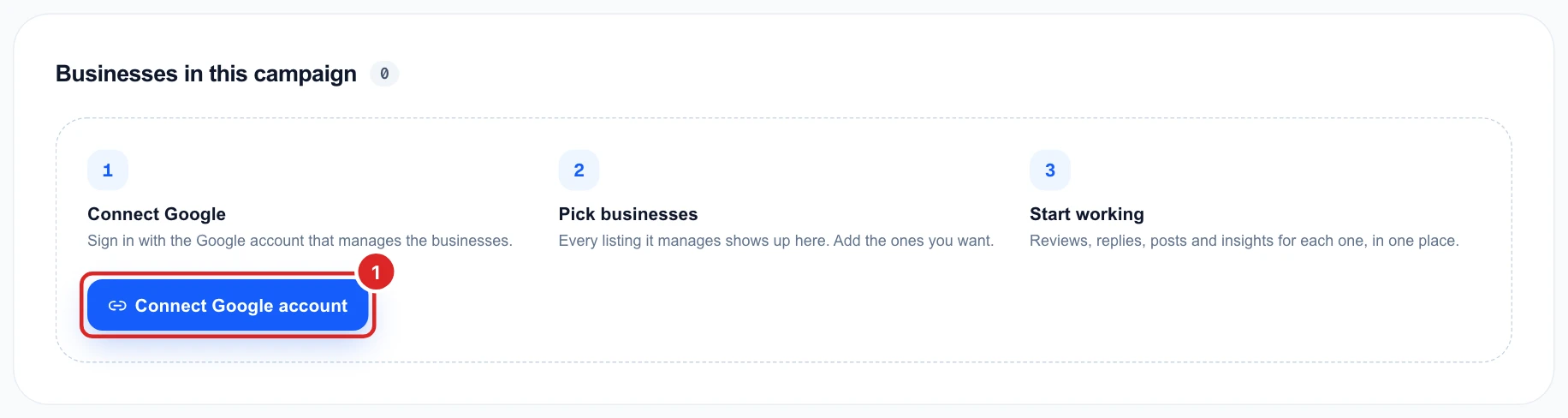
Click Connect Google account and sign in with the account that owns or manages the business. Google then asks you to let Glocavo manage your Business Profile. Allow it to continue.
Connecting changes nothing on your profile. Glocavo only changes something on Google when you save an edit, send a reply or publish a post.
Choose your businesses
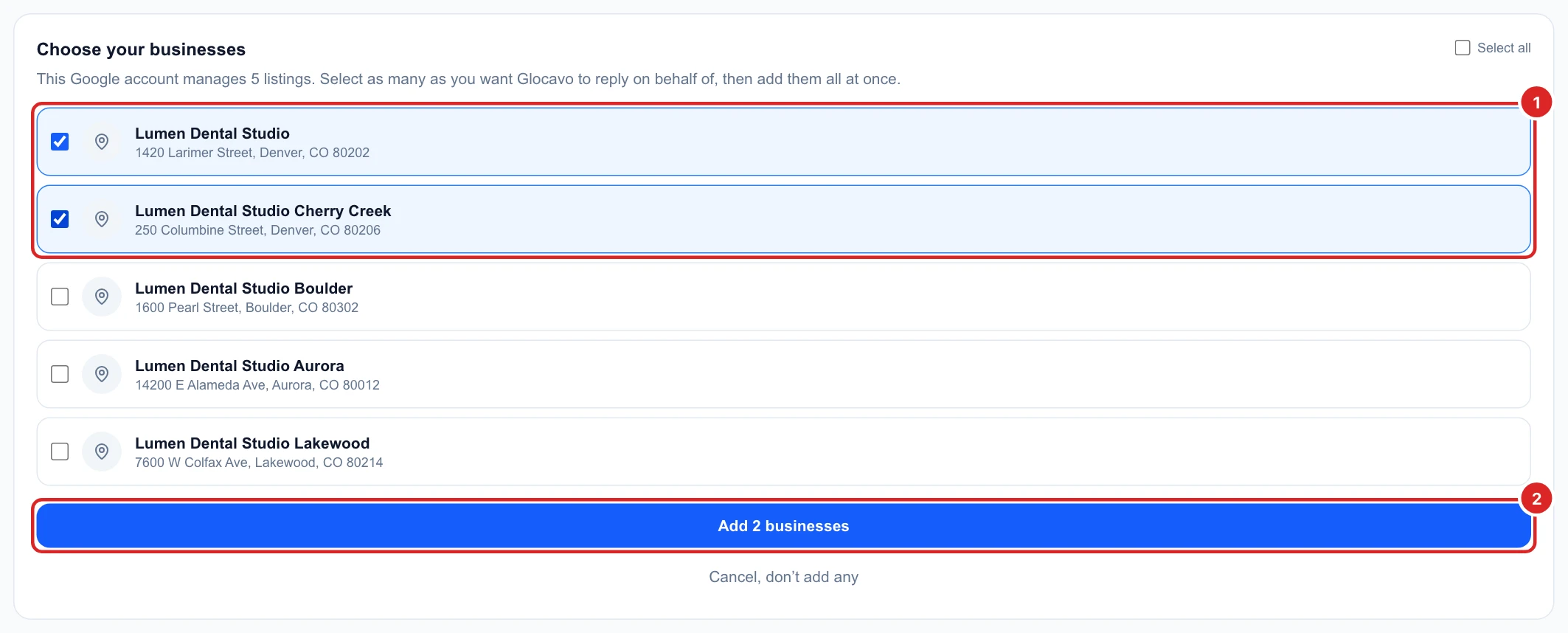
What happens next depends on how many businesses that Google account manages:
- One business: it is added for you and you go straight back to the campaign.
- Two or more: tick the ones you want, or Select all, and click Add.
You can add more later without signing in again. Open the campaign and use Add next to any business under Ready to add.
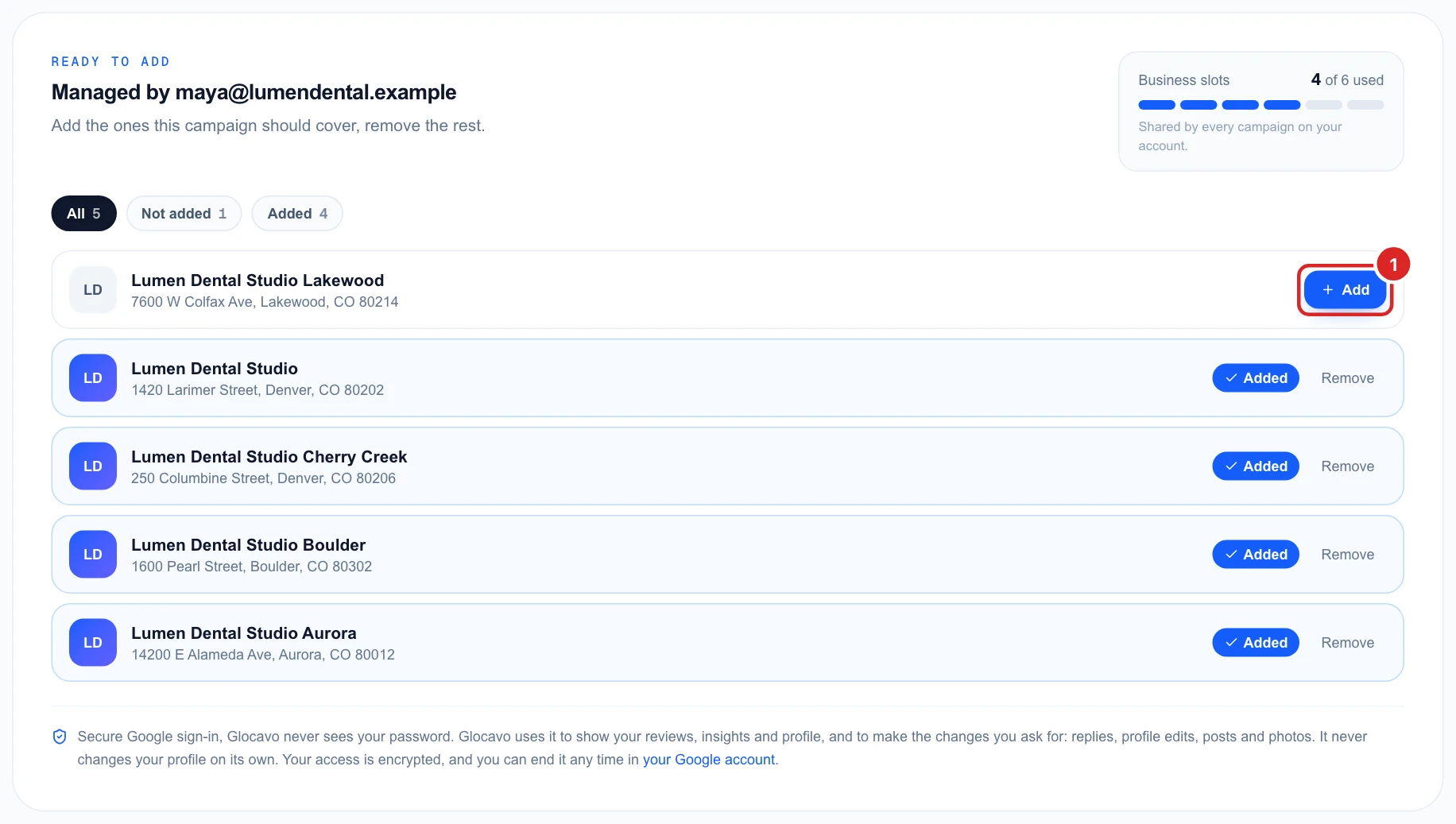
Your business slots are shared by every campaign on your account. To free one, click the bin icon on a business card to remove it from its campaign.
Open a business and find your way around
Click Open business. Everything for that business is in the menu on the left, and it opens on Today.
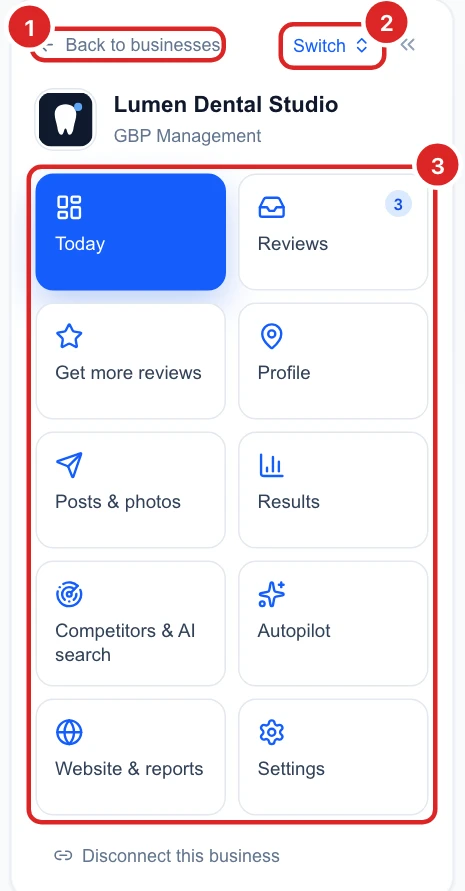
- Today: what needs you now, your rating and your next moves.
- Reviews: read and answer reviews, with replies drafted by AI.
- Get more reviews: ask customers for reviews by email and with QR codes.
- Profile: edit your hours, services and details, and check the profile’s health.
- Posts & photos: write and schedule posts, and add photos.
- Results: calls, clicks and the words people searched to find you.
- Competitors & AI search: compare with nearby rivals and check what AI says about you.
- Autopilot: assistants that prepare replies and posts for you to approve.
- Website & reports: a reviews widget for your website and reports for clients.
- Settings: how AI replies should sound, and API access.
If something goes wrong
- No businesses show up: that Google account doesn’t manage a profile. Sign in with the account that does, or ask the profile’s owner to add you as a manager on Google first.
- The campaign refuses the account: a campaign stays on one Google account. Create a new campaign for the other account.
- A business says “In another campaign”: it is already connected there. Open that campaign, or remove it there first.
- You don’t see the buttons: only the workspace owner or an admin can add businesses. See team and workspaces.