GBP Management
See your Google Business Profile traffic and search terms
See who found your profile and what they did next, what moved your numbers, what people searched for, and how your locations compare.
Updated November 1, 2026 · 6 min read
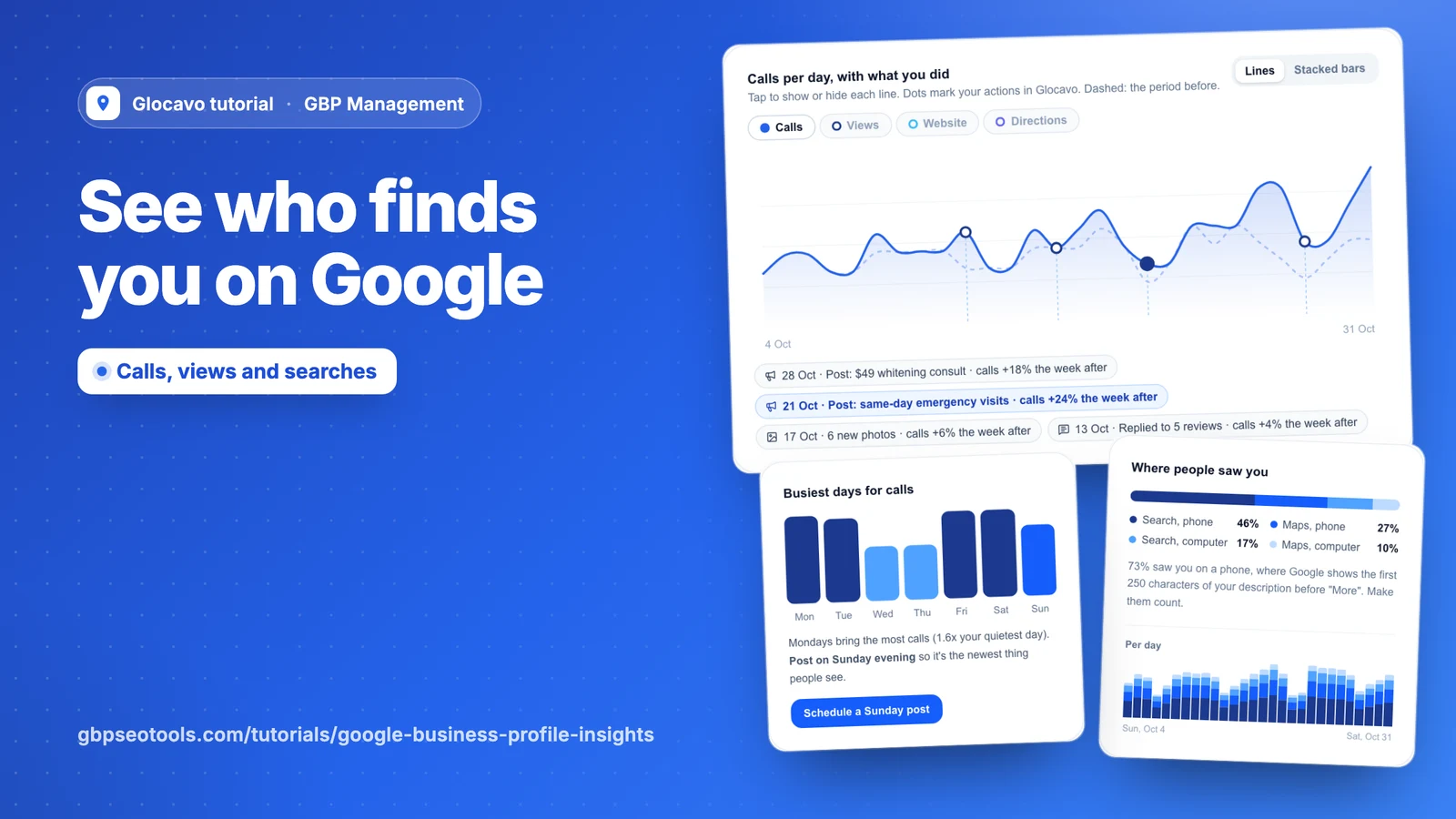
Profile traffic shows how many people saw your profile and what they did next. Search terms shows what they typed to find you. Both come from Google’s own numbers, and each part ends with something you can do about it.
- Where
- GBP Management, open a business, Results
- You need
- A connected business, see connect your Google Business Profile
- Cost
- Included, no AI Power
See your numbers
Click Results, then Profile traffic. You’ll see your views, calls, website clicks, direction requests, messages and bookings, each next to the number before.
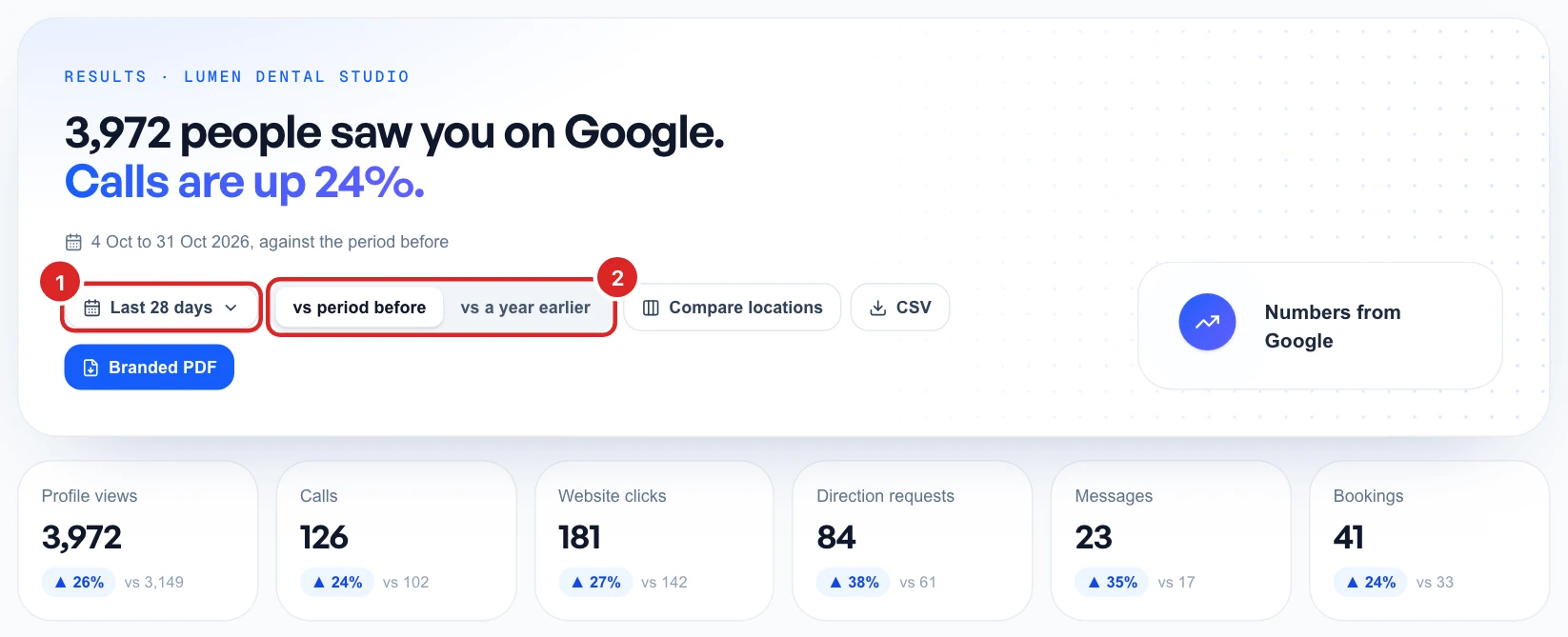
You can pick anything from the last 7 days to the last 12 months, or a single month, and compare it with the period before or a year earlier.
Google’s daily numbers arrive about 3 days late and go back 18 months.
See what moved your numbers
The chart shows each day, and the dashed line shows the period you compare with. Click a name to show or hide its line. A dot marks each time you posted, added photos, replied to reviews or edited your profile from Glocavo.
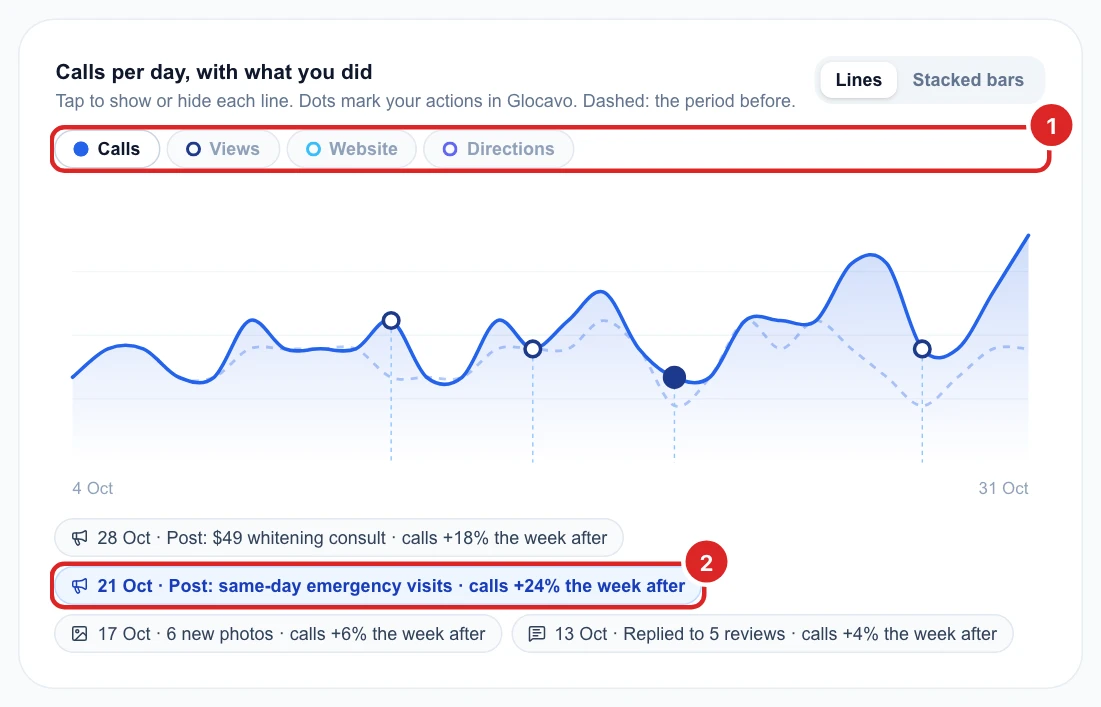
Under the chart, each action shows how the numbers changed in the week after it, compared with the week before. Recent ones say too early to tell.
This shows what happened after an action, which doesn’t prove the action caused it. Look for what keeps working over several tries.
See where people saw you
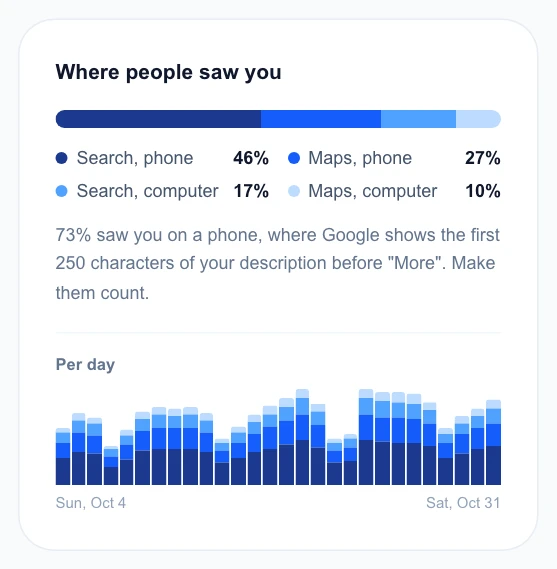
Where people saw you splits your views between Search and Maps, on phones and computers. If most people use a phone, Google shows them only the first 250 characters of your description before More, so put what matters most there.
Find the best day to post
Busiest days shows which weekdays bring the most of the first line you have switched on in the chart. It suggests posting the evening before your busiest day, so your post is the newest thing people see.
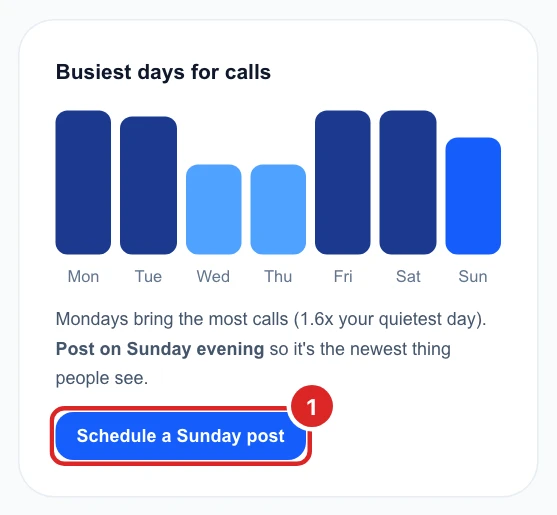
See write and schedule your posts for the next step.
Compare your locations
Click Compare locations at the top. Every business in your workspace appears side by side for the same days, each against the period before. Click a column name to sort by it.
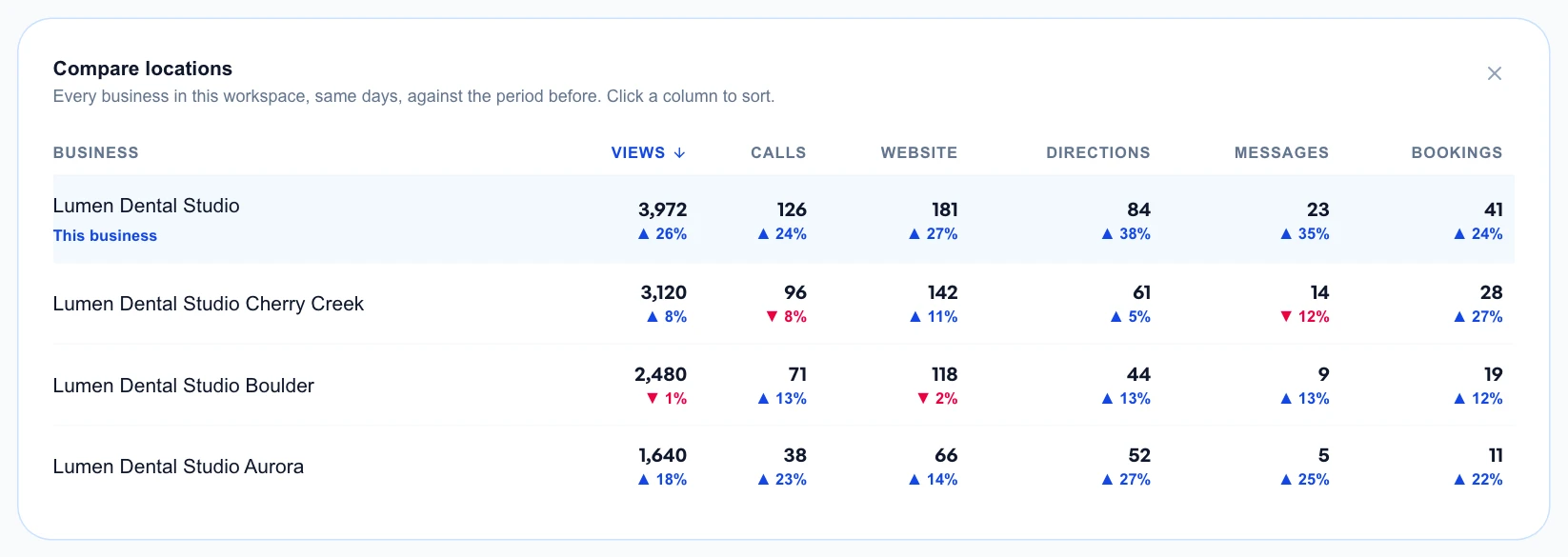
Save your numbers
The buttons at the top of the page give you the numbers to keep or share:
- CSV: every day’s numbers and the ones you compare with, for a spreadsheet.
- Branded PDF: this page as a report. If you use white-label branding, it carries your logo, colors and contact details.
See what people searched for
Click Search terms. The top shows how many searches found you in a month and how many different searches there were. Use the list to pick any of the last 6 months, the box to find a search, and CSV to download them.
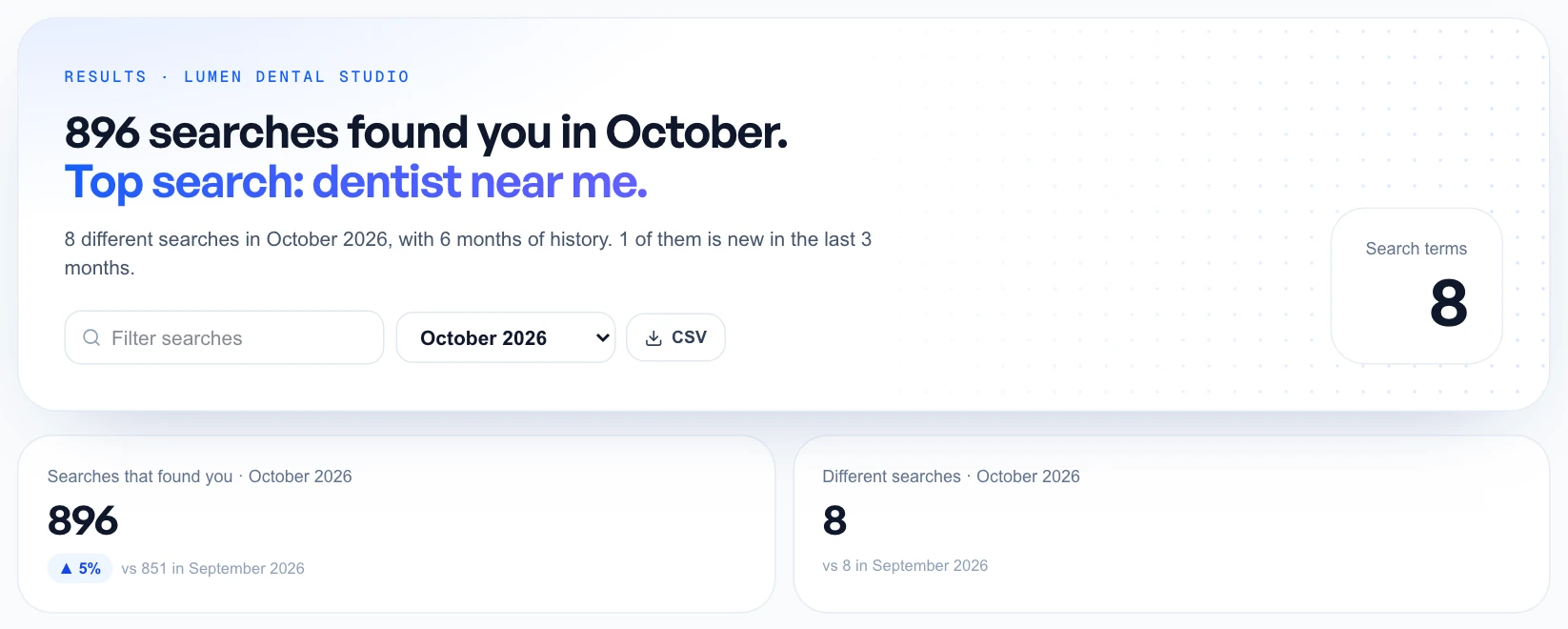
Google only says “under” a number for small searches. Glocavo shows that, and leaves them out of the total so it never overstates.
Act on your search terms
Each row shows a search, how often it was used, its last 6 months, its trend and your rank on Maps from your scans. If a word from a search isn’t on your profile, it says so in red.
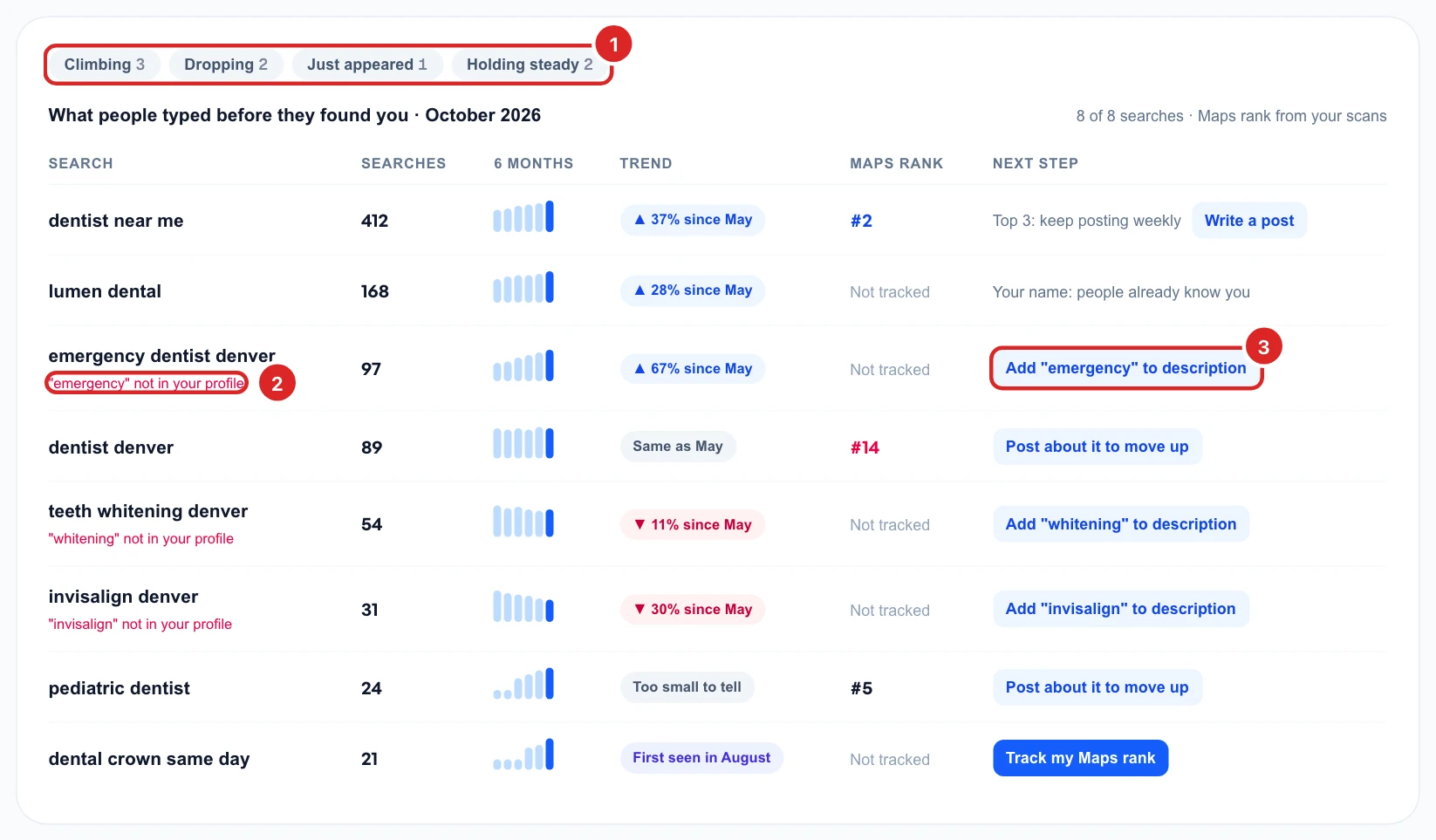
The last column gives you one next step for each search:
- Add a word to your description: opens the description editor with that word noted. Only add it if it’s true of your business.
- Track my Maps rank: opens a grid scan for that search, which uses scan credits.
- Post about it to move up: takes you to Posts, for a search you rank for but not in the top 3.