GBP Management
Send Google review requests automatically
Turn on Auto-send, choose when requests go out, add customers at the counter or connect your sales or booking system, and see what happened to each one.
Updated October 31, 2026 · 6 min read
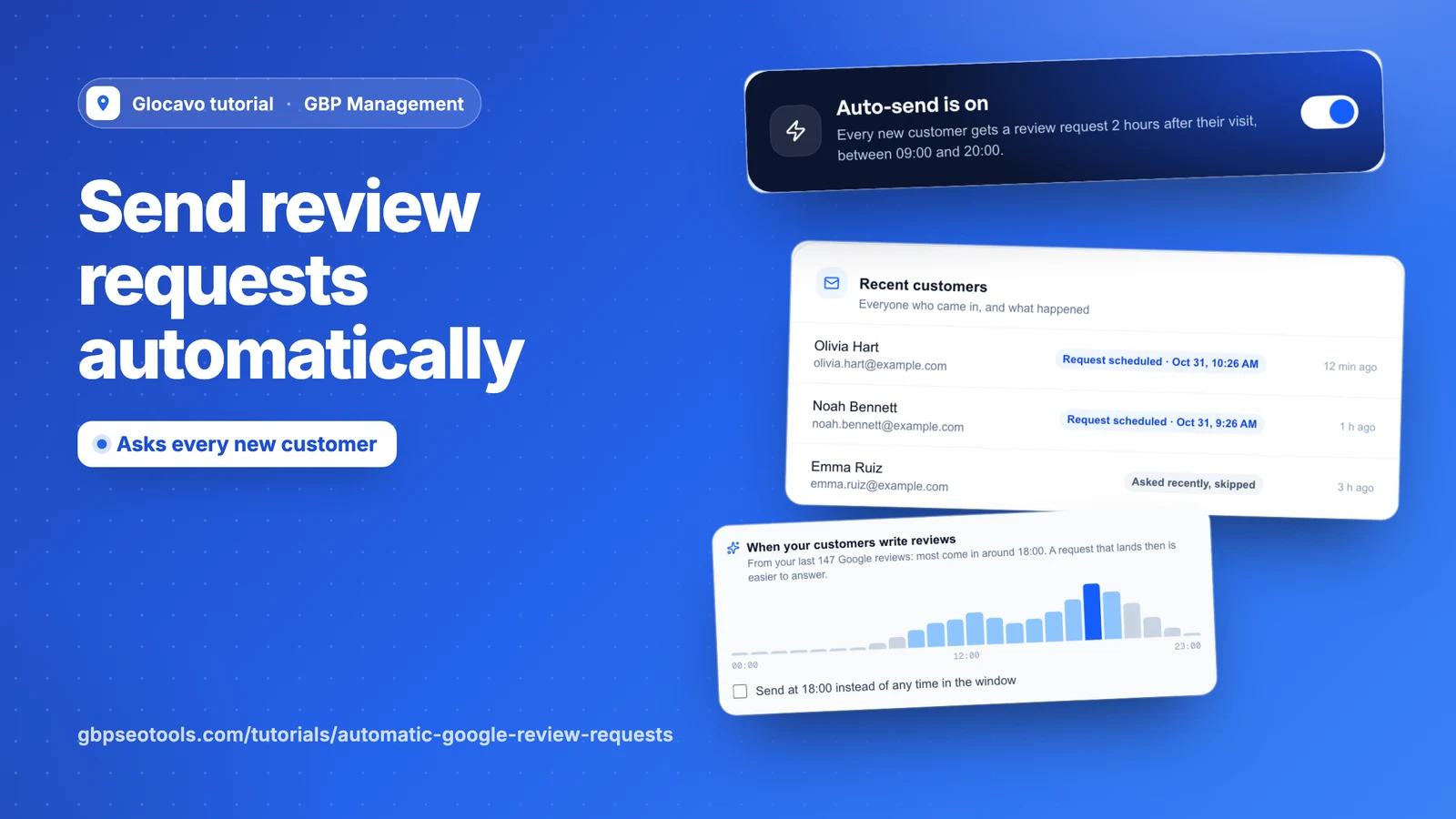
Auto-send asks every new customer for a review by itself, so nobody has to remember or build a list. Your sales or booking system sends customers in, or your staff type them in at the counter, and the request goes out from your own email a set time later.
- Where
- GBP Management, open a business, Get more reviews, Auto-send
- You need
- Your business email connected, see set up review requests
- Cost
- Each request and reminder uses one from your monthly allowance.
Choose when requests go out
Open Auto-send. Set the timing before you turn it on. Every change saves as you make it.
- After their visit: right away, or after 1 hour up to 3 days. It starts at 2 hours.
- Only between: the hours a request can go out. One that falls outside them waits for the next open hour.
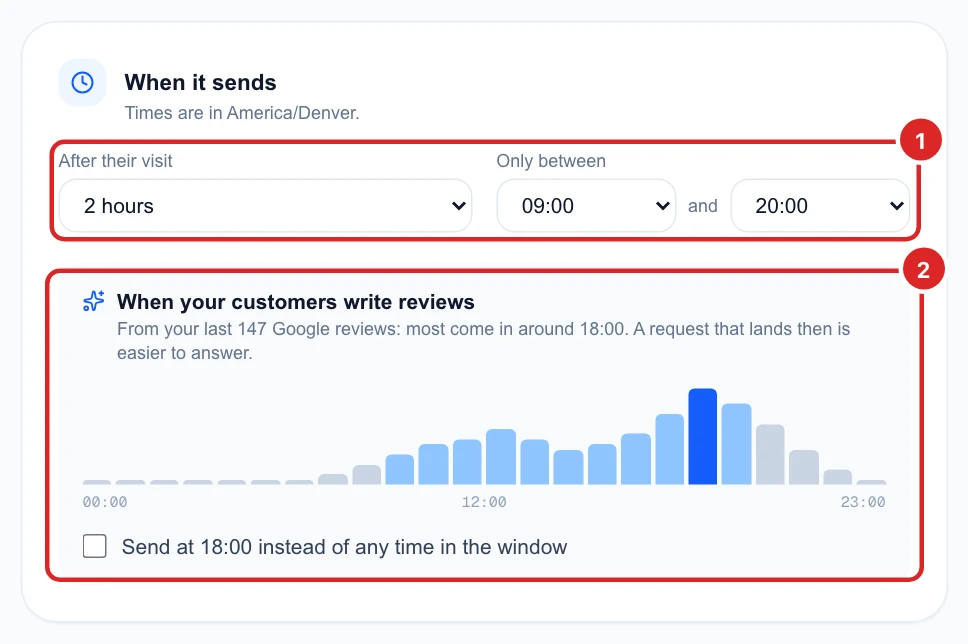
The chart shows when your Google reviews came in. With at least 8 reviews, you can tick Send at to send at the busiest hour, which replaces the sending hours.
The card shows the time zone it uses, which comes from your browser the first time you save. Agencies: check it if your client is in another time zone, and set the hours to match.
Set the reminder and the limit
- One reminder if they don’t open it: no reminder, or after 2, 3, 5 or 7 days. It uses one more request.
- Don’t ask the same person again within: 30 to 365 days, and 90 to start with. Regulars are asked once, not after every visit. Requests you sent them yourself count too.
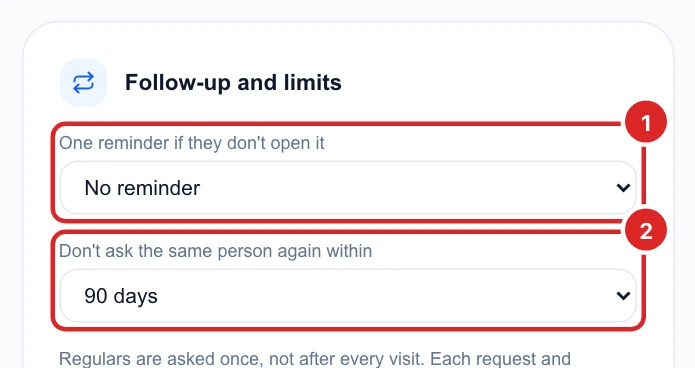
The daily limit under Request emails applies here too.
Turn it on
Click the switch at the top of the page.

Tick the box to confirm that only real customers will be sent in, then click Turn on.
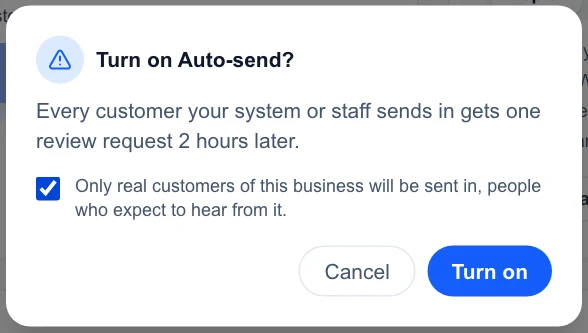
If the switch is greyed out, connect your business email first. The business also has to be on Google Maps.
Add a customer at the counter
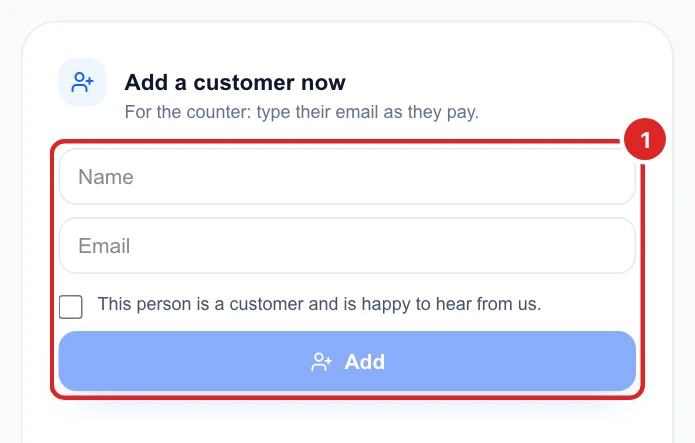
Under Add a customer now, type their email as they pay, and their name if you have it. Tick the box to confirm they’re a customer and click Add. A line underneath tells you when their request will go out.
Connect your sales or booking system
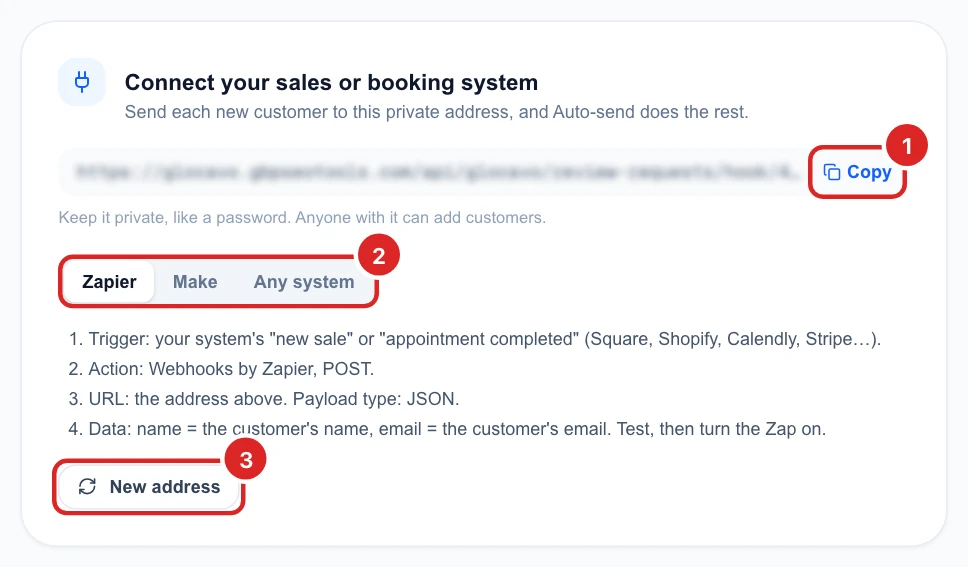
Your business has its own private address. When your system sends a customer’s name and email to it, Auto-send does the rest. Click Copy, then pick your tool on the page to see its steps. With Zapier, for example:
- Set the trigger to your system’s new sale or completed appointment, such as Square, Shopify, Calendly or Stripe.
- Set the action to Webhooks by Zapier, POST.
- Paste the address as the URL, and choose JSON as the payload type.
- Add two data fields: name and email, filled from the customer. Test it, then turn the Zap on.
Any other system can send a POST request with the same two fields, as JSON or form fields. first_name and last_name work too. You can also send service, which fills in the service if your email mentions it.
Keep the address private: anyone who has it can add customers. If it gets out, click New address. The old one stops working at once, so paste the new one into your system. Each business can take up to 200 customers an hour.
Test with your own email first. It sends a real request, which uses one from your allowance, and that address is then skipped for the days you set in step 2.
See what happened to each customer
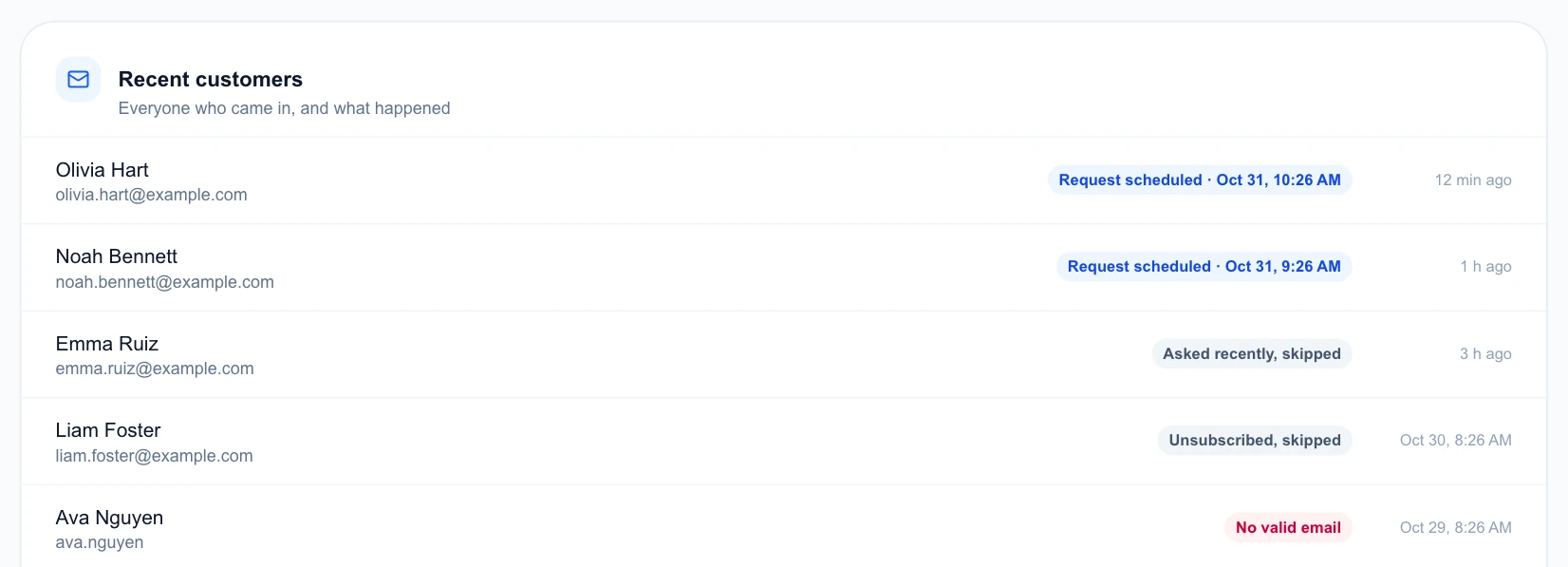
Recent customers lists everyone who came in, however they got there, with what happened:
- Request scheduled: it goes out at the time shown.
- Asked recently, skipped: they were asked within the days you set in step 2.
- Unsubscribed, skipped: they asked not to get these emails.
- No requests left this month: nothing was sent, and you’ve used your allowance.
- No valid email: check what your system sends.
- Auto-send was off: they came in while it was off, or your business email is disconnected.
The results are under Send requests, where Auto-send has its own row.

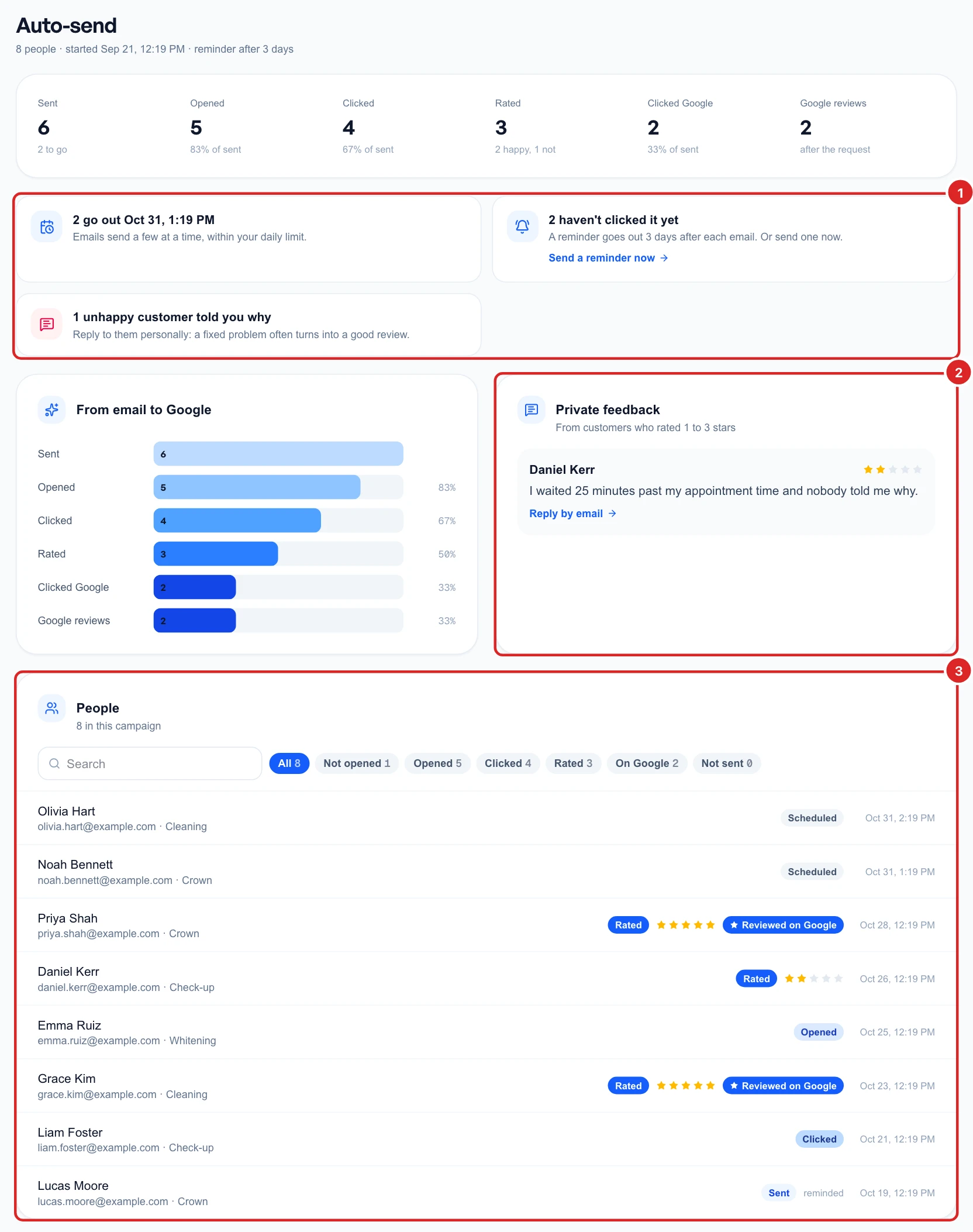
Click Open to see the same numbers in full, along with what to do next:
- Next steps: what’s about to go out, who hasn’t clicked, with Send a reminder now, any emails that weren’t sent, with Retry, and unhappy customers who told you why.
- Private feedback: their messages, with Reply by email.
- People: everyone asked, how far they got and who reviewed you on Google. Search for a name, or filter by what they did.
The Pause button at the top of this page holds whatever is waiting until you resume. Everyone is in Sent emails too, see send your review requests.