GBP Management
Fix wrong facts about your business in AI answers
See where AI assistants contradict your Google listing, check your listing, get a plan to fix the sites they cite, and put the right facts on your website.
Updated November 1, 2026 · 4 min read
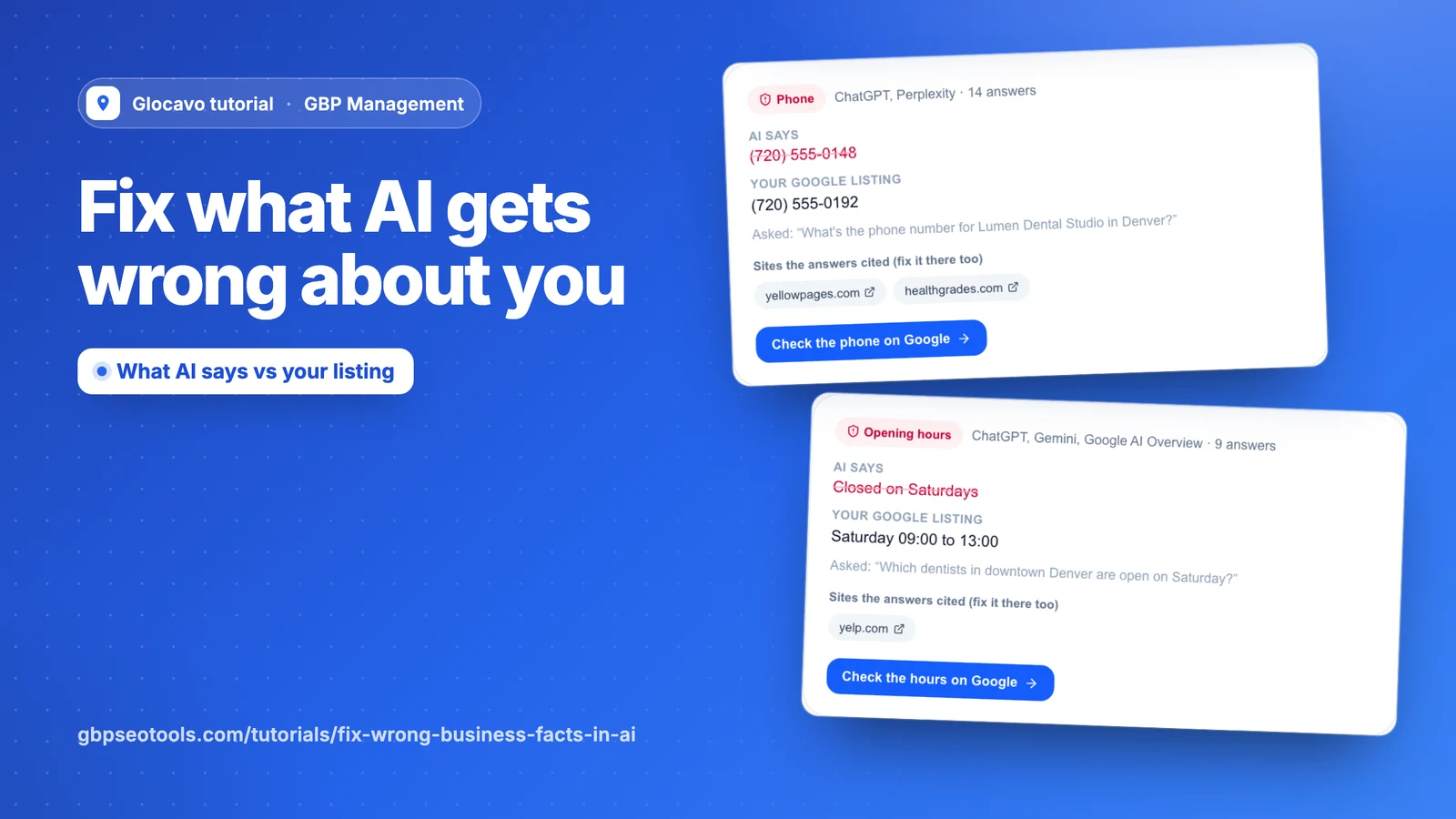
ChatGPT, Gemini, Perplexity and Google’s AI answer questions about local businesses. This page shows where their answers contradict your Google listing, and helps you fix your listing, your website and the sites they cite.
- Where
- GBP Management, open a business, Competitors & AI search, Wrong facts in AI
- You need
- An AI Visibility campaign for this business
- Cost
- The page is included. A fix plan costs 25 AI Power.
Check what AI says about you
The facts on this page come from your latest AI Visibility check. If this business doesn’t have a campaign yet, click Open AI Visibility and set one up. Once its first check finishes, any wrong facts show here.
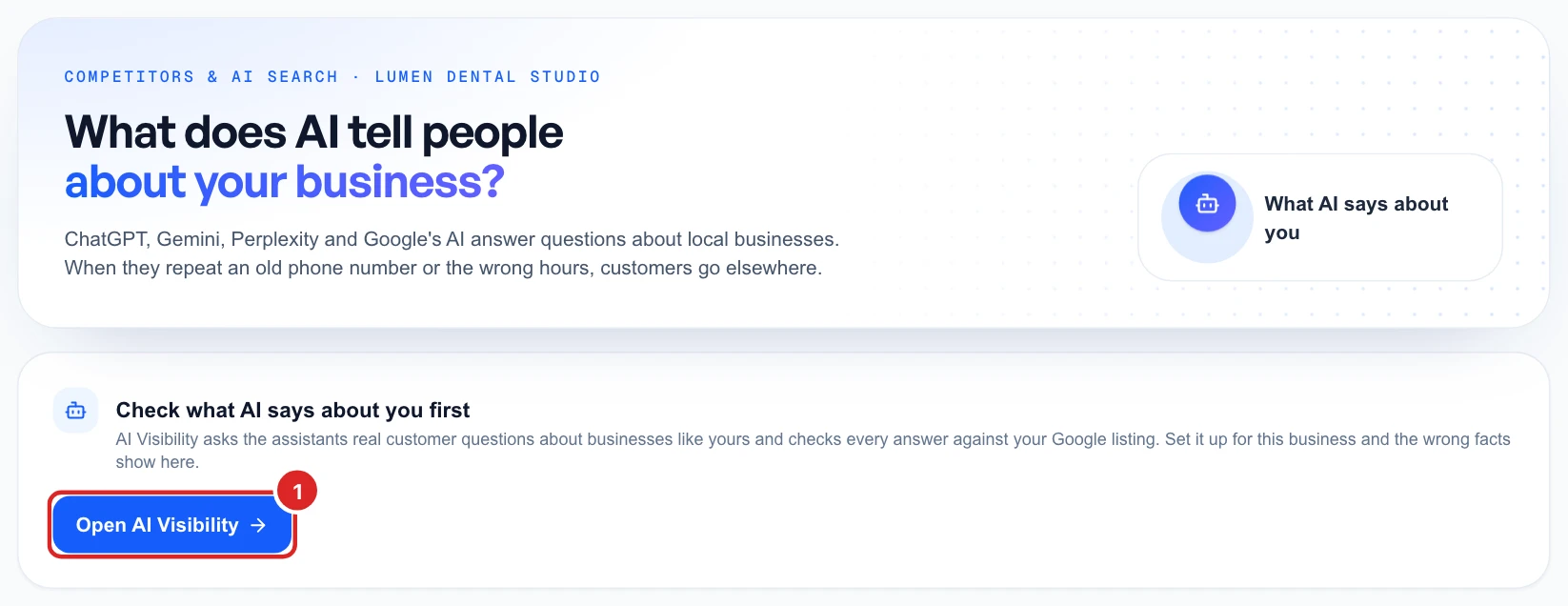
AI Visibility checks are counted separately. See how checks work.
See what AI gets wrong
Each card covers one wrong fact, like your phone, hours, address or website. It shows what AI says next to your Google listing, which assistants said it, in how many answers, and a question that got that answer.
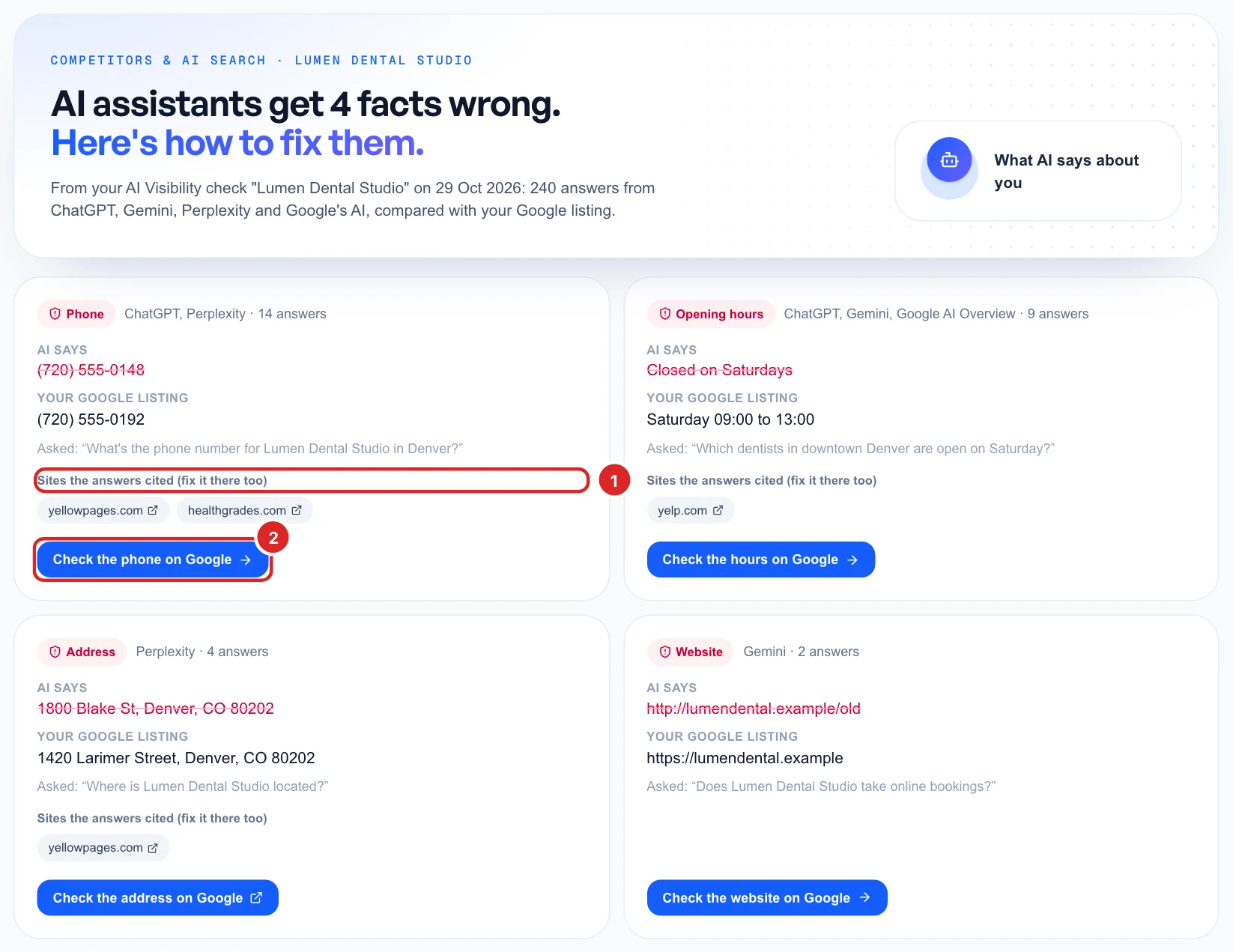
The sites listed are the ones those answers cited, so the wrong fact may have come from them. If nothing is wrong, the page says AI assistants get your facts right.
Check your Google listing first
Click the button on a card, such as Check the phone on Google. Your profile editor opens on the right section, so you can make sure Google has the right detail. See edit your profile for more.
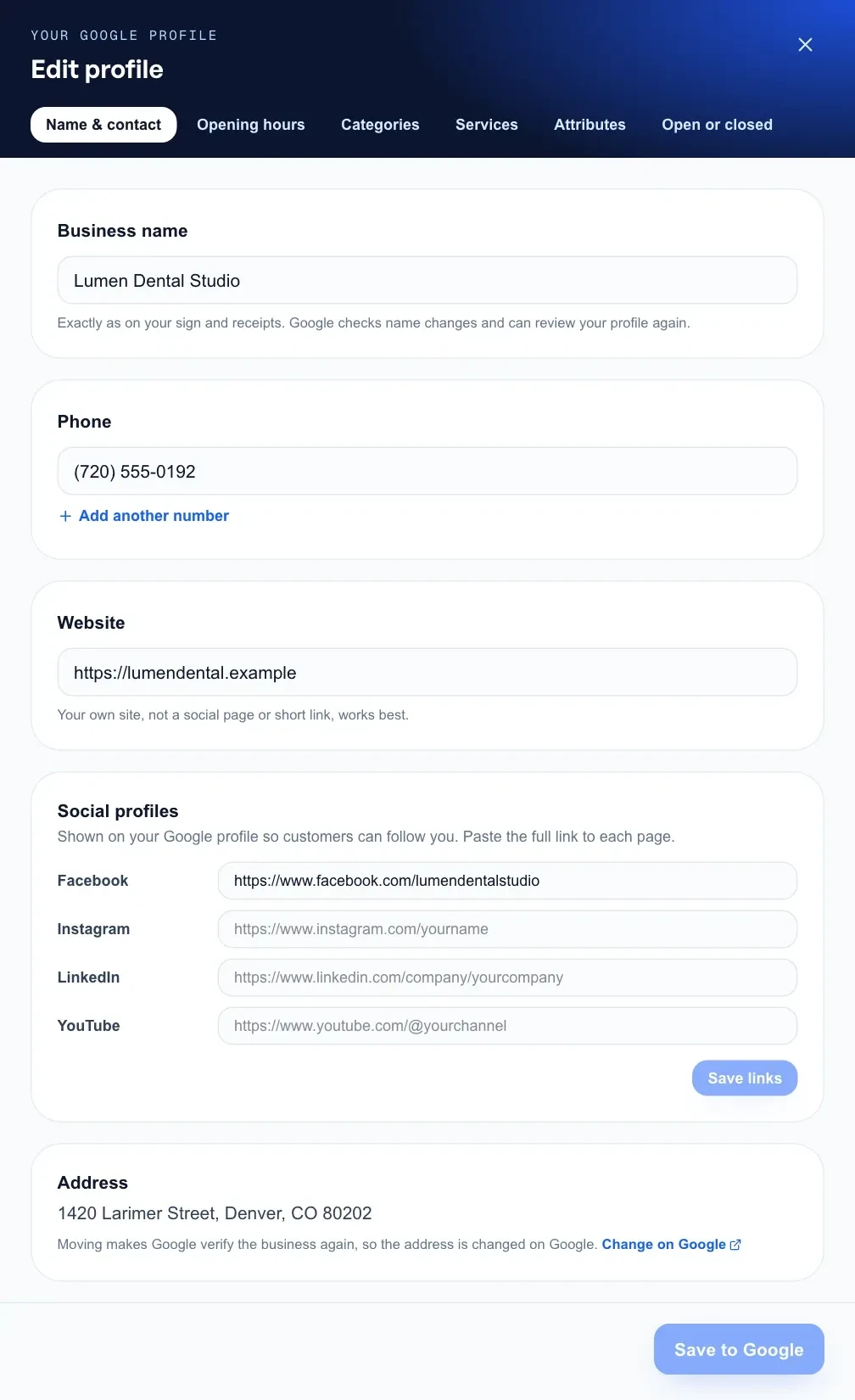
An address can only be changed on Google itself, because moving makes Google verify the business again. The address card’s button takes you there.
Get a plan to fix it everywhere
AI repeats what it finds on the web, so fixing Google alone may not be enough. Click Write my fix plan for 25 AI Power.

You get the steps for each wrong fact: your Google listing, your website, and the sites it came from.
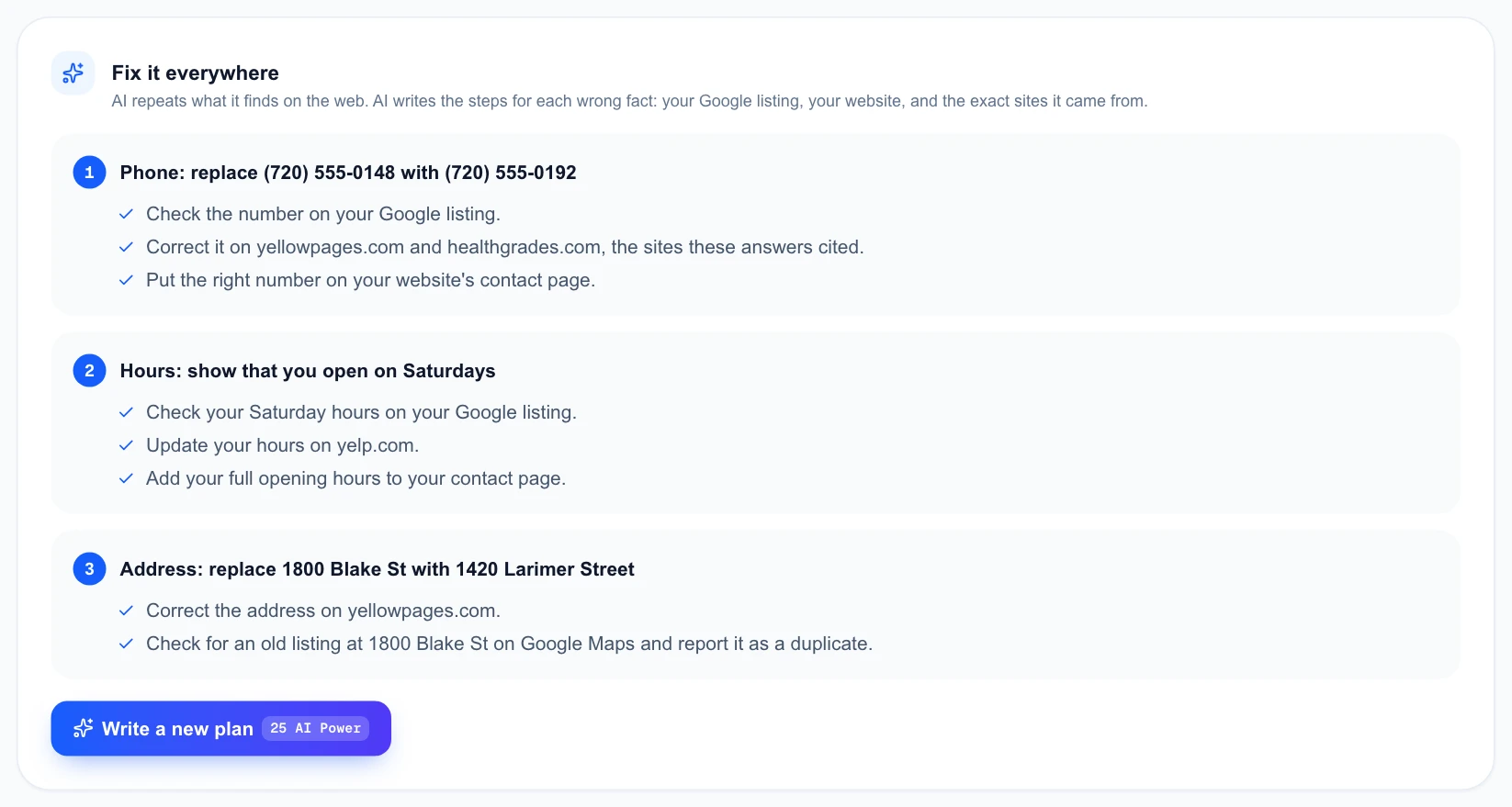
You pay only if the plan is written. It stays on the page for 90 days, or until your next check. Write a new plan costs another 25 AI Power.
Put the right facts on your website
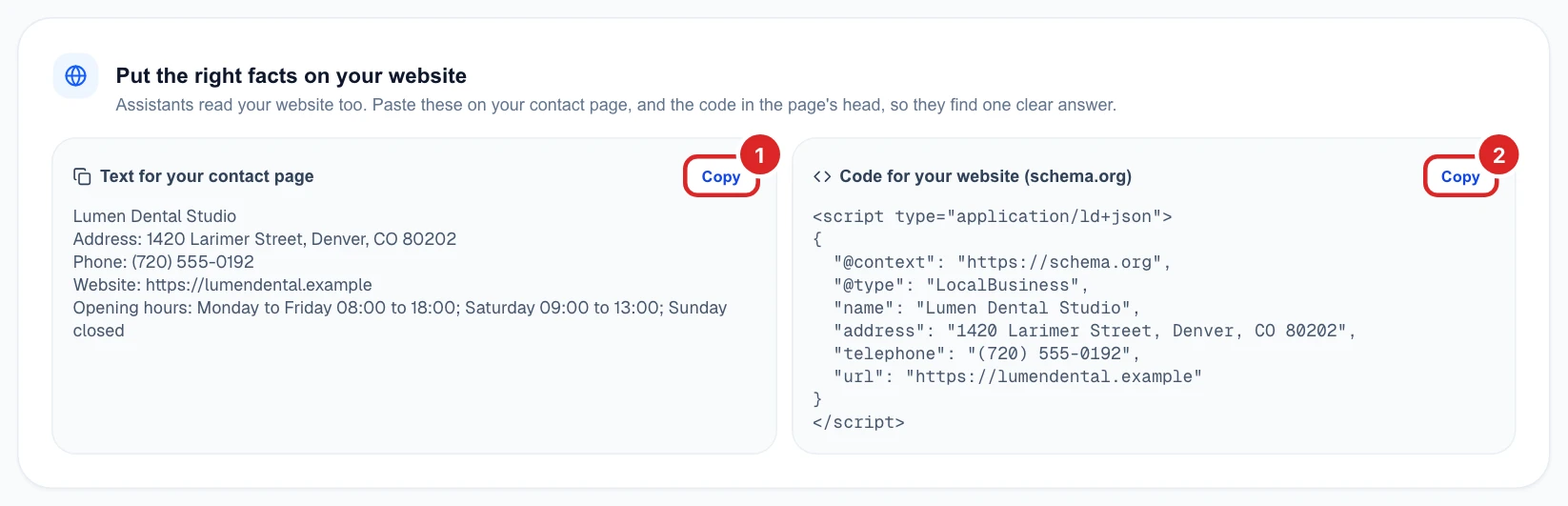
Assistants read your website too, so give them one clear answer. This part is ready even when nothing is wrong:
- Text for your contact page: your name, address, phone, website and hours.
- Code for your website: the same details as schema.org code, for the head of your page.
Check again later
AI answers can take time to catch up after you fix a detail. Each new AI Visibility check updates this page, so come back after your next one to see what’s left. To dig into every answer, see fix wrong facts AI tells customers in the AI Visibility guides.