GBP Management
Show Google reviews on your website and add an FAQ
Put your best Google reviews on your site with one line of code, choose a design or badge, and let AI write an FAQ for your website.
Updated November 1, 2026 · 6 min read
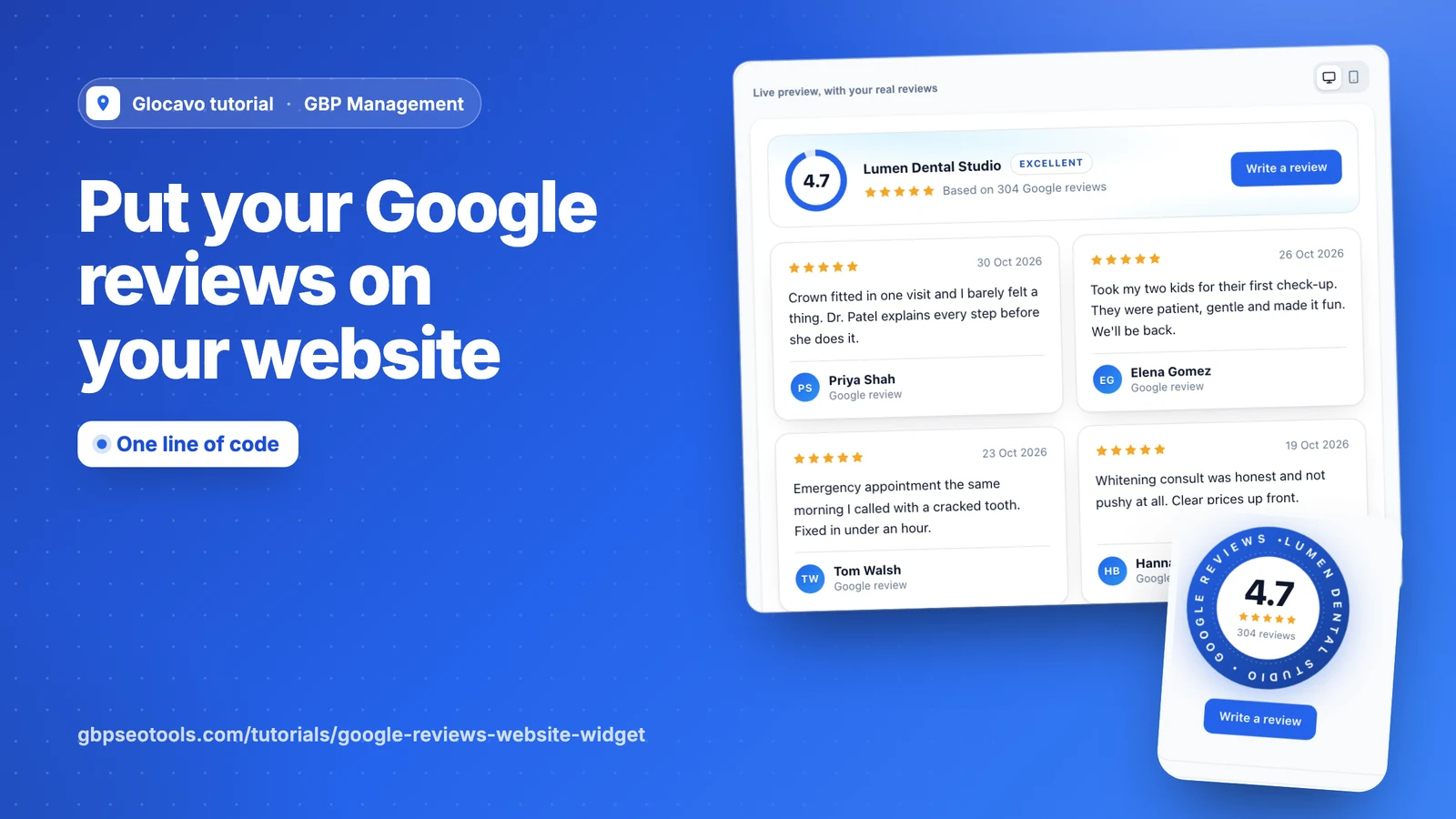
Website widget puts your best Google reviews on your own site, and new ones show up on their own. Website FAQ writes the answers customers look for, ready to paste onto a page.
- Where
- GBP Management, open a business, Website & reports
- You need
- A connected business, see connect your Google Business Profile
- Cost
- The widget uses no AI Power, unless you add review photos. An FAQ costs 25 AI Power.
Pick a design
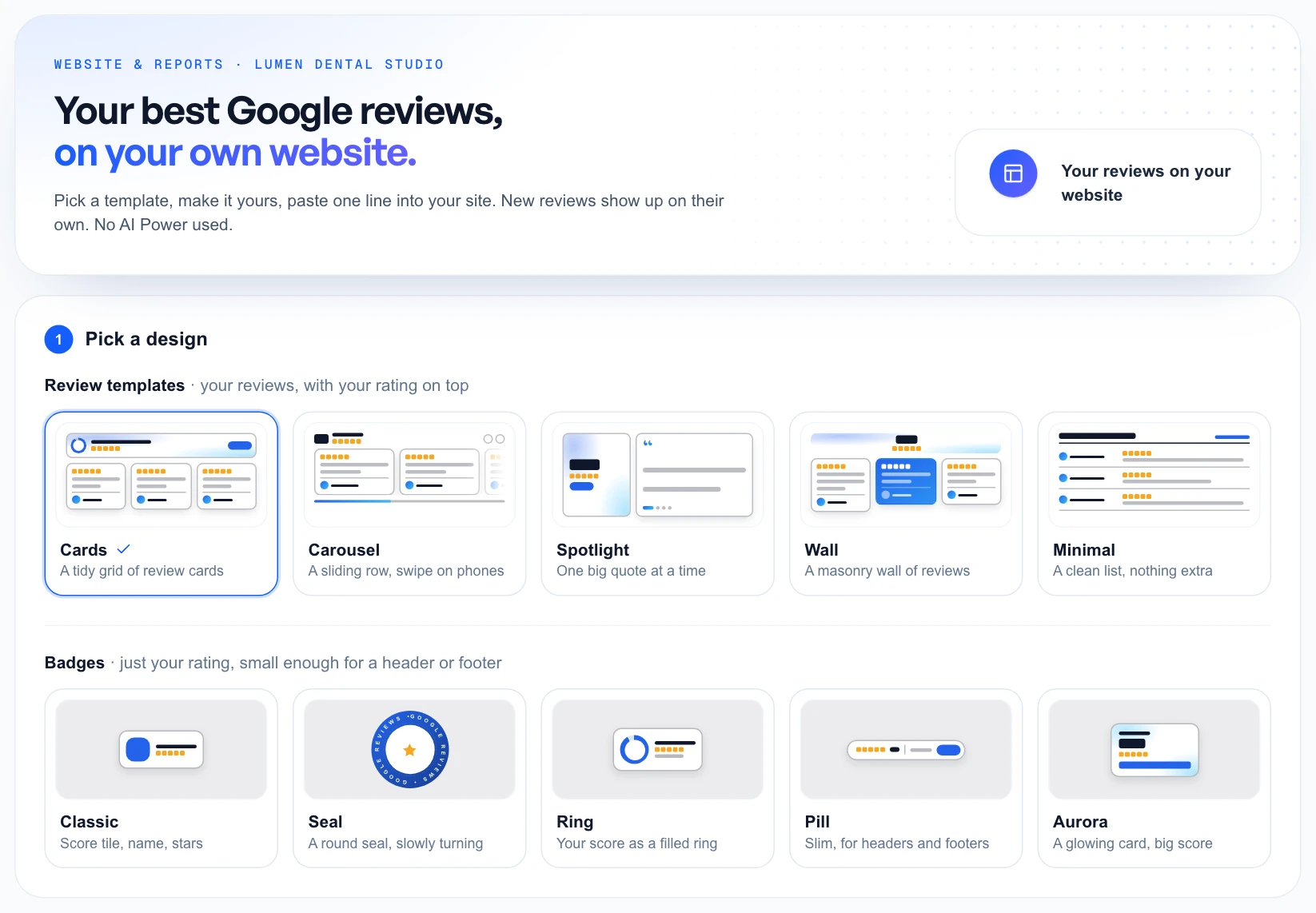
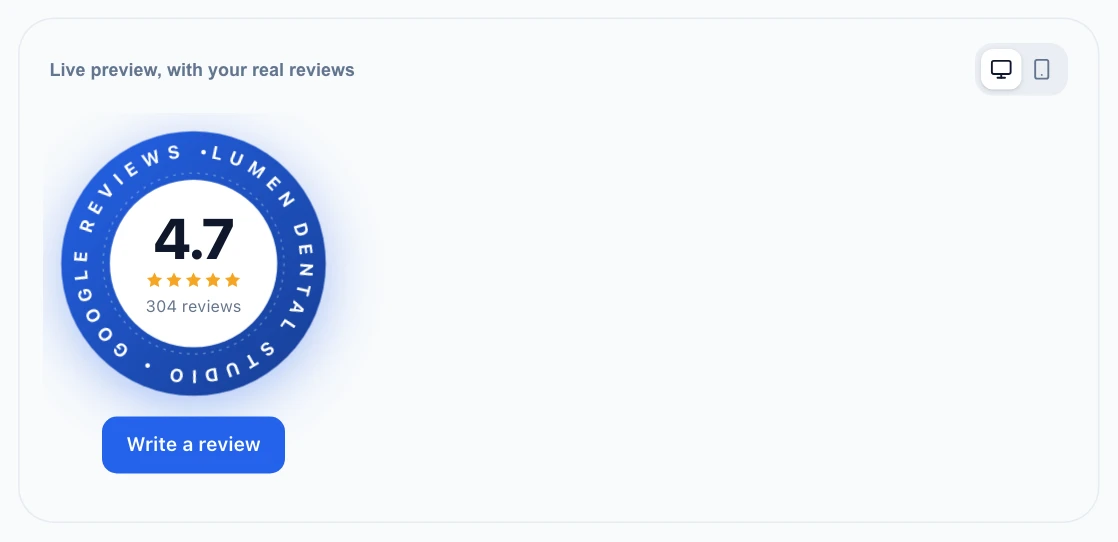
Click Website & reports, then Website widget. Pick one of five review templates, or one of five badges if you only want your rating in a header or footer.
Make it yours
Every change shows in the live preview, so you can see it before you save:
- Reviews: show only 3 stars and up, 4 and up or 5 stars, and choose how many, up to 12.
- Colors: the background, accent, glow and stars.
- Style: the size, corners and font.
- Show: avatars, review dates and the “Write a review” button.
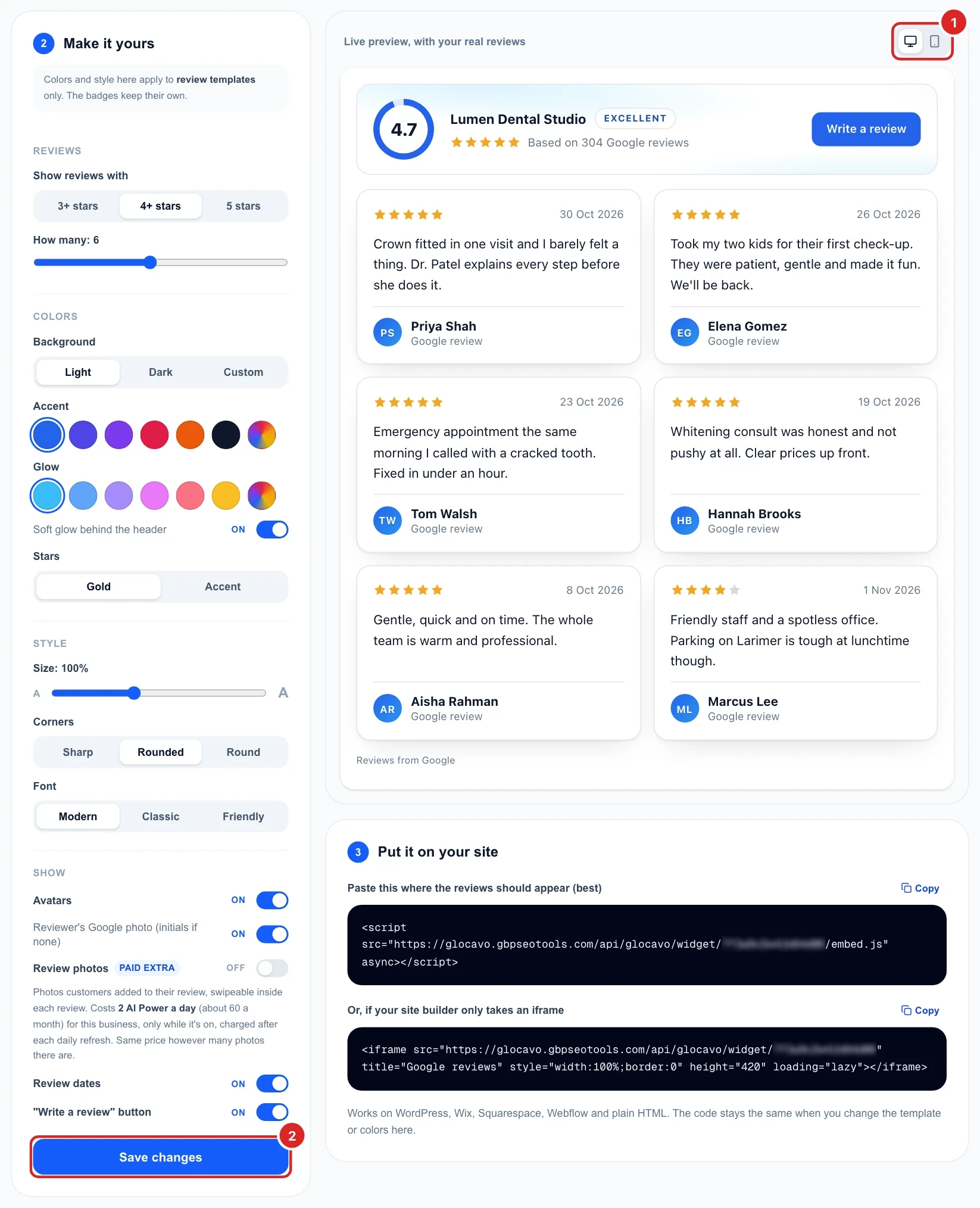
Review photos is a paid extra that shows photos customers added to their reviews. It costs 2 AI Power a day for this business, about 60 a month, only while it’s on. The first photos show up within about an hour.
Put it on your site
Click Save and get the code, then copy the line and paste it where the reviews should appear. If your site builder only takes an iframe, use the second one. Both work on WordPress, Wix, Squarespace, Webflow and plain HTML.
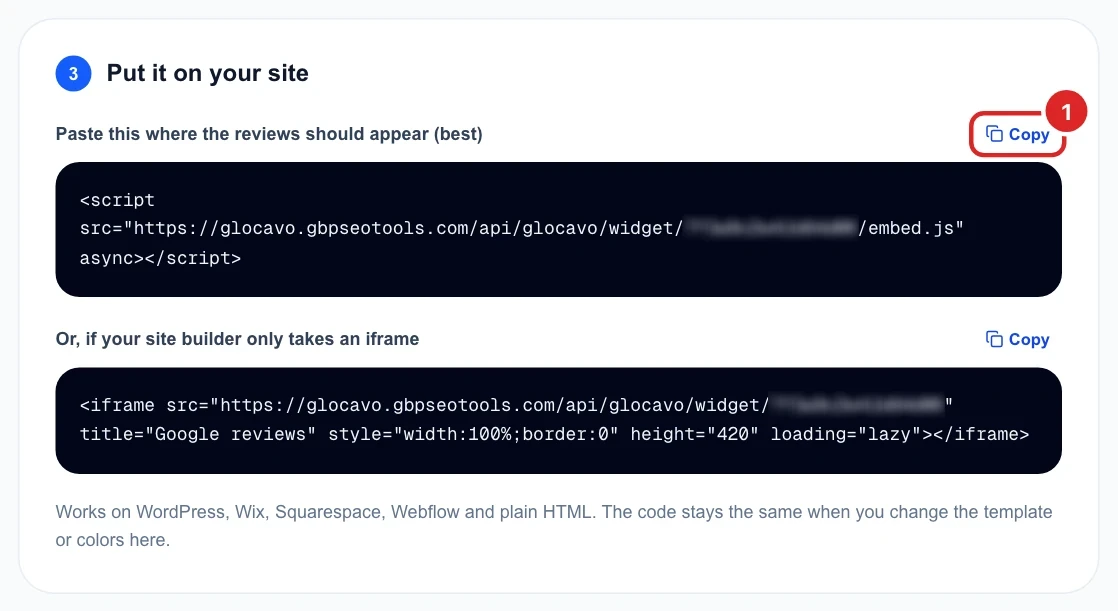
The code stays the same when you change the design later, so you only paste it once. Saved changes reach your site within 10 minutes.
Use a badge for a small space
A badge shows just your rating, with the “Write a review” button if you want it. Badges keep their own colors and style, so changing one doesn’t affect your review templates.
Write an FAQ for your website
Click Website FAQ, then Write my FAQ for 25 AI Power. AI writes the questions people ask before they choose you, from your Google profile, your reviews, what people search and your AI Visibility questions if you have them.
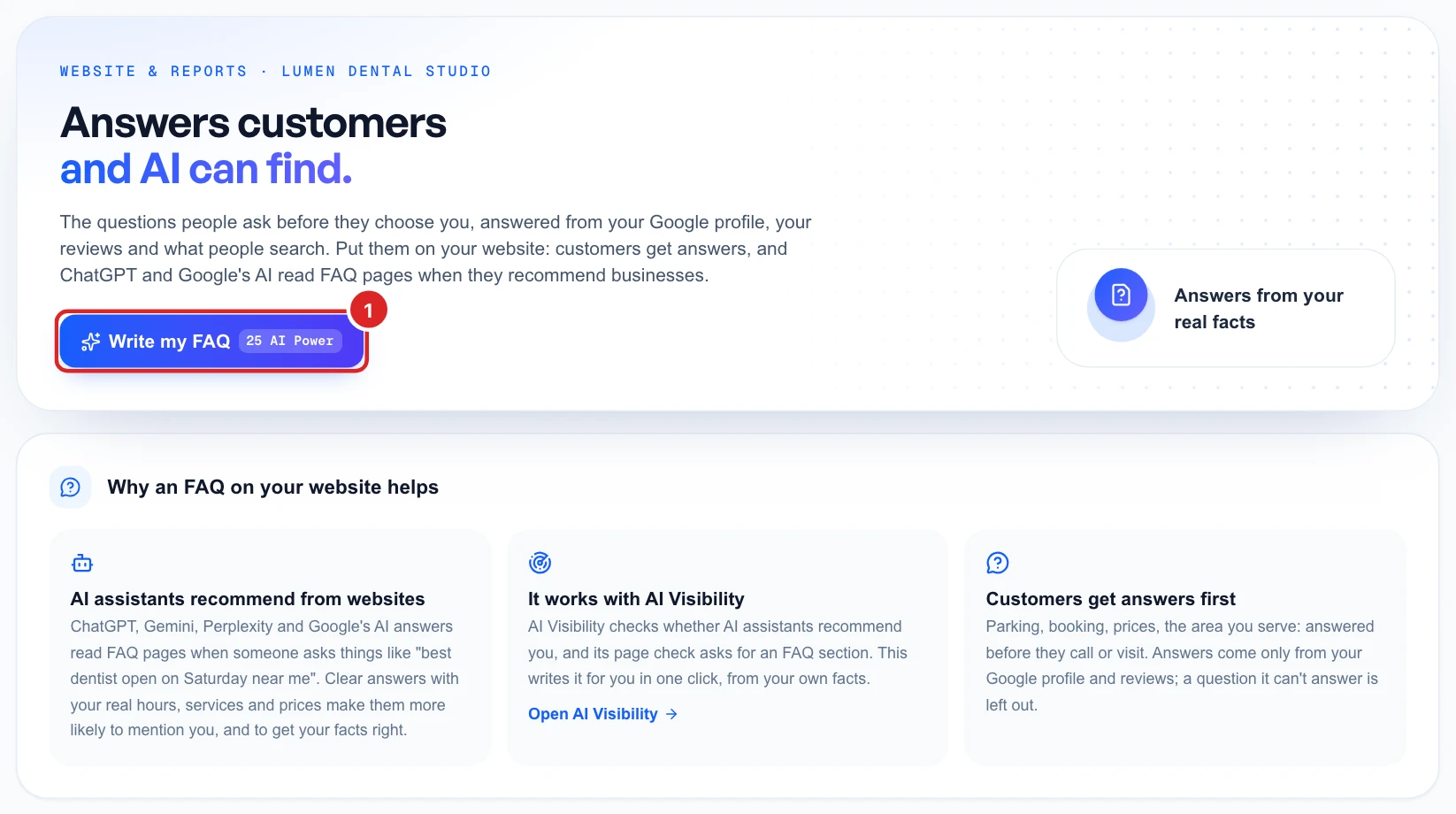
Answers only use what it found, and a question it can’t answer is left out. Google no longer shows questions and answers on Business Profiles, so your own website is the place for them.
Check the answers
Change any question or answer, remove what doesn’t fit with the X, or click Add a question for your own. Make sure every answer is true of your business.
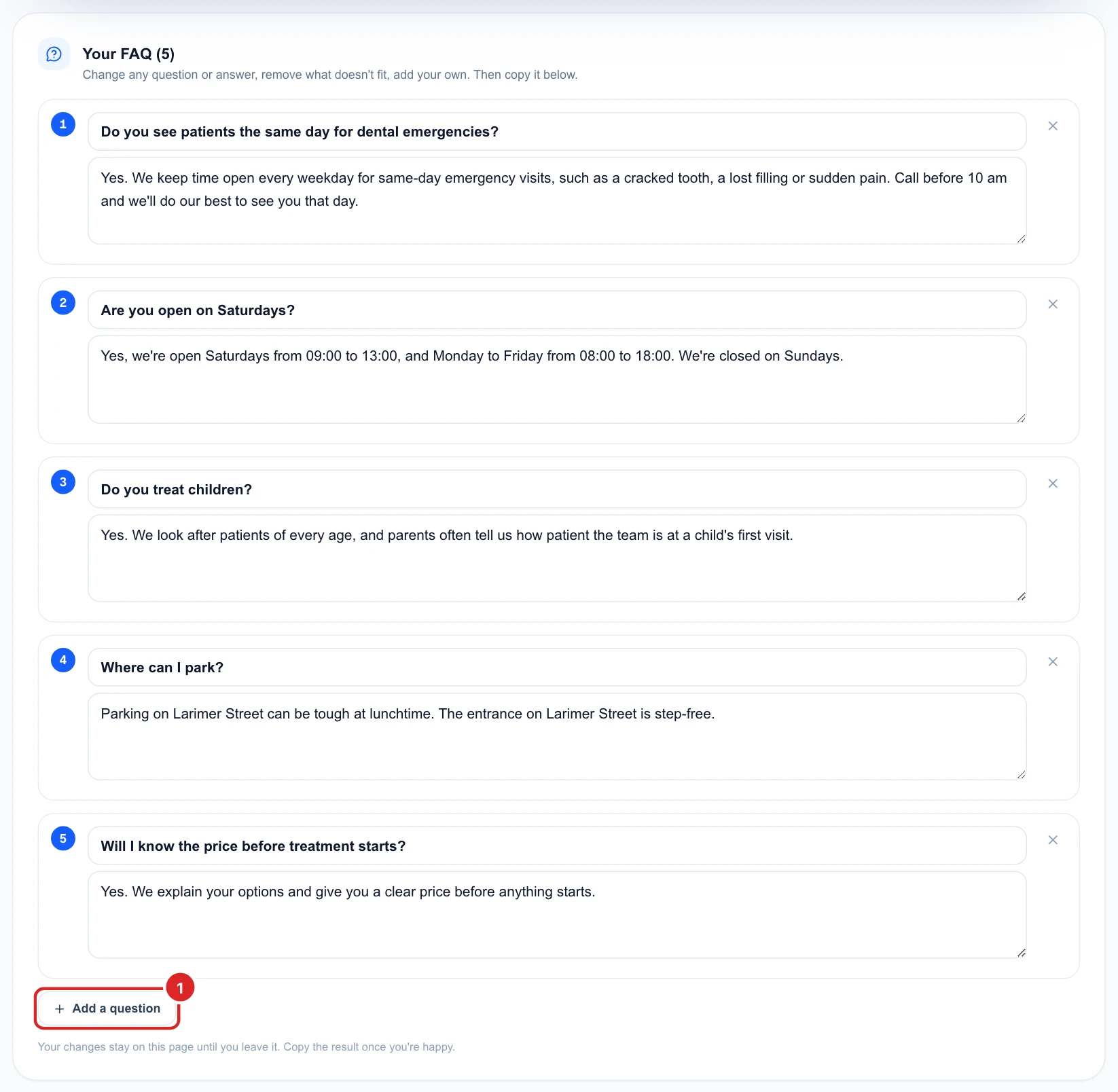
Your edits aren’t saved. They stay until you leave the page, so copy the result in the next step before you go.
Paste it on your website
Open your FAQ or contact page and add an “HTML” or “Custom code” block. Paste in the FAQ section, which is what visitors read. Then paste the FAQ code into the same block. Visitors don’t see the code, but Google and AI assistants read it.
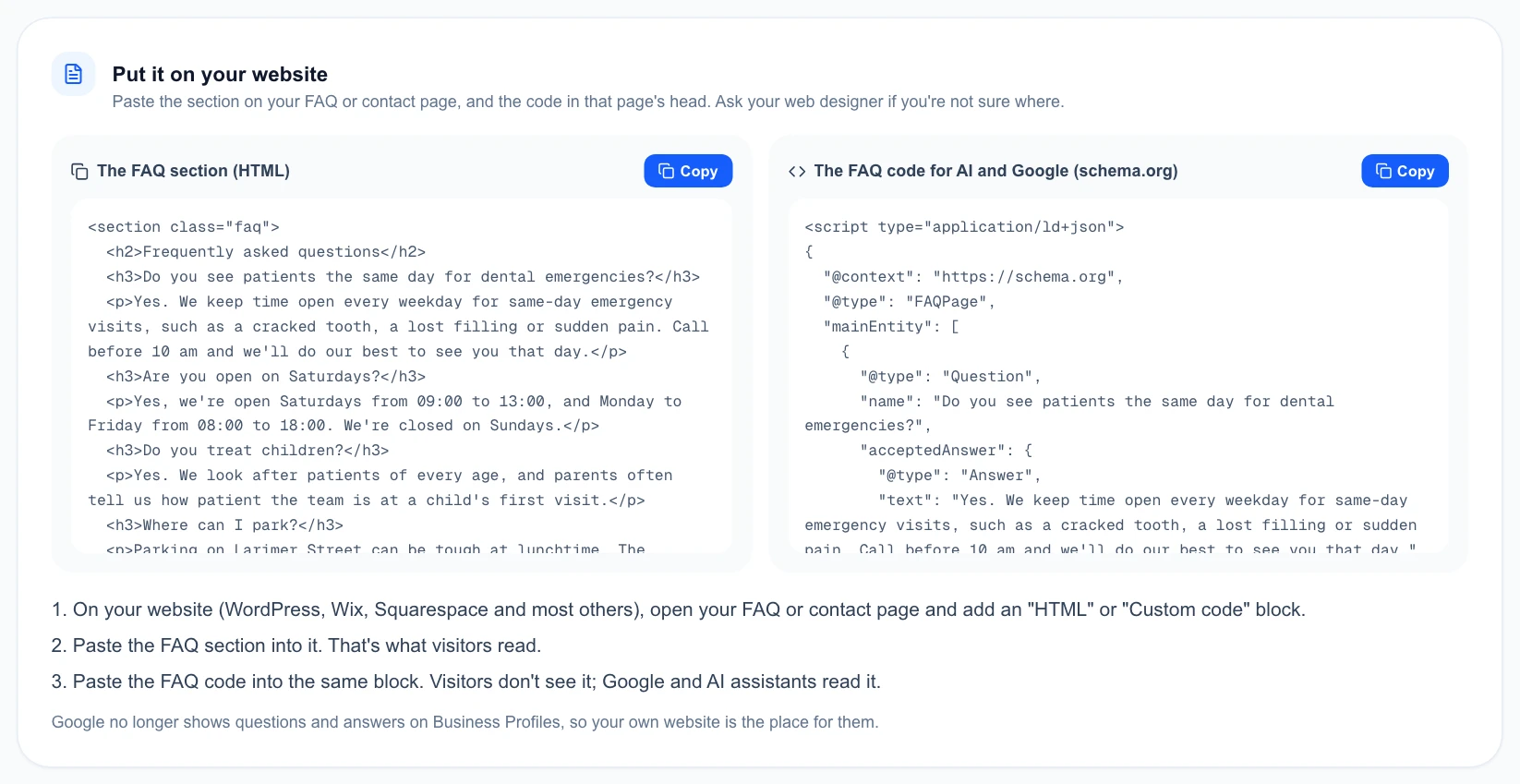
Write a new one writes a fresh FAQ for another 25 AI Power. Ask your web designer if you’re not sure where to paste it. If you track AI answers, see AI readiness, which checks for an FAQ section.