GBP Management
Compare your Google Business Profile with your competitors
See who holds the map pack, how fast rivals get reviews and what their customers say, then compare yourself with #1 and get a plan to catch them.
Updated November 1, 2026 · 7 min read
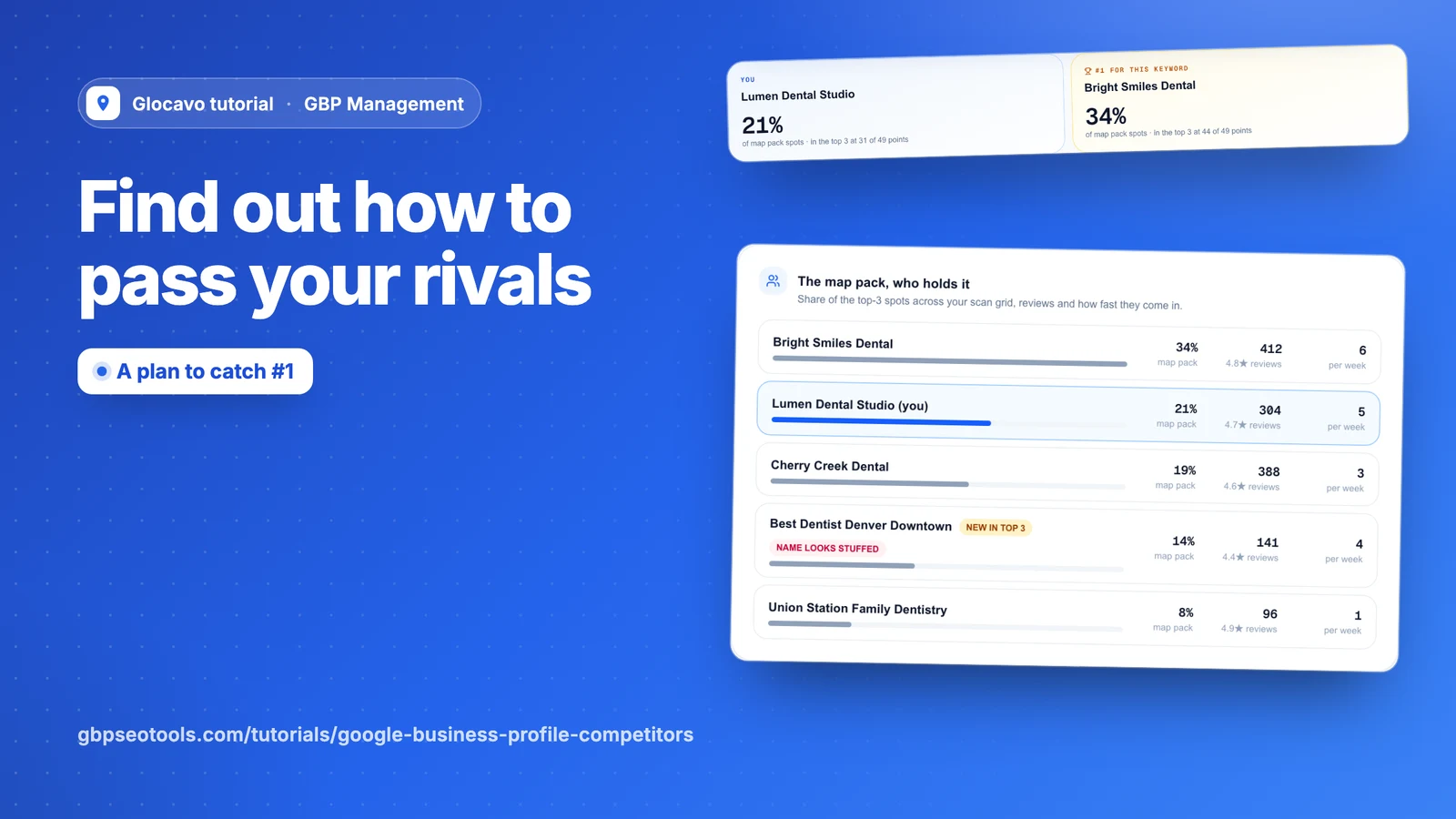
Competitors shows who shares the map pack with you and how fast they get reviews. Compare with #1 puts you next to the business taking the most spots. Both read the scans you already ran, and AI can turn them into a plan.
- Where
- GBP Management, open a business, Competitors & AI search
- You need
- A grid scan of the keyword you want to compete on
- Cost
- Both pages are included. A teardown costs 50 AI Power and a plan 10.
See what it takes to catch the leader
Click Competitors & AI search, then Competitors, and pick a keyword. The top tells you how many reviews a week would catch the business with the most reviews in 3 months.
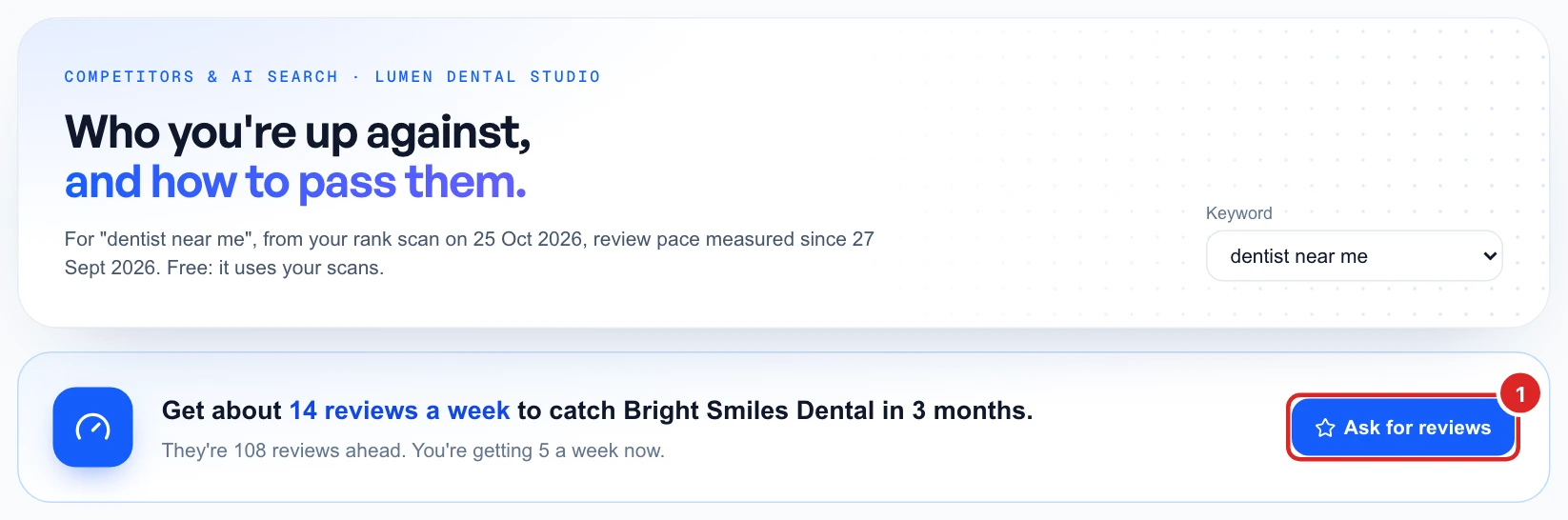
Review pace needs a second scan of the keyword, at least a week after the first. A recurring scan takes care of that.
See who holds the map pack
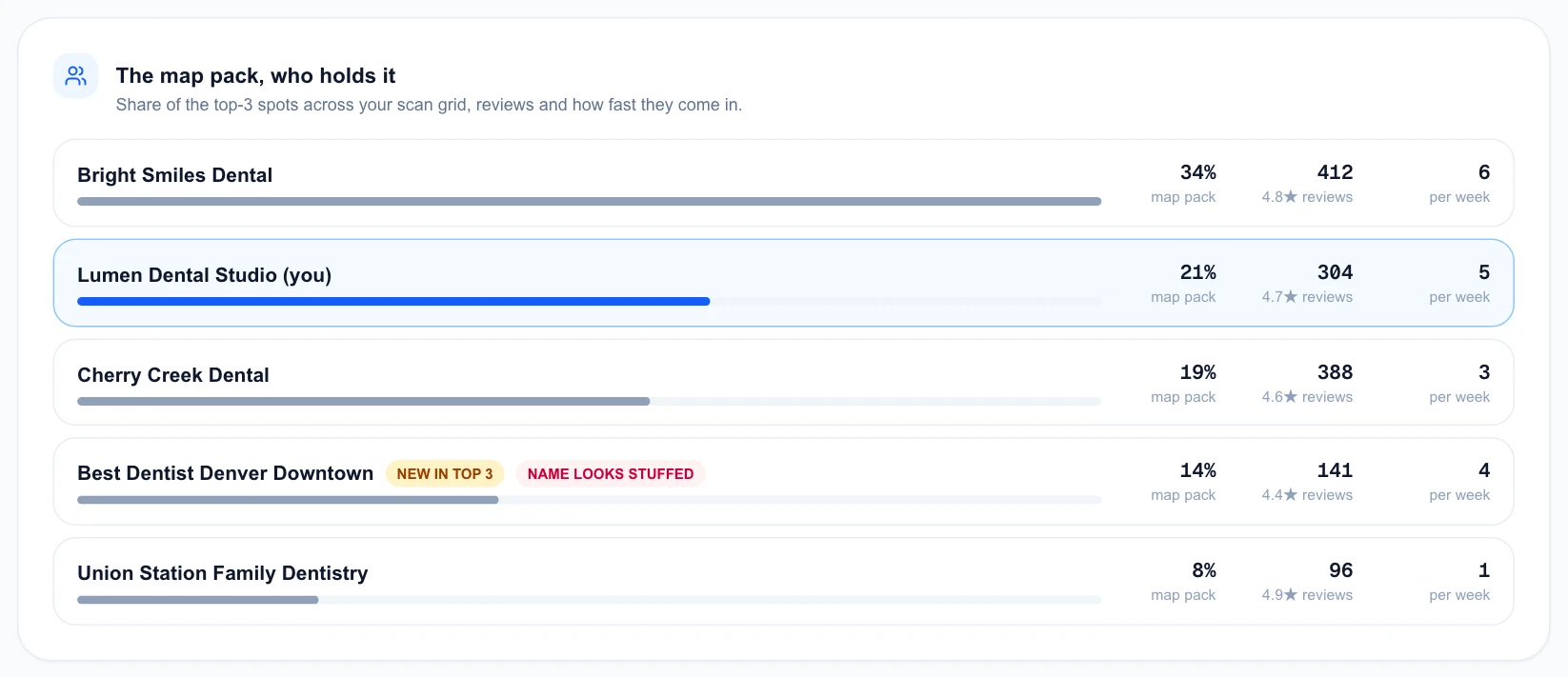
The list shows each business’s share of the top 3 spots across your scan grid, its reviews and rating, and how many new reviews it gets each week. Your own row is in blue. Two labels are worth a look:
- New in top 3: it wasn’t there in your previous scan, so see what it changed.
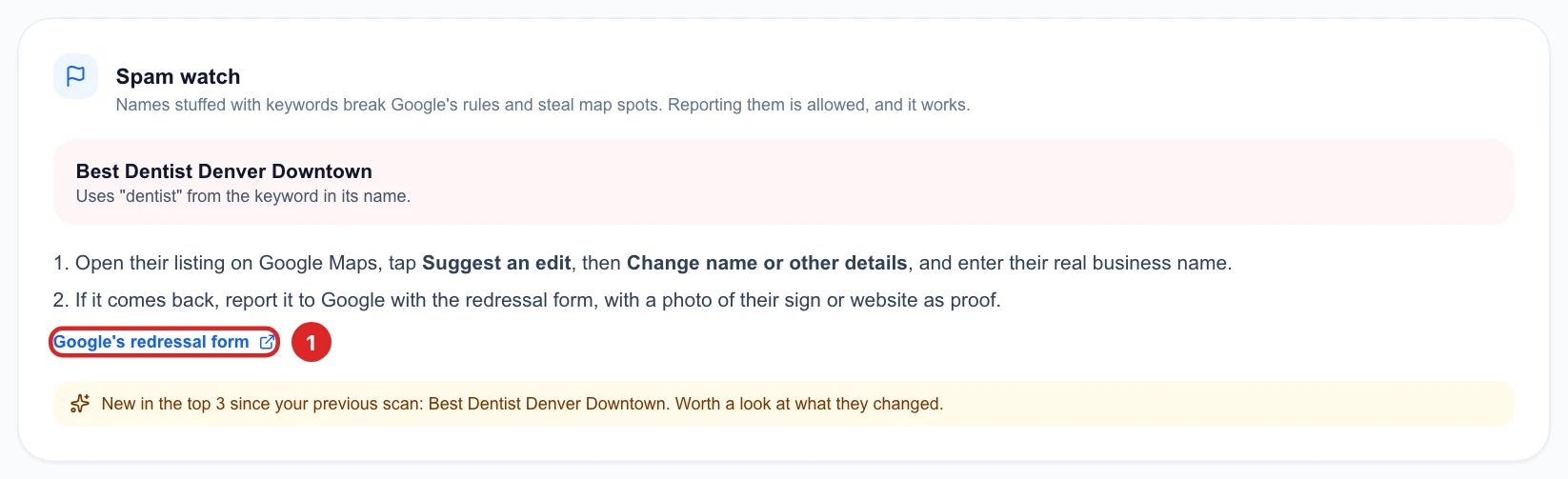
- Name looks stuffed: its name includes words from your keyword. Step 6 covers what to do.
Run a competitor teardown
Click Tear down my rivals. AI reads up to 50 of the newest reviews for each of your top 3 rivals, along with their details from your latest scan. It usually takes 1 to 3 minutes, and it carries on if you leave the page.

You pay the 50 AI Power only once it’s done. If it fails, nothing is charged and you can try again.
See each rival's strengths and weaknesses
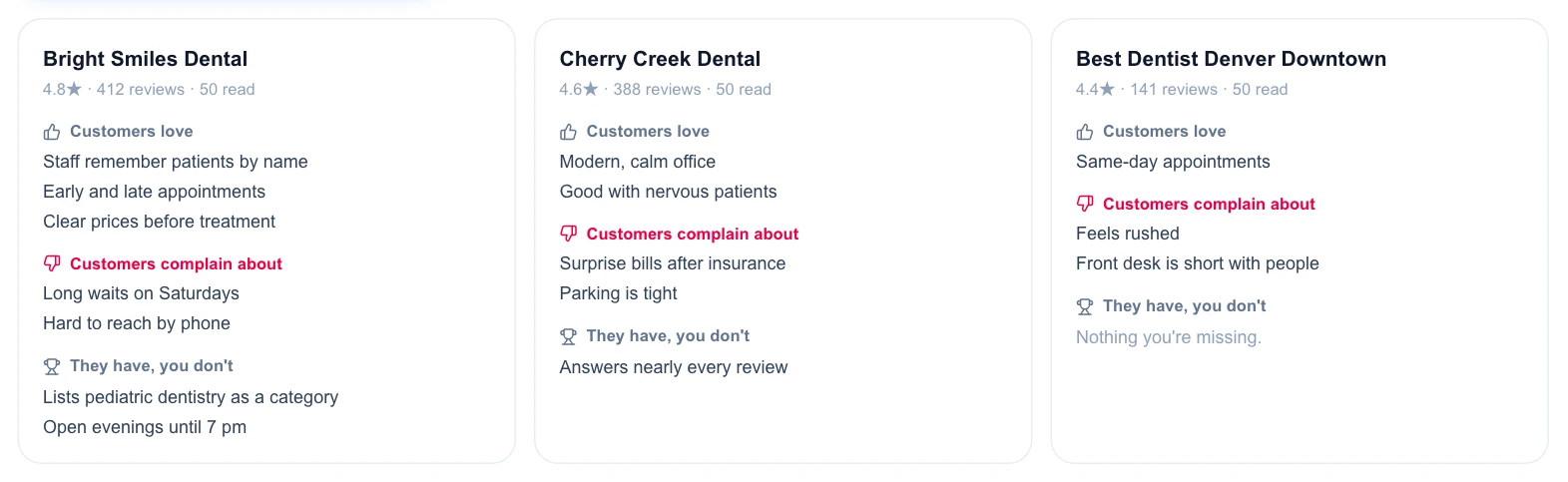
Each rival gets a card with what customers love, what they complain about, and what the rival has that you don’t. Their complaints are your openings.
Use your plan for the next 30 days
Where you can win names your openings, and Your next 30 days breaks the work into weeks.
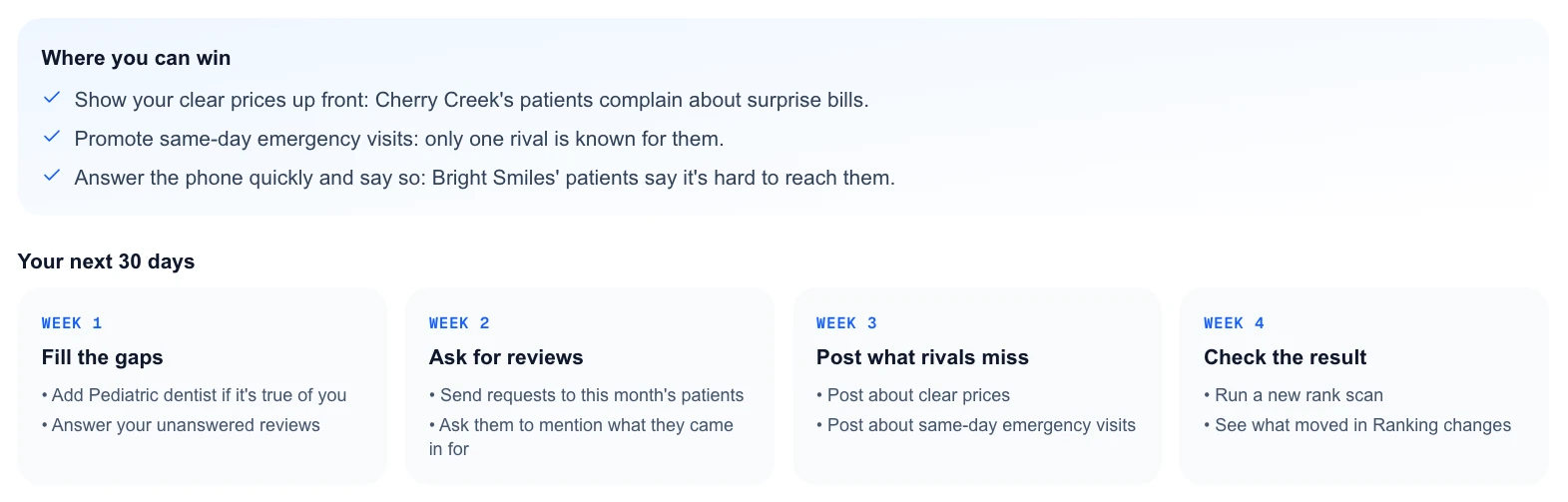
The teardown stays on the page for that keyword. Make a new teardown writes a fresh one from your latest scan, for another 50 AI Power.
AI works from reviews and scan data, so check that each step is true of your business.
Report names stuffed with keywords
Spam watch lists rivals with words from your keyword in their name. Google’s rules don’t allow stuffed names, and you’re allowed to report them. But check their sign or website first, because the name may be their real one.
Compare yourself with #1
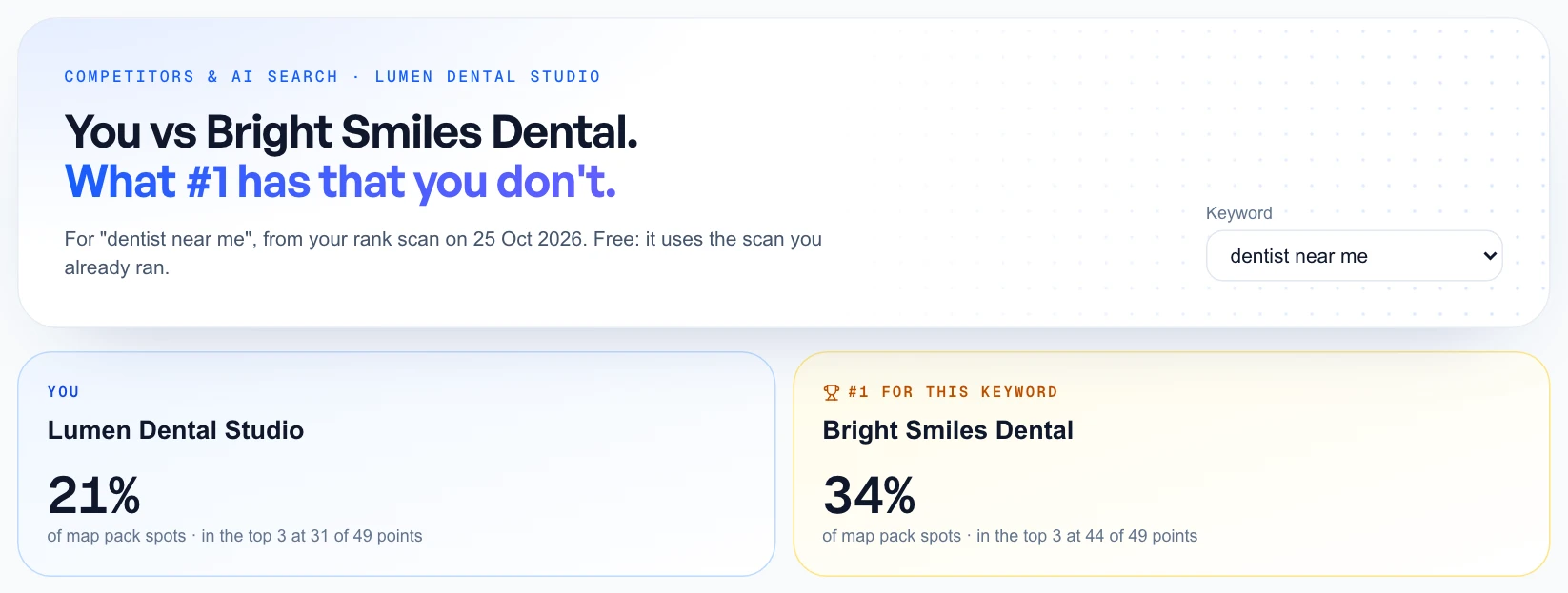
Click Compare with #1. Here #1 means the business taking the most map pack spots for that keyword, and one scan is enough. The two cards show your share and theirs.
Go through it row by row
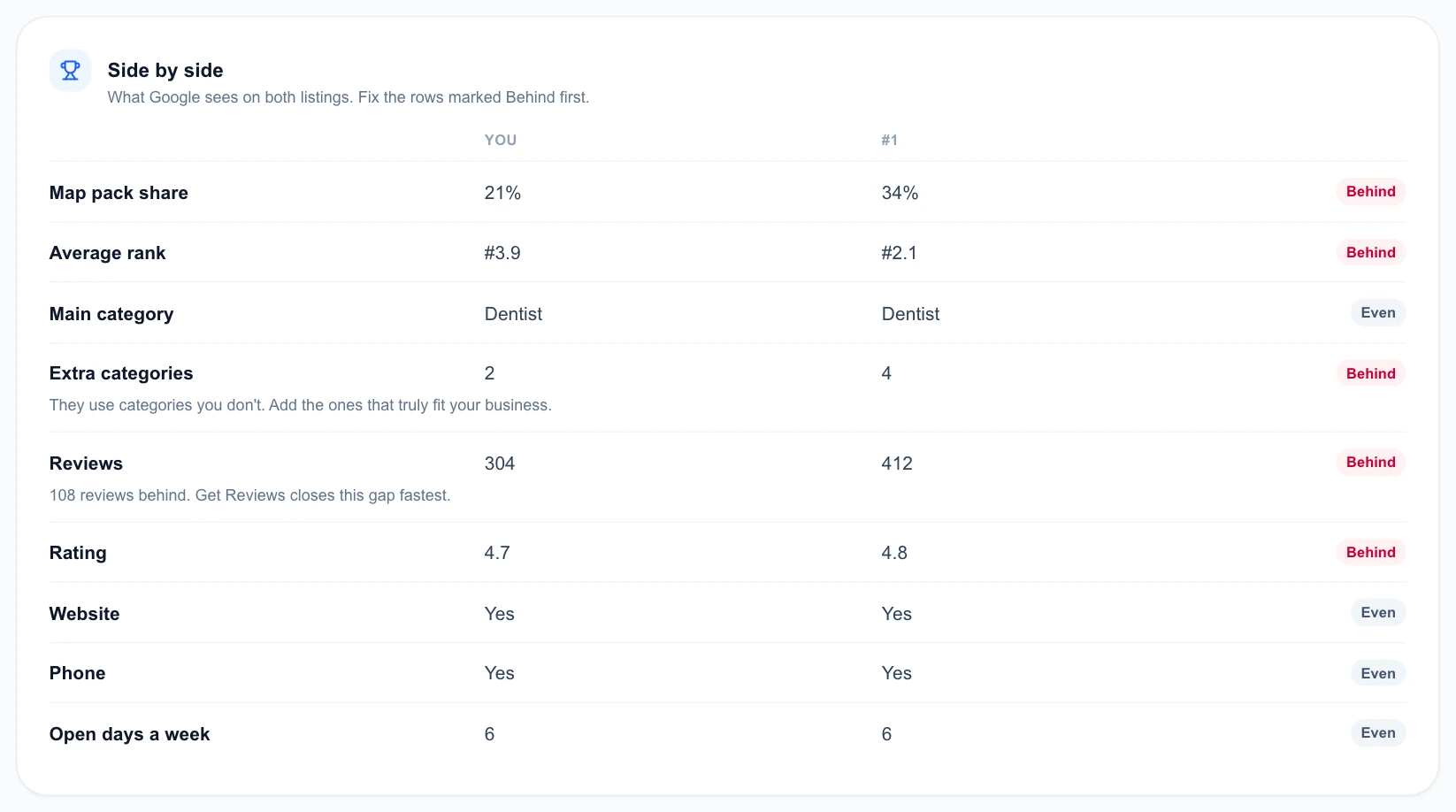
Side by side compares what Google sees on both listings. Each row says You lead, Behind, Even or Note. Start with the rows marked Behind, and read the tip under a row when there is one.
Add categories and make a plan
Categories they use, you don’t lists what’s missing. Click one, then confirm, and it goes on your Google listing right away, though Google may review it first.
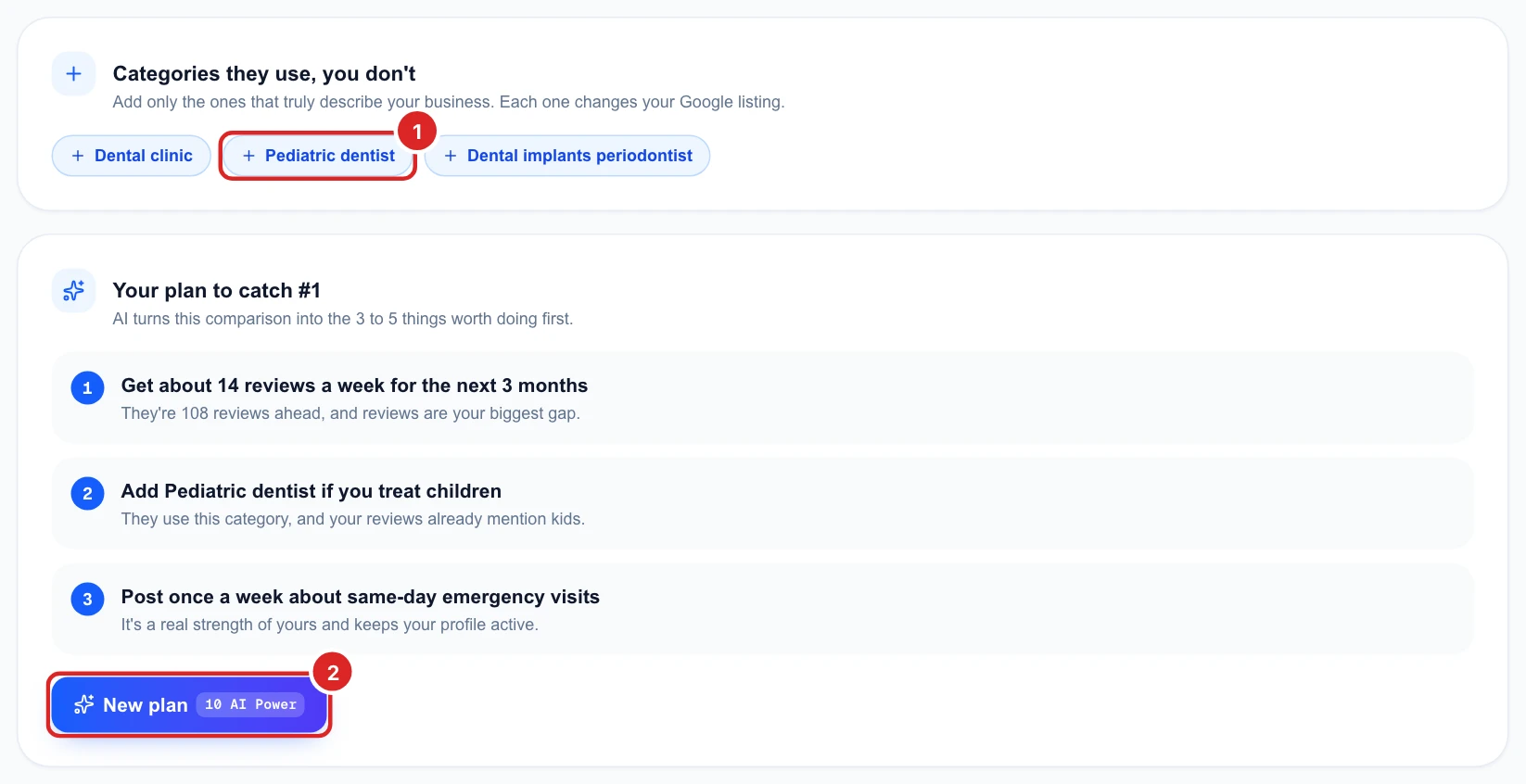
Only add categories that truly describe your business, because wrong ones can hurt your ranking.
Click Make my plan to have AI pick the 3 to 5 things most worth doing first, for 10 AI Power. Once you have a plan, the button becomes New plan.