GBP Management
Make a QR code and short link for Google reviews
Get your review link and QR code, design a sign, table tent, sticker or business card from 12 templates, and print it or download it.
Updated October 31, 2026 · 5 min read
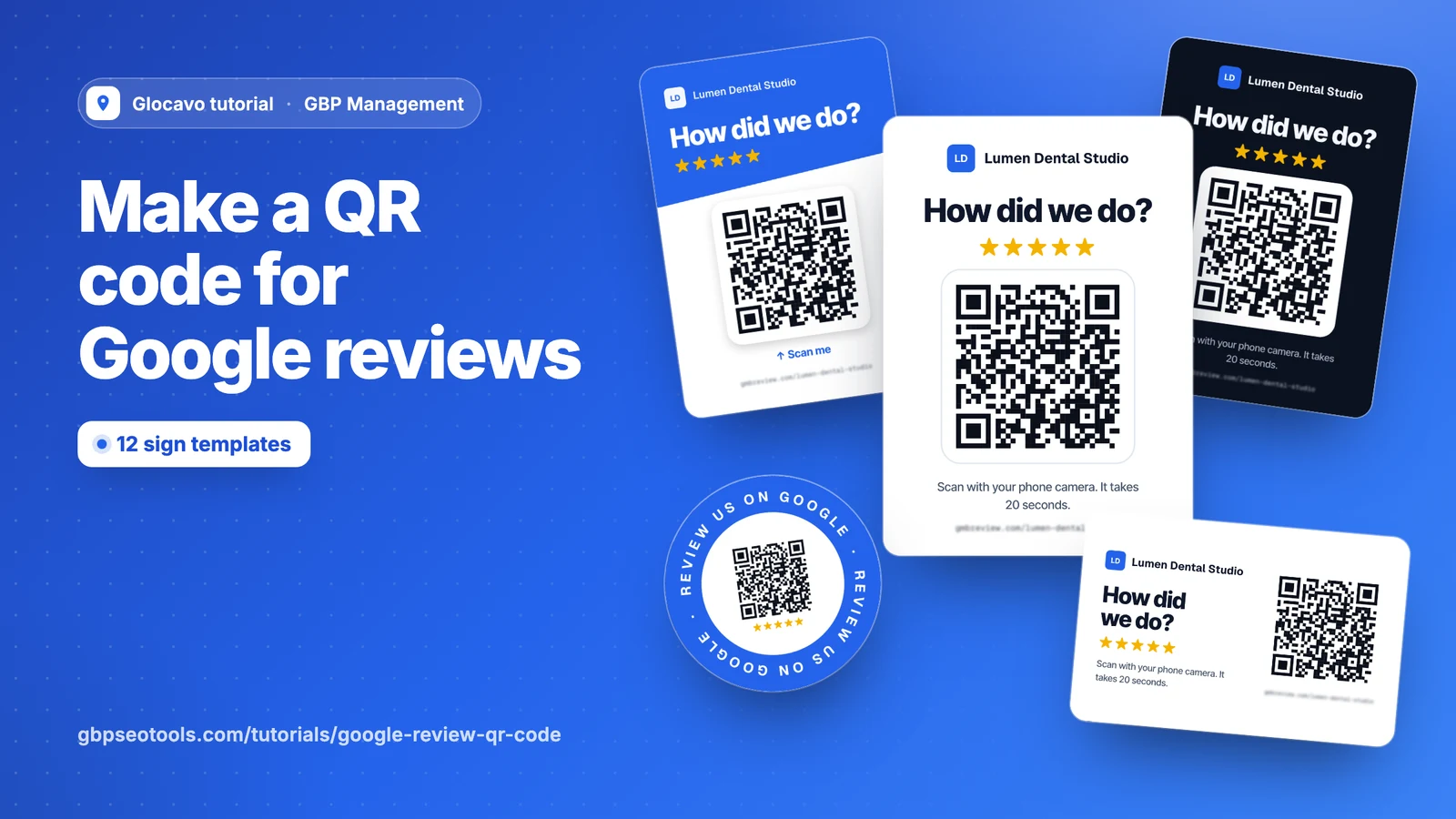
A QR code lets a customer in front of you leave a review with their phone camera. Each business gets one short link and one QR code, and you can put them on a sign, a table tent, a sticker, a business card or a receipt.
- Where
- GBP Management, open a business, Get more reviews, QR & short link
- You need
- A connected business that is on Google Maps, see connect your Google Business Profile
- Cost
- Included. Writing the sign's text with AI costs 10 AI Power.
Get your short link and QR code
Open QR & short link. Your link and code are already made. Both open your rating page, and the link never changes, so anything you print keeps working.
- Copy link: paste it into a text message, your website or your email signature.
- PNG or SVG: download only the code, for your own designs.
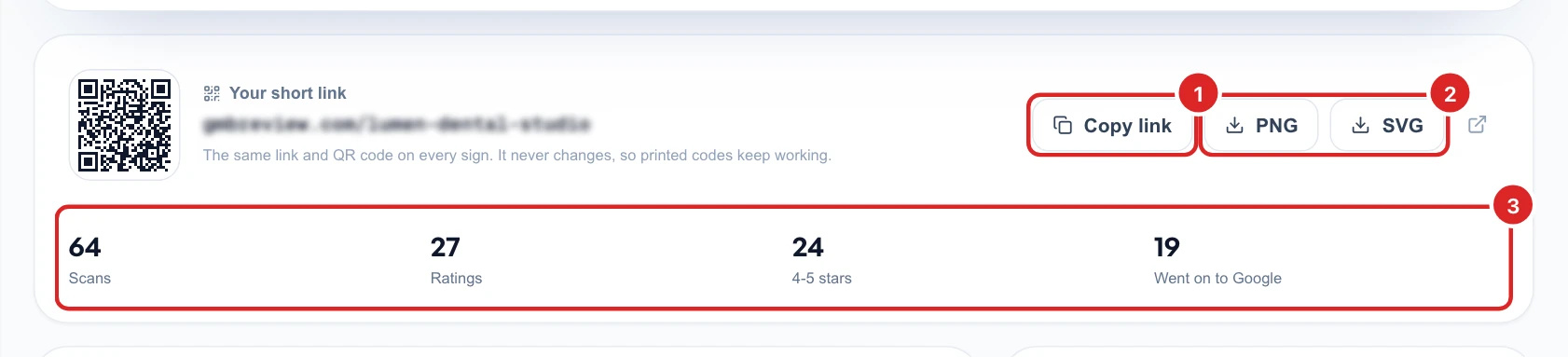
The numbers underneath show how many people scanned it, rated you, gave 4 or 5 stars and went on to Google. To try the page yourself, use the small arrow next to SVG. It opens in test mode, so it doesn’t count as a scan.
Pick a template
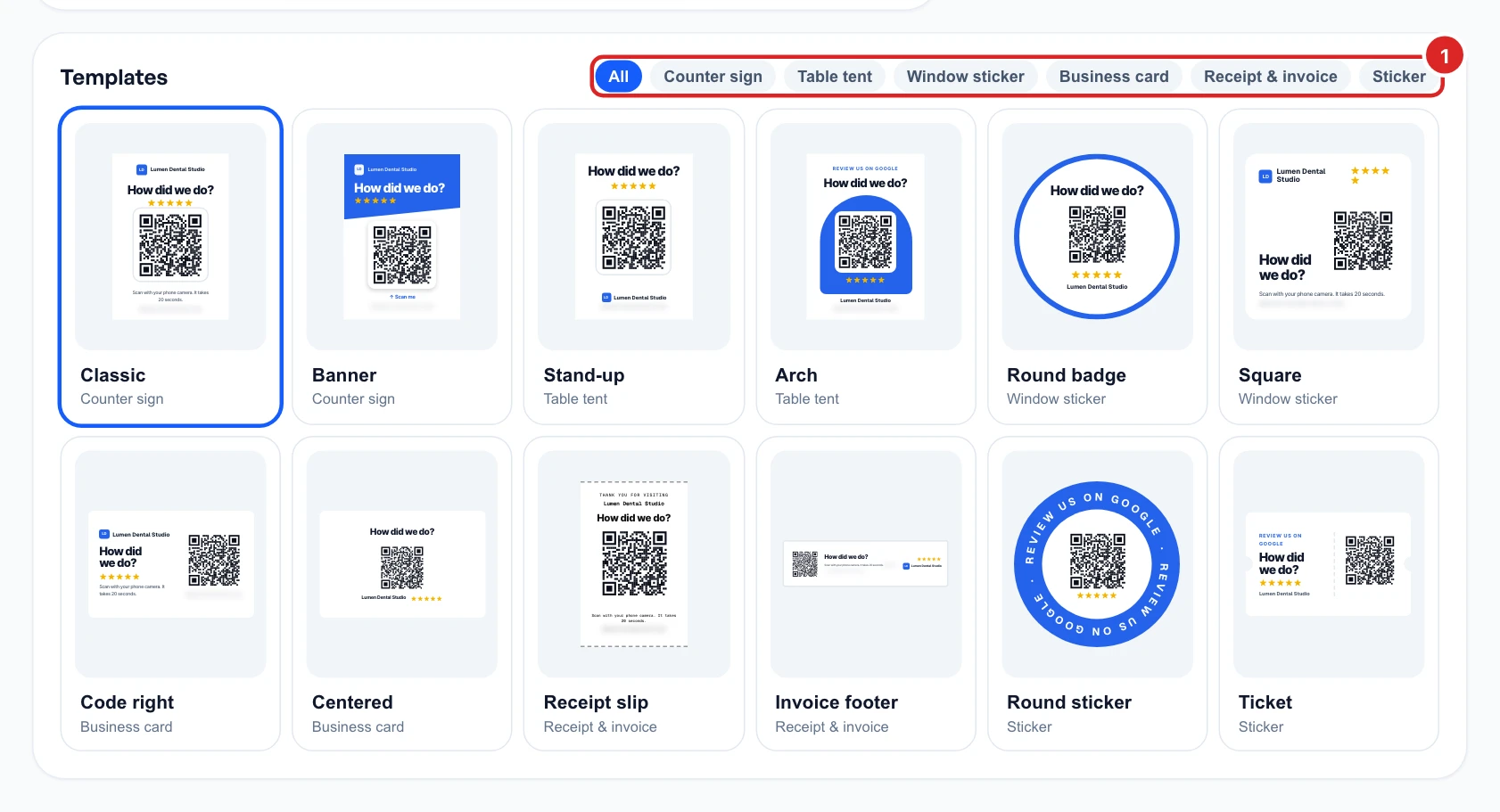
Scroll down to Templates and click one. The buttons above them narrow the list to counter signs, table tents, window stickers, business cards, receipts and invoices, or stickers.
Choose the size
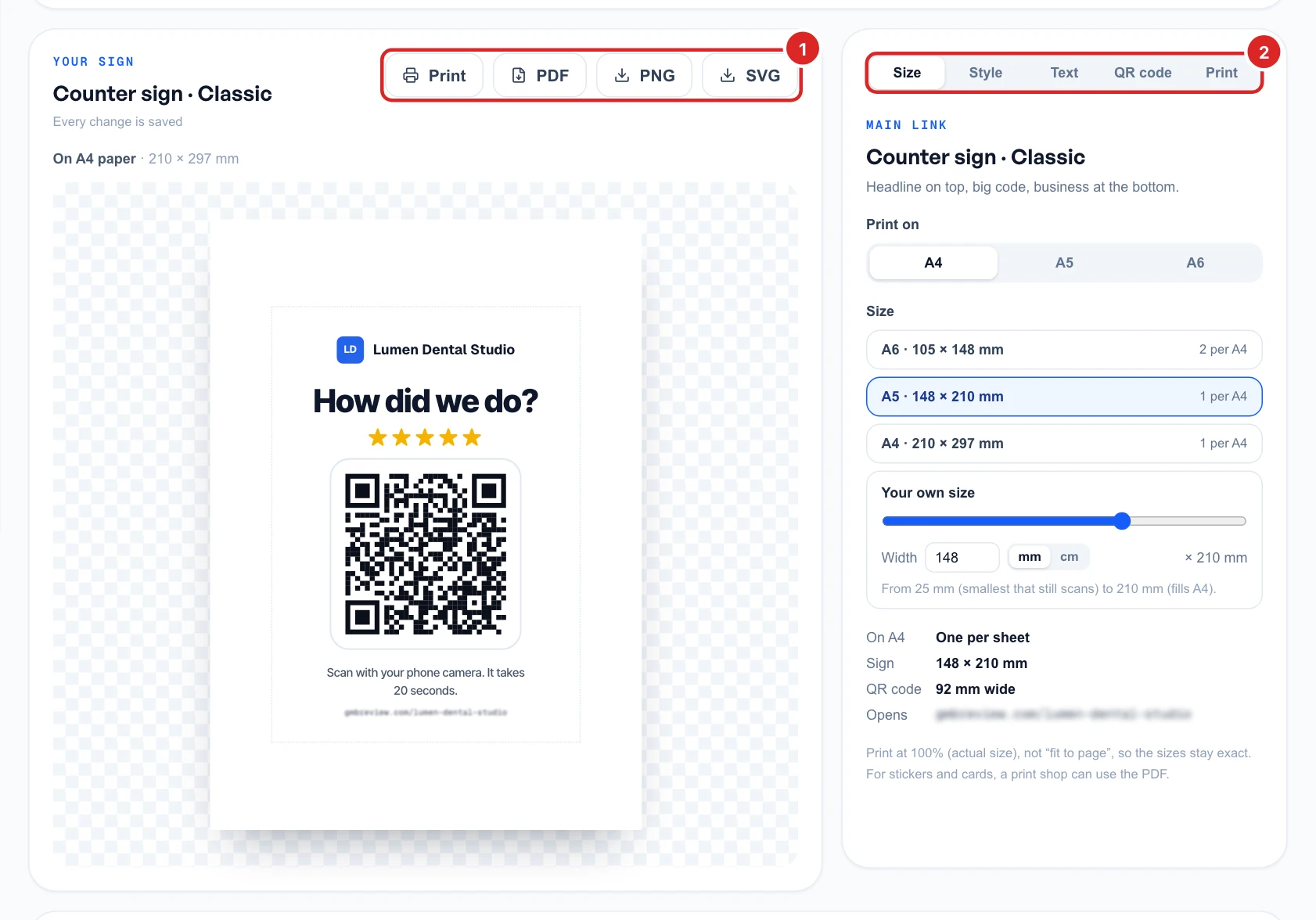
Your sign shows on the left, on its paper, with its settings on the right. Every change is saved as you make it. On the Size tab, pick the paper and a size, or set your own. The panel shows how many fit on a sheet and how wide the code will be.
Make it yours
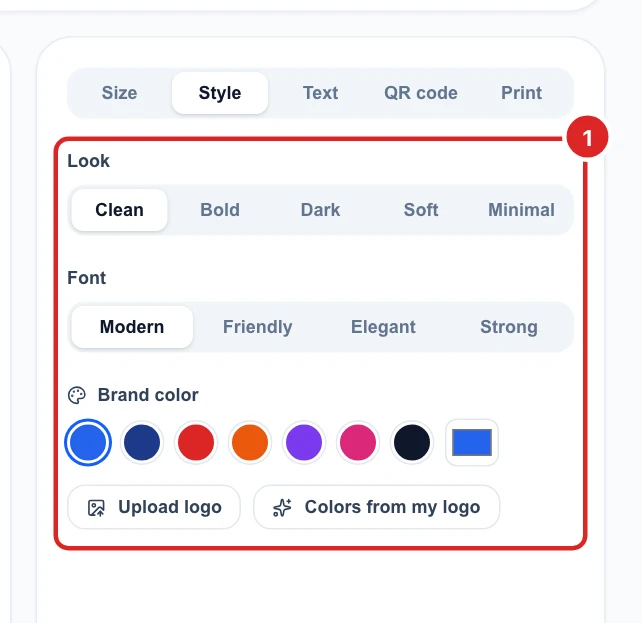
On Style, pick a look and a font, set your brand color and upload a logo. Colors from my logo matches the sign to it.
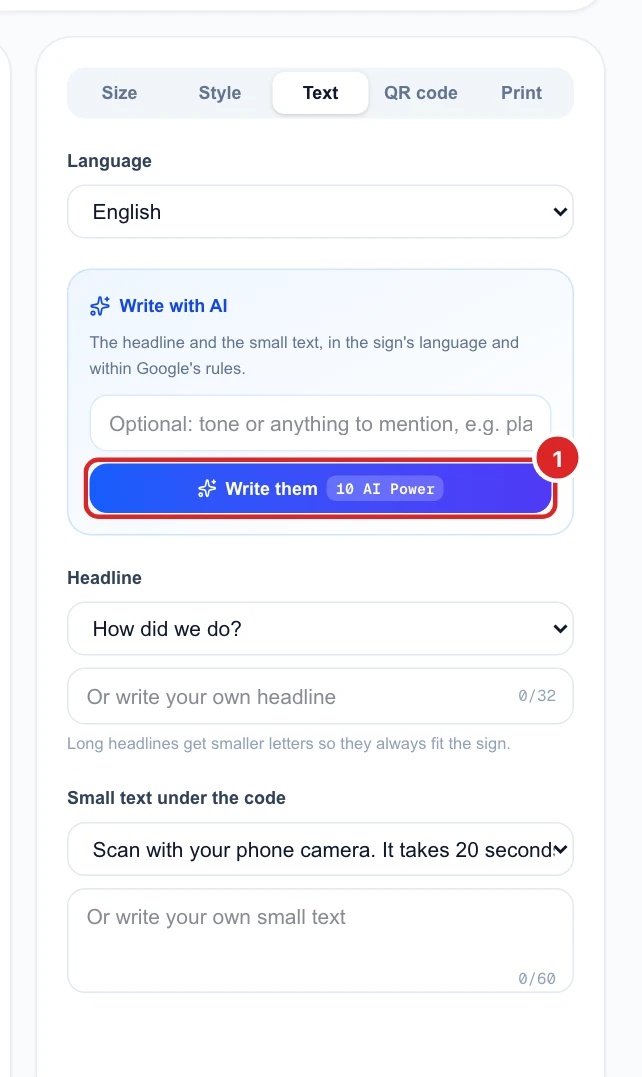
On Text, choose the sign’s language, then a headline and the small text under the code. Pick one from the list, write your own, or click Write them to have AI write them.
On QR code, choose squares or rounded shapes and a black or brand-color code. You can also show 5 stars, put your logo in the middle of the code, print the link under it and show the business name.
Print it
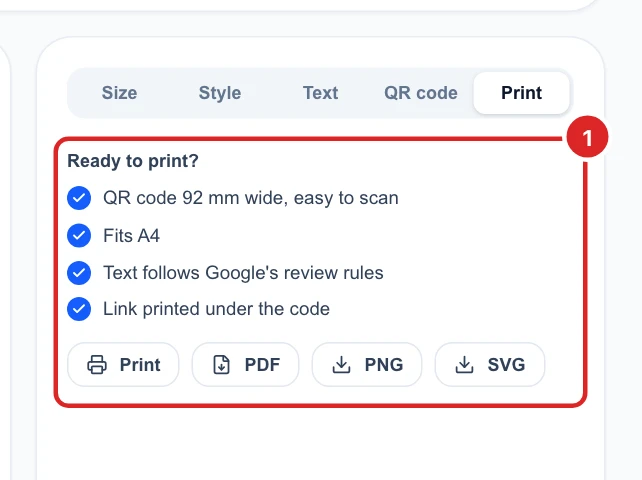
The Print tab checks your sign under Ready to print?, for example that it fits the paper. Then choose Print, or download a PDF, PNG or SVG for a print shop.
Print at 100% (actual size), not “fit to page”, so the sizes stay exact. Scan a test print with your phone before you print many.