GBP Management
Send review requests to your customers
Add your customers, send a review request now or later, see who opened, rated and reviewed you, and follow up on the ones who didn't answer.
Updated October 31, 2026 · 5 min read
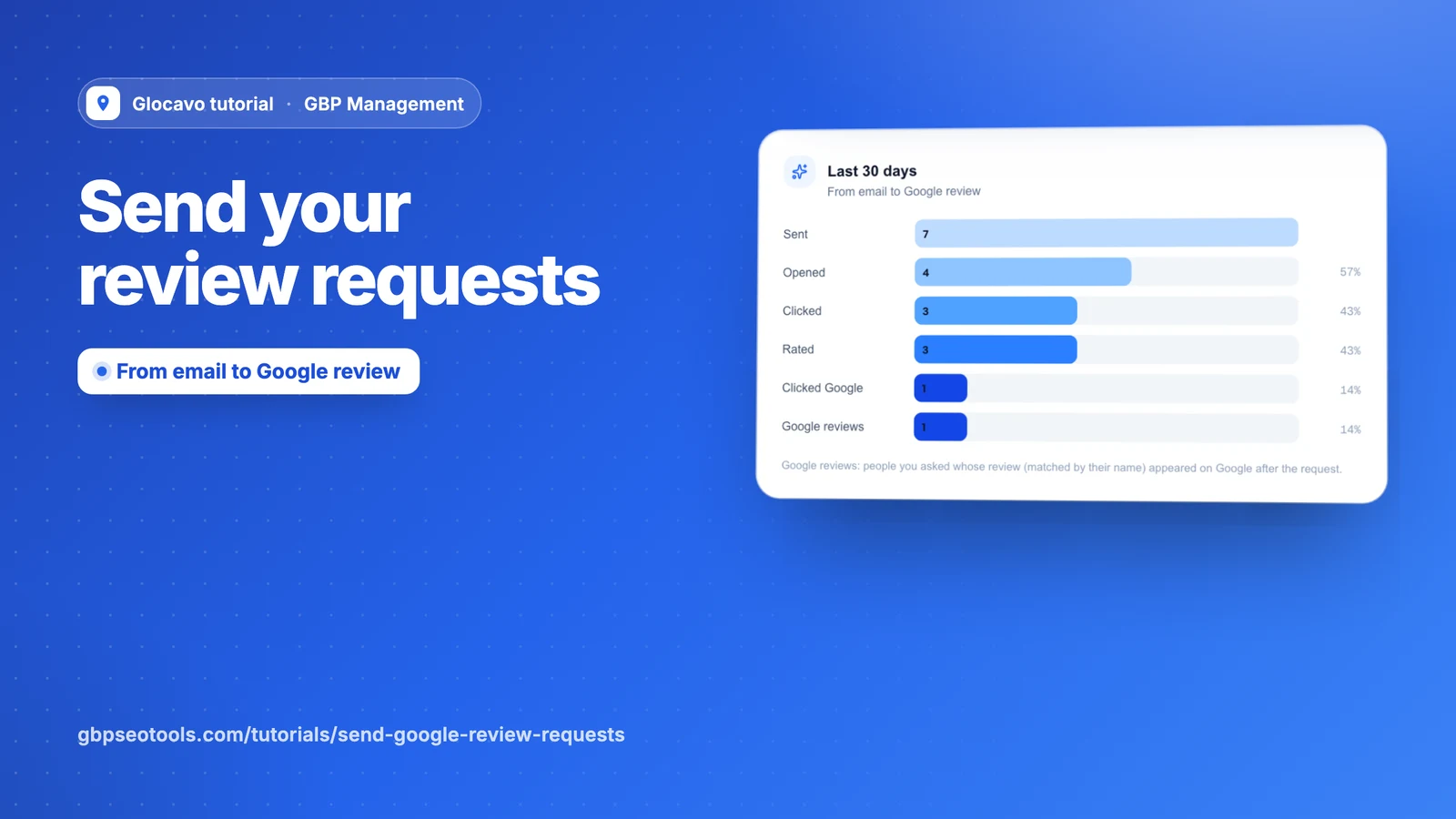
Once your email is connected, asking for reviews takes three steps: add your customers, send a request, and see who answered. This guide walks through each one.
- Where
- GBP Management, open a business, Get more reviews
- You need
- Review requests set up, see set up review requests
- Cost
- Each email uses one request from your monthly allowance.
Add your customers
Open Contacts. Only add people who are your customers and expect to hear from your business.
- Add: type one person’s name and email. The service is optional.
- Import: choose a CSV file with name and email columns and an optional service column, or paste one person per line. Anyone already on the list is kept once.
- Export: download the list.
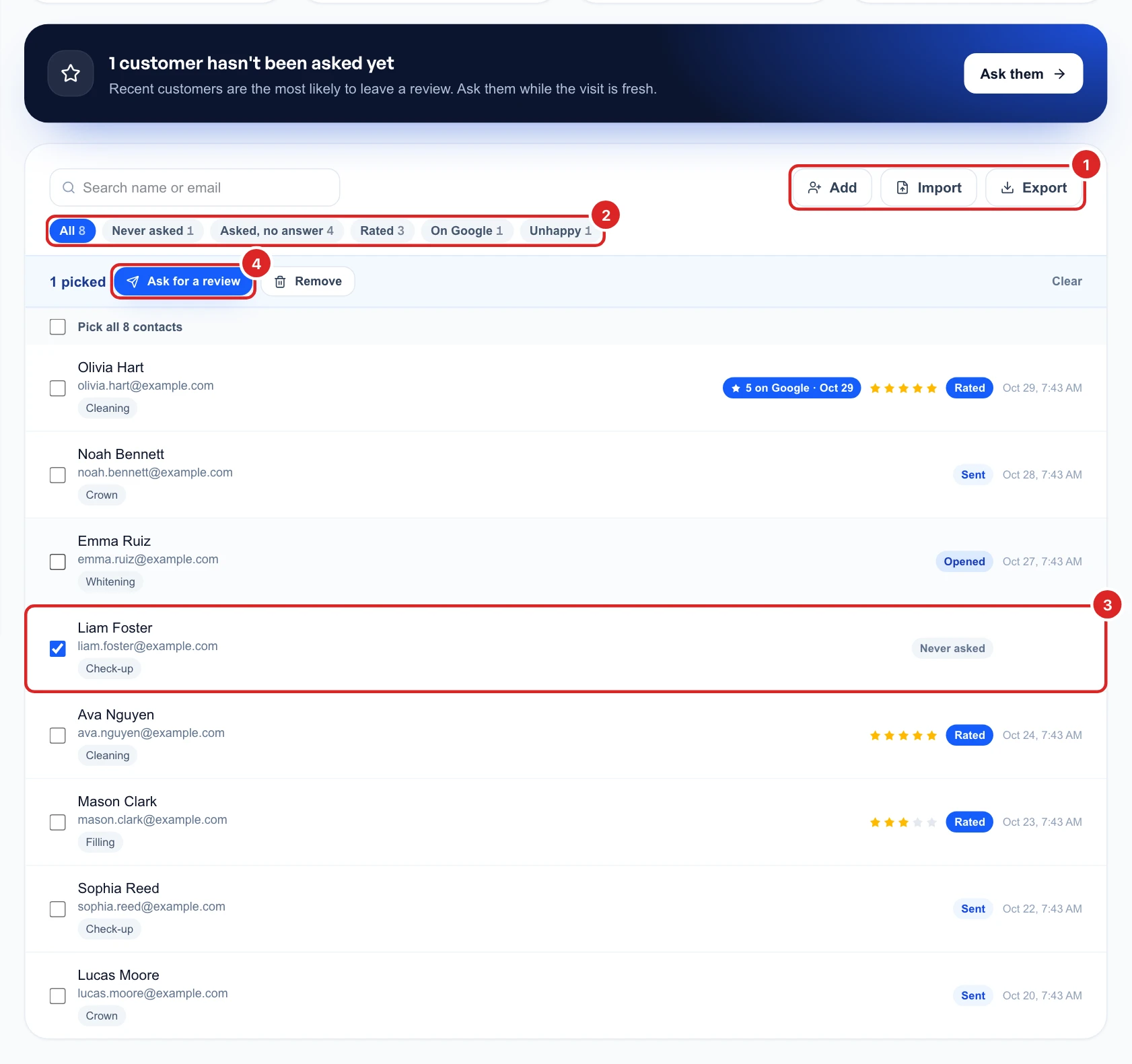
The filters show who you never asked, who didn’t answer, who rated you, who is unhappy and who is on Google. To ask some of them, tick them and click Ask for a review.
On Google matches a contact’s name with the name on a Google review, so it can occasionally be wrong for common names.
Send a request
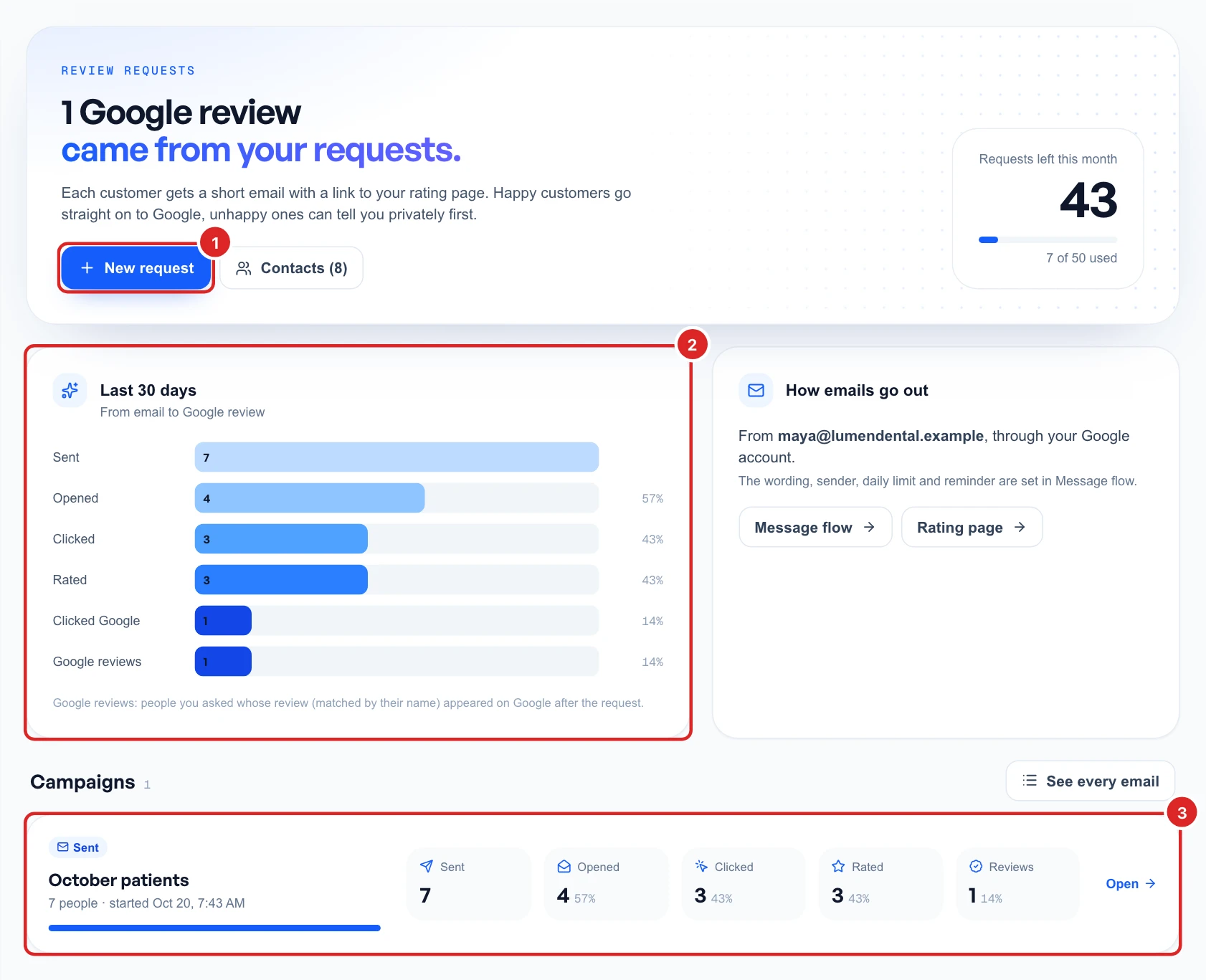
Open Send requests and click New request. This page also shows how many requests you have left this month, and what happened to your emails over the last 30 days.
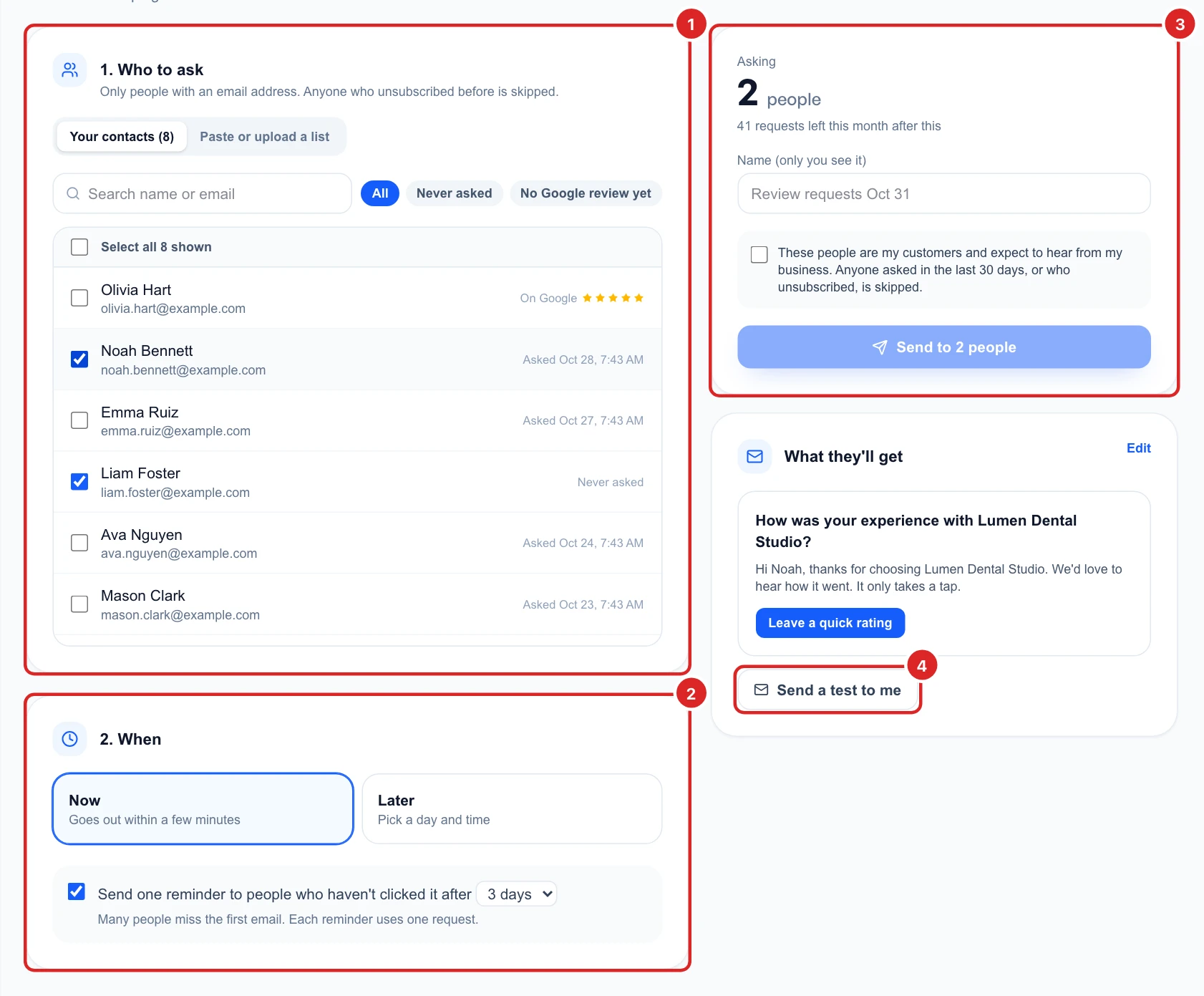
Then fill in the form:
- Who to ask: tick people from your contacts, or paste or upload a list.
- When: now, which goes out within a few minutes, or later on a day and time you pick. You can also send one reminder to people who haven’t clicked, after 2, 3, 5 or 7 days. Each reminder uses one request.
- Name: only you see it. Leave it, or use something like “October patients”.
Click Send a test to me to check the email first. Then tick the box confirming these people are your customers and click Send. Anyone you asked in the last 30 days, or who unsubscribed, is skipped.
See what happened to each email
Open Sent emails. The top shows your totals, from sent to Google reviews, and the table shows every customer you asked and how far they got: asked, sent, opened, clicked, rated and Google.
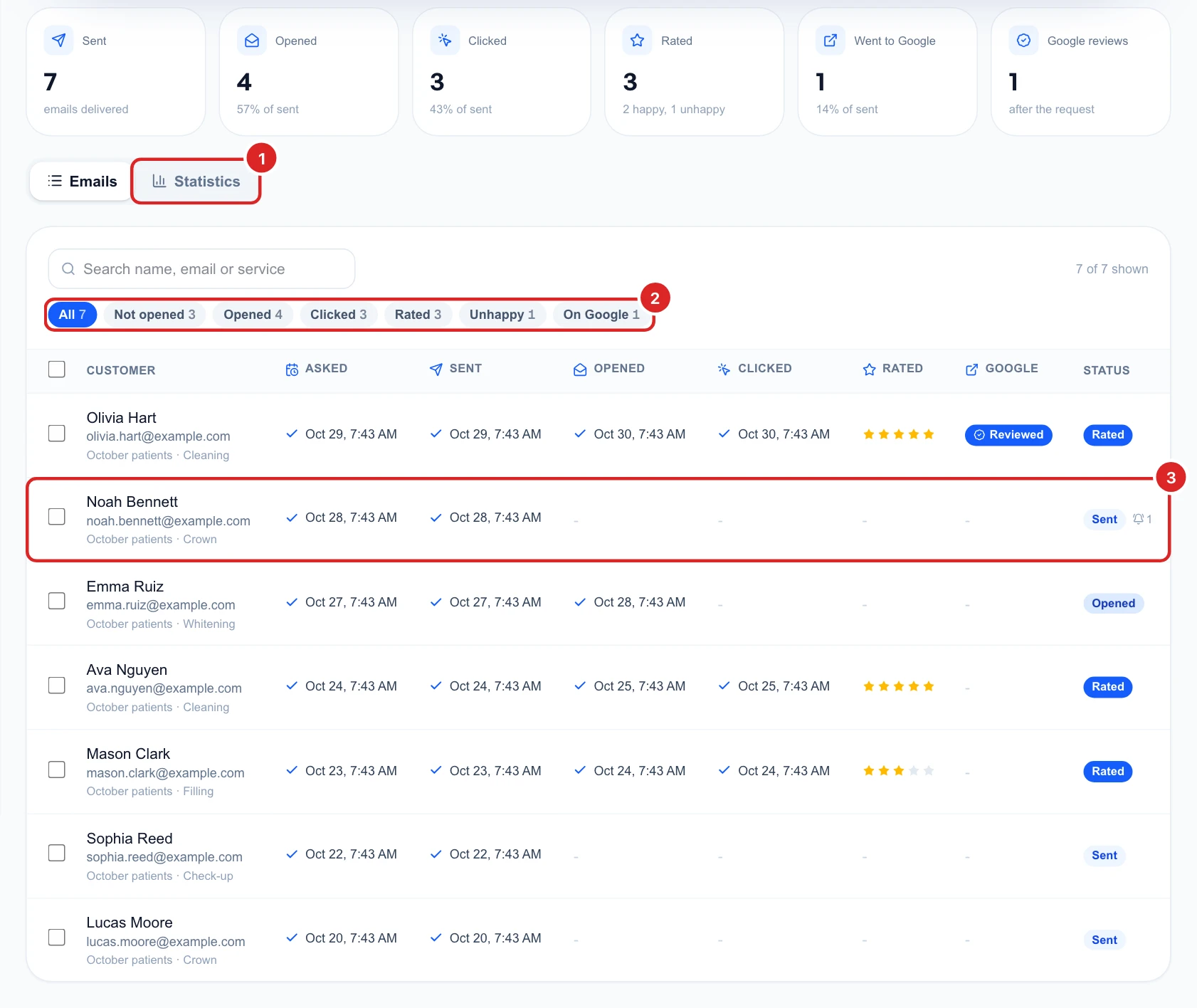
Click a row to see what happened and what to do next. An unhappy rating, for example, suggests a personal reply, and a review on Google suggests answering it.
Follow up on the ones who didn't answer
Tick people in the table and the buttons above it change to match:
- Send reminder: for those who haven’t answered, up to 2 reminders each.
- Retry: for emails that didn’t go out. Check the address first.
- Cancel sending: for emails that haven’t gone out yet. The request goes back to your allowance.
Asking for reviews by email only reaches people you have an address for. For customers in front of you, use a QR code, which the next guide covers. Reviews that come in are answered under Reviews.
Know your monthly allowance
Each plan includes a number of requests a month, for all its businesses together:
- Starter: 10
- Basic: 20
- Studio: 50
- Agency: 100
Extra GBP Management capacity adds 250, 750 or 2,000 a month. See plans and top-ups.