
How to Manage Your Google Business Profile: A 10-Minute Weekly Routine
To manage your Google Business Profile well, you need about 10 minutes a week: reply to every new review, publish one post, and check whether Google changed anything on your listing. Add a one-minute daily look at new reviews and a 20-minute monthly check of photos, hours and your numbers, and the profile stays current all year. The same routine works whether you manage Google Business Profile listings for one shop or for forty clients.
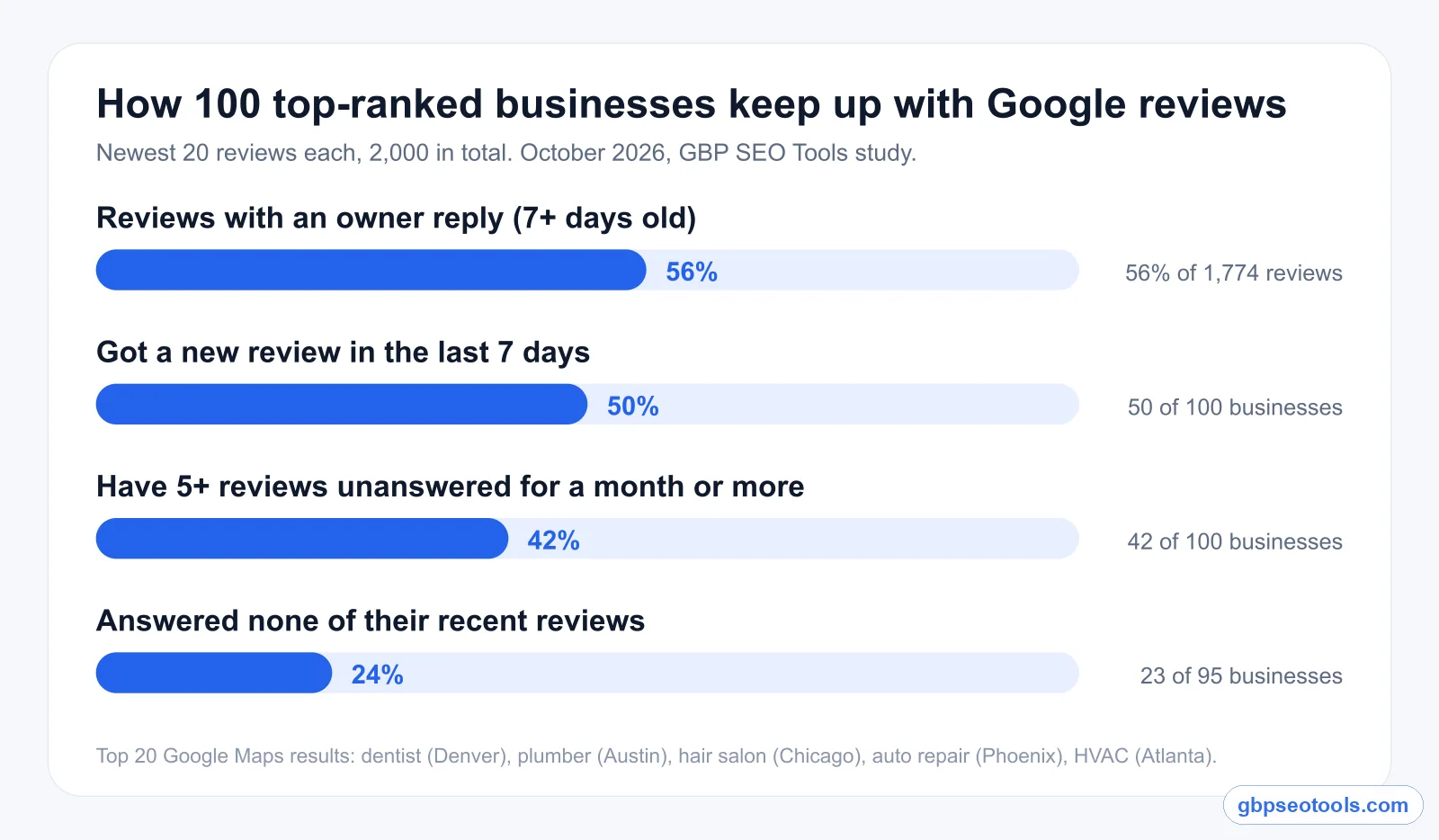
Most owners already know the profile matters. The problem is that it never feels urgent, so it slides. We checked how far it slides: across 2,000 recent reviews at 100 businesses in Google's top 20 map results, owners had answered 56%, and 42 of the 100 had five or more reviews sitting unanswered for over a month.
So this guide is built as a routine, not a list of tips. It covers what to do every day, every week, every month and when something in your business changes, and why each task is there.
If you run one business, it's a calendar you can keep. If you manage profiles for clients, it's the same routine per location, and the part an owner notices when it stops.
The routine at a glance
| When | Time | What you do | Read more |
|---|---|---|---|
| Every day | 1 minute | Read new reviews, answer any 1 to 3 star review | Reviews |
| Every week | 10 minutes | Reply to all new reviews, publish one post, check for edits | The weekly routine |
| Every month | 20 minutes | Fresh photos, hours and services, four dashboard numbers | Dashboard |
| When it happens | As needed | Holiday hours, a new service, a new phone number, a move | Google's edits |
Also in this guide: what Google's own manager covers, posts and updates, the printable checklist and common questions.
Google Business Profile Manager: what Google's own tool covers
The Google Business Profile Manager is the free set of screens Google gives every verified owner. For most single-location businesses it's enough to make changes. What it doesn't do is tell you what needs doing, which is where most profiles fall behind.
Where you manage your profile on Google
You can edit your profile in three places. Search your business name on Google while signed in and the editing panel appears above the results. The Google Maps app has the same controls under your business.
For several locations, use Google's Business Profile Manager at business.google.com. It lists every profile you own or manage in one table.
All three edit the same profile, and every change goes through Google's review before it shows. A new phone number or new hours can take a few minutes, and sometimes longer, to appear.
What changed in 2026
Three changes this year affect how you run a profile day to day:
- The Q&A section is gone. Google replaced customer questions with Ask Maps, its Gemini assistant in Google Maps, which answers from your profile, your reviews and your website. Your profile text now has to answer questions on its own.
- Video verification is the default for new and re-verified profiles. Keep the account that verified the profile active, because getting access back is slower than it used to be.
- The review policy got stricter in April 2026. Asking for reviews with staff names in the request, or through an in-store tablet or kiosk, now breaks the rules.
People still search for "Google My Business management", the name the product had until 2021, but everything in this guide applies to the current Google Business Profile.
What Google's manager doesn't do for you
Google's screens show your data and let you change it. They don't rank what needs you today, don't draft review replies as a standard feature, and don't put Google's own edits side by side with your values in one place. If you manage several profiles, there's no single list of what's waiting across all of them.
That gap is what a routine fills, whether you keep it on paper or in a tool.
| Task | Google's Business Profile Manager | A management tool |
|---|---|---|
| Edit hours, phone, services | Yes | Yes |
| See every new review | Yes, per profile | One inbox for all profiles |
| Draft a reply | Not as a standard feature | AI drafts you edit and post |
| Spot edits Google made | Notifications, easy to miss | Each change shown next to your value |
| Plan posts ahead | Post now or schedule a few | A calendar and series |
| See what needs you today | No | A ranked list per business |
The weekly routine to manage your Google Business Profile
The routine has one block that matters, the weekly 10 minutes, and three smaller habits around it. In our study, half of the businesses got at least one new review in the past seven days, so a weekly rhythm matches how fast things change on a typical profile.
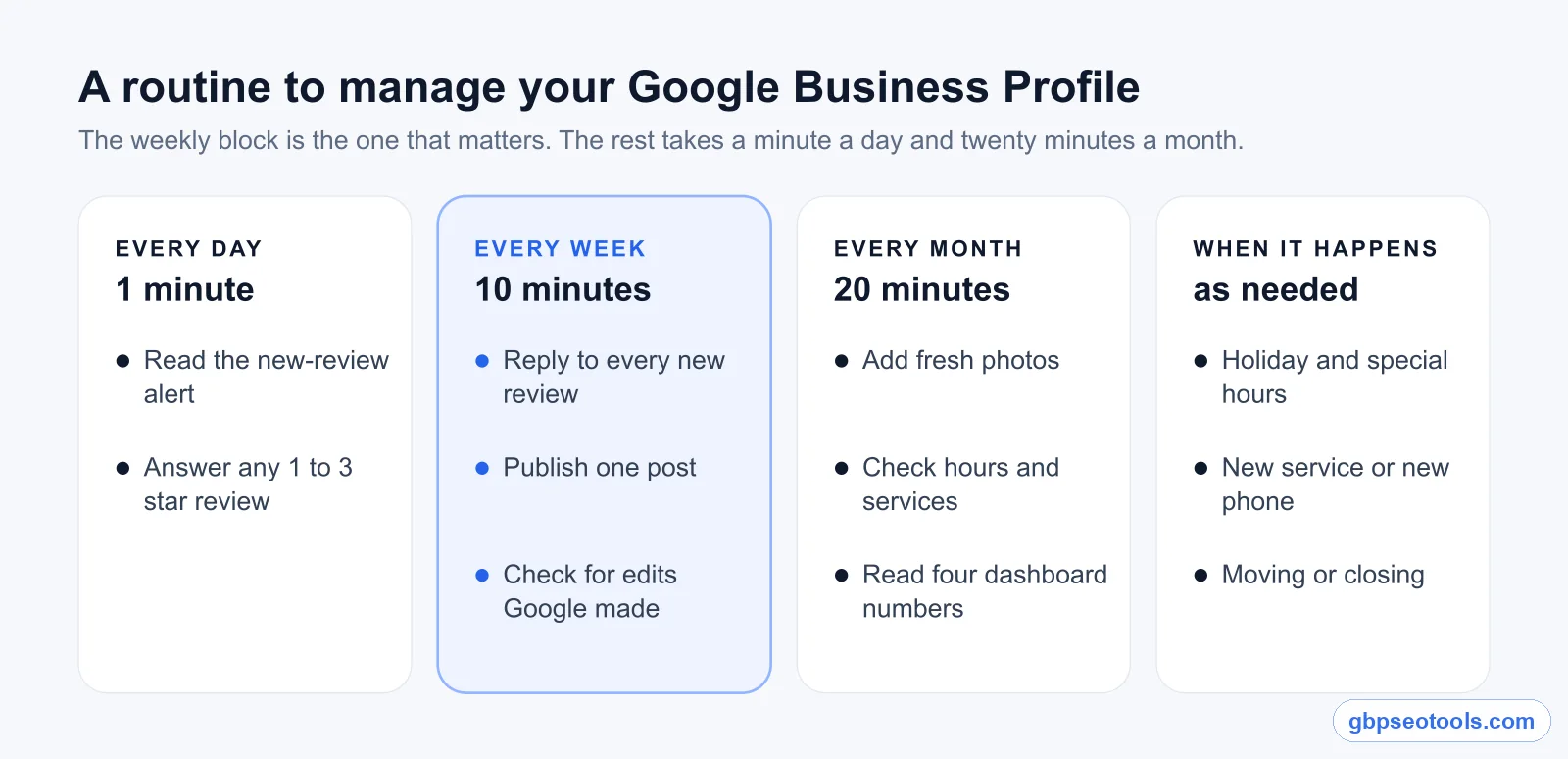
Every day: one minute on new reviews
Turn on review notifications so new reviews come to you. Read them as they arrive. A 1 to 3 star review gets a reply the same day, because the next customer reads your answer next to it. Everything else can wait for the weekly block.
Every week: the 10-minute block
Pick a fixed slot, such as Monday morning before you open, and do three things in this order:
- Reply to every review from the past week. Short and specific beats long and generic.
- Publish one post. An offer, an update, an event or a photo of recent work.
- Check for edits you didn't make. Look at your phone, hours, website and category and confirm they're still yours.
That's it for most weeks. A busy week with eight reviews takes closer to 20 minutes, which is still less time than one lost call.
Every month: 20 minutes on photos, hours and numbers
Once a month, add a few new photos, check that your services and hours still match reality, and read the four dashboard numbers covered further down. This is also when you look ahead: holidays, seasonal hours and anything you're launching.
For agencies: one routine per location
The routine doesn't change with scale, the bookkeeping does. Run the same weekly block per location and keep a short log of what was done, so a client can see it.
Reviews: the part of your profile that changes without you
Reviews are the part of the profile that changes without you. They're also where most businesses fall behind, and the gap shows on the page for everyone who reads it.
What 2,000 reviews showed us
In October 2026 we took the top 20 Google Maps results for five searches: dentist in Denver, plumber in Austin, hair salon in Chicago, auto repair in Phoenix and HVAC contractor in Atlanta. For each of the 100 businesses we read the 20 newest reviews and checked which had an owner reply. To be fair to owners, the reply rate only counts reviews at least a week old.
- Owners answered 56% of those reviews.
- 23 of 95 businesses with week-old reviews hadn't answered any of them.
- 42 of 100 had five or more reviews unanswered for a month or longer.
- 50 of 100 had a new review in the past seven days.
These are businesses that already rank well, so replying clearly isn't what put them there. What the backlog changes is what a new customer reads. Our earlier review-reply study of the top three results, in early October, found the same shape: about 57% answered, and roughly one business in four answering none. Pooled with our other pulls, 5,713 reviews in all, half of the one- and two-star reviews had no reply, and that's the gap Google review management is meant to close.
Get alerted instead of checking
A backlog builds when someone has to remember to look. Make the reviews come to you: Google's own notifications, or an alert that lands in your email with the review and a reply ready. Either way, the daily minute from the routine is reading, not hunting.
Set a reply rule you can keep
"Reply to everything within a week, and to low ratings within a day" is a rule most owners can hold. Write the replies in your own voice, mention what the person said, and keep them short. For the wording itself, our guide on what to write for each kind of review has examples by situation.
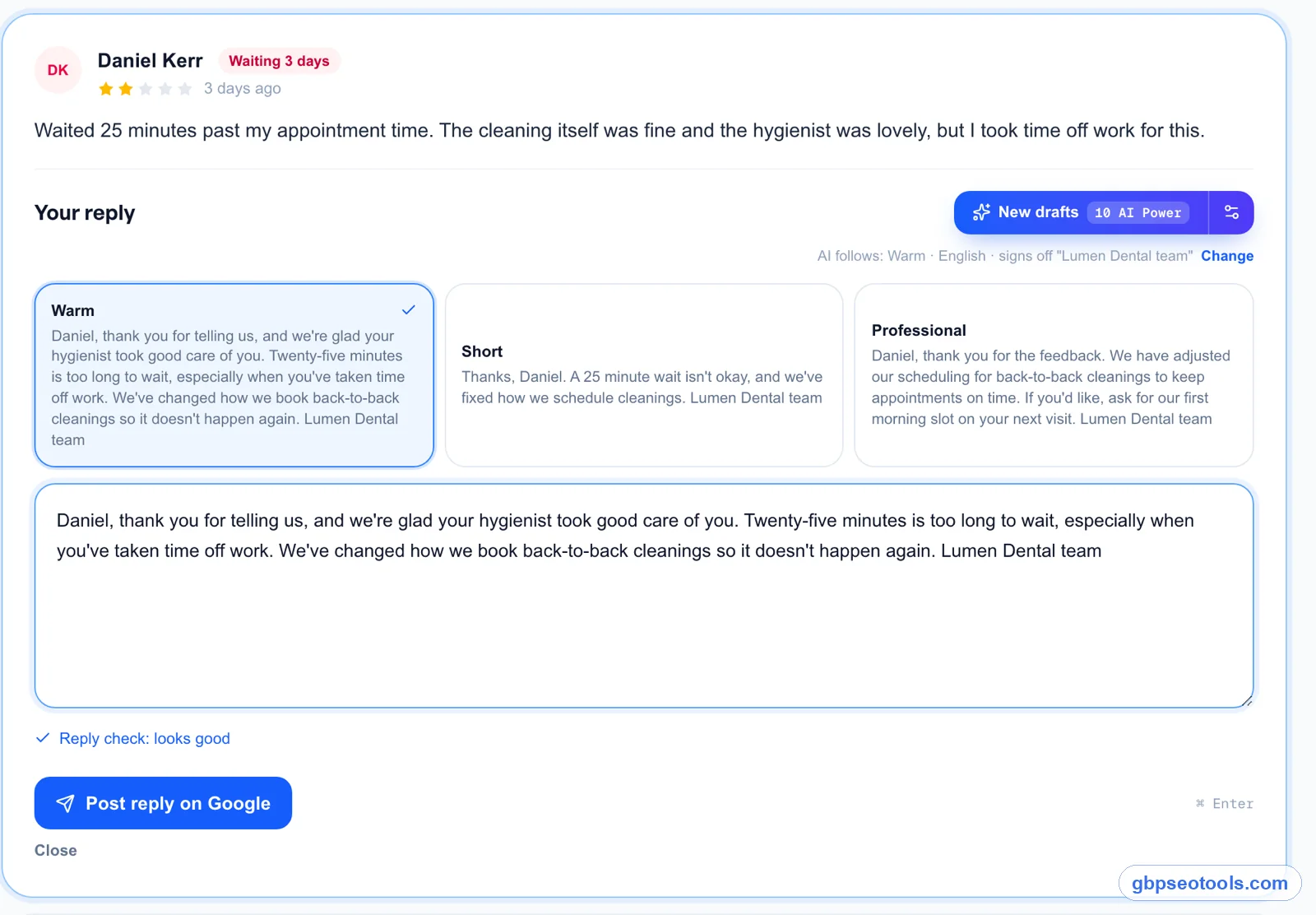
If writing is the slow part, AI drafts help, as long as you read each one before it goes out. In the screen below, Glocavo has written three versions for a 2-star review, and the owner picks one, edits it and posts it.
One post a week: what to publish and how often
Posts are short updates that appear on your profile: an offer, news, an event. They don't move your ranking much on their own, as our Google Business Profile posts study found, but a profile that posted last week looks run by someone, and one that posted last spring doesn't.
What to post
Use the three post types for what they're built for:
- Updates for news and recent work: a finished job, a new service, a team change.
- Offers for anything with a deadline or a code.
- Events for dates: open days, workshops, seasonal hours.
A real photo and one clear sentence beat a stock image and a paragraph. Add a button (Call, Book, Learn more) so the post leads somewhere.
How often to publish
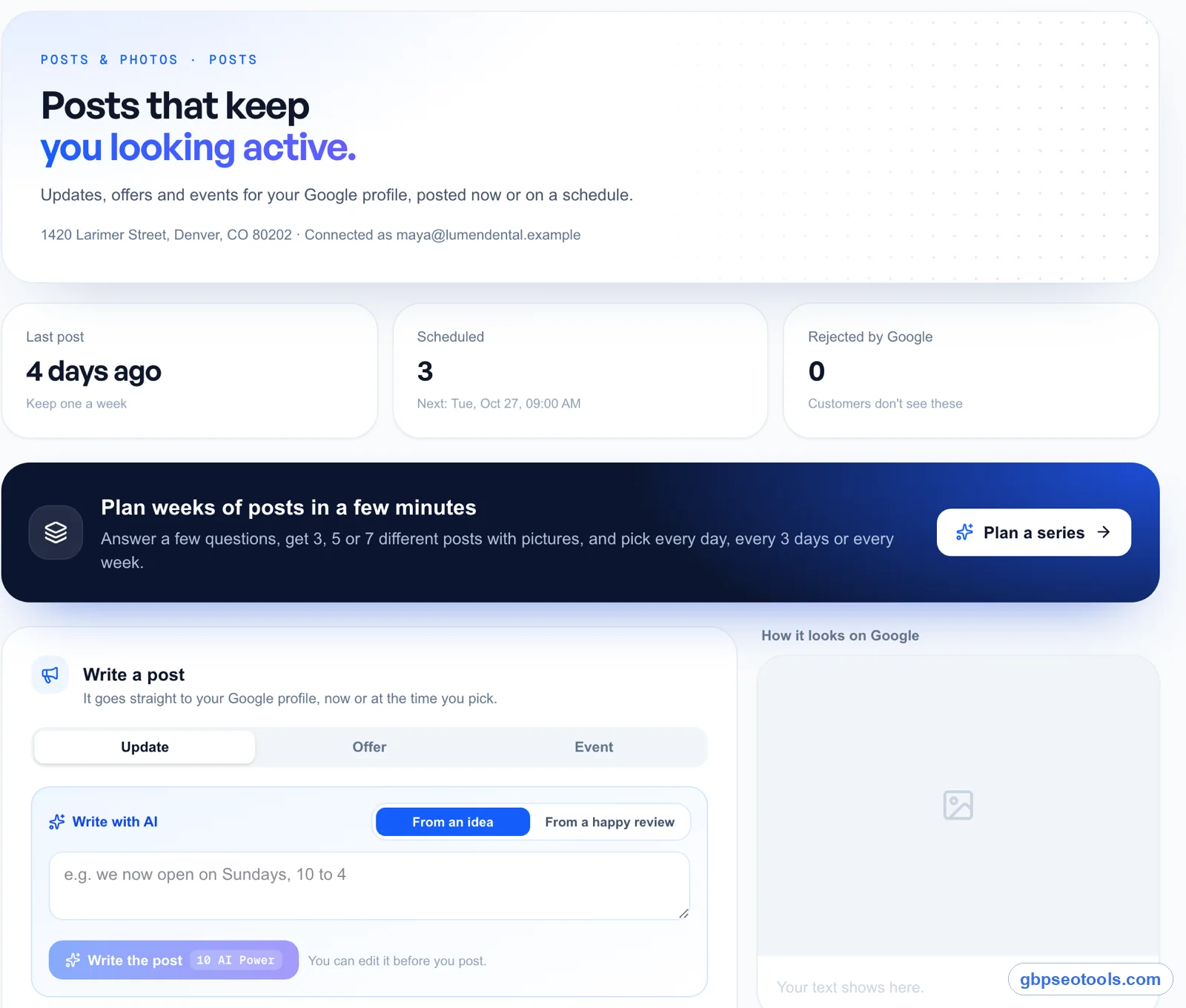
Once a week is enough and easy to keep. Plan a month at a time: four posts written in one sitting, then scheduled. If you're stuck for ideas, your newest reviews usually suggest one, because they tell you what customers notice.
Photos count as updates too
New photos are the other half of keeping a profile fresh. Add a few a month: the team, the work, the place as it looks now. Spreading them out is better than uploading 30 at once and nothing for a year.
Google Business Profile updates you didn't make
Google doesn't only show what you enter. It also takes suggestions from Maps users, its own data and automated checks, and sometimes changes your listing with them.
Why Google changes your listing
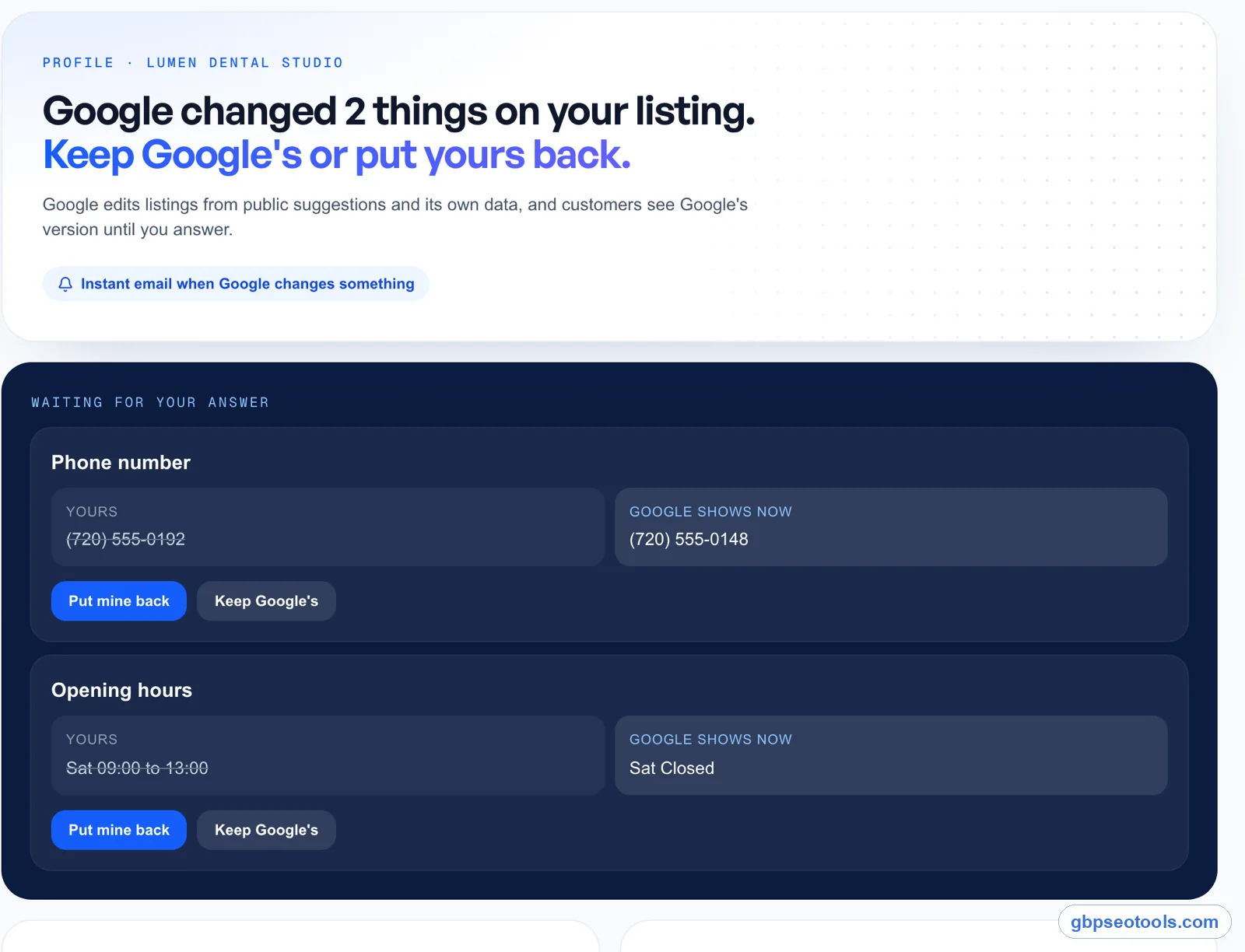
According to Google's help page on editing a profile, every change is reviewed before it goes live, and Google may call or text the verified phone number to confirm details and use the answers to update the profile. Customers can also suggest edits to any business. Most suggestions are harmless. Some replace your phone number, mark you closed on a day you're open, or swap your category.
You usually find out from a customer, which is the expensive way.
How to check and undo a change
Make the weekly check a fixed step: phone, hours (including special hours), website, address and primary category. If something changed and it's wrong, edit it back and Google reviews your correction like any other edit.
A tool can do the noticing for you. Glocavo's Edit watch, shown below, lists each change Google made next to your value, with "Put mine back" and "Keep Google's" buttons.
Your Google Business Profile dashboard: four numbers worth checking
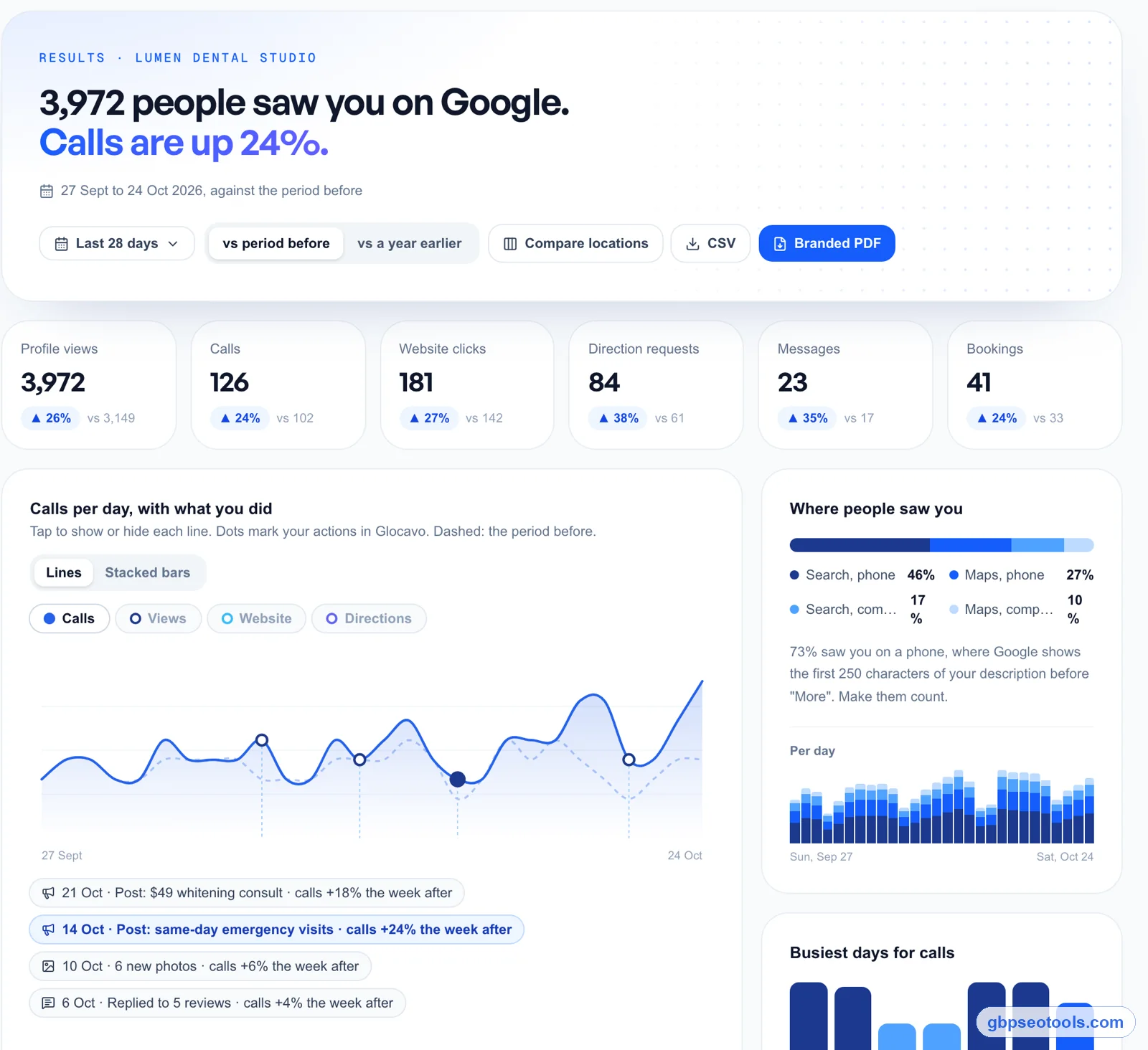
The Performance view in your Google Business Profile dashboard shows dozens of figures. Once a month, four of them tell you whether the profile is working.
Calls, directions, website clicks and views
Read these four, compared with the month before:
- Calls from the profile, the most direct sign of customers.
- Direction requests, which matter most for storefronts.
- Website clicks, people who wanted more than the profile showed.
- Profile views, how many people saw you at all.
A drop in views with steady calls usually means less search demand, not a worse profile. A drop in calls with steady views means people saw you and chose someone else, which points back to reviews, photos and hours.
Search terms: the words that found you
The dashboard also lists the searches that showed your profile. Read the top ten once a month. If customers search a service you offer but your description and services list don't mention it, add it.
What not to read too much into
One month is noisy. Weather, holidays and a single viral review all move the numbers. Look for a change that holds for two or three months before you act on it.
Your 10-minute checklist for this week
Here's the whole routine as a list you can keep next to the register or in your calendar:
- Reply to every review from the past seven days
- Answer any 1 to 3 star review today, not this week
- Publish one post with a real photo
- Check phone, hours, website, address and category for changes you didn't make
- Once a month: new photos, services and hours, four dashboard numbers
If you run one business
Put the weekly block in your calendar as a repeating 10-minute event and treat it like opening the till. The first week takes longer if you have a backlog; after that it stays short.
If you manage profiles for clients
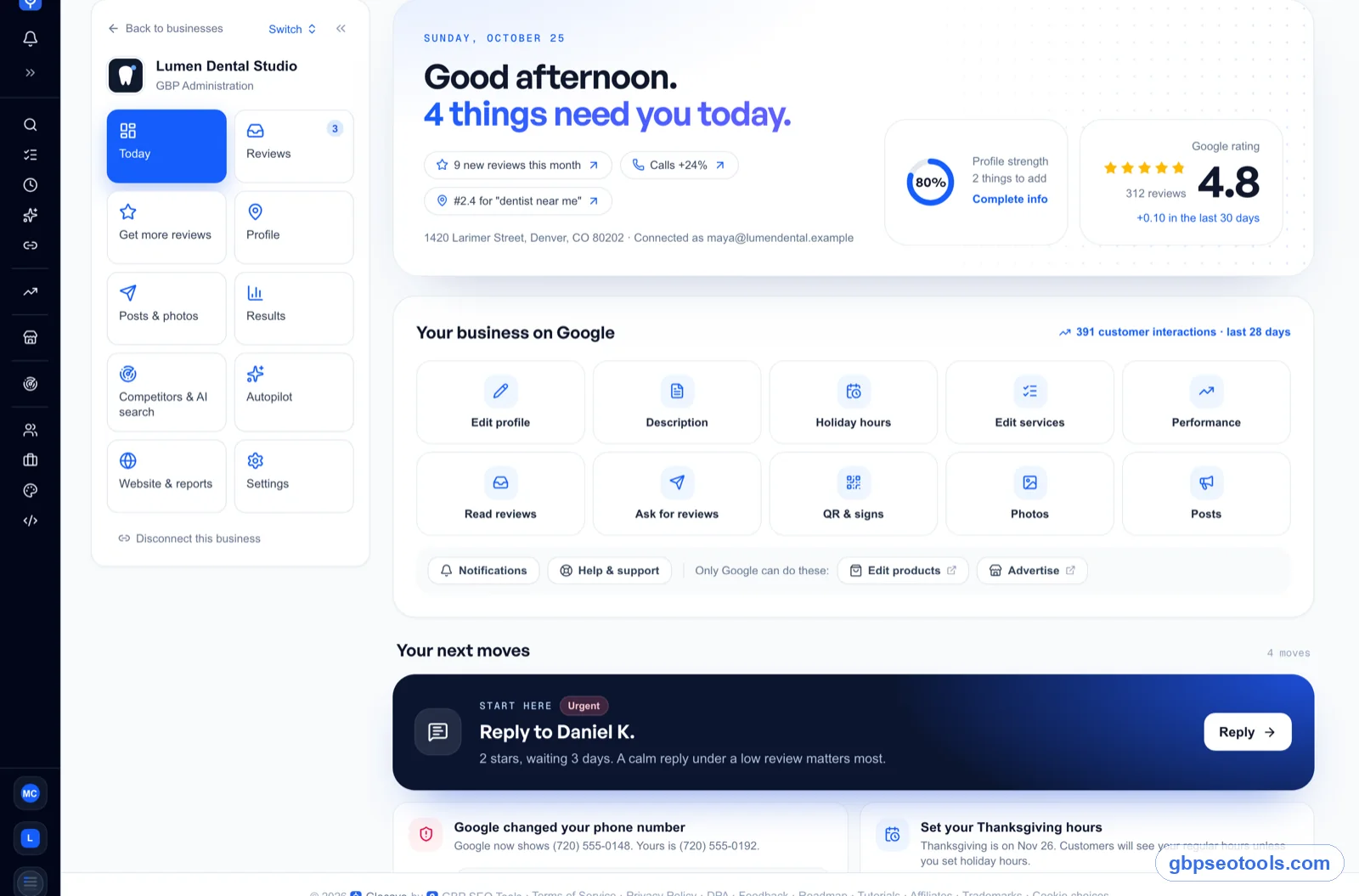
Run the checklist per location and keep the log. If you'd rather have it done in one screen, the GBP management tool in Glocavo puts every item above on a daily Today list, for one business or forty, with review alerts, AI reply drafts, post scheduling and Edit watch.
What owners and agencies ask about running a profile
Is there a Google Business Profile app?
Not a separate one any more. Google retired the Google My Business app in 2022, and you now manage the profile in the Google Maps app or in Google Search while signed in. Third-party tools can manage it too, through Google's official connection.
Why is my Google Business Profile not updating?
Every edit goes through Google's review first, which usually takes minutes but can take longer for big changes like your name, category or address. If an edit is rejected or reverted, check that it matches what's on your website and storefront, since Google compares them.
How do I add a manager to my Google Business Profile?
Open the profile while signed in as an owner, go to the profile settings, choose people and access, and invite the person's email as a manager or owner. Managers can do almost everything except remove the profile or add and remove people. Agencies should ask for manager access, never a client's login.
How often should I post on my Google Business Profile?
Once a week is a good, sustainable pace. More often is fine if you have real news. A post that repeats last week's offer adds nothing.
Does it cost money to keep your profile up to date?
No. The profile and Google's own tools are free. Paid tools save time on the routine (one inbox, drafts, alerts, scheduling), but nothing in this guide requires one.
Do I need a management service, or can I do it myself?
Most single-location businesses can do it themselves in the 10 minutes a week above. A service or an agency makes sense when you have many locations, no one to own the weekly block, or a backlog large enough that catching up is a project of its own.