
How to Change Business Hours on Google, Including Holiday Hours
To change business hours on Google, sign in to the account that manages your Business Profile, search your business name on Google or open it in Google Maps, select Edit profile, then Hours, set each day and save. Holidays don't go there. They go in Special hours, a separate field that changes your hours for one date without touching your normal week.
Most owners set their weekly hours once, and that part mostly holds: when we checked 2,611 Google Maps listings twice, five days apart, 20 showed different weekly hours, about 1 in 130. The exceptions are where hours go wrong. Every holiday needs its own special hours, and Google's help pages now say it may publish a suggested change you don't answer within 4 days.
This guide covers the steps on a computer and on a phone, holiday hours for Thanksgiving, Black Friday and Christmas, what our hours check of 2,752 listings found, and why your hours sometimes change when nobody on your side touched them. It ends with a holiday calendar you can run for one business or twenty.
In this guide:
- How to change business hours on Google, step by step
- Google business holiday hours: set them before the day
- What 2,752 Google Maps listings show for hours
- Why your hours changed when you didn't edit them
- Google business hours, "open now" and your ranking
- Handling holiday hours across 20 or more locations
- What owners ask about their hours on Google
- A holiday hours calendar for one business or twenty
How to change business hours on Google, step by step
Your regular hours describe a normal week. Google uses them to label you "Open" or "Closed" in Search and Maps, and to answer "open now" searches. Change them when your normal week changes, not for a single day off. The same steps are how to update business hours on Google after a move, a new opening time or a seasonal schedule.
On a computer
- Sign in with the Google account that manages the profile.
- Search your exact business name on Google. Your profile opens with the owner tools above it.
- Select Edit profile, then Hours.
- Next to Hours, choose Open with main hours if it isn't already selected.
- Tick each day you're open and set the opening and closing times.
- Select Save.
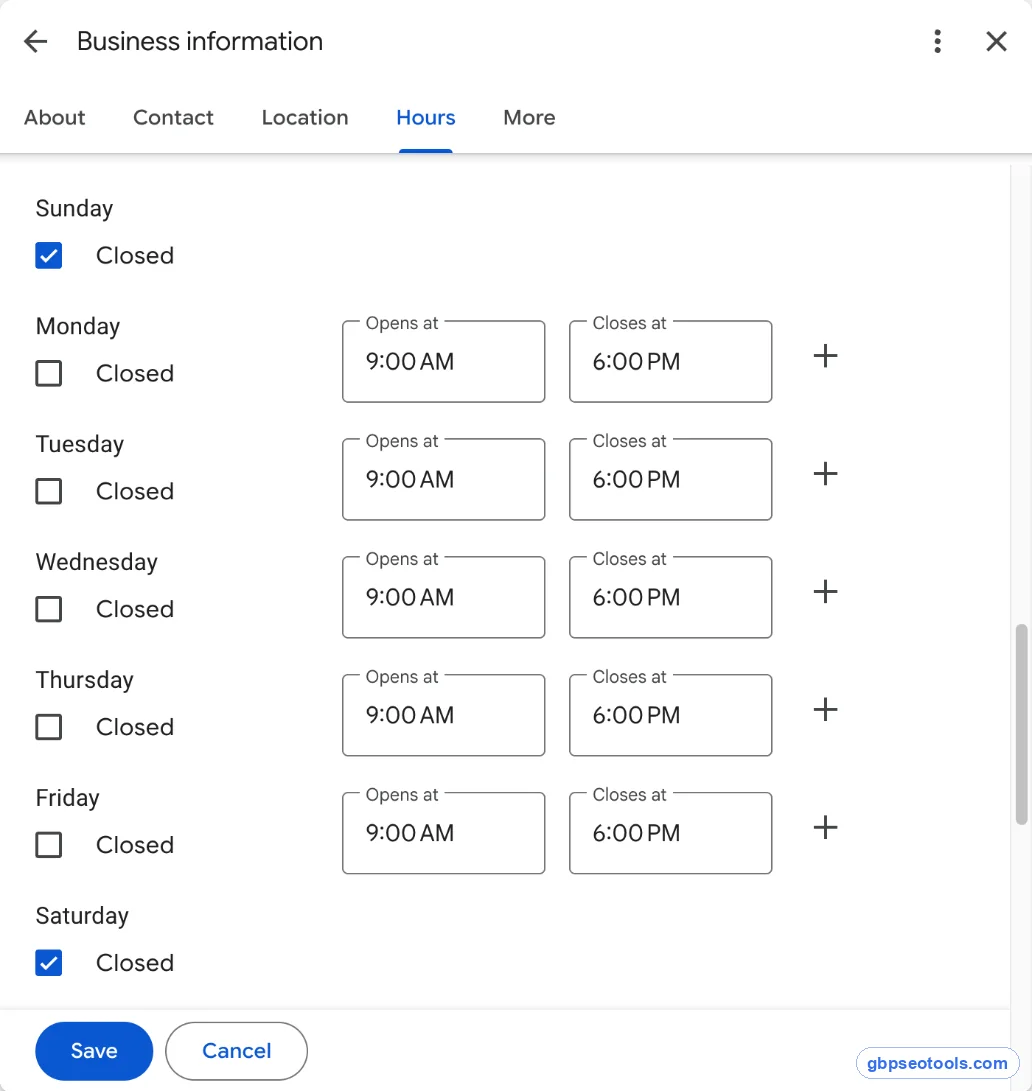
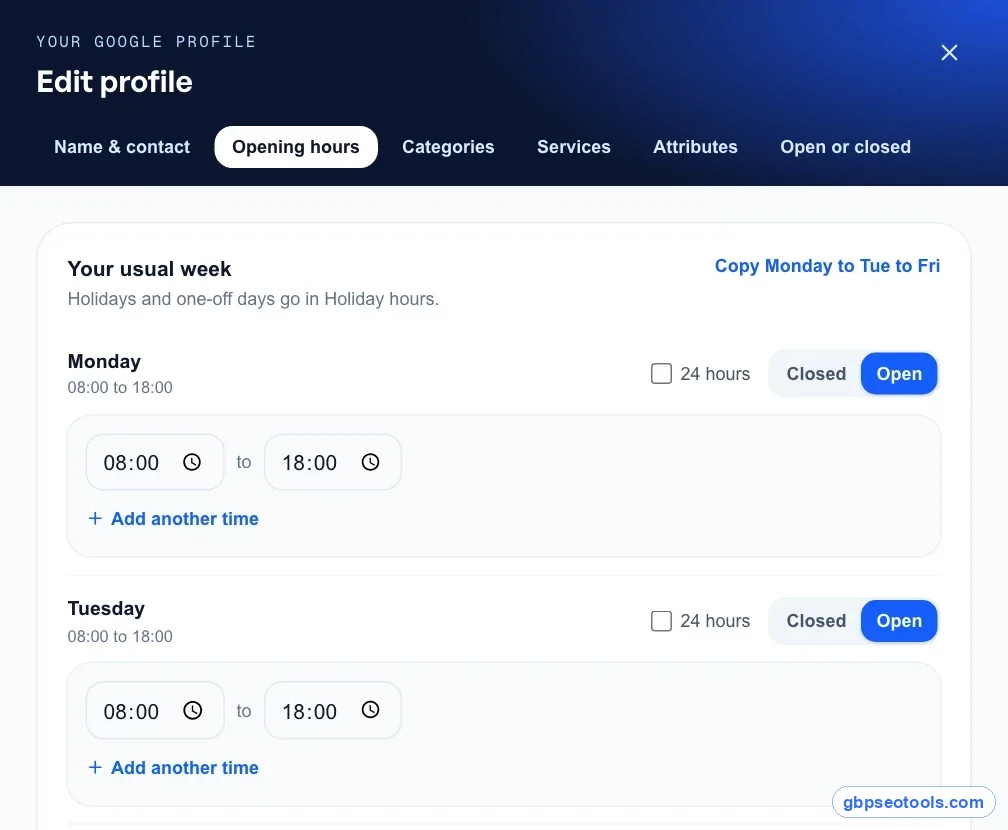
A few options sit inside the same editor. "Open 24 hours" is a choice in the opening-time dropdown. A lunch break is two time ranges on the same day: set the first range, then the + next to it for the second. If delivery, pickup or senior hours differ from your main hours, use Add more hours for those instead of bending your main hours to fit.
If you'd rather edit hours outside Google, the next screenshot is the same editor in Glocavo's GBP Management, which saves your hours straight to your Google profile. The fields and steps match Google's.
On a phone
If you're looking up how to change hours on Google from a phone, the path is the same. Open the Google app or Google Maps while signed in to the managing account, search your business name, tap Edit profile, then Hours. Save, and the change goes to the same place as a desktop edit.
If you don't see Edit profile, you're signed in to the wrong account, or that account isn't an owner or manager of the profile. That's the most common reason the hours look locked.
When your new hours show up
Most hours changes appear within minutes. Some go through Google's review first and take longer, especially on a profile that had several edits in a row or a recent name or category change.
After you save, Google may also show customers a short "updated hours" note on your profile. If your change doesn't stick, or Google shows something different a week later, the cause is usually one of the sources covered further down, not the editor.
Google business holiday hours: set them before the day
Google Business special hours override your regular hours for one date. Your profile shows them as that day's hours, so a customer checking on Thanksgiving morning sees "Closed today" instead of your usual Thursday times.
Add special hours for a date
- Open Edit profile, then Hours.
- Next to Special hours, select edit.
- Pick a date Google suggests and select Review, or select Add a date for your own.
- Tick Closed, or untick it and enter that day's hours.
- Select Save.
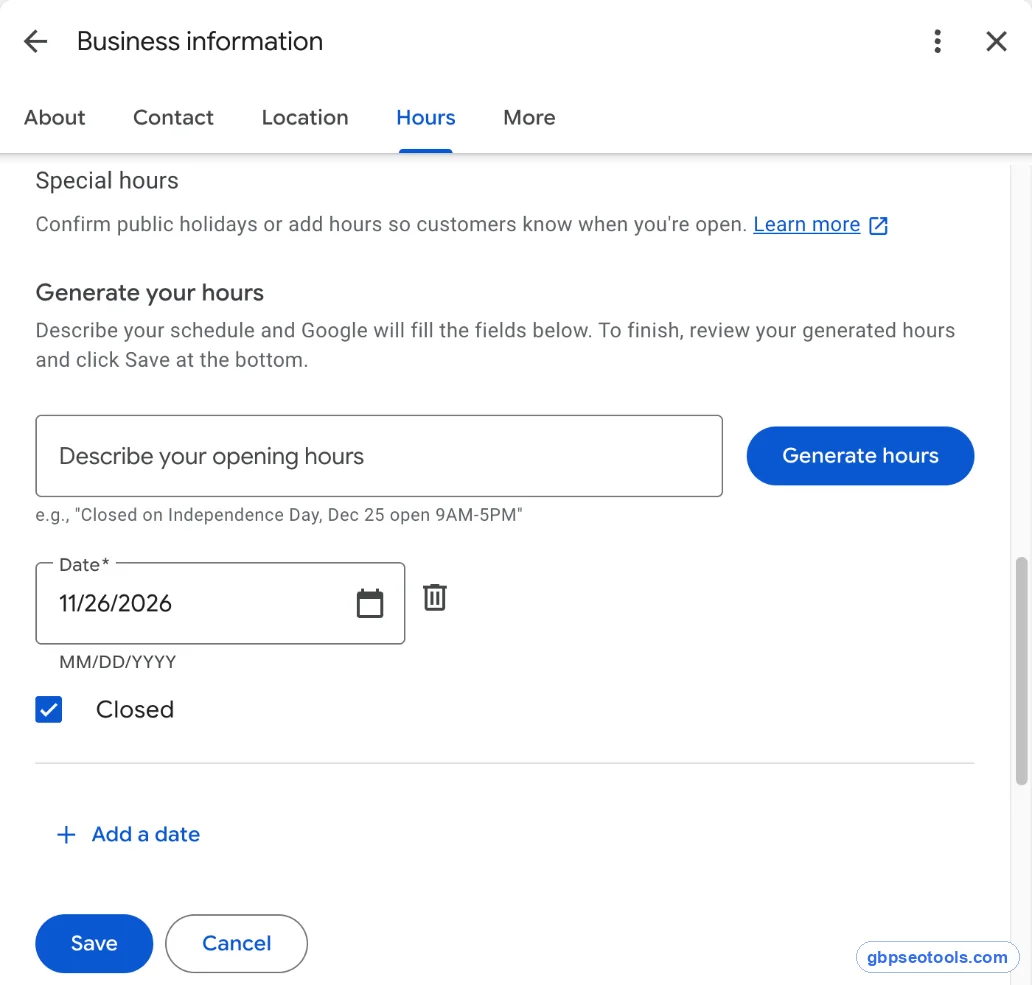
If you know this as Google My Business holiday hours, the profile's old name, nothing about the steps changed.
Google suggests upcoming public holidays in that list. Confirm them even when your hours that day match your normal week. Per Google's special hours rules, a confirmed date tells customers the hours were checked, not left to chance.
Two rules trip people up. Special hours only show if your profile is set to "Open with main hours." And one set of special hours can't run past midnight, so an overnight shift on New Year's Eve is two entries: one ending at midnight, one starting at midnight on Jan 1.
Thanksgiving, Black Friday and Christmas
The year-end run is where most hours go wrong, because the dates move and the hours change several times in a few weeks. These are the ones to set ahead of time:
| Holiday | When | Where it matters |
|---|---|---|
| Thanksgiving | Fourth Thursday in November | US |
| Black Friday | The Friday after US Thanksgiving | US, UK, Canada, Australia |
| Christmas Eve and Christmas Day | Dec 24 and 25 | All four |
| Boxing Day | Dec 26 | UK, Canada, Australia |
| New Year's Eve and New Year's Day | Dec 31 and Jan 1 | All four |
Black Friday isn't a closure for most businesses. It's the opposite: longer hours that customers won't assume. If you open early or stay late that day, add it as special hours. Otherwise Google shows your normal Friday, and the people searching at 7 a.m. see "Closed."
Closed for a week or more
Special hours are for short breaks. Google's rule is up to 6 days in a row. For 7 or more days, or for a closure with no end date, use Temporarily closed under the business status instead.
Don't use Temporarily closed for a single holiday. It replaces your hours with a closed label until you switch it back, and an owner who forgets to switch it back stays "closed" well into January.
Holiday hours for every profile, without the reminder
Setting special hours by hand works for one listing. Across 10 or 40, it's the job that gets skipped until a customer finds a locked door.
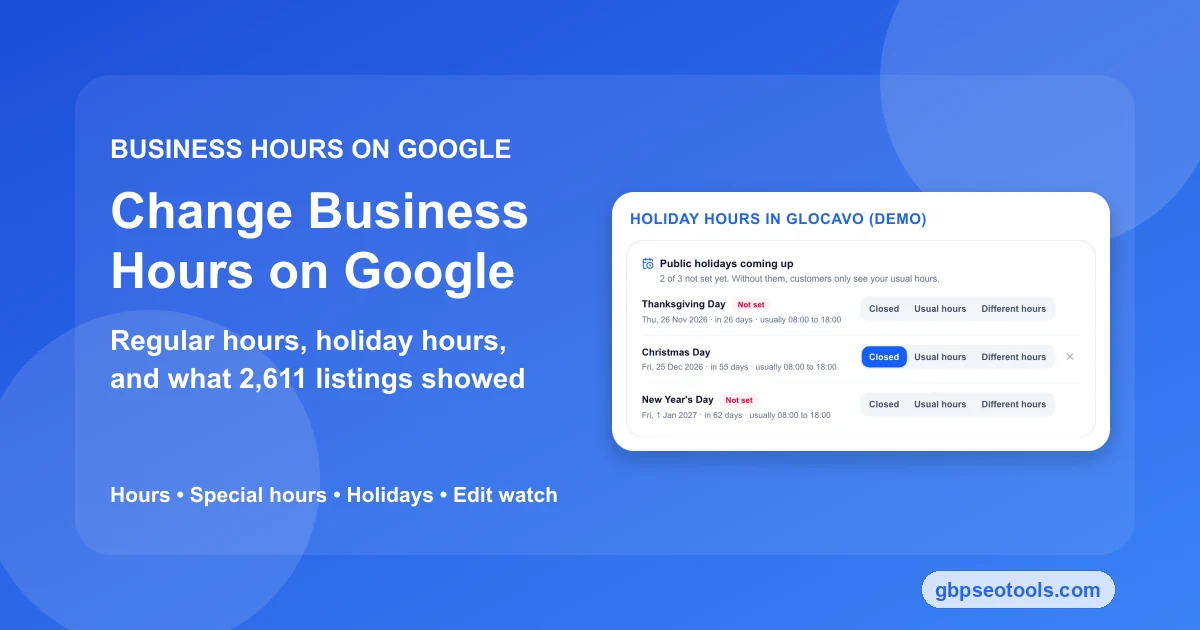
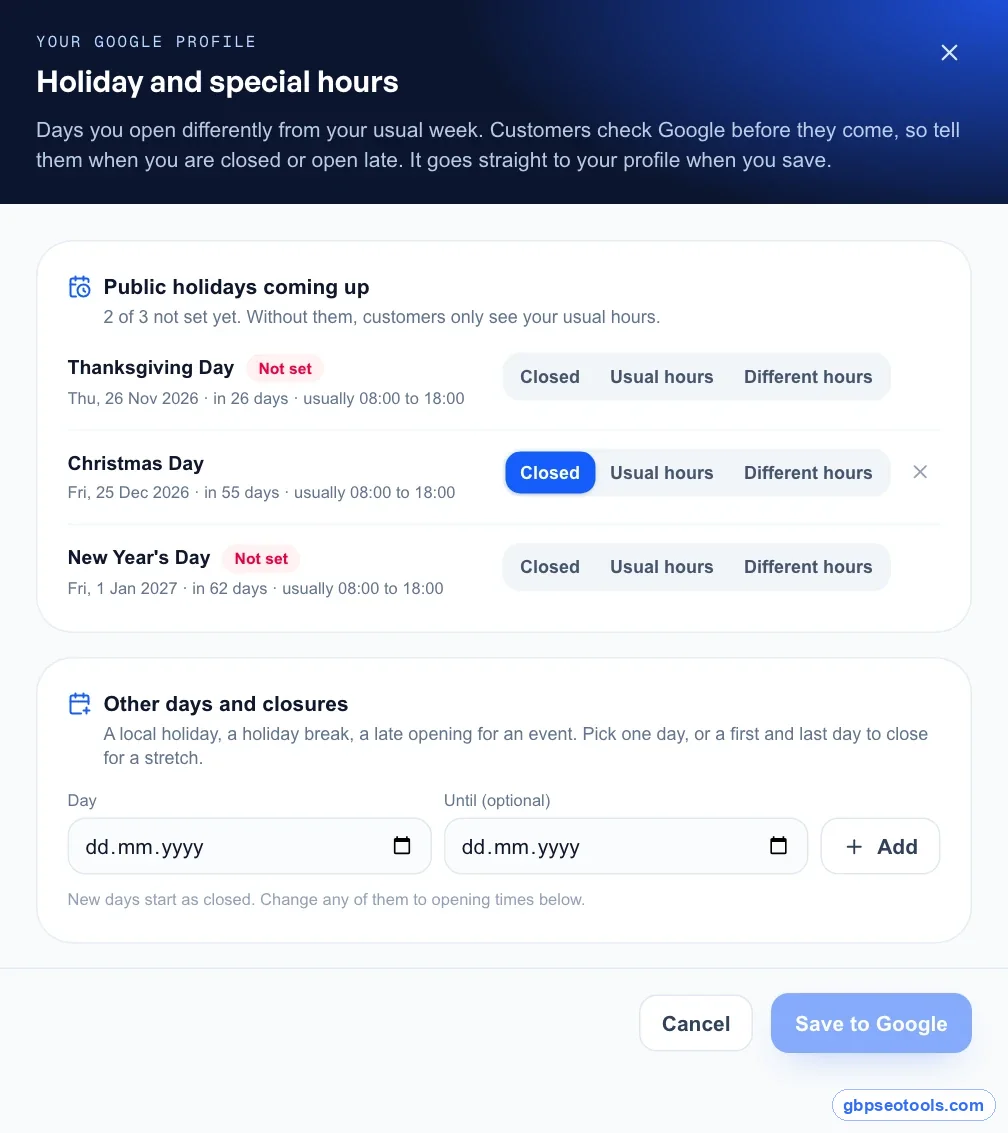
In Glocavo, GBP Management's holiday hours lists the public holidays coming up in each business's country, and you pick Closed, Usual hours or Different hours for each one. Changes go to Google through its official Business Profile API, the same as an edit made on Google itself. GBP Management is part of Glocavo's paid plans; the Google steps above cost nothing.
What 2,752 Google Maps listings show for hours
On Oct 30, 2026 we pulled the top 20 Google Maps results for 10 trades in 10 US cities, each searched two ways: plumbers, electricians, HVAC companies, roofers, pest control, personal injury lawyers, dentists, vets, hair salons and auto repair shops. One search was plain, like "plumber in Austin," and one longer, the way people ask a phone. That's 200 searches and 2,752 different businesses. On Nov 4 we pulled the same 200 searches again and compared the hours.
One limit up front: special hours aren't in the public listing data. We can see each business's weekly hours and whether it showed open or closed at that moment, not which holidays it has set. Nothing below claims to count holiday hours.
About 1 in 130 changed their weekly hours in five days
Of the 2,611 businesses that showed up in both pulls, 20 had different weekly hours five days later. Nine changed their opening or closing times, eight added or dropped a day, and three switched into or out of 24/7. To check for noise, we compared two pulls made on the same day, Oct 30. Five law firm listings flickered between showing hours and showing none, and the same kind of flicker appeared in four more law firms on Nov 4, so we left those out.
Dentists (5 of 230), hair salons (5 of 307) and vets (3 of 197) changed most. Plumbers and roofers didn't change at all. The data can't say who made each change: the owner, a customer's suggested edit or Google.
So the normal week is stable. That's exactly why holidays are the weak spot: the regular hours get set once, and the exceptions are left to memory.
Unclaimed listings are 5.7 times more likely to show no hours
Of the 294 listings no owner had claimed, 19.4% showed no hours at all. Among the 2,458 claimed listings, that number was 3.4%. A profile with no hours can't show "Open," and it gives Google nothing to answer an "open now" search with.
Dentists were the trade most likely to show no hours, at 13.1%. If your practice is one of them, the steps above take two minutes.
24-hour listings depend on the trade
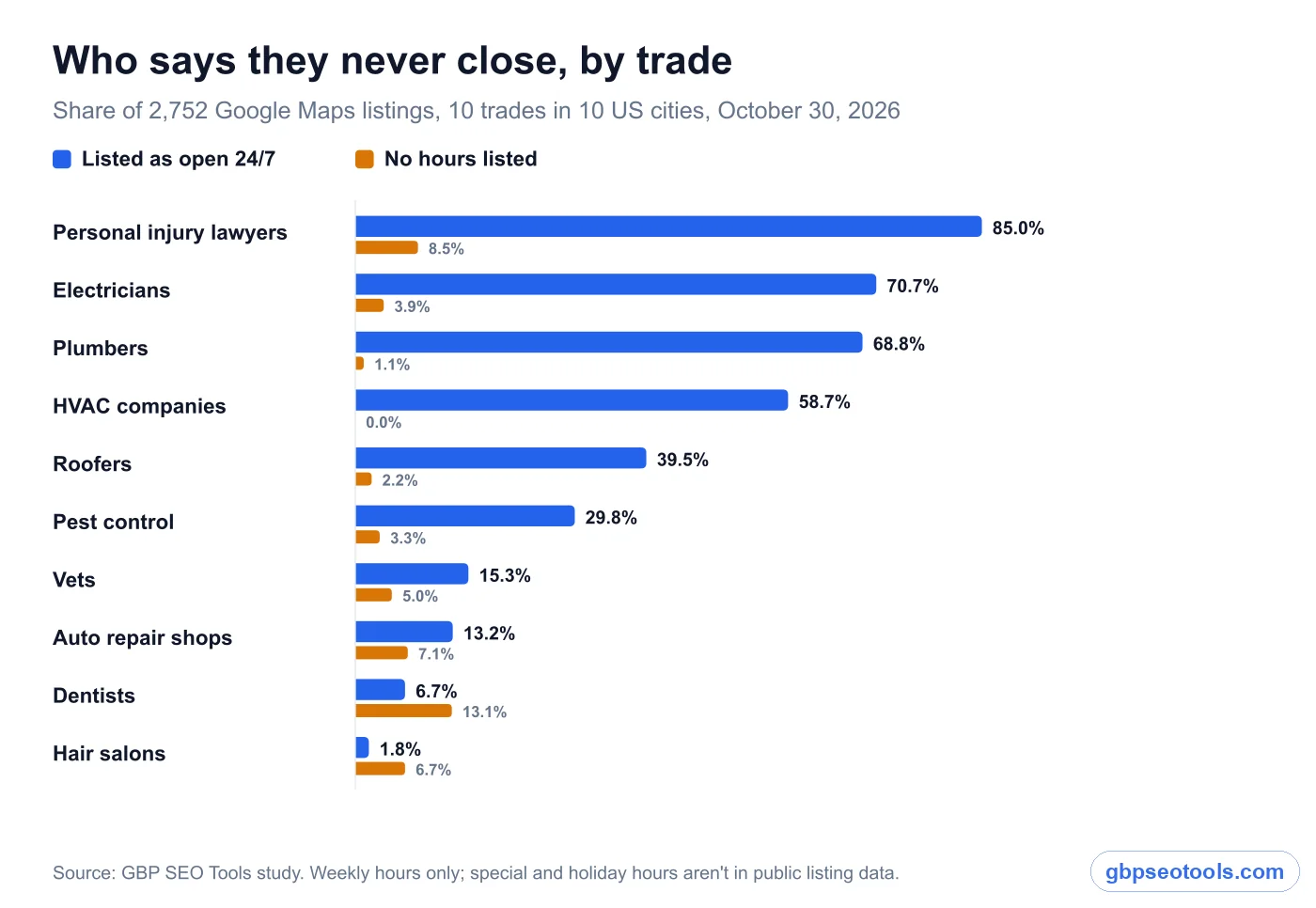
Overall, 39.4% of listings said they were open 24 hours a day, seven days a week. That number means little until you split it by trade:
| Trade | Listed as open 24/7 | No hours listed |
|---|---|---|
| Personal injury lawyer | 85.0% | 8.5% |
| Electrician | 70.7% | 3.9% |
| Plumber | 68.8% | 1.1% |
| HVAC company | 58.7% | 0.0% |
| Roofing contractor | 39.5% | 2.2% |
| Pest control | 29.8% | 3.3% |
| Veterinarian | 15.3% | 5.0% |
| Auto repair shop | 13.2% | 7.1% |
| Dentist | 6.7% | 13.1% |
| Hair salon | 1.8% | 6.7% |
For emergency trades, 24/7 is often true: the phone is answered at 2 a.m. even if the office is dark. For a law firm, "open 24 hours" usually means an intake line, not an open door. Neither is wrong on its own. It turns wrong when a 24/7 business doesn't answer on Christmas Day, and its profile still says it's open.
Why your hours changed when you didn't edit them
If your hours on Google don't match what you set, someone or something else changed them. These are the usual sources. Most start with someone else's information, not with Google acting alone.
Suggested edits from customers and from your own website
Anyone can suggest a change to your hours from Google Maps. Google also reads hours from your website, social profiles and the apps you list on. When those disagree with your profile, Google may suggest an update.
Google's help pages now say it notifies owners about some suggested edits and gives them 4 days to accept or reject. If you don't answer, Google may publish the edit when public information, such as your website, backs it up. So holiday hours left on your website in January can come back to your profile as your regular hours.
Generated hours and other managers
Where it's available, Google offers a "Generate hours" box where you type your hours in plain words and Google turns them into a schedule. It's handy, but read the result before you save. "Closed Sundays except in December" is the kind of sentence a generator gets half right.
Other managers on the profile, an old agency, or a booking or ordering app with access can also change hours. If several people manage the listing, agree on who owns hours before the holidays start.
How to spot a change and put your hours back
Check your hours on Google once a week through the holidays, from a signed-out phone, the way a customer sees them. If something changed, edit it back and save. Google reviews your correction like any other edit. The steps to undo edits you didn't make work the same for hours as for a phone number or a category.
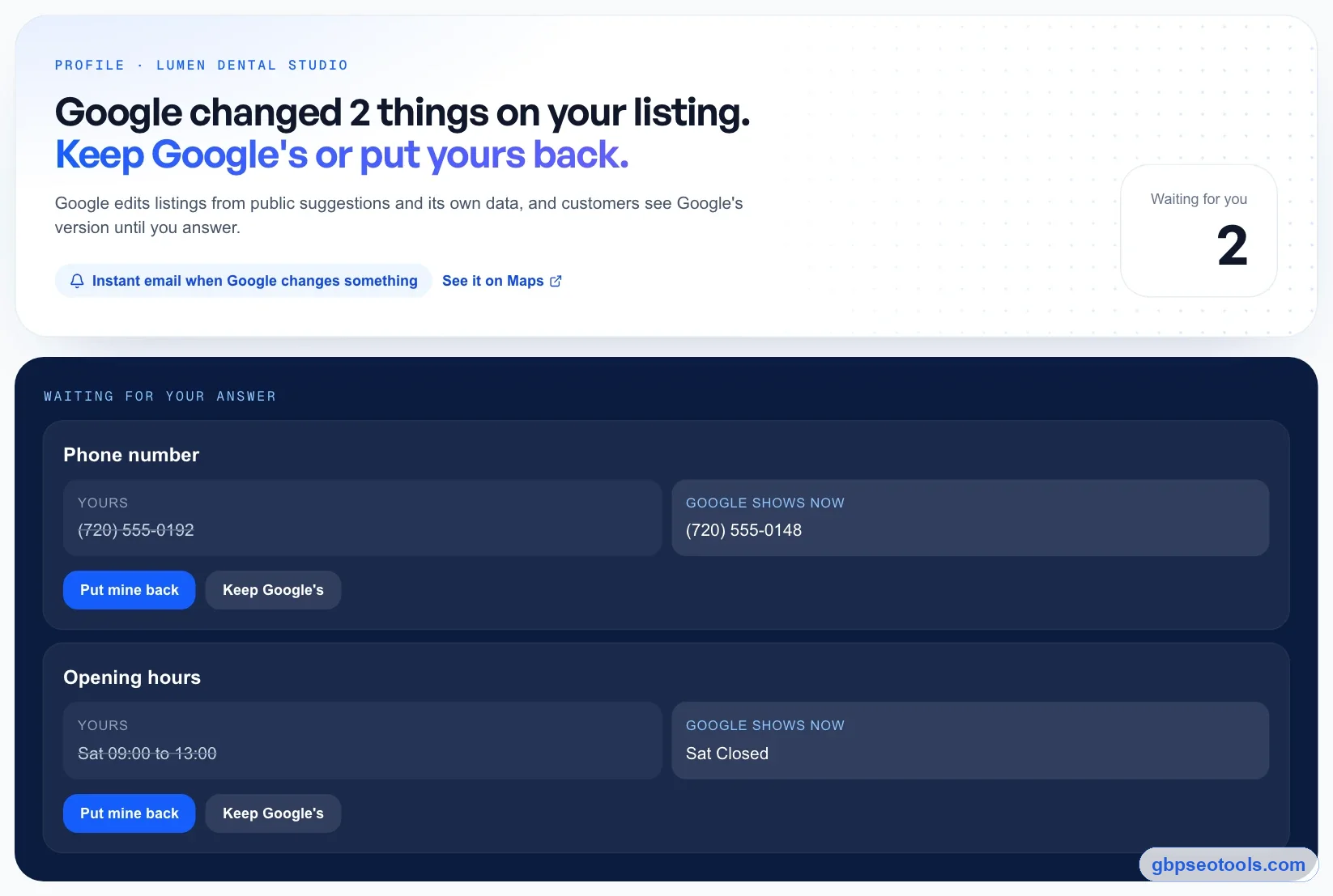
If you manage several profiles, that weekly check gets slow. Glocavo's Edit watch shows each change Google made to a listing next to your own value, with "Keep Google's" or "Put mine back" in one click.
Google business hours, "open now" and your ranking
Hours aren't only a label. They change who shows up.
Being open at the time of the search helps
Local SEO testers have reported since late 2023 that Google favors businesses that are open when the search happens. Our data fits that. In searches run when most businesses in a trade showed Closed, 24-hour listings took a bigger share of the top 3 than of positions 11 to 20. For dentists, 11.7% of top-3 results were 24-hour listings against 4.0% further down. For hair salons it was 6.7% against 1.0%.
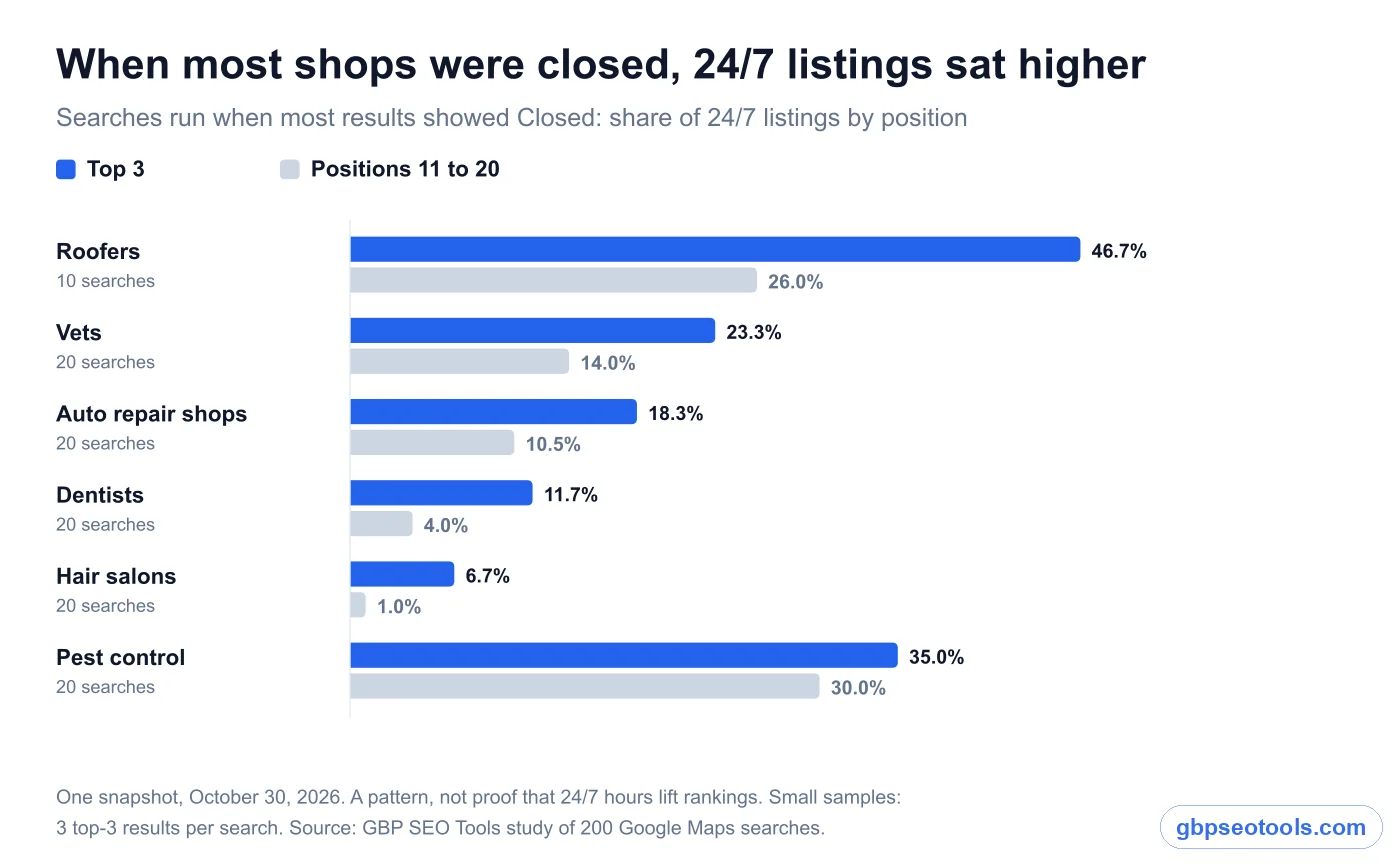
That's a pattern from one snapshot, not proof that 24-hour hours lift your ranking. It does explain why a business can rank well at 10 a.m. and drop off the map pack at 9 p.m. Run a scan at both times to check your map pack position at night as well as by day.
Don't fake 24 hours
The tempting conclusion is to list 24/7 and collect the after-hours searches. Don't. Google's guidelines ask for the hours customers can actually reach you, and hours that don't match what customers find are exactly what suggested edits get raised about. Worse, a customer who calls at midnight and gets voicemail leaves the kind of review that costs you more than one search.
If you do answer around the clock, say so and make it true. If you don't, accurate hours plus special hours for every holiday are the honest way to be "open" when it counts.
Wrong hours also travel. ChatGPT, Gemini and Google's AI Overviews read your profile and website, so outdated holiday hours can end up in an AI answer weeks later. Fixing AI answers with the wrong hours starts with the profile itself.
Handling holiday hours across 20 or more locations
For one profile, holiday hours are a five-minute job. For 20 or 40, they're a project with a deadline, and the real risk isn't a wrong time. It's the one location nobody remembered.
Collect every client's hours in one pass
Ask every client for their holiday hours in one message in October, with the dates already listed, so they only fill in times. Then set them all in one sitting instead of one profile at a time as answers trickle in.
For 10 or more locations of the same brand, Google's bulk spreadsheet takes special hours in a single column. Upload only the store code and special hours columns: an empty column that still has a heading erases what's already on those profiles.
Let the software find the gaps
The slow part isn't setting hours. It's checking which of 40 profiles still has Thanksgiving unset, and which ones Google changed after you saved them.
In Glocavo, the Today page lists each profile with a holiday coming up and no hours set, so you can find every client missing Thanksgiving hours in one place, Edit watch shows any hours Google changed next to yours, and each client sits in its own workspace. It's a paid feature, so it pays off once you manage more profiles than you can check by hand every week.
What owners ask about their hours on Google
How long do new hours take to show on Google?
Usually a few minutes. Some edits go through Google's review and take longer, more often on profiles with several recent changes. If the new hours haven't appeared after a couple of days, check that the edit was saved under the right account and wasn't rejected.
Why won't Google let me change my business hours?
Most often the account you're signed in with doesn't manage the profile, so Edit profile never appears. Less often, a profile under review or recently suspended has editing limited until the review ends. Sign in with the owner account, or ask the owner to add you as a manager.
Why do my business hours keep changing on Google?
Suggested edits from customers, hours Google reads on your website or social pages, other managers, and connected apps. Google's help pages now say it may publish a suggested edit you don't answer within 4 days, if public information backs it up. Keep your website hours identical to your profile to stop most of these.
How do I set holiday hours on my Google business profile?
To add holiday hours to Google Business Profile, open Edit profile, then Hours, and select edit next to Special hours. Confirm a suggested holiday or add your own date, mark it Closed or enter that day's hours, and save. Do it a week or more before the holiday so the hours are live when people check.
Should I use special hours or temporarily closed?
Special hours for closures of up to 6 days in a row, and for days with different hours. Temporarily closed for 7 days or longer, or when you don't know when you'll reopen. Remember to switch back when you reopen.
A holiday hours calendar for one business or twenty
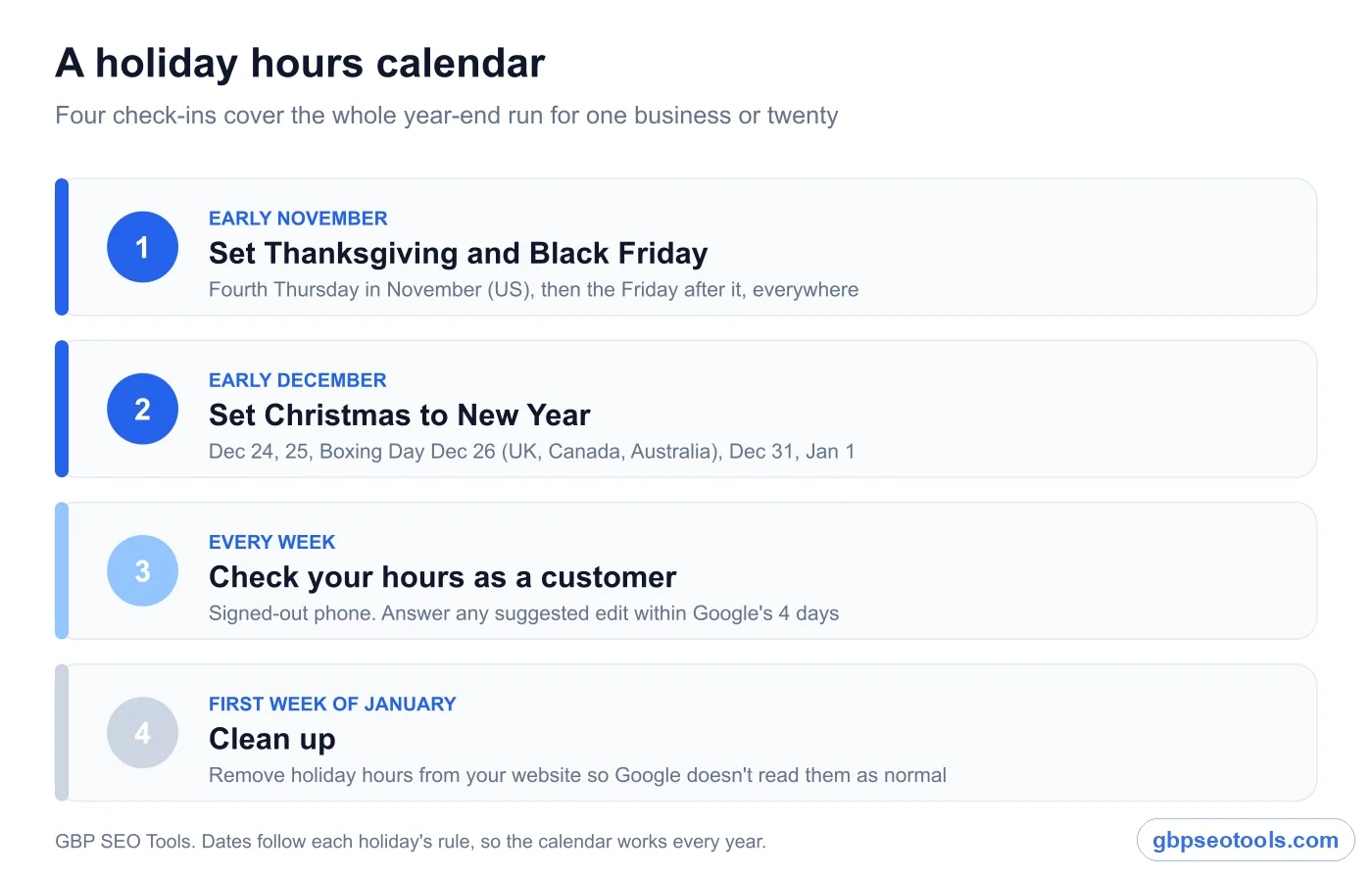
The fix for holiday hours isn't a better editor. It's doing it on a schedule instead of the night before.
If it's your own business
- Early November: add special hours for Thanksgiving, Black Friday and any late-opening days you plan before Christmas.
- Early December: add Christmas Eve, Christmas Day, Boxing Day where it applies, New Year's Eve and New Year's Day.
- Every week until January: check your hours from a signed-out phone and reply to any suggested-edit notice within the 4 days.
- First week of January: remove any holiday hours left on your website so Google doesn't read them as your new normal.
Ten minutes in early November saves the voicemails on Thanksgiving.
If you manage profiles for clients
Run the same four check-ins for every client, on the same dates, using the one-pass method above. Then send each client a one-line note when their holiday hours are live. A client who reads "your Thanksgiving hours are set" in early November knows someone is watching the profile, and that's the work they can't see otherwise.
Whether it's one listing or twenty, the job is the same: change business hours on Google when your normal week changes, add special hours before every holiday, and look again before the customers do. Accurate hours are the cheapest local SEO win you'll ever ship to a client: the work takes minutes, and the customer who finds the door open notices.