
How to Verify Your Google Business Profile (2026 Methods and Fixes)
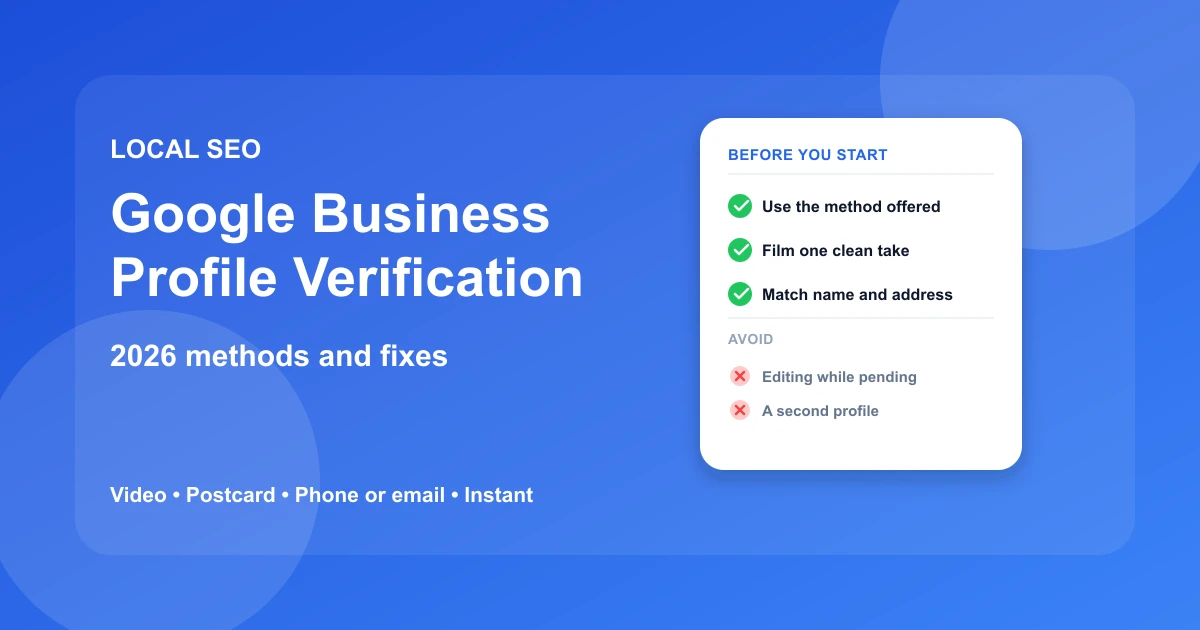
Google Business Profile verification is how you prove to Google that your business is real and that you run it, and many new profiles now do it with a short video, while a postcard, a phone or email code, or an instant match applies to some businesses. Until it is done, the profile stays hidden from customers, so it is the first job to finish and the one most likely to stall.
The method you get is not a choice. Google picks it from the business type, the address, and what it already knows about you, which is why two owners in the same town can be offered different routes. This guide explains how to tell which one you will get, what each method needs, how long each takes, and what to do when it fails.
It stays on verification only. If your listing is verified but still missing from Google Maps, the fix lives in why a listing stays invisible. Once you are through, the Google Business Profile audit tools can check the rest of the profile for gaps.
Jump to a section:
- Which verification method will you be offered?
- Google Business Profile verification: how each method works and what it needs
- Prepare before you start, then plan for the wait
- What to do when verification fails or stalls
- If you have no storefront or several locations
- After you verify: confirm people can find you
- Questions people ask about verifying a profile
Which verification method will you be offered?
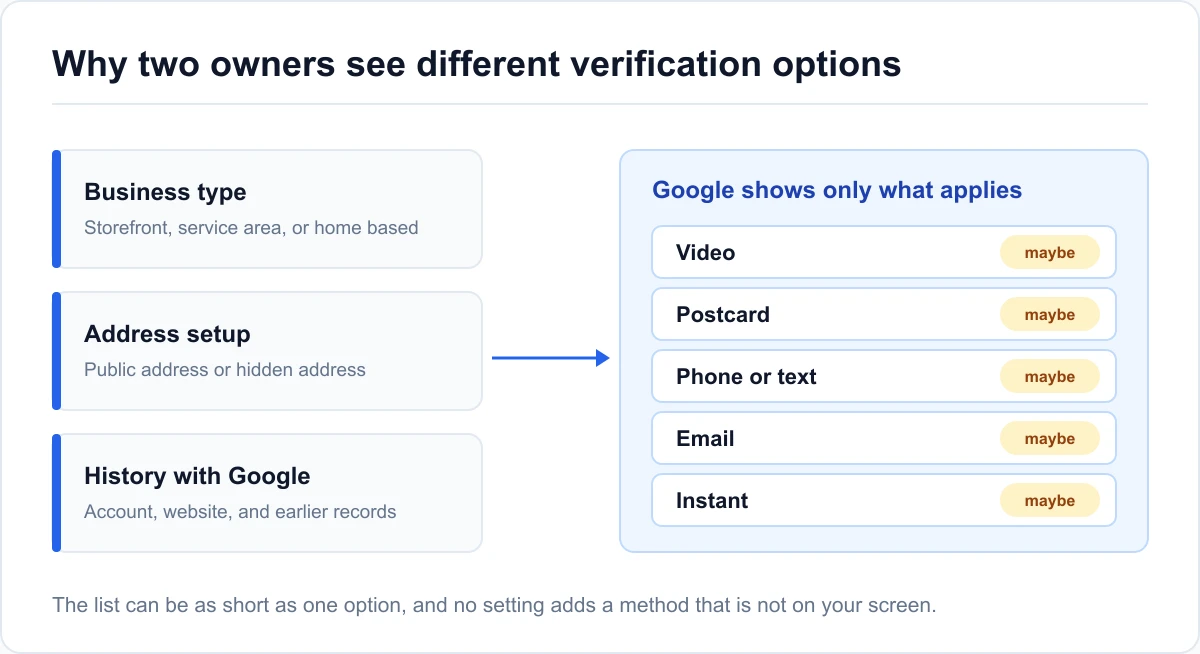
You do not pick the method. Google shows the ones that apply when you start, and the list can be as short as one option.
Why Google chooses for you
Google weighs the business category, the country, how the address is set up, and whether the account and website already have a history with it. A storefront with a street address and signage usually gets a different list from a home-based service business that hides its address. A profile that closely matches an existing record can even skip steps.
That's why advice like "just request a postcard" fails so often. If the postcard is not on your list, it is not an option, and no setting will add it.
The methods at a glance
| Method | Who usually sees it | What it needs | Main risk |
|---|---|---|---|
| Video | Many new profiles | One continuous recording of the location and proof you run it | Rejection for missing signage or cuts |
| Postcard | Businesses with a mailable address | Someone to receive mail at that address | Delays, and edits that invalidate the code |
| Phone or text | Some categories and regions | A phone number that can take a call or text | The option not being offered |
| Some categories | Access to the email address on file | Codes landing in spam | |
| Instant | Businesses already verified elsewhere on Google | The same Google account tied to the site or earlier record | Only appears when Google already trusts the match |
Treat this as a guide to what you might see, not a promise. The screen in front of you is the source of truth.
Google Business Profile verification: how each method works and what it needs
Here is how each route works, in the order most owners meet them.
Video verification
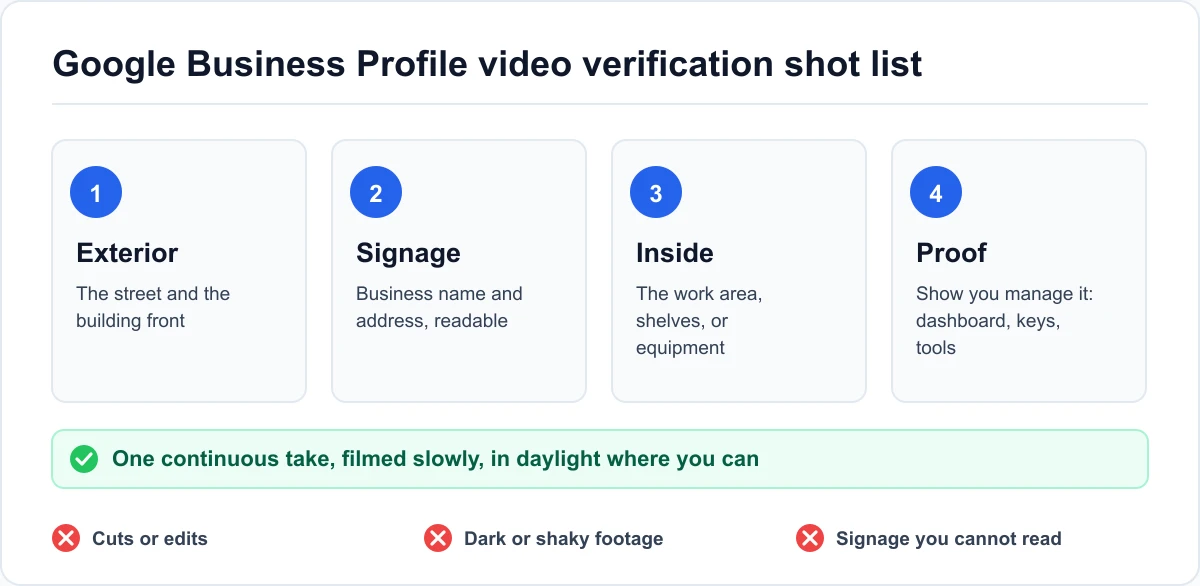
Video is the default for many new listings today, though Google decides case by case. You record one continuous take, with no cuts, that shows enough for a reviewer to believe the place and the ownership are real.
Show the street or building exterior, then the business signage, then the interior or working area, then something that proves you manage it. That last part is usually a live action, such as opening the profile dashboard or using a key or tool that belongs to the business. A service business without a shop front can show a branded vehicle, its equipment, and its work materials instead.
Upload it through the verification screen. Google reviews it, and you get the result in the profile.
Postcard verification
A postcard carries a code and is mailed to the address on the profile. When it arrives, sign in, open the verification prompt, and enter the code.
Two rules matter. Leave the business name, address, and category alone while the card is on its way, because Google advises against changes during that window and a mismatch can void the attempt. And do not keep requesting new cards, since each new request can reset the wait. If the card is late, give it the full time frame stated on Google's verification help page before you try again.
Phone or text verification
Where it is offered, Google calls or texts a code to the number on the profile. Have the phone in your hand before you tap the button, because the code is short-lived.
If it never comes, the number may be a landline that cannot receive texts, or a line forwarded to a system that cannot read out a code. Choose the call option instead of text, or use a different method if one is listed.
Email verification
Email works the same way. Google sends a code to the address on the profile, and you enter it.
Check spam and any filters that route mail to a shared inbox. If several people share that mailbox, tell them a code is coming so nobody deletes it as a stray message.
Instant verification
Sometimes there is nothing to do. A business that already proved ownership elsewhere on Google, for example by verifying its website in Search Console with the same account, can be verified on the spot.
You can't request it. If it shows up, take it, and use the time you saved to fill in the profile.
Prepare before you start, then plan for the wait
Most failed attempts trace back to a rushed first try. A few minutes of setup avoids weeks of retries.
What to have in hand
A short list covers nearly every route:
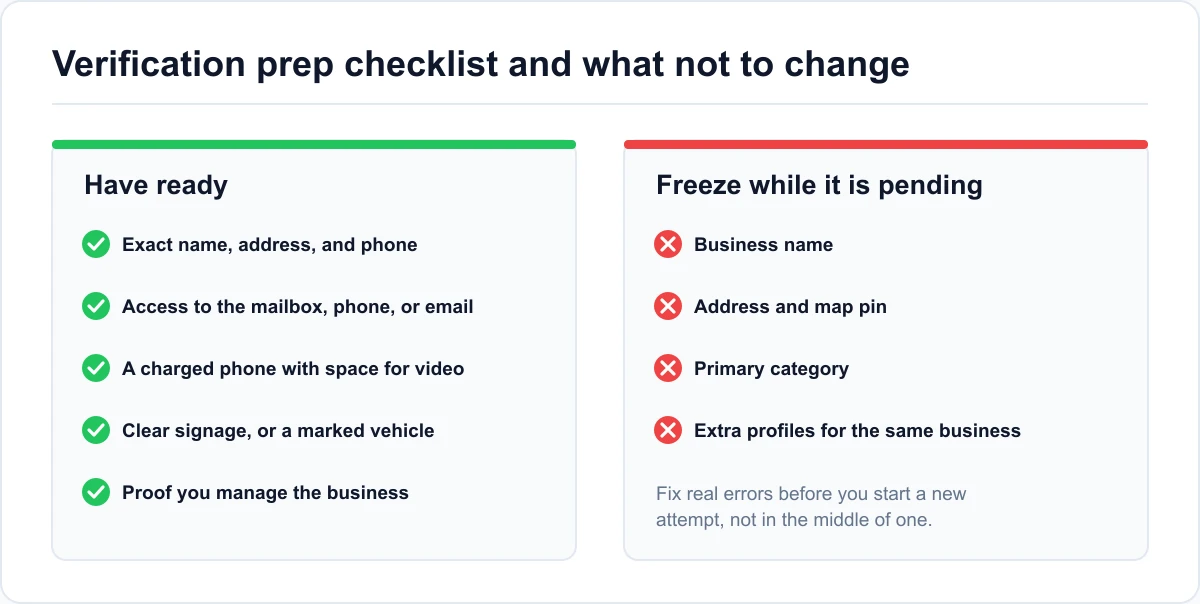
- The exact business name, address, and phone number, matching what will appear on the profile
- Access to the mailbox, phone, or email tied to the profile
- A charged phone with room for a video, if video is likely
- Clear signage or, for a service business, a marked vehicle and equipment
- Something that proves you manage the business, ready to show on camera
A one-person plumbing company with no storefront, for example, would gather a branded van, a toolbox, a license or invoice book, and the dashboard open on a phone. That is enough to make a convincing video.
What not to change while it is pending
Freeze the core details until the attempt resolves. Renaming the business, moving the pin, or switching the category mid-process can make the data Google is checking stop matching the data it was given.
Fix typos later, after verification. If the address really is wrong, correct it before you start a new attempt and not in the middle of one.
Realistic timelines
There is no single number, because the waits differ by method and by how clean the submission is. Instant verification takes seconds. Phone and email codes take minutes. Video is reviewed by people, so allow several days, and treat a same-day result as a bonus. Postcards depend on mail, and the wait can stretch past a week, so plan for that and not for the fastest case.
Google states its own ranges on the help page linked above, and they change, so check them before you tell a client or a boss when the listing will go live.
What to do while you wait
Do the work that does not touch the core details. Prepare photo files, write the business description, list your services, and draft your opening hours. Set up the profile's content so the moment verification clears, the listing goes live complete and not as an empty shell.
Don't start a second profile "just in case". A duplicate listing for the same business is a common cause of trouble later, and it complicates verification of the first one.
What to do when verification fails or stalls
Failures look alike from the outside, but the fixes differ.
The video was rejected
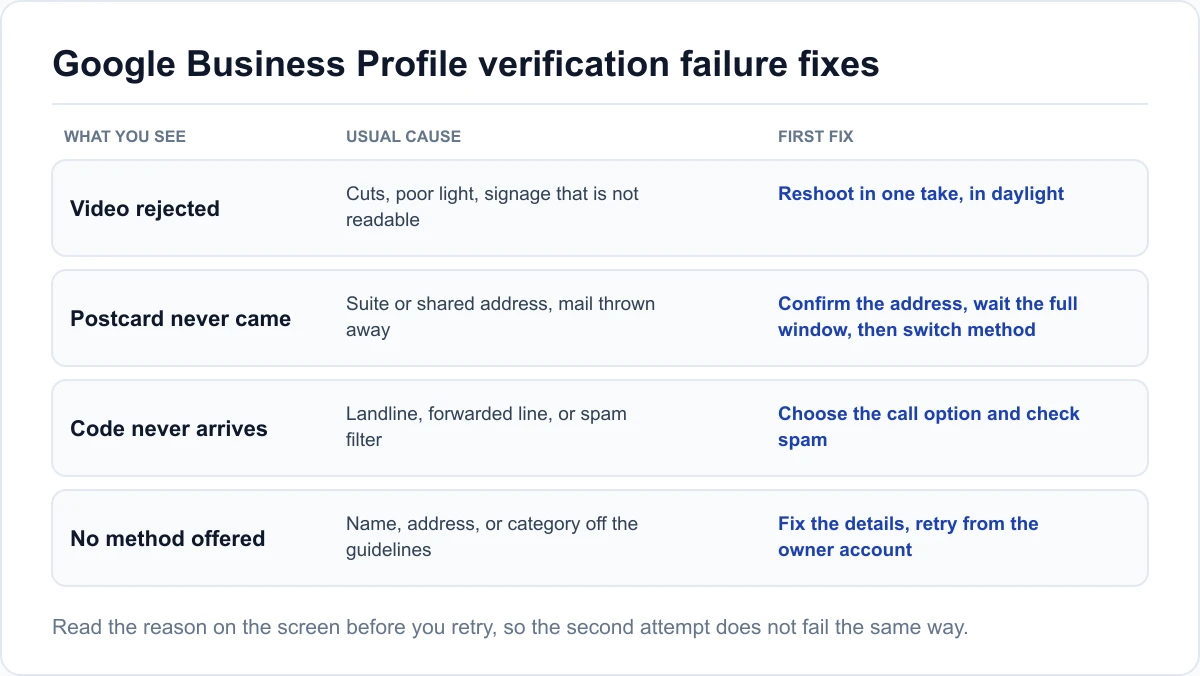
Read the reason on the screen before you resubmit. The usual causes are cuts in the footage, poor light, signage that is not readable, an exterior that does not show where the business sits, or no proof that you manage it.
Reshoot in one take, in daylight where you can, and film slowly. Say nothing you cannot show. If the signage is missing, show whatever ties the business to the address, such as a lease, a delivery, or a branded vehicle parked at the site.
The postcard never arrived
First, confirm the address is correct and can receive mail. Suites, shared buildings, and rural routes cause the most misses. Then check whether anyone at the address signed for or discarded mail from an unfamiliar sender.
If the full window has passed, request a new card only after confirming the address, and switch to another method if one is offered.
No method is offered, or it says verification is unavailable
This usually means Google does not have enough to trust the submission, or the business does not meet its guidelines. Recheck that the name is your real name with no keywords added, the address is a real place where you work, and the category is accurate.
Try again after fixing those points, and try from the Google account that created the profile, not another login. If the block persists, go through Google's support channel for the profile.
When the real problem is a suspension
A profile that was once verified and now shows a suspended notice is a different problem with a different process. This guide does not cover appeals. The steps for that live in our separate guide to a suspended Google Business Profile, which is why it is only named here.
If you have no storefront or several locations
Both cases follow the same routes, with a few changes in what you show and how you organize the work.
Service-area businesses
A business that travels to customers can hide its address, but Google still needs to verify it. Expect video to be the likely route, and film what proves you operate: a branded vehicle, tools, uniforms, or job materials, along with where you are based.
Keep the service area realistic when you set it. Verification reviewers and later ranking both respond better to a believable area than to a very wide one.
Businesses with several locations
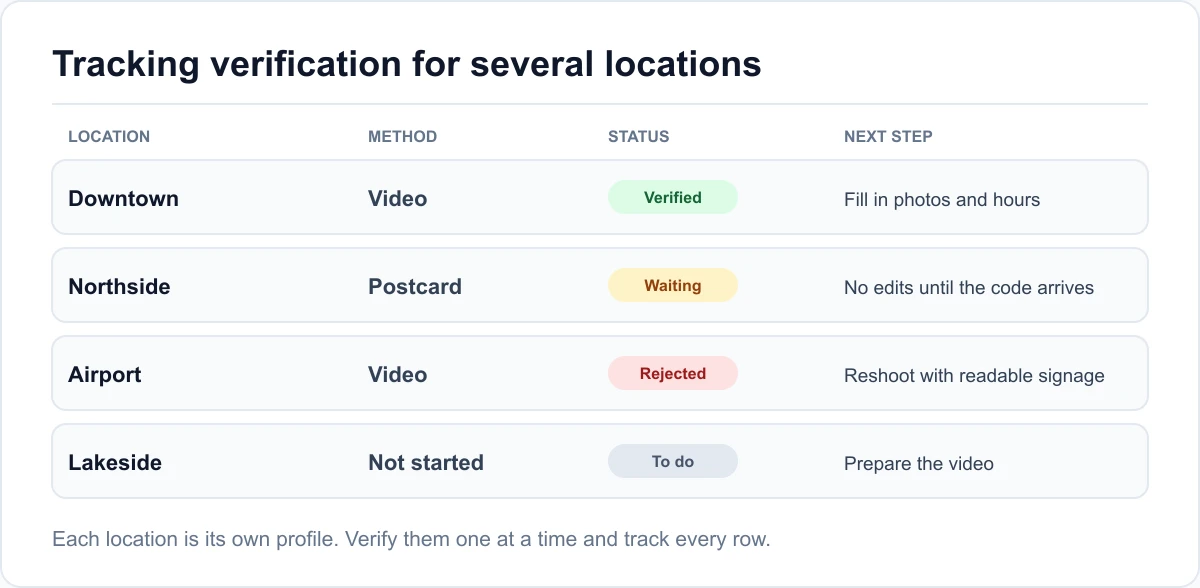
Each location is a separate profile with its own verification, and locations that share an address or a phone can trip each other up. Verify them one at a time, keep a simple sheet of which are done, and do not rush by copying the same submission across them. Google offers ways to handle a large group, but the strategy for running many listings belongs to the multi-location SEO guide, and this section is only a pointer to it.
After you verify: confirm people can find you
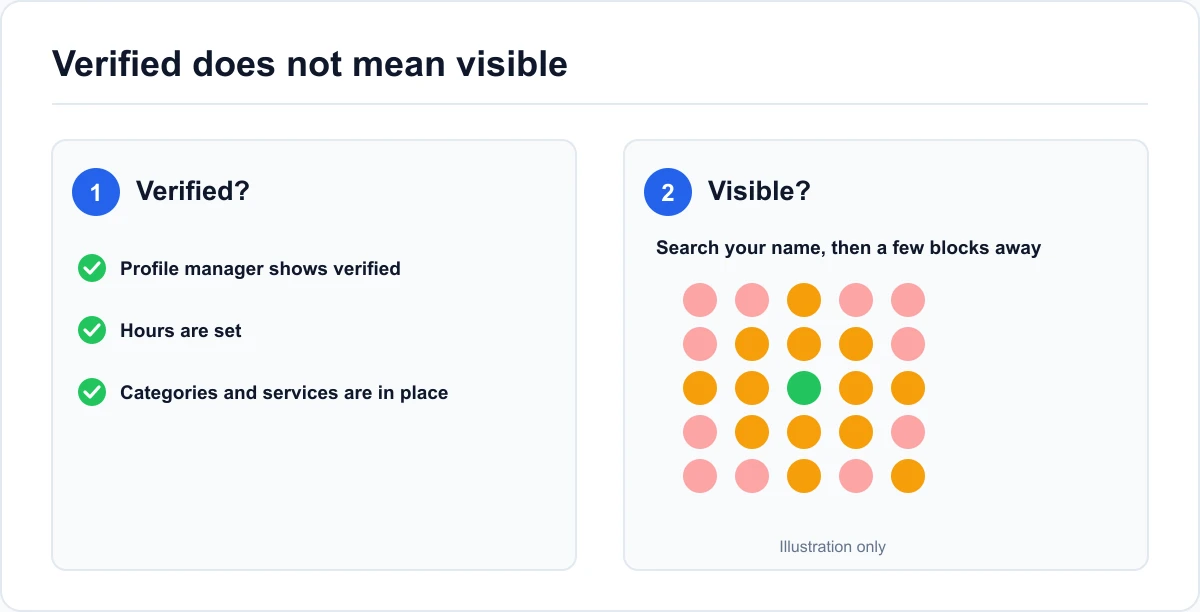
Verified does not mean visible. Ownership is one signal, and appearing in searches is another, so check both.
Check the listing itself
Search for your business by name on Google and on Maps, from a phone that is not signed in to your owner account. You should see the profile with its details, not a "claim this business" prompt or a missing card.
Then open the profile manager and confirm the status shows verified, and that hours, categories, and services are all in place.
Check it from the map
A profile that appears at your own address may not appear a few blocks away, and a single lookup hides that. A rank check across your service area runs the same search from a grid of points and shows where the listing appears and where it does not. One scan is a snapshot, so repeat it after you make changes.
The short version
Google Business Profile verification comes down to a few points:
- Google chooses the method, so use the one on your screen and do not hunt for another
- Video needs one continuous take showing the place and proof you manage it
- Postcards need patience, and no edits to the name, address, or category while they travel
- Failures have specific causes, so read the reason before you retry
- Verified is the start, and you still need to confirm the listing shows up on the map
Finish verification first, then fill in the profile, then check where it appears.
Questions people ask about verifying a profile
What does it mean to verify a Google Business Profile?
It means proving to Google that the business exists at the location given and that you are authorized to manage it. Until then, the profile's details do not show publicly, and you cannot fully manage reviews or edits.
Can I verify a Google Business Profile without a postcard?
Often yes. Many profiles are offered video, phone, email, or instant verification instead of a postcard. Which one you get depends on the business type, the location, and what Google already knows about you.
How do I verify my business on Google with video?
Start verification from the profile, choose video if it is listed, and record one uninterrupted take. Show the surroundings, the signage, the interior or working area, and proof that you manage the business, then upload it.
How long does verifying a profile take?
It ranges from seconds for instant verification to several days or more for video or postcard. Check the timelines on Google's verification help page, since they change.
Why is my verification not working?
Common reasons include a rejected video, a postcard that never arrived, edits made while a code was pending, a code that expired, or a business that does not meet Google's guidelines. Read the reason shown, fix that specific point, and try again.
Can I change my business name or address during verification?
Avoid it. Changes while an attempt is pending can cause the data to stop matching what Google is checking. Finish verification first, then edit.
Do I need to verify a service-area business?
Yes. Service-area businesses that hide their address still go through verification, and video is a likely route since there may be no storefront to receive a postcard.
What happens after my profile is verified?
The details become visible on Google Search and Maps, and you can fully manage the listing. Then check that it appears where customers actually search, not only at your own address.